

Content Logic is in Beta. Select a project, then open it from Settings > Content Logic.
Why use Content Logic?
Consistency at scale
Define a content pattern once. Apply it to hundreds or thousands of products automatically.
Dynamic content
Use formulas and conditions so content adapts to each product’s attributes, brand, or category.
Channel optimization
Reshape content per channel: truncate for marketplaces, format for your webshop, strip HTML for feeds.
Less manual work
Stop copying and pasting. Let variables and conditions generate the content for you.
Content Logic needs your project to have categories and product attributes set up. Brand variable values are matched against each product’s brand field; category variables map to your categories.
How variables work
Every variable uses the{{scope.key}} syntax. Type {{ in any formula-enabled field to open the autocomplete dropdown and browse what is available.
The seven scopes
Content Logic groups variables into seven tabs. Each tab shows a count badge when it holds variables, so you can see at a glance which scopes you use.Default variables
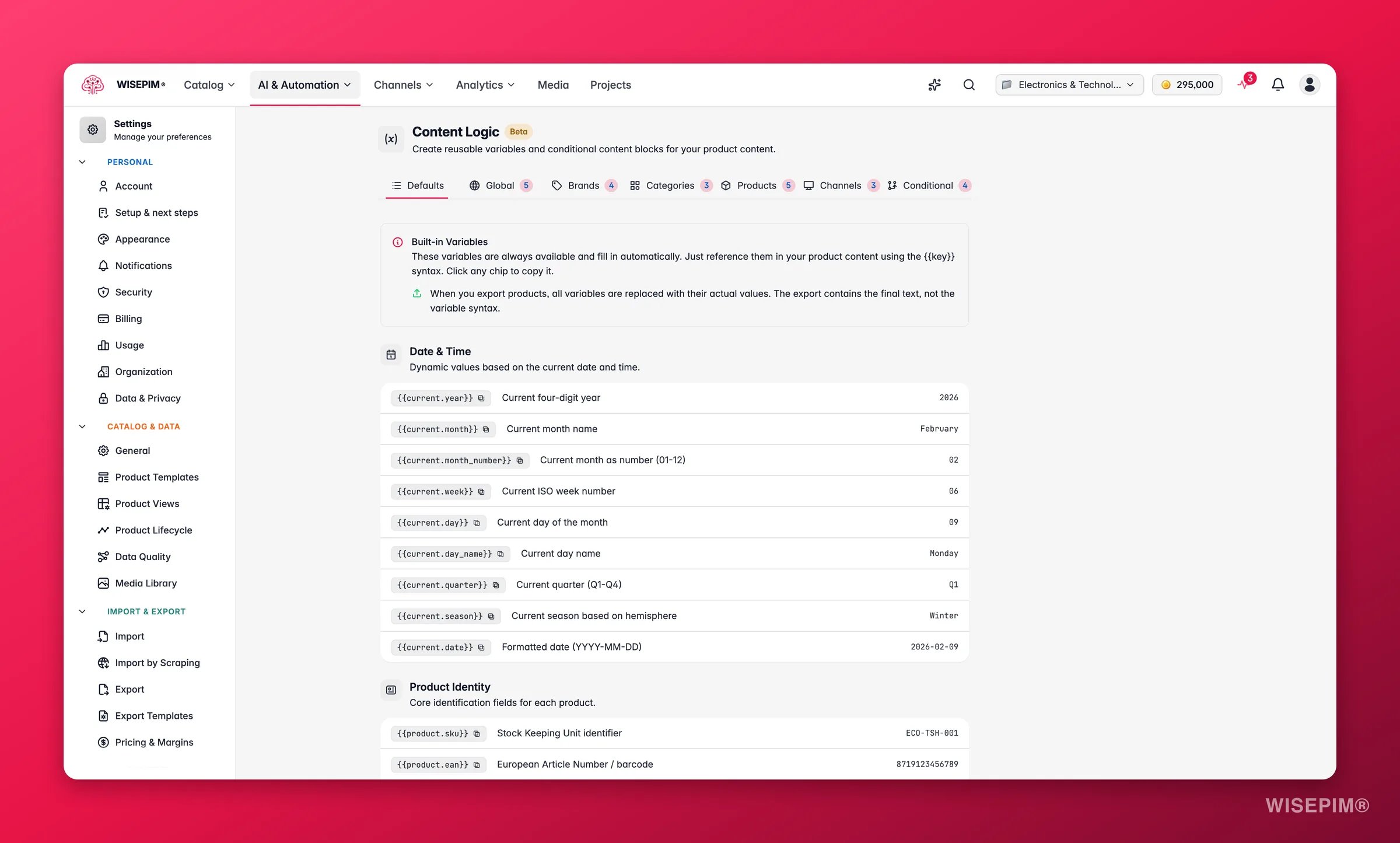
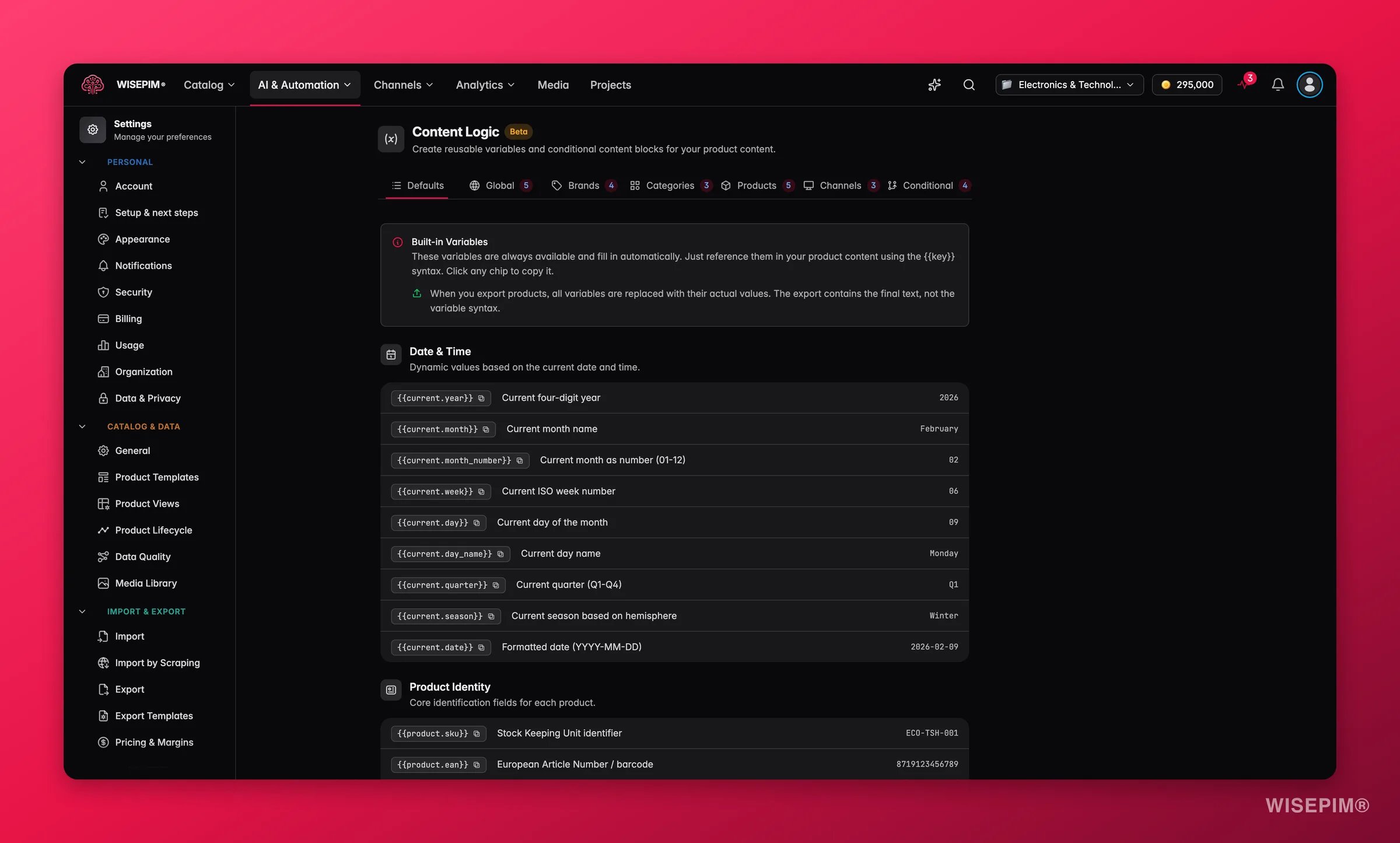
View examples and use cases → The Defaults tab is a read-only list of every built-in variable. They resolve automatically, so you never create them. Your custom product attributes appear here too, referenced as{{attribute.your_attribute_code}}.
Date & time
Date & time
Product identity
Product identity
Product content
Product content
Pricing
Pricing
Physical properties
Physical properties
Inventory
Inventory
Shipping & customs
Shipping & customs
Status & scores
Status & scores
Store info
Store info
Global variables
View examples and use cases → Global variables are key-value pairs that stay the same on every product. Use them for company-wide values you reference often.1
Open the Global tab
Go to Settings > Content Logic and click Global.
2
Add a variable
Click Add Variable. Enter a key (letters, numbers, and underscores only) and a value. The value field supports autocomplete. Type
{{ to reference other variables.3
Use it in content
Reference it as
{{global.your_key}} anywhere variables are supported.Common global variables
Brand variables
View examples and use cases → Brand variables let you define a set of fields and fill in different values per brand or product line: messaging, compliance statements, or specifications that one part of your catalog needs and another doesn’t. The values are matched against each product’s brand field - the picker on the Brands tab lists the distinct brand values found across your products, and each product resolves{{brand.*}} through the brand set on it. The match is by name (case-insensitive), so a brand entry named “Fischer” applies to every product whose brand field is “Fischer”. If no products carry a brand yet, you can type brand names in manually.
1
Define the fields
On the Brands tab, create the fields you want. Each field has a key, a label, and a type (text, long text, or URL).
2
Fill in values per brand
Select a brand from the dropdown and fill in the fields. A progress indicator shows how many of that brand’s fields are filled, for example “3/5 filled”.
3
Reference in content
Use
{{brand.your_key}} in product content. WISEPIM resolves it from each product’s brand.Field types
Example fields
A product from Brand A gets “Innovation for Life” for
{{brand.tagline}}. A product from Brand B gets “Built to Last”.
Category variables
View examples and use cases → Category variables work like brand variables, but they are scoped to product categories. Define a set of fields, then fill in values per category.Example fields
Reference them as
{{category.material}}, {{category.care_instructions}}, and so on. Each product gets the values for its primary category.
Product variables (computed)
View examples and use cases →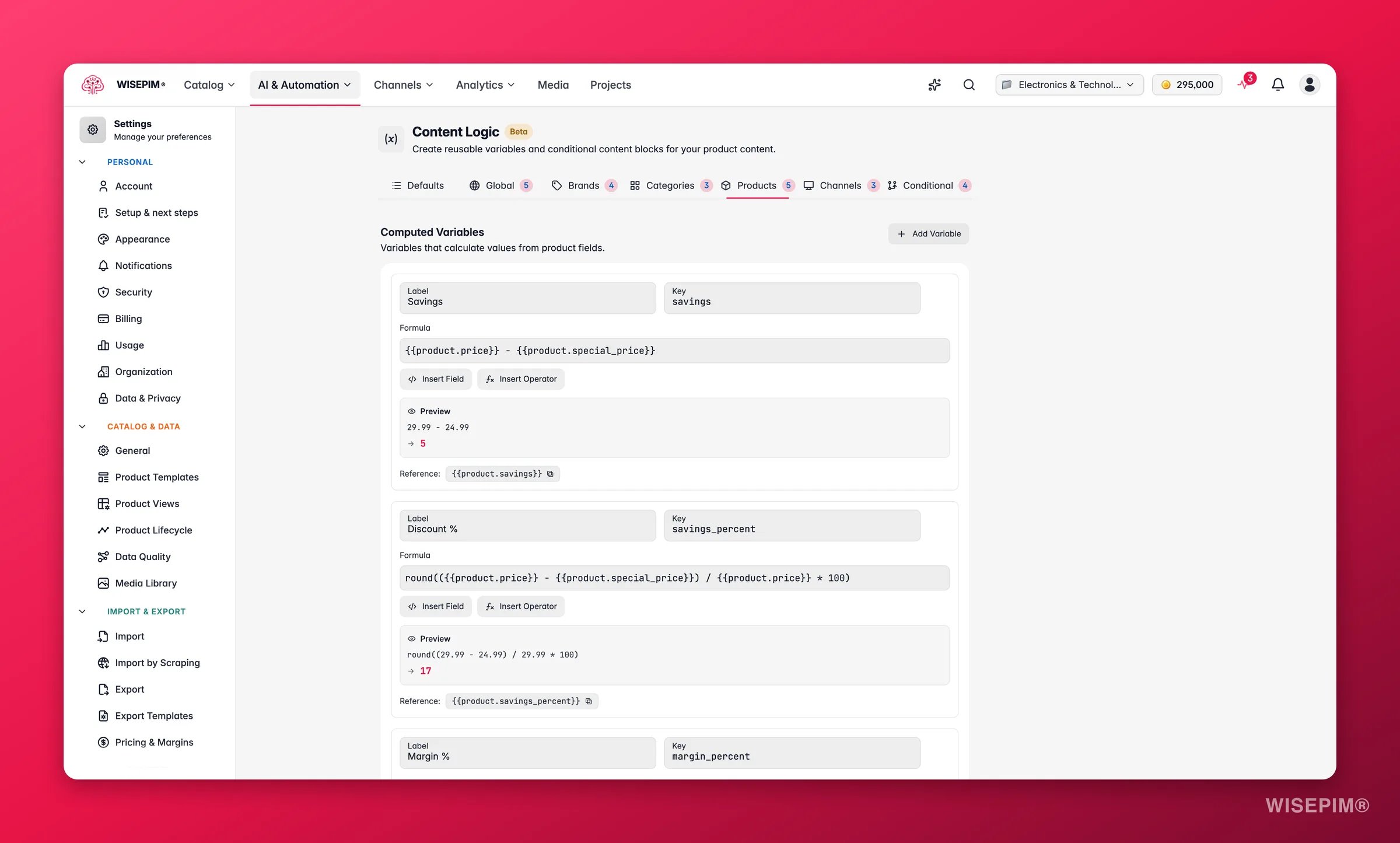
1
Open the Products tab
Go to Settings > Content Logic and click Products.
2
Add a variable
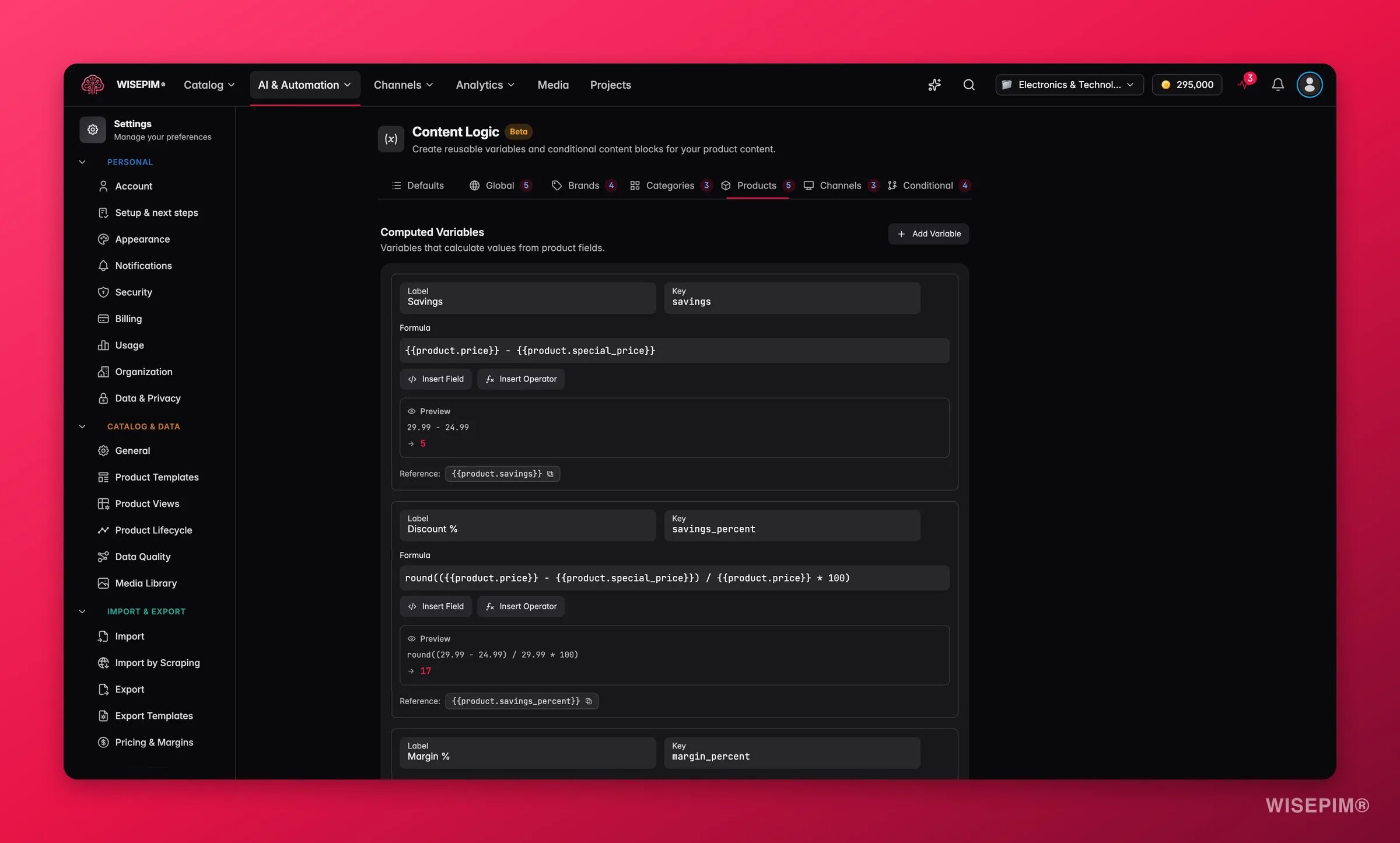
Click Add Variable. Enter a label, key, and formula. Use Insert Field and Insert Operator to build it, or type
{{ for autocomplete.3
Check the preview
The live preview resolves your formula with sample data, so you can verify the output before saving.
Formula operators
Arithmetic
Arithmetic
Math functions
Math functions
Text functions
Text functions
Use an operator as text
To show an operator character as literal text, put a backslash in front of it:Example formulas
Price including VAT:- Key:
price_incl_vat - Formula:
round({{product.price}} * 1.21 * 100) / 100 - Result: 120.99 →
€146.40
- Key:
margin_display - Formula:
round(({{product.price}} - {{product.cost}}) / {{product.price}} * 100) - Result:
42%
- Key:
display_name - Formula:
{{product.name}} ({{product.sku}}) - Result:
Stainless Steel Hex Bolt M10x50 (SS-HB-M1050)
- Key:
price_per_kg - Formula:
round({{product.price}} / {{product.weight}} * 100) / 100 - Result:
€15.29/kg
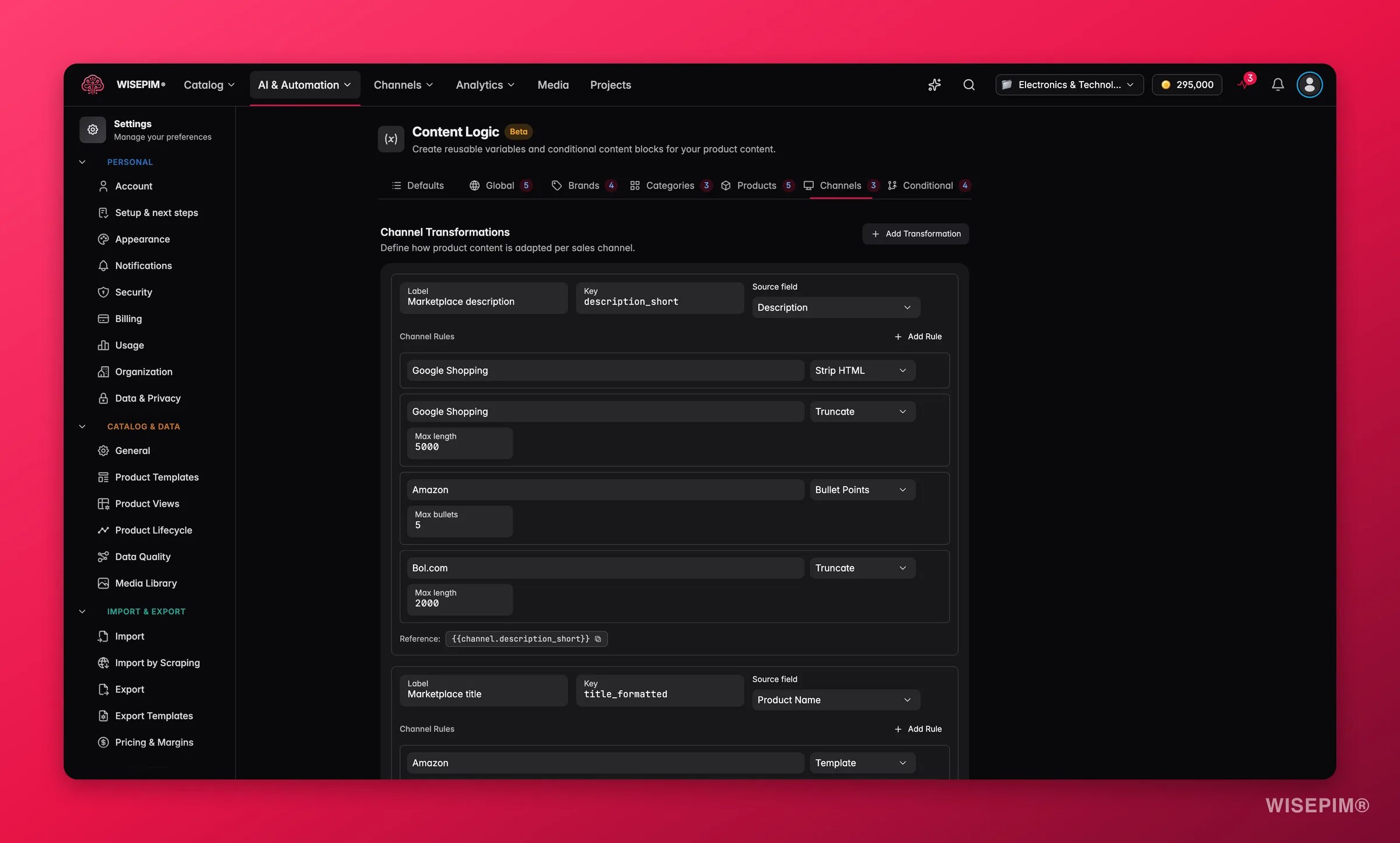
Channel variables
View examples and use cases →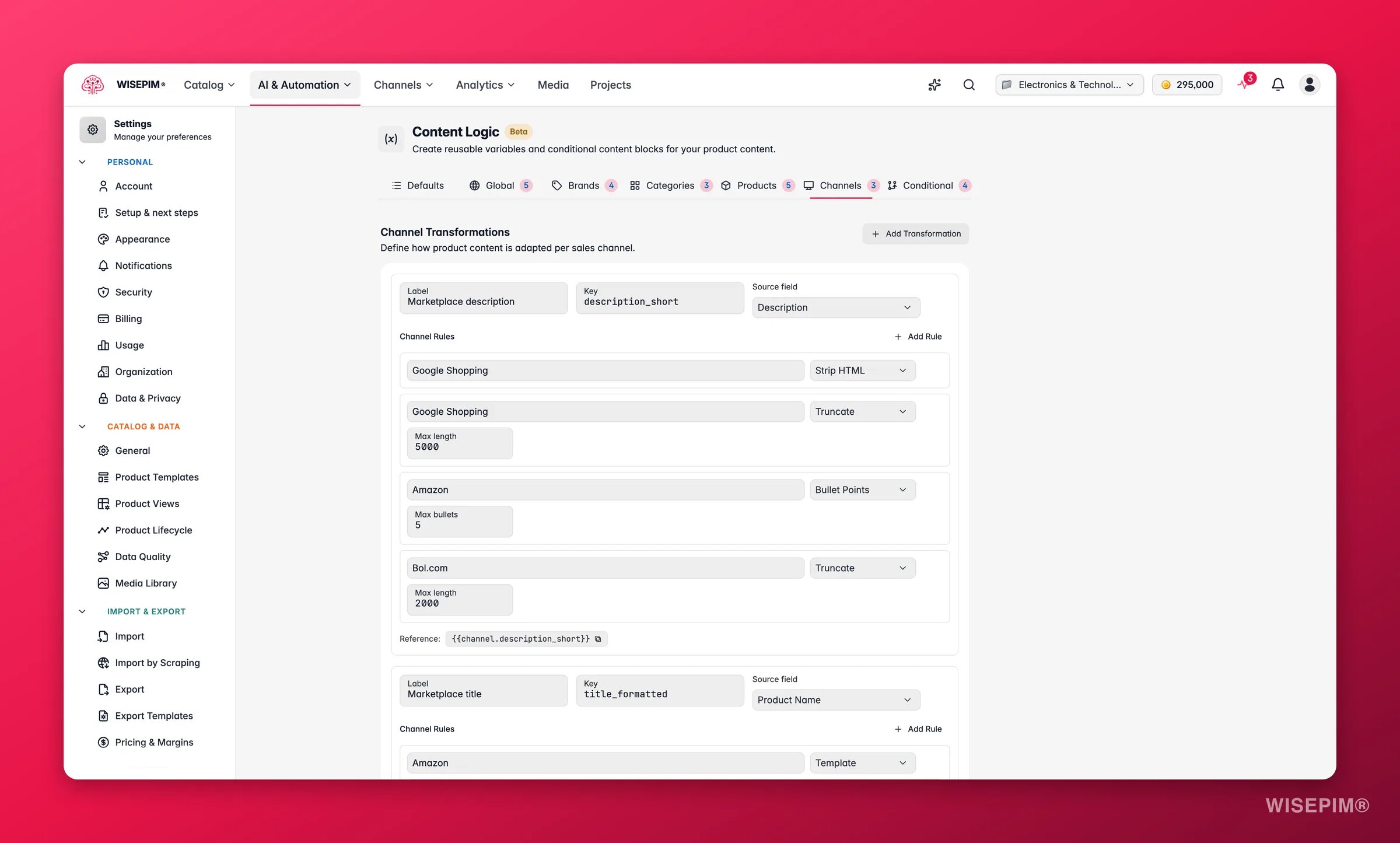
1
Open the Channels tab
Go to Settings > Content Logic and click Channels.
2
Add a variable
Click Add Variable. Enter a label and key, then pick the source field to transform.
3
Add transformation rules
Add one or more rules. They run in order: the output of one becomes the input for the next.
Source fields
Description, Short Description, Product Name, Meta Title, Meta Description, Features.Transformation rules
Example channel variables
Amazon short description:- Source: Description
- Rules: Strip HTML → Bullet Points (max: 5) → Truncate (500)
- Result: Your full HTML description becomes a clean 5-bullet summary, capped at 500 characters.
- Source: Product Name
- Rules: Template (
{{value}} - {{product.brand}} - Buy at {{global.company_name}}) → Truncate (150) - Result: “Stainless Steel Hex Bolt M10x50 - Fischer - Buy at Industrial Supplies BV”
- Source: Description
- Rules: Strip HTML → Truncate (2000)
- Result: Full description with formatting removed, capped at 2000 characters.
Conditional blocks
View examples and use cases → Conditional blocks show different content based on product data. They work like if/else statements for your content.1
Create a block
On the Conditional tab, click Add Block. Give it a name and key.
2
Define conditions
Pick a product field, choose an operator, and enter a value. Add more conditions and combine them with AND or OR.
3
Write content for each branch
Enter the content for when the conditions are met (then). Add optional else if branches for other cases, and an optional else for the fallback.
Condition operators
Conditions can reference any product field, custom attribute, or date/time variable. The field selector groups them by category (Product Identity, Content, Pricing, Physical Properties, Inventory, Shipping, Status, Date & Time) and includes your custom attributes.Example conditional blocks
Free shipping banner:- Key:
free_shipping - IF
product.pricegreater than50→Free shipping included. - ELSE →
Shipping calculated at checkout.
- Key:
stock_message - IF
product.stock_quantityless than5ANDproduct.stock_statusequalsin_stock→Only {{product.stock_quantity}} left, order soon. - ELSE IF
product.stock_statusequalsout_of_stock→Currently out of stock. {{global.restock_text}} - ELSE →
In stock and ready to ship.
- Key:
seasonal_promo - IF
current.seasonequalsWinter→Winter Sale: save {{product.savings_percent}}% today. - ELSE IF
current.seasonequalsSummer→Summer clearance: {{product.savings_percent}}% off. - ELSE → (empty, no promo outside sale seasons)
- Key:
lead_time - IF
product.categoryin_listCustom Orders, Made to Order→Lead time: 4–6 weeks. Contact us for expedited options. - ELSE IF
product.stock_quantitygreater than0→In stock. {{global.lead_time_text}} - ELSE →
Available on backorder. {{global.backorder_lead_time}}
- Key:
hazmat_notice - IF
product.is_dangerous_goodis_true →⚠ Hazardous material. Special shipping restrictions apply. {{brand.hazmat_handling}} - ELSE → (empty)
Where you can use variables
Once defined, you can reference Content Logic variables in:- Bulk editing: use variables in Find and Replace, Append/Prepend, and Set Field Value to generate content at scale
- AI enrichment prompts: add product context, brand guidelines, and category instructions to your prompts
- Export templates: format output for different channels and platforms
- Automations: reference variables in actions that generate or change content
Save your changes
Content Logic detects when you make a change. A save bar appears at the bottom of the page:- Click Save to keep your changes.
- Click Undo to revert to the last saved state.
Best practices
Start with Globals
Begin with global variables for shared values like company name, shipping policy, and contact info. They are quick to set up and useful right away.
Use descriptive keys
Name variables clearly:
warranty_text, not var1. You reference these keys everywhere, so keep them readable.Test with real products
After you create a block or formula, check it against different products. Use the live preview to catch issues early.
Layer your scopes
Combine scopes in one formula: globals for shared text, brand variables for manufacturer details, category variables for product-type details.
Related
Bulk editing
Apply variables across many products at once with bulk actions.
Enriching products
Inject variables into AI prompts for richer, on-brand content.
Export templates
Format channel-ready output using your Content Logic variables.
Automations
Reference variables in automated actions that generate content.