

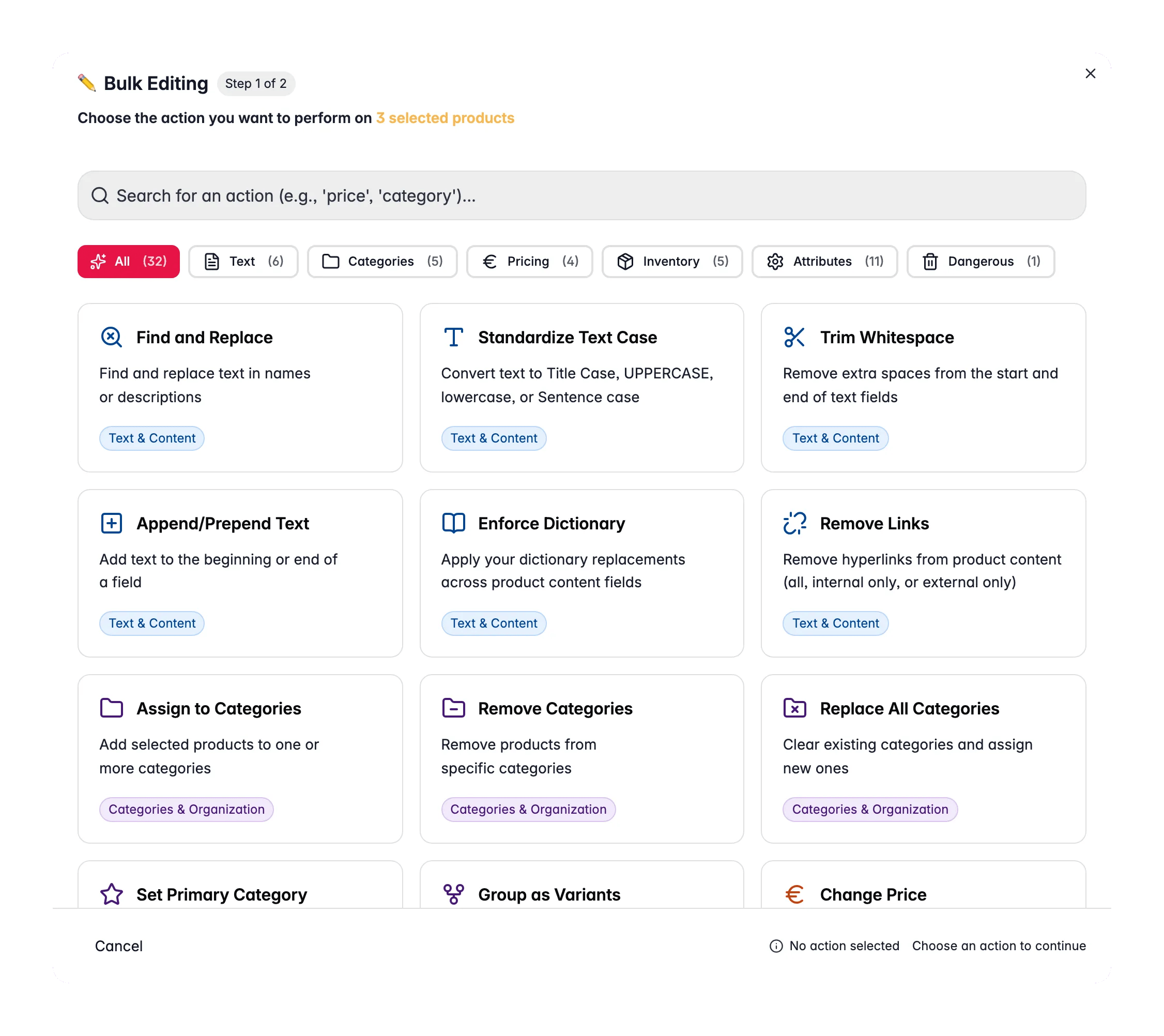
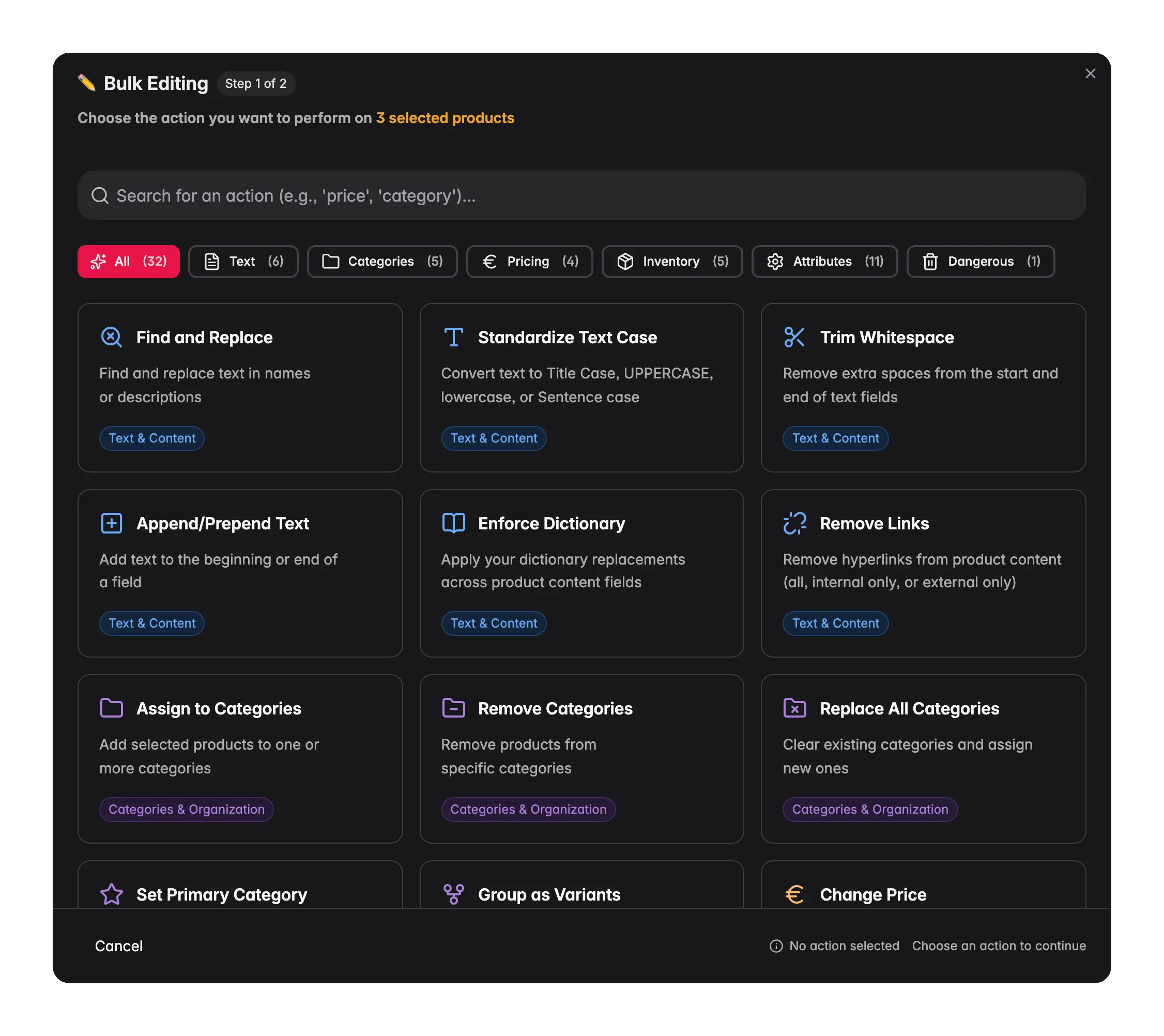
Apply a bulk action
1
Select your products
Check individual products, or use filters and select all matching results.
2
Click Bulk Editing
This opens the bulk editing modal.
3
Pick an action
Search by name, or browse the actions by category.
4
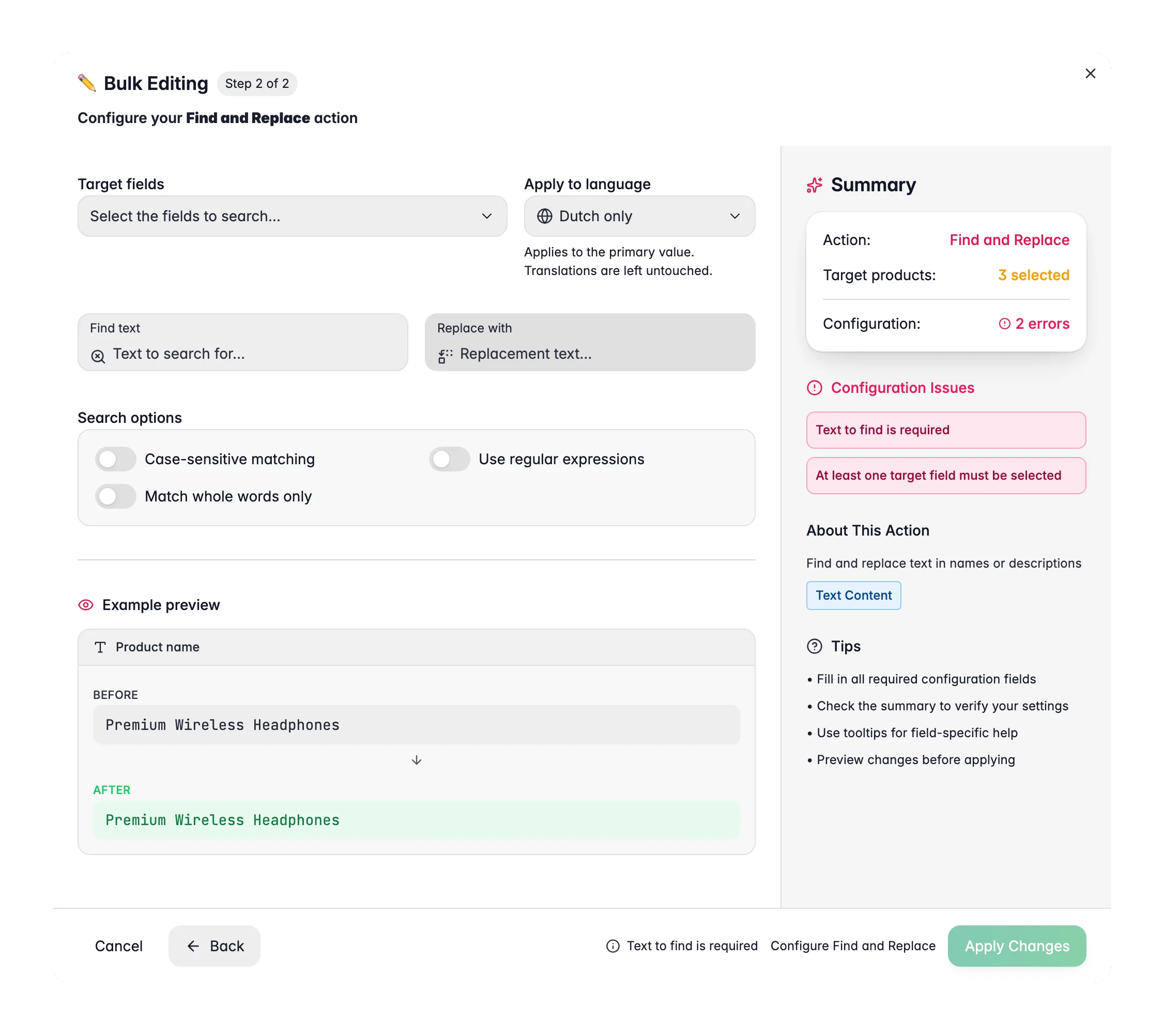
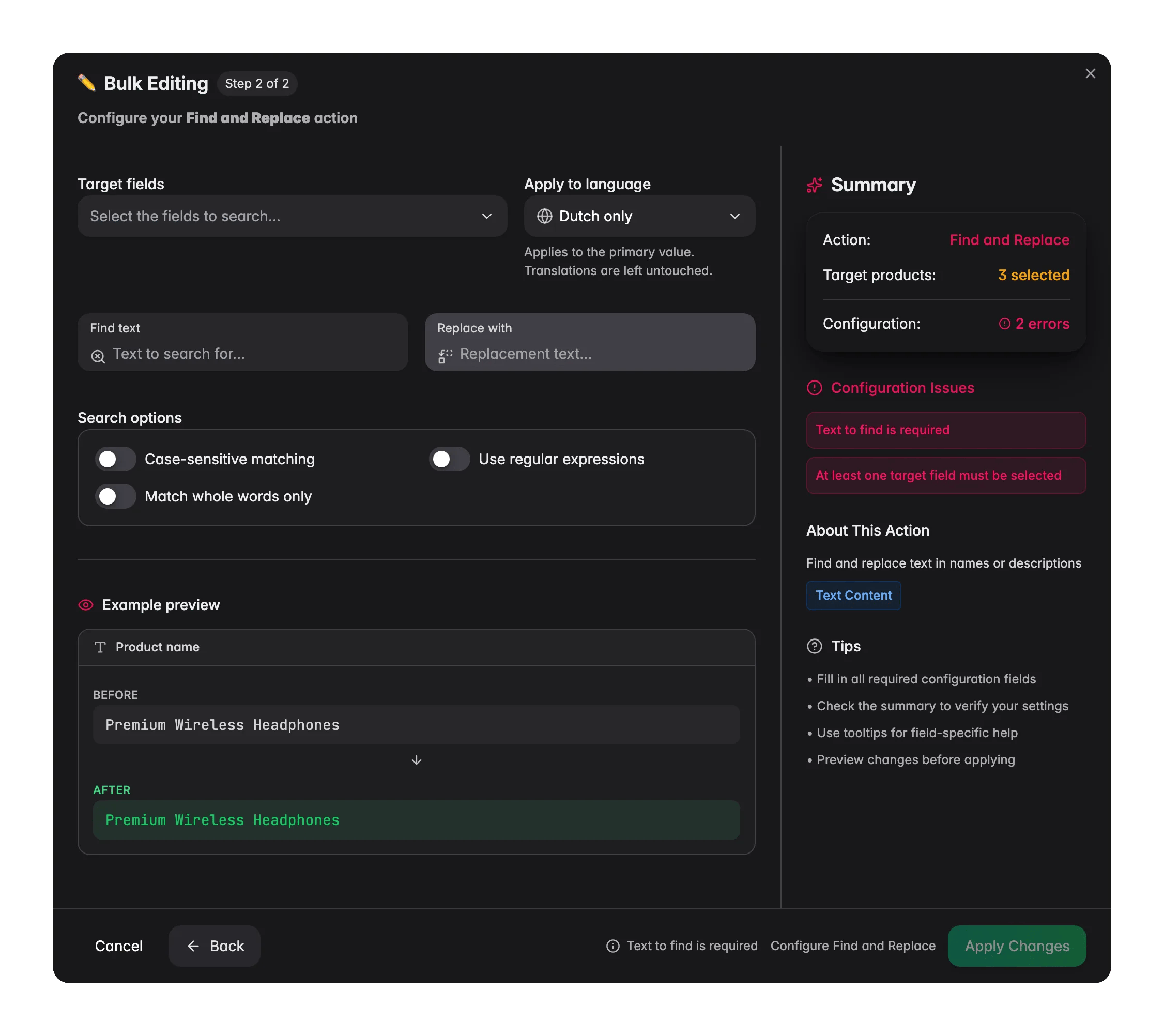
Configure and apply
Set your parameters, then run the action.
You can apply a bulk action to the products you checked, or to every product that matches your current filters, even products on other pages.
Every option you set on a bulk action is now applied exactly as configured, including the fine print like “skip products that already have this”, “keep existing values”, rounding, and minimum and maximum limits. Bulk actions also run noticeably faster, so large selections finish sooner.
Available actions
WISEPIM ships with 33 bulk actions, grouped by what they change. Open any card for full details.Text and content
Find and Replace
Search and replace text across product names, descriptions, or reviewed descriptions. Supports case-sensitive matching.
Standardize Text Case
Convert text to Title Case, UPPERCASE, lowercase, or Sentence case across one or more fields.
Trim Whitespace
Remove leading and trailing spaces from text fields. A quick cleanup for imported data.
Append or Prepend Text
Add text to the start or end of any text field across your selection.
Enforce Dictionary
Apply your approved terminology across product content so wording stays consistent.
Remove Links
Strip hyperlinks from descriptions and other content, all links or just internal or external.
Categories and organization
Assign to Categories
Add products to one or more categories without removing existing assignments.
Remove Categories
Remove products from specific categories.
Replace All Categories
Clear existing category assignments and replace them with new ones.
Set Primary Category
Choose which category is the primary one for each product.
Group as Variants
Attach the selected products as variants of one parent product.
Shop sync
Switch product sync on or off per connected shop across a whole selection.
Pricing and discounts
Change Price
Adjust prices by percentage or fixed amount. Works for markups, discounts, and cost changes.
Set Special Price
Set promotional prices with optional date ranges for flash sales and time-limited offers.
Apply Volume Discounts
Assign or remove volume discount rules across your selection.
Update Cost and Margins
Set cost prices and calculate profit margins.
Inventory and shipping
Update Stock
Set an exact stock quantity, or add to and subtract from current stock.
Set Stock Status
Mark products as in stock, out of stock, or on backorder.
Update Weight
Set product weight for shipping calculations.
Set Dimensions
Update length, width, and height for your products.
Shipping Settings
Update HS codes, country of origin, and shipping flags.
Attributes and custom fields
Update Status
Set the review status of products to Ready, Pending, or Needs Review.
Change Visibility
Show or hide products on your storefront and connected channels.
Set Attribute Value
Set a specific value for any product attribute across your selection.
Set Field Value
Set any default product field to a specific value, or use a formula.
Numeric Operations
Run calculations on numeric attributes: add, subtract, multiply, divide, or set a minimum or maximum value.
Convert Numbers
Round, truncate, or do math on built-in numbers like price, weight, and stock.
Clear Attribute Values
Remove values from specific product attributes.
Change Unit of Measure
Change units across products, with optional value conversion.
Copy Field Values
Copy values from one field into another and keep the original.
Move Field Values
Move values from one field to another and clear the source field.
Recalculate Data Quality
Recalculate quality scores, completeness, and recommendations for your selection.
Danger zone
Delete Products
Permanently delete selected products. This is irreversible, so you confirm before it runs.
Tips for safe bulk edits
- Start small. Test an action on a handful of products first. Check the result before you apply it to your full catalog.
- Filter first. Narrow your product list with filters before you run an action, so you only change the products you mean to.
- Watch the progress. Large operations run in the background. Track them in the Process Tracker.
Related
Managing products
Filter, sort, and select products before you bulk edit them.
Enriching products
Use AI to fill in titles, descriptions, and attributes at scale.
Importing products
Bring products into WISEPIM from CSV, Excel, or an integration.
Process Tracker
Monitor background jobs and check the status of large bulk edits.
Clean up a catalog you inherited
The bulk actions to run, in the right order, on someone else’s mess.