

Open Settings
1
Click your account icon
It sits in the top-right corner of the screen.
2
Select Settings
This opens the Settings hub with all available options.
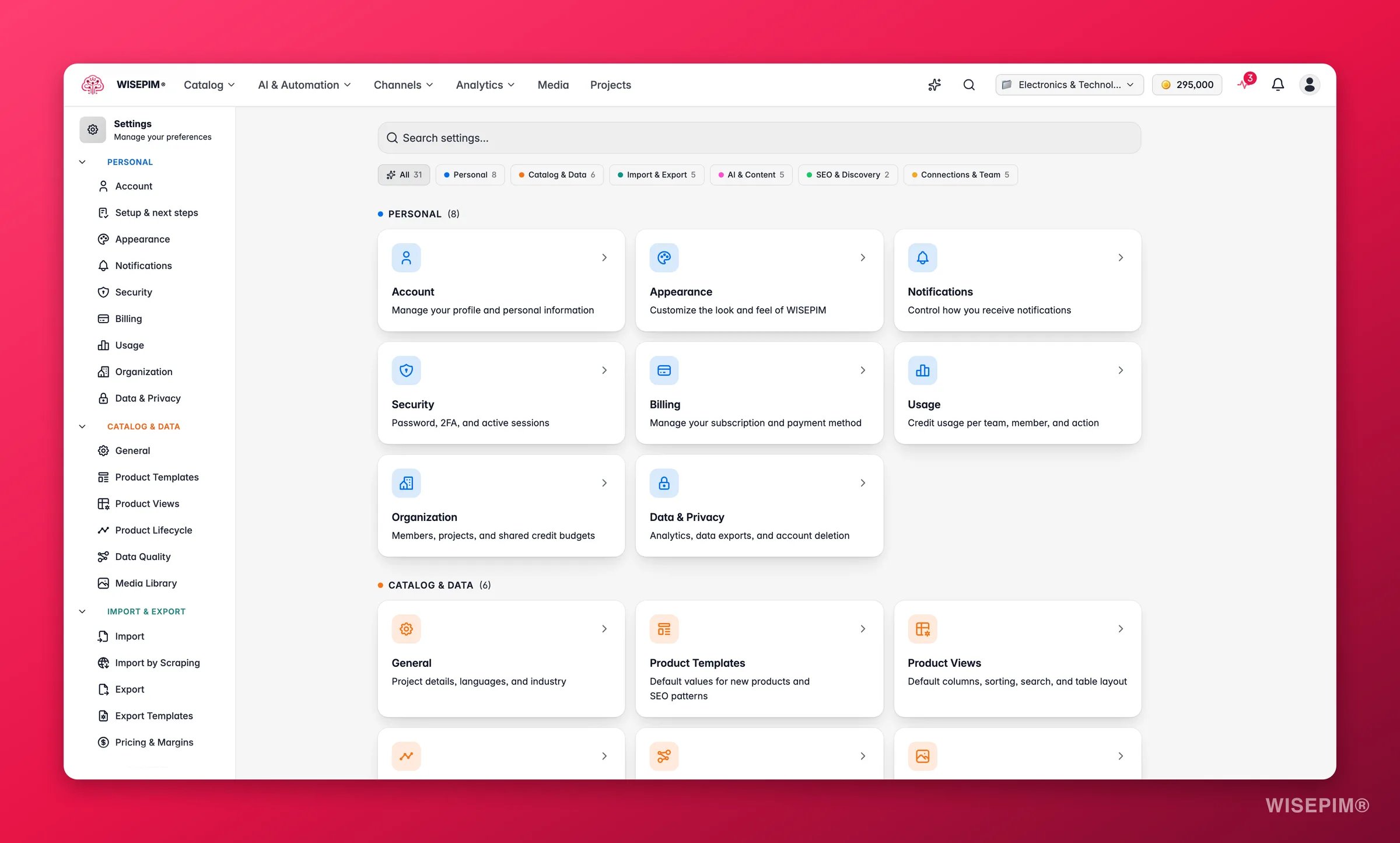
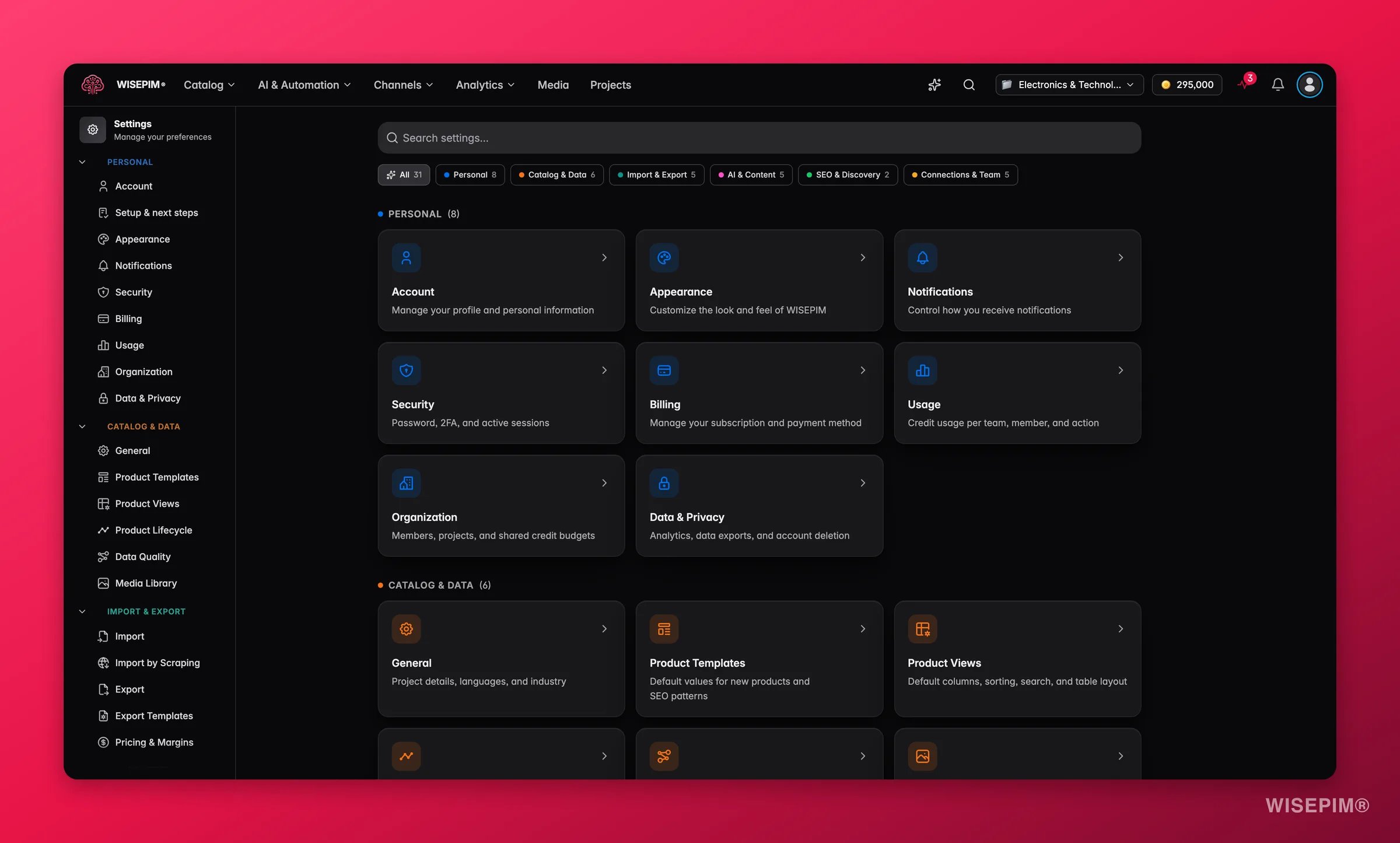
Moved the settings items around and want the old layout back? You can reset the settings navigation to its default order at any time.
Personal settings
These apply to your own account. They stay the same across every project you work on.Project settings
These appear only when a project is selected. They control how that one project behaves.Project settings are tied to the project you have open. Switch projects and you will see a different set of values.
Related
Account
Update your name, email, and profile details.
Product Views
Set the default table layout for your whole team.
Data Quality
Tune how WISEPIM scores the quality of your products.
Command Menu
Jump to any setting or page in a couple of keystrokes.