

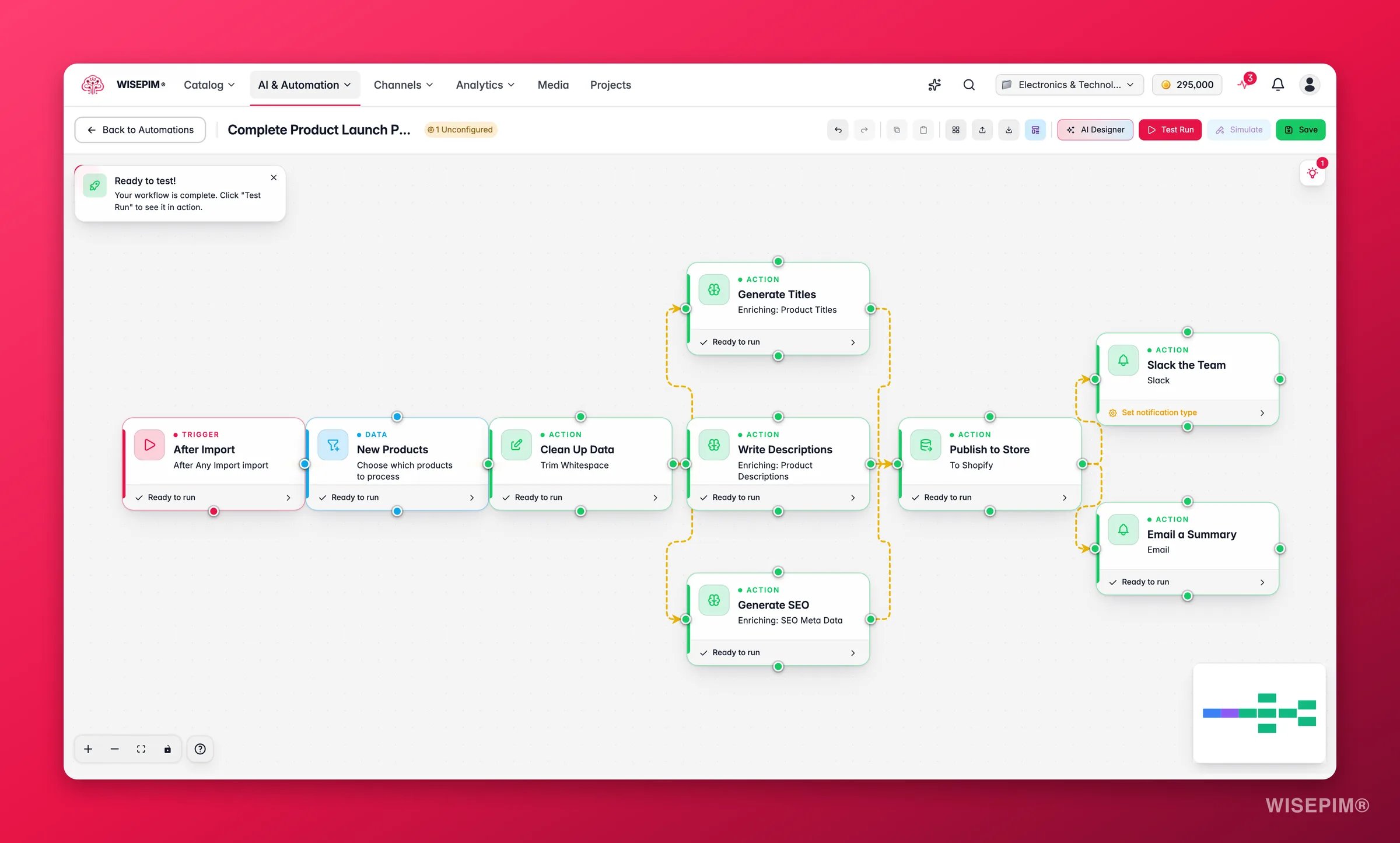
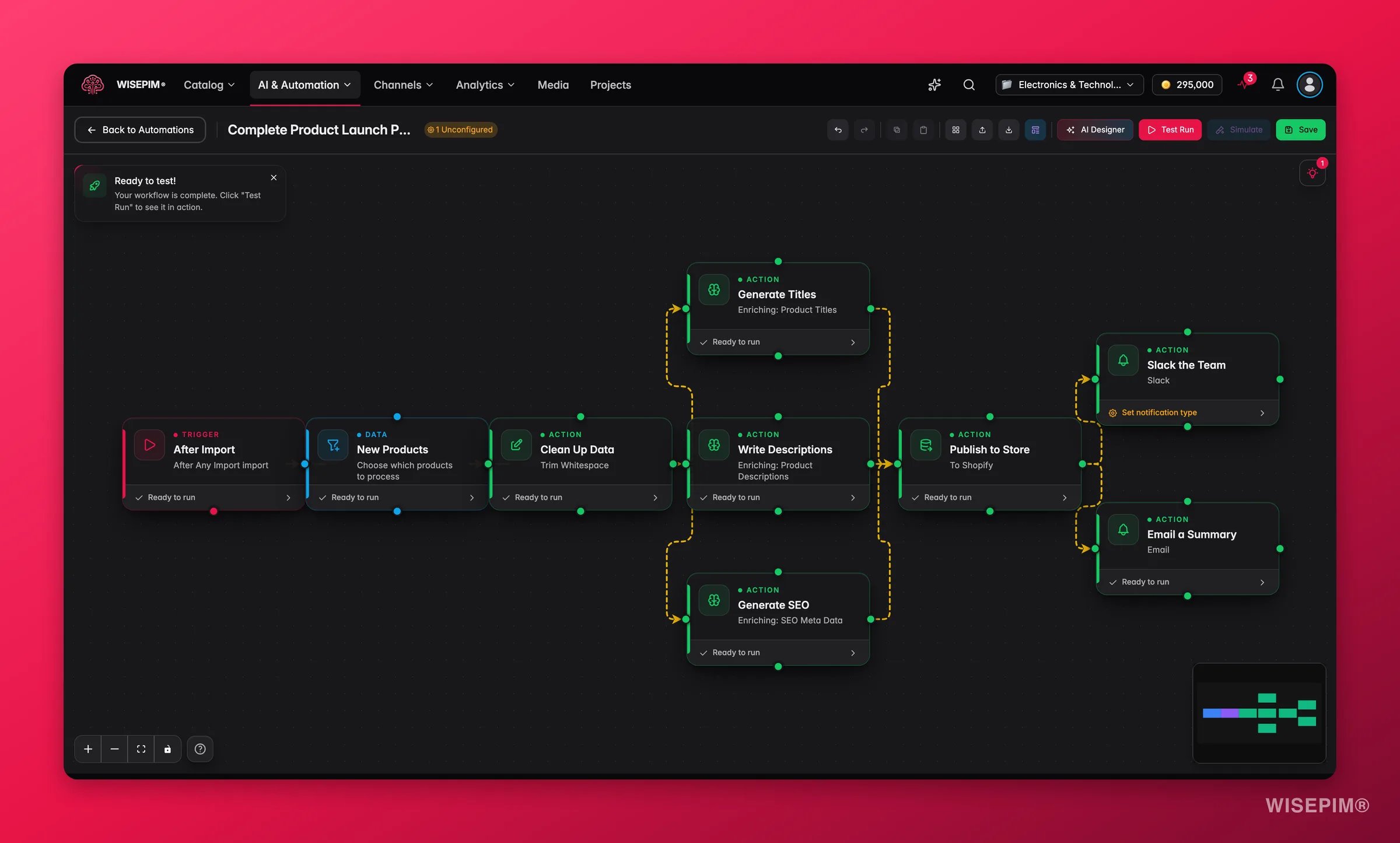
You build each automation in a visual editor by connecting nodes on a canvas. No coding required.
How an automation works
- Trigger: starts the run on a schedule, a webhook, a manual click, or an event
- Data nodes: pick and filter which products to process
- Action nodes: import, export, enrich, edit, or notify
- Logic nodes: branch, merge, and delay steps
Node types
Triggers
Start a run with one of 7 triggers: Schedule, Manual, Webhook, After Import, After Export, Product Updated, and Quality Changed.
Action nodes
Do the work with 6 actions: Import, Export, AI Enrichment, Bulk Edit, API Request, and Notification.
Data nodes
Select products, filter by conditions, and read external files.
Logic nodes
Branch on a condition, merge parallel paths, and delay steps.
Track performance on the dashboard
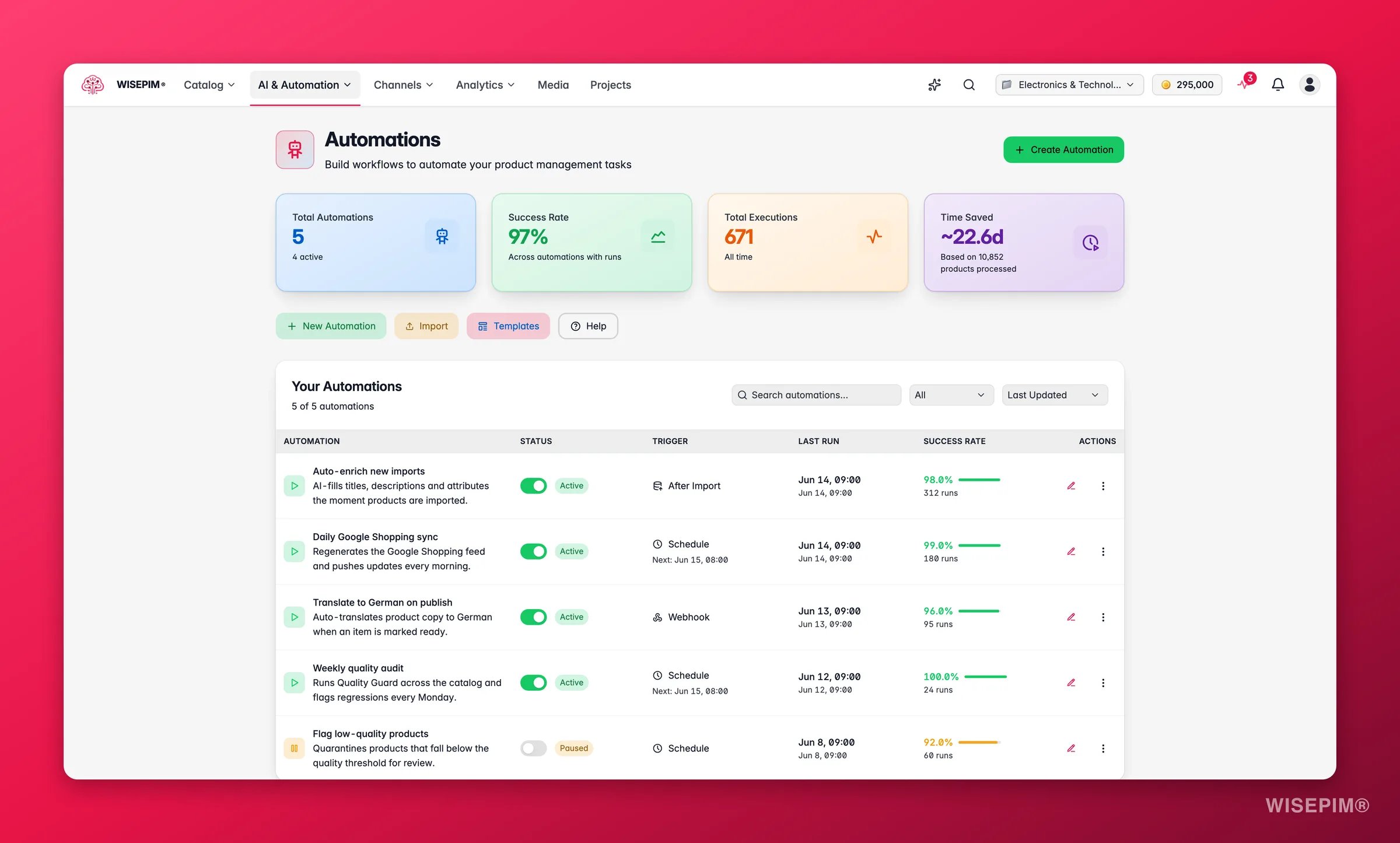
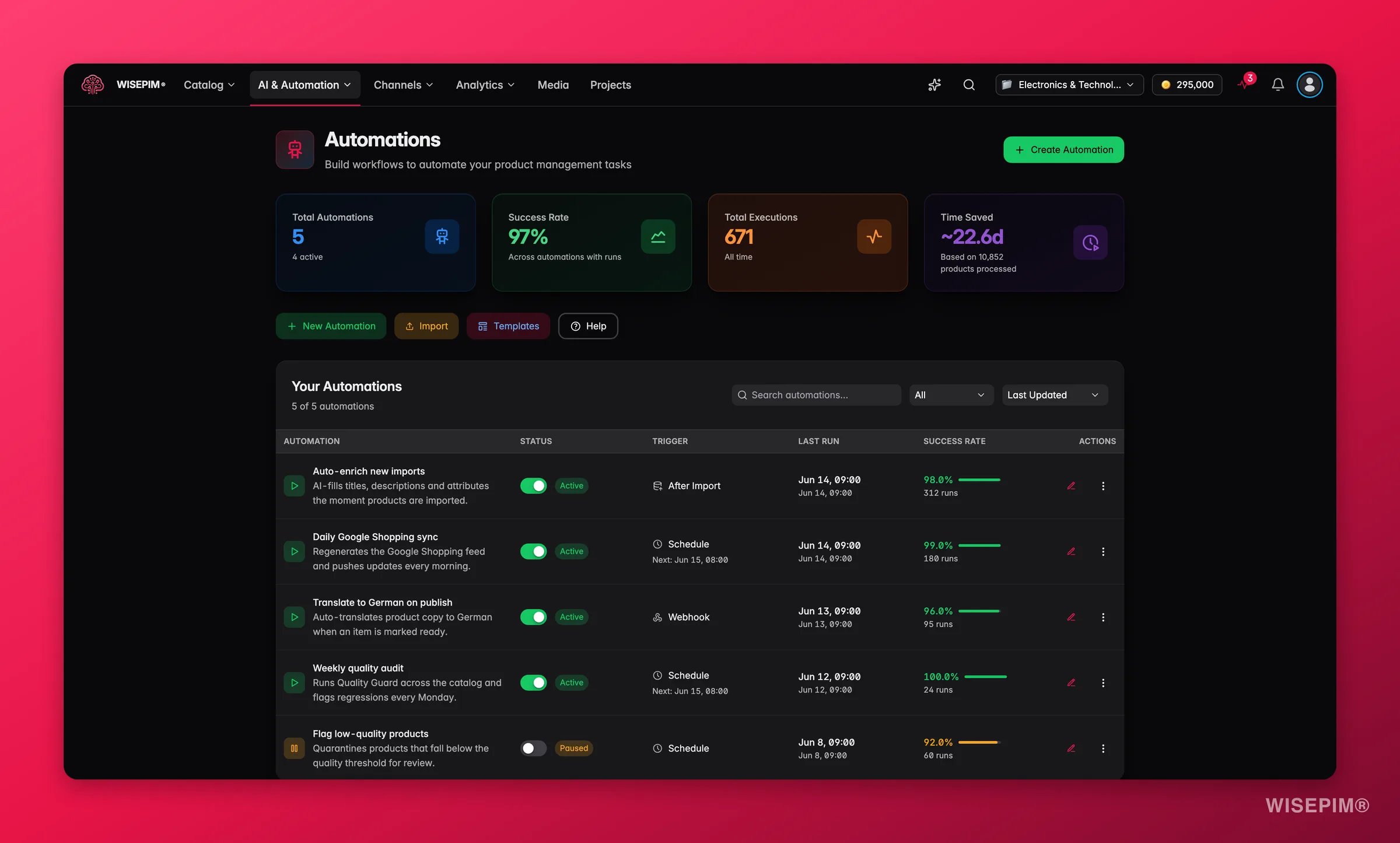
The automations page shows a live dashboard with four key metrics:- Total Automations: how many workflows you have built, and how many are active now
- Success Rate: the share of finished runs that succeeded. Only runs that ended as success, failed or partial count; dry runs, pending, running and cancelled runs are left out. A partial run counts as a success when at least 80% of its processed products went through, so a few Quality Guard rejections do not drag the rate down
- Total Executions: how many times your automations have run this month
- Time Saved: an estimate based on the number of products processed
Manage your automations
The automations list shows every workflow in one table. Search, filter, and sort to find what you need.Find an automation
- Search by name or description
- Filter by status to see only active, paused, or draft automations
- Sort by last updated, name, status, last run, or success rate
What each status means
Actions you can take
From the automations list, you can:- Edit: open the automation in the visual builder
- Run Now: trigger the automation immediately
- Duplicate: make a copy of an existing automation
- View History: see the execution history and logs
- Export: download as a JSON file to back up or share
- Delete: remove the automation for good
Related
Visual Builder
Learn the drag-and-drop builder and connect your first nodes.
Templates
Start from a pre-built workflow and be live in minutes.
Build a pipeline that runs itself
Promote the manual enrichment run you already do into an automation with a safety net.