

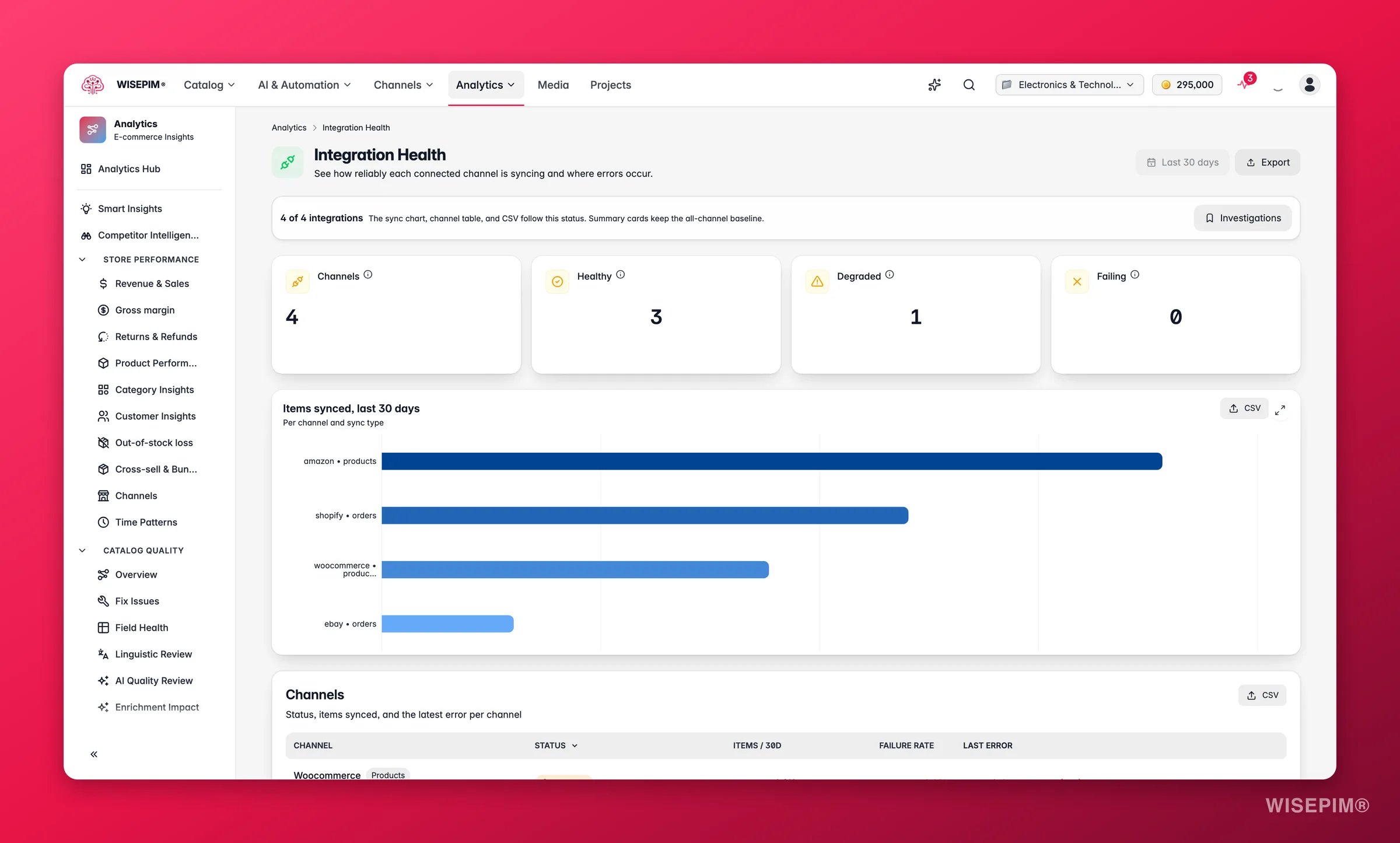
This report reflects your connected channels and their sync history over the last 30 days. Connect your platforms under Integrations to populate it. The date-range selector is not available here, integration health is always shown for the rolling 30-day window.
What you see
What good looks like
The per-channel failure rate is the key signal to watch. The report uses these thresholds to color the failure rate:
Items synced is a secondary health check: a channel with a low item count relative to your catalog size may be syncing less data than expected, even if its failure rate is low.
Per-channel detail table
The table shows every connected channel with:- Channel name and sync type: import, export, or a specific data type (e.g., products, prices, stock).
- Last sync: shown as a relative timestamp (“2 hours ago”, “3 days ago”). A last sync of “never” means the integration has not completed a run since it was connected.
- Status chip: Healthy, Degraded, or Failing, colored to match.
- Items synced (30d): total records processed in the last 30 days. Use this to confirm syncs are moving the volume you expect.
- Failure rate: percentage of sync runs that produced an error. Color-coded by the thresholds above.
- Last error: the most recent error message, truncated. Hover to see the full message. This is the fastest way to diagnose what is wrong without logging into the platform.
Reading the results
- One channel failing, others healthy: the issue is isolated to that integration’s credentials, configuration, or the destination platform. Start with the last error message and credential check.
- Multiple channels degraded at the same time: may indicate a network issue, a backend overload event, or a change in your catalog that caused widespread validation failures (e.g., a bulk import that added products with missing required fields).
- Failure rate rising gradually: token expiry is a common cause; many platforms rotate API keys on a fixed schedule. A gradual rise rather than a sudden spike is the typical pattern.
- Items synced drops sharply: a sync may have succeeded (low failure rate) but pushed fewer items than usual, which can happen if a filter changed or the product selection narrowed. Worth investigating even if status shows healthy.
Merchant Center drift
For Google Merchant Center, WISEPIM does not only track whether the export ran. Every night it reads your listings back from Google and compares what Google is serving with what the exporter would send. Three fields are compared: title, price with its currency, and availability. The image Google holds and Google’s own item-level issues are captured alongside so you can see them, but they are not compared. A mismatch becomes a Channel drift alert in the alert feed, titled “Google is serving different data for ”. The drift panel shows the value In WISEPIM next to the value Live on Google Merchant Center and the most likely cause: the last sync failed, a change is pending the next sync, or unknown. Price and availability drift are critical, title drift is a warning. The scan runs for projects with a successful Merchant Center export in the last 14 days and covers up to 500 products per profile and 5 profiles per project per night. It waits while an export is running, and a value Google does not report counts as a match, so an empty field never shows up as drift.Act on what you find
A channel shows repeated API errors
A channel shows repeated API errors
Re-check the credentials for that integration and re-test the connection from the Integrations settings page. Expired tokens and rotated API keys are the most common cause of a sudden jump in failure rate. The last error message in the table usually confirms whether it is an authentication error (401/403) or a different type of failure. Outcome: restore a healthy sync and stop the channel accumulating stale data.
Validation failures keep appearing
Validation failures keep appearing
The channel is rejecting products that miss required fields, the last error message will usually name the offending field. Use Quality Guard to set channel rules that block non-compliant products before they sync, preventing the error from recurring. For a one-off fix, use bulk editing to fill the missing fields across the affected products. Outcome: eliminate recurring validation errors and keep the sync clean.
A channel's last sync was days ago
A channel's last sync was days ago
A stale last-sync timestamp means customers on that channel are seeing outdated product data. Check the Process Tracker for a failed or stuck job, then re-trigger the sync manually from the integration settings page. If the problem recurs, schedule syncs more frequently with an Automation and add a failure notification so you are alerted before the staleness compounds. Outcome: ensure channels stay up to date and customers see current prices and stock.
Items synced is lower than expected
Items synced is lower than expected
Review whether a product filter on the integration has changed, or whether a recent catalog change reduced the product selection. Open the integration settings under Integrations and verify the sync scope. If the filter is correct, the lower volume may reflect genuine catalog reduction rather than a sync problem. Outcome: confirm whether the drop is intentional or a misconfiguration.
Related
Supported Platforms
Connect and manage your channels.
Quality Guard
Stop non-compliant products before they sync.
Process Tracker
Watch live import, export, and sync jobs.
Automations
Schedule reliable, off-peak syncs.