

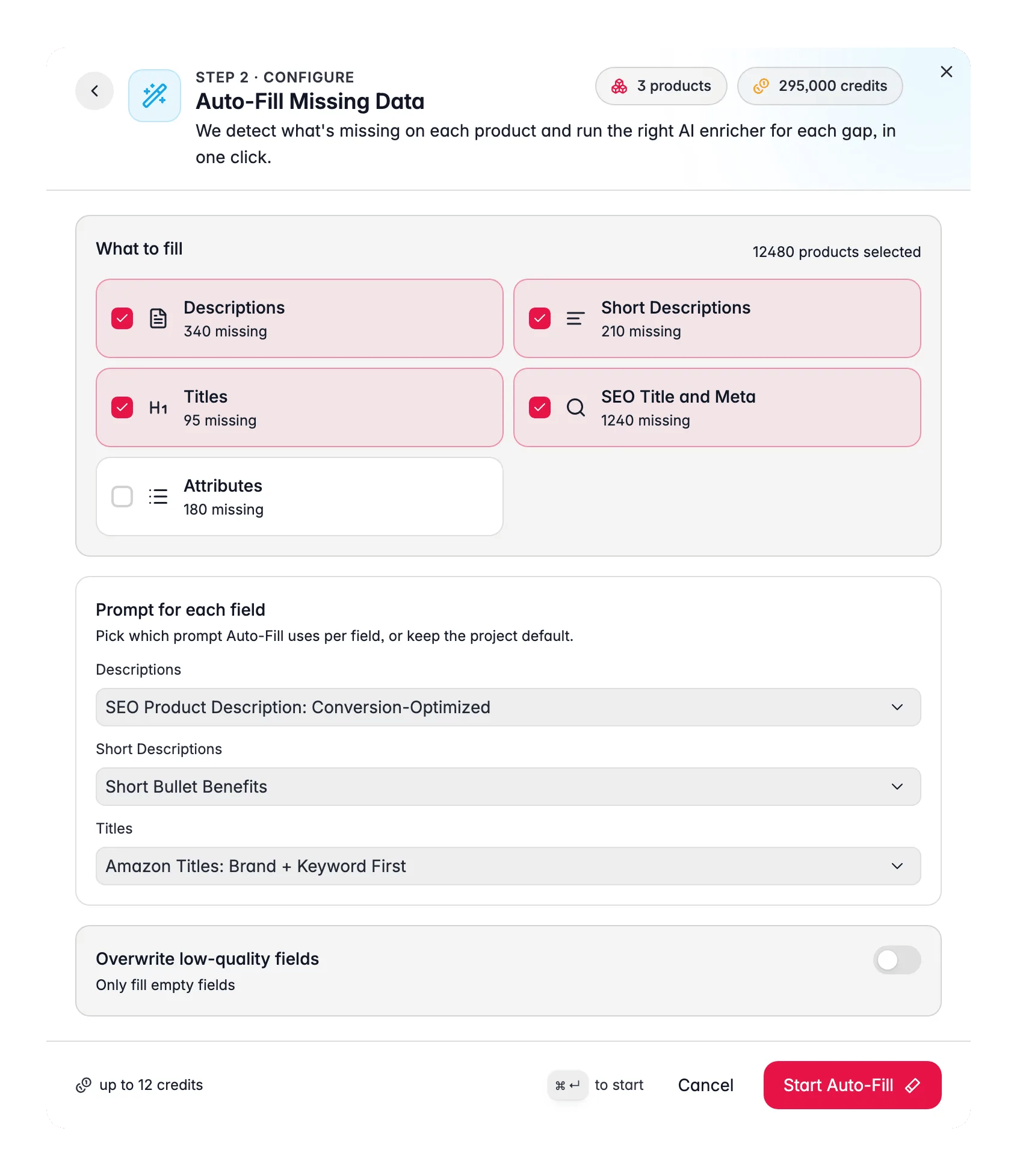
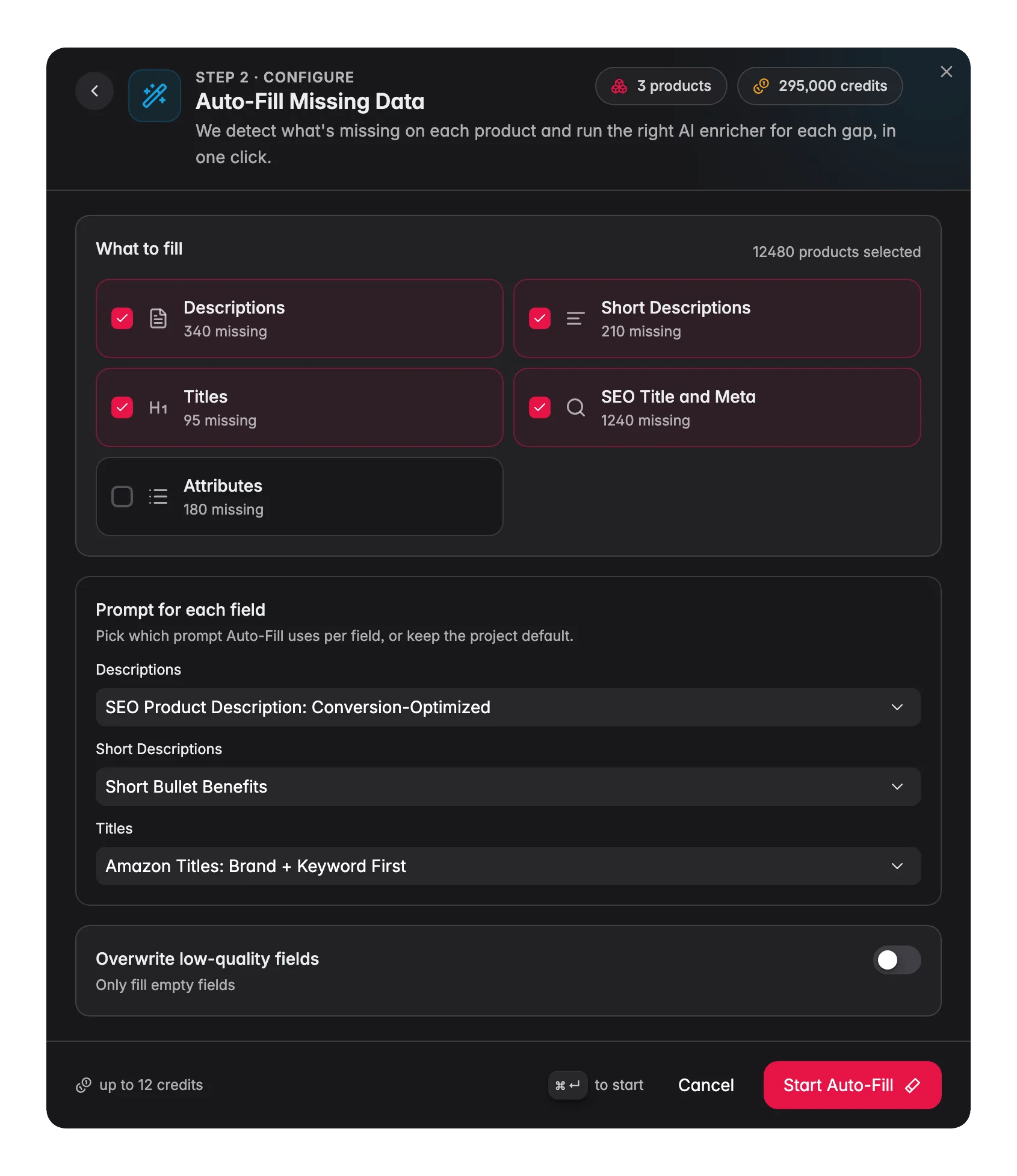
Auto-Fill reads your defaults from Settings → Enrich Prompts. If no default is set for a gap type, that type is skipped. Set your defaults first and Auto-Fill will handle the rest.You pay 1 credit per product per field that is actually generated. Fields that already have content are skipped, so they cost nothing.
Auto-Fill or Bulk Enrich?
Both run several content fields in one go, but they treat existing content in opposite ways. Pick by what you want to happen to the words already on the product.
So: Auto-Fill fills the holes, Bulk Enrich starts over. See Enriching Products for both, side by side with the other enrichment types.
The five gap types
Each product is analyzed individually. A product that already has a description but is missing a title only receives a title, it is not re-enriched for fields that already have content.
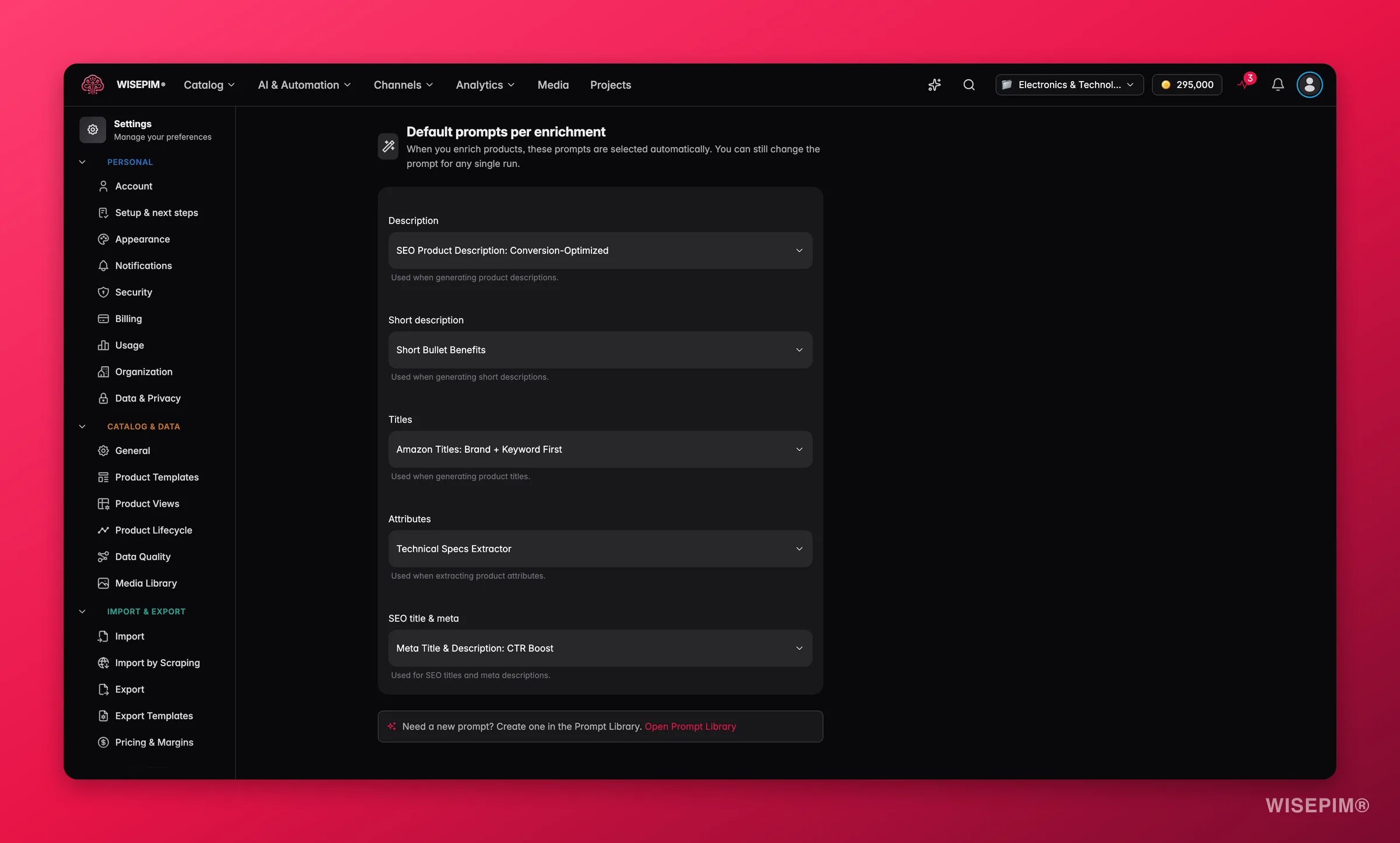
Set up your defaults first
Auto-Fill works best when all four default prompts are configured. Go to Settings → Enrich Prompts and pick a prompt for each type.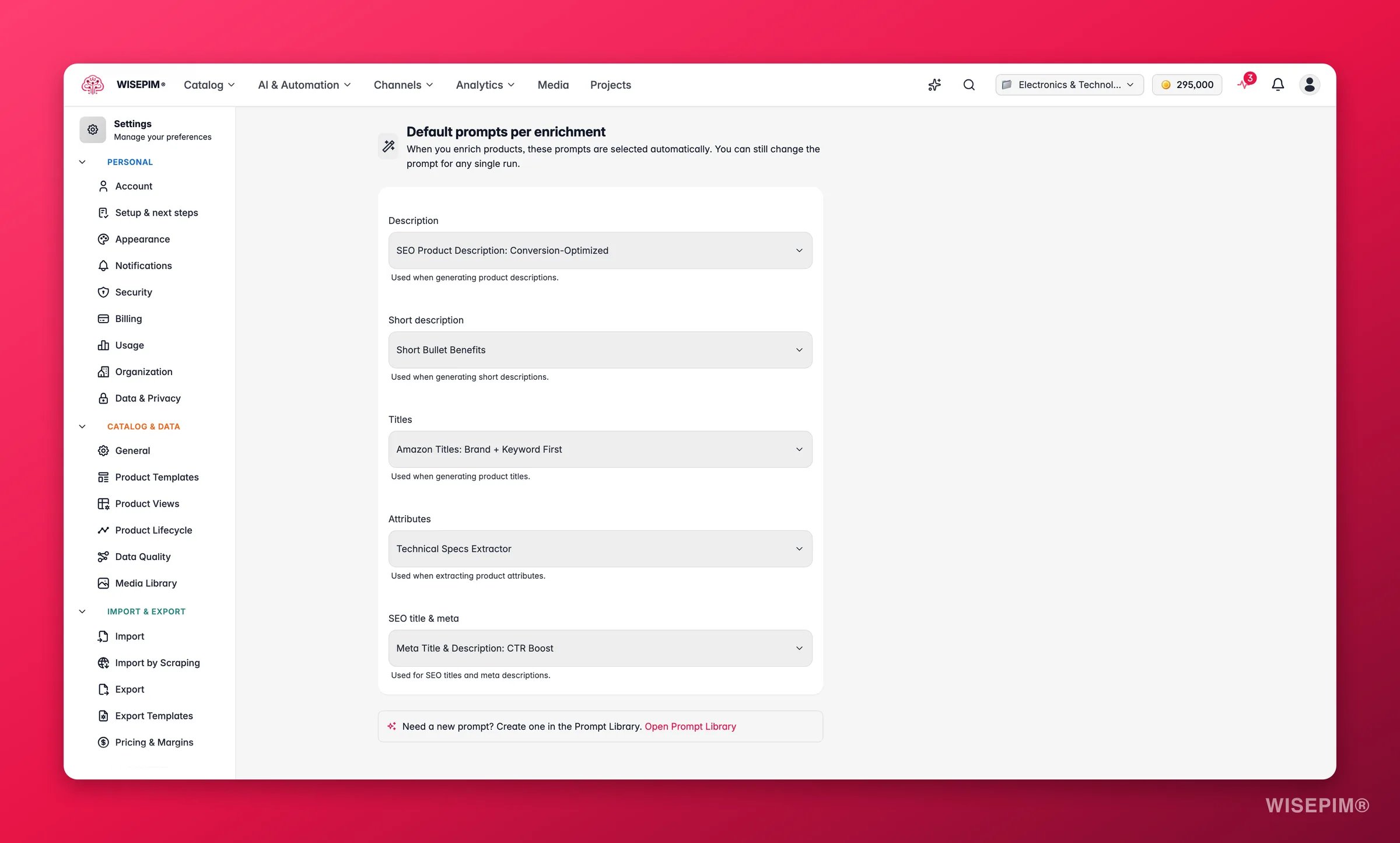
How to run Auto-Fill
1
Select products
Check the products you want to fill. You can select individual rows, apply filters and select all matching results, or select your entire catalog.
2
Open the Enrich modal
Click Enrich with AI in the toolbar.
3
Choose Auto-Fill
Select Auto-Fill Missing Data: the second card in the Start here shelf at the top of the modal, right next to Bulk Enrich.
4
Configure the run
Review the gap types, adjust prompt overrides if needed, and set the overwrite threshold if you want to regenerate low-quality content too.
5
Start Enrichment
Click Start Enrichment. The job runs in the background. Track progress in the Process Tracker.
Configuration options
Gap type selection
All five gap types are enabled by default. Uncheck any you want to skip on this run. A gap type shows as disabled (greyed out) if no default prompt is set for it and you have not picked a prompt override for it, set a default or choose an override to include it.Prompt overrides per type
Each gap type has a dropdown where you can override the project default for this one run. Choose Project default to use the default from Settings → Enrich Prompts, or pick any matching prompt from your library. Use overrides when you want to test a different prompt without changing the project default. If a type has no prompt you like, open the Curated Prompts tab in the Prompt Library. These are written by WISEPIM and ranked for your industry. Use Set as default on the one you pick and Auto-Fill uses it from then on, with no override needed.Overwrite threshold
By default, Auto-Fill only fills fields that are completely empty. If you turn on the overwrite threshold, Auto-Fill also regenerates existing content whose quality score is below the percentage you set.- Off (default): fill empty fields only.
- On: fill empty fields AND regenerate any field with a quality score below the threshold (0–100%, adjustable in 5% steps).
What happens during the run
Auto-Fill submits one enrichment task per product. Each task:- Checks which of the selected gap types are actually missing (or below the overwrite threshold) for that product.
- Runs only the enrichers needed, no wasted credits on fields that already have content.
- Writes the generated content into the appropriate reviewed/enriched fields.
Following the run
Auto-Fill appears in the Process Tracker as one parent task with its child tasks grouped underneath it. Open the parent to see how many products are done and how many are still queued, or expand it to follow an individual product. Two actions matter on that parent task:- Stop halts the parent and every child still running, so credits stop being spent immediately.
- Resume picks up where the run stopped and processes only the remainder. It costs no extra credits, because the original run already paid for those products.
Runs started before 28 July 2026 cannot be resumed. Start a fresh run from the products page instead.
Act on what you find
Some gap types are greyed out
Some gap types are greyed out
A greyed-out gap type has no default prompt and no override selected for this run. Go to Settings → Enrich Prompts to set a default, or pick a prompt from the override dropdown directly in the Auto-Fill panel. Outcome: all five gap types enabled so nothing is skipped.
You just imported a batch of new products
You just imported a batch of new products
Run Auto-Fill immediately after the import to turn skeleton records into fully written listings. Select the newly imported products (filter by import date or “no description” status), open the Enrich modal, and start Auto-Fill. Outcome: new products are ready to review and publish without any manual writing.
You want to upgrade older content, not just fill gaps
You want to upgrade older content, not just fill gaps
Enable the overwrite threshold and set it to the quality score below which you want to regenerate. Start low (30%) and review a sample before running it on your full catalog. Outcome: weaker content is systematically replaced with your current best-practice prompts.
Some products come out much better than others
Some products come out much better than others
Check whether the products with weaker output have less source data (shorter existing descriptions, fewer attributes, no images). Auto-Fill works from what is already in the product record. Products with richer source data will produce better AI output. Improve source data first, then re-run. Outcome: consistent quality across the catalog.
You want to use a different prompt for one type on this run
You want to use a different prompt for one type on this run
Use the per-type prompt override in the Auto-Fill panel. This overrides the project default for this run only and does not change your Settings → Enrich Prompts configuration. Outcome: run a test prompt on a specific field without affecting the global default.
Related
Enrich Prompts
Set the default prompts Auto-Fill uses for each content type.
Enriching Products
Overview of all 15 enrichment types and how to run them.
Prompt Library
Create and manage the prompts used by Auto-Fill and all other enrichment types.
Process Tracker
Monitor Auto-Fill progress and review results when the run completes.