

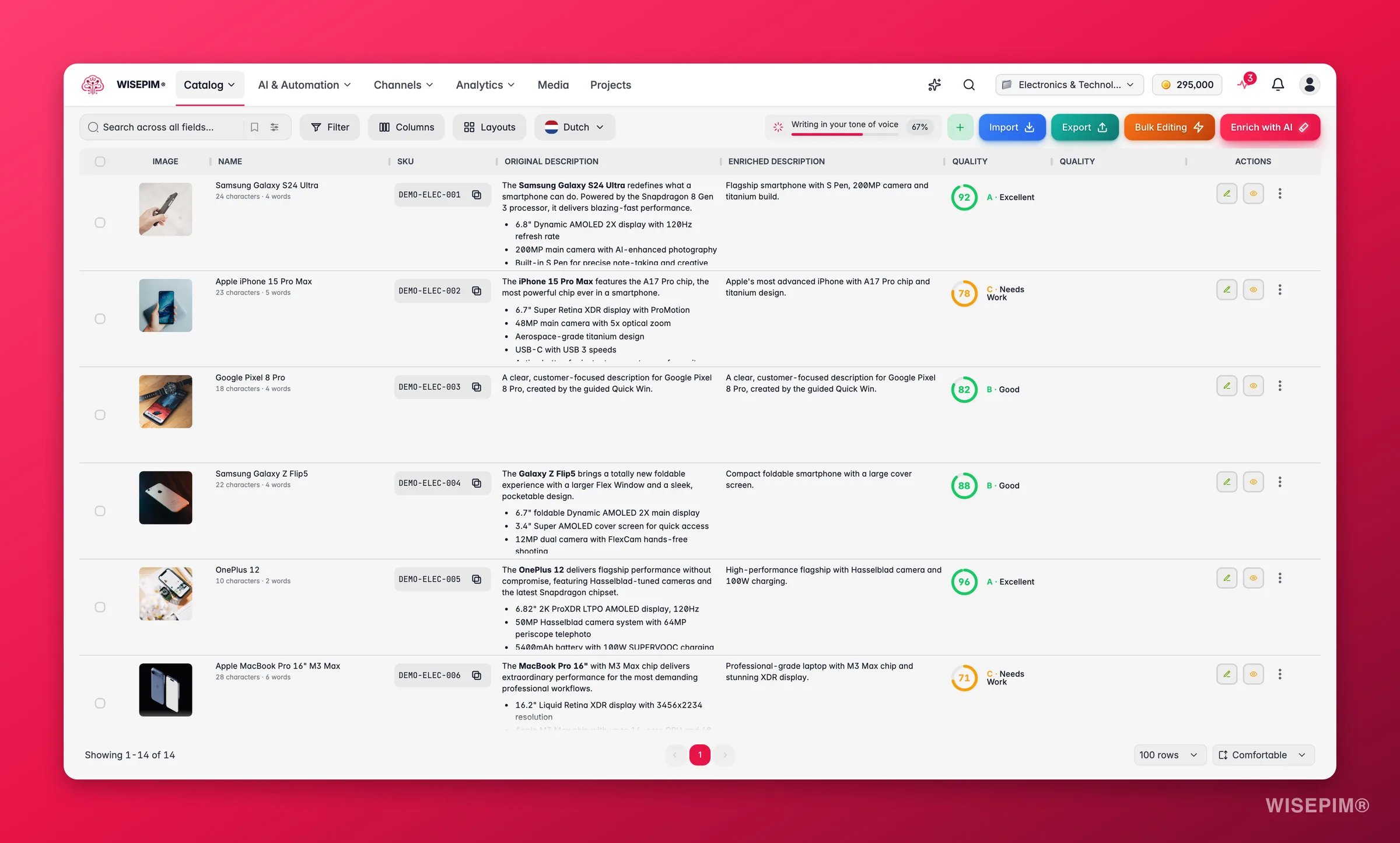
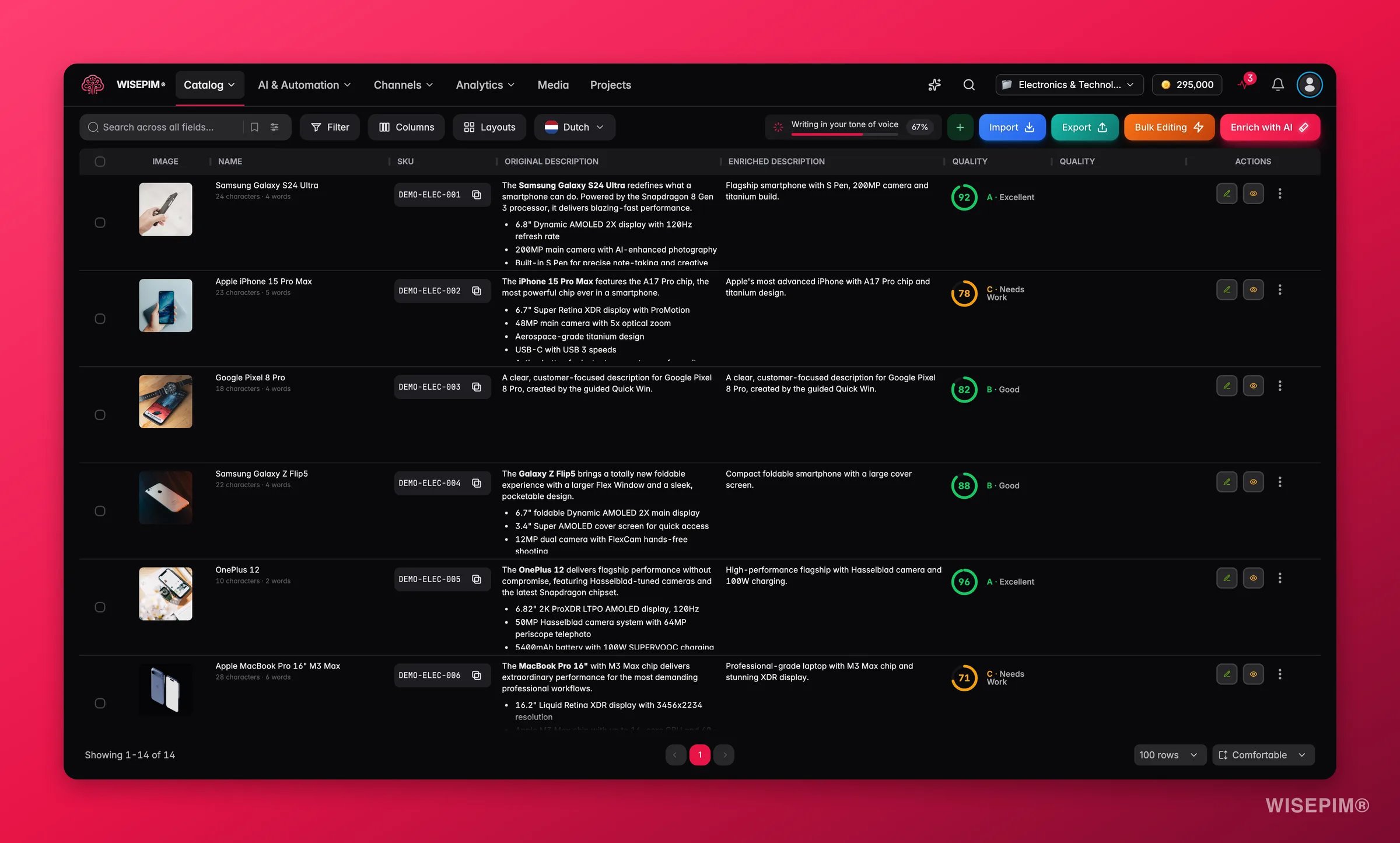
Your view preferences (columns, filters, sorting, page size) save automatically. Your workspace stays exactly how you left it.
Page layout
The Products page has three zones:Display controls

Search & Filter
Find products instantly with search, or build advanced filters with 90+ fields and save them as presets.
Customize Your View
Choose which columns to show, reorder them, and save layout templates for different workflows.
Choose which fields you search
By default the search box looks across all fields. If that returns too much noise, click Search in next to the search box and pick the fields you want. Fields are grouped into Identifiers, Content, Metadata, Commercial, and Other. Use Select all to search everything again, or Only on a single field to narrow the search to just that one. The placeholder text updates to show what you are currently searching. Two extra options sit in the same popover:SKU and EAN are matched exactly, because a partial match on an identifier is almost never what you want. The text fields (name, brand, supplier, description, meta title, meta description) match on parts of words, and fuzzy matching loosens them further.
Saved searches
Found a view you keep coming back to? Click Saved in the toolbar and save it. A saved search stores your filters and the text in the search box, so it recreates the exact list you were looking at. The name is pre-filled with your current search text (up to 60 characters); change it if you like, and it appears in the Saved searches popover for one-click access. Delete one from the same popover. Saved searches and saved filter sets are stored on the server, not in your browser. They follow you to any device you sign in on, so the view you built on your laptop is waiting for you on your desktop.Actions
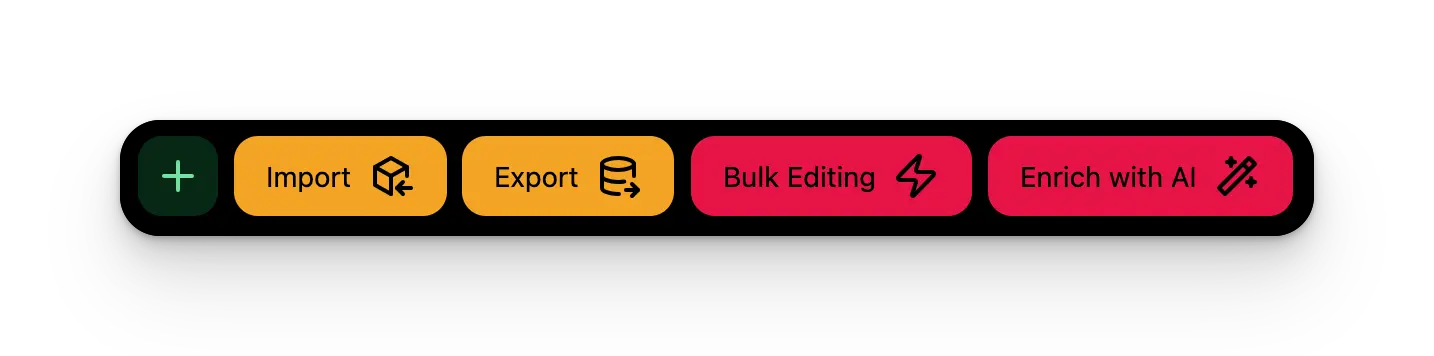
Create Products
Add new products manually with smart defaults and template-driven fields.
Import Products
Bring products in from Excel, CSV, Shopify, WooCommerce, Magento, and more.
Export Products
Push your product data to connected platforms or download as a file.
Bulk Edit
Make changes to hundreds of products at once: prices, categories, text, and more.
Enrich with AI
Improve product descriptions, titles, and SEO fields using AI prompts. Translation is built in as one of the enrich modes.
Enrichment results now land in the table live. When a product finishes, its new content appears in the row on its own. No refresh, no reloading the page.
Working with products
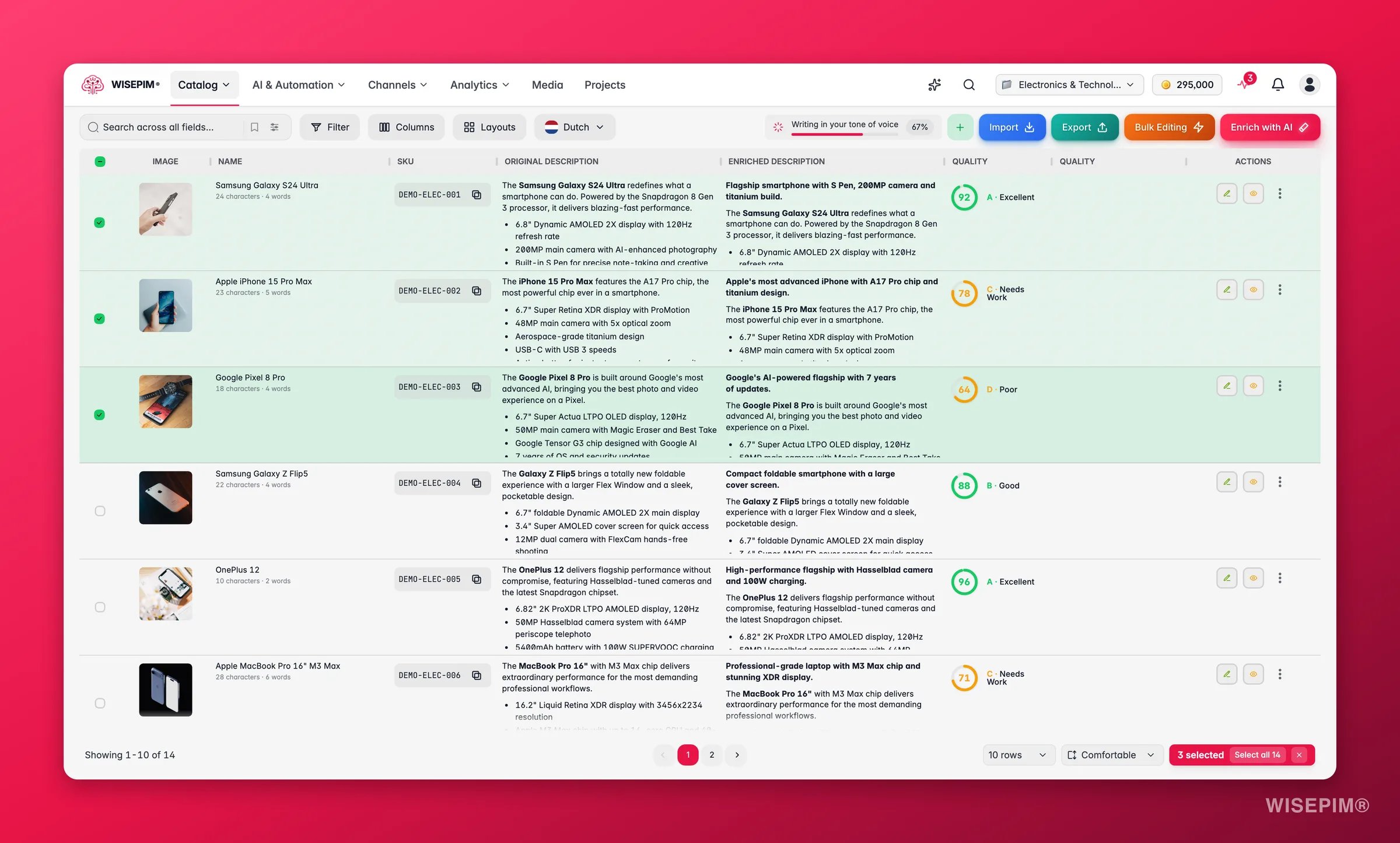
Selecting products
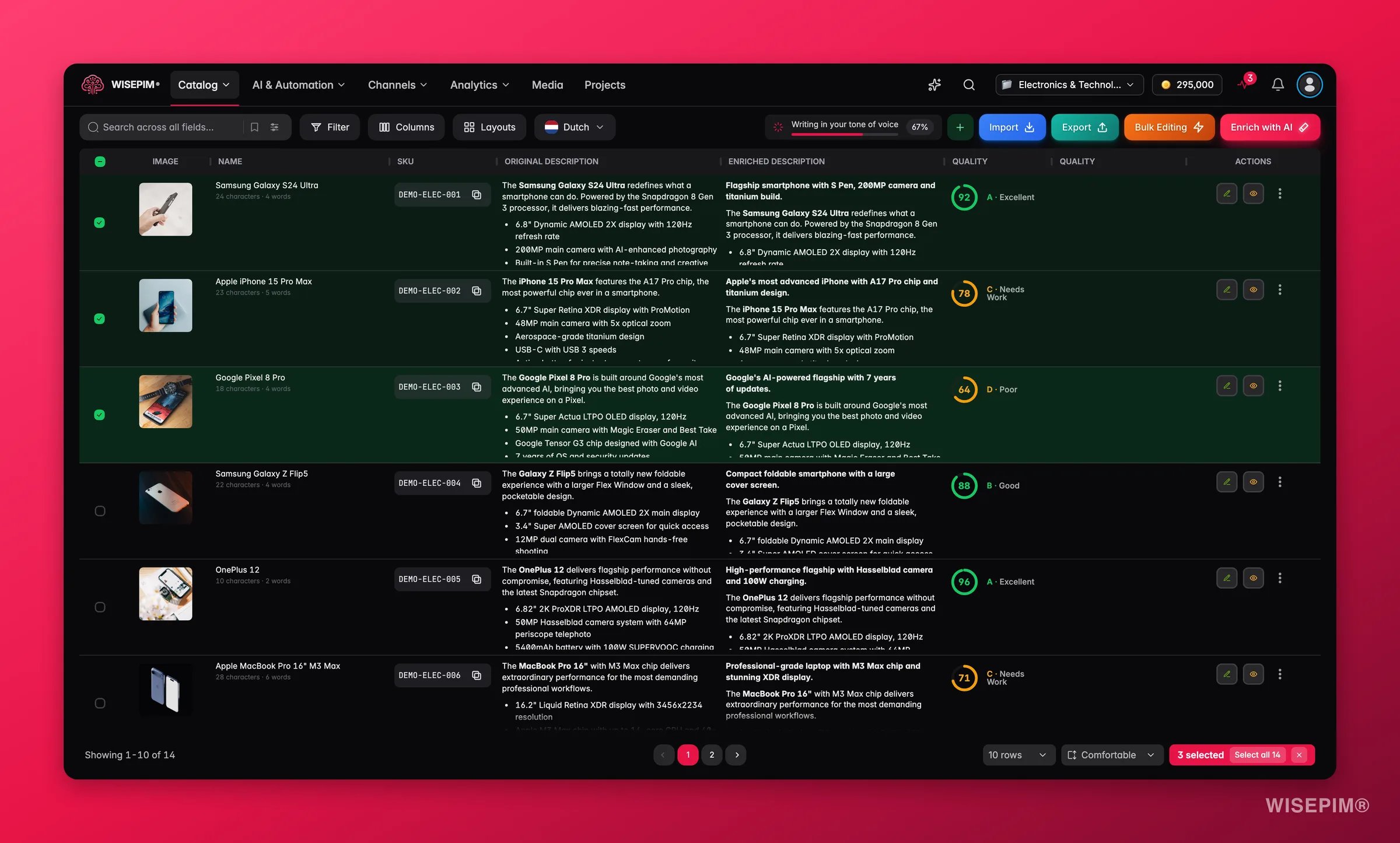
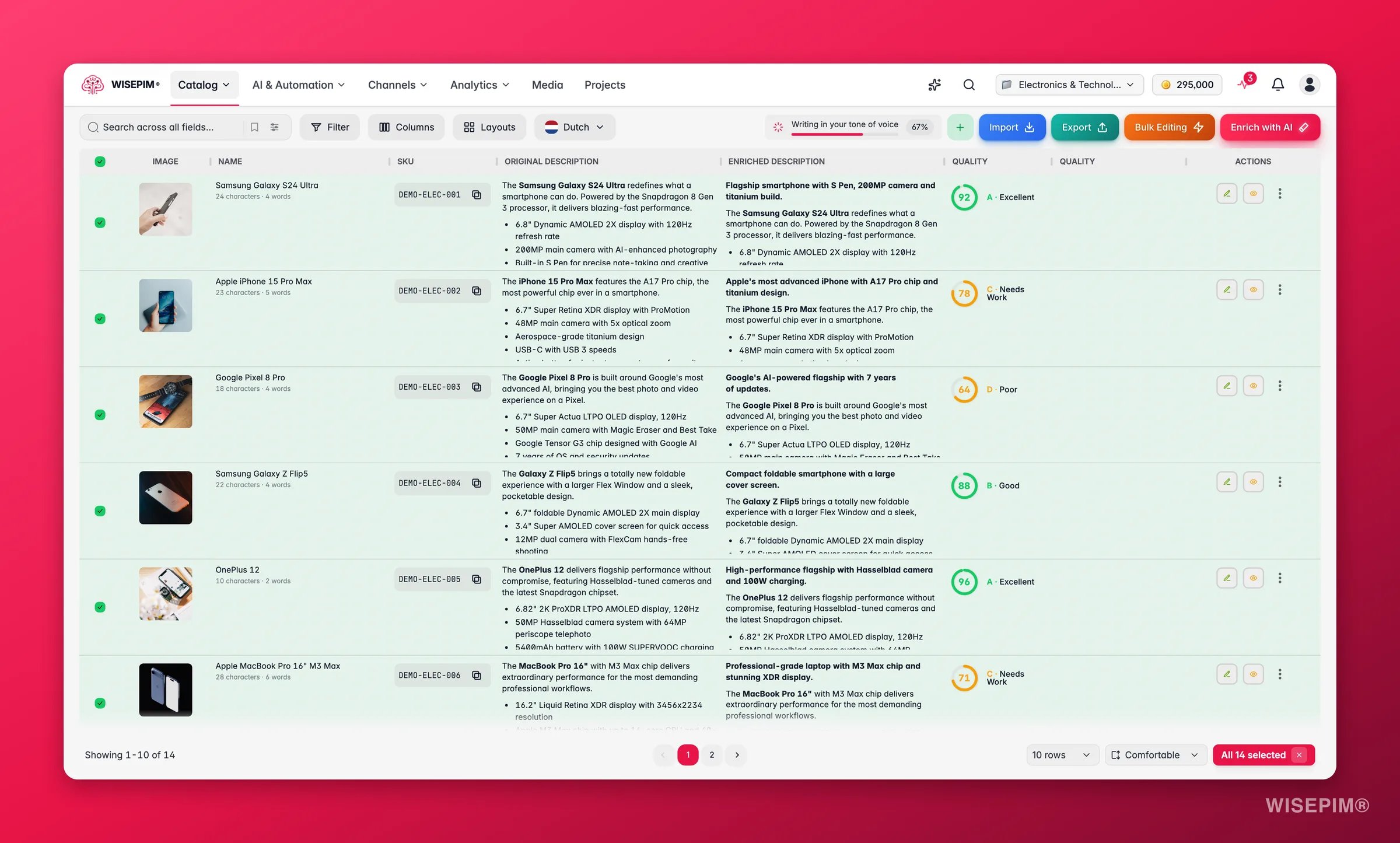
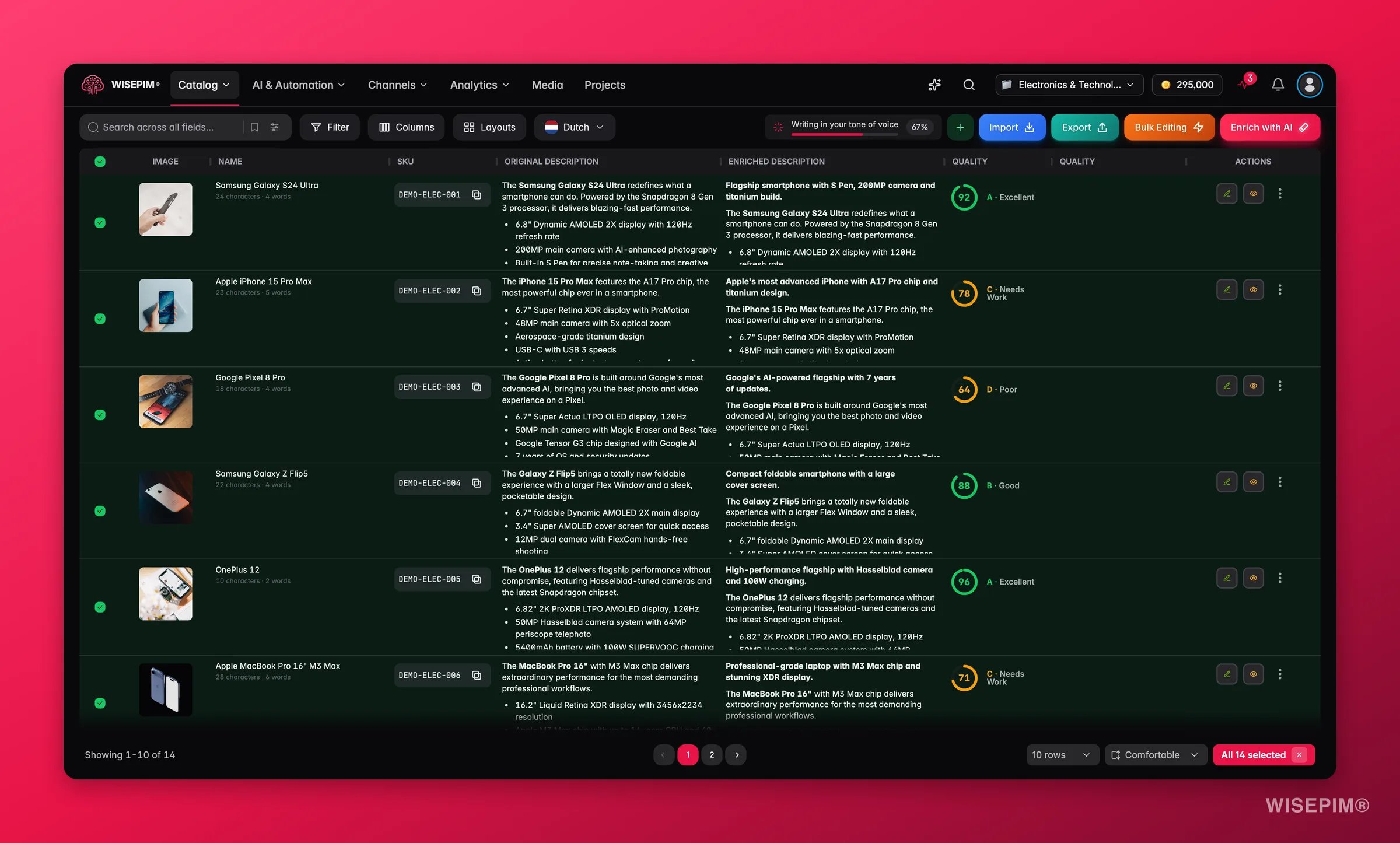
Click the checkbox next to any product to select it. You can also:- Select all on the current page using the header checkbox
- Select all products across all pages using the banner that appears after selecting the current page
Copy the selected SKUs
Need the identifiers of a selection in a spreadsheet, an email, or another tool? Select the products, open the Command Menu and run Copy Selected SKUs. In the Copy selected SKUs modal, pick the Identifier field (SKU, EAN, UPC, or MPN) and the Separator (One per line, Comma-separated, or Tab-separated). A live preview shows the list, and a count tells you how many selected products have no value in that field. Click Copy N SKUs to put the list on your clipboard, or Download to save it as a.txt file.
It works on the whole selection, including “select all across pages”, in the order of the table. The clipboard copy is capped at the first 250,000 identifiers; for anything bigger, use Download for the full list.
Previewing and editing
Each product row has action buttons on the right:- Eye icon: opens a read-only preview with product details and navigation to adjacent products
- Pencil icon: opens the quick edit modal for the most-used fields, without leaving your product list
- ⋮ (three-dots) menu: opens the row action menu (see below)
Row action menu
The ⋮ (three-dots) menu on each row holds the per-product actions:If your project uses a multi-stage product lifecycle, the Mark Reviewed / Unreviewed toggle is replaced by a stage selector so you can move the product through your custom stages instead.
Reviewing products
The Reviewed flag marks a product as checked and ready. It’s more than a label: review status can gate exports, so unreviewed products can be held back until someone has signed off. That makes “Reviewed” a useful filter for finding work that still needs attention, and a safe gate before you push data to a live store. Change a product’s review status from the ⋮ menu (Mark Reviewed/Unreviewed), the preview modal, or quick edit. You can also update it in bulk via Bulk Edit > Update Status.The review status chip is display-only, you can’t click it to toggle. Review state has its own REVIEW STATUS column; the STATUS column is the product’s publishing status (Active, Inactive, Pending, or Archived) and is a different thing. The review column isn’t shown by default; add it from Customize Your View if you want it in the table.
AI prompts column
Add the optional AI PROMPTS column to see which prompt, and which version of it, produced each product’s latest successful enrichment per kind: title, description, short description, attributes, SEO or combined. It is the fastest way to tell products written with your new house-style prompt from the ones still on the old one. Pair it with the Enrichment Prompt and Prompt Version filters to select them.Quality score
The Quality Score column gives each product an at-a-glance grade for how complete and well-optimized its data is (descriptions, images, attributes, SEO, and more). Sort by it to surface your weakest products first, then fix them with quick edit or AI enrichment. A rising quality score means cleaner listings and better-performing product pages.Operation history
Bulk changes are fast, which also means a wrong one lands fast. Operation history is your safety net: it lists your recent bulk changes and lets you undo any of them in one click. Open the Command Menu with⌘K (or Ctrl+K) and search for History.
Operation history currently lives in the Command Menu only. There is no toolbar button for it.
From any entry you can:
- View changes to see a field-level diff of exactly what changed, old value next to new value
- Undo to roll the whole operation back
- Redo to put it back if you undid it by mistake
Operation history and undo are a paid-plan feature. On the free plan you can see the entry point but not roll changes back.
Workflow examples
Review new imports
- Filter by Status = Unreviewed
- Use the preview (eye icon) to browse through products
- Enrich products that need better descriptions
- Mark products as Reviewed when done
Prepare for a new market
- Filter by Translation status = Not translated
- Select all matching products
- Translate into your target languages
- Review translations using the Language Comparison view
Seasonal price update
- Filter by category (e.g., “Summer Collection”)
- Select all matching products
- Bulk Edit > Change Price to apply a percentage discount
- Export the updated products to your webshop
Clean up imported data
- Filter for products with empty descriptions
- Run AI Enrichment on the selection
- Bulk Edit > Trim Whitespace to clean up formatting
- Bulk Edit > Standardize Case on product names
Related
Filtering products
Build advanced filters and save them as presets for daily work.
Editing products
Open a product and edit every field in the full editor.
Bulk editing
Change prices, text, and categories across hundreds of products at once.
Command Menu
Search, select, and run product actions with your keyboard.