

Export destinations
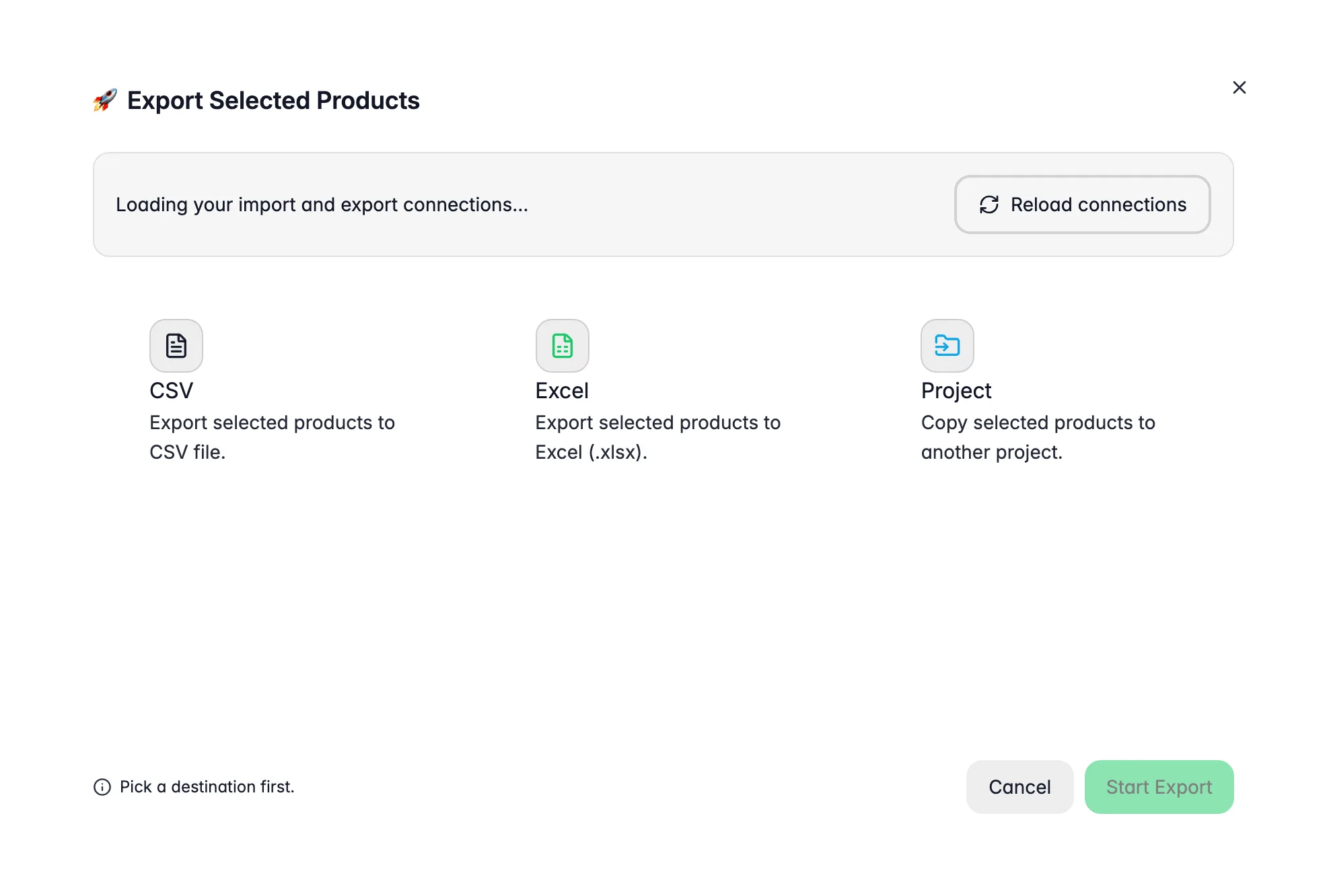
- Files: CSV or Excel, to download for backup, migration, or use in another tool.
- E-commerce platforms: any connected integration that supports export, for example Shopify, WooCommerce, Magento, PrestaShop, Lightspeed, Lightspeed E-Series (Ecwid), ShopWired, and CCV Shop.
- Marketplaces and shopping: Google Merchant Center (Google Shopping), and more as you connect them.
- Data platforms: Databricks, to push product data into your analytics stack.
- Another project: copy selected products straight into one of your other WISEPIM projects.
Export or feed? Exporting is a one-off push: you choose products and a destination, and the data goes out once. If a channel should pull your catalog continuously - Google Shopping, Meta, Bol.com, or a wholesaler expecting BMEcat - create a hosted feed in Feed Hub instead. The feed gets a URL the channel fetches on its own schedule, so you never repeat the export by hand.
Choose what to export
You decide which products go, in the same way you work on the Products page:Shape the export
The export modal is more than a download button. These options control exactly what lands in the export, which is the difference between a messy dump and a channel-ready file.A product’s First export and Last export timestamps, which you can show as columns and filter on, are only set once the export file or platform push actually completed. A failed export leaves them untouched. Products skipped as unchanged still count as exported.
Export to a platform
1
Select your products
On the Products page, select products or apply a filter.
2
Click Export
Open the Export button in the toolbar.
3
Pick a destination and options
Choose the platform (only connected integrations are shown), then set the columns, languages, and skip-unchanged option, or load a saved template.
4
Start the export
WISEPIM prepares your data, connects to the platform, and pushes it over in the background.
Exports run as background jobs. You don’t wait on the page: WISEPIM hands the export to the Process Tracker, where you can watch progress and see the result. You get a notification when it finishes. Started the wrong export? Open the task and click Stop.
Export to another project
Sometimes the destination is another one of your own catalogs: a second brand, a market copy, or a client project. Exporting to a project copies the selected products straight across, with no file in between.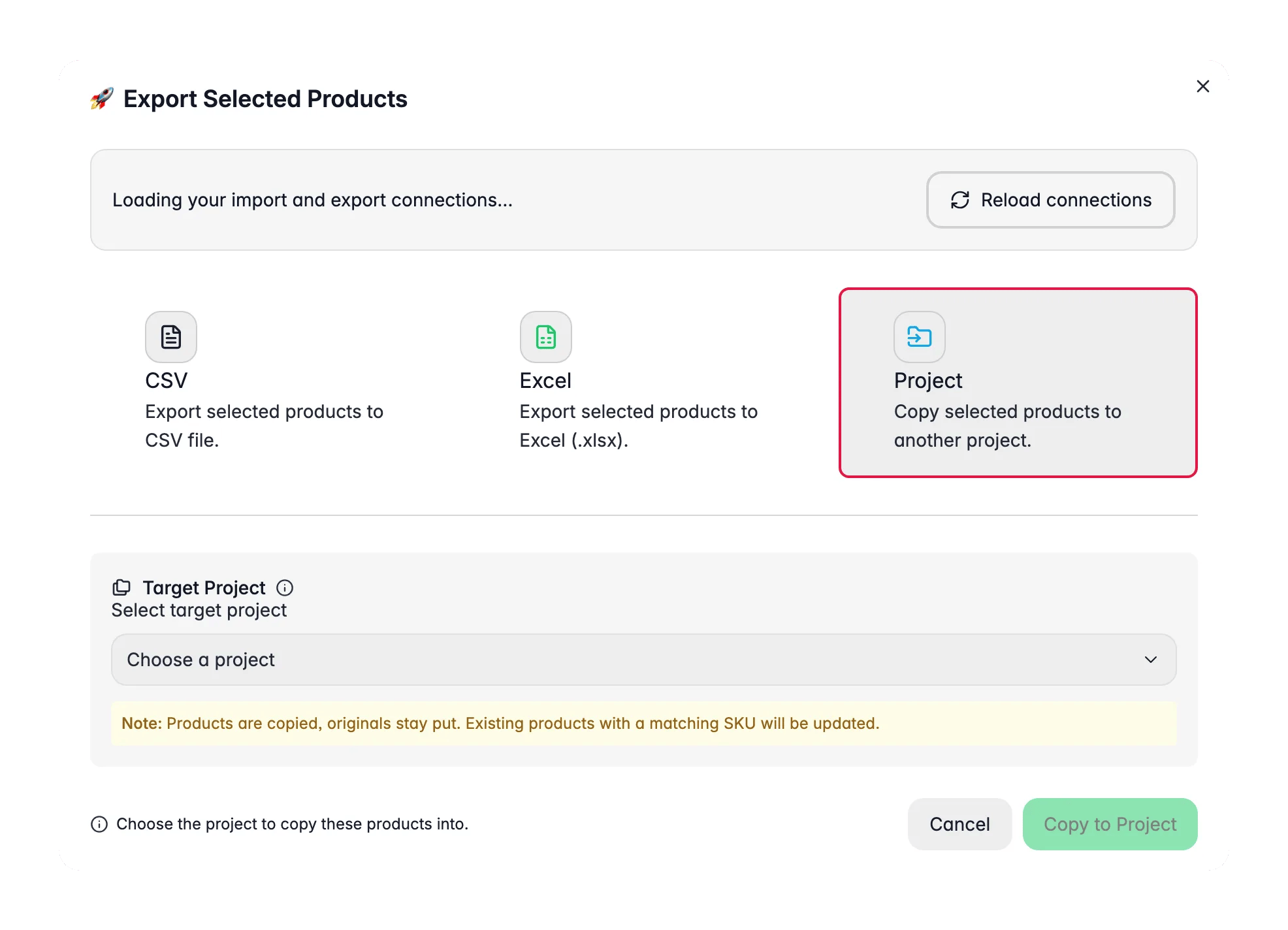
1
Select the products
On the Products page, select products or apply a filter, then click Export.
2
Choose Another project
Pick the project you want the products copied into.
3
Start the copy
The copy runs in the background. Products are matched by SKU, so a product that already exists in the target project is updated rather than duplicated.
Export to a file
Need your data as a file, for a backup, a migration, or another tool?1
Click Export, then choose CSV or Excel
Pick the format you want.
2
Choose columns and languages
Select exactly which fields and languages to include, or apply a saved template.
3
Generate the file
The export runs and the file is ready to download. Larger catalogs generate as a background job in the Process Tracker, so give big files a moment.
- CSV: universal, works with everything. UTF-8 encoded for international characters.
- Excel: a formatted spreadsheet with proper column types, a frozen header row, filters on every column and colour-coded score columns with a totals row, ready for analysis or sharing.
= is written as plain text, never as a formula.
How long does it take?
File exports are fast because there’s no platform rate limiting. Platform exports depend on how quickly the target accepts requests, and each platform throttles differently.After exporting
- Verify on your platform: log into your store and spot-check a few products.
- Check your storefront: make sure products display correctly to customers.
- Review categories: confirm category assignments carried over.
Troubleshooting
Export won't start
Export won't start
- Check that your integration is connected on the Integrations page.
- Re-test the connection. API credentials may have expired.
- Confirm your API user has write permissions.
Nothing was sent (everything skipped)
Nothing was sent (everything skipped)
- With Skip unchanged on, products that haven’t changed since the last export are skipped on purpose. Turn it off to force a full re-export, for example after changing the channel’s settings.
Platform-specific issues
Platform-specific issues
- Shopify: check API permissions and rate limits.
- WooCommerce: confirm the REST API is enabled with write access.
- Magento: confirm your API user can create and update products.
File download won't work
File download won't work
- Check your browser’s download settings and popup blocker.
- For large catalogs, wait a moment. The file generates as a background job first, then downloads.
Export is slow
Export is slow
Large catalogs and platform rate limits slow things down. For very large exports, split them by category or filter, and turn on Skip unchanged for repeat runs.
Related
Importing products
Bring products into WISEPIM from a file or a connected platform.
Enriching products
Improve titles, descriptions, and attributes with AI before you export.
Integrations
Connect a platform so you can export directly to your store.
Shops
Decide which connected shops each product is exported to.
Feed Hub
Hosted feeds that channels fetch automatically - the recurring counterpart to a one-off export.
Process Tracker
Watch the status of running exports and other background jobs.
Publish your first catalog
The final step of the first-catalog series: getting enriched products live.