

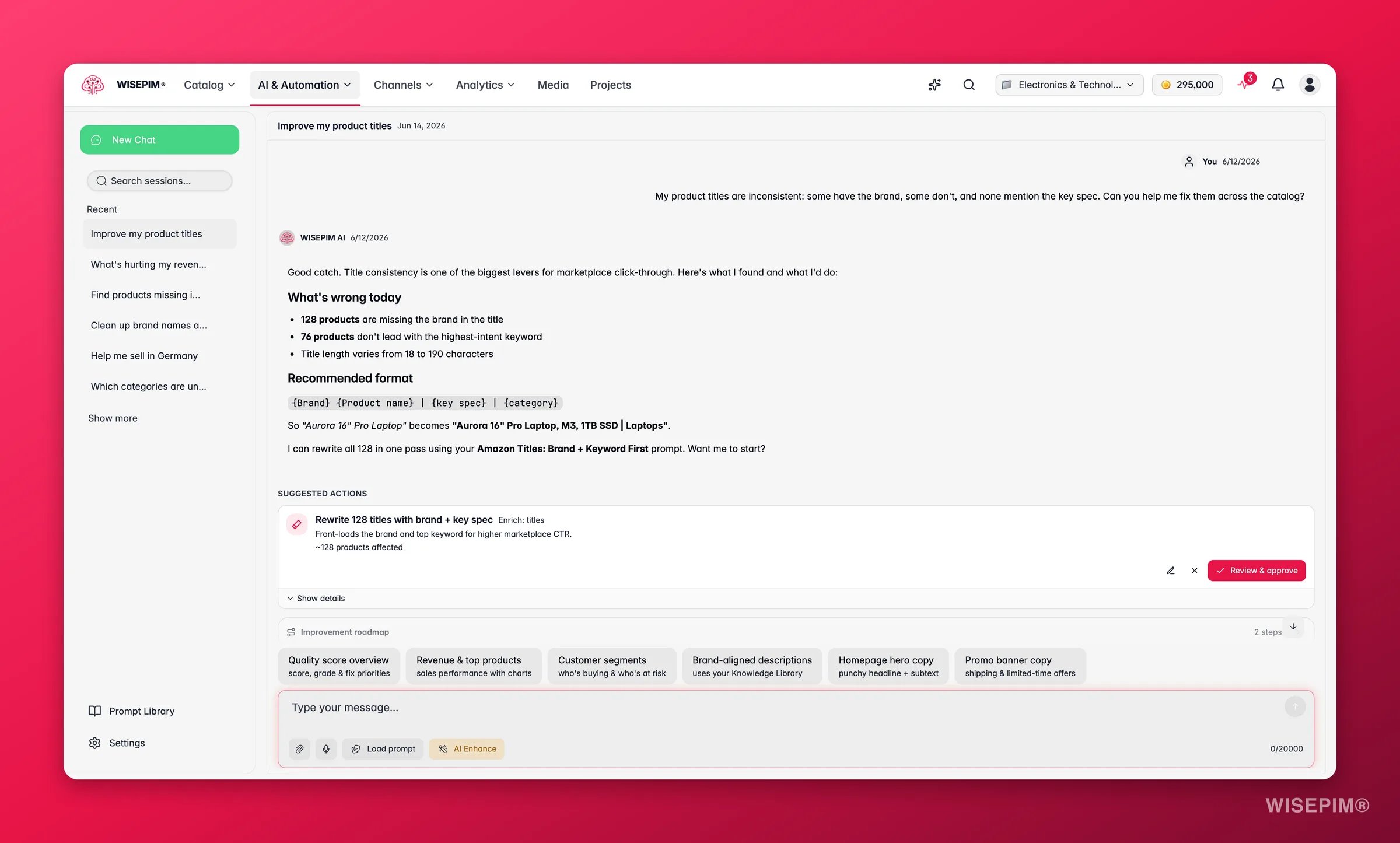
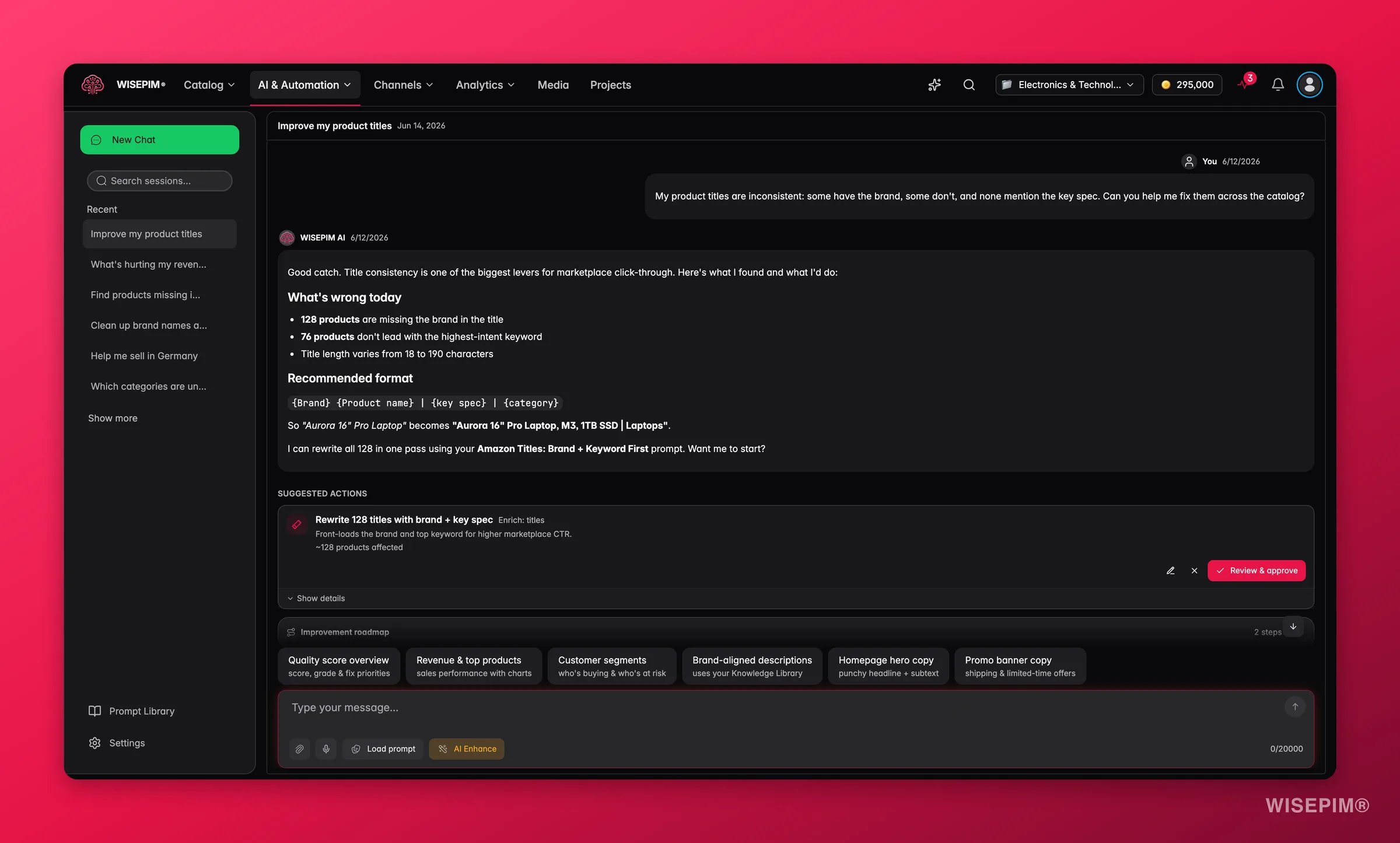
AI Chat integrates with your product catalog and Knowledge Library, so the AI understands your products, brand voice, and business context when generating content.
Getting started
Open AI Chat
Navigate to AI Chat from the main sidebar. The first time you open it, you will see an empty conversation headed How can I help you today? with starter cards to get you going quickly.1
Open AI Chat
Click AI Chat in the main navigation sidebar.
2
Type your message
Enter your question or request in the message input at the bottom of the screen, or click a suggested prompt to pre-fill one.
3
Send your message
Press Enter or click the send button. The answer streams in as it is written, so you can start reading straight away. Above it you see each action the assistant takes while it works, such as fetching your quality scores or looking up the products behind a number.
4
Review the response
Read the answer, any charts or tables it returns, and any proposed actions. Copy it, approve an action, give feedback, or continue with a follow-up question.
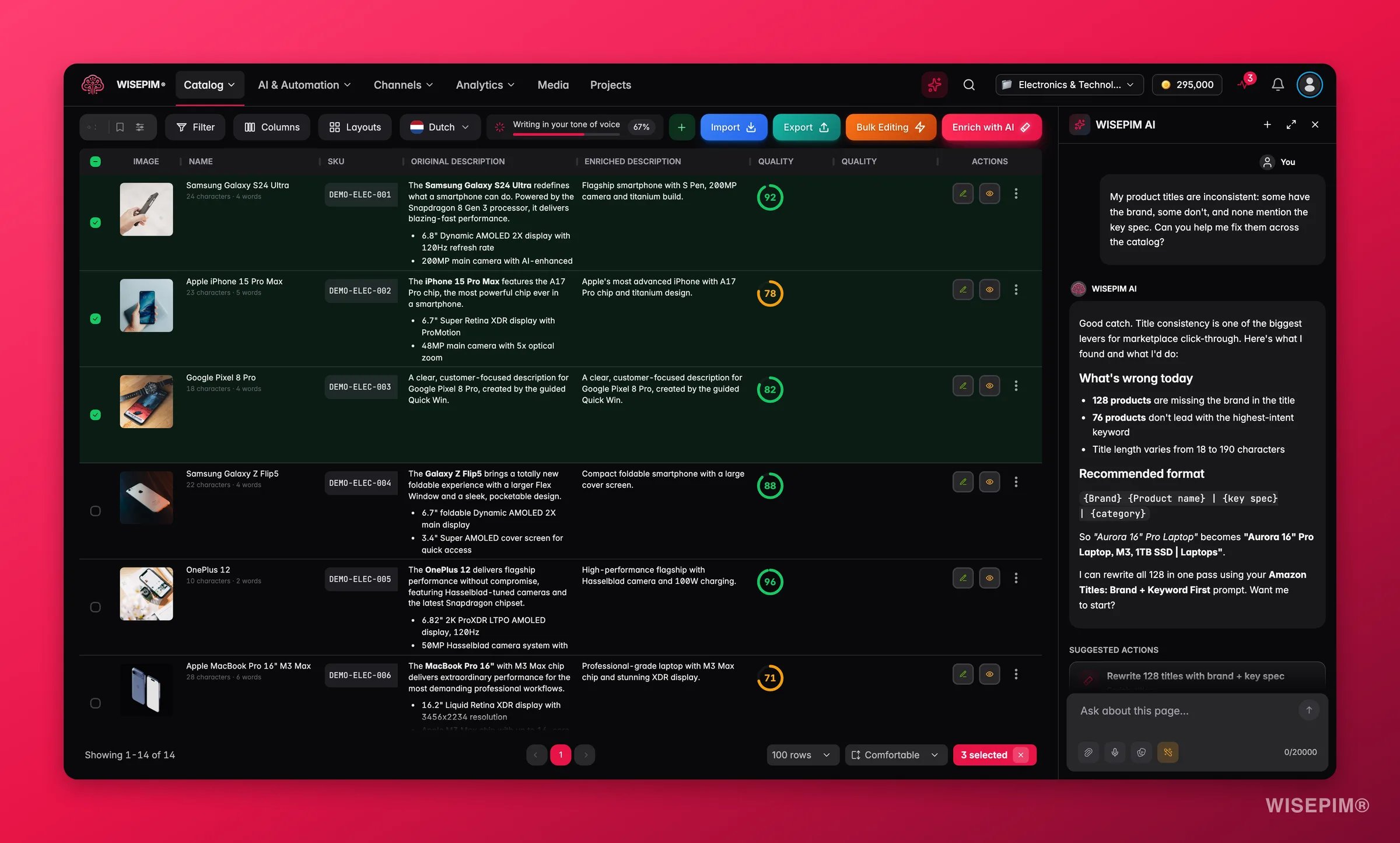
Chat beside your products
You can also open the assistant as a sidebar next to the Products table. The conversation sits beside your catalog, so you can ask about the products you are looking at and apply the fix it proposes without switching screens.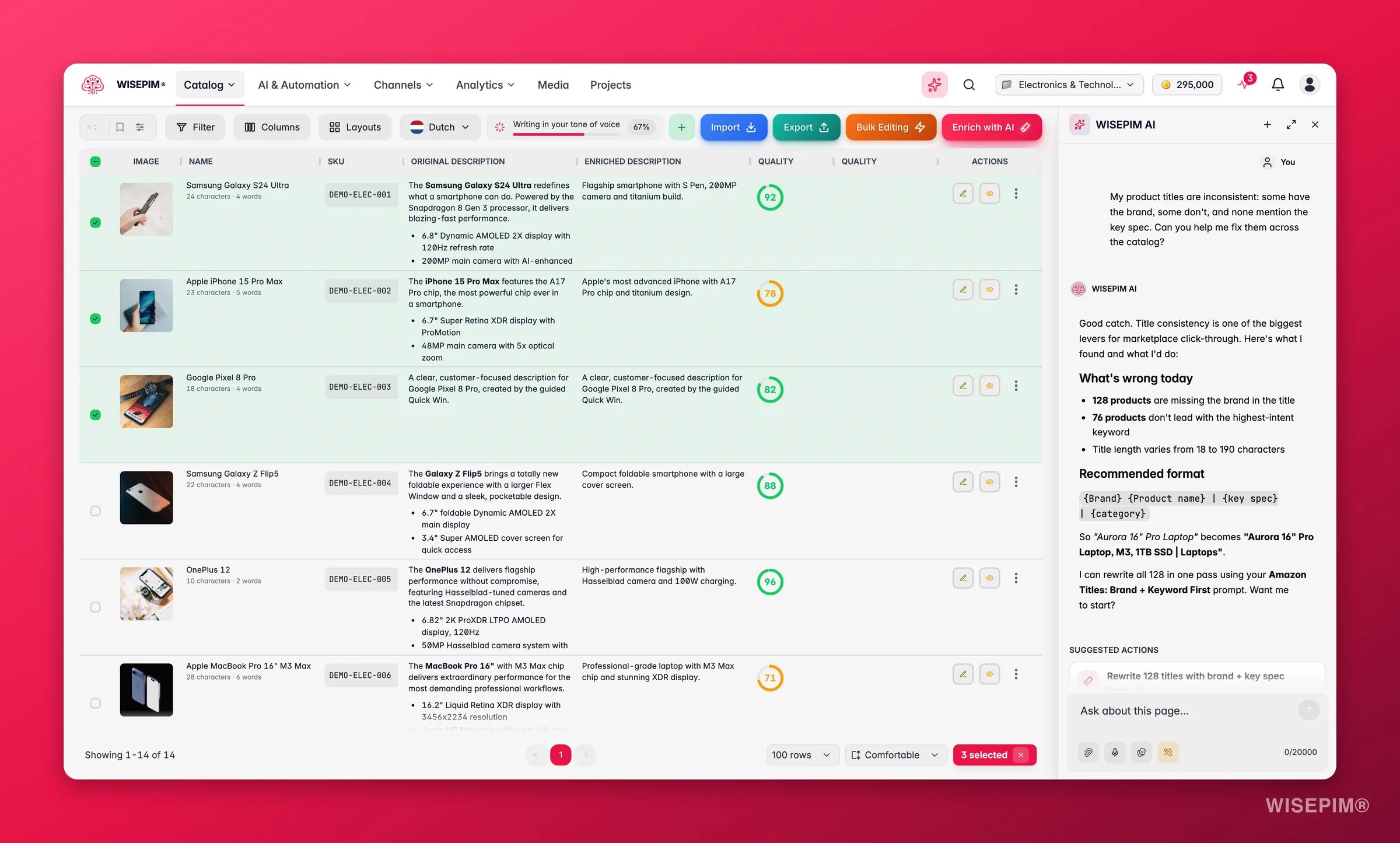
The message toolbar
A few tools sit below the message input:- Attach (paperclip): add images, PDFs, or spreadsheets for the AI to read. See Attaching files and images.
- Dictate (microphone): speak your message instead of typing, and WISEPIM transcribes it in your language.
- Load prompt: open the Prompt Library of curated and saved templates.
- AI Enhance: rewrite a rough prompt into a clearer, more specific one. See AI prompt enhancer.
Suggested prompts
A new conversation opens with starter cards grouped by the job you want to do:- Analyze: a full store performance report, or compare this period to the last one
- Control quality: run a data health check, find issues to fix, or select a set of products and fix them
- Plan strategy: surface keyword opportunities, or find content and SEO gaps
- Create: write in your brand voice, or build a marketing copy kit
What you can do
AI Chat is built around four jobs. Because it reads your live data and can act on it, each one goes from question to finished change in the same conversation.Analyze & report
Revenue and order trends, conversion funnels, customer segments, product rankings, and search performance, returned as charts and tables you can read at a glance.
Control data quality
Quality scores and grades, field coverage, channel readiness, and a prioritized roadmap of the fixes that move the needle most.
Create on-brand content
Product descriptions, optimized titles, short descriptions, SEO meta, and marketing copy kits, all written in your Knowledge Library voice.
Take action & fix
Filter the catalog, enrich products, run bulk edits, change product visibility in bulk, and translate for new markets, proposed as actions you approve without leaving the chat.
Ask about your live data
The AI queries your catalog and business data in real time. When you ask something like “What are my top products by revenue?” or “Show me products missing descriptions,” it fetches the live numbers, shows its working, and presents the result as an interactive chart, table, or product list. You can control which data the AI may use in Settings > AI Chat under Tool Access. The available data categories are:- Quality & Catalog: quality scores, field coverage, catalog stats, improvement roadmap
- Analytics & Revenue: revenue, top products, conversion funnel, marketing analytics
- Customers: customer segments (RFM) and customer analytics
- Search & SEO: site search analytics and Google Search Console performance
- Operations: task statuses and integration sync health
Read the results: scores, charts, and tables
AI Chat does not bury numbers in a wall of text. It renders results as the same charts, scores, and tables you see across WISEPIM, so you can understand them quickly and know what to do next.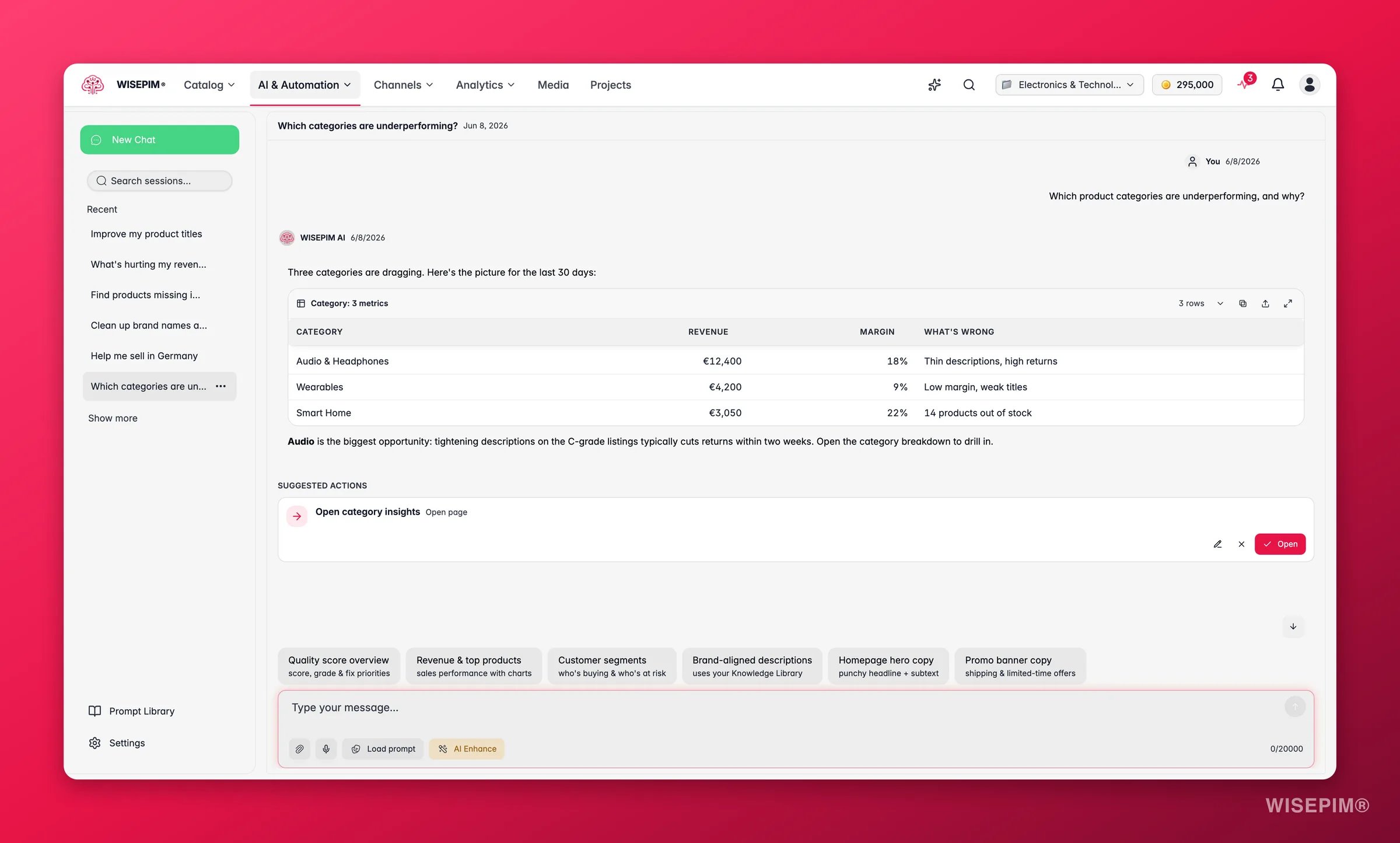
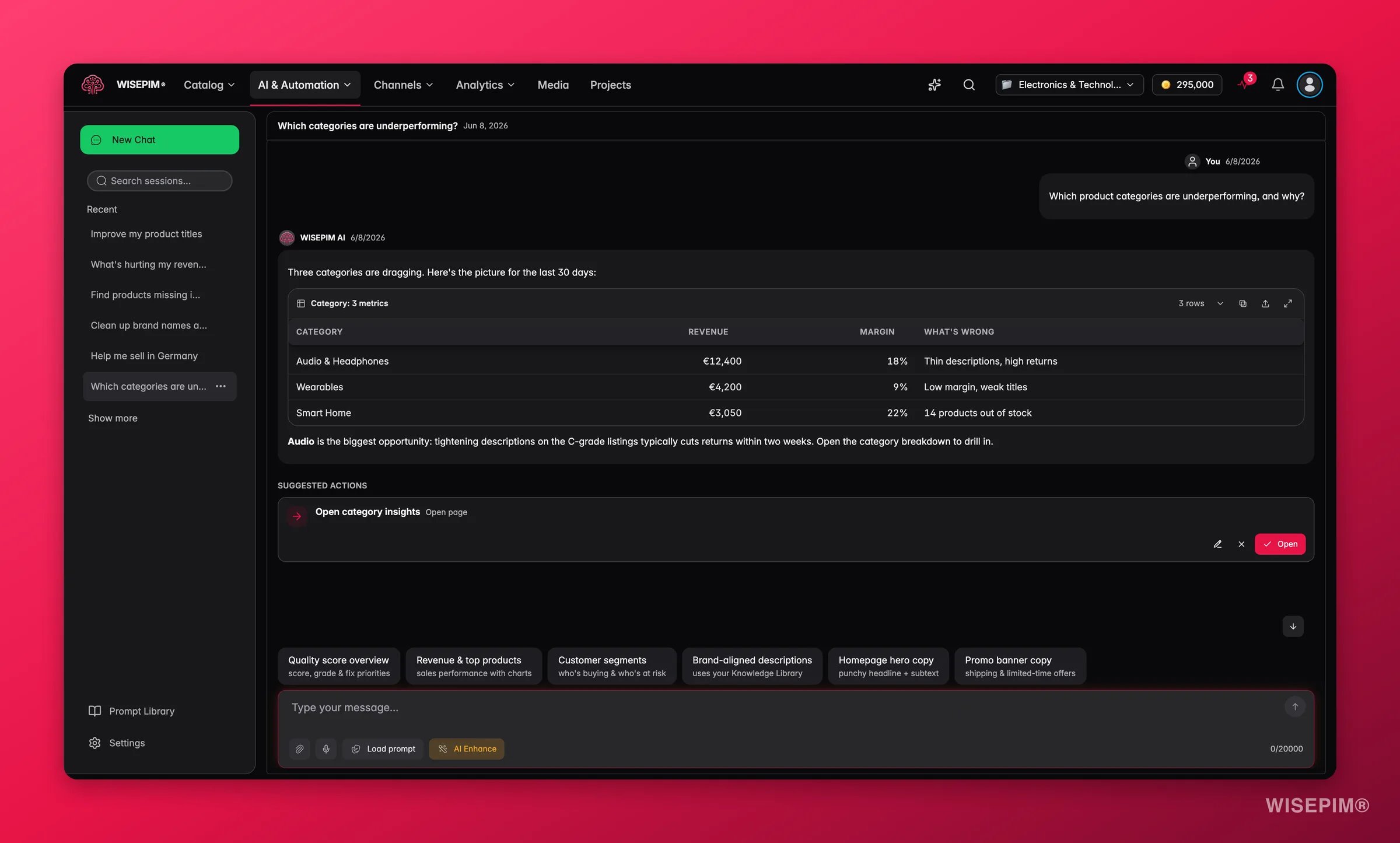
How results are shown
Prefer a plain answer? Say “no charts” or “just tell me in words” and the assistant leaves the chart and table cards out of that reply. Suggested actions still appear. Chart titles, column labels and series names follow the language of the reply, so if you ask for an answer in French the visuals are labelled in French too.
Make sense of the key numbers
The point of the numbers is the decision they lead to. Here is how to read the ones AI Chat reports most often, and what each one should prompt you to do.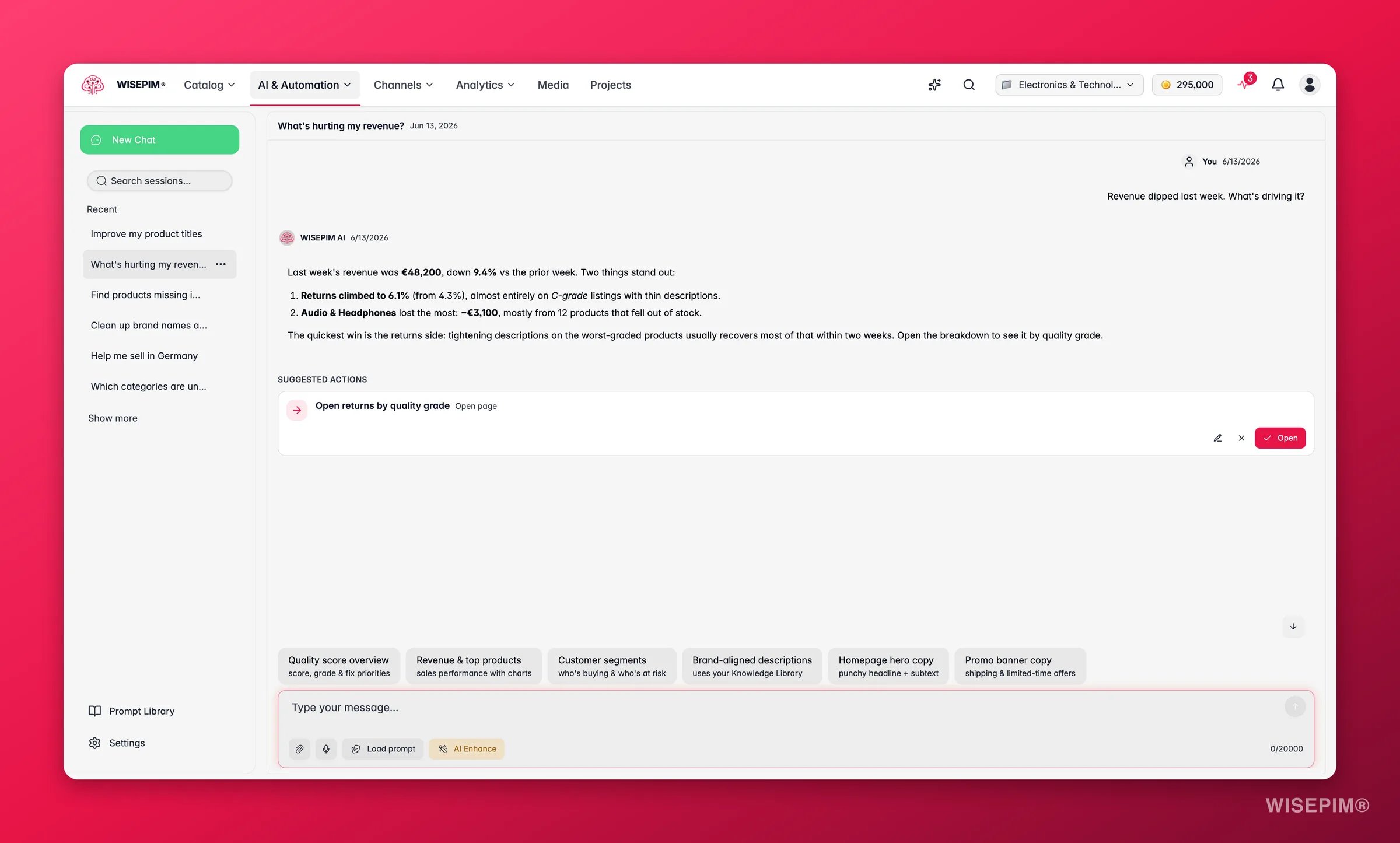
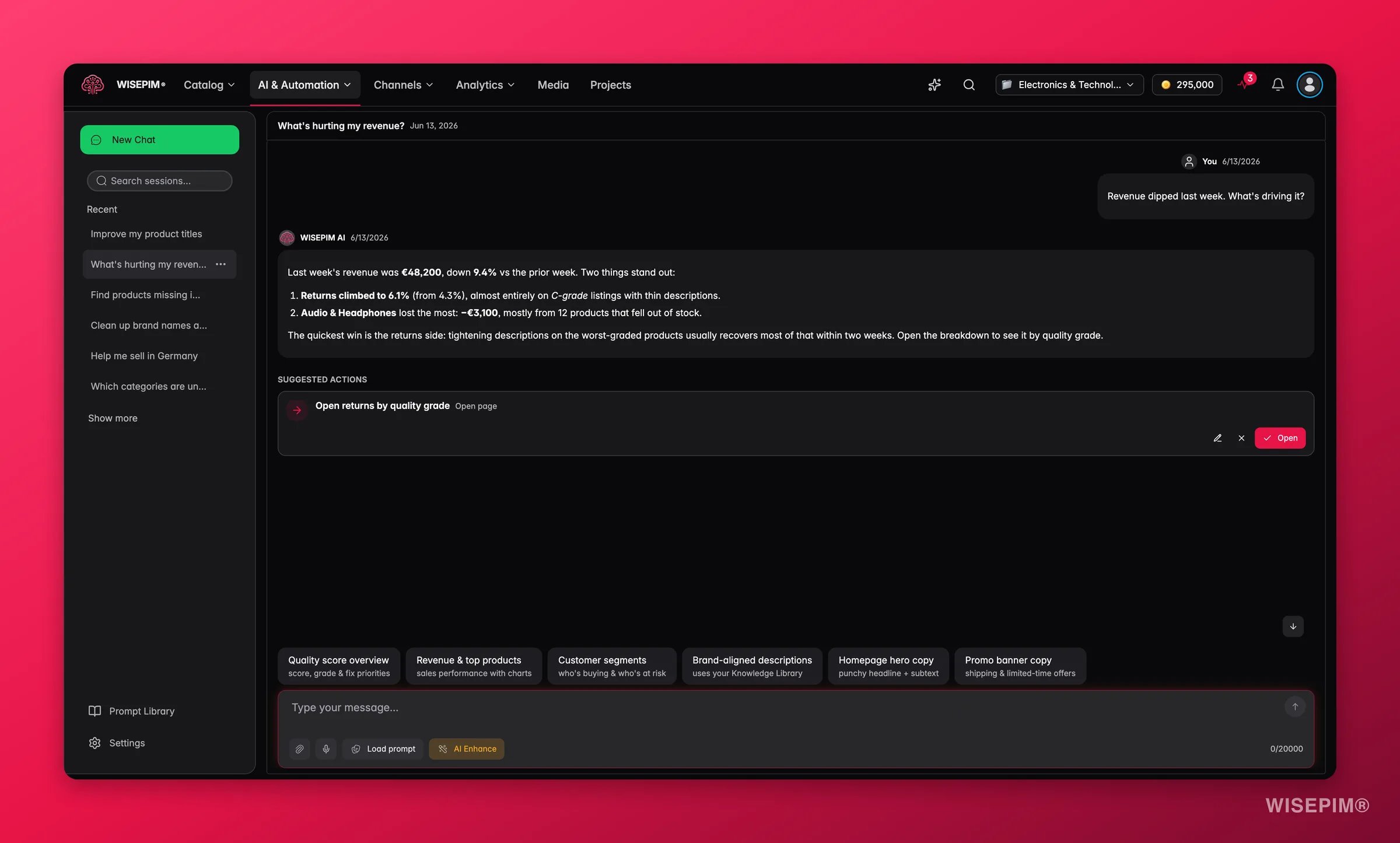
Turn answers into action
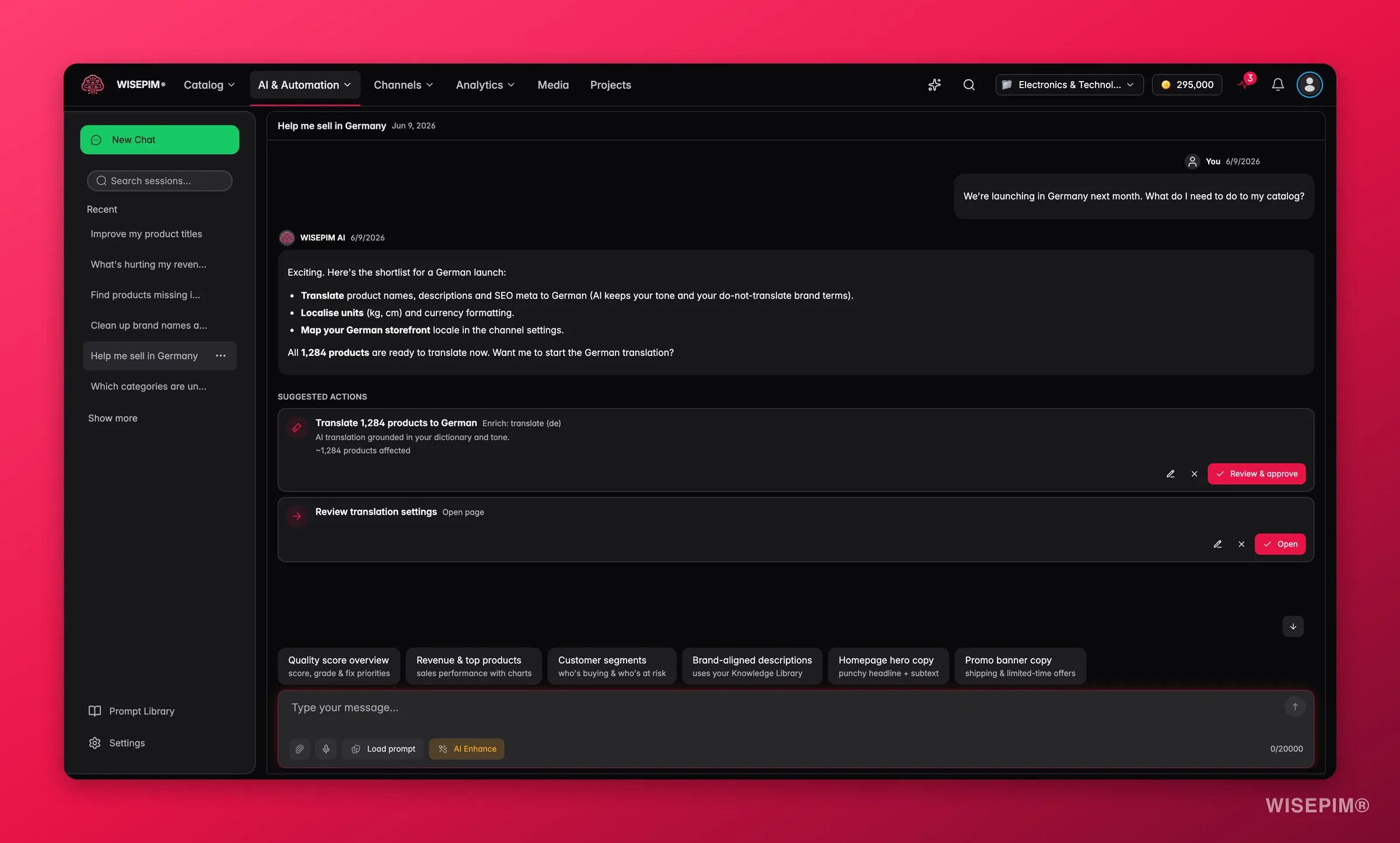
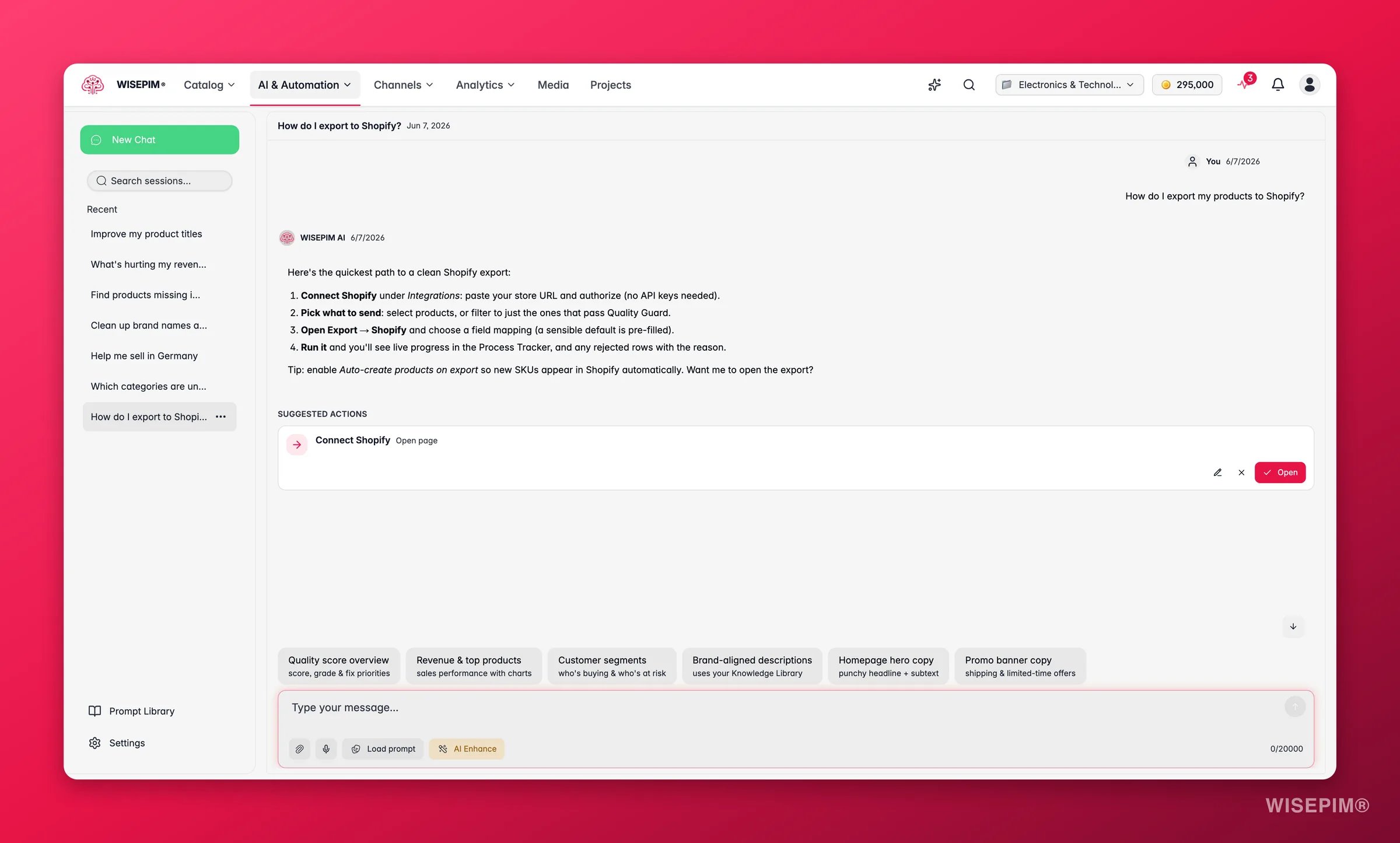
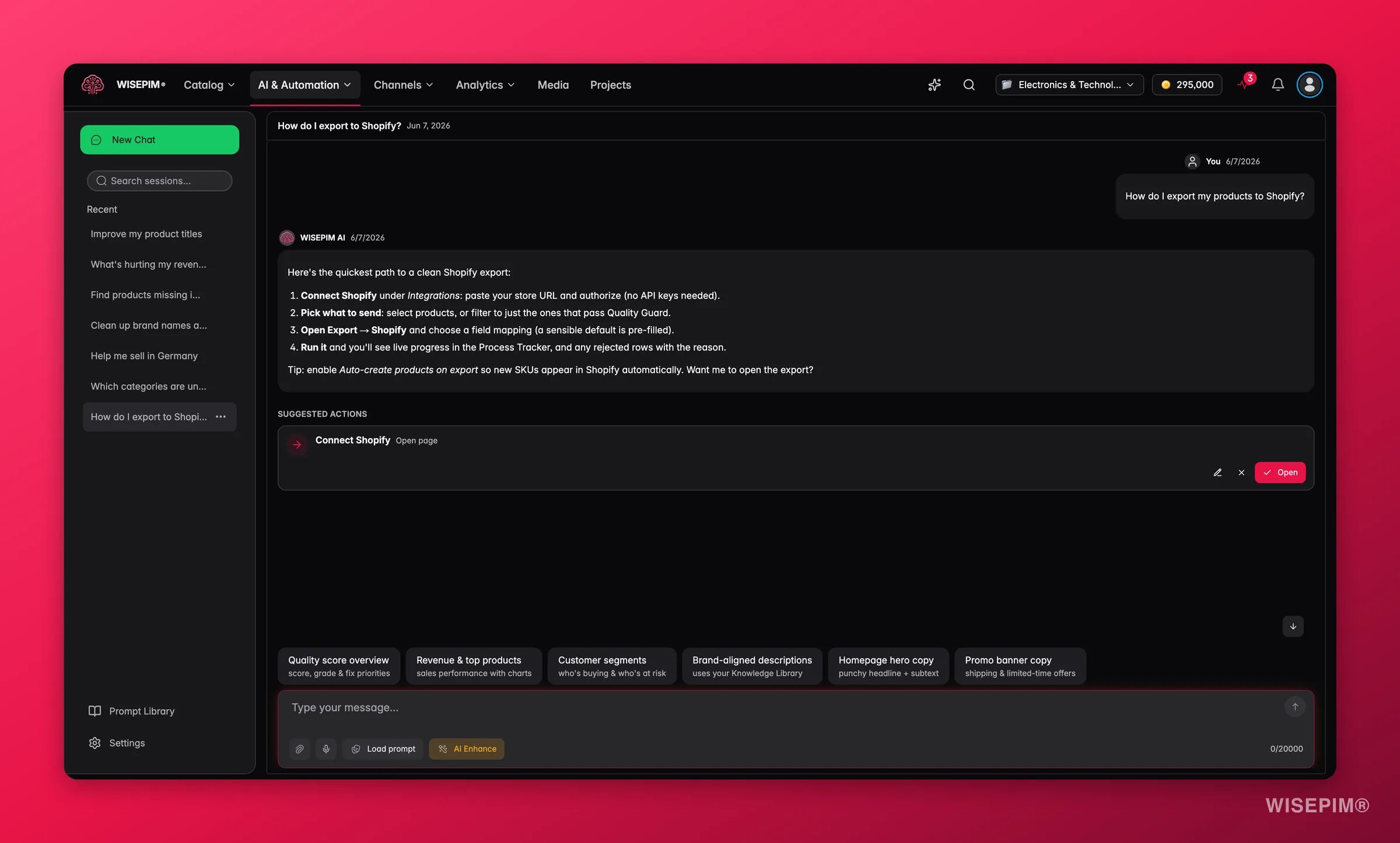
When the AI spots something it can fix, it proposes an action right inside the chat. You review it and approve, and nothing touches your catalog until you do.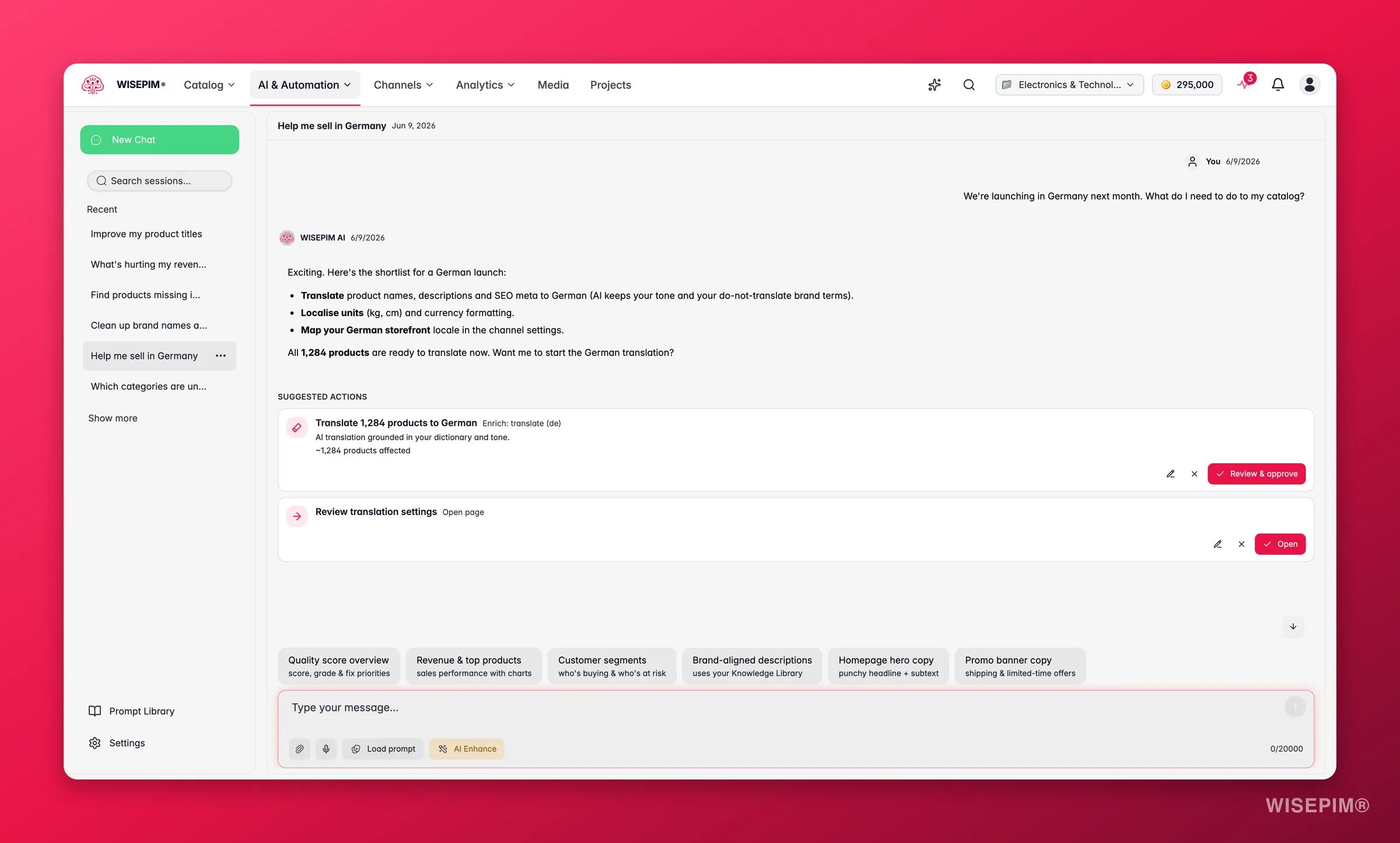
How a proposed action works
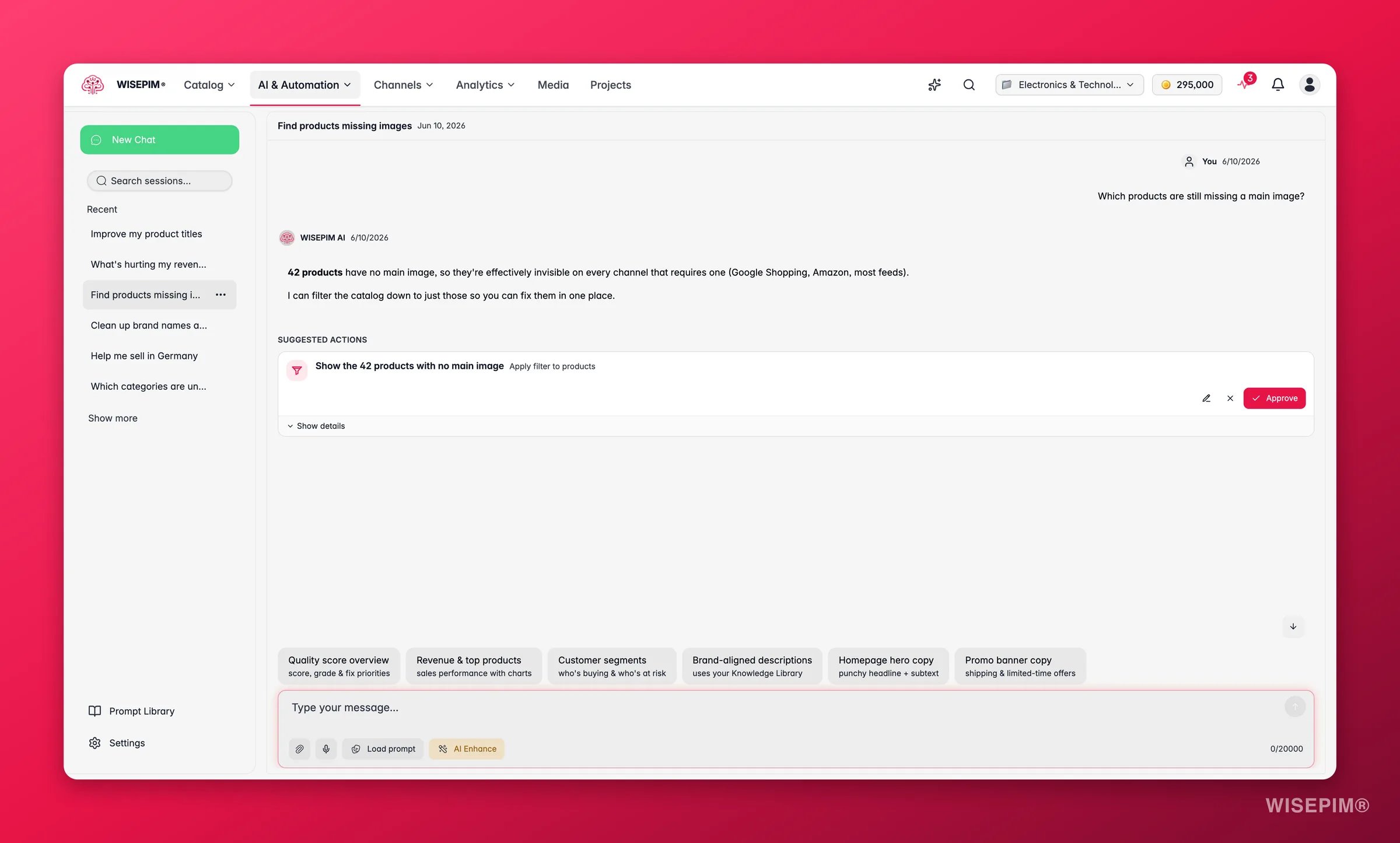
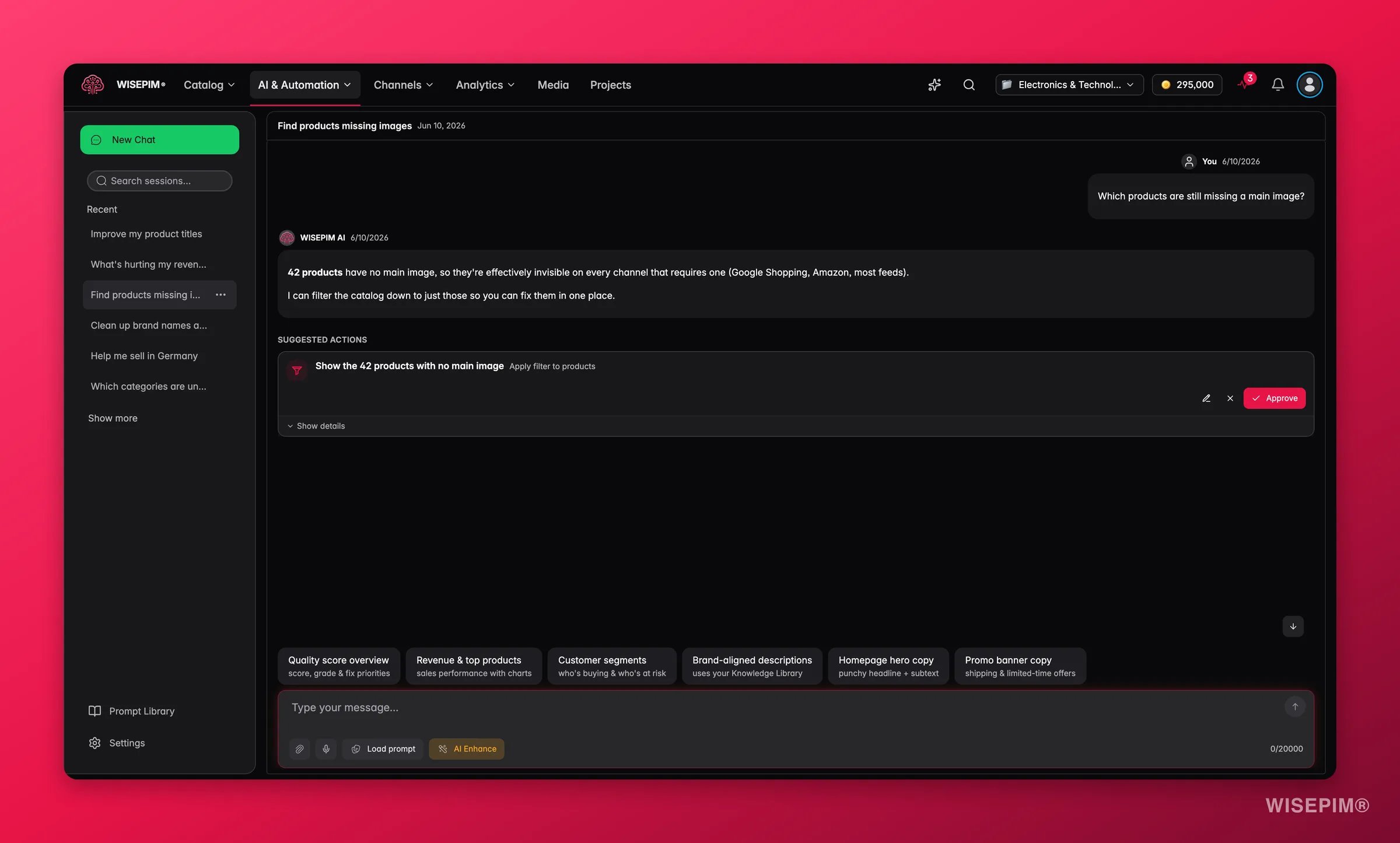
Each proposed action appears as a card under Suggested actions:- The card shows what will change, the type of action, and roughly how many products it affects (for example,
~128 products affected). - Preview shows the effect on the page without committing anything.
- Show details expands the Scope (which products), the Configuration (the exact settings), and Sample products, so you can verify before running.
- Edit lets you adjust the action first. Dismiss removes it.
- Approve runs a safe, read-only action immediately. Review & approve opens a catalog-changing action so you can confirm it in full first.
Types of actions
The simplest of these is Apply filter. Ask which products have a problem, and the AI answers with the count and a one-click filter that narrows the catalog to exactly that set.
Multi-step plans
For bigger jobs, the AI lays out an ordered plan. Each step is its own reviewable action, and Approve all in order runs them top to bottom, pausing if a step needs your attention.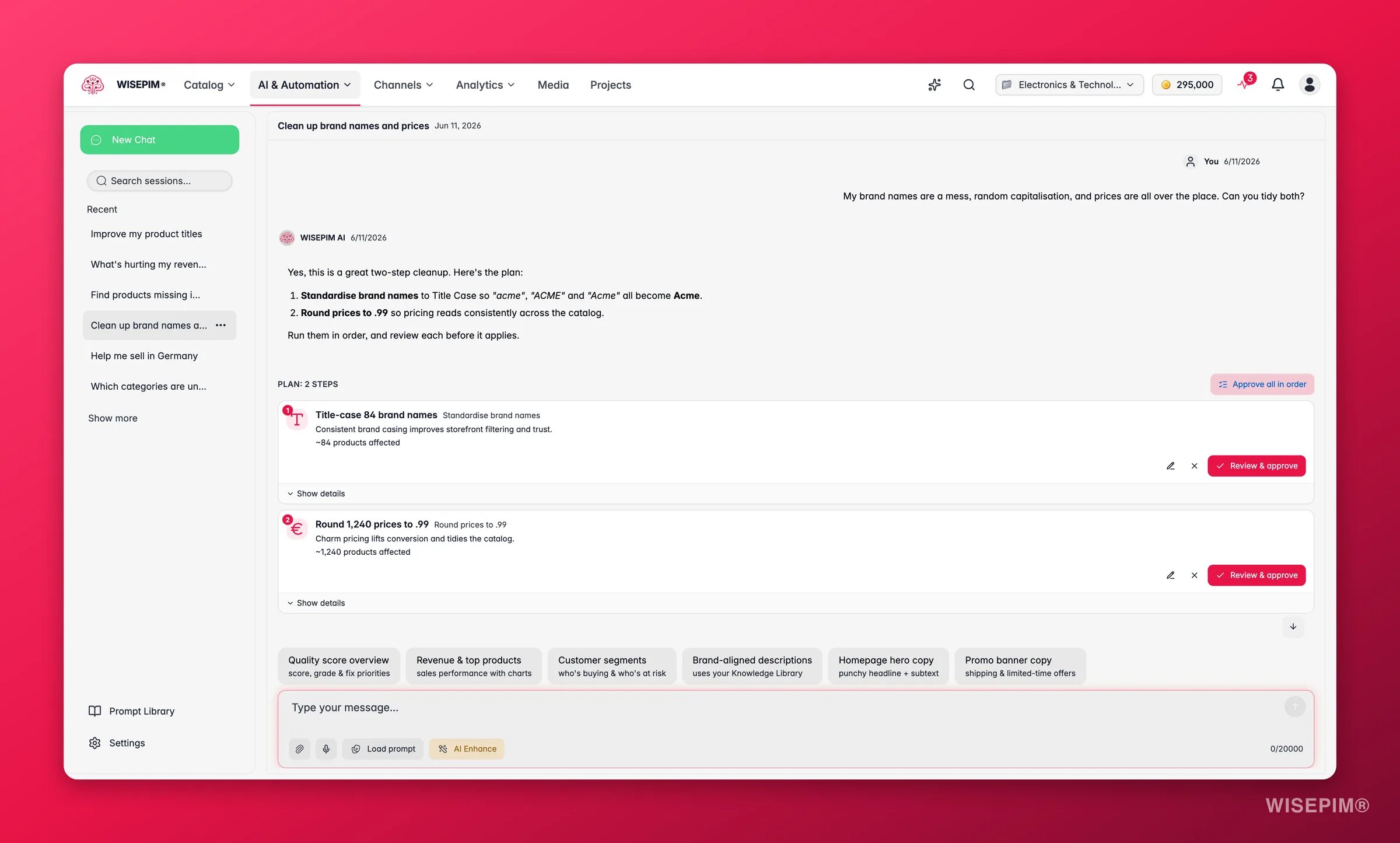
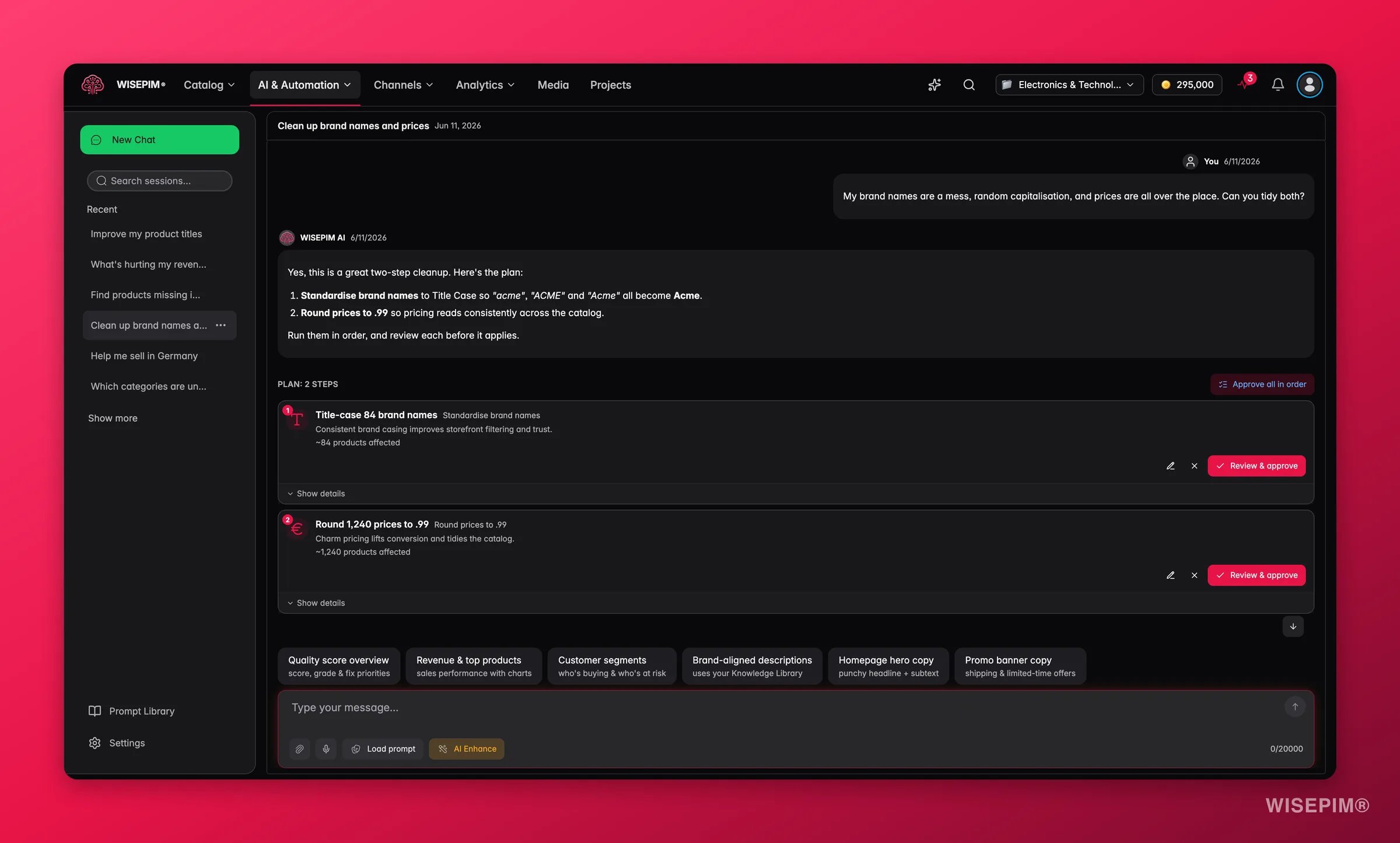
You can preview any proposed action for free. Applying catalog changes from chat may require a plan upgrade. If so, you will see an Upgrade to apply prompt on the action.
From question to result
Putting it together, here is how a single question becomes a finished change:Prompt Library
Curated Prompts
Curated prompts are ready-to-use templates organized into five categories. Each prompt is designed to pull the right data and produce actionable output.Product Content
Analytics & Performance
SEO & Marketing
Data Quality
Strategic
My Prompts
The My Prompts tab shows prompts you have saved from previous conversations. You can save any message as a reusable prompt by hovering over it and clicking the Save icon.Managing Chat Sessions
AI Chat organizes your conversations into sessions. Each session maintains its own message history, so you can revisit previous conversations at any time.Chat History Sidebar
The sidebar on the left displays all your chat sessions. From here you can:- Create a new chat: start a fresh conversation
- Switch between sessions: click any session to load its messages
- Rename a session: give conversations meaningful names for easy reference
- Delete a session: remove conversations you no longer need
Working with Messages
Copying Responses
Hover over any message to reveal action buttons. Click the Copy button to copy the message content to your clipboard. A checkmark confirms the copy was successful. You can also use the keyboard shortcut Cmd/Ctrl + Shift + C to copy the most recent AI response without hovering.Regenerating Responses
If you are not satisfied with an AI response, click the Regenerate button (circular arrow icon) on the last assistant message. The AI will generate a new response to your most recent question.Providing Feedback
Each AI response includes thumbs up and thumbs down buttons. Use these to indicate whether the response met your expectations. This feedback helps improve future responses.Stopping Generation
If the AI is taking too long or you want to cancel a response mid-generation, click the Stop generating button that appears below the chat, or press the Escape key.Attaching Files and Images
You can attach files and images to any chat message. The AI reads the content and uses it directly in its response. This is useful for asking questions about a specific spreadsheet, having the AI describe or audit a product image, or sharing a plain-text reference.How to attach
- Paperclip button: click the paperclip icon in the input toolbar to open the file picker.
- Drag and drop: drag files from your desktop and drop them onto the chat input area.
Supported file types
Each file can be up to 20 MB. You can attach up to 10 files per message.
AI Prompt Enhancer
The AI Enhance feature helps you write better prompts. If you have a rough idea of what you want but are not sure how to phrase it effectively, the AI Enhance tool can refine your prompt for better results.1
Type your initial prompt
Write a draft of what you want to ask in the input field.
2
Click AI Enhance
Click the AI Enhance button (magic wand icon) in the input toolbar.
3
Review the enhanced prompt
The AI will generate an improved version of your prompt with better structure and specificity.
4
Use the enhanced prompt
The refined prompt replaces your original input. Send it as-is or make further adjustments.
Tips for Better Results
Writing Effective Prompts
- Be specific: instead of “write a description,” say “write a 150-word product description for a premium leather wallet targeting men aged 25-40”
- Mention your brand voice: include tone guidelines like “professional but approachable” or “playful and casual”
- Set constraints: specify word counts, character limits, or formatting requirements
- Provide context: reference the product category, target audience, or sales channel
- Ask for data first: start with “Show me my top products by revenue” then follow up with “Now write descriptions for these”
Getting the Most from Conversations
- Use follow-up messages: refine the AI output by asking for adjustments in follow-up messages rather than starting over
- Iterate on responses: ask the AI to make the text shorter, more persuasive, or more SEO-focused
- Combine data and content: ask the AI to analyze your data first, then generate content based on the findings
- Close the loop: after the AI surfaces a problem, ask it to “fix that for me” so it proposes an action you can review and approve
- Save successful prompts: when a prompt produces great results, save it to your Prompt Library for reuse
- Organize sessions by topic: keep separate sessions for different projects or product categories
Related
AI Chat settings
Set the personality, response style, tool access, and language for your copilot.
Knowledge Library
Add the brand voice, audience, and values the AI writes with.
Analytics overview
Explore the dashboards behind the numbers AI Chat reports.
Bulk editing
See the catalog operations the AI can propose and run for you.