

Overview
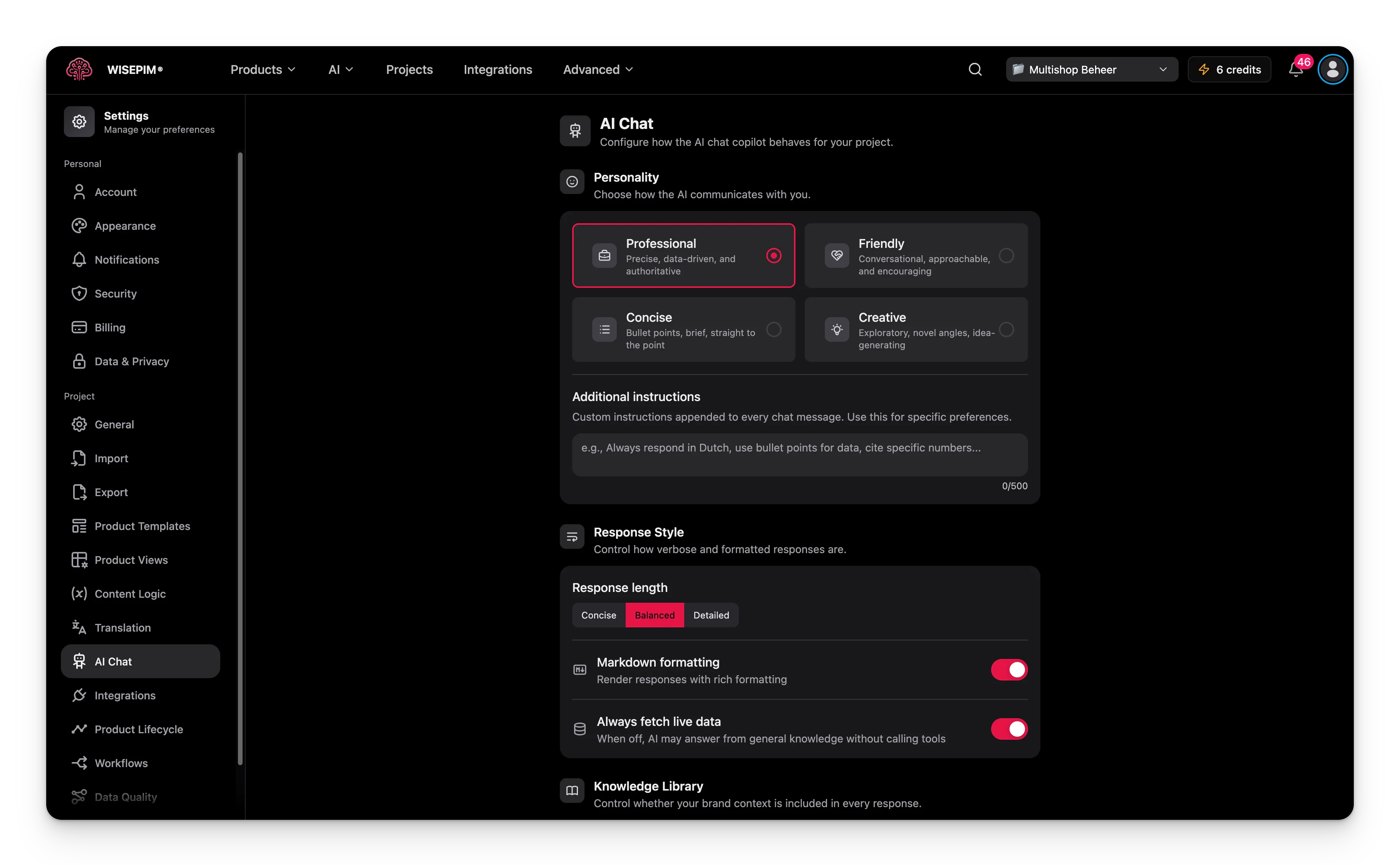
These settings are project-level. Each project can have its own AI Chat configuration. Changes apply to all new chat sessions in the project.
Personality
Choose how the AI communicates with you by selecting one of four personality presets:
The default personality is Professional.
Additional Instructions
Write custom instructions that are appended to every chat message. Use this for specific preferences like “Always respond in Dutch”, “Use bullet points for data”, or “Cite specific numbers from reports.” The field supports up to 500 characters.Response Style
Control how verbose and formatted responses are.- Response length: choose between Concise, Balanced (default), or Detailed. This controls how much information the AI includes in each response.
- Markdown formatting: when enabled (default), responses are rendered with rich formatting including headers, bold text, lists, and tables. Disable for plain text responses.
- Always fetch live data: when enabled (default), the AI always queries your product catalog and analytics tools before responding. When disabled, the AI may answer from general knowledge without fetching live data.
Knowledge Library
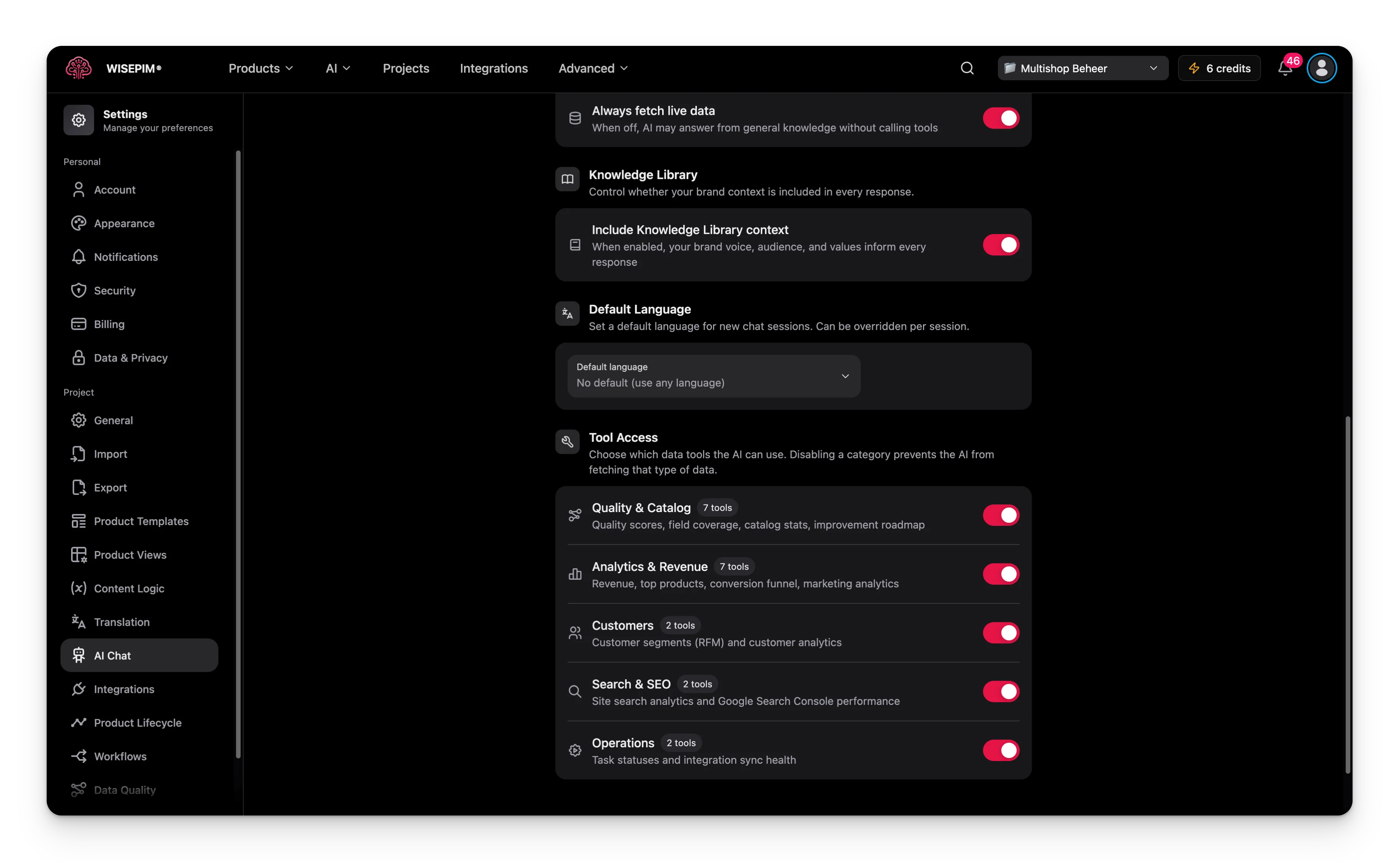
- Include Knowledge Library context: when enabled (default), your brand voice, target audience, and company values from the Knowledge Library inform every response. Disable this if you want the AI to respond without brand-specific context.
Default Language
Set a default language for new chat sessions. The AI will respond in this language by default. Select a language from the dropdown, or leave it set to No default (use any language) to let the AI respond in whatever language you write in. This can be overridden per session.Tool Access
Choose which data tools the AI can use. Disabling a category prevents the AI from fetching that type of data.
All categories are enabled by default. Toggle any category off to prevent the AI from accessing that data.
Saving Changes
When you modify any setting, a save bar appears at the bottom:- Save changes: persists your AI Chat settings to the project.
- Reset: reverts all changes to the last saved state.
Related
AI Chat
Chat with your catalog and make bulk changes in plain language.
WISECHAT Widget
Configure the customer-facing chat widget for your storefront.
WISECHAT Analytics
See what customers ask and where answers fall short.