

Select a project from the project switcher first. Export templates are saved per project, so each catalog keeps its own set.
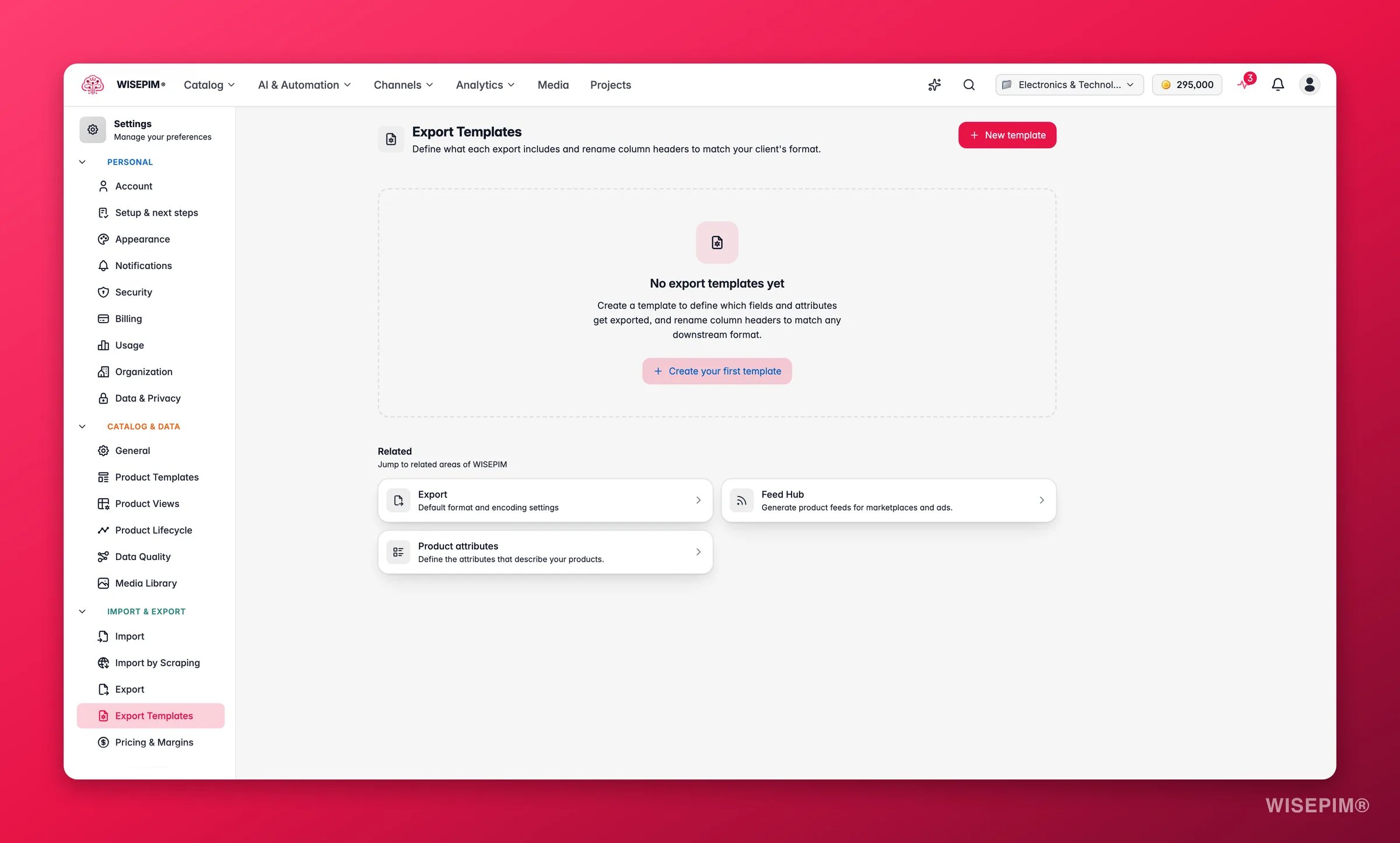
The template list
The page opens on a table of every template you have saved for the project. Each row shows the essentials at a glance:
Each row in the Actions column gives you four quick controls:
- Edit: open the template to change its fields, headers, or formatting.
- Preview: see the first 3 products run through the template before you commit.
- Duplicate: copy the template as a starting point for a new variant.
- Delete: remove the template for good.
Create a template
Click New template in the top right to open the builder. The same form is used when you save a column selection from the products page.1
Start from a preset (optional)
Pick a preset to pre-fill the form with platform-specific defaults, then customize from there. Leave it blank to start clean.
2
Name and code it
Give the template a clear Template Name. The Template Code auto-fills from the name as a unique identifier, and you can edit it.
3
Pick the target platform
Choose the channel this template is built for, such as Generic (CSV/Excel), Shopify, WooCommerce, or Google Merchant Center. This sets sensible defaults for that platform.
4
Choose fields, attributes, and headers
Select which product fields and dynamic attributes to include, and rename their column headers. The sections below cover each part.
A template needs a name, a code, and at least one product field or attribute before you can save it.
Product fields and column headers
The Product Fields section is where you choose the core product data to include, fields like name, SKU, price, brand, or description, and rename the header each one carries in the exported file. Every included field shows as a row with the internal field name on the left and a rename box on the right:- Leave the rename box empty to keep the original field name as the header.
- Type a new label to override the header, for example mapping
skutoItem Numberfor a client who expects that wording.
Renaming a header only changes the export file. The field’s internal name in WISEPIM stays the same, so nothing else in your catalog is affected.
Attribute layout
Dynamic attributes (your custom product properties) can export in two shapes. Set this with Attribute Layout before you add attributes.
When you choose Numbered triplets, set Max Attribute Slots to control how many slots the export reserves. Each slot generates 3 columns, so 17 slots produce 51 columns. Products with fewer attributes simply leave the extra slots empty.
Dynamic attributes
Use Add Dynamic Attribute to search for and include your custom attributes, or Add All to pull in everything at once. Each attribute you add can be fine-tuned by expanding its row:- Output Column Name: rename the attribute’s column header in the export, without changing its internal name.
- Locale Override: for localizable attributes, export a specific language (for example
enornl) instead of the template’s default locale. - Resolve Labels: output human-readable labels instead of raw option codes, so a value reads “Stainless Steel” rather than a code.
- Include Unit in Value: append the unit to the value, for example
100 mminstead of100. - Target Unit: convert measurements to a specific unit (such as
mmorkg) before export.
Active and default templates
When you edit a template, two checkboxes control how it behaves:- Active: keep the template available for use. Switch it off to retire a template without deleting it; it then shows an Inactive chip in the list.
- Default for platform: mark this template as the one to reach for first when exporting to that platform.
Preview before you export
Click the preview action on any template to run your first 3 products through it and see the resulting headers and values. This is the fastest way to confirm your field selection, column renames, and attribute formatting all look right before a full export goes out.Saving your work
Export templates do not use a page-level save bar. Instead, each template saves on its own:- In the create or edit dialog, click Save Template (or Save Changes) to store it. The new or updated template appears in the list right away.
- Delete and Duplicate apply immediately from the row actions, with a confirmation before anything is removed.
Related
Export Settings
Set the default file format, encoding, and quality check for every export.
Exporting Products
Run an export and apply the template you just built.
Feed Hub
Push product feeds to channels on a schedule.
Integrations
Connect the stores and marketplaces your templates feed.