

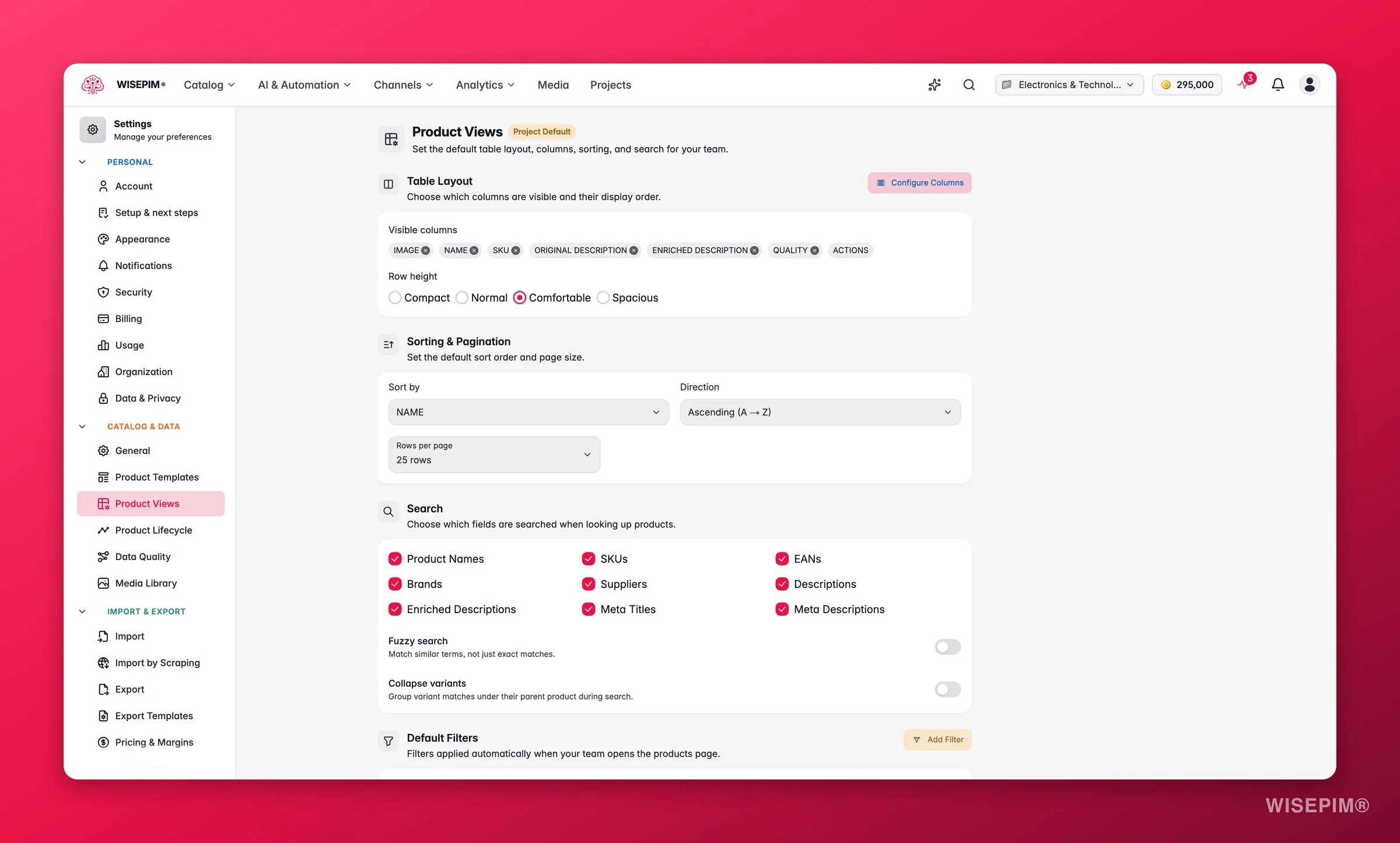
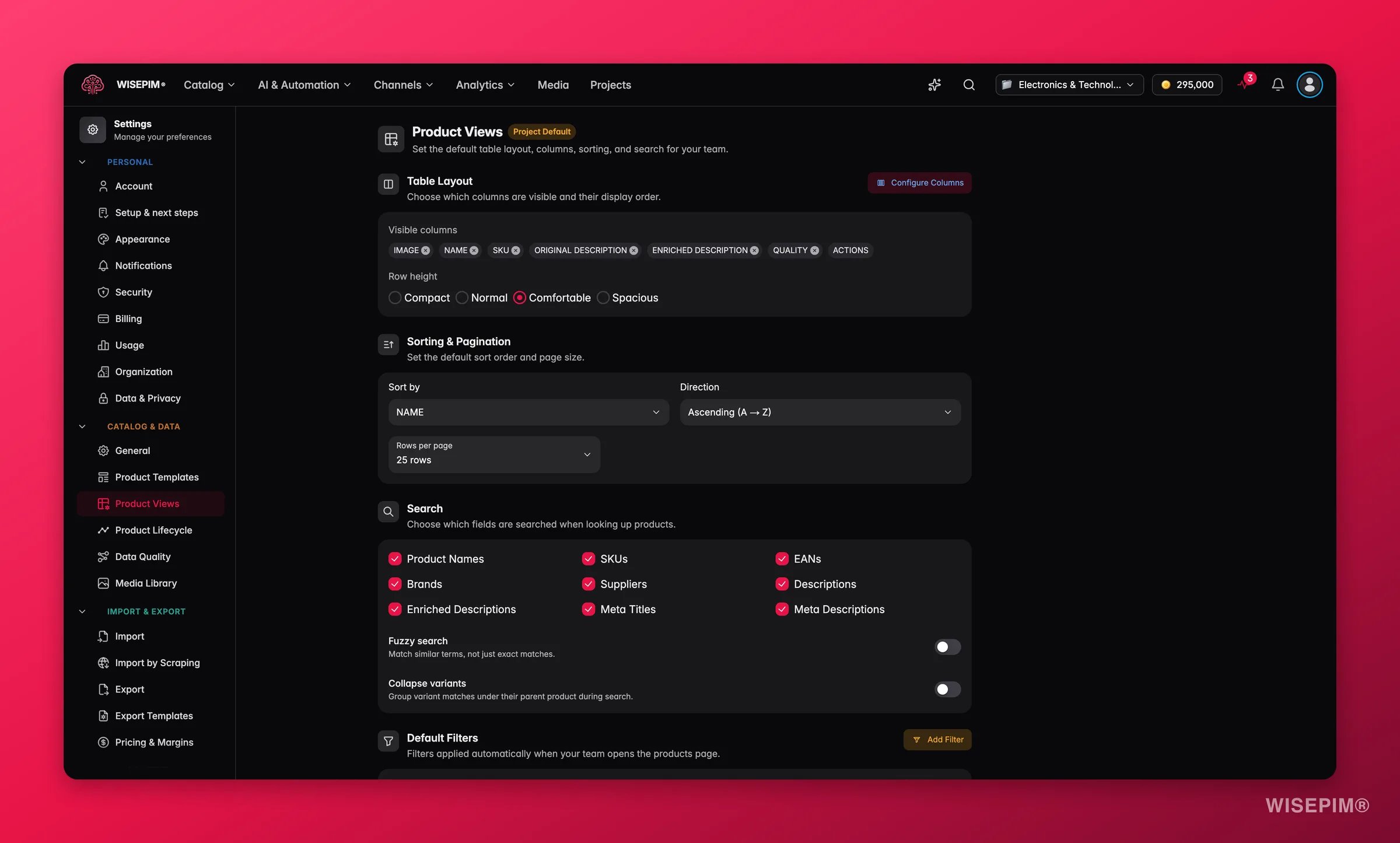
Changes take effect the next time a team member loads the products page. They never overwrite personal customizations a user has already saved.
Choose which columns show
Click Configure Columns to open the column picker. From there you can:- Browse all available columns, grouped by category.
- Toggle columns on or off.
- Drag columns to reorder them.
- Reset to the default column set.
Set the row height
Row height controls how much space each row takes. Pick the density that fits how your team works.Set the default sort and page size
Default sort
Pick the column the table sorts by on first load, and the direction:- Sort by: any sortable column, such as Product Name, Price, Created Date, or Quality Score. The rows load in this order for everyone on the project until someone sorts by another column.
- Direction: ascending (A to Z, low to high) or descending (Z to A, high to low).
Rows per page
Set how many products show per page: 25, 50, or 100 rows.Bigger page sizes load more data at once. If your team has slow connections, stick with 25 or 50 rows.
Tune what search covers
Search fields
Choose which product fields the search bar looks through. Turn each field on or off, for example:- Product Name, SKU, EAN, Brand, Supplier
- Description, Short Description
- Meta Title, Meta Description, Meta Keywords
Fuzzy search
Decide how strict search should be:- Off: only exact matches are returned (faster and more precise).
- On: similar terms match too, allowing for typos and variations.
Apply default filters
Default filters pre-filter the products page, so your team lands on the subset that matters instead of the full catalog. To add a filter condition:1
Click Add Filter
This opens the advanced filter dialog.
2
Pick a field
Choose the product field to filter on.
3
Choose an operator
Set the comparison logic, such as equals, contains, is empty, or greater than.
4
Enter a value
Add the value to compare against.
Save your changes
Edit any setting on this page and a save bar appears at the bottom:- Save: stores your product view settings on the project.
- Undo: reverts every change to the last saved state.
Related
Managing products
Search, filter, and sort the product table you just configured.
Product Templates
Set default values for every new product you create.
Data Quality
Decide how the Quality Score column is calculated.
Settings Overview
Browse every personal and project setting in one place.