

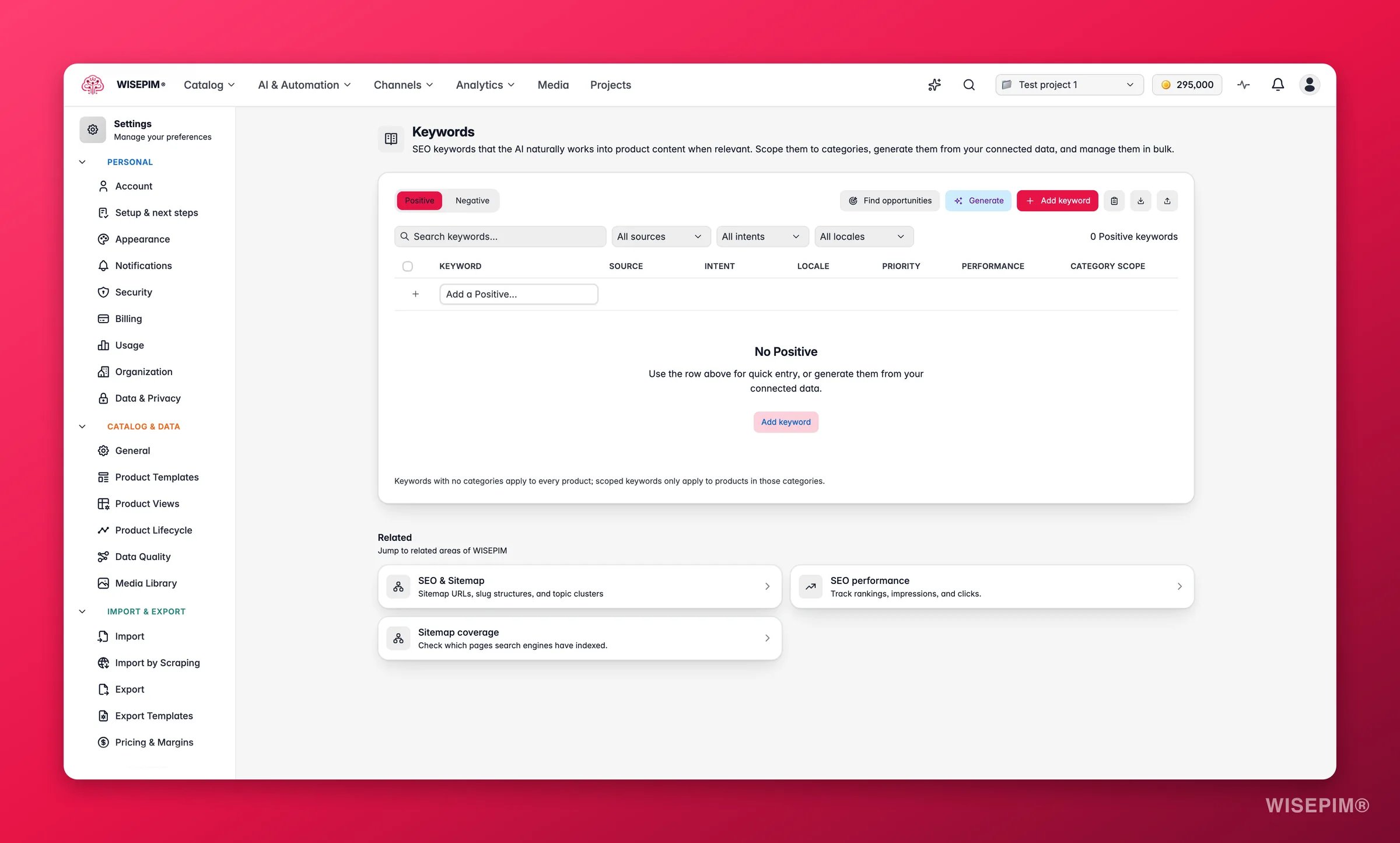
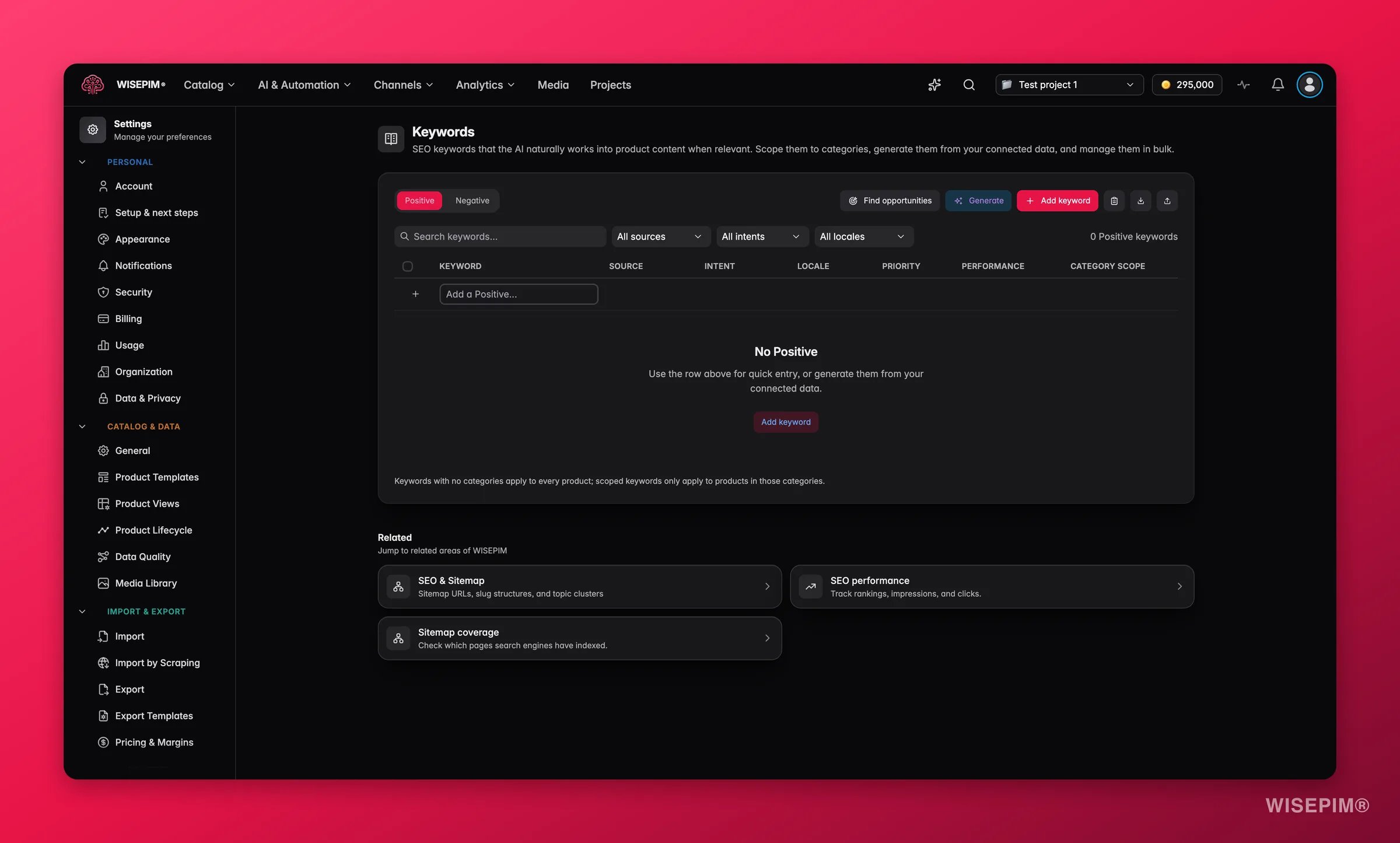
Pick a project in the project switcher before you open Keywords. The list applies to the selected project only.
Positive and negative keywords
The page splits your terms into two tabs. Switch between them at the top left.
Every action on the page (add, paste, generate, bulk edit) applies to the tab you have open, so you always know which list you are building.
Add keywords
You have three ways to add terms by hand, from fastest to most detailed.- Quick add row: the inline row at the top of the table. Type a term, press Enter, and it lands in the current tab right away. Best for adding a few terms in a flow.
- Add keyword: opens a dialog where you set the term, choose Positive or Negative, and optionally scope it to one or more categories. WISEPIM warns you if the term is an exact or near-duplicate of one you already have, so your list stays clean.
- Paste a list: click the clipboard icon to paste many terms at once, separated by commas or new lines. WISEPIM dedupes them, skips ones you already have, and shows how many are new before you add them.
Generate keywords with AI
Click Generate to have AI propose keywords from your own data instead of typing them yourself. This is the fastest way to build a strong list and find terms you would not have thought of.1
Pick your data sources
Choose which signals AI draws from: Google Search Console, Knowledge Library, Product catalog, and Google Analytics. Combine them for broader coverage.
2
Shape the request
Add optional seed terms to steer the topic, focus on specific intents (transactional, informational, comparison, navigational), choose a keyword length (head, long-tail, or mixed), set how many to generate, pick a language, and toggle whether to include branded terms.
3
Review the suggestions
AI returns a list with each term’s source, intent, and click data where available. Terms you already have are flagged and skipped automatically.
4
Add the ones you want
Check the keywords to keep, then add them all in one click. Regenerate to try again with different settings.
Find opportunities
Click Find opportunities to surface search queries your project already ranks for in Google Search Console but does not yet target as keywords. WISEPIM lists them with their clicks, impressions, and average position so you can capture proven demand with one click. Select the terms you want and add them straight to your list.Bulk tools
Once your list grows, the table gives you tools to manage it at scale. Select rows with the checkboxes (hold Shift to select a range, or press Cmd/Ctrl+A to select everything loaded). A bulk action bar then replaces the filters:
Import and export. Use the upload icon to import keywords from a CSV or Excel file (new terms are added, duplicates are skipped) and the download icon to export your whole list. This makes it easy to move keyword sets between projects or review them in a spreadsheet.
Search and filter. When nothing is selected, the toolbar offers a search box plus filters for source, intent, and locale, so you can zero in on the keywords you want to work on.
Tune a single keyword
Click the pencil icon on any row to open the editor, where you control exactly how that keyword behaves:- Priority: Low, Medium, or High. Higher-priority terms get more weight in AI content.
- Intent: tag the search intent so AI uses the term in the right context.
- Source: where the keyword came from (manual, Search Console, Knowledge, Catalog, or Analytics).
- Locale scope: limit the keyword to one language, or apply it to all locales.
- Target fields: restrict the keyword to specific fields, like Title, Description, Short description, SEO meta, or Attributes. Leave it empty to use the keyword across all fields.
- Category scope: apply the keyword only to products in chosen categories.
- Notes: a free-text reminder for your team.
How keywords shape AI content
This is where keywords pay off. Whenever WISEPIM generates content for a product, it pulls in the keywords that match that product’s categories, language, and the field being written:- Positive keywords are woven into titles, descriptions, short descriptions, SEO meta, and attributes where they read naturally, lifting your search visibility without keyword stuffing.
- Negative keywords are kept out, protecting your brand voice.
- Priority, locale, target fields, and category scope decide which keywords apply where, so each product gets the most relevant terms instead of every keyword on your list.
Save your changes
There is no Save button to remember. Every change you make on this page saves immediately: quick add, generate, paste, bulk edits, inline category scope, and deletes all persist the moment you confirm them. A toast confirms each action, and deletes include an Undo if you change your mind.Related
SEO settings
Configure how WISEPIM optimizes meta titles, descriptions, and search content.
Enrichment defaults
Set the default rules AI follows when it writes product content.
Enriching products
Generate and improve product content with AI, using your keywords.
Settings overview
See every project setting and how they work together.