

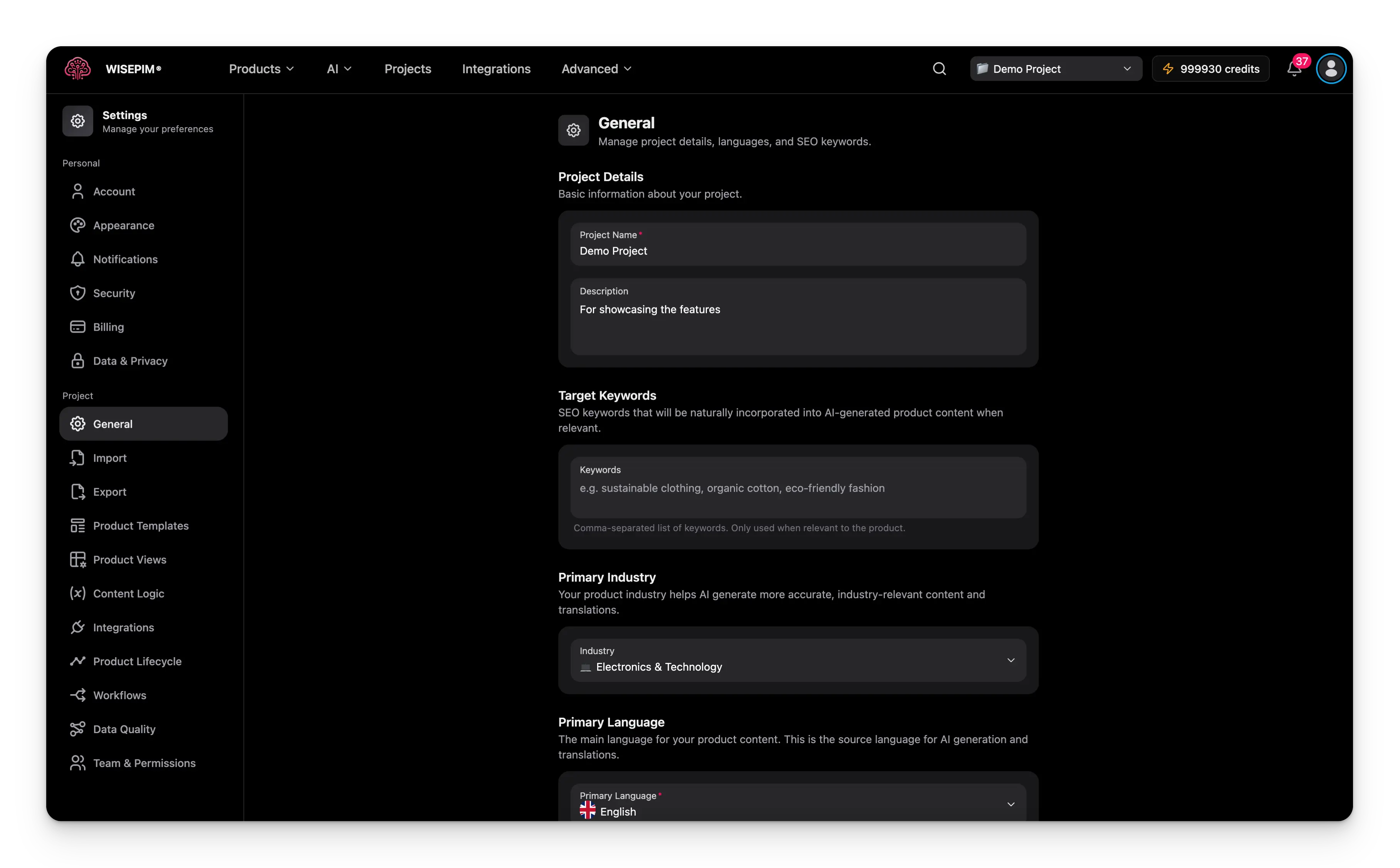
Pick a project in the project switcher before you open General settings. Settings apply to the selected project only.
Name your project
Give your project a clear identity so your team knows what it holds.1
Project name
Enter a descriptive name. It shows in the project switcher and across the interface.
2
Description
Add a short summary of the project and the products it contains. This helps your team understand its scope at a glance.
Add target keywords
Target keywords are the SEO terms you want to rank for. AI weaves them into your product content when they fit, so descriptions read naturally and still help you rank. Enter a comma-separated list, for example:Set your industry
Your industry tells AI what kind of products you sell. With this context, it writes more accurate, on-topic content and translations. Pick the industry that best matches your catalog from the dropdown. Options cover categories like fashion, electronics, food and beverage, health and beauty, and more.Changing your industry does not rewrite existing content. It only shapes content AI generates from now on.
Choose your languages
Your languages decide which versions of your product content WISEPIM can create.Primary language
The primary language is your source language. All AI generation and translation start from it.1
Select the primary language
Search the autocomplete dropdown and pick your main language. Each one shows its country flag, so it is easy to spot.
2
Check the result
If your new primary language was in the additional list, WISEPIM removes it from there automatically.
Additional languages
Add as many extra languages as you need. WISEPIM translates your content from the primary language into each one.- Add a language: search and select it in the autocomplete field.
- Remove a language: click the close icon on the language chip.
Save your changes
Edit any field and a save bar appears at the bottom of the page. You have two choices:- Save: applies your changes right away.
- Undo: reverts every field to the last saved state.
Related
Import settings
Control conflict resolution, empty fields, and validation for every import.
Translation settings
Fine-tune how AI translates content into your additional languages.
Language settings
Set the language of the WISEPIM interface for your account.
Managing projects
Create, switch, and organize the projects in your workspace.