

These settings are project-level. Pick a project from the project switcher first. Each project gets its own widget configuration, site key, and install snippet.
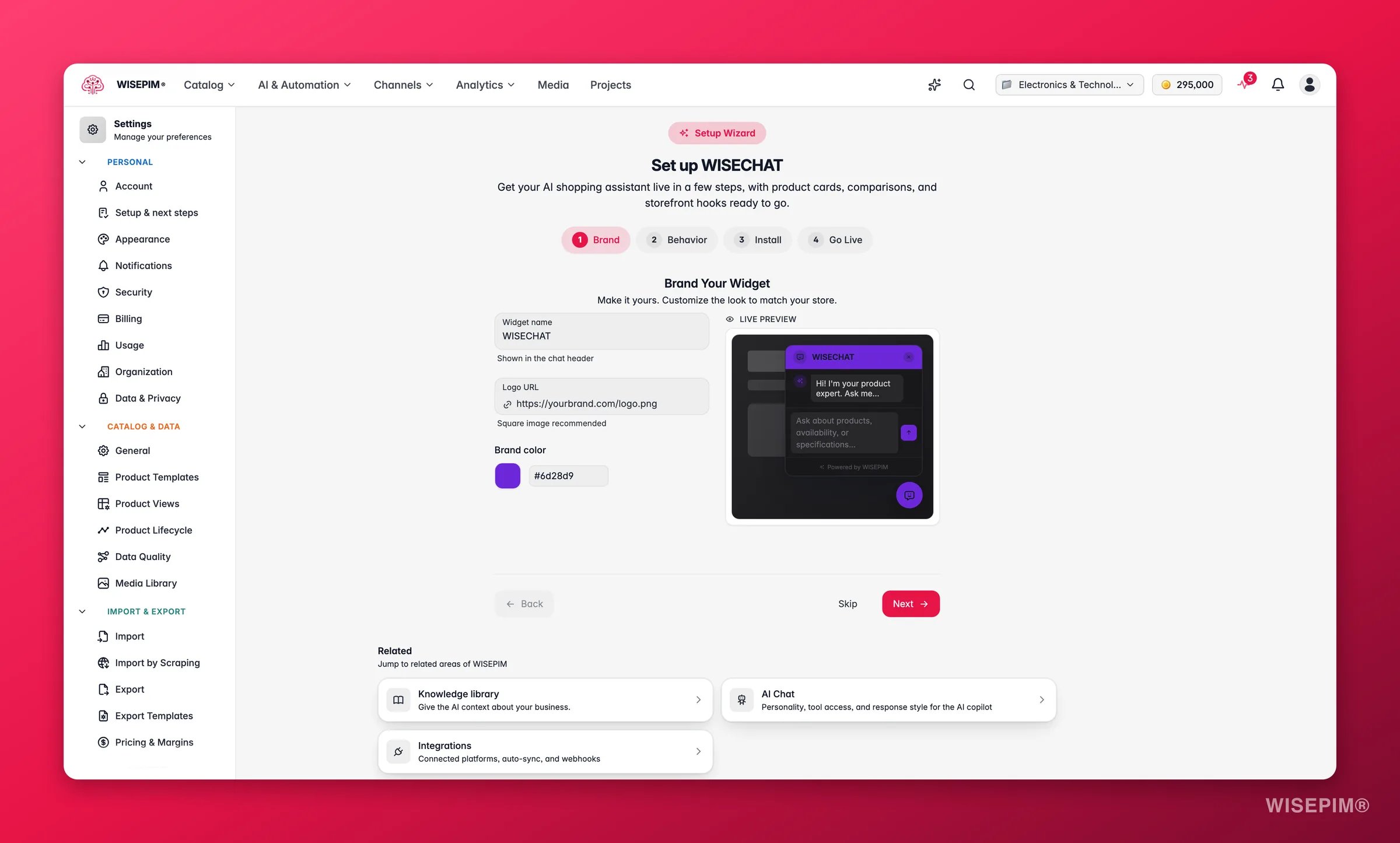
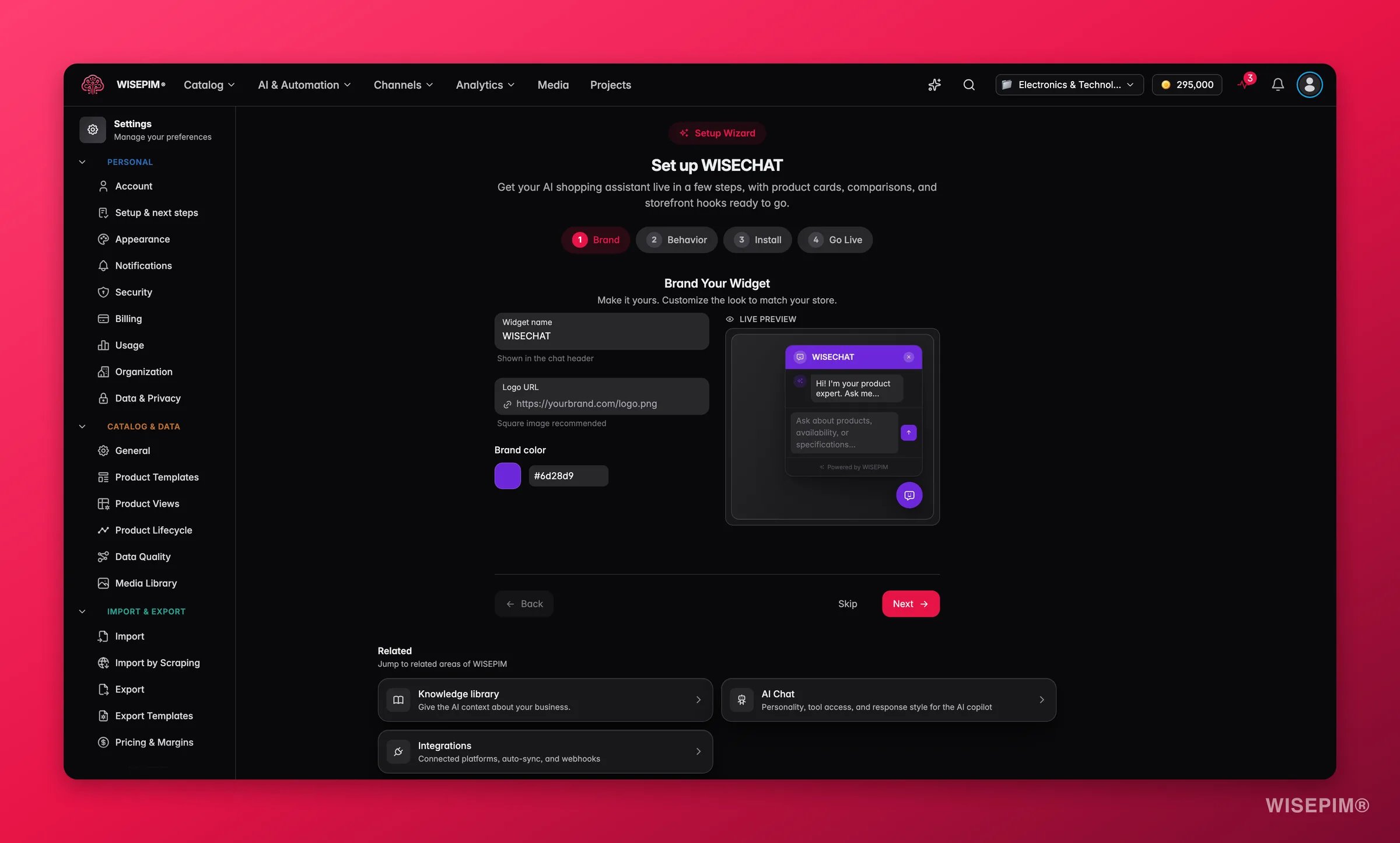
Brand your widget
The first wizard step matches the assistant to your store’s look so it feels like a native part of your site, not a bolted-on chatbot.- Widget name: the assistant’s display name, shown in the chat header (up to 40 characters). Use something on-brand like “Ask Sara” or your store name.
- Logo URL: a link to your logo image. It appears in the chat header for instant brand recognition.
- Brand color: pick your primary color with the color picker or paste a hex value. It tints the launcher button, header, and accents.
Configure behavior
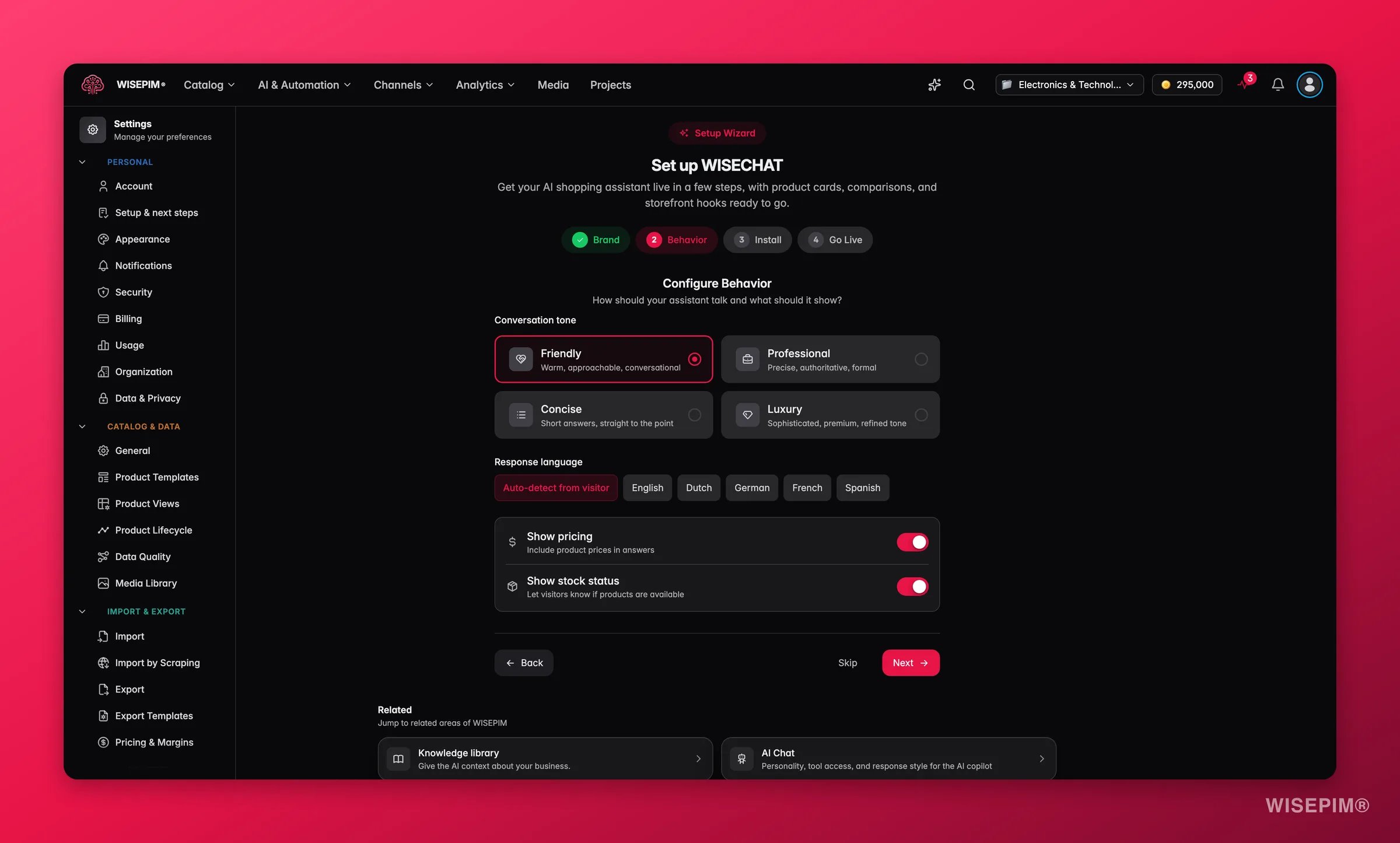
This step decides how the assistant talks and what catalog data it is allowed to share with shoppers. Getting this right keeps answers accurate, on-brand, and safe.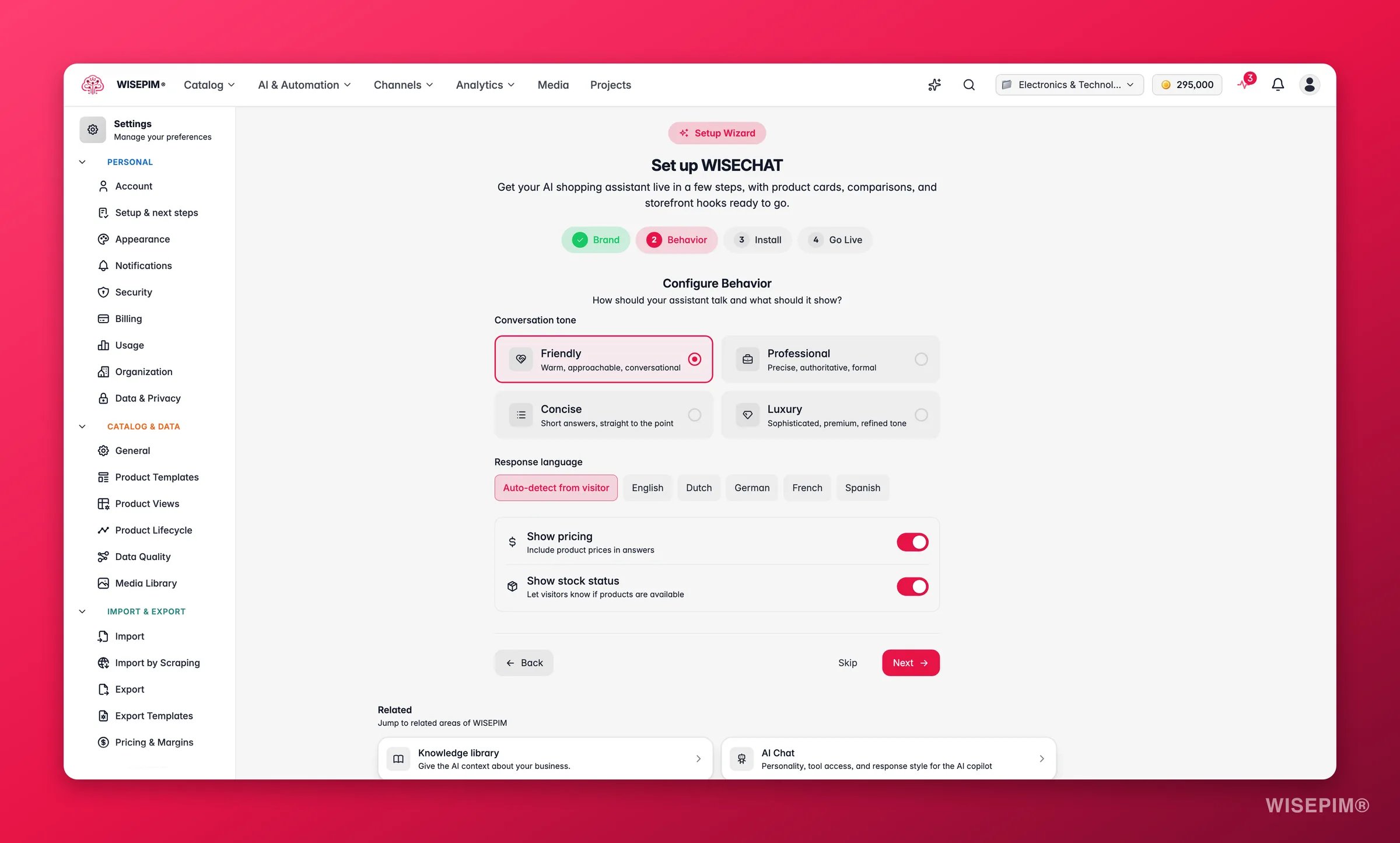
Conversation tone
Choose the personality that fits your brand voice:Response language
Pick the language the assistant replies in, or leave it on Auto-detect so it matches the shopper’s own language. Auto-detect is ideal for stores that serve multiple markets.Data access toggles
Control which live catalog facts the assistant is allowed to surface:
When you move past this step, your branding and behavior choices are saved automatically.
Install on your store
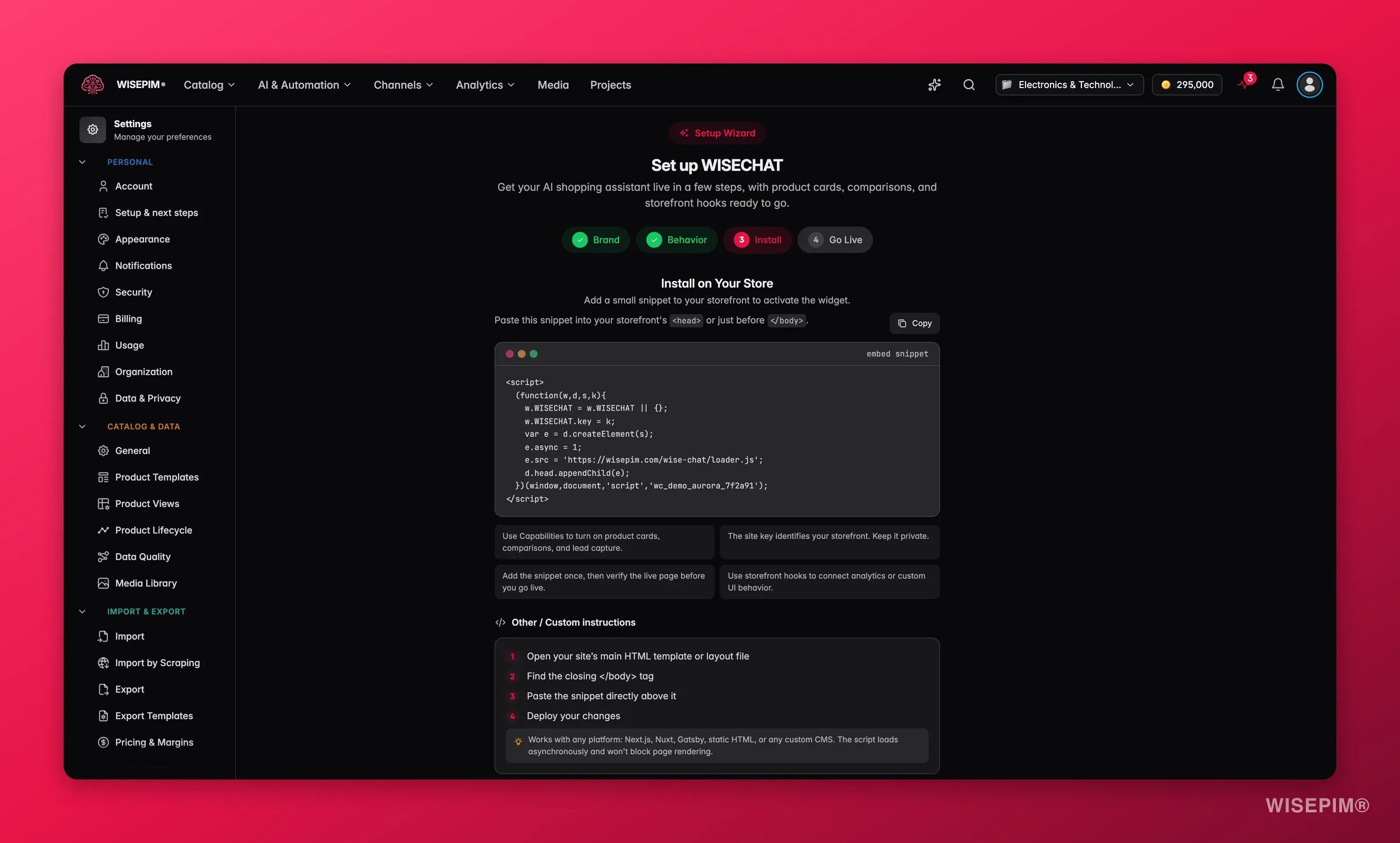
The install step gives you a one-line embed snippet and step-by-step instructions for your platform. WISEPIM detects your connected store and highlights the matching guide automatically.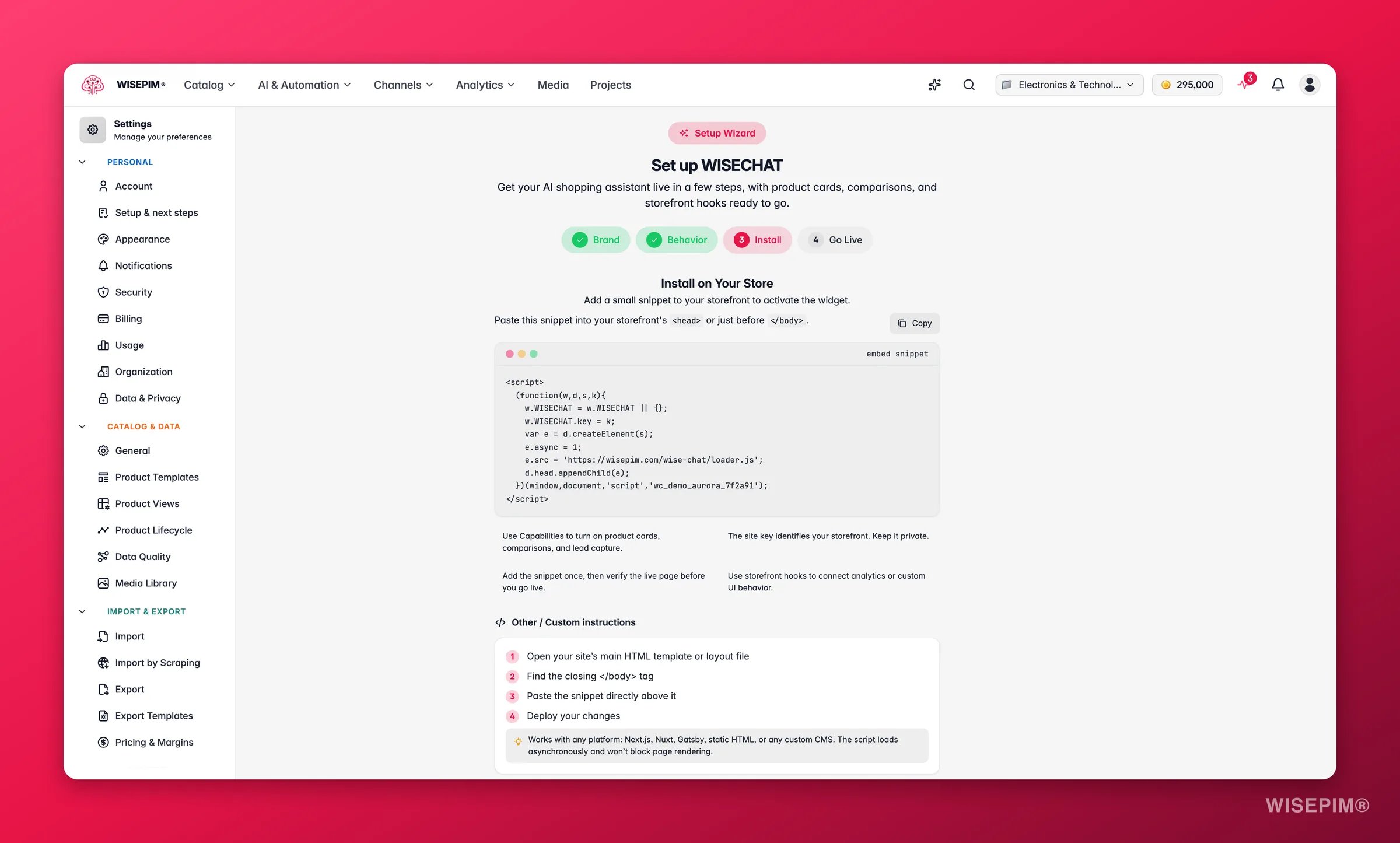
1
Copy the embed snippet
Click Copy to grab the script. It already includes your unique site key, so the widget knows which project’s catalog to use.
2
Paste it into your store
Add the snippet to your site’s HTML, ideally just before the closing
</body> tag (or inside <head>). Use the platform guide for your store:3
Verify the installation
Enter your store URL and click Verify. WISEPIM loads the page and confirms the widget is detected, so you know it’s live before you tell shoppers about it.
The snippet loads asynchronously, so it won’t slow down your page. If your project has no site key yet, save your settings first and one is generated automatically.
Go live
The final step shows a summary of your configuration (name, brand color, tone, language, pricing, stock, product cards, and comparison) so you can confirm everything at a glance.1
Review the summary
Check that the tone, language, and data toggles match what you want shoppers to experience.
2
Enable the widget
Click Enable WISECHAT to switch the assistant on. The widget only appears on your storefront once it is enabled.
Manage your live widget
Once WISECHAT is enabled, the page becomes the advanced settings view, with the same live preview on the right. From here you can:- Update appearance and behavior at any time. Changes take effect on your storefront after you save.
- Restrict allowed domains so the embed snippet only works on the hostnames you list. Leave it empty to allow any domain, or add exact hosts and wildcard subdomains for tighter control.
- Open analytics to see how shoppers use the assistant and where it drives conversions.
Related
AI Chat
Configure the in-app AI copilot that helps you manage your catalog.
Knowledge Library
Add brand, shipping, and returns content the assistant can answer from.
Integrations
Connect the store platform where your widget gets installed.
Settings overview
See every project setting in one place.