

Opening the Command Menu
- Keyboard shortcut: press
⌘Kon Mac orCtrl+Kon Windows/Linux - Search icon: click the search icon in the top-right corner of the screen
Esc or click outside the menu to close it.
Navigating pages
Start typing the name of any page (products, analytics, settings, prompt lab) and the Command Menu instantly filters results. PressEnter to jump there.
The menu includes every destination in WISEPIM: product management, analytics dashboards, AI tools, automations, quality guard, settings, and more.
Newly available commands
Newer parts of WISEPIM are in the Command Menu too, so you can reach them without hunting through the navigation:Searching products
Type a product name, SKU, or keyword to search your catalog directly from the Command Menu. Select a result to open that product immediately.Page actions
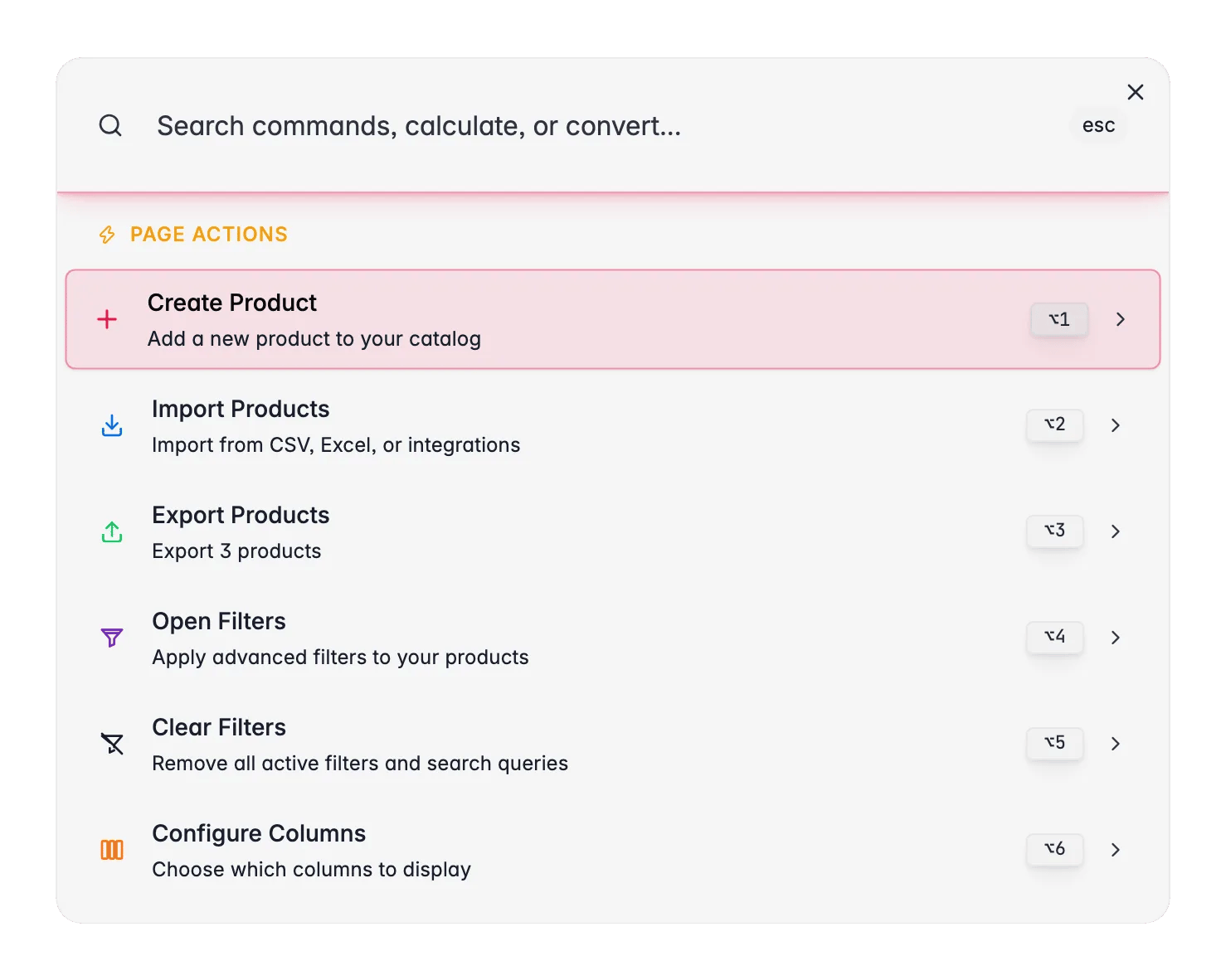
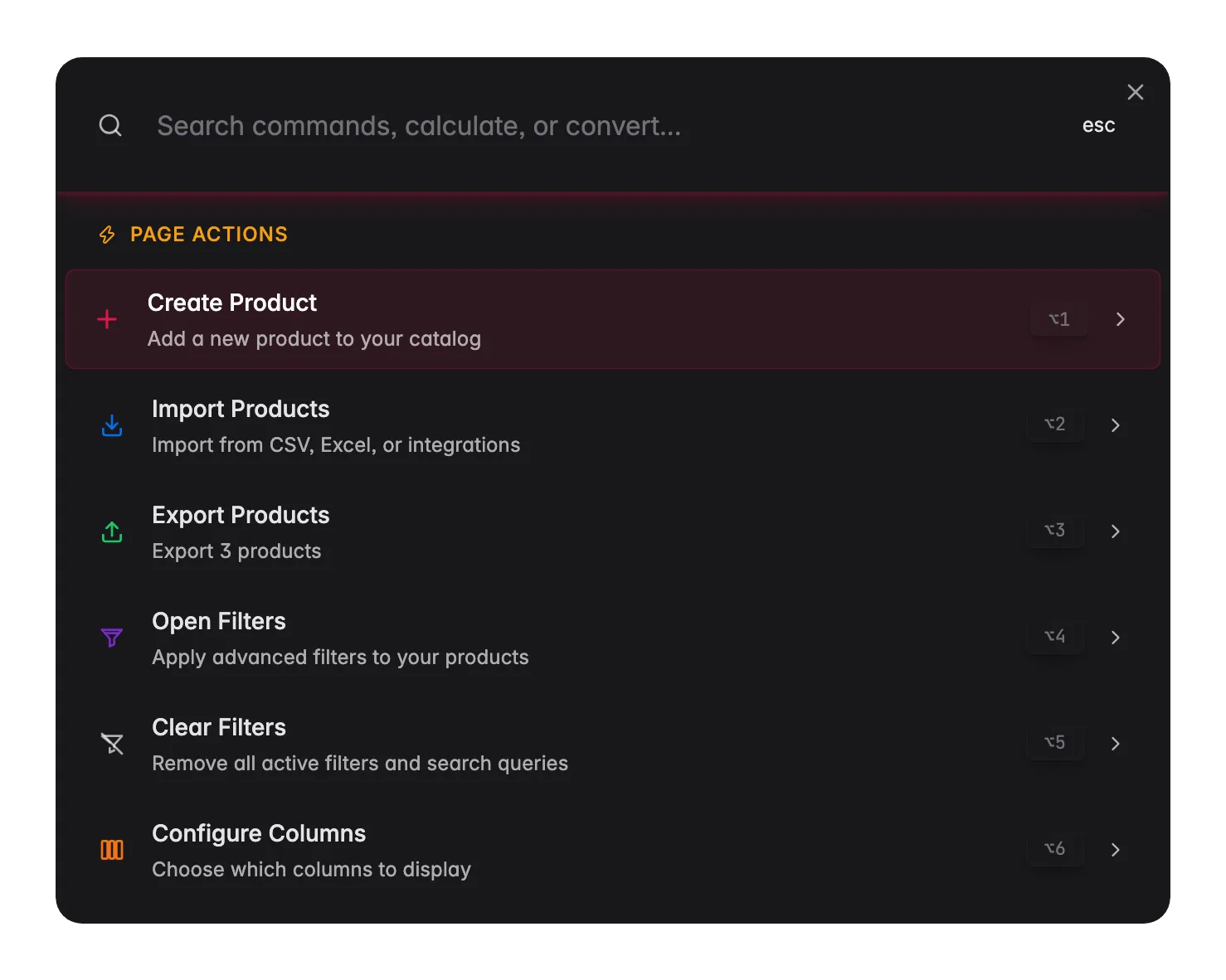
On certain pages, you’ll see Page Actions at the top of the Command Menu. These are shortcuts for things you can do right here, on the page you’re viewing. They appear automatically and change from page to page. They’re searchable too: type what you want to do, and matching actions rise to the top.Products
The products page has the richest set of page actions. Without a selection, you can:- Create Product: add a new product to your catalog
- Import Products: import from CSV, Excel, or integrations
- Export Products: export products to CSV or Excel
- Open Filters: apply advanced filters to your products
- Clear Filters: remove all active filters and search queries
- Configure Columns: choose which columns to display
- History: open the operation history to review recent bulk changes and undo them
- Bulk Edit: edit selected products in bulk
- Enrich with AI: enrich selected products with AI-generated content
- Enrich: Titles, Descriptions, Short Descriptions, SEO Meta, Attributes: enrich specific fields
- AI Categorization: auto-categorize products using AI
- Translate Products: translate product content to other languages
- Web Research: research product info from the web
- Copy Selected SKUs: copy or download the identifiers of the selection (SKU, EAN, UPC, or MPN), see Copy the selected SKUs
- Select All Products: extend selection across all pages
- Deselect All: clear your selection
Other pages with page actions
Prompt Lab
Prompt Lab
Load a product to test with, load or save prompts, and use the AI Prompt Wizard to generate optimized prompts.
Prompt Library
Prompt Library
Create a new prompt or use the AI Prompt Wizard.
Chat
Chat
Start a new chat, load a prompt, enhance your prompt with AI, or copy the last response.
Automation Builder
Automation Builder
Save, test run, export/import workflows, add suggested nodes, browse templates, or use the AI Designer.
Automations
Automations
Create a new automation.
Knowledge Library
Knowledge Library
Jump directly to editing any knowledge section: brand identity, target audience, value proposition, brand voice, content requirements, or visual guidelines.
Product Attributes
Product Attributes
Create a new attribute, import attributes from CSV/JSON, or use the AI Data Model Architect to generate attributes.
Product Categories
Product Categories
Create a new category or import categories from CSV/JSON.
Projects
Projects
Create a new project.
Data Quality
Data Quality
Export a data quality report.
Favorites
Hover over any navigation item in the Command Menu and click the star icon to favorite it. Favorited items are pinned to the top of the menu for quick access. Favorites persist across sessions, so your most-used pages are always one keystroke away.Built-in calculator
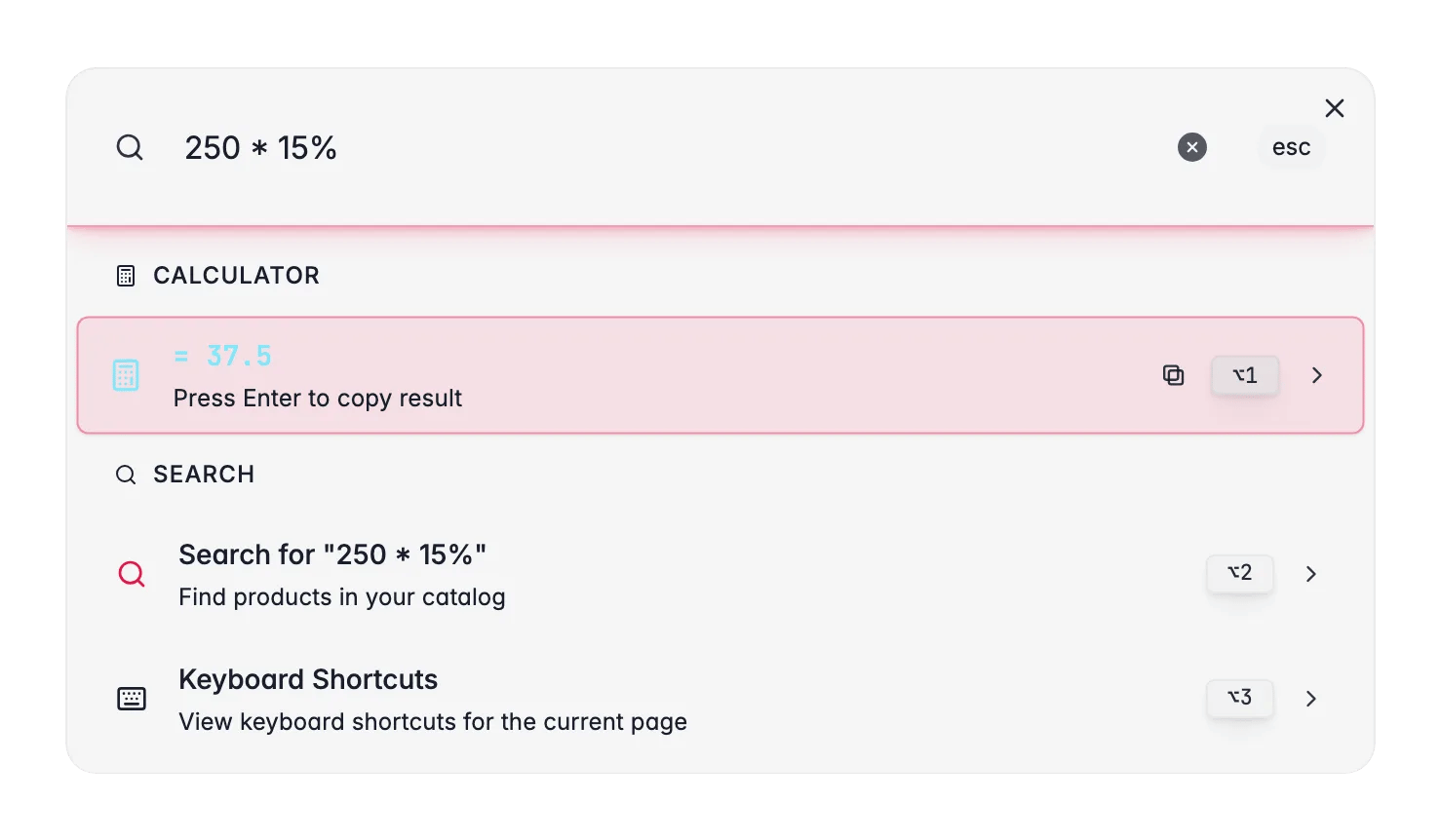
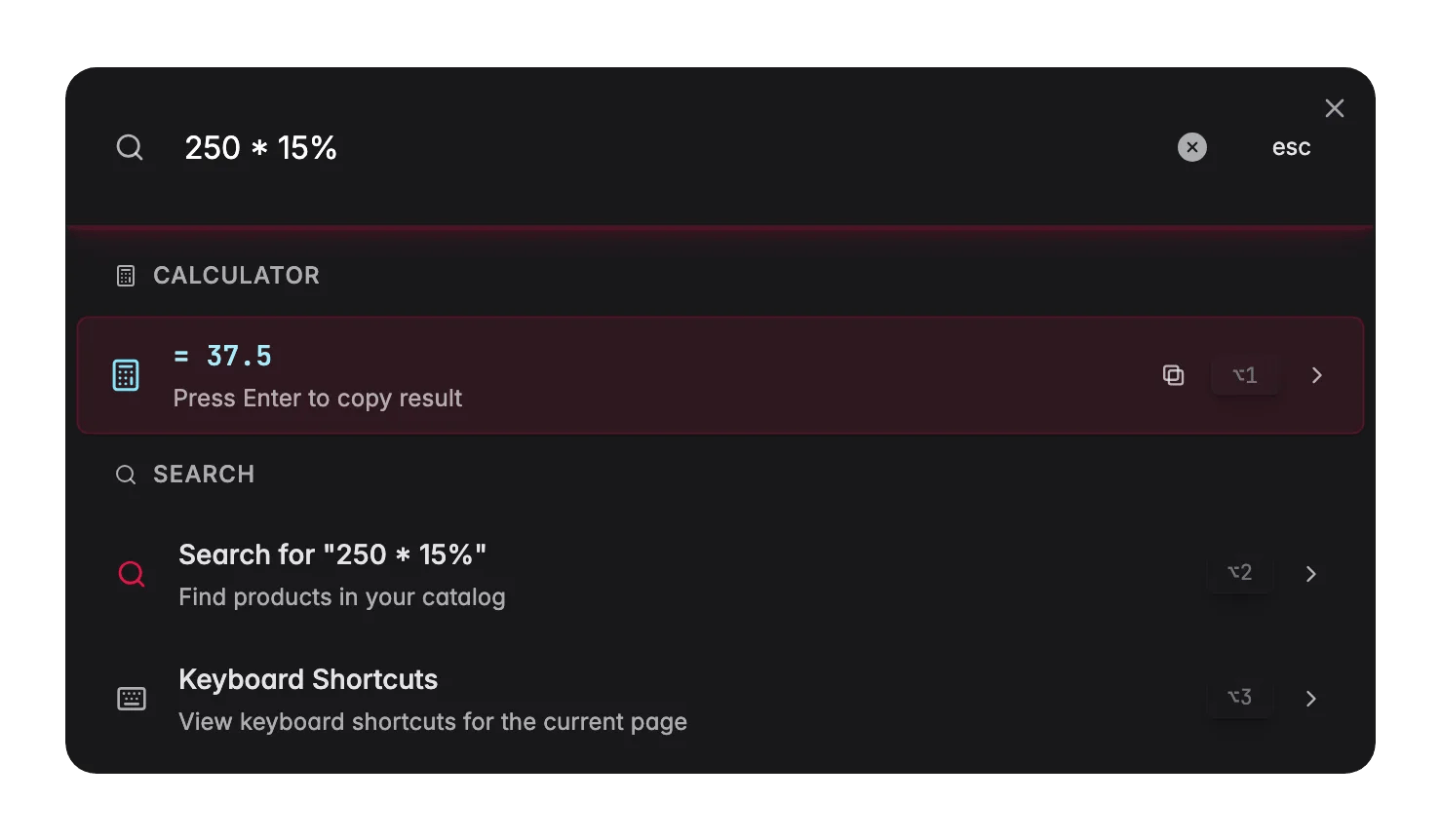
The Command Menu doubles as a calculator. Just type a math expression and see the result instantly. PressEnter to copy it to your clipboard.
Math expressions
Type any arithmetic expression using+, -, *, /, %, ^ (power), and parentheses.
Unit conversions
Convert between units by typing the value, unit, and target, for example5cm to inches or 10kg in pounds.
Supported categories:
Currency conversions
Convert between 20+ currencies by typing the amount and currency code, for example100usd to eur, $50 in gbp, or 100 eur.
Supported currencies include USD, EUR, GBP, JPY, CNY, CAD, AUD, CHF, INR, KRW, MXN, BRL, SEK, NOK, DKK, PLN, TRY, ZAR, HKD, SGD, NZD, and more.
Opening documentation
On any page in WISEPIM, open the Command Menu and select Documentation. This takes you straight to the relevant documentation for the feature you’re currently using, with no need to search for it manually.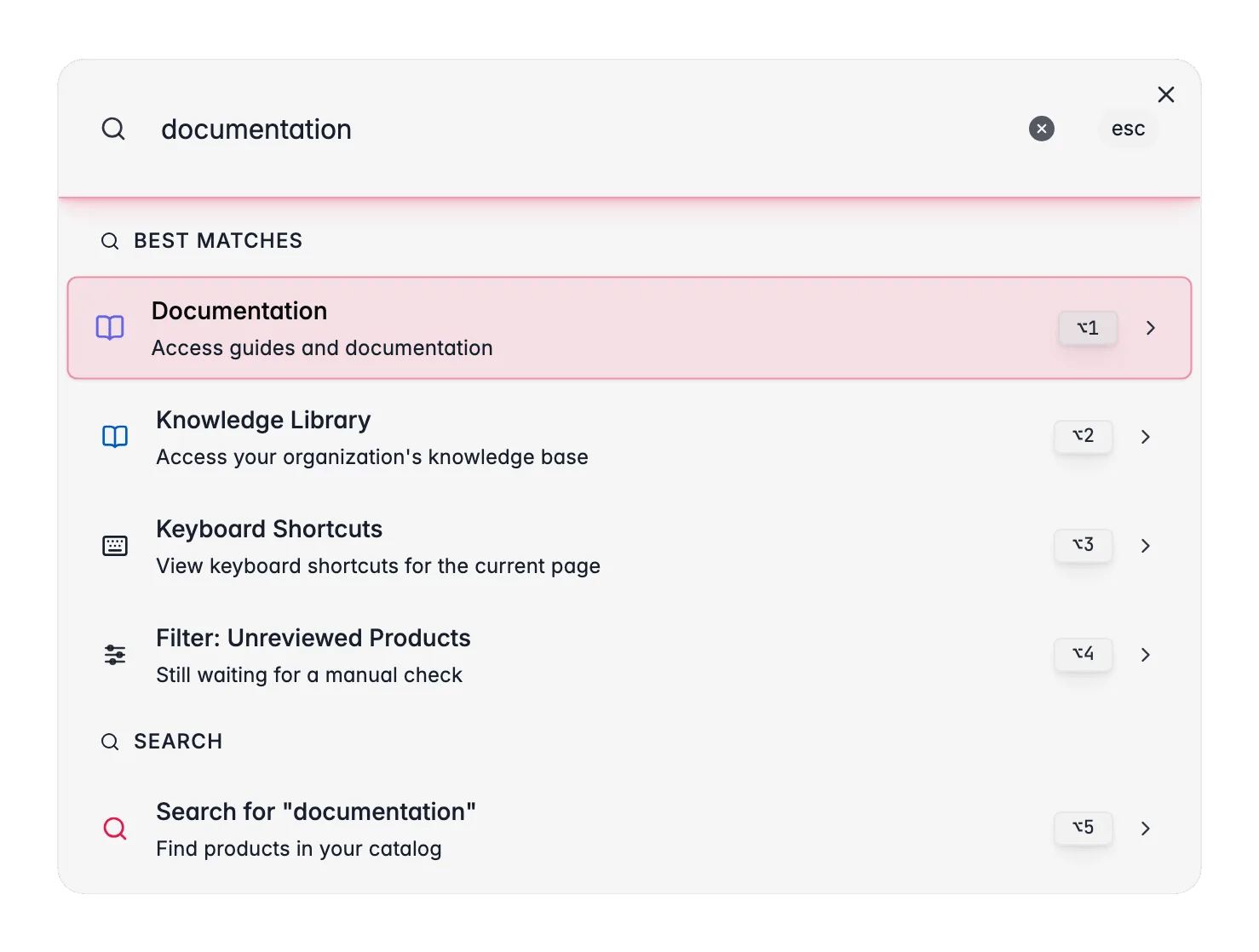
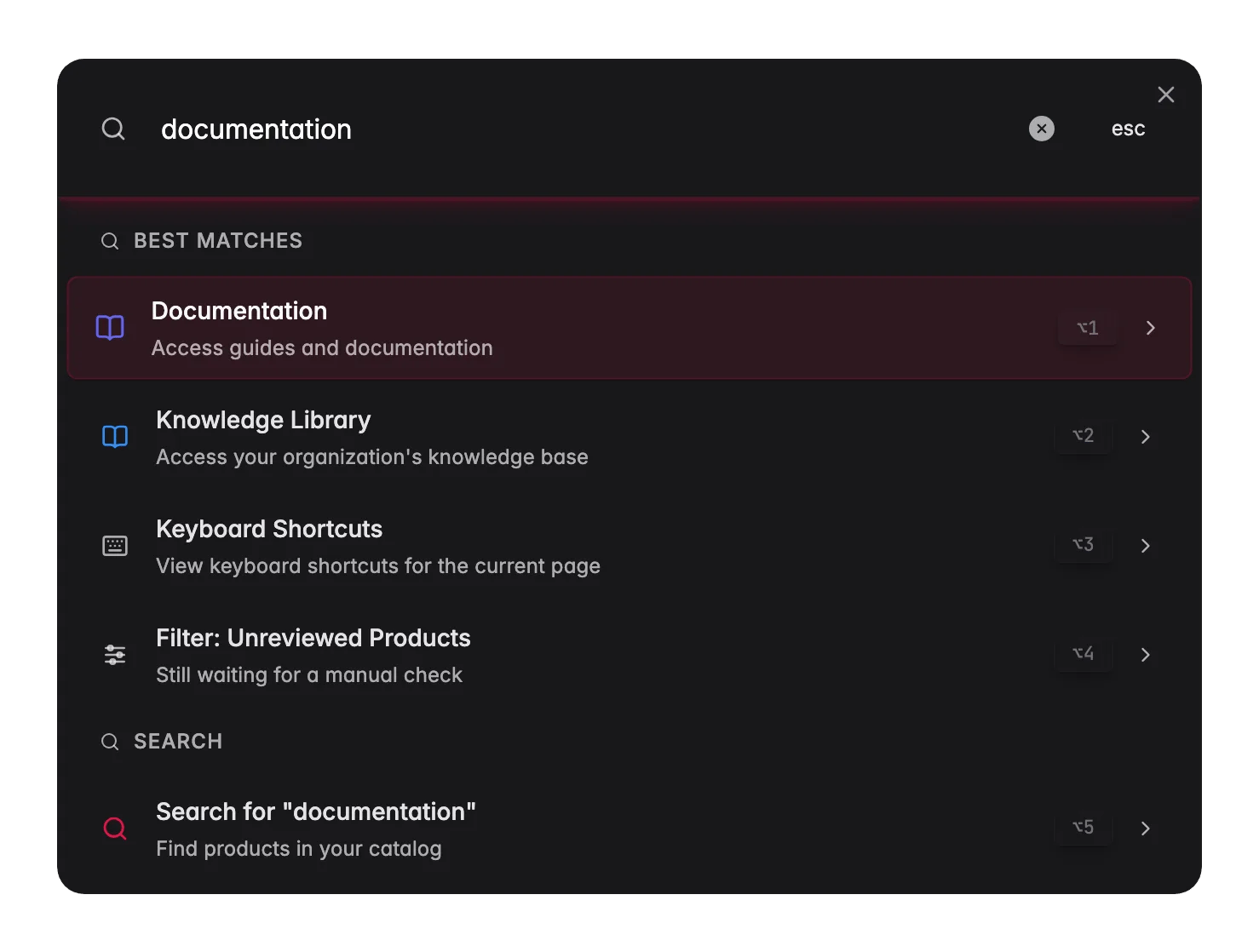
- It follows your page. Open it on the products page and you land on product management; open it in analytics and you land on the analytics docs. Every major page maps to its matching guide.
- It follows your language. The docs open in the same language as your WISEPIM interface (English, Dutch, German, or Spanish), so you always read help in the language you work in.
Documentation from the account menu
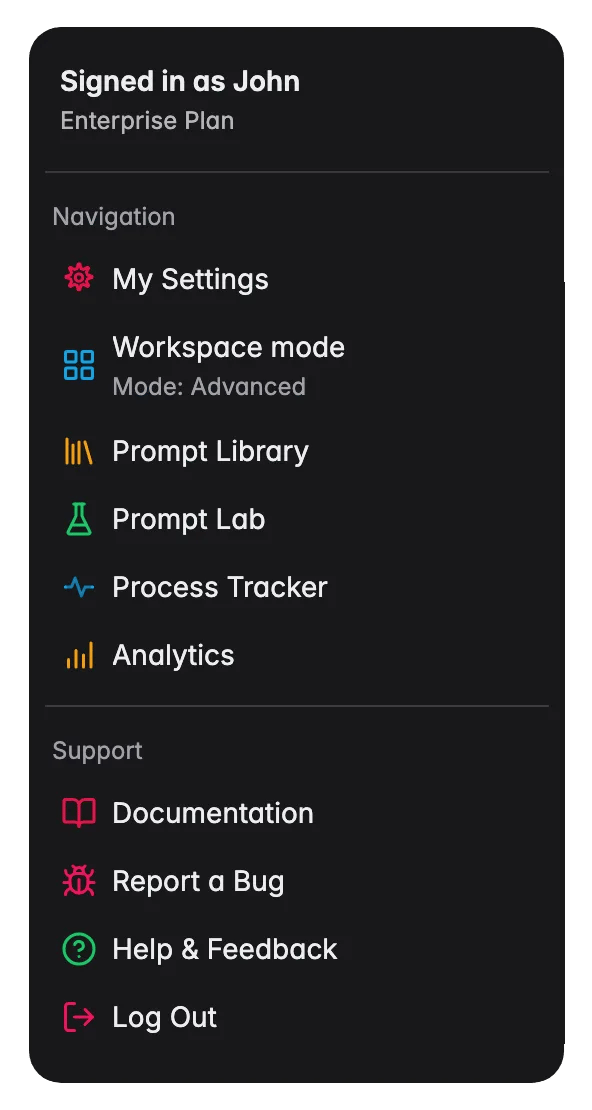
You don’t have to open the Command Menu to reach contextual help. Click your avatar in the top-right corner and choose Documentation under Support. It behaves exactly like the Command Menu action: it opens the guide for the page you’re on, in your interface language.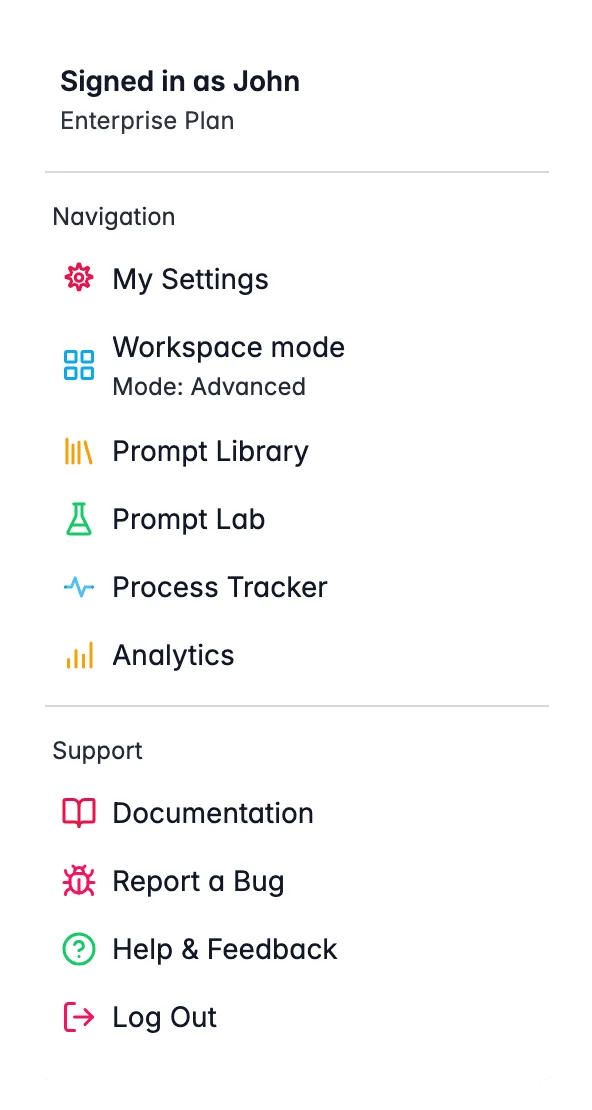
Keyboard shortcuts reference
Press
? or Shift+/ anywhere in WISEPIM to open the full keyboard shortcuts overview, a quick reference for all available shortcuts across the app.Easter eggs
Try typingparty, coffee, or 42 into the Command Menu. We won’t spoil what happens.
Related
Managing products
Search, filter, and select products you found through the Command Menu.
Bulk editing
Run a bulk action on a selection straight from the products page.
Enriching products
Trigger AI enrichment for selected products from the page actions.
Prompt Lab
Build and test prompts, one of the page-action shortcuts you can jump to.