

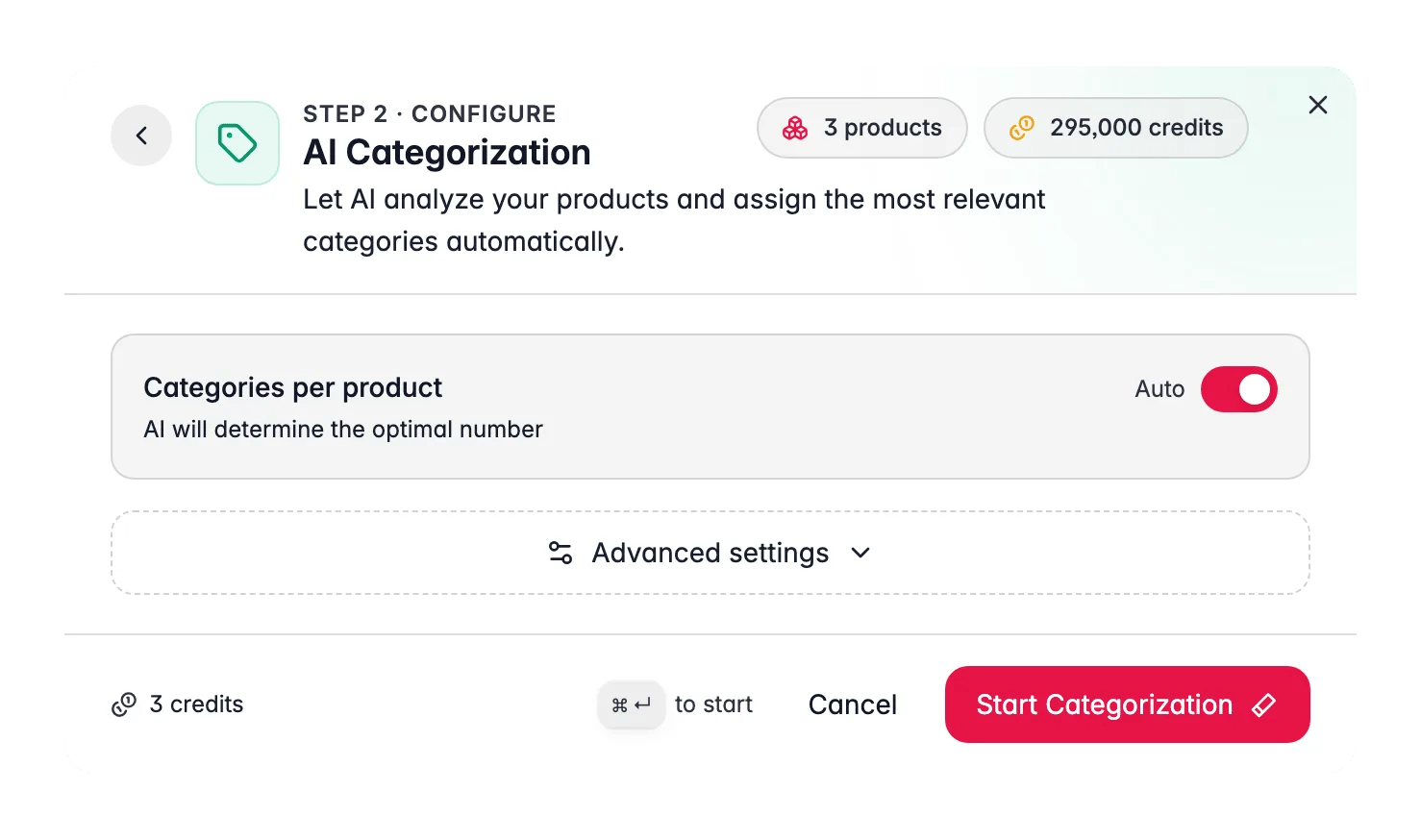
AI Categorization is promptless, it needs no prompt from your library. It costs 1 credit per product. It assigns your existing categories and never creates new ones.
When to use it
- After an import where products arrive with no category, or a flat supplier category that doesn’t match yours.
- To clear the “Uncategorized” bucket that builds up over time.
- When category assignment is inconsistent, similar products scattered across different branches.
- As an Automation step, so new products are categorized the moment they’re created. The step has its own maximum-categories setting.
How to run it
1
Select products
Check products individually, or filter (for example, “uncategorized”) and select all matching results.
2
Open the Enrich modal
Click Enrich with AI in the toolbar.
3
Choose AI Categorization
Pick AI Categorization as the enrichment type.
4
Set the confidence and count options
Adjust the confidence threshold and how many categories each product can receive (see below).
5
Start Enrichment
Click Start Enrichment and track it in the Process Tracker. If a run stops early, use Resume there to finish only the products that were not processed yet, at no extra credit cost.
Configuration options
Confidence threshold
The AI scores how sure it is about each category match. It only assigns a category when that score clears your threshold.- Default: 75%. A balanced setting that assigns confidently in most catalogs.
- Range: 0–100%, in 5% steps. Raise it for accuracy, lower it for coverage.
- Higher threshold = fewer assignments, but the ones made are more reliable. Products it isn’t sure about are left for you to place manually.
- Lower threshold = broader coverage, but review the edge cases.
Category count per product
- Auto-assign (recommended): the AI decides how many categories fit each product, some belong in one, some in several.
- Manual maximum: turn auto-assign off and set a cap of 1–10 categories per product. Use this when your merchandising rules limit how many categories a product may appear in.
What good looks like
- The uncategorized count drops sharply after the first run at the default threshold.
- Assignments match your merchandising logic, products appear where shoppers would look for them.
- A small, reviewable remainder stays uncategorized, the genuinely ambiguous products, which you place by hand or by lowering the threshold.
Act on what you find
Too many products left uncategorized
Too many products left uncategorized
Your threshold may be too high for this catalog, or your category names may be ambiguous. Lower the threshold to 60–65% and re-run on the remainder, and consider clarifying vague category names. Outcome: higher coverage without sacrificing the confident first-pass assignments.
A product landed in the wrong category
A product landed in the wrong category
A misplacement usually traces back to thin product content, the AI had little to go on. Enrich the title, description, and attributes first, then re-categorize. Outcome: accurate placement driven by richer product data.
Products appear in too many categories
Products appear in too many categories
Turn off auto-assign and set a manual maximum (for example, 2–3). Outcome: category counts that match your merchandising rules.
You want categorization to happen automatically
You want categorization to happen automatically
Add AI Categorization as a step in an Automation triggered on product creation or import. The automation step takes a maximum number of categories per product, so the same merchandising cap applies to automatic runs. Outcome: new products are categorized the moment they enter the catalog, with no manual run.
Measure the impact
Better categorization improves navigation and the relevance of category-level merchandising. Review structure and category health in Category Insights, and watch how category pages perform in Search & Discovery.Related
Category Insights
Analyze category structure, health, and revenue.
Attributes
Extract the specs that help the AI categorize accurately.
Automations
Categorize new products automatically on import.
Enriching Products
Overview of all 15 enrichment types.