

These are project-level settings. Pick a project first. Without one selected, the page shows a prompt instead of the editor and there is nothing to configure.
Keywords
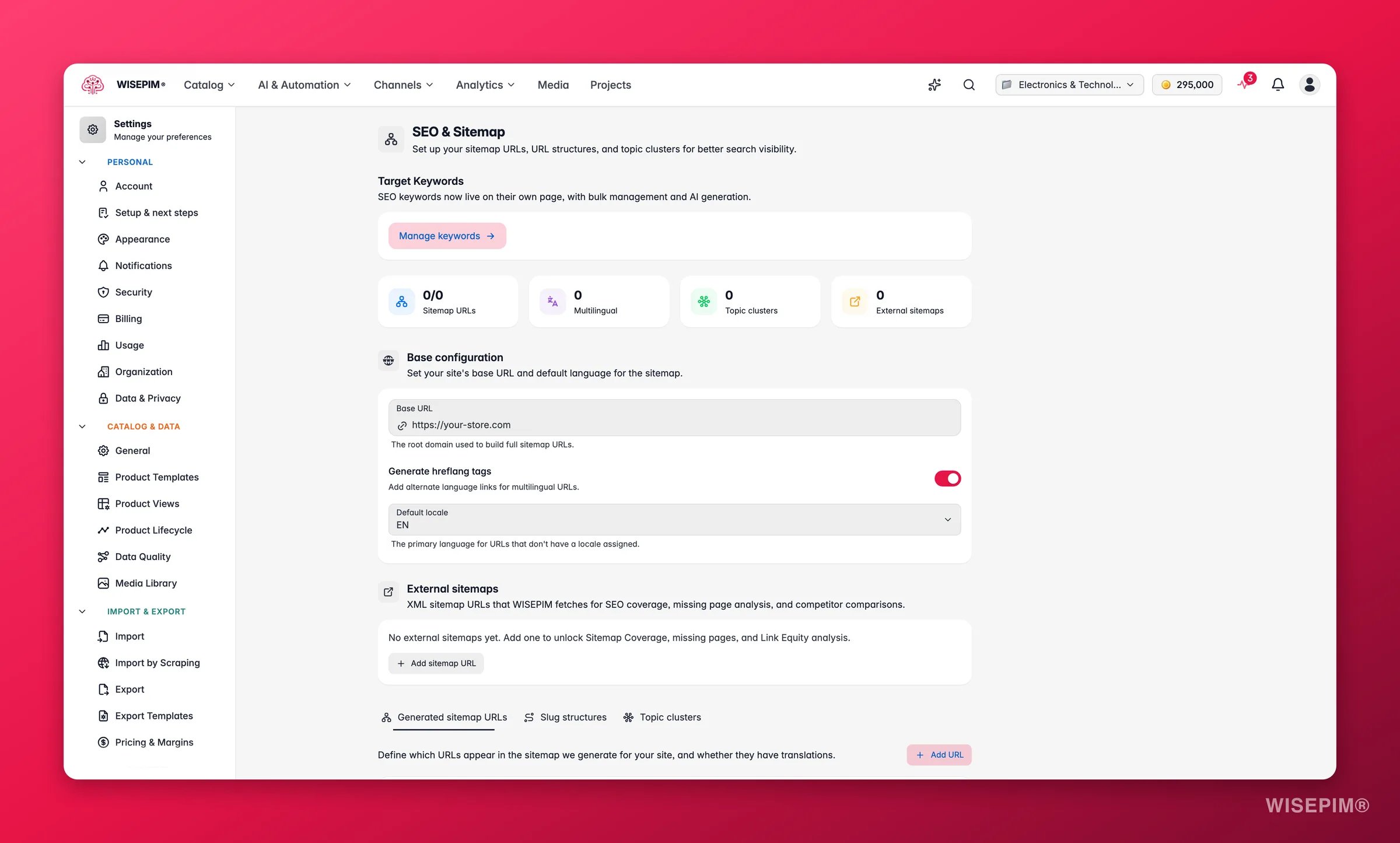
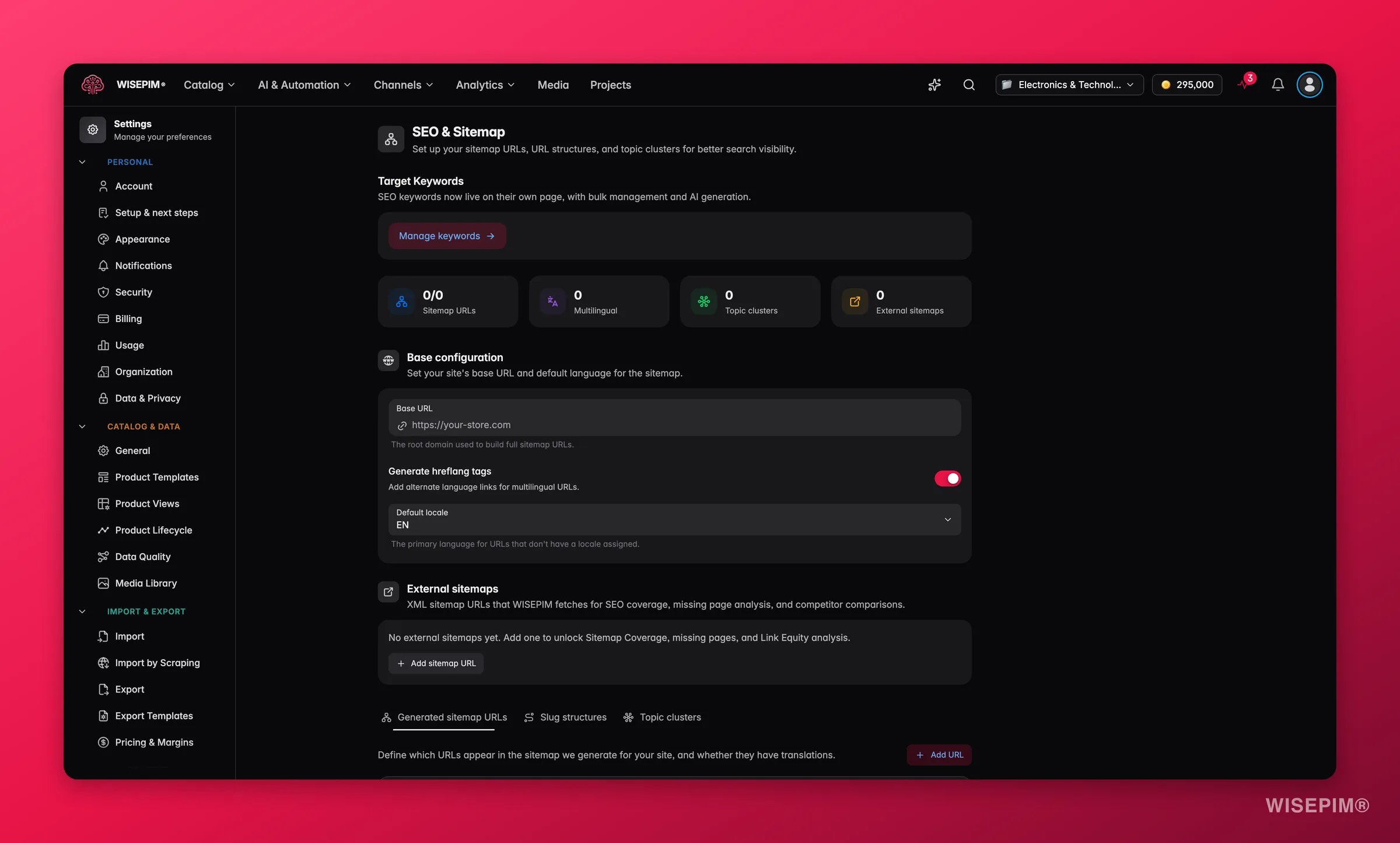
The page opens with a shortcut to Keyword Management. SEO and keywords work together: your slugs, clusters, and meta content all lean on the keywords you target. Click the button to jump straight to the keyword workspace, then come back here to wire those keywords into your URL structure.Base configuration
This section sets the foundation every other URL is built from.External sitemaps
Add the full XML sitemap URLs of sites you already publish, such ashttps://example.com/sitemap.xml. WISEPIM crawls these to power coverage and gap analysis in SEO analytics: it compares what is in your catalog against what is actually indexed, so you can spot pages that are missing or under-optimized.
1
Click Add sitemap URL
A new input row appears.
2
Paste the full sitemap URL
Use the complete
.xml address, not just the domain.3
Add more or remove rows
Add a row per sitemap you want to track. Remove any row with the trash icon.
External sitemaps are read-only references for analysis. Tracking one here never changes the site it points to.
Sitemap URLs
The Sitemap URLs tab lists the pages WISEPIM includes in your generated sitemap. Each row is one page you want search engines to crawl, and you control exactly how it is described. Click Add URL to create a new entry, then set:- Enabled: the switch on the left includes or excludes the page from the sitemap without deleting the row.
- Label: a friendly name so your team knows what the page is.
- Multilingual: the language icon marks a page that exists in every locale, so WISEPIM emits one sitemap entry per language.
Slug structures
The Slugs tab defines the URL pattern for each type of content: Products, Categories, and Pages. A pattern uses placeholder variables wrapped in braces, like/{slug}, that WISEPIM fills in per item.
Each row offers a set of variables you can use, shown as clickable chips. Click a chip to append it to the pattern:
- Products:
{slug},{sku},{category},{id},{name} - Categories:
{slug},{parent},{id},{name} - Pages:
{slug},{id},{title}
/{category}/{slug} previews as https://your-store.com/electronics/example-item.
Topic clusters
The Clusters tab lets you model topic clusters: a content strategy where one authoritative pillar page links out to several related cluster pages around a shared theme. This structure signals topical depth to search engines and helps you rank for a whole subject, not just single keywords. Click Add cluster to create one, then build it out:- Name: the theme the cluster covers, such as “Wireless Audio.”
- Pillar page: the main URL that anchors the cluster. Mark it with the crown so it is clear which page is the hub.
- Cluster pages: the supporting URLs that link back to the pillar. Add one per row, or remove any you no longer need.
- Keywords: the search terms this cluster targets, added as chips you can remove individually.
Save your changes
Edit any setting on this page and a save bar appears in the bottom corner with an unsaved-changes indicator:- Save changes: stores your full SEO and sitemap configuration on the project.
- Reset: discards every change since your last save.
Related
Keyword Management
Manage the target keywords your slugs and clusters build on.
SEO Analytics
See coverage, gaps, and rankings powered by your sitemap setup.
Product Templates
Set default meta and content values for every new product.
Settings Overview
Browse every personal and project setting in one place.