

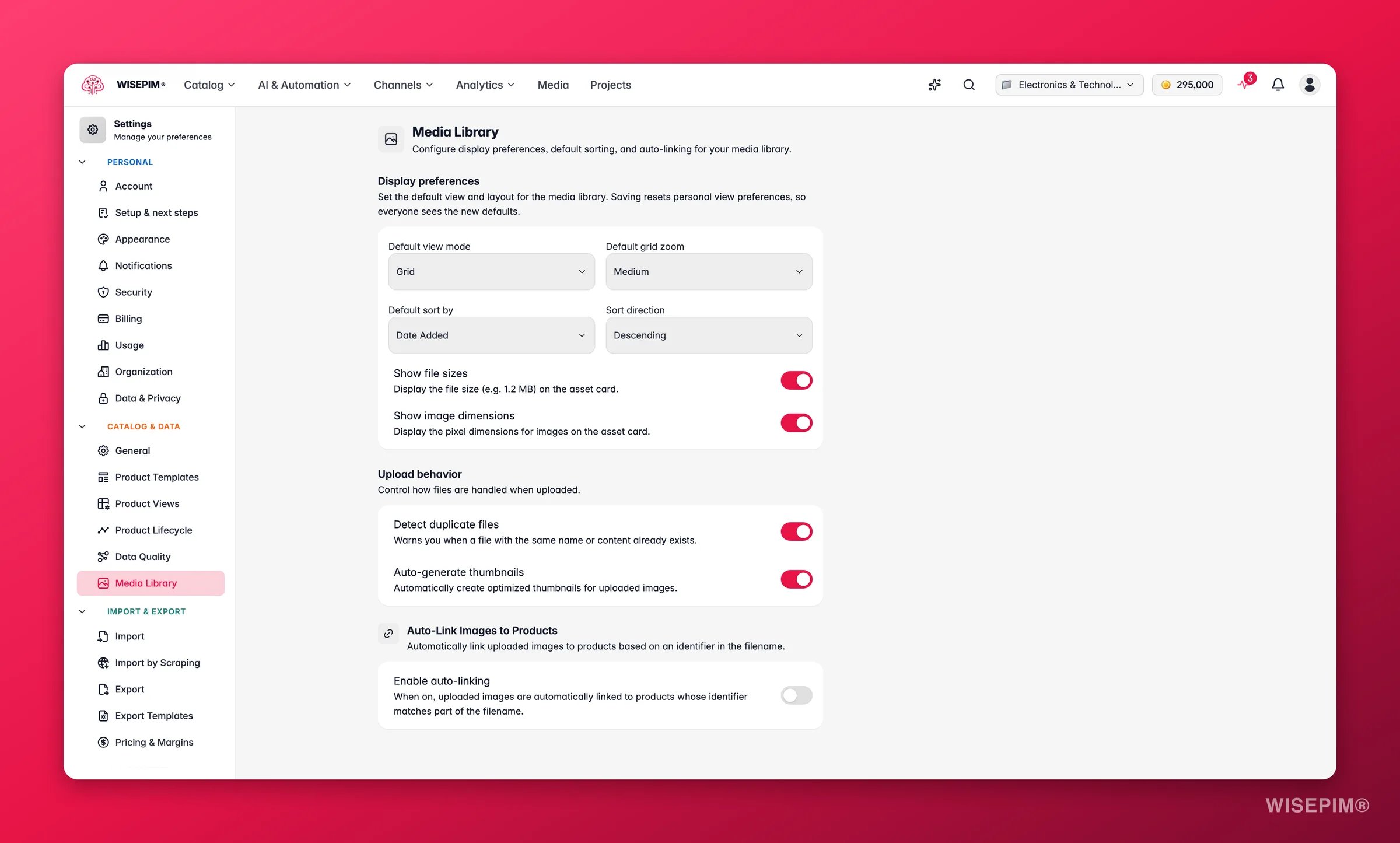
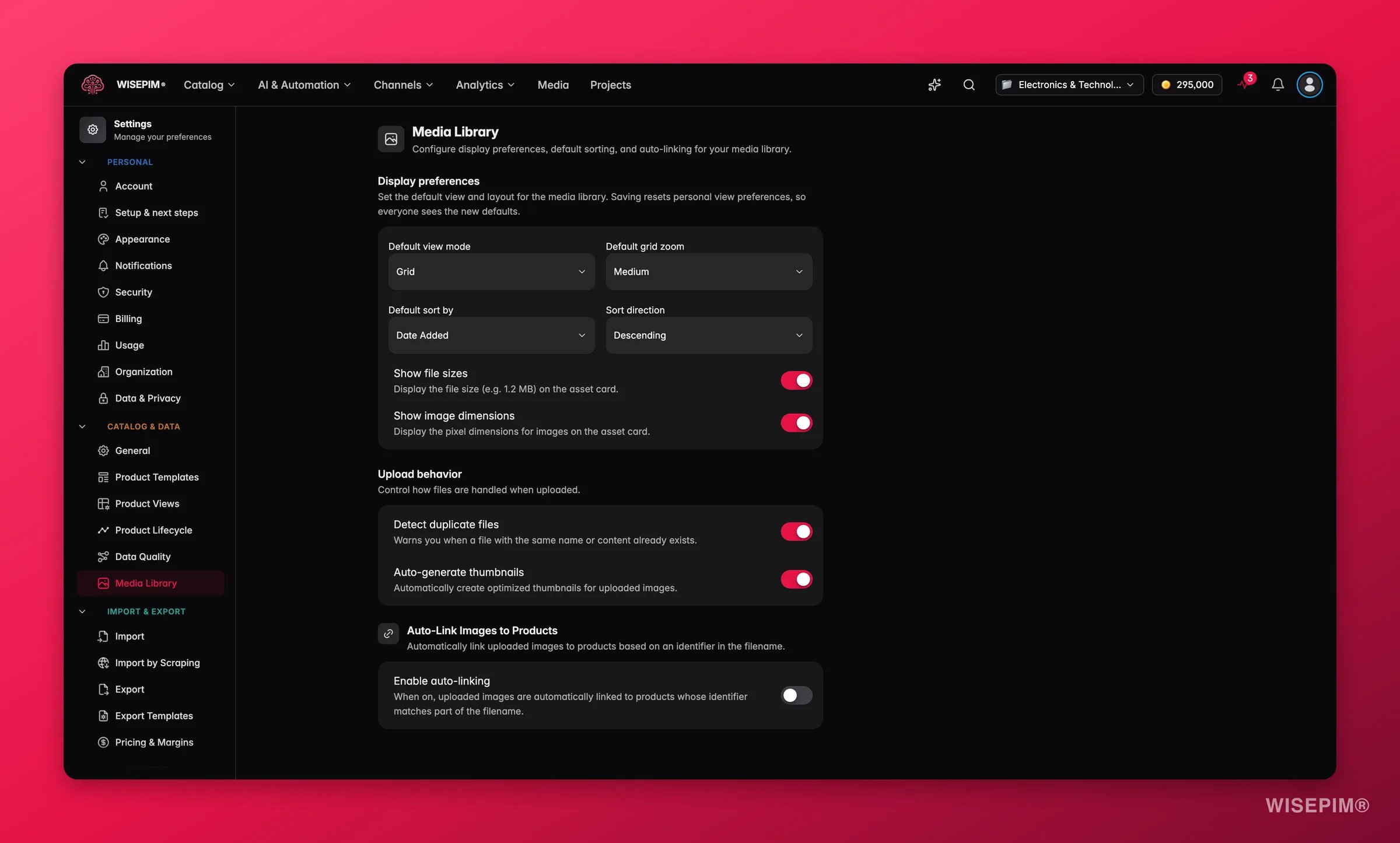
Pick a project in the project switcher before you open Media Library settings. These settings are project-level, so they apply to the selected project only.
Display preferences
These settings decide how the media library looks the first time it loads. They give your whole team a consistent starting point for browsing assets.Default view mode
Choose how assets appear:Default grid zoom
When Grid is selected, set the thumbnail size, from Extra Small (maximum density) to Extra Large (best for detail). Smaller zoom levels fit more assets on screen; larger ones make individual images easier to inspect. This option is disabled in List view.Default sort
Pick the field the library sorts by on first load, plus the direction:- Sort by: Date Added, Date Modified, File Name, File Size, File Type, or Rating.
- Direction: Descending (newest, largest, or Z–A first) or Ascending (oldest, smallest, or A–Z first).
Asset card details
Two toggles control how much metadata each asset card shows:- Show file sizes: displays the file size (for example, 1.2 MB) on each card. Useful for spotting oversized images before they slow down your storefront.
- Show image dimensions: displays the pixel dimensions for images. Handy for confirming an asset meets a channel’s resolution requirements at a glance.
Upload behavior
These settings control what happens automatically the moment a file enters your library, so your team spends less time on cleanup.- Detect duplicate files: warns you when a file with the same name or content already exists, so you avoid cluttering the library with copies.
- Auto-generate thumbnails: creates optimized thumbnails for uploaded images automatically, keeping the grid view fast and crisp without any manual work.
Auto-link images to products
This is where the media library saves the most time. When auto-linking is on, every image you upload is matched to a product automatically, based on an identifier embedded in its filename. No more opening products one by one to attach photos. Turn it on with Enable auto-linking. When it is off, your auto-link configuration is saved but no automatic linking happens.How matching works
WISEPIM reads the filename, pulls out the identifier, and finds the product whose identifier matches. You control three things: which identifier to match on, how it is separated in the filename, and how strict the match is. Identifier field — the product field to match against. Choose from:
Filename separator — the character that splits the identifier from the rest of the filename. Pick Underscore (
SKU123_front.jpg), Hyphen (SKU123-front.jpg), Dot (SKU123.front.jpg), Space (SKU123 front.jpg), or Exact match, where the entire filename (before the extension) must equal the identifier.
Strip file extension — when on, the extension (for example, .jpg) is removed before matching, so SKU123_front.jpg becomes SKU123_front.
Case-sensitive matching — when on, uppercase and lowercase must match exactly (SKU-1 will not match sku-1). Leave it off for forgiving, case-insensitive matching, which is usually what you want.
Walkthrough
With SKU as the identifier, Underscore as the separator, Strip file extension on, and case-insensitive matching, uploadingSKU-12345_front.jpg runs like this:
1
Strip the extension
SKU-12345_front.jpg becomes SKU-12345_front.2
Split on the separator
Split on the underscore and take the first part to get the identifier
SKU-12345.3
Search for the product
Look for a product whose SKU equals
sku-12345, ignoring case.4
Link the image
Attach the uploaded image to the matched product automatically.
Save your changes
Edit any setting on this page and a save bar appears at the bottom:- Save: stores your media settings on the project.
- Undo: reverts every change back to the last saved state.
Related
Media Library
Upload, organize, and attach assets to products in the library itself.
Product Views
Set the default columns, sorting, and filters for the product table.
Managing Attributes
Create the custom identifier attributes you can match filenames against.
Settings Overview
Browse every personal and project setting in one place.