

Select a project from the project switcher first. Data Quality settings are saved per project.
How scoring works
The settings page has nine tabs. The first five control the scoring model. Start with General to set the big picture, then open the other tabs to fine-tune each domain.General
Set domain weights and the score needed for each grade.
Completeness
Score how fully your product fields are filled in.
Channels
Score whether products are ready to list on each platform.
SEO
Set the character limits that drive search visibility.
Conversion
Score how well content turns visitors into buyers.
Detection
Choose which automated check families run on your catalog.
Signals
Add external data sources that feed product recommendations.
Alerting
Decide what happens when a check flags a product.
Schedule
Set how often checks run.
General
The General tab sets the top-level scoring model: how much each domain counts, and which score earns which grade.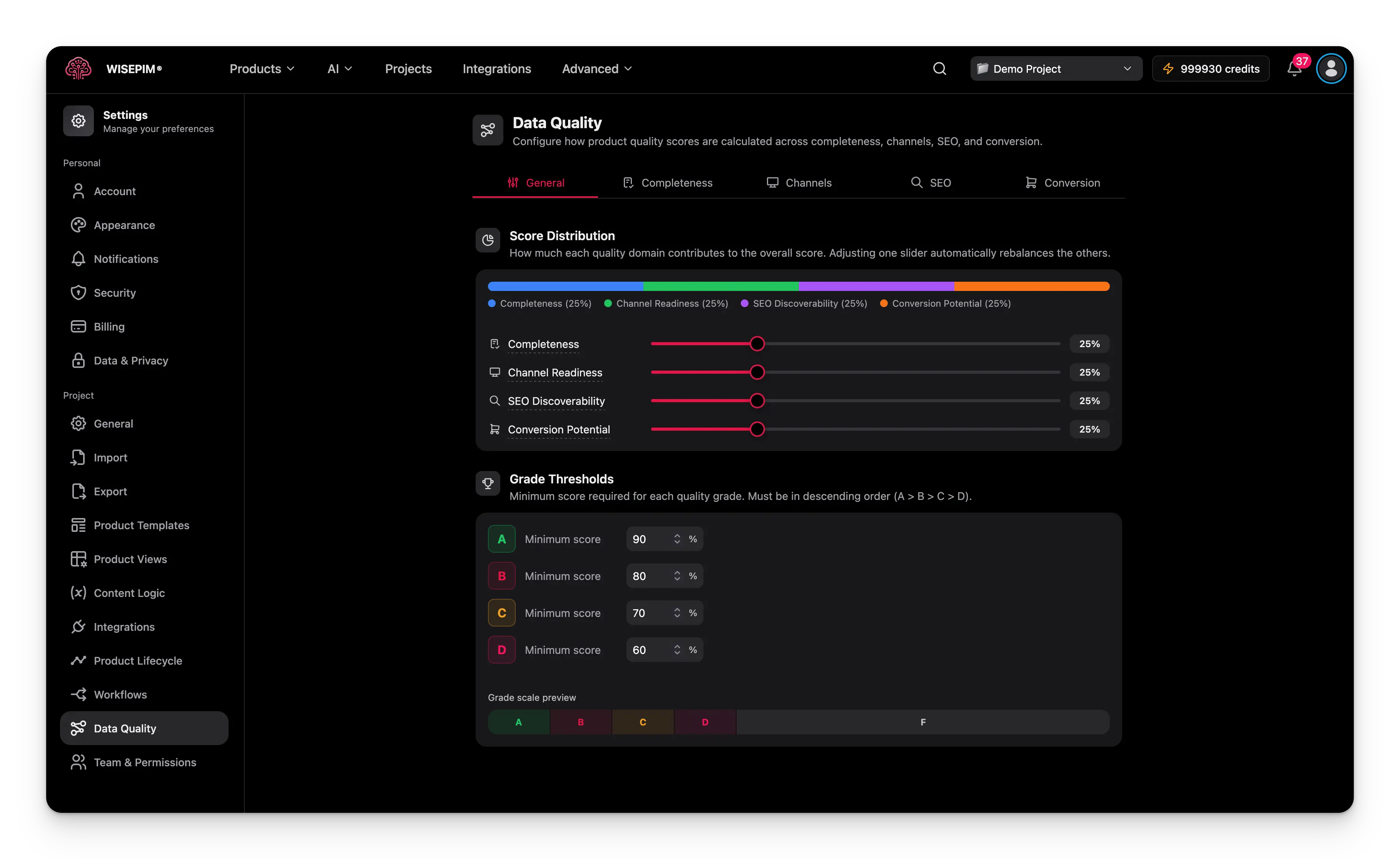
Scoring model
There are two versions of the scoring engine. Every project starts on v1 and stays there until you switch it yourself. Turn on scoring model v2 (“Stricter, more accurate checks”) when you want a score that is harder to fool. On top of everything v1 already checks, v2 adds:- Placeholder values count as empty. A description that says “tbd” no longer earns points for being filled in.
- Attribute validity. It is not enough for an attribute to have a value. The value has to make sense for that attribute.
- Media completeness. Your whole image gallery is scored, not just whether a main image exists.
- Translation coverage. Products missing content in one of your languages score lower.
- Content uniqueness. Copy repeated across many products, or stuffed with keywords, stops helping your score.
Extra scoring options
Two more switches shape how the score behaves.Domain weights
Your overall score is built from four domains. Adjust each weight to match its importance to your business.Products whose product family is linked to an ETIM class also get an ETIM Conformance domain in their quality breakdown, measuring feature coverage and value validity. It appears only for those products, and its weight is set by the scoring profile rather than by the four sliders above.
Grade thresholds
Scores map to letter grades. Set the minimum score each grade needs.
Products that score below the D threshold get an F.
Completeness
The Completeness tab controls how WISEPIM checks whether product data is fully filled in.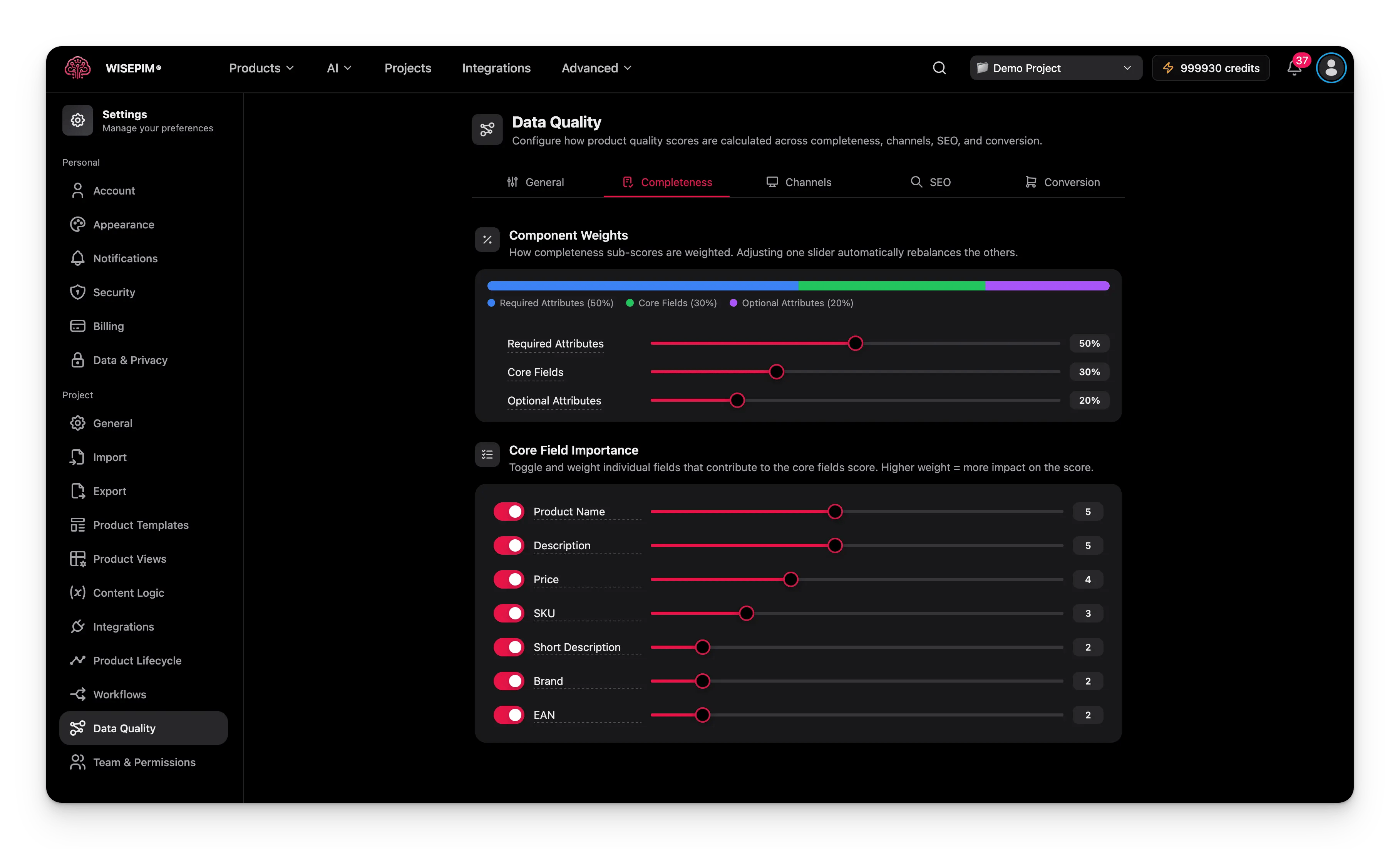
Component weights
Completeness has three components. Set how much each one counts.Core field weights
Turn individual core fields on or off, and set how much each one matters.A higher weight means the field counts more. Missing a high-weight field hurts the score more than missing a low-weight one.
Channels
The Channels tab scores whether products are ready to list on the platforms you sell on.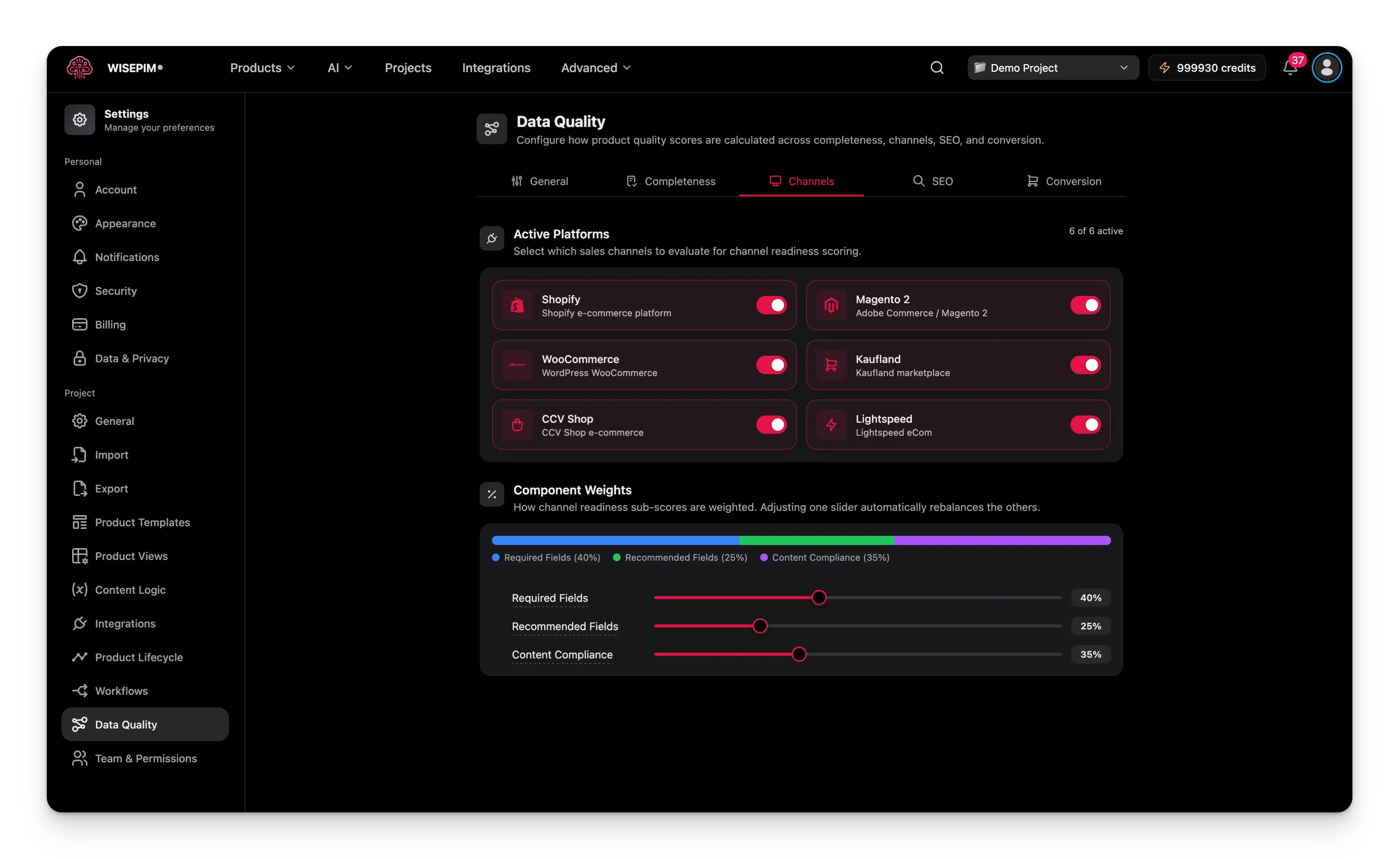
Component weights
Enabled platforms
Choose which platforms to check readiness for. Supported platforms:- Shopify
- Magento 2
- WooCommerce
- Kaufland
- CCV Shop
- Lightspeed
SEO
The SEO tab sets character limits for meta fields and content length. These limits decide how well products score for search visibility.Character limits
Conversion
The Conversion tab scores how well your content turns visitors into buyers.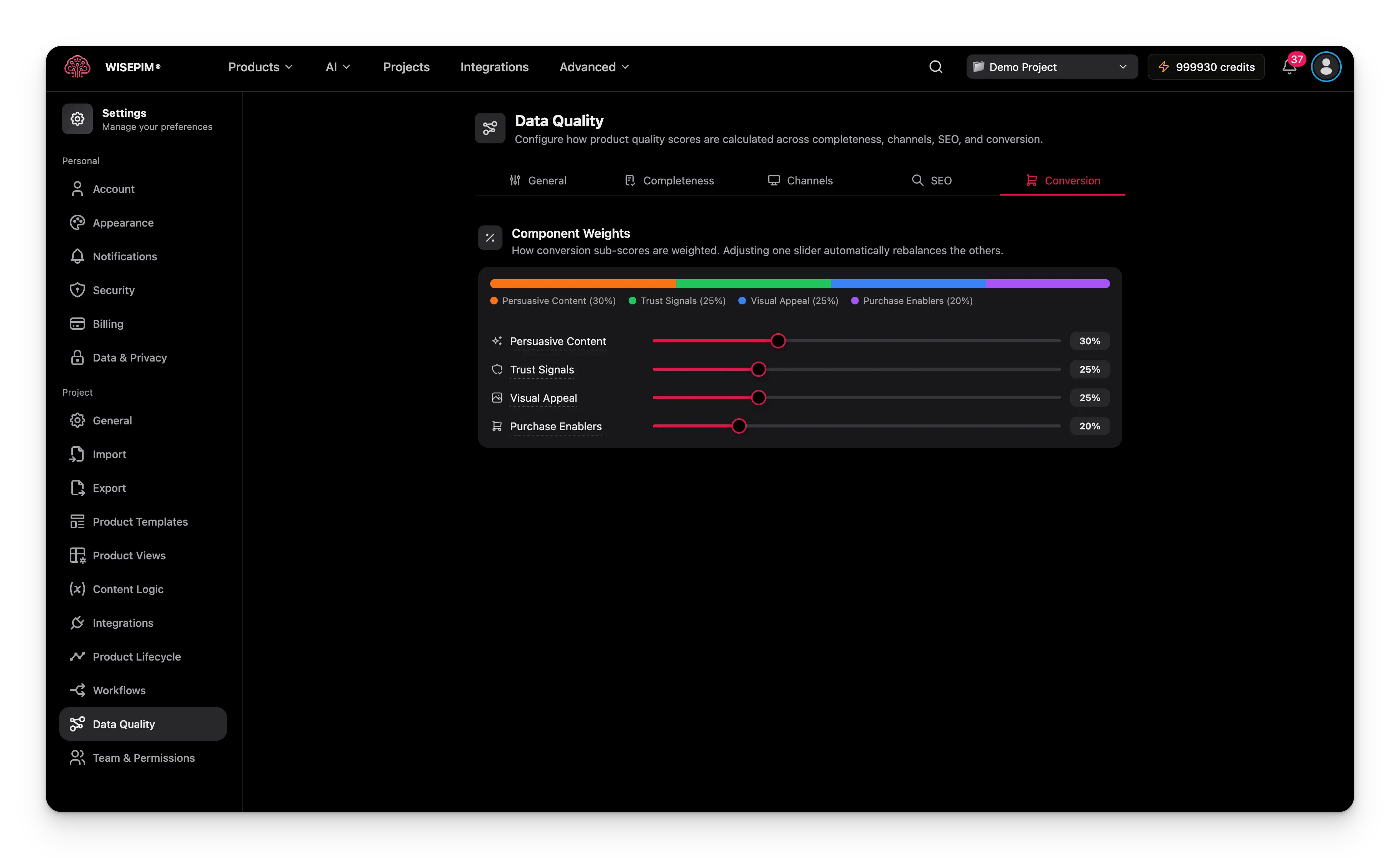
Component weights
Detection
The Detection tab chooses which automated check families run on your catalog. Findings show up in product recommendations and in the Quality Guard quarantine queue; what happens beyond that is decided per family on the Alerting tab.Families marked Coming soon can already be configured. Their checks start running as soon as the evaluator ships.
Signals
The Signals tab adds opt-in data sources that feed product recommendations. Every signal is off by default, so recommendations don’t change overnight - you enable each one deliberately. Enabled signals are included automatically in quality score responses. Each signal feeds one scoring domain and lists what it needs before it can deliver anything:Cluster Outliers is always on for single-product views - it has no toggle. And Commerce Reality is recommendation-only: market performance never moves quality scores.
Alerting
The Alerting tab decides what happens when a detection family flags a product. Pick one action per family:
By default, Attribute Health and Schema Suggestions are set to Score only; the other families are set to Warn. Families you turned off on the Detection tab appear grayed out here.
Schedule
The Schedule tab sets how often the engine recomputes scores and runs the enabled detection families on your catalog.Run on demand
The Run now button starts an immediate run for all detection families you enabled, and shows live progress with a status and product count. The next scheduled run still happens at its usual time. The button needs at least one check turned on (“Enable at least one check to run.”).Manual runs are being rolled out. Until they reach your project, the button is disabled and reads “Manual runs are not available yet. Your saved schedule continues to run normally.” Your schedule keeps running as saved.
Save your changes
Change any setting on any tab and a save bar appears at the bottom of the page.- Save: stores your settings for the project. The button is active only when your changes are valid.
- Undo: reverts everything to the last saved state.
New settings apply the next time products are evaluated. Existing scores are not recalculated right away. To refresh them now, use Recalculate Data Quality in bulk editing.
Related
Quality Guard
Block low-quality products from reaching your channels.
Recalculate Data Quality
Refresh scores in bulk after you change these settings.
Export Settings
Set defaults for how WISEPIM exports your product data.
Settings Overview
Browse every personal and project setting in one place.