

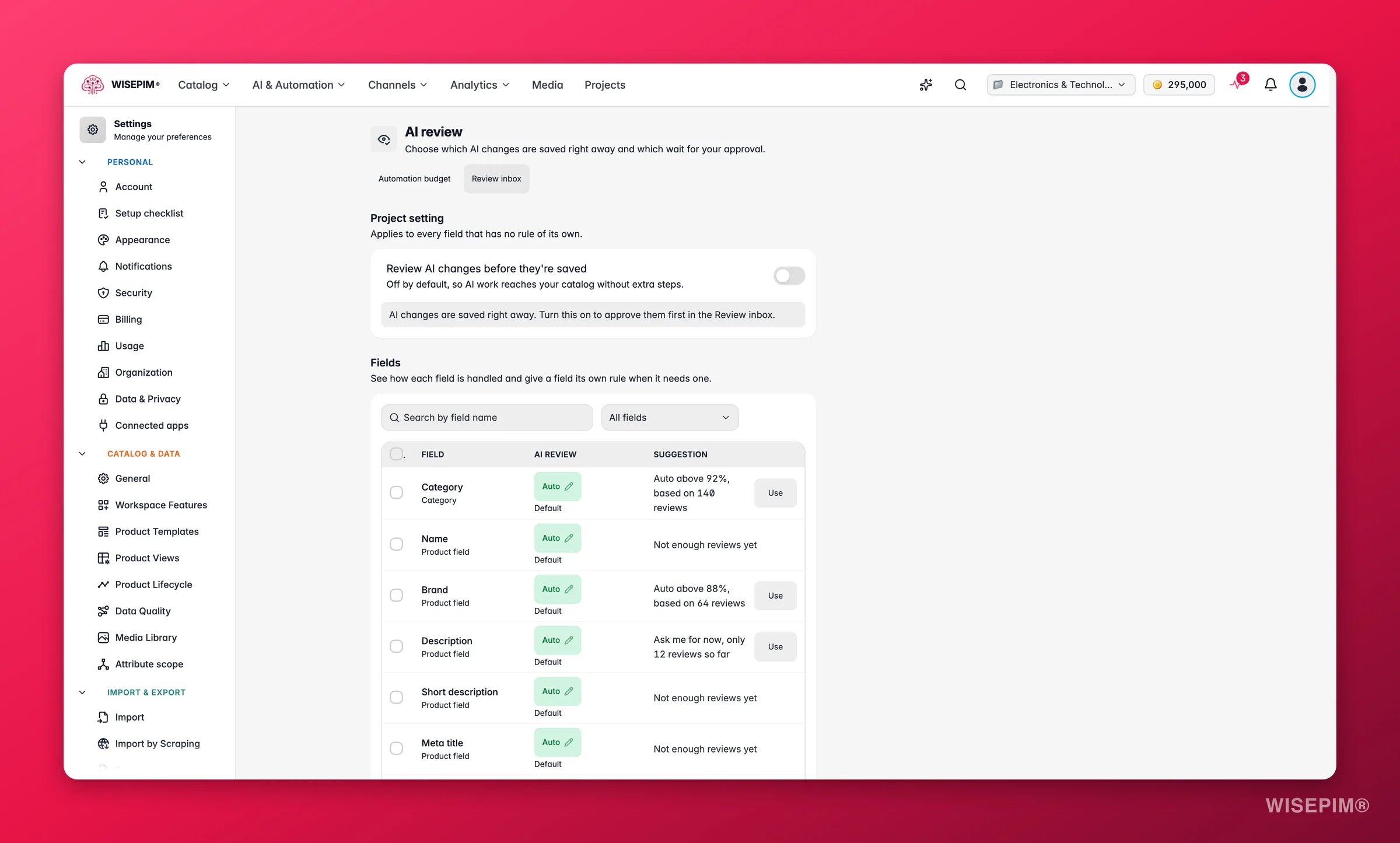
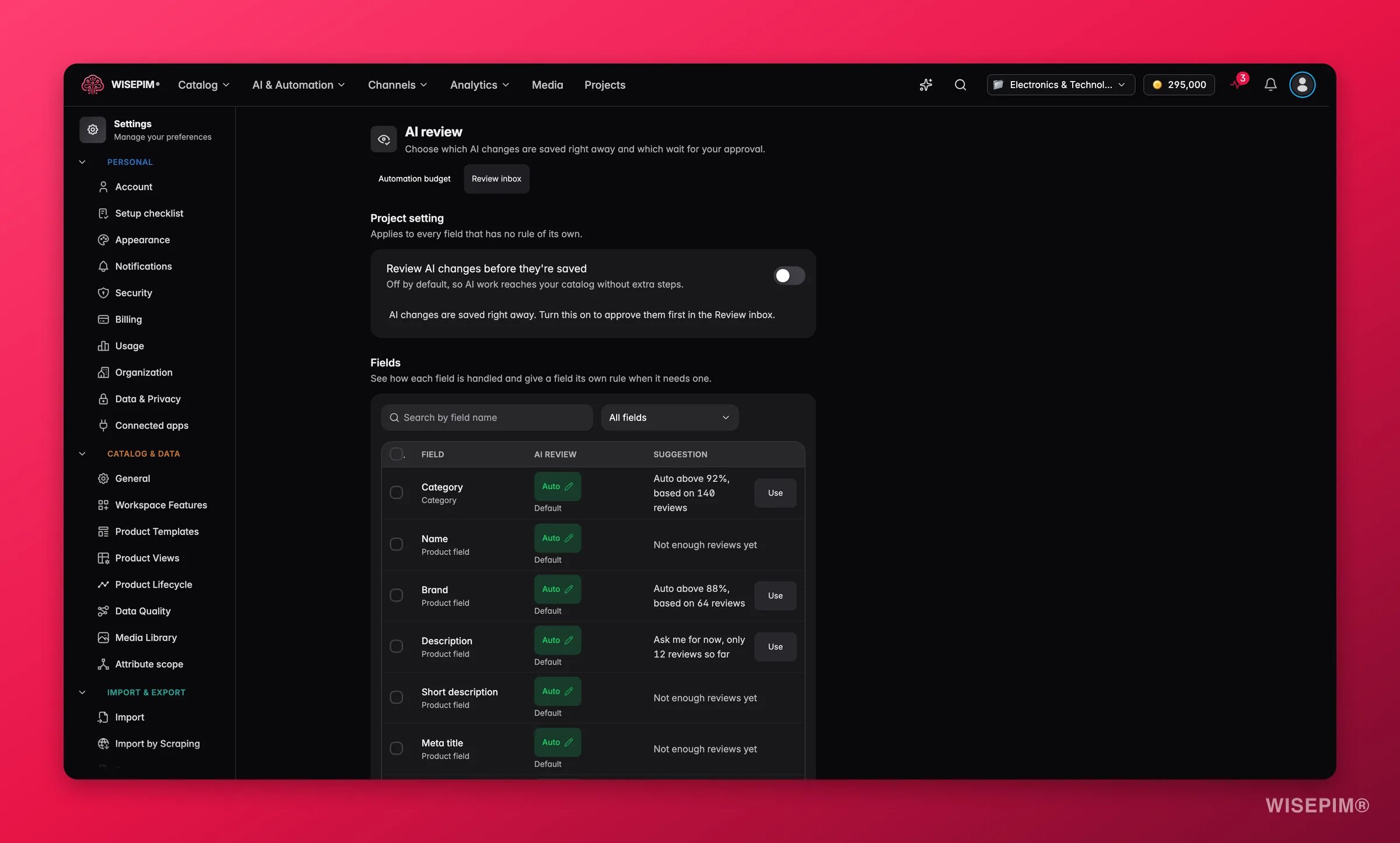
/settings/autopilot open this page.
The header has shortcuts to Automation budget and Review inbox. You need edit rights on the project to change these settings.
Project setting
The Project setting applies to every field that has no rule of its own. It is one switch: Review AI changes before they’re saved
You see “AI review setting saved” once the change is stored.
Fields
The Fields section shows how each field is handled and lets you give a field its own rule.Read the table
The AI review per field table lists Category first, then the product fields (Name, FAQs, Brand, Description, Short description, Meta title, Meta description, EAN, UPC, Manufacturer part number, Meta keywords, Long name, Handling instructions, Weight, Length, Width, Height, Country of origin, HS code, Dangerous goods, Fragile, Price and Special price), then your attributes. Use Search fields and filter Field type by All fields, Product fields, Category or Attributes. The table shows 50 rows per page.Give a field its own rule
1
Open the editor
Click a field’s rule to open AI review for that field. To change several at once, tick them and click Change selected.
2
Pick how AI changes are handled
Under How AI changes are handled, choose one:
- Use project setting: follow the project switch.
- Auto: AI changes are saved right away.
- Auto above: changes the AI is sure enough about are saved, the rest wait for you. Set Save when the AI is at least (%) sure; new rules start at 90%.
- Ask me: every AI change waits for you in the Review inbox.
3
Save
Click Save. You see “AI review updated for” the number of fields you changed.
Changes without a confidence score always wait for you under Auto above and Ask me.
How WISEPIM picks the rule
For every AI change, the first match wins:- The field’s own rule.
- The project switch Review AI changes before they’re saved, when it is on.
- A Catalog Jobs run’s own auto-accept setting, for changes from that run.
- Otherwise Auto.
The same setting elsewhere
You can reach the same rules from other places in WISEPIM:- Enrich Prompts: “Whether AI changes wait for your approval is now set on the AI review page.” with an Open AI review link.
- Product Categories: Product categorization policy in the More actions menu opens this page.
- Attribute settings: the AI review for this attribute section is “The same setting as on the AI review page.”
- Review inbox: the AI review settings link.
- AI categorization run: under What happens with the answers, choose Follow your AI review setting, Ask me for every answer in this run or Save sure answers in this run with Save answers at or above (%). If your setting asks you to approve category changes, a run can’t save them right away.
Act on what you find
The Review inbox fills up faster than you can work through it
The Review inbox fills up faster than you can work through it
Check the Suggestion column. Fields where you accept almost everything often show “Auto above” with a percentage. Click Use to let those through and keep reviewing the rest.
You want to approve every AI price change
You want to approve every AI price change
Give Price and Special price the rule Ask me. Other fields keep following the project setting.
You are onboarding a new catalog and want to see everything first
You are onboarding a new catalog and want to see everything first
Turn on Review AI changes before they’re saved. Once you trust the output for a field, give that field Auto or Auto above.
Categorization runs save categories you didn't expect
Categorization runs save categories you didn't expect
Give the Category row Auto above with a higher percentage, or Ask me. Runs that follow your AI review setting then hold uncertain answers for review.
Related
Review Inbox
Approve or reject the AI changes that wait for you.
Automation Budget Settings
Cap the credits automations can use each month.
Catalog Jobs
Run catalog-wide AI jobs with their own auto-accept setting.
Enriching Products with AI
See the AI actions whose changes this page controls.