

Which menu you see depends on Interface version in Appearance Settings. Stable is the default.
Why suggestions land here
A suggestion waits in the inbox when:- AI isn’t sure. The confidence is below the threshold for that field, or the suggestion has no confidence score at all. Suggestions without a score always wait for you.
- Your AI review setting asks to check changes first. In AI Review Settings, the project switch Review AI changes before they’re saved sends every AI change here. It is off by default. A single field can also have its own rule, such as Ask me (every change waits) or Auto above a percentage.
- A Catalog Jobs run left it for review. These rows carry the chip From a Catalog Jobs run. You can review them here or in the Catalog Jobs Review Queue.
Browse by type
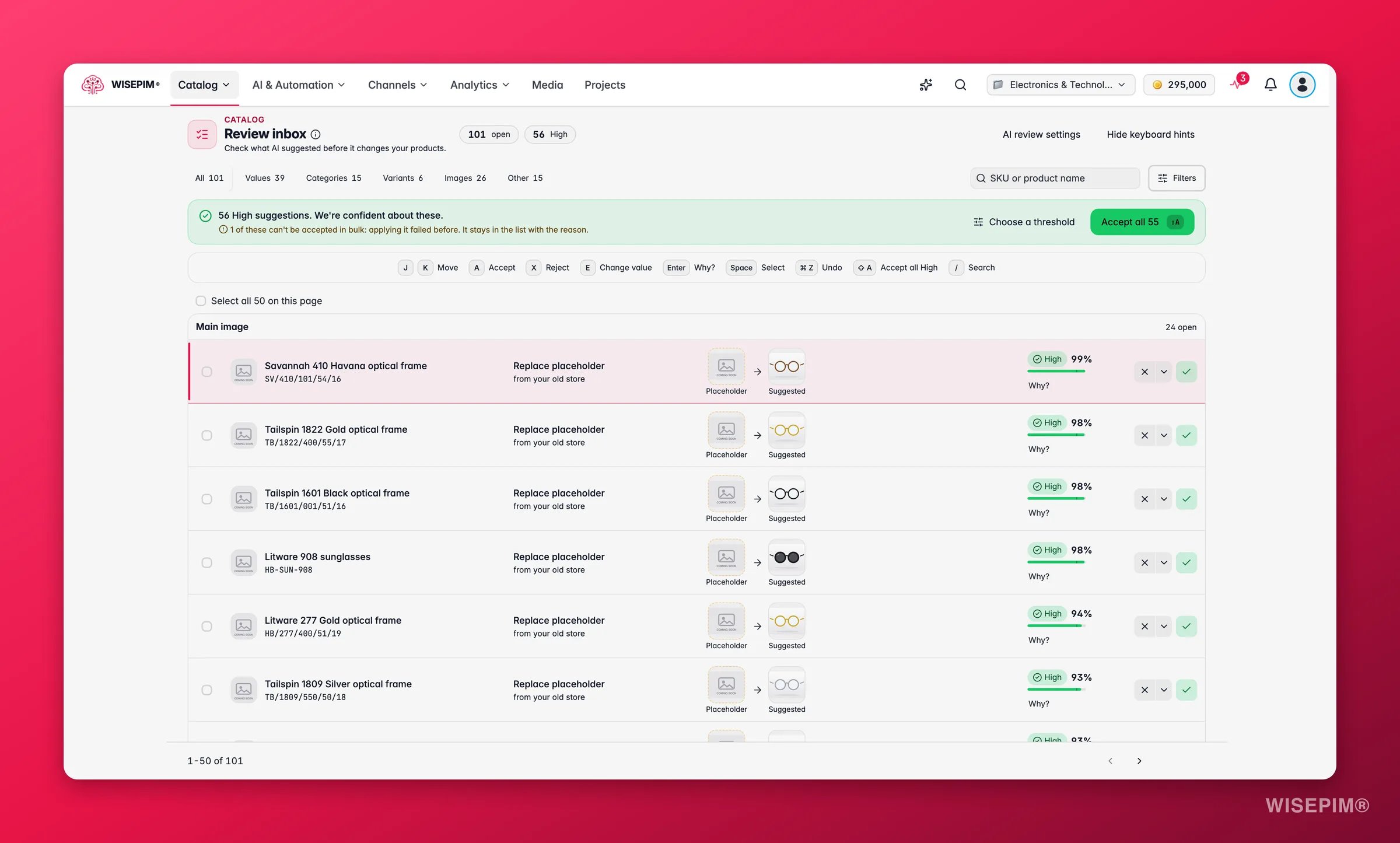
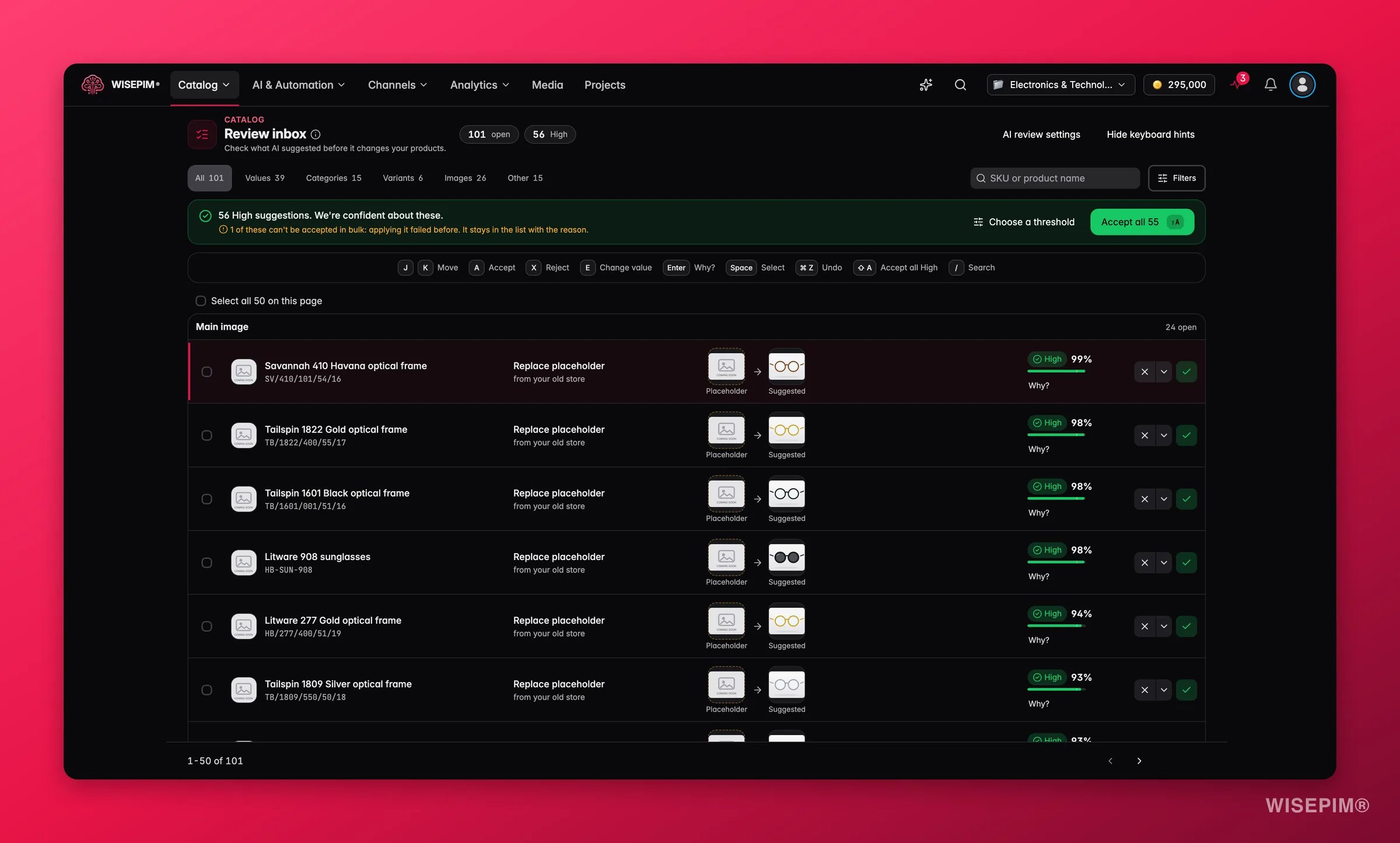
The header shows how many suggestions are open and how many of them are High. Tabs split the inbox by what the suggestion changes, each with its count. A tab only shows when it has suggestions waiting (or when you have it open):Filter and sort
Search by SKU or product name, or click Filters to narrow the list:
Clear filters resets everything.
Decide on suggestions
The inbox works like the Catalog Jobs review queue. Each row has a confidence band (High, Check or Unsure), the current value and the suggestion.- Accept applies the suggestion. Change value lets you pick another value first.
- Reject leaves the product as it is. Use Reject with a reason to tell WISEPIM what was wrong: Wrong value, Wrong unit, Does not apply, Incorrect source or Other.
- Why? opens the evidence: the reasoning, the sources and how sure the AI was.
- Accept all High accepts every confident suggestion in one go. The green banner shows how many there are, for example “56 High suggestions. We’re confident about these.”, with Choose a threshold to set your own cut-off. A suggestion that failed to apply before is held back from the bulk accept and stays in the list with the reason.
- Tick rows to accept, reject or set a value in bulk. Bulk decisions are free.
Act on what you find
The inbox fills up faster than you can review
The inbox fills up faster than you can review
Accept the High band first. Then check AI Review Settings: if Review AI changes before they’re saved is on, every AI change waits here. Give fields you trust a rule like Auto above a percentage so only the unsure ones wait.
AI keeps suggesting the same wrong value
AI keeps suggesting the same wrong value
Reject it with a reason such as Wrong value or Incorrect source. If the attribute has free text, add allowed values in Managing Product Attributes so AI has to pick from your list.
Many products need the same decision
Many products need the same decision
Turn on Matching values only in Filters, select the rows and decide on them together.
You use the Stable interface and can't find the inbox
You use the Stable interface and can't find the inbox
Use the command menu (Ctrl/⌘ K) and type Review inbox, or switch to Experimental under Interface version in Appearance Settings.
Related
AI Review Settings
Choose which AI changes are saved right away and which wait here.
Catalog Jobs Review Queue
Review the suggestions from Catalog Jobs runs.
Catalog Jobs
Guided jobs that fill gaps, fix images and more.
Catalog Structure
Families, categories, fields and variant groups in one place.
Product FAQs
Generate buyer questions and answers for your products with AI.