

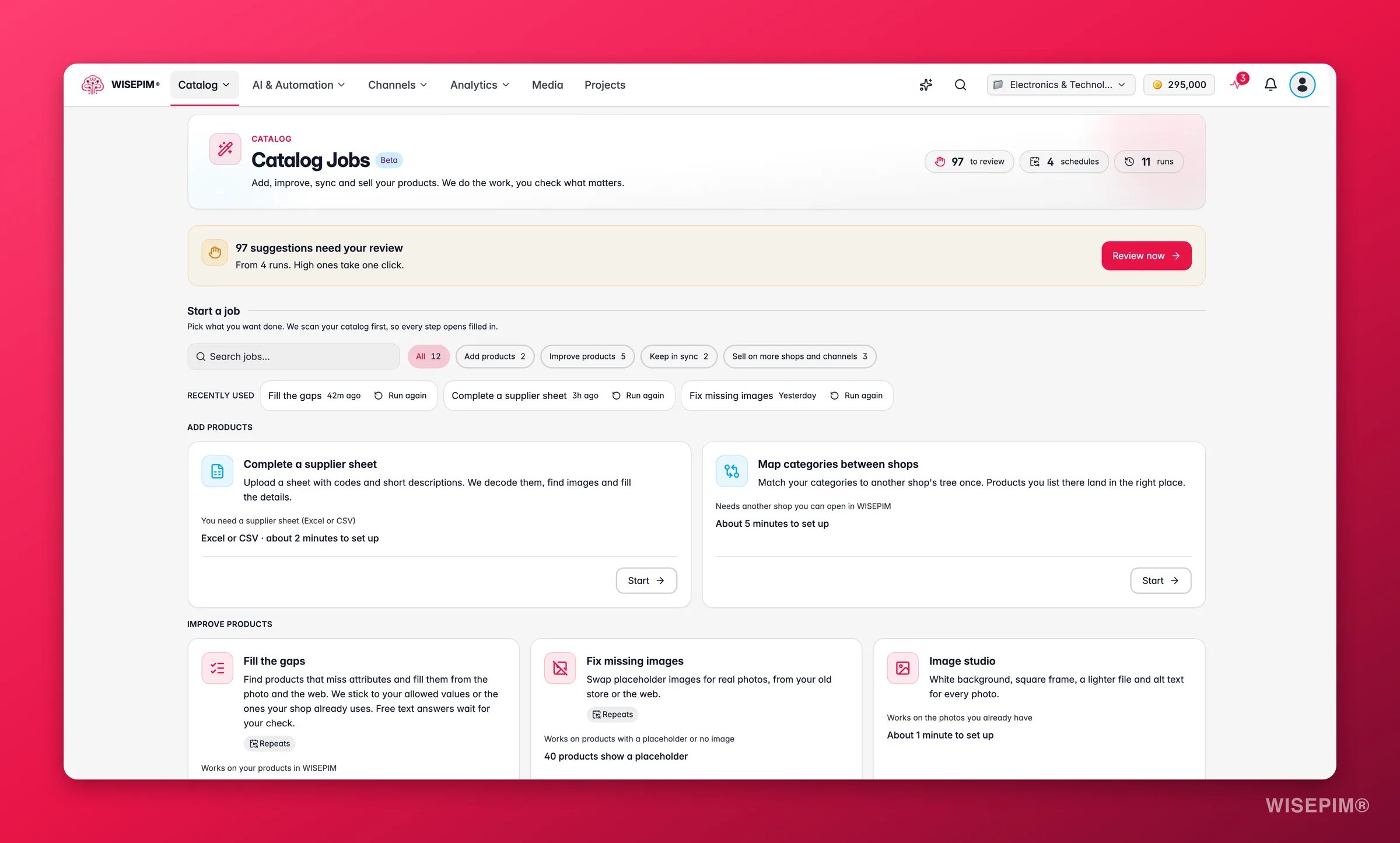
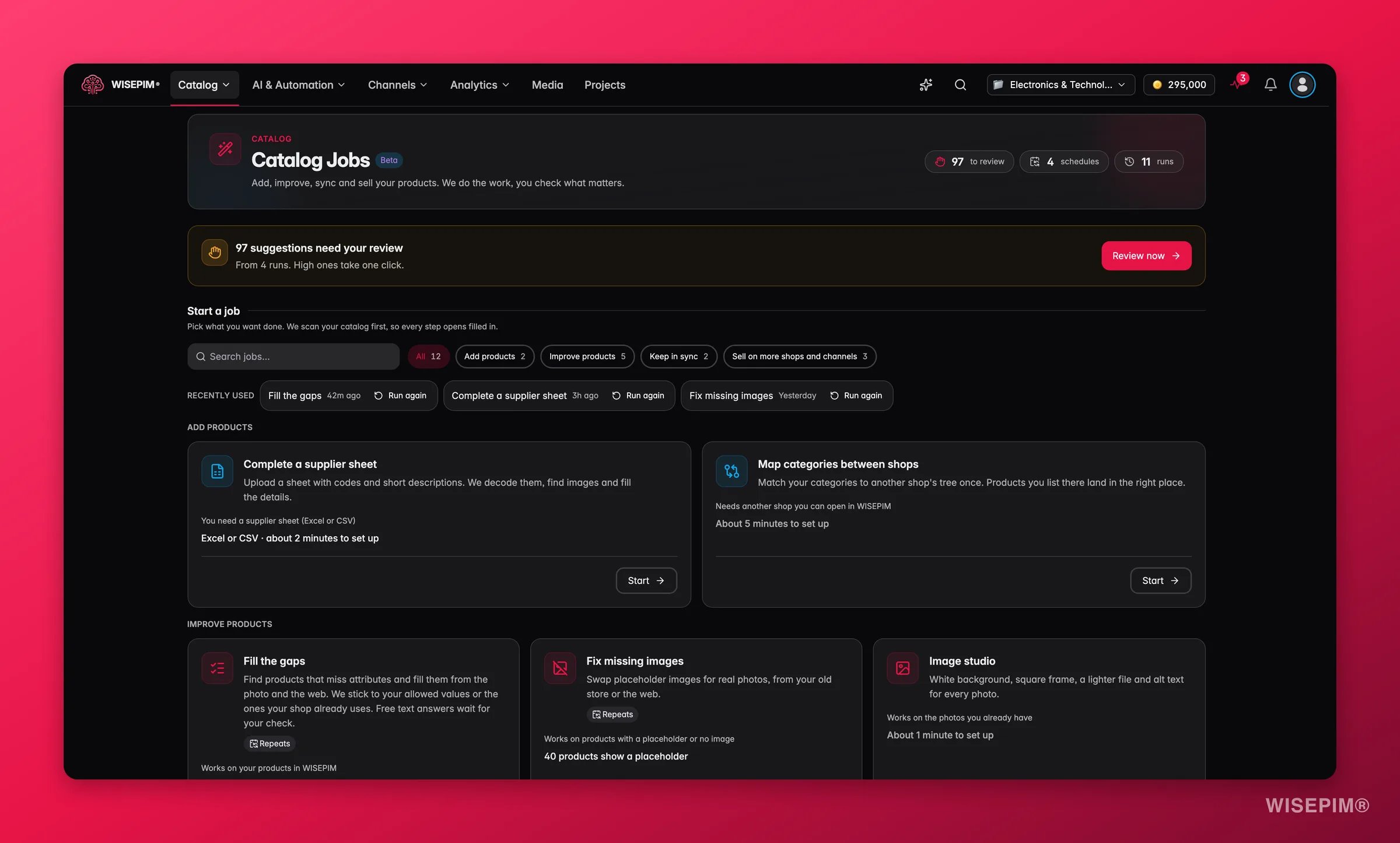
Where to find Catalog Jobs
The Catalog menu looks different depending on your Interface version (see Appearance Settings):
You can also start a job from the products table. Select products, then click Run a job in the selection bar. A menu such as Run a catalog job on 40 products lists the jobs that fit, with the note “You see the estimate before you start.” The job then opens with your selection already filled in.
Or open the command menu (Ctrl/⌘ K) and type Catalog Jobs.
The hub
The hub is where you start jobs and keep an eye on them.
Each job card shows what it does, what it needs, how long setup takes (“About 2 minutes to set up”) and chips such as Free (the job uses no AI), Repeats (the job can run on a schedule) or Coming soon. Click Start to open the setup.
How a job works
Every job follows the same five stages.1
Scan
WISEPIM checks your catalog first, so every setup step opens filled in. For example, Fill the gaps tells you how many products miss at least one attribute and which attributes have allowed values.
2
Estimate
Before you start, the This run card shows the expected cost in credits, broken down per step. If you are short, it says so and offers Buy credits.
3
Run
The job works through its steps in the background. You can close the page: the run keeps going and shows up in Catalog Jobs.
4
Review
Results at or above your confidence threshold are applied for you. Everything else waits in the review queue, where you accept, change or reject each suggestion.
5
Export
Accepted changes go to your shop, into an import file, or stay in WISEPIM. You choose which on the last setup step.
Set up and start a job
The setup is a short wizard. It shows Step 1 of 3 and so on, with Back and Continue. The steps depend on the job: Fill the gaps has Products, How to fill and Start; Complete a supplier sheet has Upload, Read the codes, What to add and Start.Choose the products
Under Which products? you pick the scope:- Only the 40 products you selected, when you came from the products table.
- All 1,250 matching products: everything that matches your filters on the products page.
- Every product this job finds: the job looks across your whole catalog.
Adjust each step
Each step opens with How to set up this step: keep Recommended or choose Customize. Chips next to each setting tell you where its value comes from, such as Recommended, Your last setting for a shop, From this schedule, Project setting, Shop setting or Default. A setting you changed shows Changed, and Back to recommended resets it. Settings that protect your data are locked and marked Always on. With more than one shop, choose Same settings for every shop or Settings per shop. The What this does preview shows the effect on a sample of your products. The numbers are close, not exact.Decide what WISEPIM applies on its own
When should we apply changes for you? sets the confidence threshold for this run:
After you have reviewed enough suggestions, WISEPIM can show Recommended from your past reviews with a threshold based on what you accepted before. Everything below the threshold waits in the review queue.
Choose what happens when it is done
Under When it’s done you pick where accepted changes go. For a WooCommerce shop the choices are:- Send to WooCommerce after I review: only accepted changes are sent, after a review step.
- Send without waiting for my review
- Give me a WooCommerce import file
- Keep the changes in WISEPIM
Try it first
Try it on 10 products first runs the job on a small sample. The trial suggestions wait in the review queue, and the full run reuses them, so nothing is wasted. Click Start run when you are ready. If a run can’t start, nothing is charged.Available jobs
If a job doesn’t fit your project yet, its card says why, for example “Add a second language first” or “You have no other shop in WISEPIM yet”.
Credits
Only steps that use AI cost credits. The rest is free. You always see the estimate before you start, and each step is charged once per product, even if a run is retried.
Some jobs add their own options with a price shown next to the switch:
Fetching photos from your old store, photo edits in Image studio, rule-based code decoding and exports are free. Reviewing is free too, including bulk decisions.
If credits run out during a run, it pauses with Paused: not enough credits. Top up and click I’ve topped up, or click Continue with what we have: the run uses your remaining credits and lists the products it skipped in the report.
Limits
Schedules
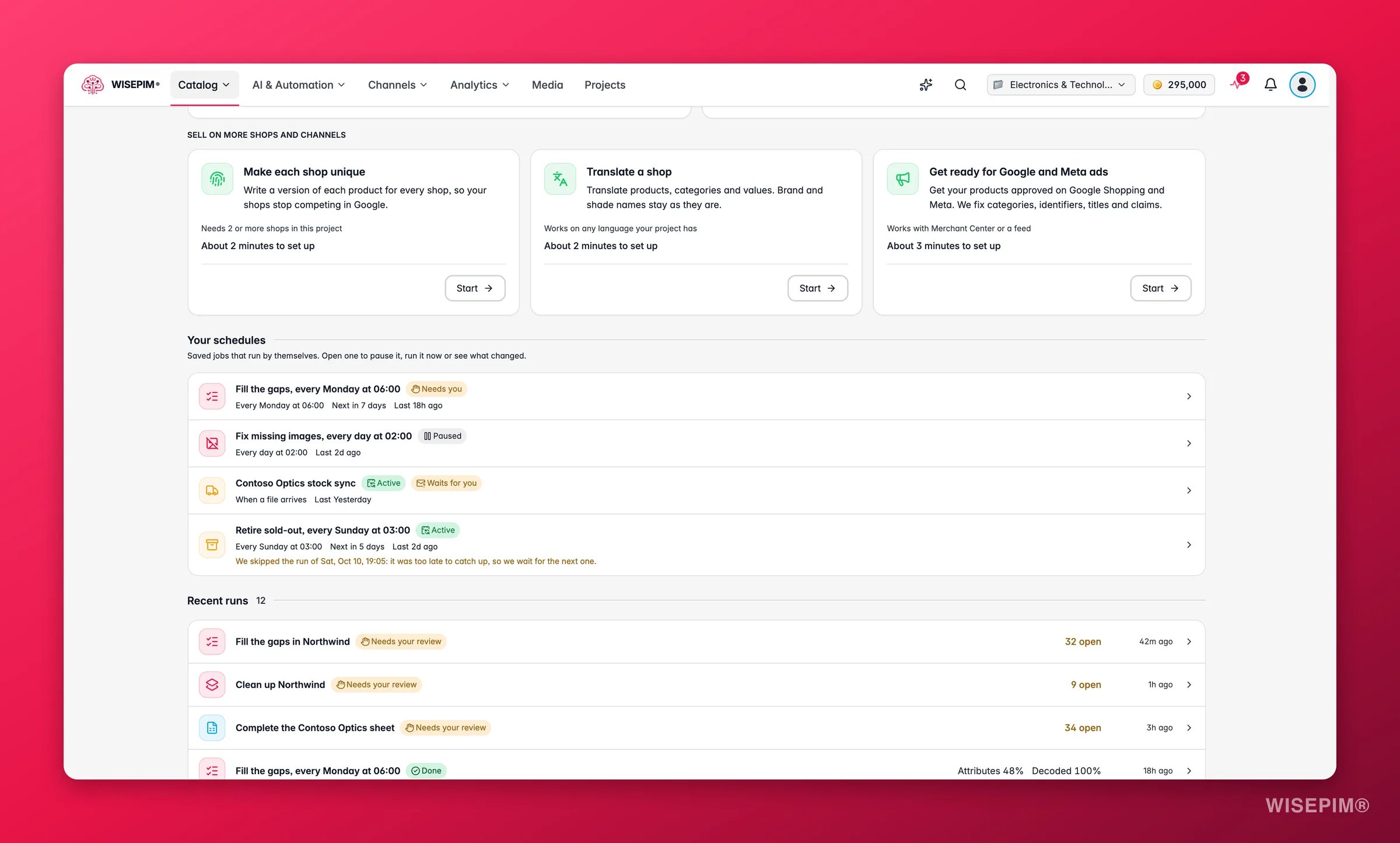
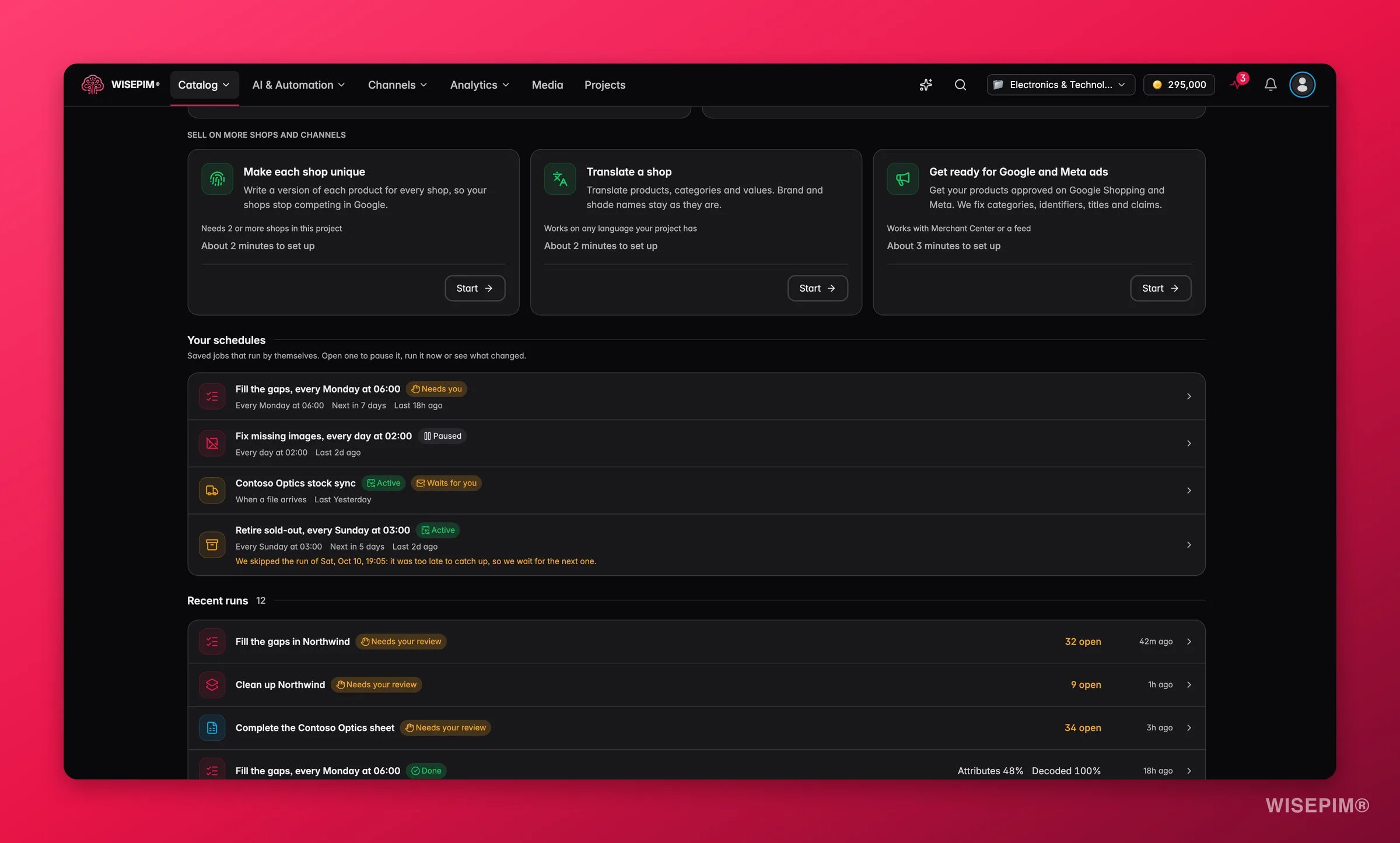
- On the start step, under Repeat this job, pick Just this once, After every import, When a file arrives, Every day, Every week or Every month. For timed runs, set the Day of the week or Day of the month, the Time and the Time zone. The cost line tells you what each run uses and what that adds up to per month.
- From a template under Run it on a schedule on the hub: Fill gaps every week, Complete new supplier sheets or Fix new missing images. Click Use template.
Repeated runs don’t wait for you. They send what is checked and keep the rest in your review queue. WISEPIM lets you know when one needs you.
The schedule page also shows How it’s set up (When, What, Review, When it’s done, Cost), Since last run and the History of every run.
WISEPIM skips a run, and tells you why, when the previous run is still busy, when a run is too late to catch up, or when there aren’t enough credits. You get at most one notification per schedule per day, for example that a schedule needs you, stopped, or was skipped twice in a row. Schedules are automations, so they also show in the Automations builder.
Follow a run
Open a run from Recent runs to see it live. The header shows the credits used against the estimate, and a line like “So far: 120 applied · 32 to review · 2 need attention”. Steps of this run shows where it is. Each run has a status: Not started, Estimating, Running, Needs your review, Exporting, Done, Stopped, Cancelled, Ready to send, Ready for your file or Ready to go on.- Cancel run stops after the current batch. Changes already applied stay, and open suggestions stay in the review queue.
- When the run waits for you before exporting, choose Review 32 suggestions, Send what’s accepted now or Download a file instead.
The run report
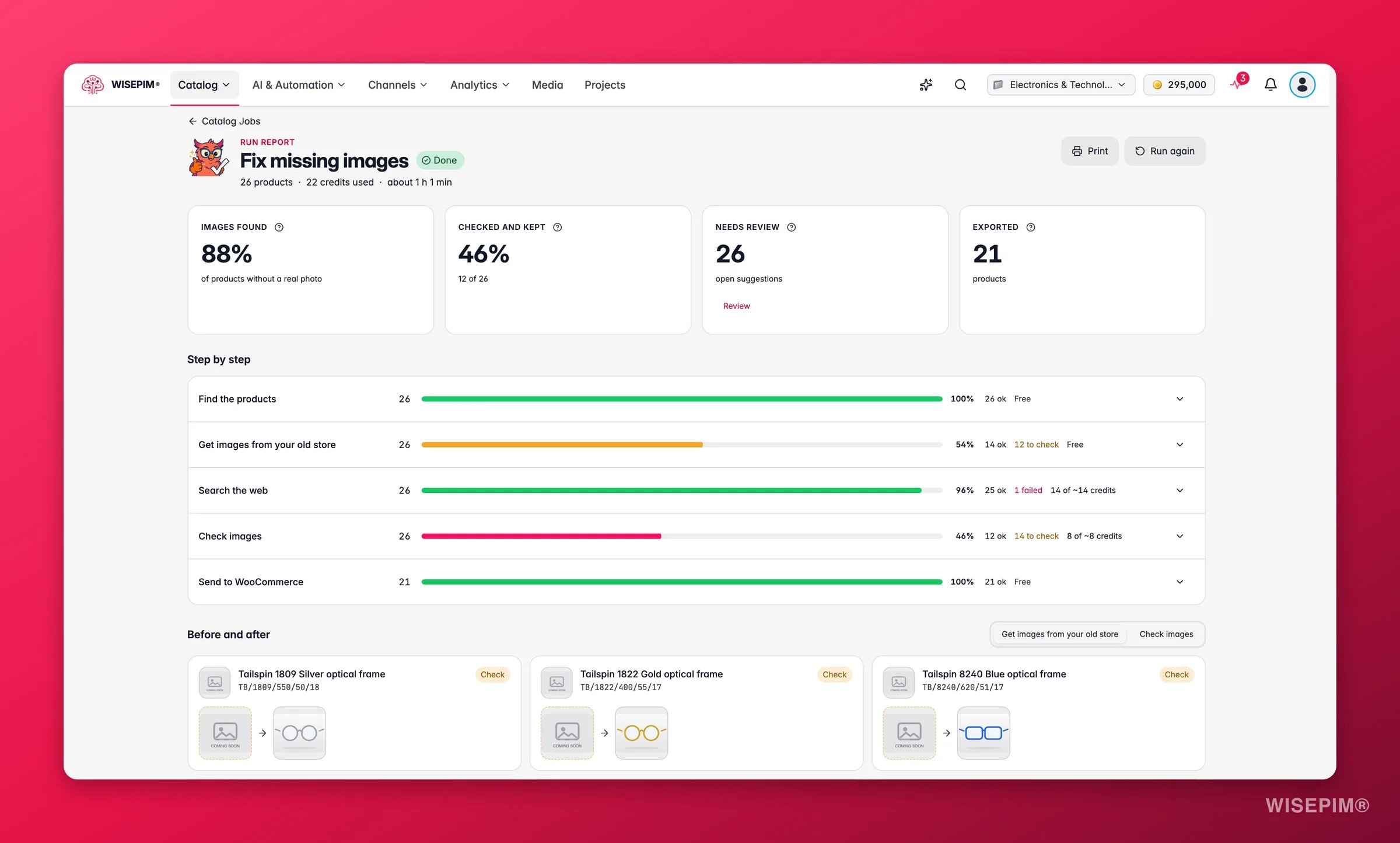
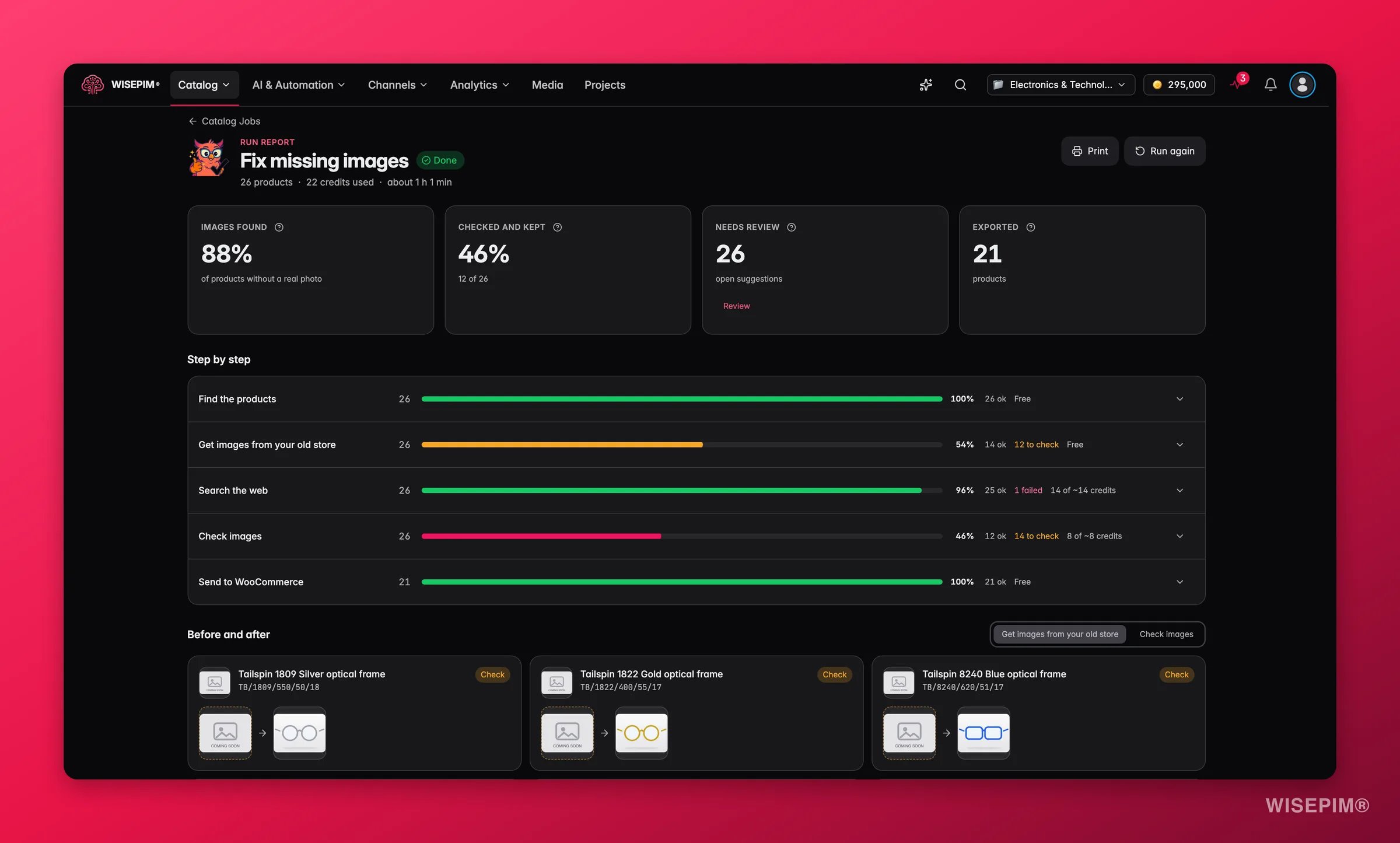
If a run ran out of credits, the report says how far it got, for example “We ran out of credits after 400 of 1,000 products.”, with Run the rest. If a step failed, everything done before it is kept.
Act on what you find
Too many suggestions end up in the review queue
Too many suggestions end up in the review queue
Lower the threshold for the next run, from Careful to Balanced, or use the threshold WISEPIM recommends from your past reviews. In the review queue itself, Accept all on the High band clears the confident suggestions in one click.
A run costs more than you expected
A run costs more than you expected
Open the report and check the credits per step in Step by step. Web search is usually the biggest cost: turn off Search the web when the photo isn’t enough or switch on Only parent products, variants follow for the next run.
A scheduled run was skipped
A scheduled run was skipped
Open the schedule. The page says why, for example that there weren’t enough credits or that the previous run was still busy. Top up, or use Run now once the earlier run has finished.
A job card says it isn't available
A job card says it isn't available
Read the note on the card. Most jobs need something first, such as a second shop, a second language or a connected Merchant Center.
Related
Catalog Jobs Review Queue
Accept, change or reject what a job suggested.
Review Inbox
Every AI suggestion waiting for a person, from any source.
Product Variants
How parents and variants work, and how to group look-alikes.
Catalog Structure
Set up families, categories, fields and variant groups.
AI Review Settings
Choose which AI changes are saved right away and which wait for you.
Usage Settings
See where your credits went, per action and team member.