

How variants work
A variant can’t have variants of its own, and the parent must be a top-level product in the same project.
WISEPIM doesn’t create variant products for you from a list of options. Preview combinations checks the variants you already have. To add a missing size, create the product and link it to the parent.
Variants in the products table
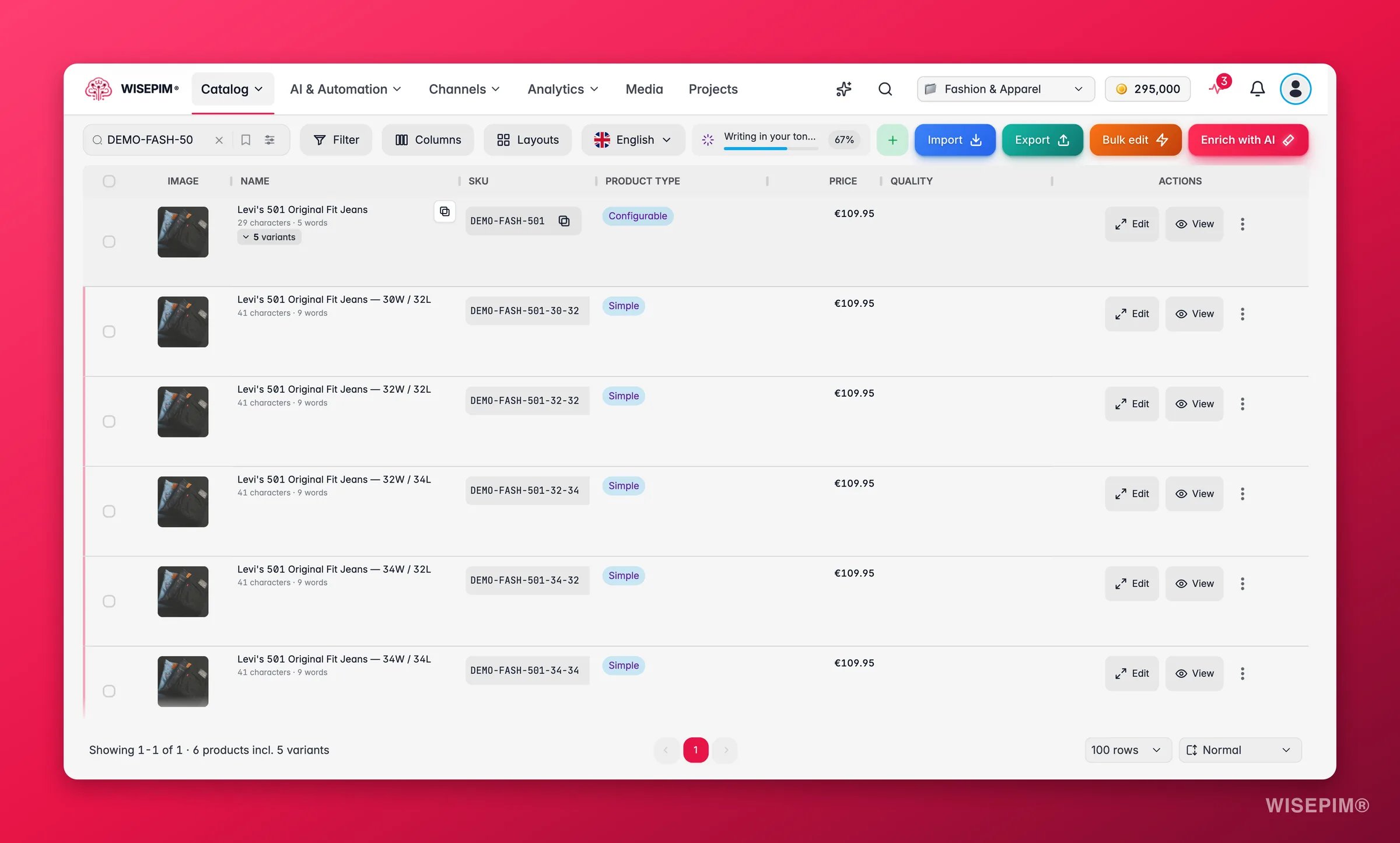
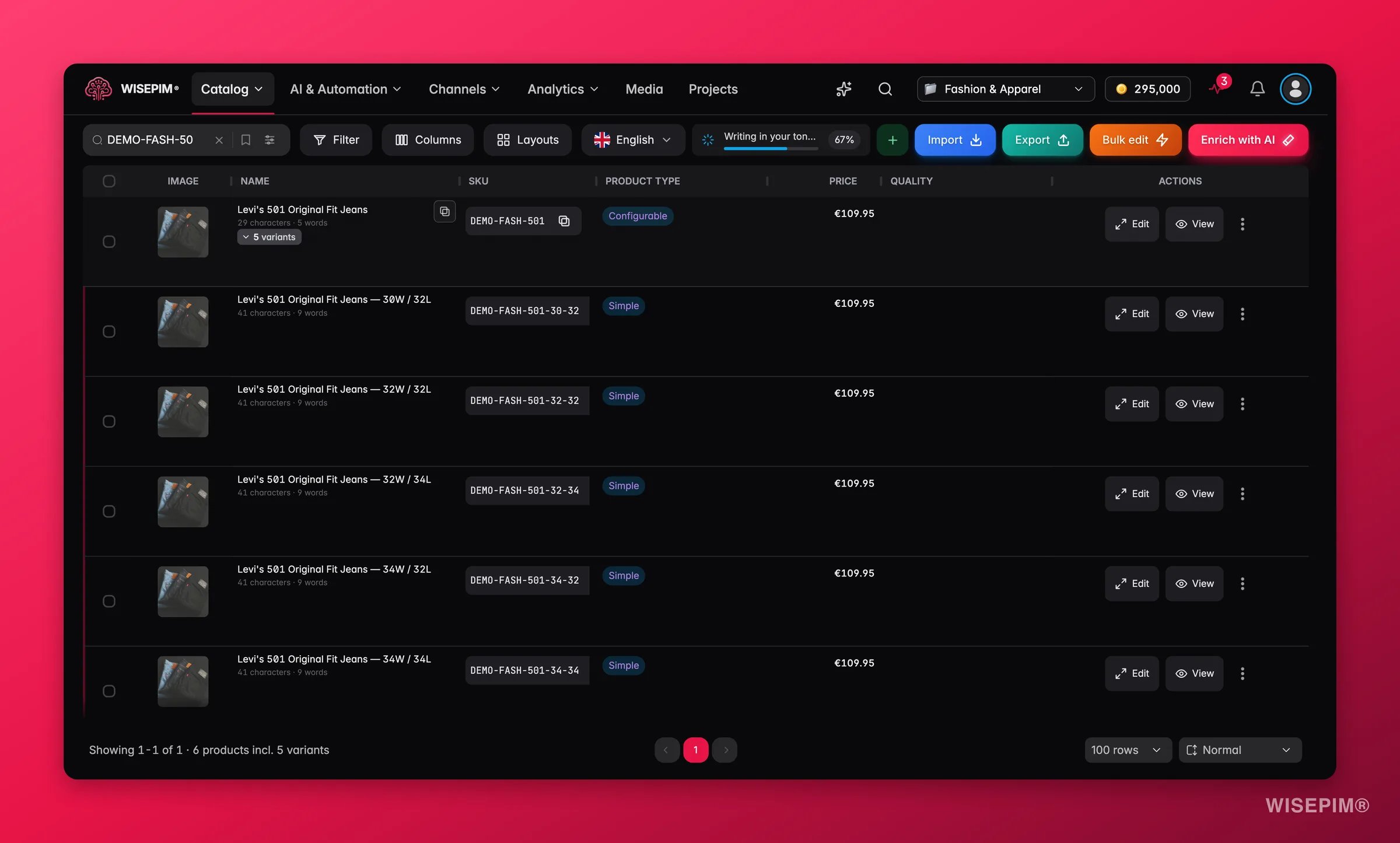
A parent row shows the number of variants under its name, for example “5 variants”. Click it to expand the variants beneath the parent, and click again to collapse them. The Product Type column shows Configurable for the parent and Simple for each variant. The footer counts variants separately, for example “Showing 1-1 of 1 · 6 products incl. 5 variants”.- Search by the parent SKU to find the parent and all its variants at once.
- Filter with Has Variants to find parents, or Is Variant to find variants or standalone products. The smart filter Parent Products does the same in one click. See Filtering & Searching Products.
- Collapse variants in Product Views groups variant matches under their parent during search, so a search for “jeans” doesn’t list every size.
Make a product a variant
Open the product you want to turn into a variant and go to the Pricing tab. The Product structure section holds Product Type, Product family and Parent product: “Type, family and parent decide which attributes and variants apply.”1
Pick the parent
In Parent product, search by name or SKU. The list shows configurable products. Turn on Show all products, not just configurable ones to pick a simple product instead.
2
Save
If you picked a simple product, WISEPIM warns you first that saving will convert it to a configurable (parent) product. Save to link the variant.
Use the parent’s photo
A variant without its own photo can borrow one. On the variant’s Relations tab, click Use a photo from the parent product and pick the image. It becomes the variant’s main image, and WISEPIM confirms with “Variant photo set”.Choose variant options
1
Pick the option attributes
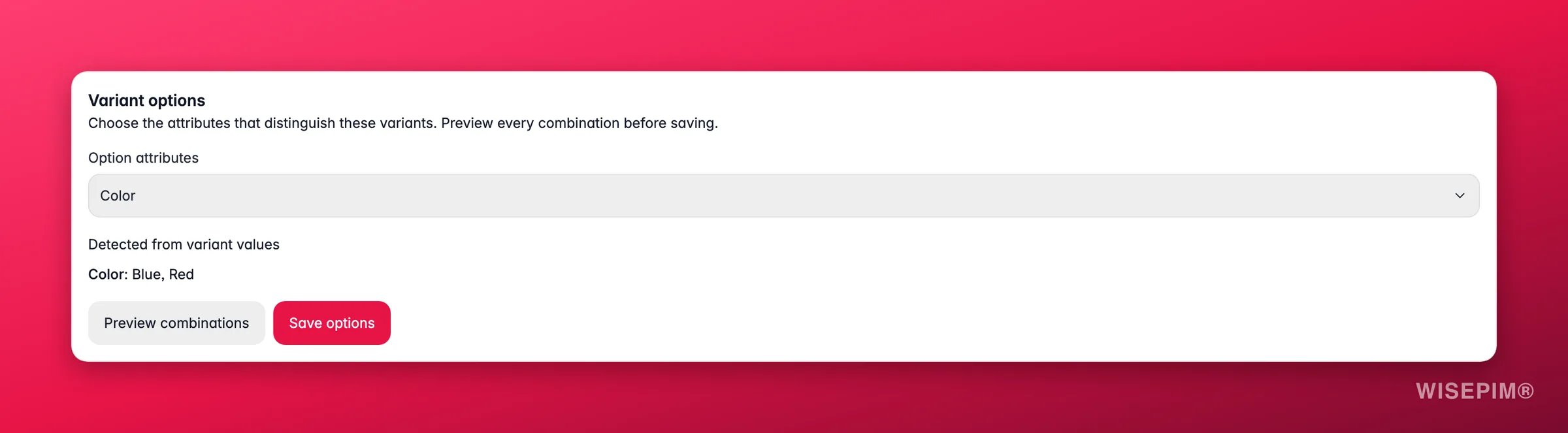
Open Option attributes and choose the attributes that tell the variants apart, such as Color and Size.
2
Preview combinations
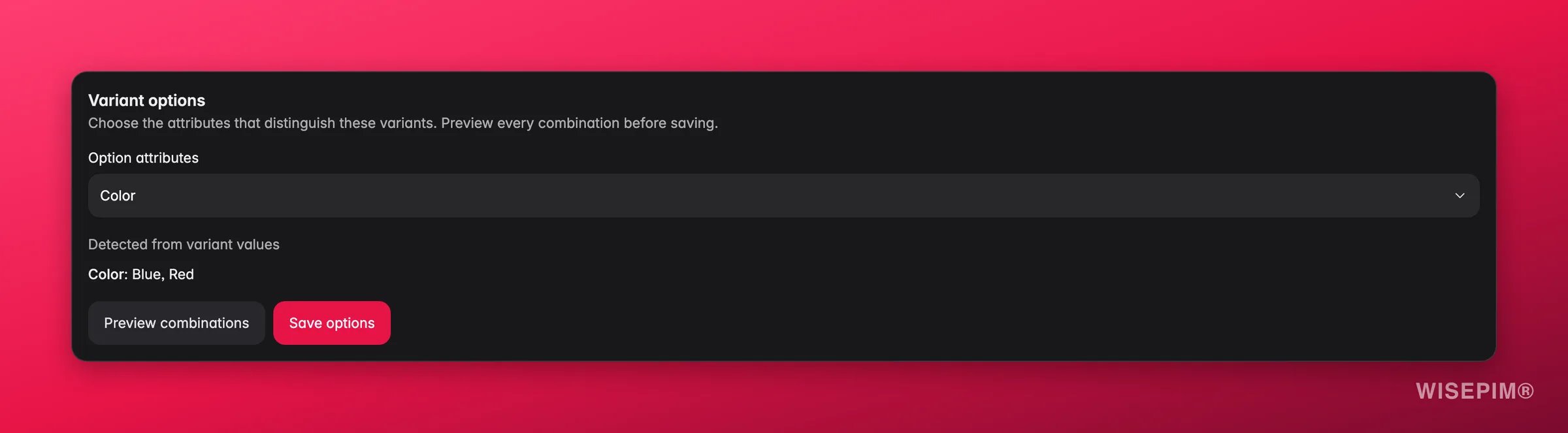
Click Preview combinations. WISEPIM lists each option with its values, for example “Color: Blue, Red”, and warns you about problems:
- “1 variant needs an option value.” A variant has no value for one of the options.
- “1 duplicate combination needs attention.” Two variants have the same values.
3
Save options
Fix any warnings on the variants, then click Save options. The button stays disabled while there are warnings. WISEPIM confirms with “Variant options saved.”
When every variant shares the same family and nothing conflicts, WISEPIM saves the options on that family, so other parents in it get them too. Otherwise it saves them on this parent only.
A parent can have up to 32 option attributes. As the card warns, products without option attributes cannot be published as grouped variants. Without write access to the project, you can view the options but not change them.
Group look-alike products
Imports often arrive flat, with every color or size as a separate product. There are three ways to turn them into one product with variants:Turn look-alikes into variants
The job looks for top-level simple products that share a name or the start of their SKU. It never groups across brands or categories. AI checks each member is the same model in another color or size, and can read a missing option from the photo for 1 credit per product. You set What makes a group (We pick, Same name or Same start of the SKU), the allowed Price difference, and under In this shop whether to change only WISEPIM (Only in WISEPIM) or also Merge the pages in my shop. When you accept a group, WISEPIM creates the parent and links the members as its variants.Variants on export
When a variant has no value of its own for its description, short description, brand, meta title, meta description, images, categories or FAQs, the export uses the parent’s value. SKU, price, stock and the variant options are never taken from the parent. Nothing is copied into the variant itself: the fallback only happens on export. How variants arrive in your shop depends on the channel. For Shopify, switch on Export variants as options on the connection to send a parent as one product with options. See Shopify Integration.Act on what you find
Preview combinations says a variant needs an option value
Preview combinations says a variant needs an option value
Open that variant and fill in the missing attribute, for example its size. Then preview again on the parent.
Two variants have the same combination
Two variants have the same combination
Either one of them is a duplicate, or the options miss an attribute that tells them apart. Delete the duplicate, or add the missing attribute to Option attributes.
Your catalog has hundreds of look-alikes
Your catalog has hundreds of look-alikes
Run Turn look-alikes into variants from Catalog Jobs and accept the High groups in the review queue in one go. Check the Unsure groups with Edit group.
A variant shows no photo in the shop
A variant shows no photo in the shop
Click Use a photo from the parent product on the variant, or leave its images empty so the export falls back to the parent’s images.
Related
Group as Variants
Attach many products to one parent in a single action.
Catalog Jobs
Let WISEPIM find look-alikes and group them for you.
Product Families
Mark variant axes once for every product in a family.
Editing Products
Every tab of the product editor.
Catalog Structure
Find variant groups that miss their options.
Shopify Integration
Send parents as one Shopify product with options.