

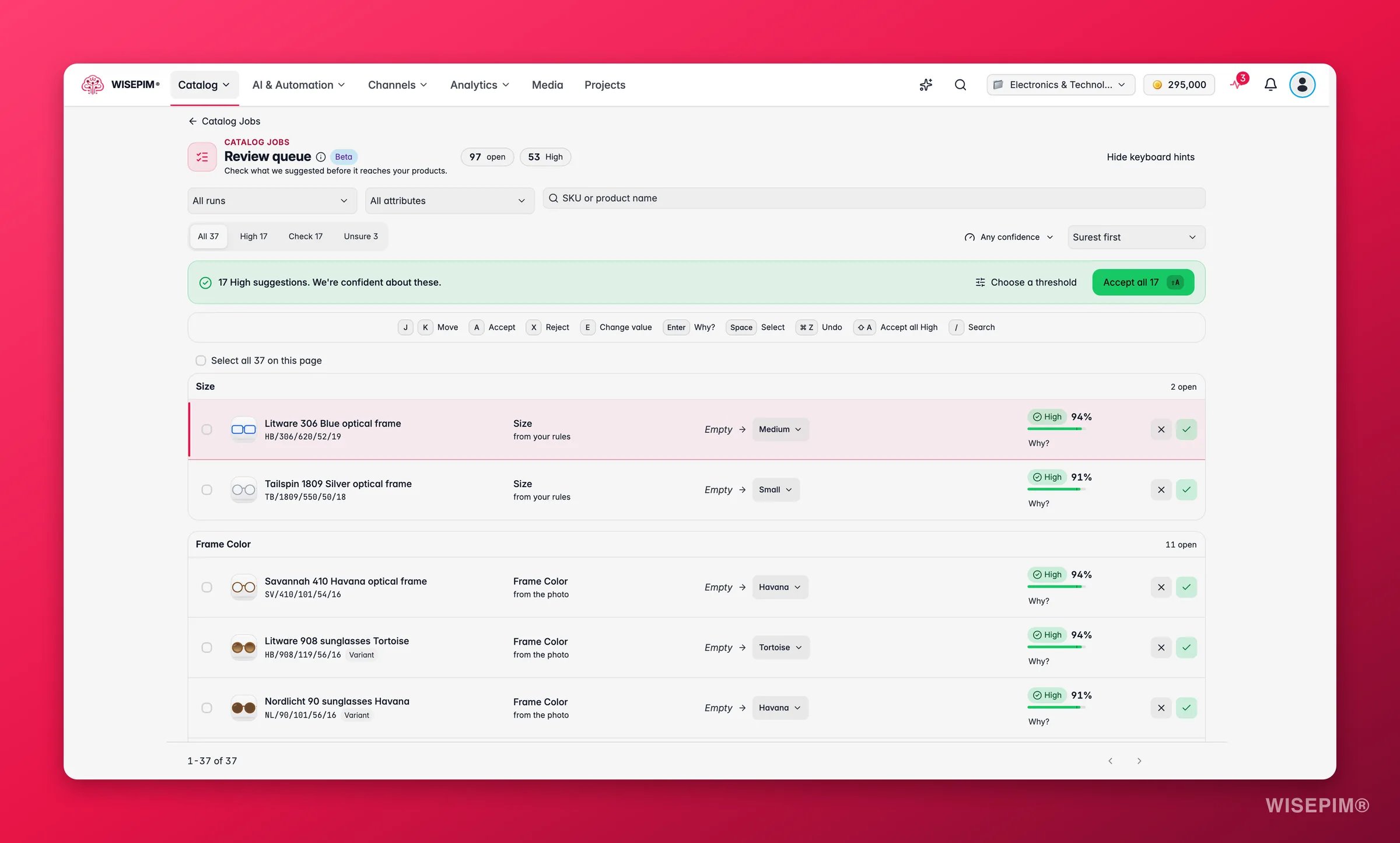
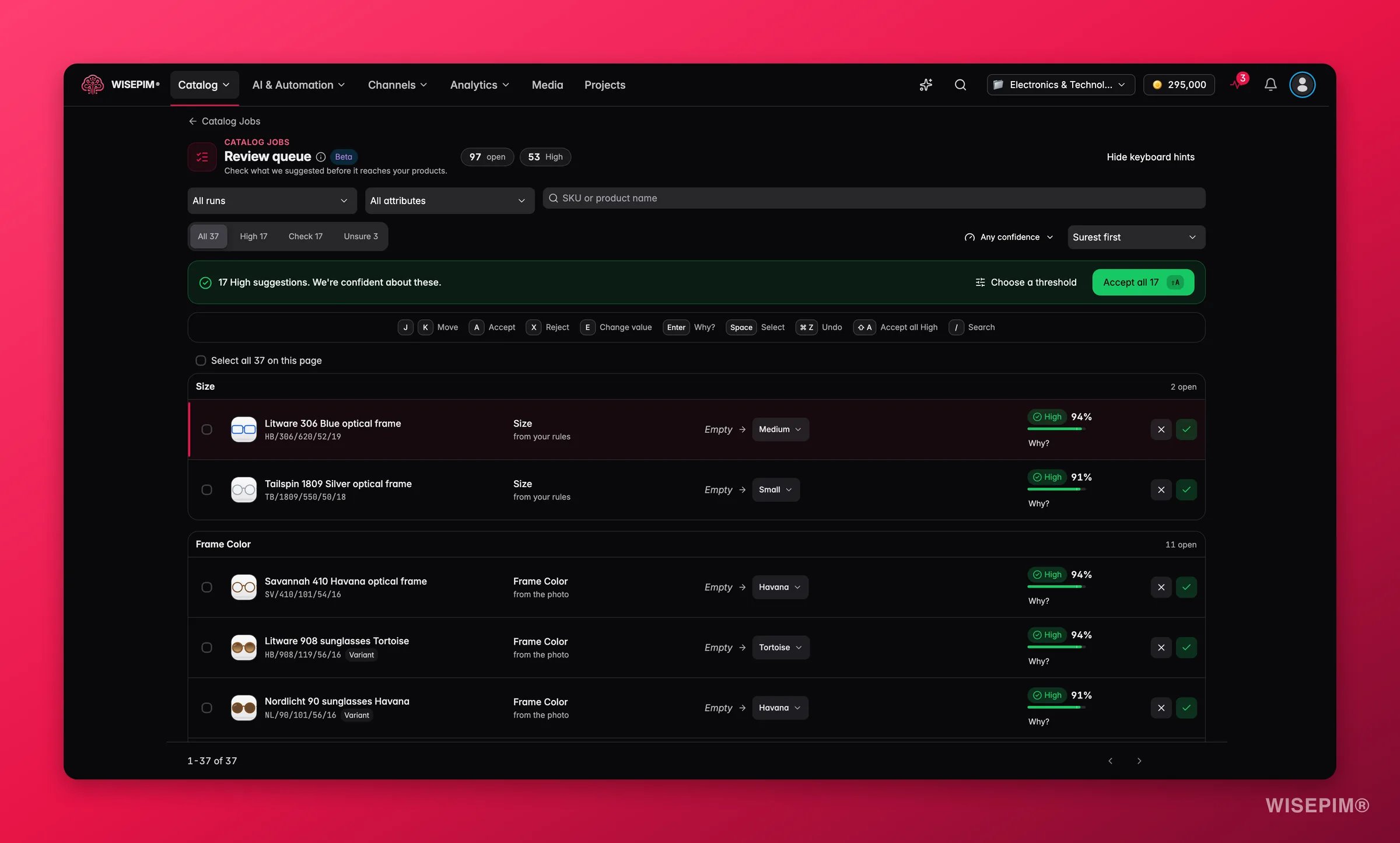
The review queue only holds Catalog Jobs suggestions. AI suggestions from other sources, such as AI fill or web research, wait in the Review Inbox. Catalog Jobs suggestions show there too, marked From a Catalog Jobs run.
Confidence bands
Each suggestion carries a confidence score and falls into one of three bands:
The threshold is the one you picked when you started the job (Careful, Balanced or Fast), or your project default. Click the score on a row to see what it means: “Out of 100 suggestions this sure, we expect about 94 to be right.”
Filter and sort
The toolbar narrows the list:
Suggestions are grouped per field, with a count of what is still open in each group.
Accept all High
When there are High suggestions, a green banner says, for example, “17 High suggestions. We’re confident about these.” Click Accept all 17 to apply them in one go. The confirmation reminds you that you can still change any value on the product afterwards. To pick your own cut-off, click Choose a threshold. A small chart shows how your open suggestions spread over the confidence range. Pick a preset (Careful, Balanced, Fast or Recommended, which is based on what you accepted before) or drag to a value, then accept everything at or above it. Use the default goes back to your normal threshold.One click accepts up to 2,000 suggestions. If there are more, click again after the first batch. Suggestions that fail to apply stay in the queue with the reason.
Decide on one suggestion
Each row shows the product, the field, where the value came from (for example “from the photo” or “from your rules”), the current value, the suggestion and its confidence.Why we suggest this
The drawer explains the suggestion:- Why we think so: the reasoning, such as the value it matched or the rule it followed.
- Sources: the photo, web page or supplier code behind it.
- How sure we are: the score, and the Runner-up value it almost picked. A small gap is flagged as a close call.
- Decided by: “our judge model”, “an AI model”, “a fixed rule, no AI” or “the source, copied as is”.
Image suggestions
Image rows show the current image next to the suggested one. Depending on the job, the actions are Replace placeholder, Replace image, Add to gallery, Add as main image or Remove: doesn’t match. Click Compare images to see them side by side.Variant group suggestions
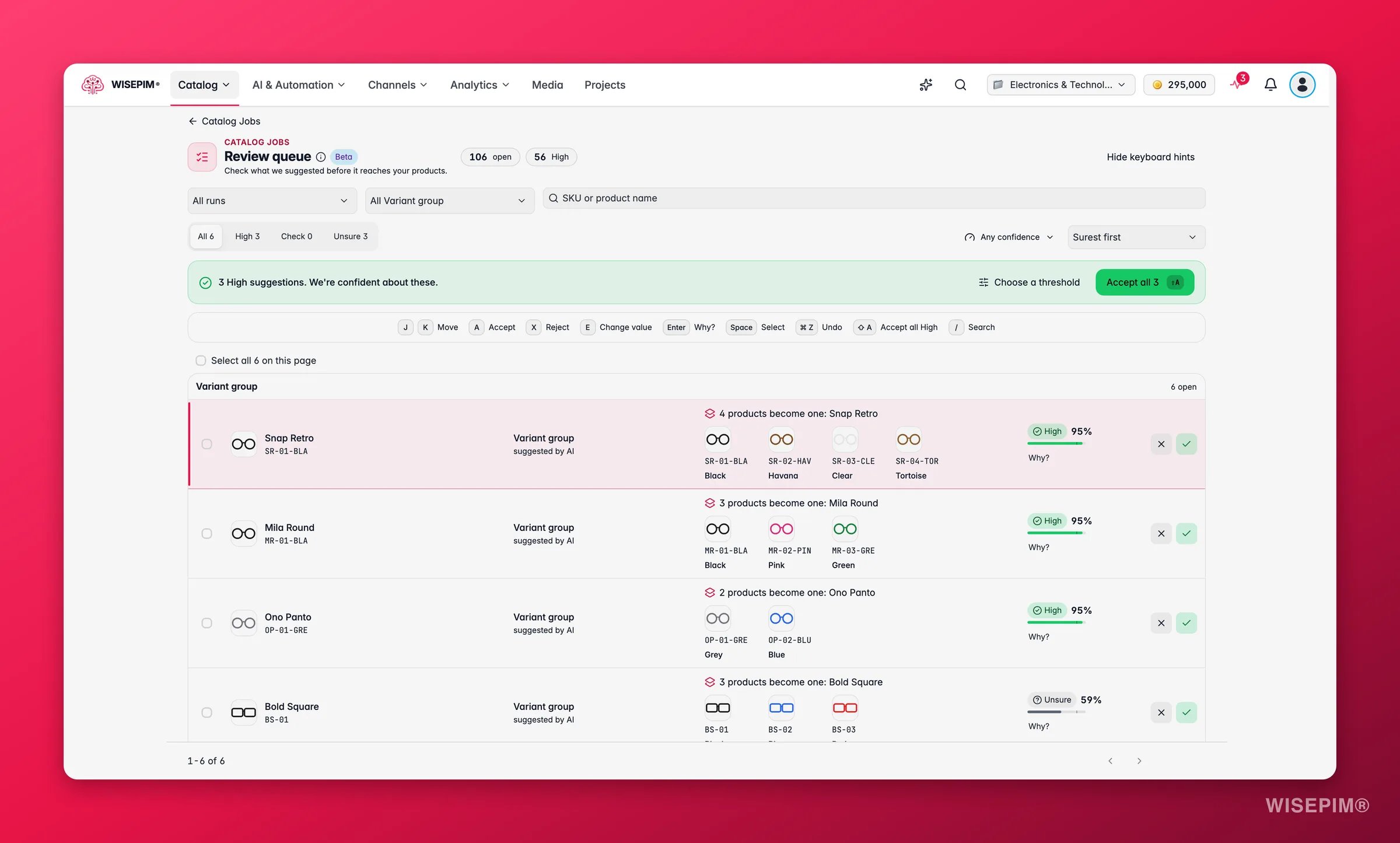
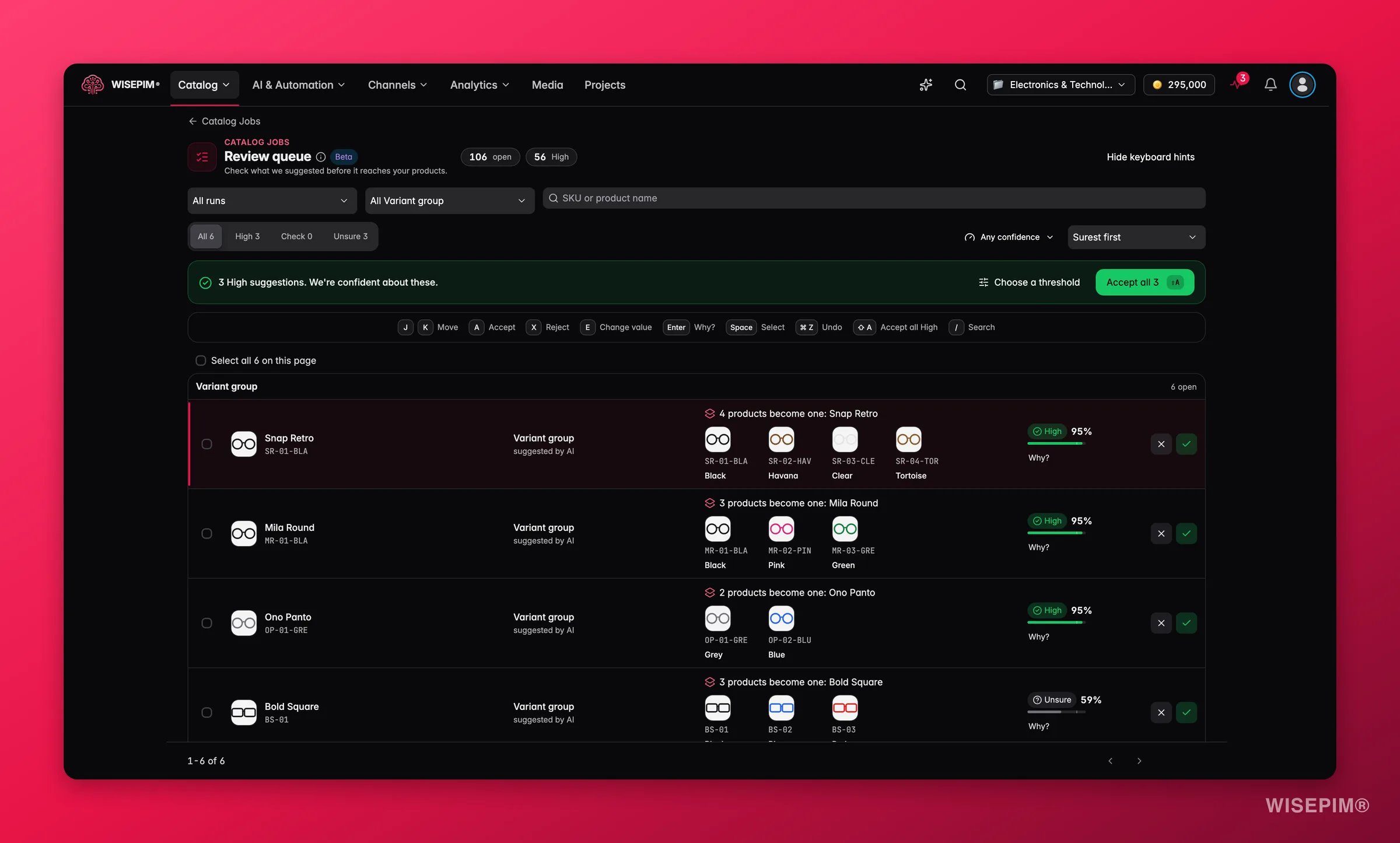
Work in bulk
Tick rows, or use Select all 37 on this page (with your own count), and a dock appears:
Bulk decisions are free. Large batches run in the background, so you can keep reviewing. One bulk decision covers up to 50,000 suggestions.
Keyboard shortcuts
The queue is built for the keyboard. Click Hide keyboard hints to hide the reminder bar.Undo a decision
Undo on a row, or ⌘Z, takes back your last decision. After a bulk decision, the result message offers undo for the whole batch, for example “We took back 17 decisions”. The suggestions go back into the queue. You can undo attribute values, product details, categories and supplier codes. A value that changed on the product since you accepted it stays as it is. Photos can’t be undone from here: “17 photos stay as accepted. Change them on the product.”When a suggestion can’t be applied
Sometimes an accept fails. The row stays in the queue with the reason:Act on what you find
Hundreds of suggestions are waiting
Hundreds of suggestions are waiting
Start with the High tab and Accept all. Then sort the Check tab by Least sure first and work down with the keyboard. Leave Unsure for last: reject what looks wrong.
The same wrong value keeps coming back
The same wrong value keeps coming back
Open Why? to see the source. If a supplier code is misread, teach it in the supplier glossary. If the allowed values are too broad, tighten them on the attribute in Managing Product Attributes.
You accepted something by mistake
You accepted something by mistake
Press Undo on the row, or ⌘Z right away. For a bulk accept, use the undo in the result message.
A variant group mixes two models
A variant group mixes two models
Click Edit group, untick the product that doesn’t belong, and accept the rest. Or reject the whole group.
Related
Catalog Jobs
Start jobs, set the confidence threshold and read run reports.
Review Inbox
The project-wide inbox for every AI suggestion.
Product Variants
What happens when you accept a variant group.
AI Review Settings
Decide which AI changes wait for approval.