

What a product FAQ is
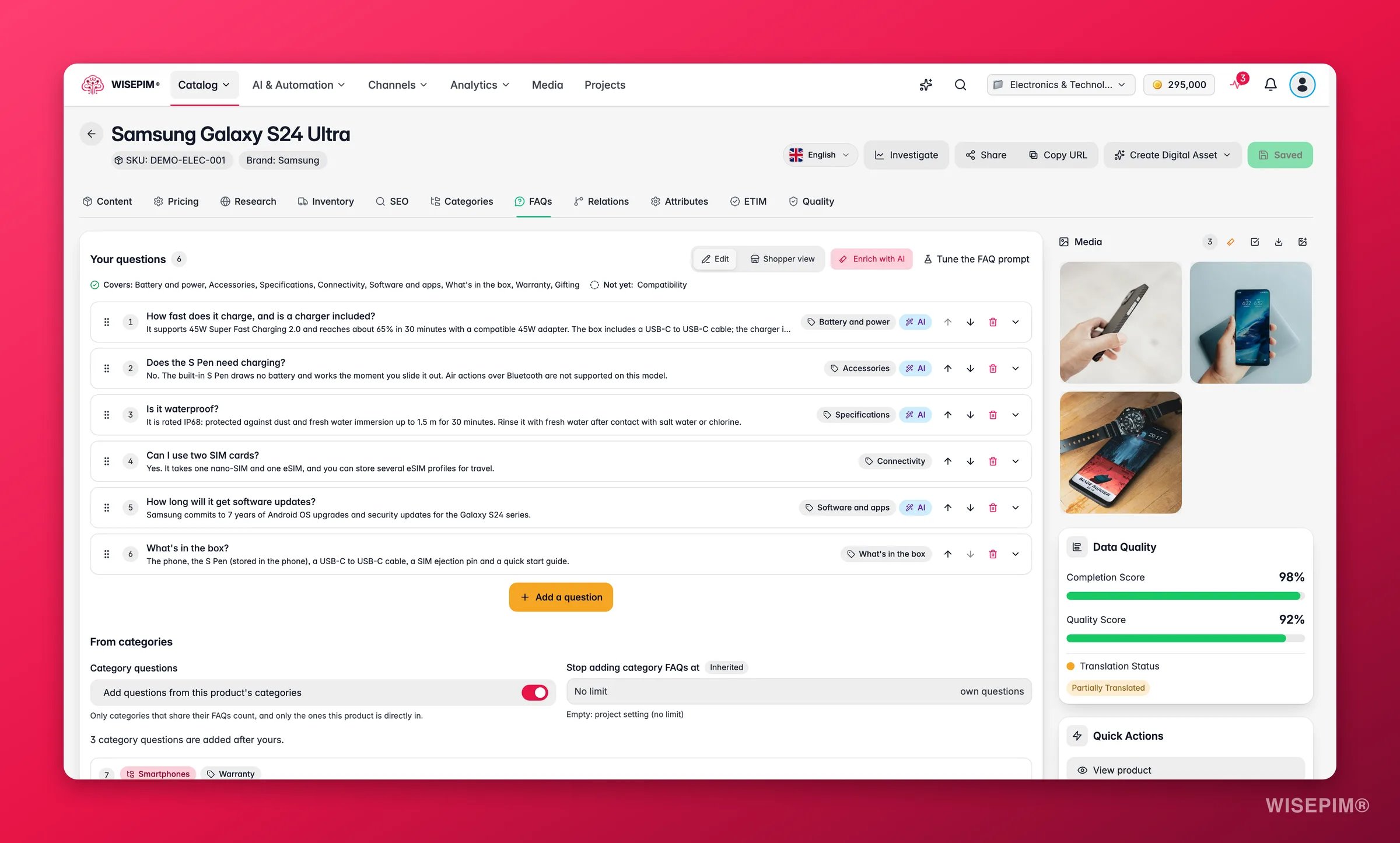
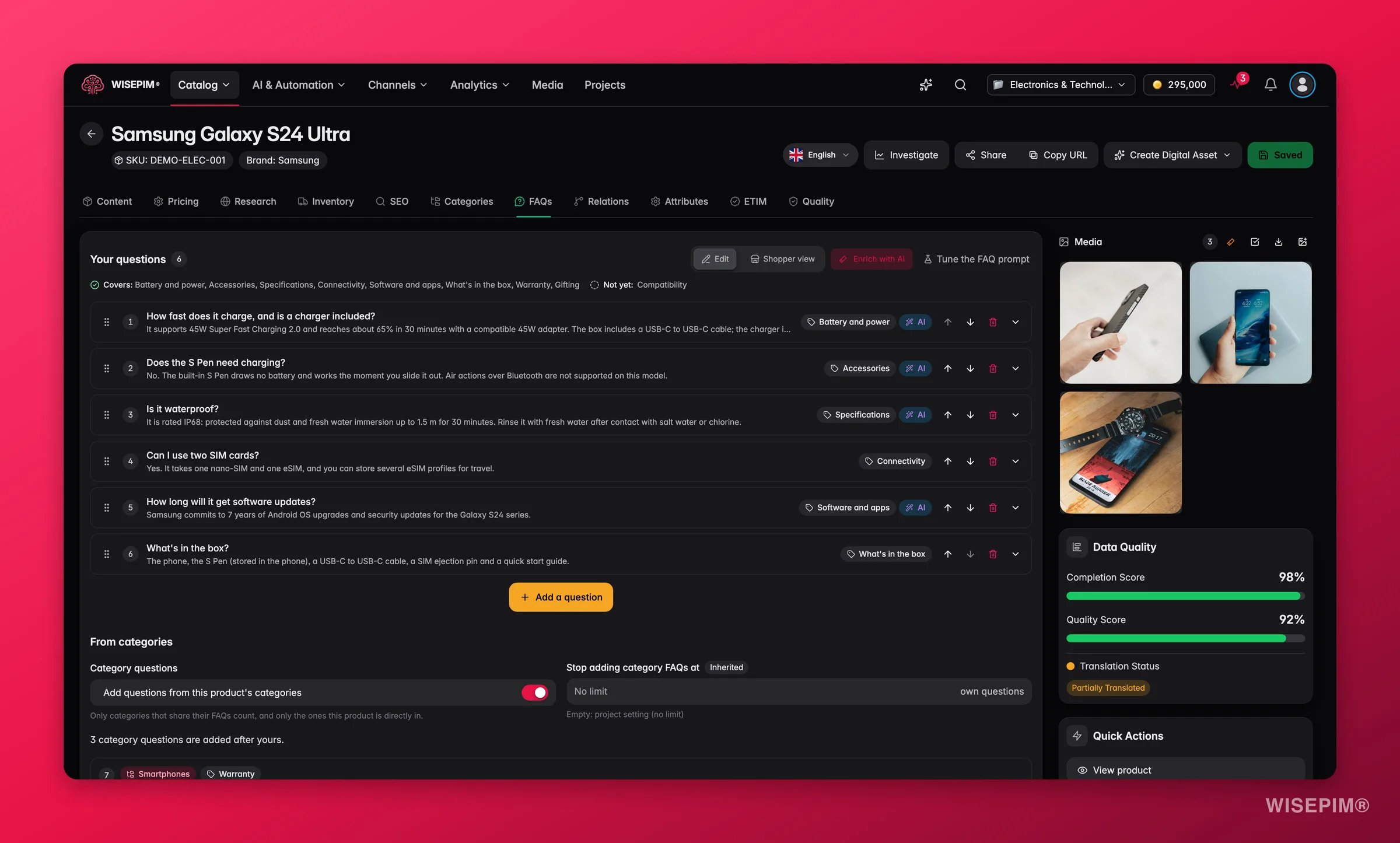
Every FAQ item is one question and one answer:
Each item can carry a question type, such as Specifications, Compatibility or Care and cleaning. Types drive the coverage strip in the editor and the angles AI writes about.
WISEPIM also remembers where each item came from: typed by you, written by AI (shown with an AI chip), imported from a product page, or added by a category.
The FAQs tab in the product editor
The FAQs tab sits between Categories and Relations. When AI suggestions are waiting, the tab shows a badge such as “3 suggestions to review”.Your questions
The Your questions list shows the product’s own items with a count. Each row has a drag handle, its type chip, an AI chip when AI wrote it, and buttons to Move question up, Move question down and Remove question. Click Edit question to open a row and change the Question and Answer fields. Click Add a question to add a row. At 50 items you see “You’ve reached the limit of 50 questions.” WISEPIM gives light hints while you write:- “Same question as question 2” when two questions repeat each other.
- “No answer yet, so shoppers would see the question on its own.”
- “Short answers can feel thin. Add one detail shoppers can act on.”
- “Questions read best when they end with a question mark.”
FAQ edits are part of the product form. Nothing is saved until you save the product.
Coverage
Below the header, the coverage strip shows which question types the product already answers (Covers:) and which recommended types are still missing (Not yet:). Click a missing type to Generate questions about that type, or click Generate these to write all missing types in one go.Generate FAQs for one product
1
Open the generator
In the FAQs tab, click Enrich with AI. The Enrich FAQs dialog opens.
2
Pick the options
Choose a prompt, the number of questions, the question types and whether to use web research. These are the same options as in a bulk run, described below.
3
Generate
Click Generate FAQs. The toast “Generating FAQs” tells you where the questions will land, based on your apply mode.
Review suggestions
Generated questions that are not added automatically appear in Suggested questions at the top of the tab, each with an AI suggestion chip and a “Based on:” line naming the sources it used.- Accept adds the suggestion to your list. Edit lets you change it first, then Accept edited.
- Dismiss drops it.
- Accept all adds every suggestion that isn’t already in your list. Dismiss all clears the tray.
Questions from categories
The From categories section controls category FAQs for this product:- Category questions: switch Add questions from this product’s categories on or off.
- Stop adding category FAQs at a number of own questions. Leave it empty to follow the project setting, shown as Inherited.
Shopper view
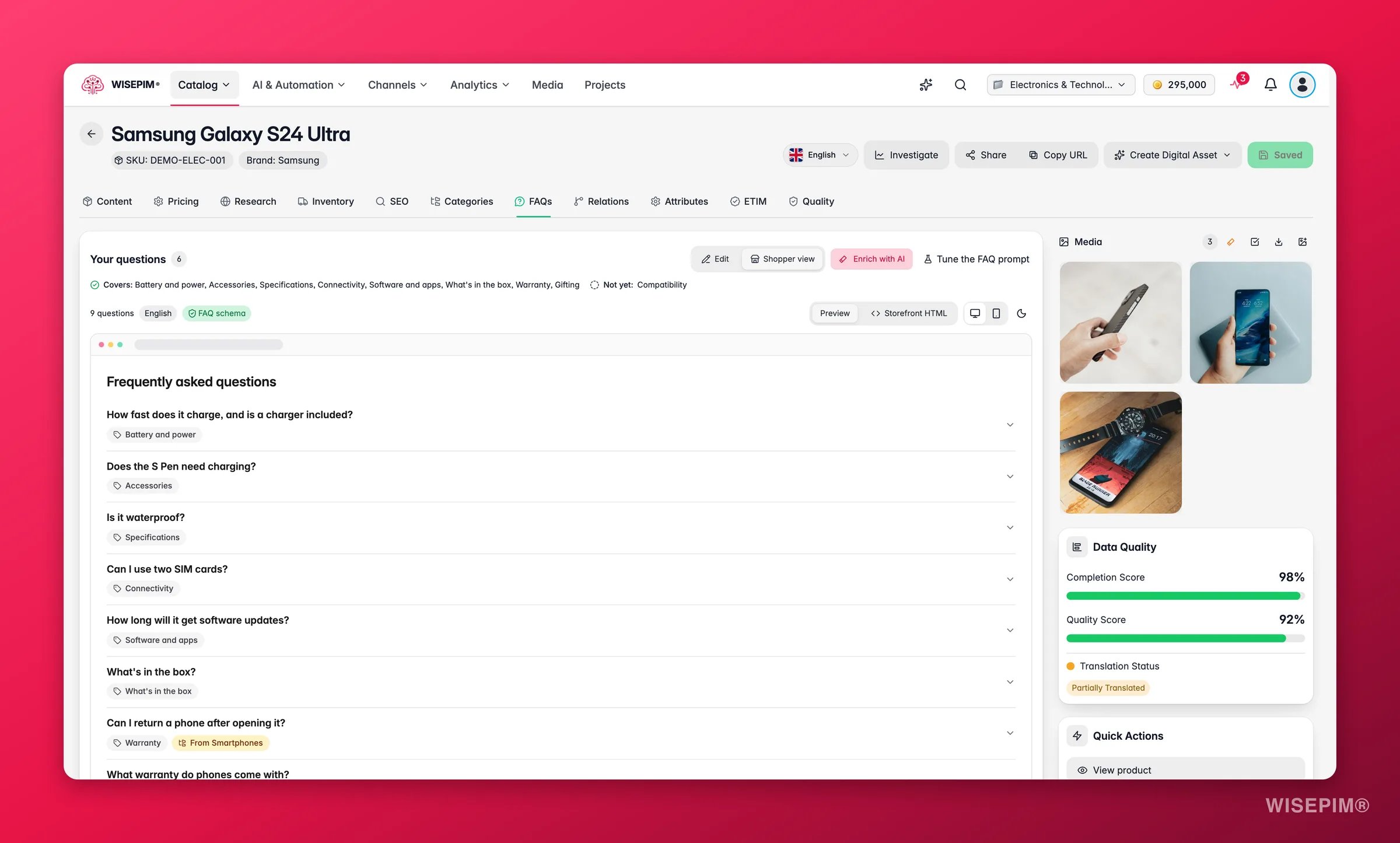
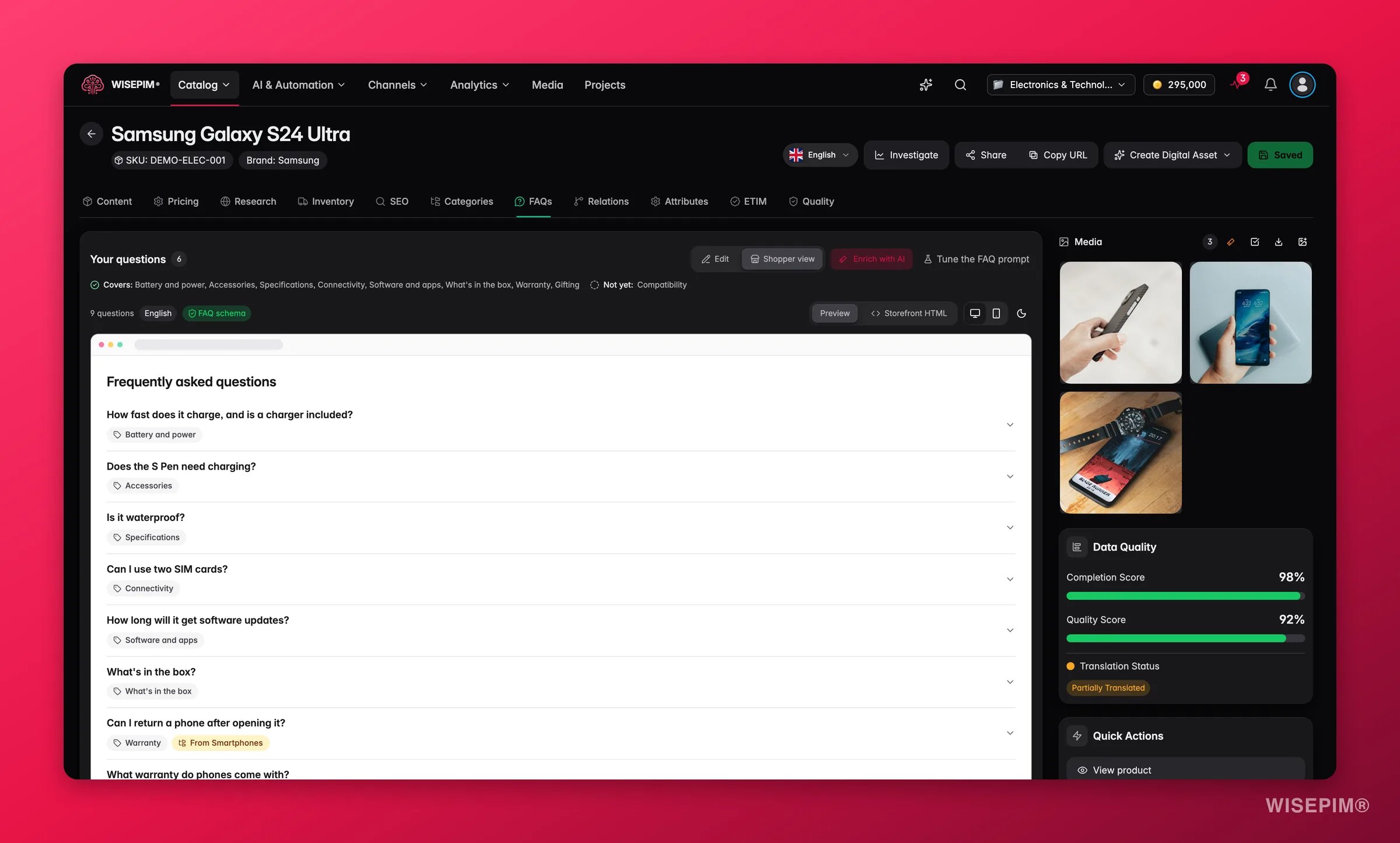
- Preview shows the rendered block. Storefront HTML shows the code, with Copy HTML.
- Toggle Desktop width and Mobile width, and switch between a light and dark storefront.
Translations
Switch the editor language to translate. The tab shows “Translation: German” (or the language you picked) with Question (German) and Answer (German) fields per item. You add, remove and reorder questions in the source language only. Click Translate missing with AI to fill the gaps. Until a question is translated, shoppers see the original.Read-only roles
If your role can’t edit FAQs, the tab shows “Your role can’t edit FAQs, so they’re read-only here.”Generate FAQs in bulk
1
Select products
In All Products, select the products you want. FAQ generation needs an explicit selection: with “all matching products” you see “FAQ generation runs on selected products. Select products on this page instead of all matching products.”
2
Choose the FAQs action
Click Enrich with AI. Under Step 1 · Choose an action, open Product content and pick FAQs (“Write buyer questions and answers from your product data”).
3
Configure the run
Under Step 2 · Configure, set the options below.
4
Start
Click Generate FAQs. You see “FAQ generation started” with a View run link to the task in the Process Tracker.
Options
In a combined Enrich workflow, FAQs run after research and before translation, so new questions are translated in the same run.
Question types by industry
The type picker groups types in three blocks:- Recommended for your industry, preselected.
- Universal: How to use, Specifications, Compatibility, Materials, Care and cleaning, What’s in the box, Warranty, Safety, Comparison and Sustainability.
- More for other industries: types such as Sizing and fit, Battery and power, Ingredients, Allergens, Assembly and Vehicle fit.
How the Knowledge Library steers questions
When your project has a Knowledge Library, the generator reads it as background: your brand, audience, purchase criteria and what holds buyers back. That shapes which questions get asked and the words they use. It is never cited as a source, so no answer rests on it. Answers come from product data and web research only.Credits
Large runs ask “Start this run?” with the credit total first. If your balance can’t cover the whole run, you see “Not enough credits for the whole run” and can still Run anyway.
Apply modes
The apply mode decides what happens when generated questions are ready. Your project default lives in FAQ Settings; you can pick another one per run under When suggestions are ready.
Runs on more than 20 products start on Add the safe ones automatically, so nobody has to review hundreds of products one by one. If your project already adds everything, the run keeps that.
A suggestion counts as safe only when it passes every rule, checked in this order:
- It adds to the list and never replaces it. Runs set to Replace existing FAQs always wait for review.
- It isn’t a duplicate of a question the product already shows, its own or from a category.
- It cites its sources, when that rule is on.
- It stays within the 50-item limit, and your own-question limit when you set one.
Read the run summary
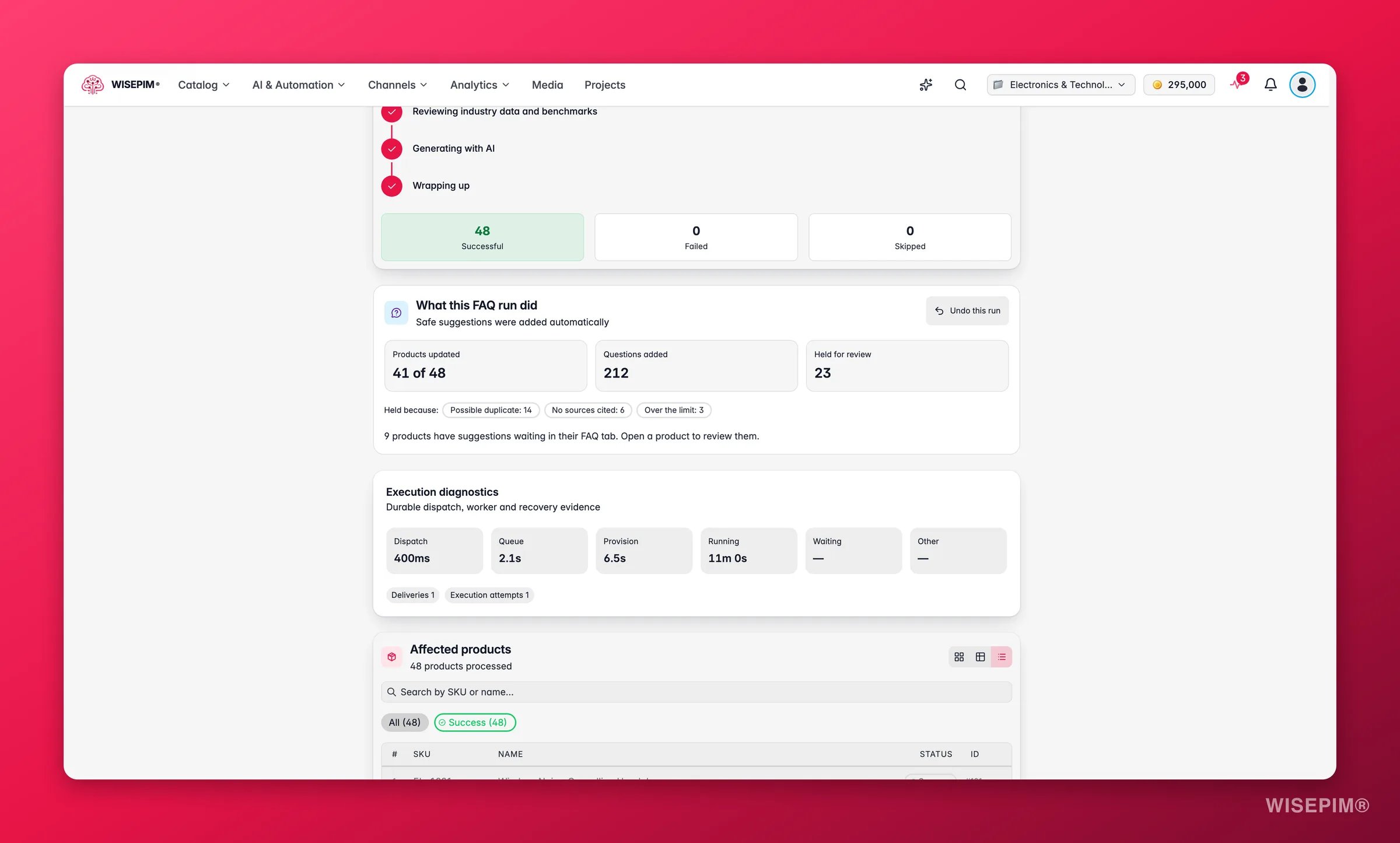
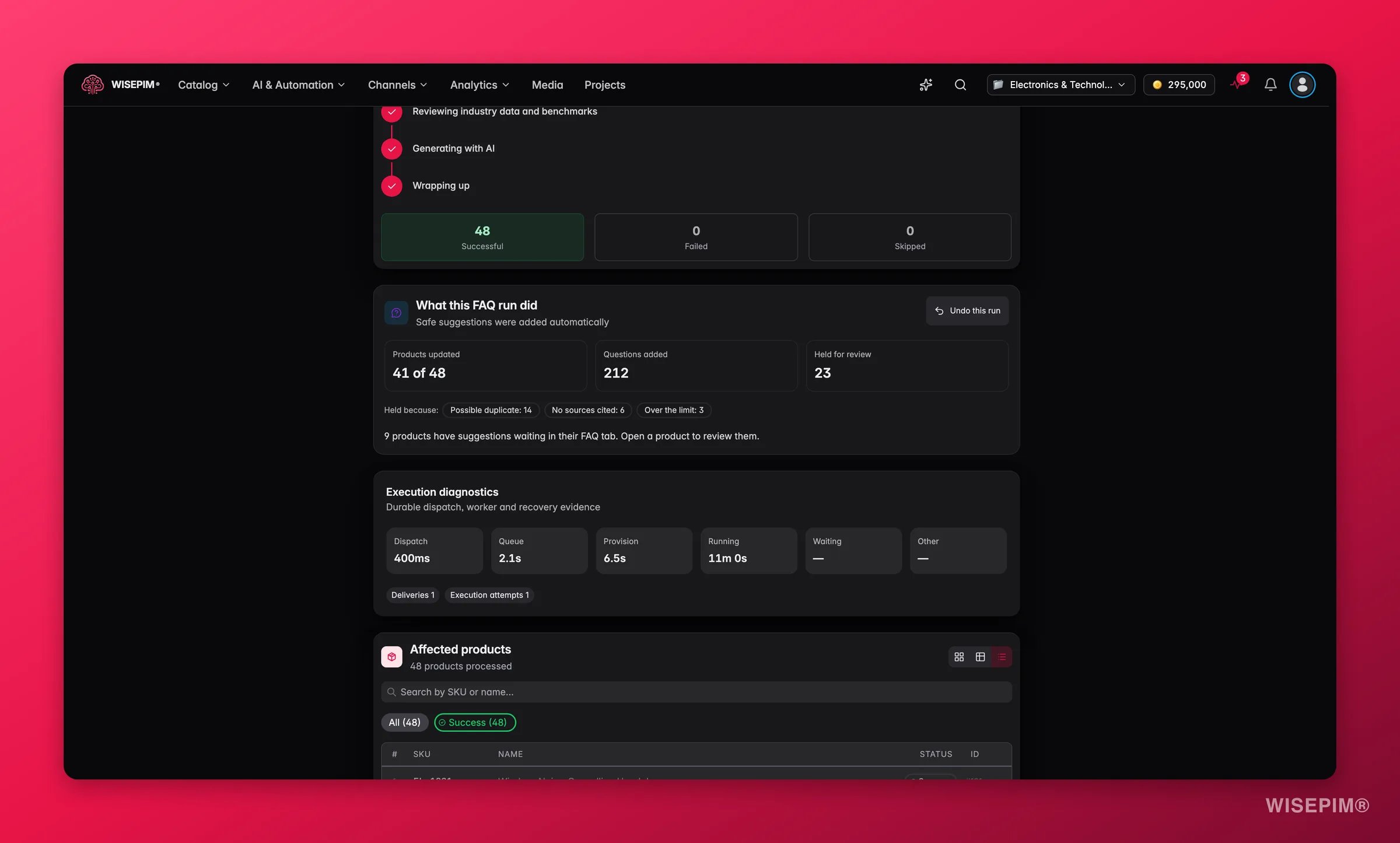
Open the run from View run or the Process Tracker. The What this FAQ run did card shows:- Products updated, for example “41 of 48”.
- Questions added.
- Held for review, with “Held because:” chips such as Possible duplicate, No sources cited, Replaces the list, Over the limit and Needs a look.
Undo a whole run
Click Undo this run, then Undo run in the “Undo this FAQ run?” dialog. WISEPIM restores the FAQs each product had before the run. There is no time window. Products you edited since the run are left alone, and the card tells you how many: “2 were edited since the run, so we left them alone.”Where FAQs come from
Page imports read FAQPage structured data, FAQ microdata, or a visible FAQ section in English, Dutch, German, French or Spanish. They take up to 50 items, skip questions the product already has on re-import, and remove the FAQ block from the imported description.
Category FAQs
Open a category to edit its FAQs group. Its switch reads Added to products in this category or Not added to products. New categories start from your project setting “New categories add their FAQs to products”. A product shows its own questions first, then category questions, primary category first. Category items are dropped when:- the product’s Category questions switch is off,
- the product has reached the own-question limit, or
- the question repeats one already shown.
Filter and sort by FAQs
Act on what you find
The AI wrote fewer questions than you asked for
The AI wrote fewer questions than you asked for
WISEPIM skips a type when your data doesn’t support it. Check the “Skipped:” line in the suggestions tray, add the missing facts in Attributes, or run web research, then generate again.
Many suggestions were held as Possible duplicate
Many suggestions were held as Possible duplicate
The product or its categories already answer those questions. Turn on Skip questions your category FAQs already answer for the next run, or remove overlapping category questions.
Many suggestions were held as No sources cited
Many suggestions were held as No sources cited
The AI had little to ground its answers in. Run web research on those products first, or switch off Cites its sources in FAQ Settings if you are happy to review them later.
A bulk run produced questions you don't want
A bulk run produced questions you don't want
Open the run in the Process Tracker and click Undo this run. Products you edited since are kept as they are.
The same care or warranty question repeats on every product
The same care or warranty question repeats on every product
Move it to the category once and delete the copies from the products. Every product directly in that category then gets it after its own questions.
Questions are generic for your trade
Questions are generic for your trade
Fill in your Knowledge Library with your audience and the doubts buyers have, or save your own FAQ prompt in Prompt Lab and pick it under Prompt.
Related
FAQ Settings
Set category FAQ rules, export format per channel, storefront layout and the default apply mode.
Enriching Products with AI
See every action in the Enrich modal and how a combined run is ordered.
Bulk Enrich
Run content enrichment across many products at once.
Knowledge Library
Give the FAQ generator your audience, brand and buyer doubts.