

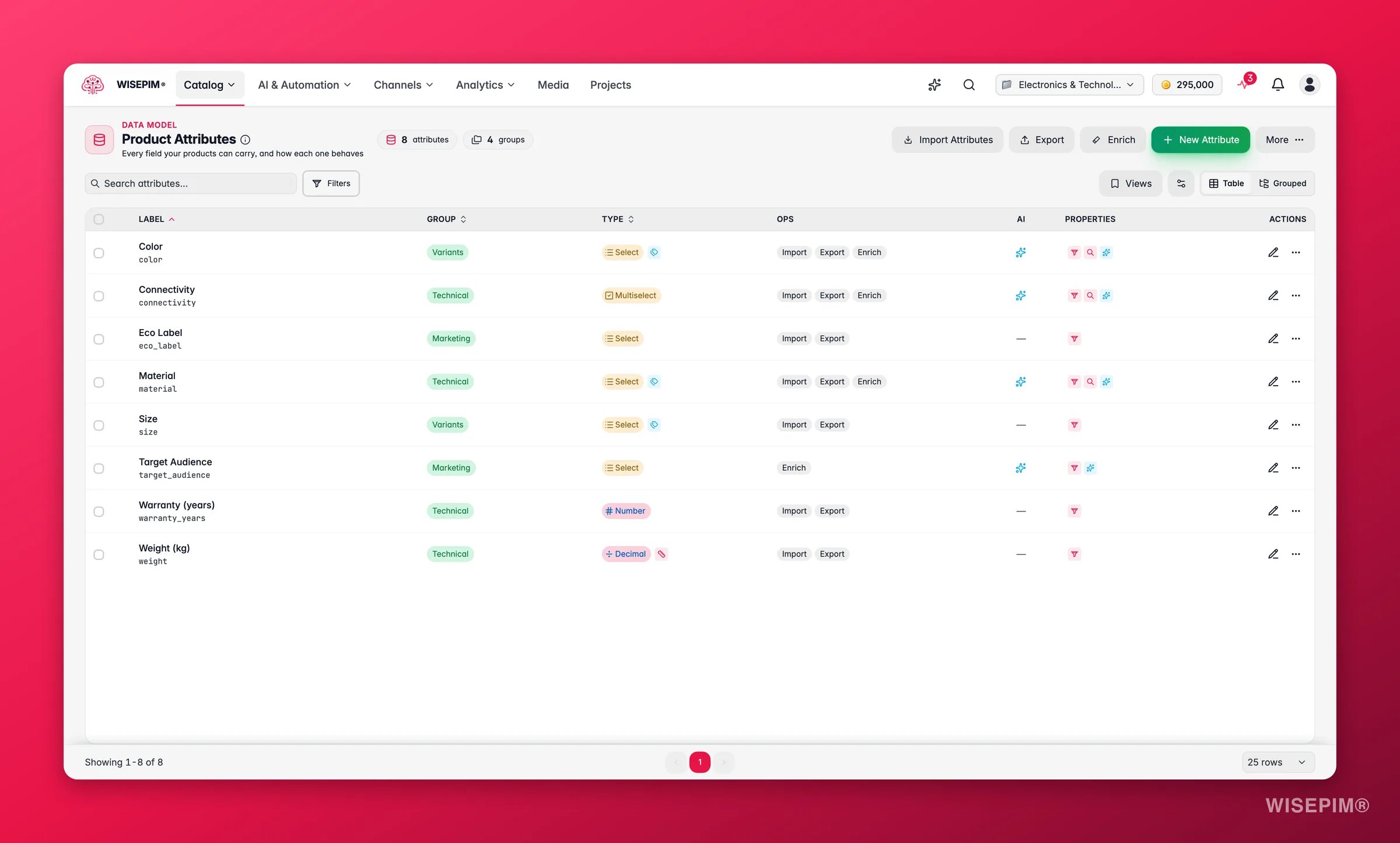
Attributes are shared across your project. When you create an attribute, it becomes available for assignment to any product family.
Attribute Types
WISEPIM supports a range of attribute types to cover different kinds of product data:Creating an attribute
1
Open Product Attributes
Navigate to Product Attributes from the sidebar.
2
Click New Attribute
Click the New Attribute button to open the creation form.
3
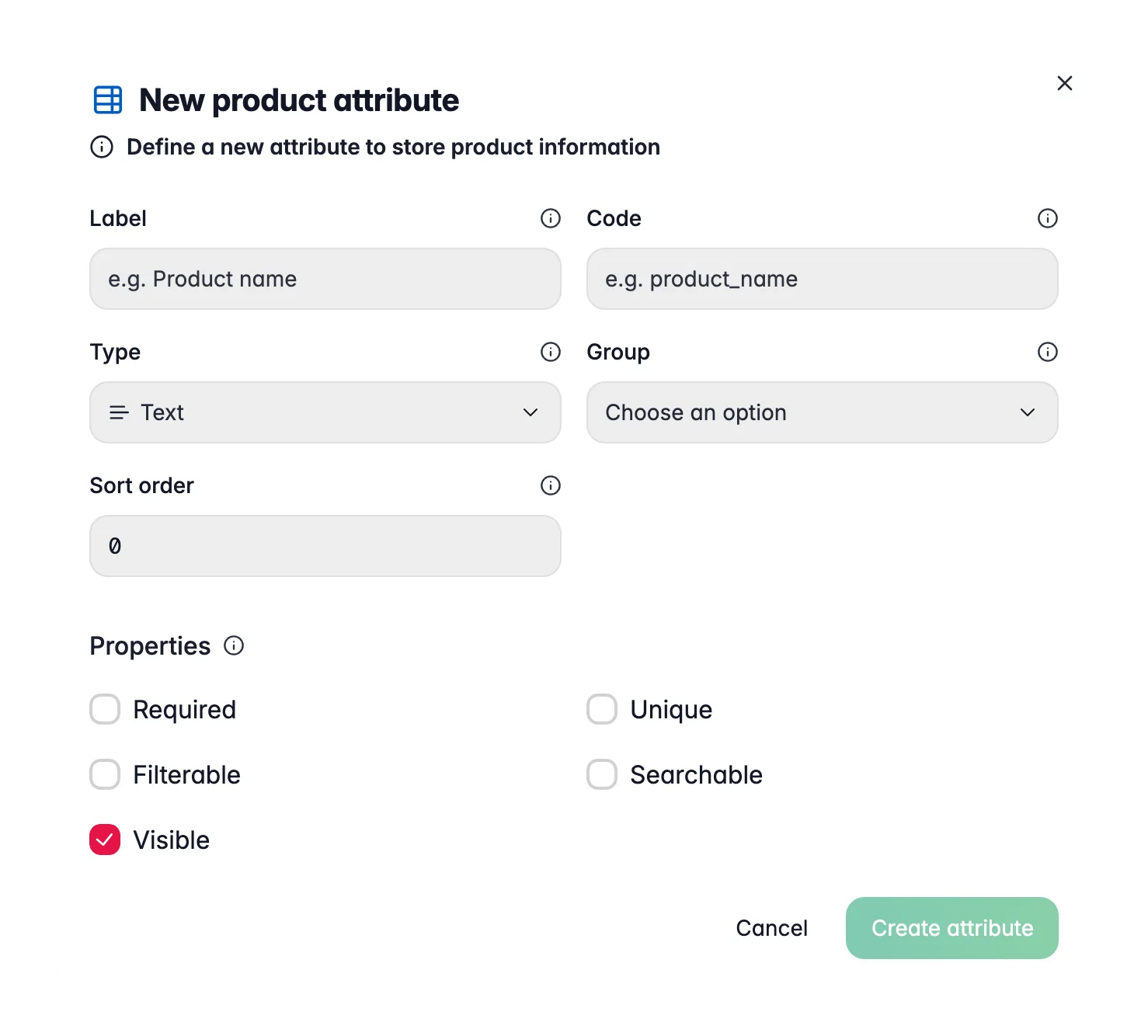
Fill in the basics
Enter a Label (the human-readable name) and select the Type. The Code (the technical identifier) is generated from the label as you type, and you can edit it.
4
Place it in your model
Optionally pick an attribute group and set a sort order. These control where the field appears in product forms.
5
Set properties
Toggle whether the attribute is required, unique, filterable, searchable, or visible in product forms. New attributes are visible by default.
6
Add a value source (for select types)
For Select and Multi-Select, choose between custom inline options or a shared attribute options set. You can also tick allow new options on import so that imported values you have not predefined get added automatically instead of being dropped. For Number and Decimal, you can link a unit of measure code set.
7
Save the attribute
Click Create Attribute. It is now available for assignment to product families.
Some plans cap the number of custom attributes. When you reach the limit, the page shows a counter chip and the New Attribute button becomes an upgrade prompt. Upgrade your plan to add more.
Attribute properties
Set these five toggles when you create an attribute. They shape how the field behaves across your catalog:- Required: must be filled in for all products that use this attribute.
- Unique: no two products can have the same value for this attribute.
- Filterable: can be used to filter the product list.
- Searchable: included in product search results.
- Visible: shown in product forms and displays.
Quick edit vs full settings
There are two ways to change an attribute after it exists, and they do different jobs:- Quick edit (the pencil icon on a row) reopens the same basic fields you set on creation: label, type, group, sort order, the five properties, and the value source for select types. The code stays read-only. Use it for everyday tweaks. The Save button highlights only when you have unsaved changes, so you always know where you stand.
- Settings (the broom icon on a row) opens the deeper, tabbed configuration below: validation rules, data cleaning, enrichment behavior, quality weight, and platform mapping. Use it when you want the field to enforce clean data or take part in AI enrichment.
Configure attribute settings (after creating)
Creating an attribute defines the field. Configuring its settings makes the field smart: it enforces clean data, lets AI fill it in, and tunes how much it counts toward your quality score. Open these from the settings (broom) action next to any attribute. The settings open in a tabbed modal. Which tabs and options appear depends on the attribute type.General
- Import, export, and enrichment toggles: choose which operations this attribute takes part in.
- AI enrichable: allow AI to suggest or generate values for this field.
- Quality weight: how much this attribute counts toward a product’s completeness score, on a scale from nice-to-have to critical. For number and decimal fields you can also set a unit and a plausible min/max, so the quality checks can flag values that fall outside a sensible range.
Validation rules
Enforce data quality so bad values never reach your channels:- Text length: minimum and maximum character limits, plus a format pattern (email, URL, alphanumeric, phone).
- Number ranges: acceptable min and max values, and decimal precision for decimal fields.
- Date ranges: earliest and latest allowed dates, and a date format.
- Selections: minimum and maximum number of choices for multi-select, plus per-option rules (length, pattern, uniqueness, and a custom error message).
Data cleaning
Cleaning rules normalize values automatically during import and editing, so your data stays consistent without manual work:- Basic: trim whitespace, remove empty values, collapse extra spaces, and convert blanks to a fallback value.
- Text: normalize case, strip special characters, fix encoding, strip or limit HTML, and convert line breaks.
- Numbers: remove currency symbols, standardize thousand and decimal separators, and round to a set precision.
- Options: deduplicate, sort, and map similar values together so “Blue” and “blue” become one.
Enrichment
For text fields, tune how AI fills the attribute:- Confidence threshold: minimum confidence score required before a suggestion is used. Higher means fewer but more reliable values.
- Enable AI suggestions and require manual review: decide whether a person checks AI output before it is applied.
- Word limits: minimum and maximum word counts for generated text.
- Enrichment instructions: tell the AI exactly what this field should contain, for example “Extract the screen size in inches from the specifications”.
Platforms
This tab shows how the attribute maps to each connected sales channel (Magento, a webshop, a marketplace). Mapping itself happens in the integration’s Data Mapping tool, and the tab links you straight there so you can line up your internal field with the platform’s field, mark it as a configurable or variant attribute, and keep exports consistent. The mapper has two modes: Map to build mappings by dragging or choosing a source directly, and Review to audit coverage and correct individual mappings. Smart match attributes runs locally on strong name matches, without an AI call, and you review the result before saving. Undo reverses the last manual mapping, auto-map, or removal. Long attribute lists are paged, so a 500-attribute model stays workable.Build a whole data model with the AI Data Model Architect
Starting from scratch, or moving into a new industry? The AI Data Model Architect generates a complete starting model for you: attributes, attribute groups, and families, all at once. Open it from the AI Data Model Architect button on the Product Attributes page.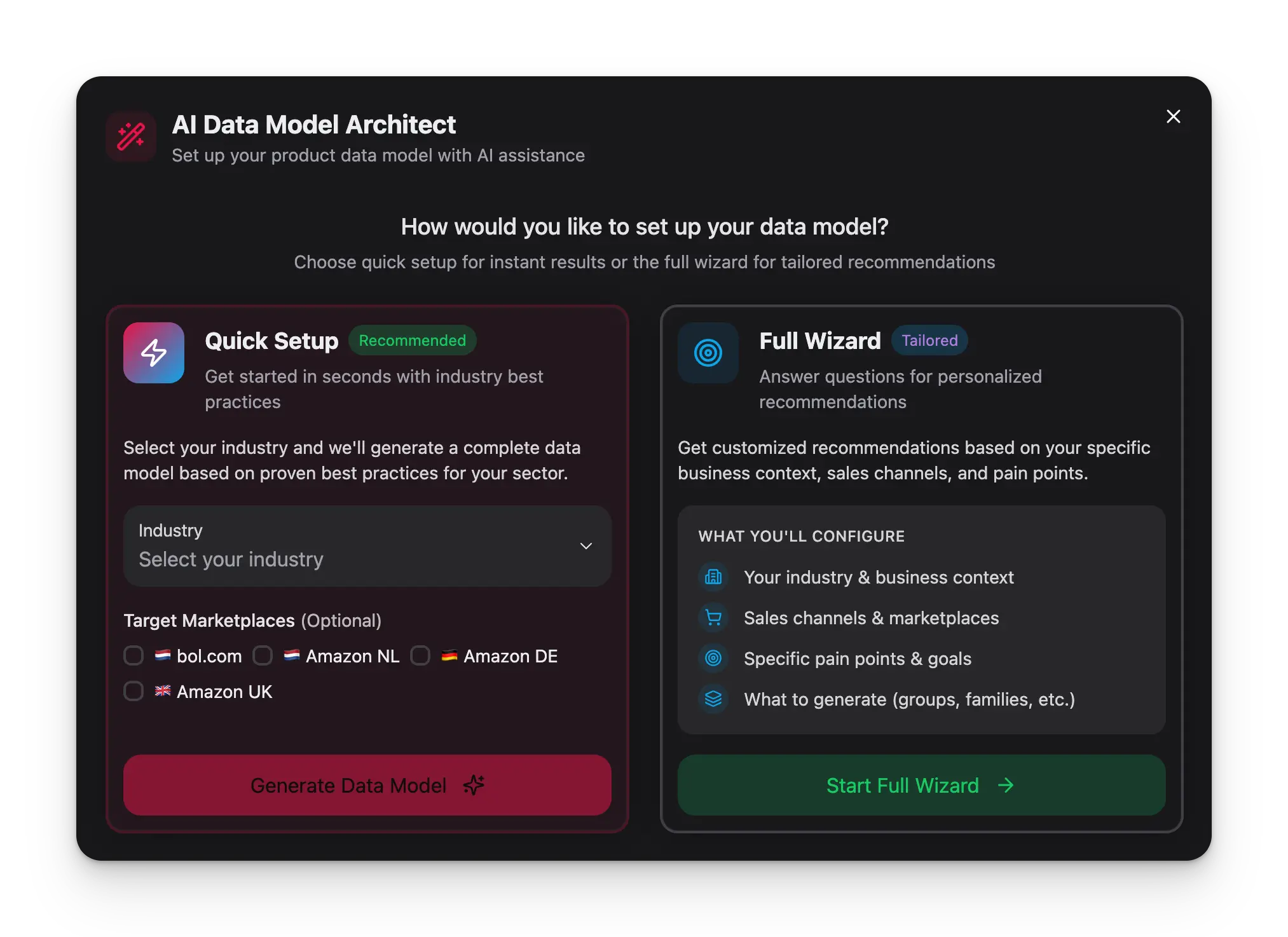
1
Pick your industry
Tell the Architect what you sell. There is a quick mode that builds a model straight from the industry, and a guided wizard where you add sales channels, catalog size, pain points, and target marketplaces for a more tailored result.
2
Choose the scope
Decide what to generate: general attributes, category-specific attributes, attribute groups, and families. The Architect also recommends unit of measure and option sets where they fit.
3
Review the recommendations
Every suggested attribute comes with a reason and priority (essential, recommended, optional). It also flags overlaps with attributes you already have, so you can merge or rename instead of creating duplicates.
4
Preview and create
See exactly how many attributes, groups, and families will be created or updated, then apply. Your model is built in seconds instead of hours.
Bulk actions on attributes
When your model grows, editing fields one at a time gets slow. Select the checkboxes on multiple attributes and a toolbar appears with actions that apply to the whole selection at once. You can select everything that matches your current filters in a single click.- Toggle properties: set required, unique, filterable, searchable, visible, or AI enrichable across every selected attribute. Each property shows whether the selection is currently all on, all off, or mixed, and you choose to set it on, set it off, or leave it untouched.
- Move to group: reassign every selected attribute to another attribute group, or ungroup them, in one move.
- Bulk edit settings: push validation, cleaning, and enrichment rules to every selected attribute. Each section has its own apply switch, so untouched sections are left alone, and a Preview tab shows the exact before-and-after changes before you commit.
- Export to CSV: download just the selected attributes.
- Delete: remove the selected attributes. A short undo window lets you reverse it if you change your mind.
Organizing with attribute groups
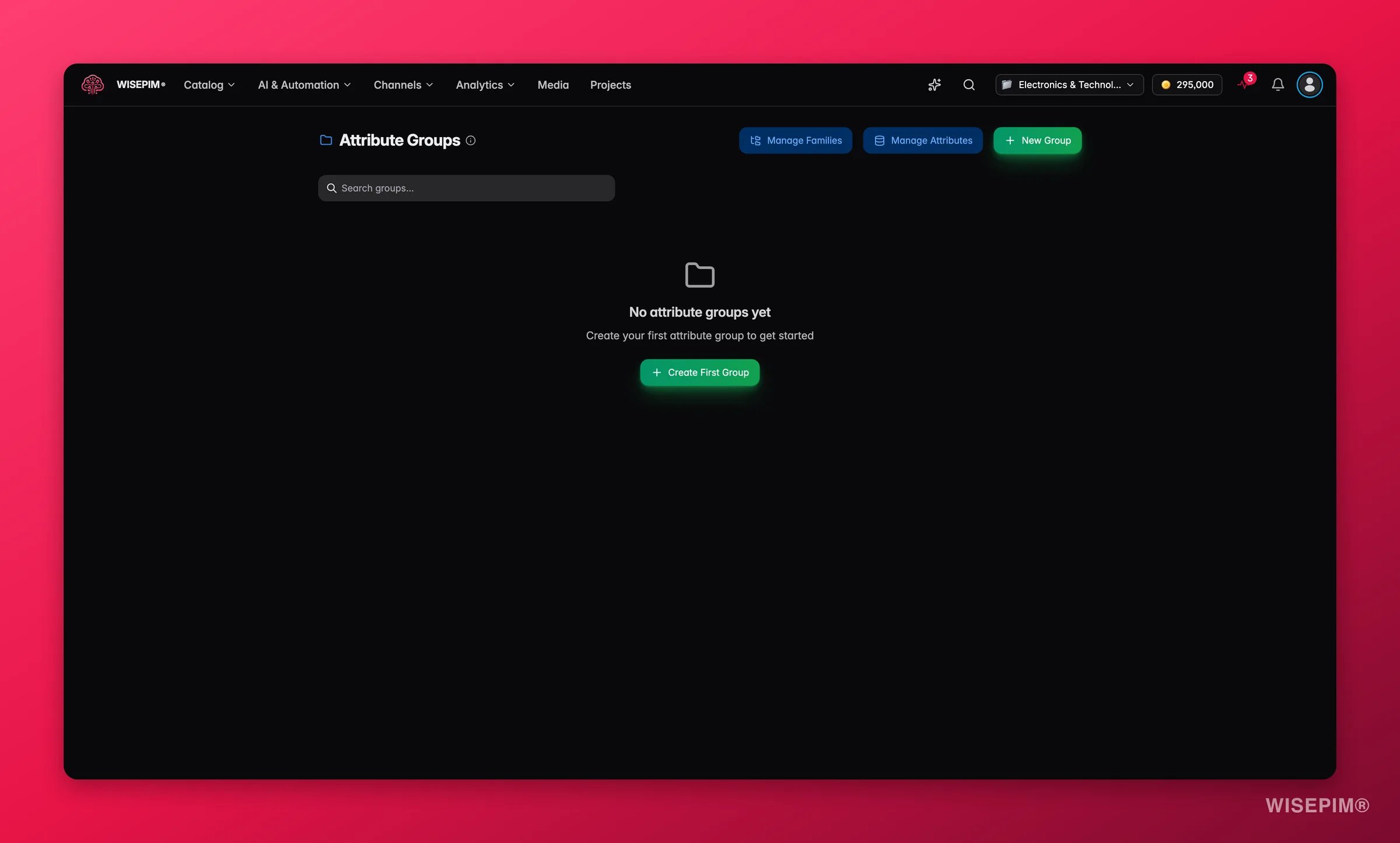
Attribute groups bundle related attributes for a cleaner product form. For example, you might group “Width”, “Height”, and “Depth” under a “Dimensions” group.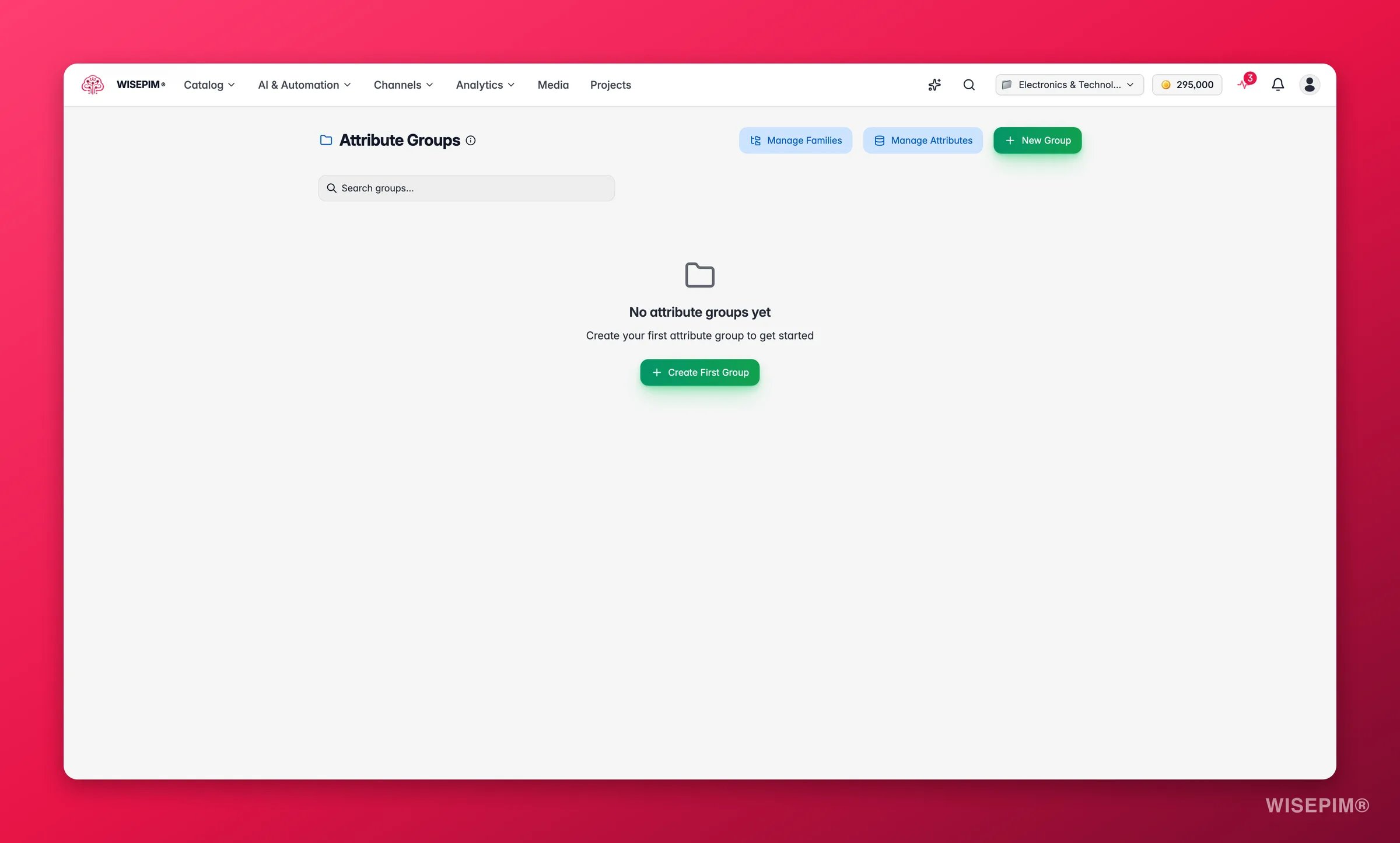
1
Open Attribute Groups
Navigate to Attribute Groups from the sidebar, or from the Manage dropdown on the Product Attributes page.
2
Click New Group
Create a new group with a name and a code. Set a sort order to control where the group sits relative to other groups.
3
Set the visibility scope
Choose whether the group shows for all products or only for specific categories. Category scope keeps forms focused, so a “Battery” group appears only on electronics, not on apparel.
4
Assign attributes
Select which attributes belong in this group.
5
Save the group
Click Save. The group organizes its attributes into a section in product forms.
Attribute Options (shared value lists)
For Select and Multi-Select attributes, the choices can come from a shared, reusable list called an attribute options set (a controlled vocabulary). Instead of typing the same options into every attribute by hand, you define the list once and point multiple attributes at it. Update the list in one place and every attribute that uses it stays in sync.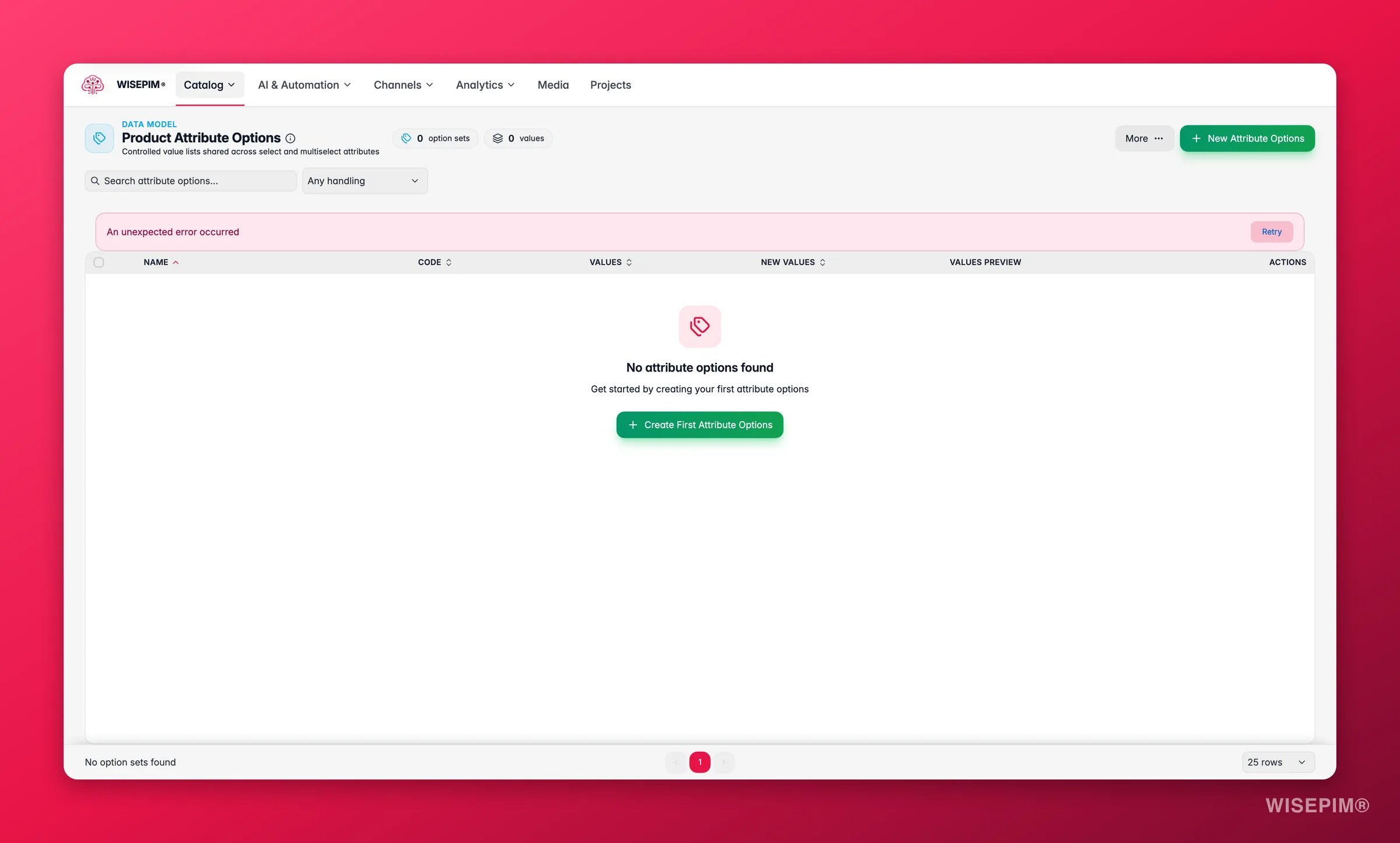
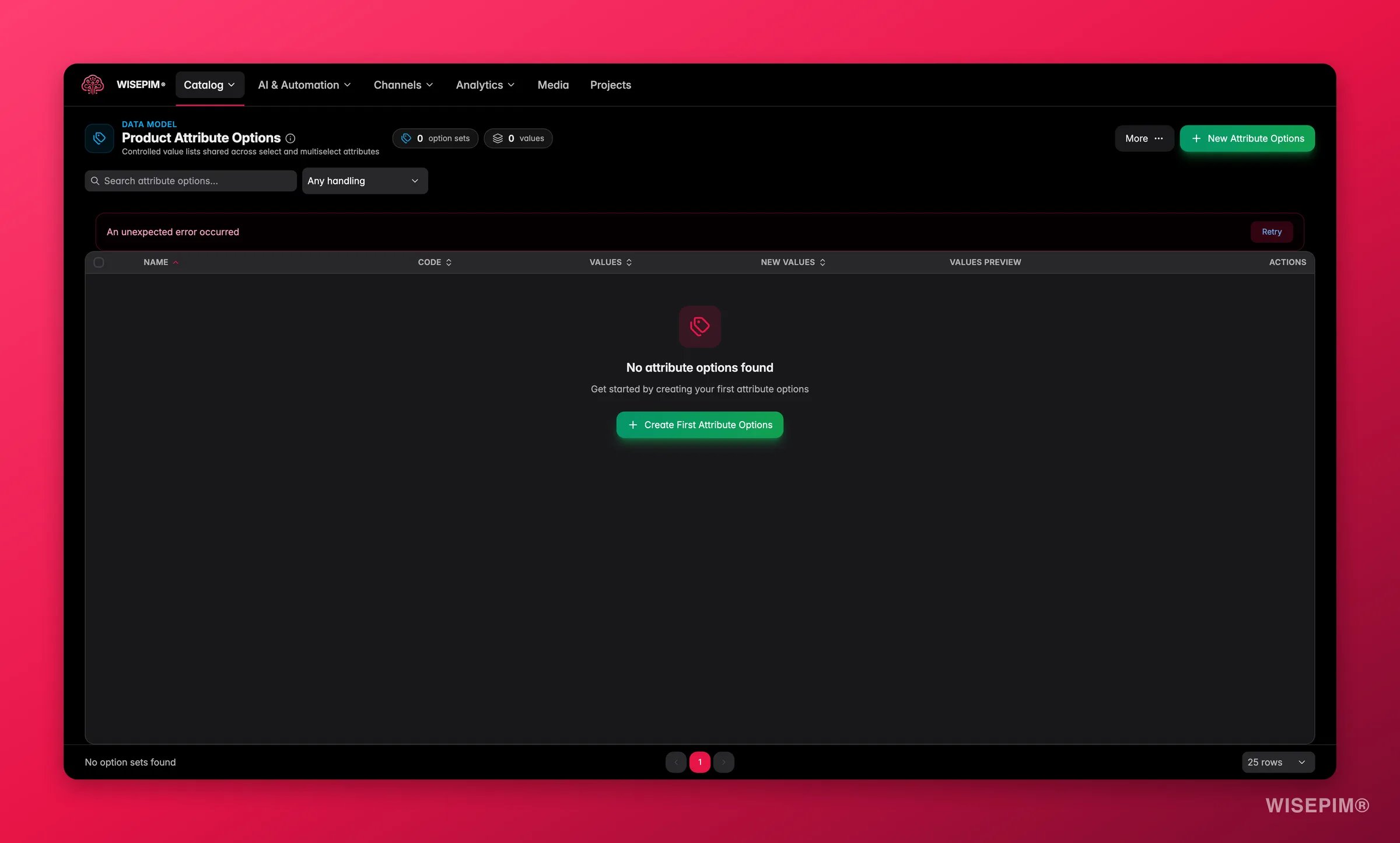
- A name, code, and optional description.
- A list of values, each with a code and a label per language, so your options are translated alongside the rest of your catalog.
- An active/inactive state per value, so you can retire an option without deleting its history.
- A new value handling policy that decides what happens when an import contains a value that is not yet in the list: flag it for review, allow it to be added automatically, or skip it.
Import and export attributes
For larger models, you do not have to build attributes one by one.- Import from CSV: click Import and upload a CSV to create many attributes at once. You can also import attribute definitions from a connected platform such as Magento, WooCommerce, Shopify, or a webshop importer.
- Export to CSV: export your selected attributes or your full filtered list to CSV. This is handy for backups, sharing your model with a teammate, or editing in a spreadsheet.
Views and filters
The Product Attributes page adapts to how you work, so a 20-attribute model and a 500-attribute model both stay manageable.- Three layouts: switch between a table, cards, or a grouped view that organizes attributes by their group.
- Density and columns: toggle between compact and comfortable spacing, and choose which optional columns (code, operations, AI, sort order) to show.
- Quick filters and search: filter by group or type, search by label or code, and combine quick-filter chips (required, filterable, AI enrichable, has options, no group, and more) with match-all or match-any logic to zero in on exactly the attributes you need.
- Saved views: save a set of filters as a named view and reapply it in one click.
Troubleshooting
Attribute not showing in product forms
- Check that the attribute is marked as Visible.
- Verify the attribute is assigned to the product’s family.
- Confirm the attribute group is not hidden by its category visibility scope.
Validation errors during data entry
- Review the validation rules for overly strict settings.
- Check for conflicting rules (e.g., min value higher than max).
- Make sure error messages are clear so your team knows what to fix.
Inconsistent data across products
- Switch from free-text to Select or Multi-Select, backed by a shared attribute options set where possible.
- Enable data cleaning rules to normalize values automatically.
- Use the Data Quality tools to find and fix inconsistencies.
Related
Product Families
Assign attributes to product families to define which data each product type requires.
Units of Measure
Link number and decimal attributes to unit code sets for consistent, convertible measurements.
Managing Categories
Organize products into hierarchical categories for navigation and filtering.
Data Quality
Track completeness and fix inconsistent attribute values across your catalog.