

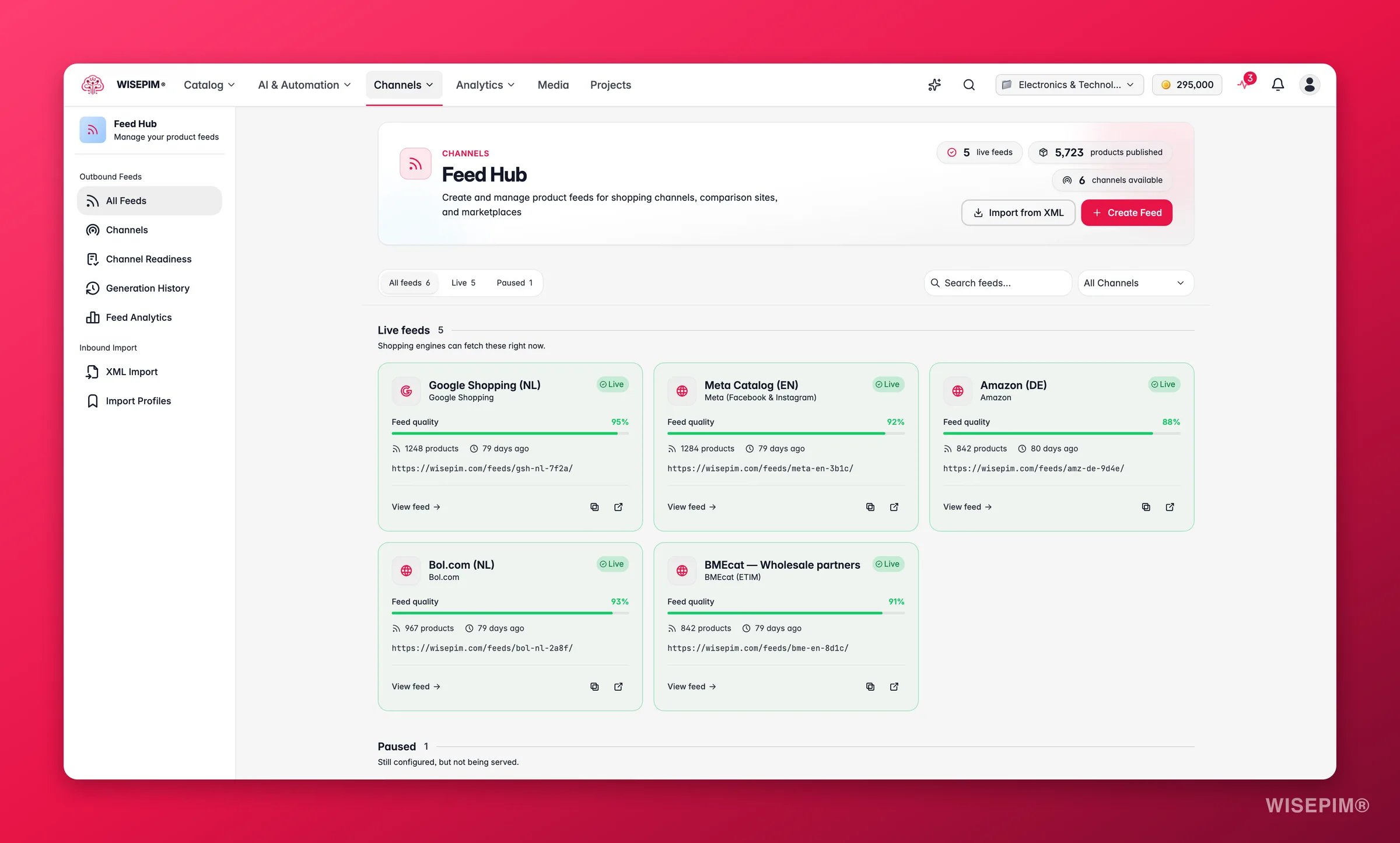
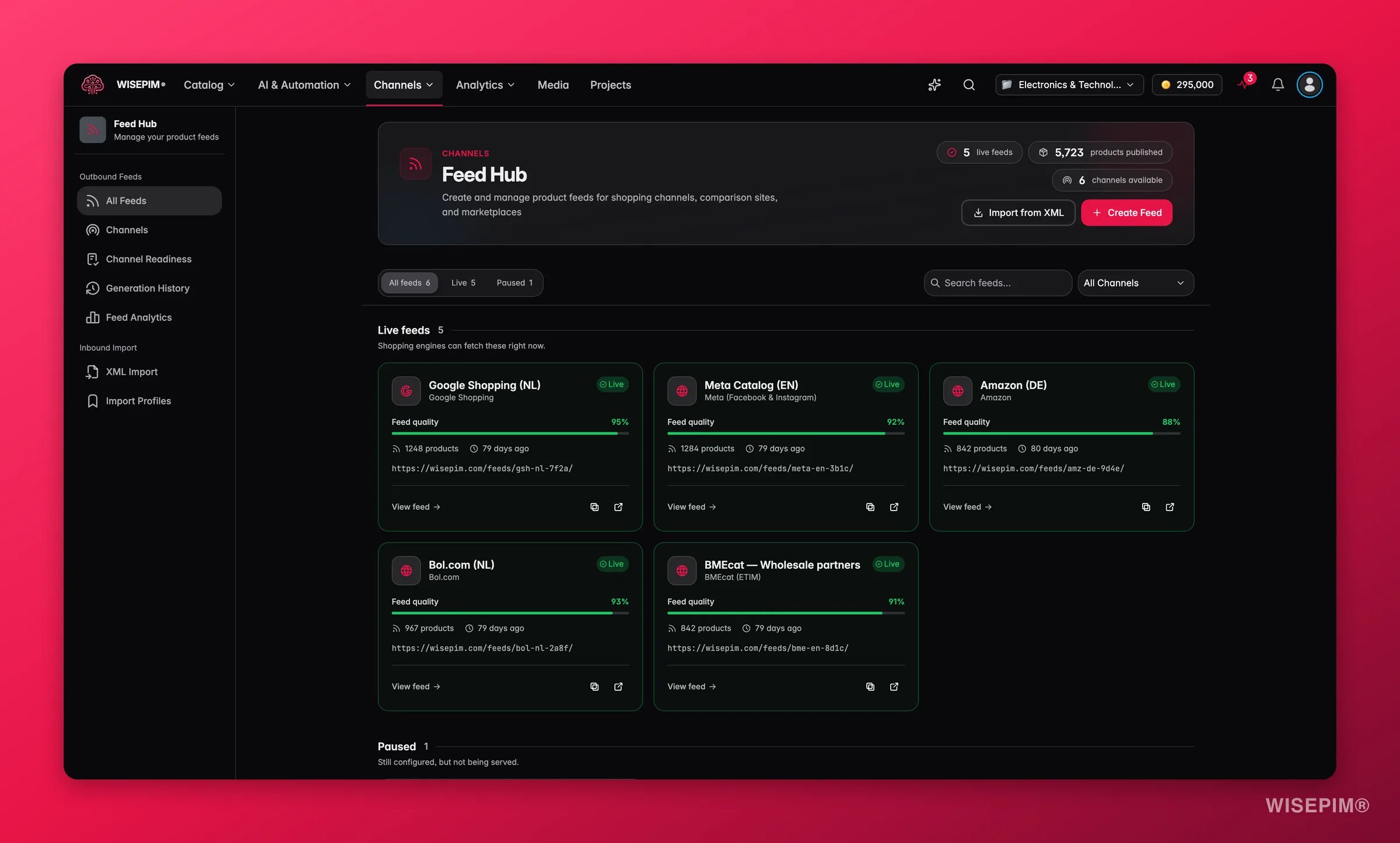
Each feed gets its own hosted URL. Channels fetch it automatically, so your listings stay up to date without any manual work on your end.
Creating a feed
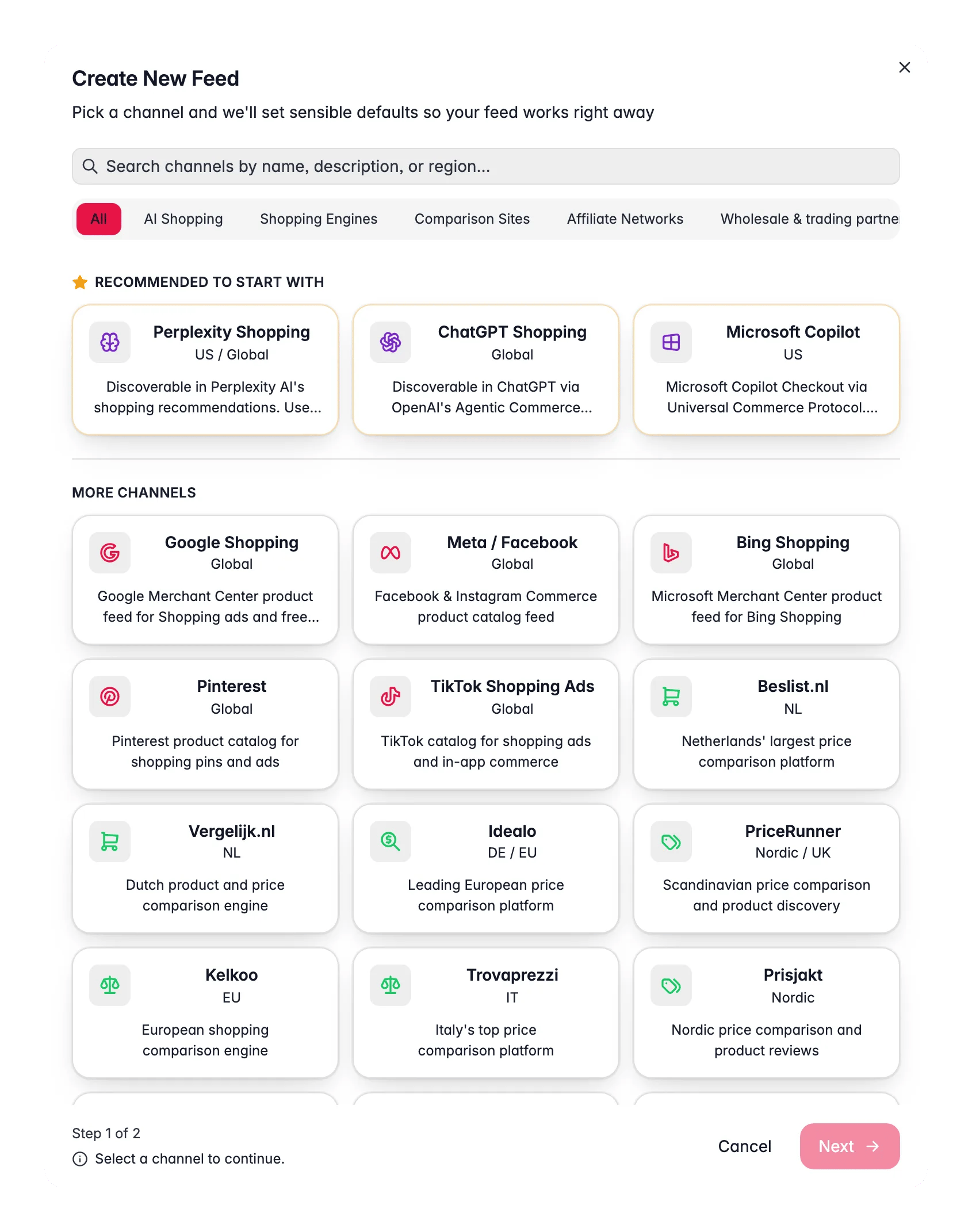
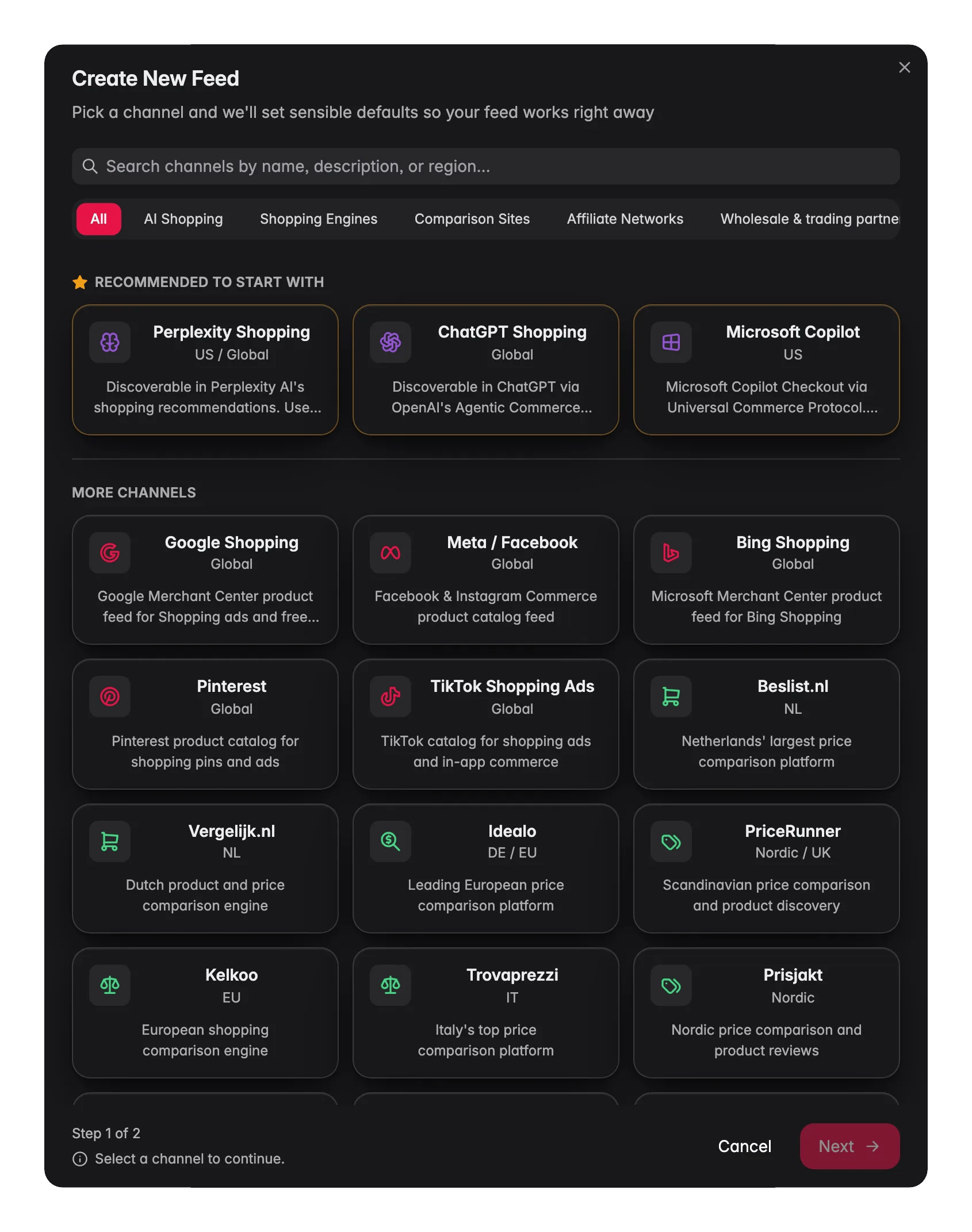
- Choose a channel: pick from the built-in channel presets (see below). WISEPIM sets sensible defaults so your feed works right away.
- Configure the basics: give the feed a name, set the product language and currency, and choose a refresh strategy. You can fine-tune mappings, filters, and rules at any time after.
Available channels
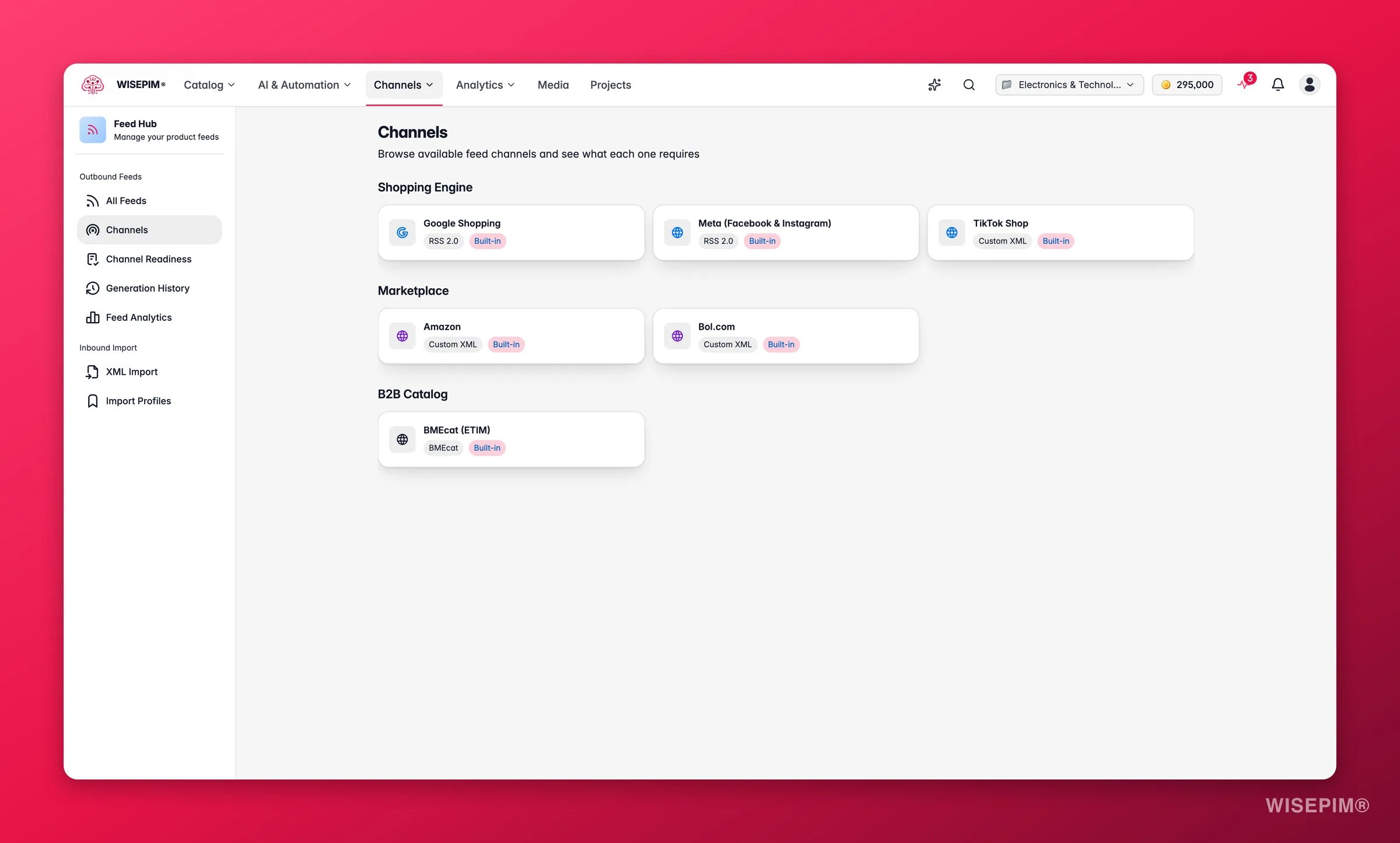
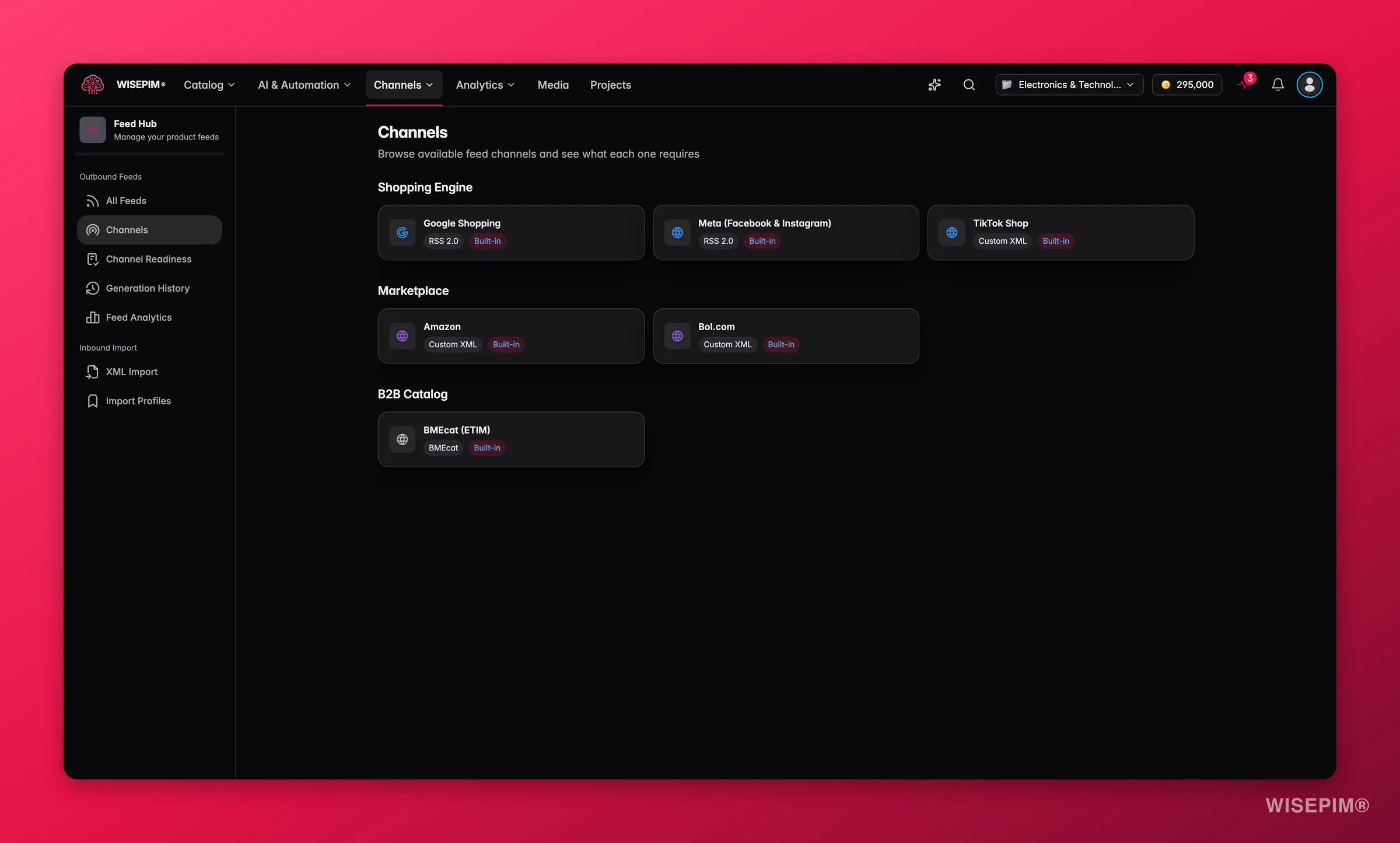
- Google Shopping: Google Merchant Center product feed for Shopping ads and free listings. Prefer a direct API connection instead of a feed file? Use the Google Merchant Center integration.
- Meta (Facebook and Instagram): Facebook and Instagram Commerce product catalog feed
- Bing Shopping: Microsoft Merchant Center product feed for Bing Shopping
- TikTok Shop: TikTok catalog for shopping ads and in-app commerce
- Bol.com: Dutch marketplace (coming soon)
- ChatGPT Shopping: discoverable in ChatGPT via OpenAI’s Agentic Commerce Protocol
- Microsoft Copilot: reaches Copilot.com, Bing, MSN, and Edge via Universal Commerce Protocol
- Perplexity: discoverable in Perplexity AI’s shopping recommendations
- Idealo: leading European price comparison platform
- Beslist: Netherlands’ largest price comparison platform
- Vergelijk: Dutch product and price comparison engine
- Kieskeurig: Dutch product review and comparison platform
- Kelkoo: European shopping comparison engine
- PriceRunner: Scandinavian price comparison
- Prisjakt: Nordic price comparison
- Trovaprezzi: Italy’s top price comparison platform
- Awin: global affiliate marketing network
- Daisycon: Dutch affiliate marketing network
- TradeTracker: European performance marketing and affiliate platform
- BMEcat 2005 (ETIM): standardised B2B catalog for wholesalers, buying groups, and ERP systems. Exports your ETIM classes and features straight into BMEcat 2005 XML. See BMEcat feeds below.
Product scope
By default, all active products in your project are included in a feed. Use Product Scope to narrow it down:- Categories: select one or more product categories
- Product Families: filter by product family
- Include out-of-stock products: toggle this off to automatically exclude products without available stock
Filter rules
Filter Rules let you automatically exclude products that don’t meet your quality bar. Rules are applied on top of the product scope. Available rule types:
Use the Preview button to see how many products would be included or excluded before saving your rules.
Field mappings
- Product Field: map directly to a standard product field (title, description, price, etc.)
- Attribute: map to a custom product attribute
- Template String: compose a value using multiple fields, for example
`{{brand}} {{name}} - {{color}}` - Static Value: set a fixed text that applies to all products
- Computed: use a dynamically calculated value
Variants are handled for you: every product gets its own feed row, and the computed item_group_id field carries the parent’s SKU on each variant - which is exactly how Google, Meta, Bing, and Pinterest tie size and color options together into one listing.
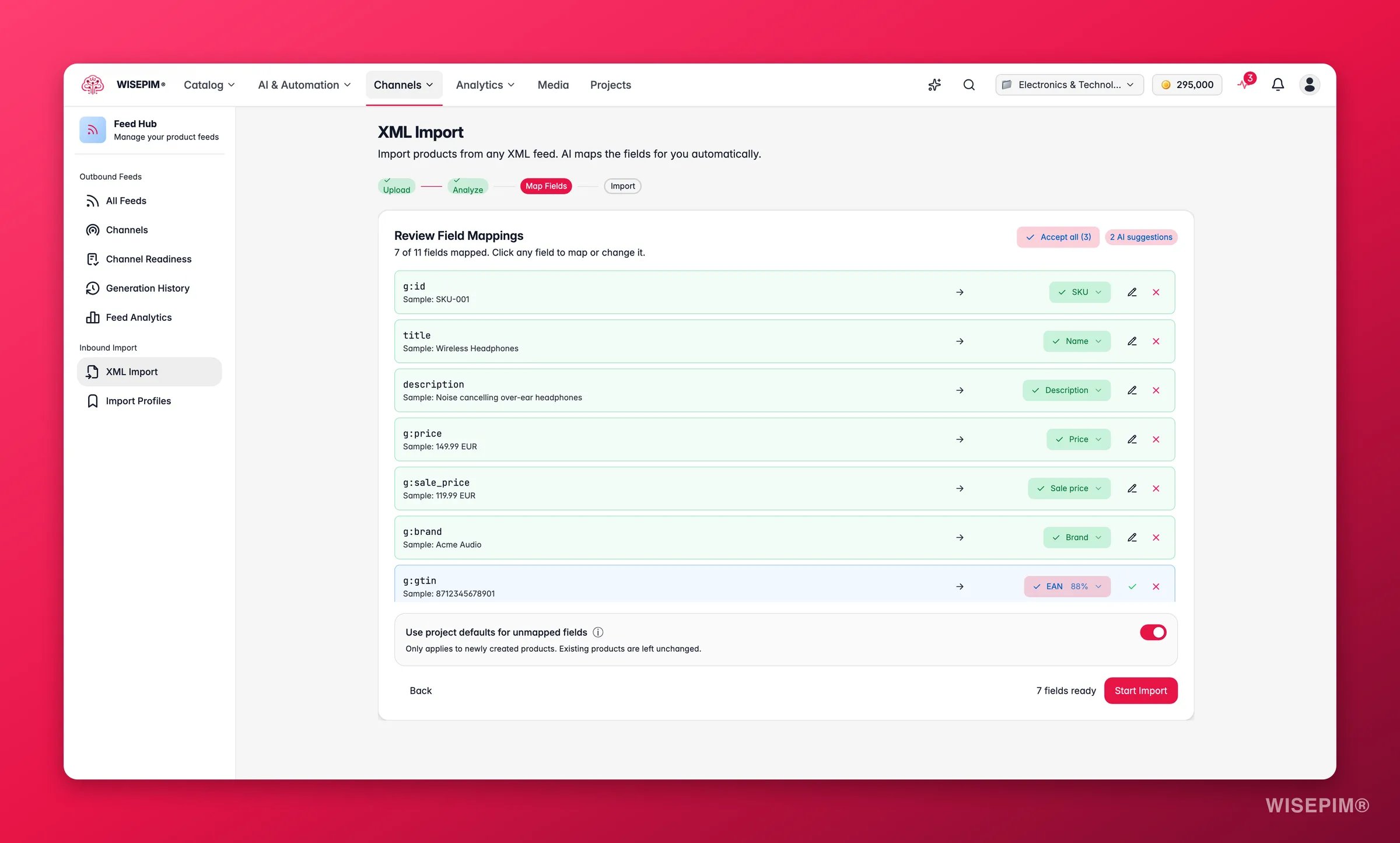
Auto-mapping
Click Auto-map to have WISEPIM suggest mappings based on matching field names. Click AI Auto-map to let AI match your product fields to the channel’s requirements automatically. This is useful when field names don’t match up exactly.BMEcat feeds for trading partners
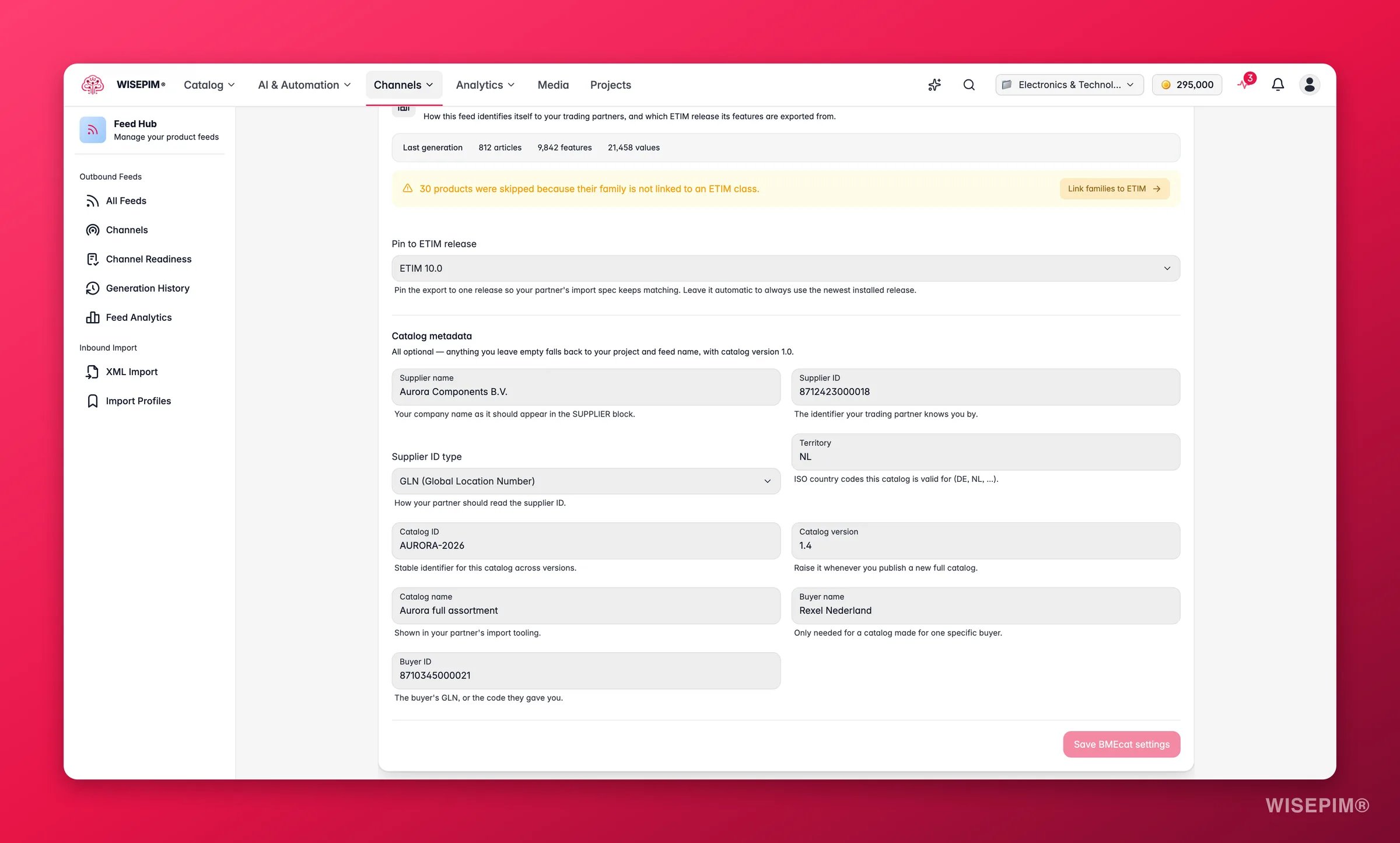
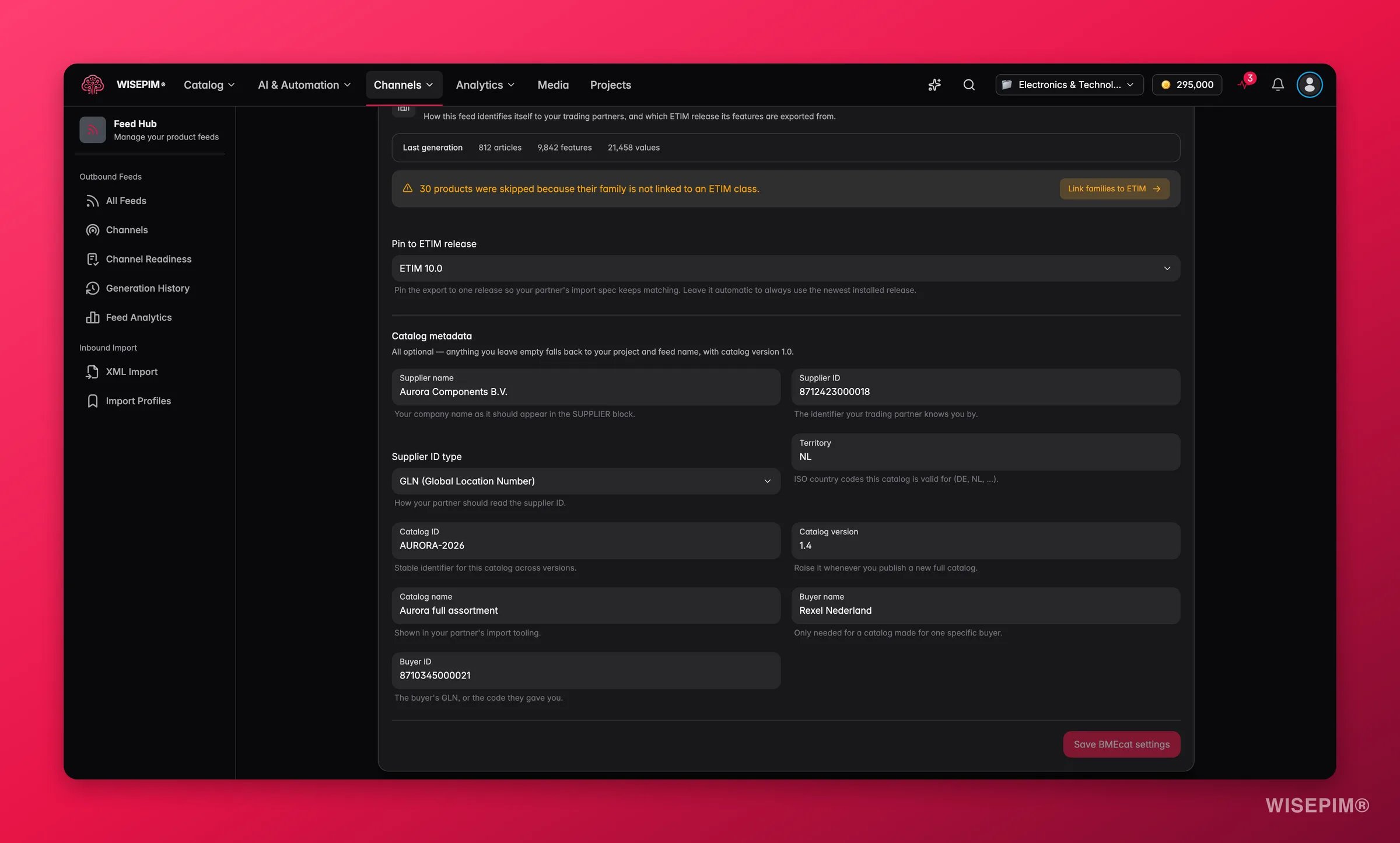
- Pin to ETIM release: pin the export to one release so your partner’s import spec keeps matching, or leave it on Automatic to always use the newest installed release.
- Catalog metadata: how the catalog identifies itself to your trading partner - supplier name and ID (GLN, D-U-N-S, or a supplier-specific code), territory, catalog ID/version/name, and optionally a buyer name and ID for a catalog made for one specific buyer. Everything is optional; empty fields fall back to your project and feed name.
Feed quality
After generating a feed, the Feed Quality panel scores how well your feed is set up. The score is broken down across six dimensions:- Required Fields: are all mandatory channel fields mapped?
- Recommended Fields: how many of the channel’s recommended fields are filled?
- Title Quality: are titles descriptive and within the channel’s length requirements?
- Product Completeness: how complete are your product records overall?
- Image Coverage: what share of products have at least one image?
- GTIN/EAN Coverage: what share of products have a valid GTIN or EAN?
Feed validation
Feed Validation checks whether each individual product meets the channel’s field requirements. Click Validate to run a check. You’ll see a list of errors and warnings by product, so you can fix issues before the channel rejects your feed.Channel readiness
Feed validation tells you about one feed. Channel Readiness answers the bigger question: across every channel you sell on, how much of your catalog is actually ready to be listed? It has its own page. Pick the channels you care about and each one gets a card showing how ready your products are for it:- A percentage ready for that channel, and how many required fields are tracked.
- Coverage bars per required field, so you can see which field is holding you back.
- Chips that count the products missing each field, for example the number of products with no GTIN.
- A Fix button that opens the AI fix drawer with exactly those products preloaded, so you can fill the missing field in one pass.
Readiness is scored on the required fields WISEPIM tracks for each channel. Required fields it doesn’t track are flagged rather than guessed, so the score never pretends to know more than it does.
AI optimization
The AI Optimization panel gives you three tools to improve your feed automatically:- Optimize Titles: AI generates better titles for every product in the feed, tailored to what the channel expects
- Optimize Descriptions: AI rewrites product descriptions to be more complete and channel-appropriate
- AI Audit: AI reviews your feed setup and surfaces quick wins, including issues to fix and opportunities to improve coverage and quality
- Suggest Schedule: AI recommends when to refresh your feed based on when the channel typically fetches it
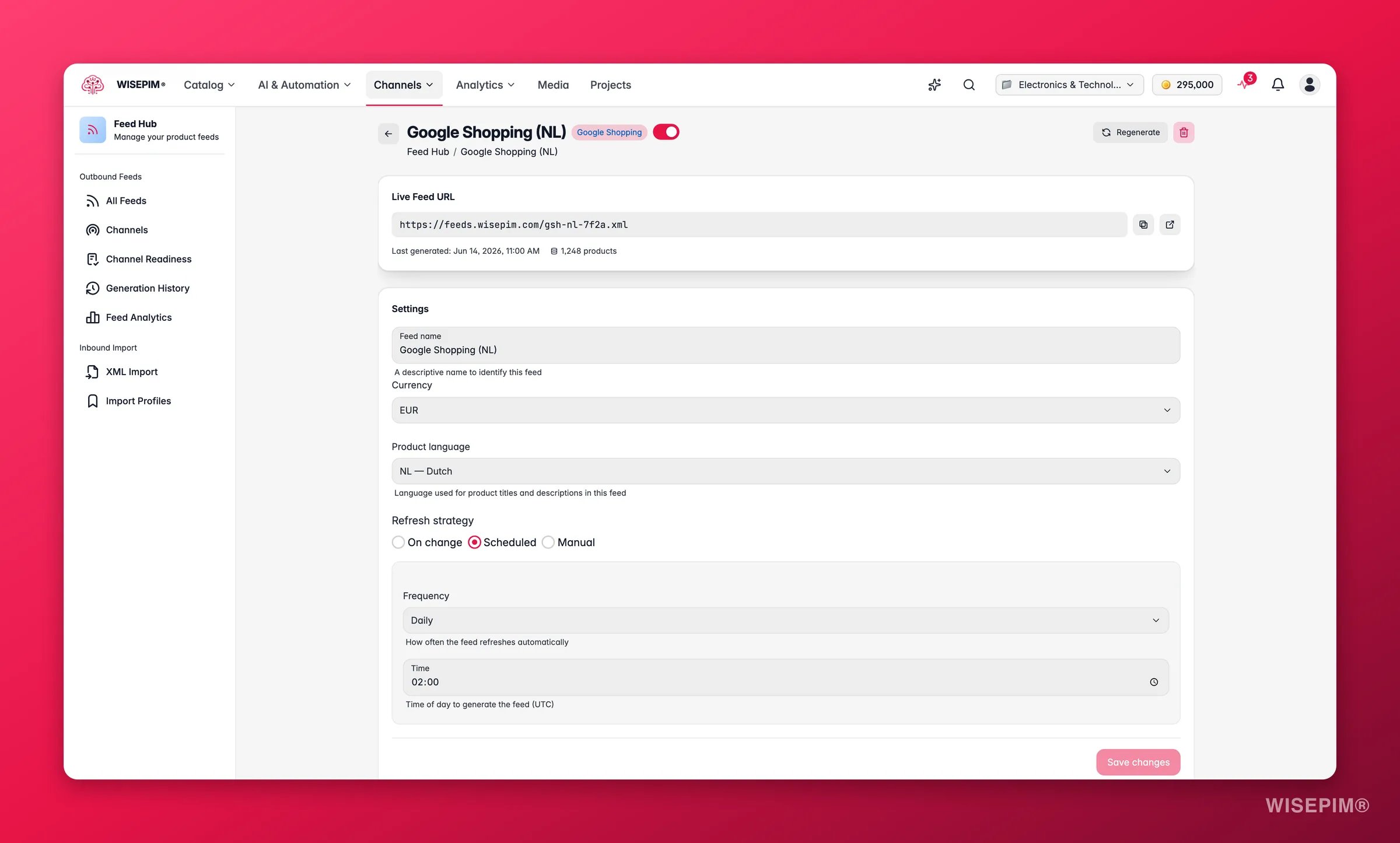
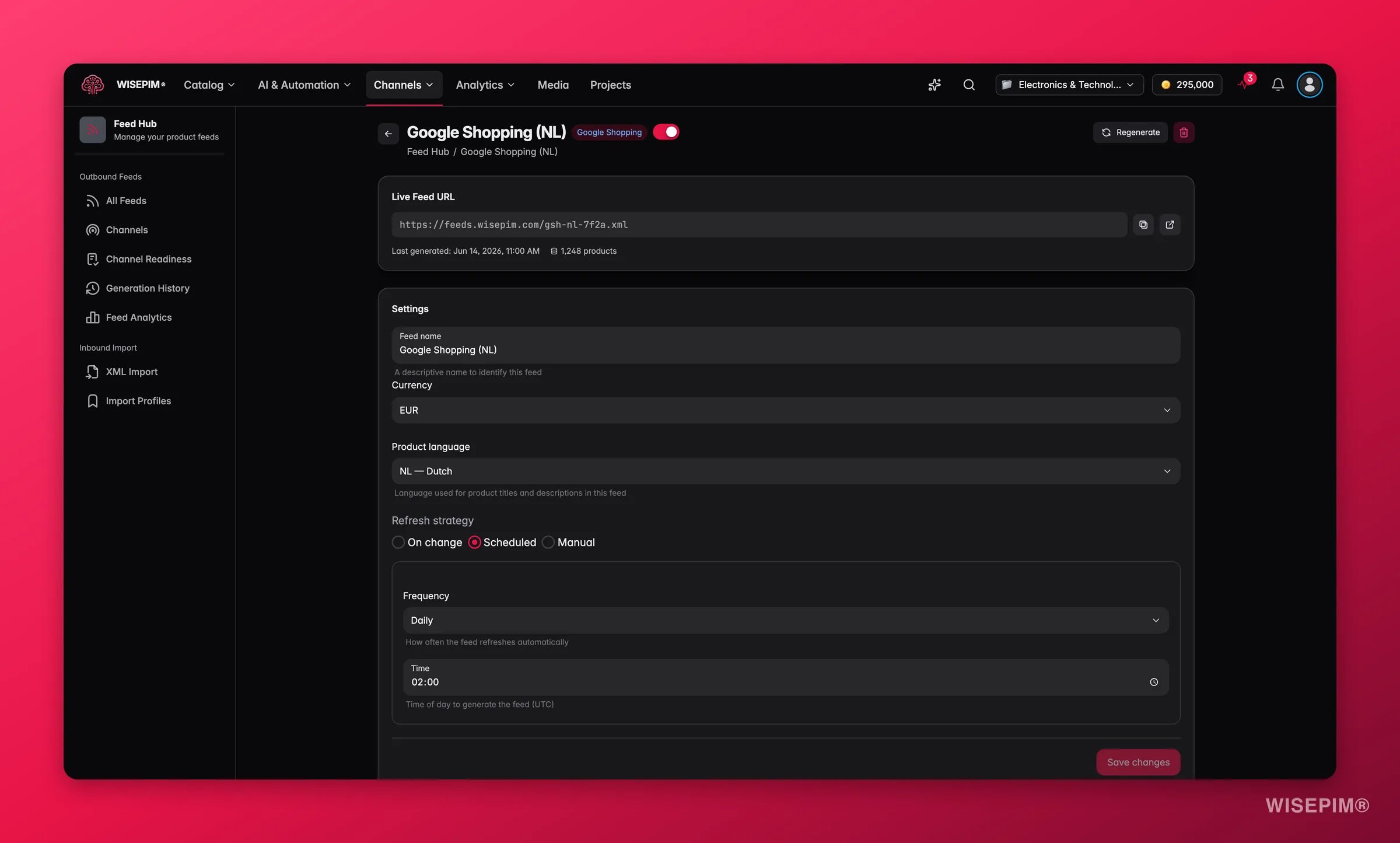
Feed settings and refresh strategy
- Manual: you trigger regeneration yourself
- On change: the feed regenerates automatically whenever a product is updated
- Scheduled: the feed regenerates on a fixed schedule (hourly, daily, weekly, monthly, or a custom interval)
Generation history
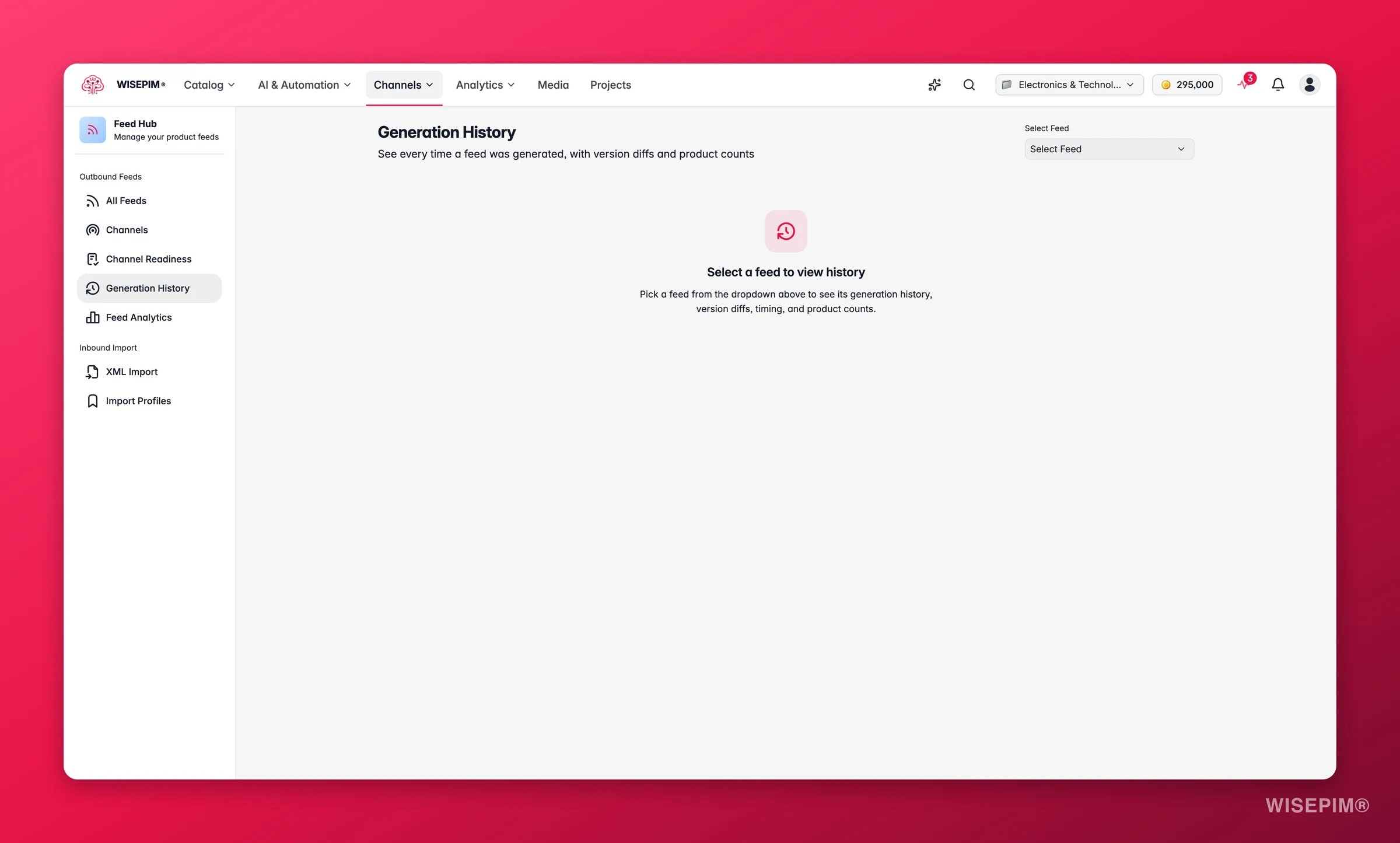
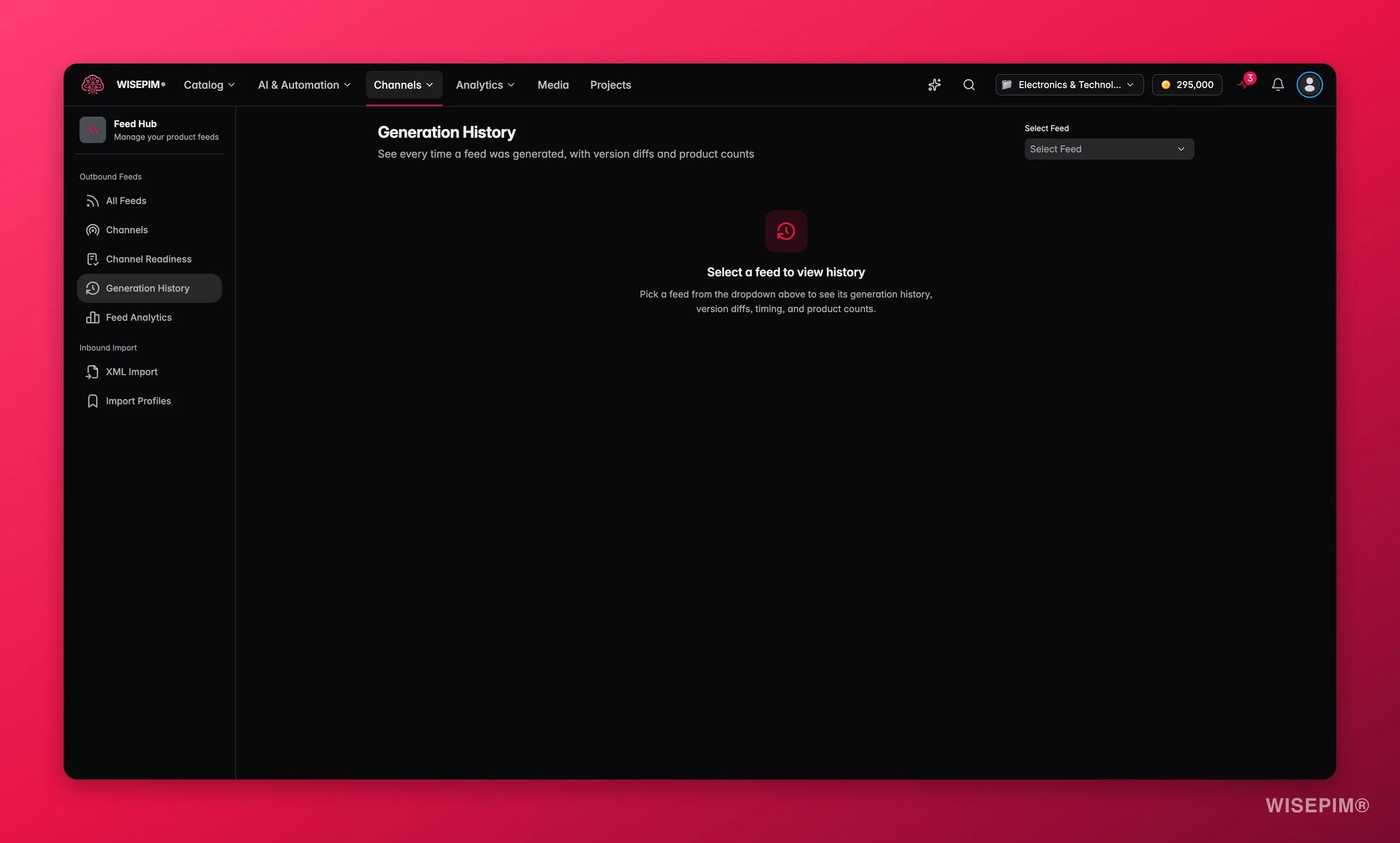
Feed generation is now much faster. Large catalogs that used to take a while come back in a fraction of the time, so regenerating after a change is no longer something you plan around.
Feed analytics
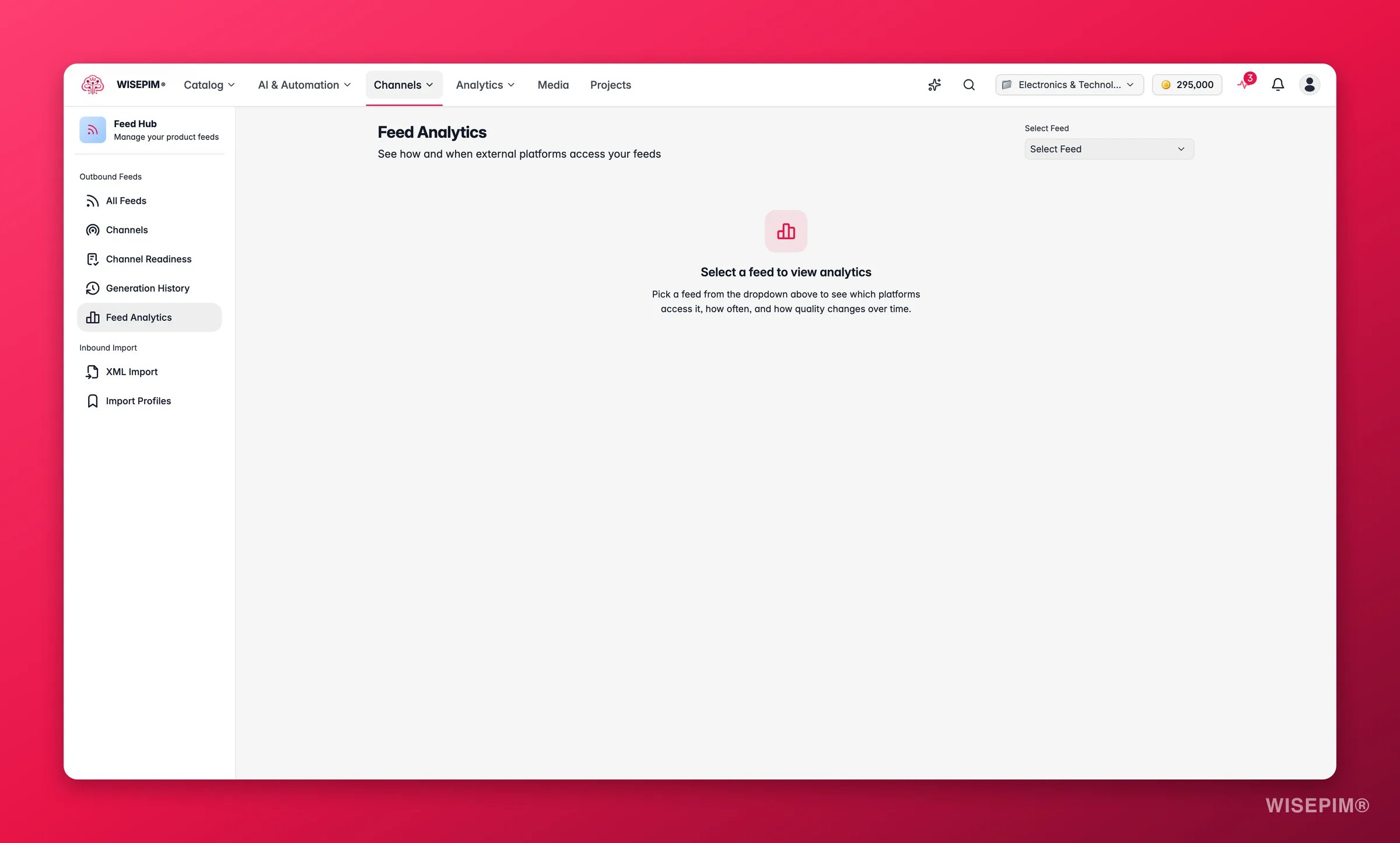
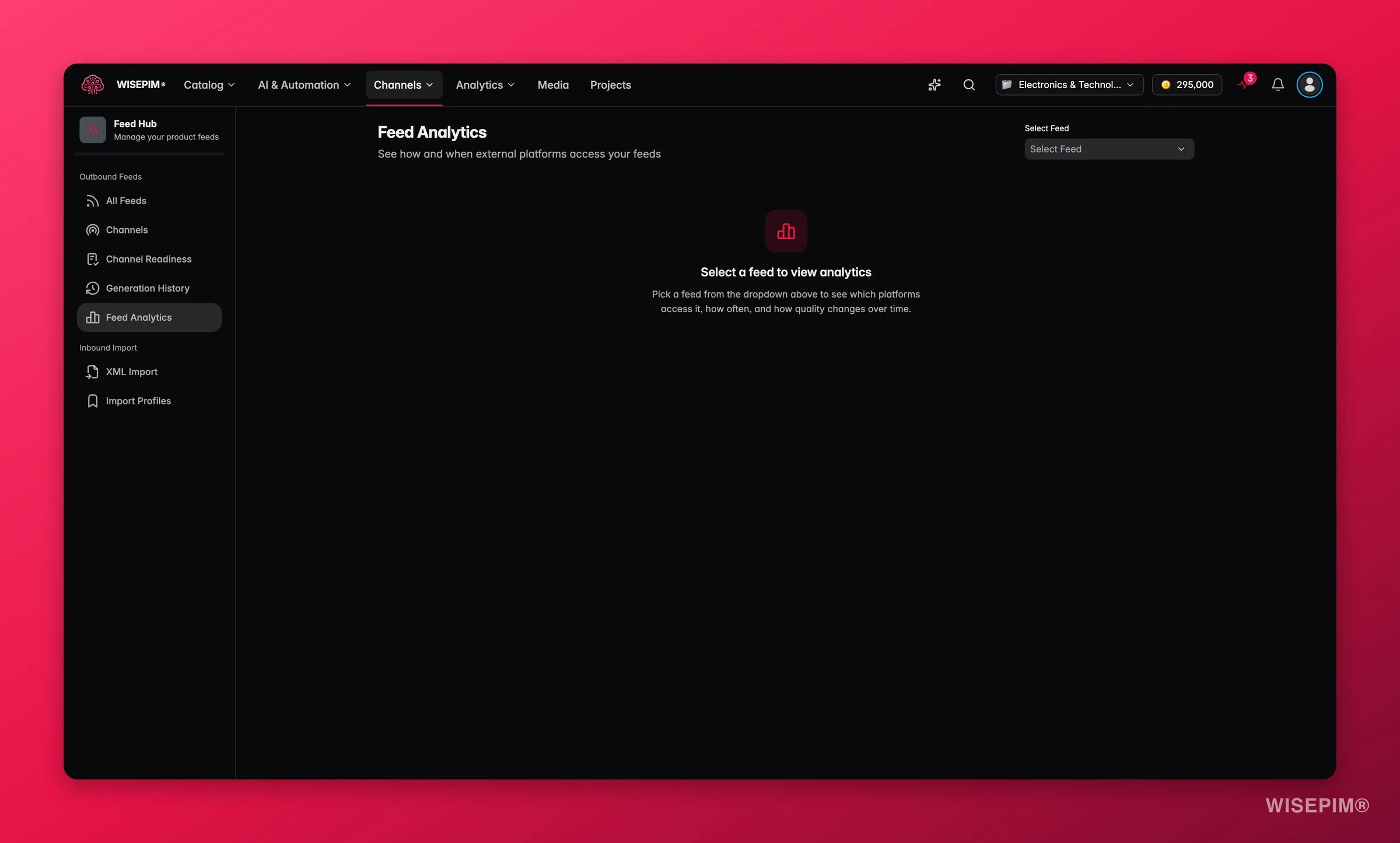
- Total Fetches: how many times the feed URL has been requested
- Unique Platforms: how many distinct platforms are fetching it
- Peak Hours: when fetches typically happen
- Cache Hit Rate: how often the cached version was served
- Platform Breakdown: which platforms are fetching and how often
- Access Timeline: fetch activity over time
- Quality Score Trend: how your feed quality score has changed across generations
XML import
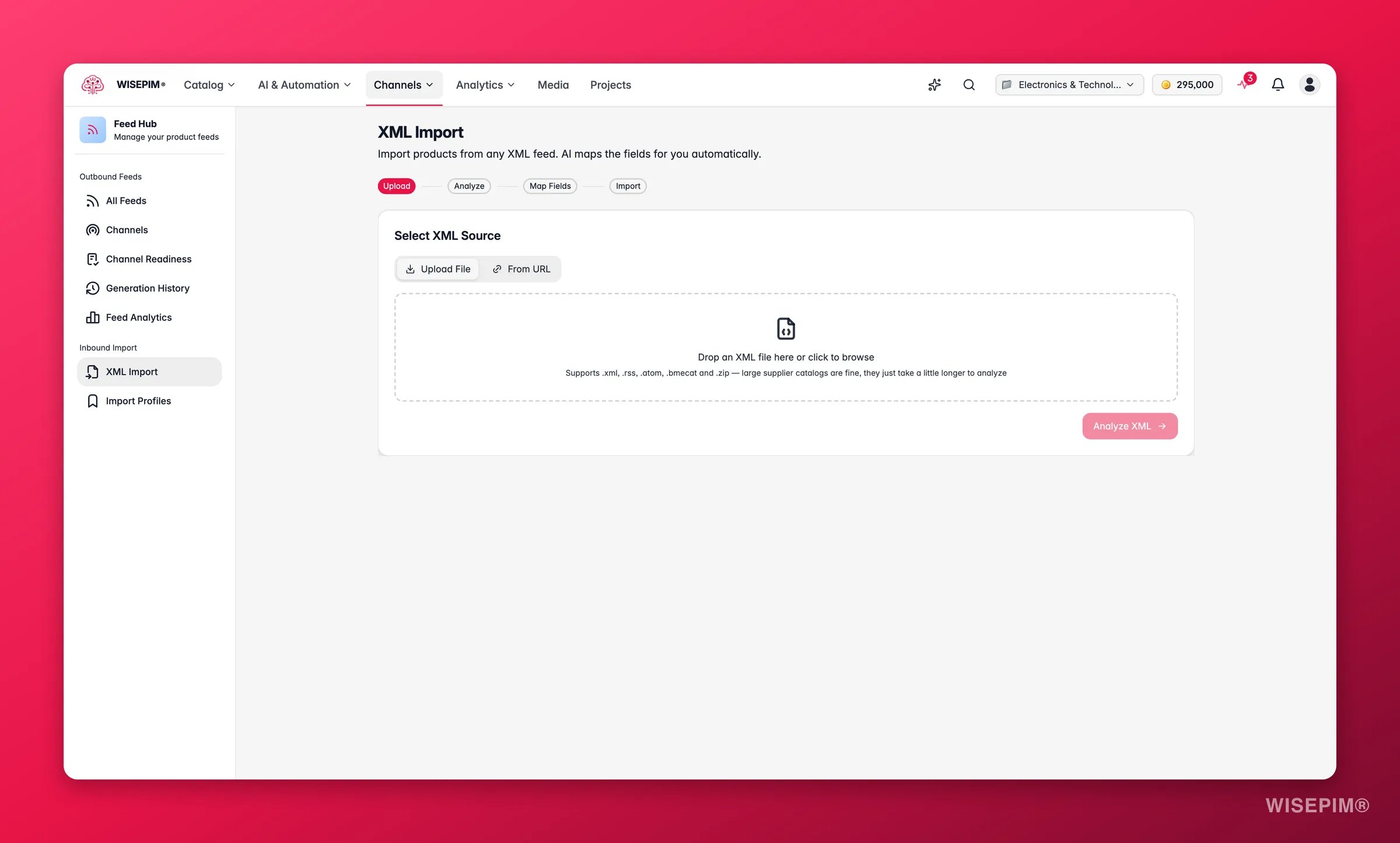
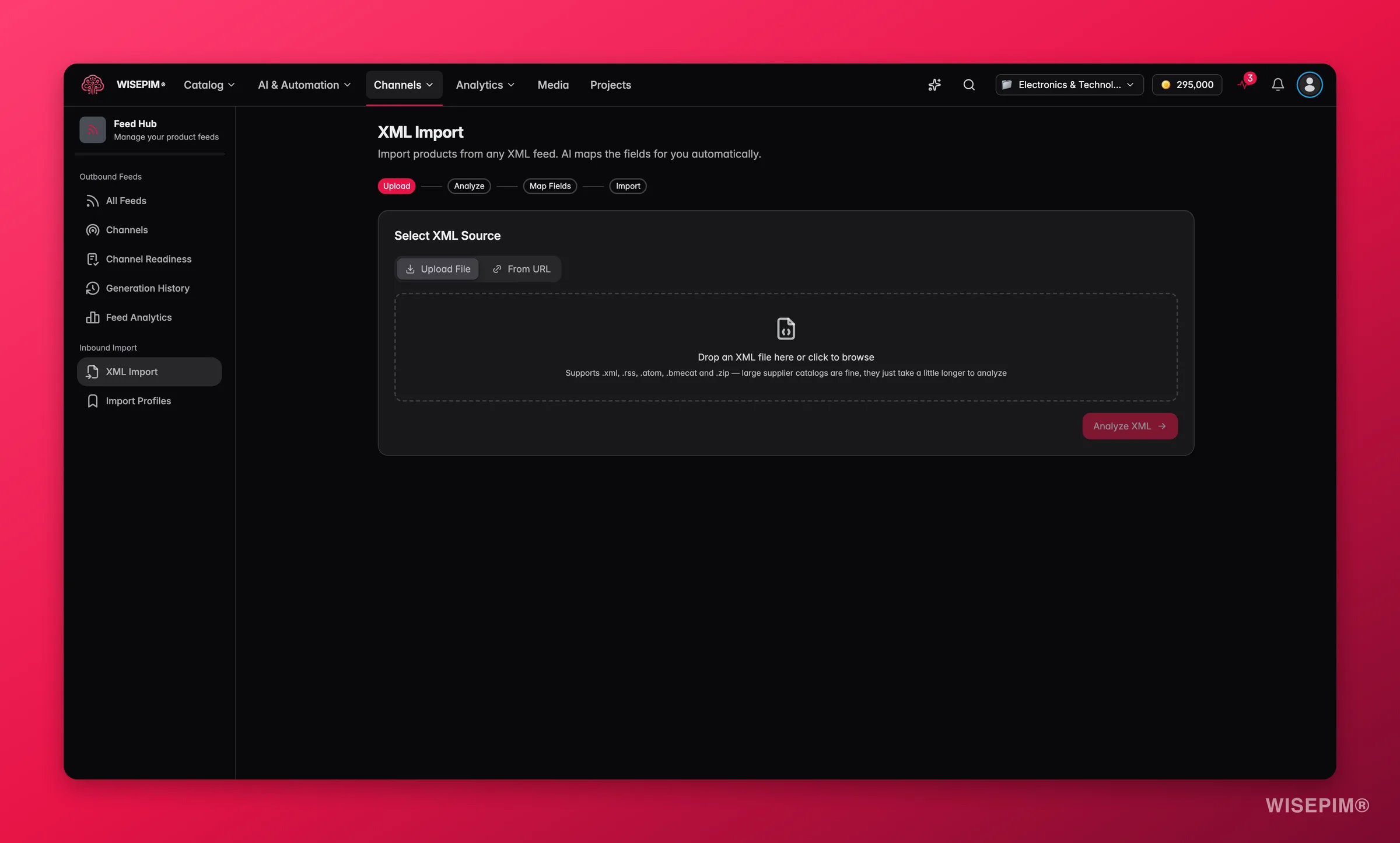
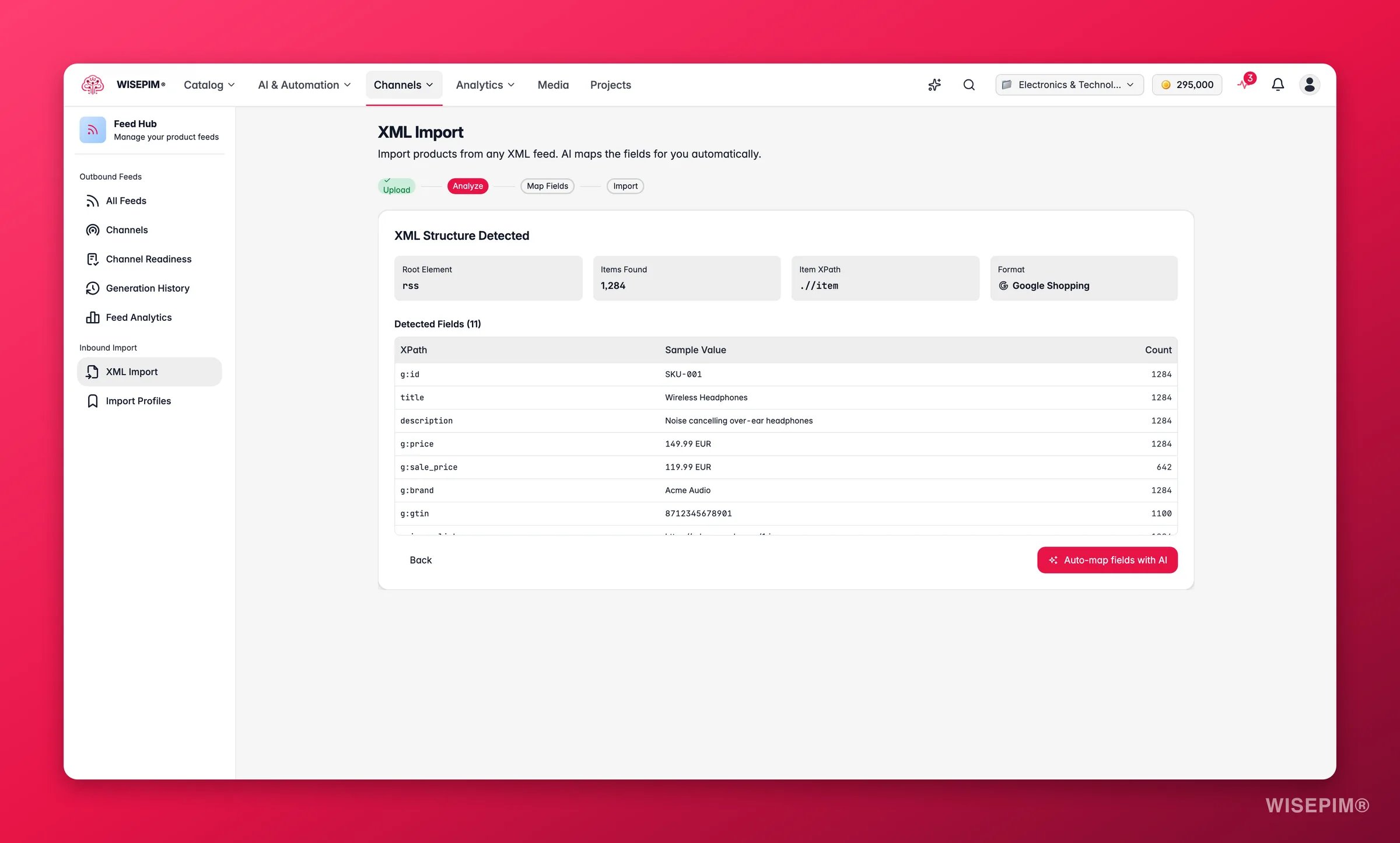
.xml, .rss, .atom, .bmecat, and .zip (supplier catalog archives are unpacked automatically). Large supplier catalogs are fine - they just take a little longer to analyze.
BMEcat catalogs import themselves
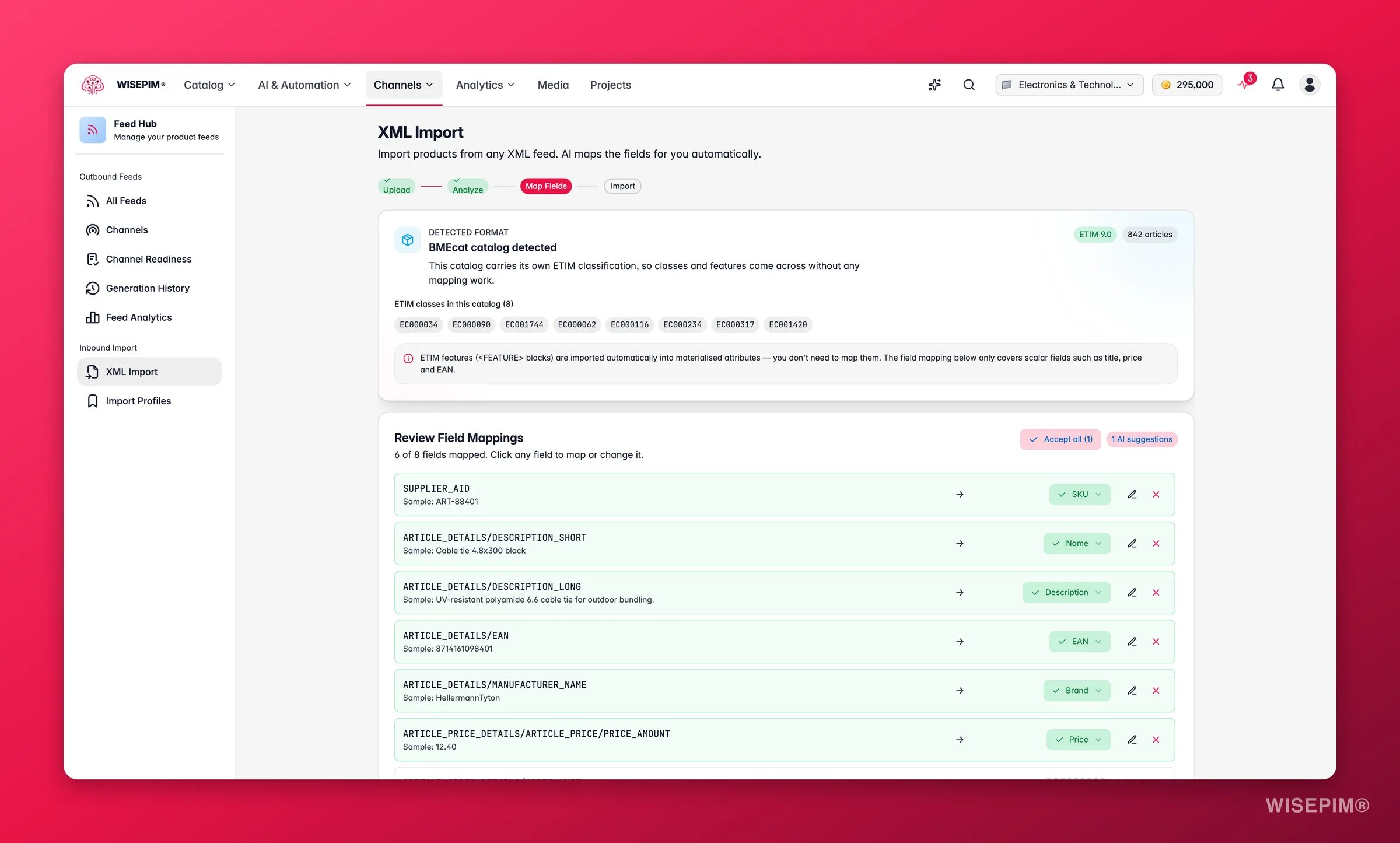
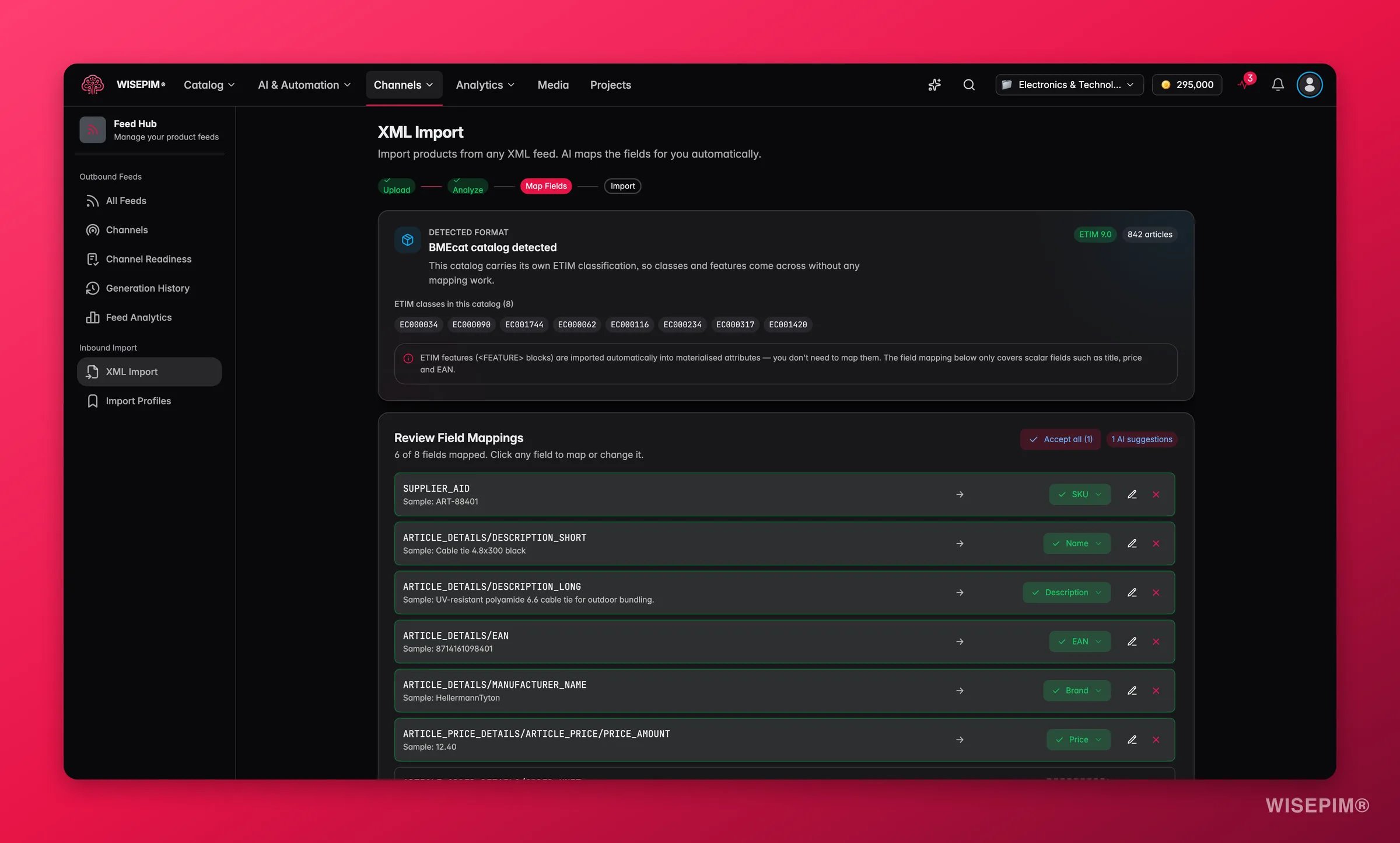
<FEATURE> blocks are imported automatically into materialised attributes - the field mapping below the summary only covers scalar fields such as title, price, and EAN.
If the catalog declares an ETIM release you haven’t installed yet, WISEPIM warns you and applies features against your newest installed release instead. Import the declared release first from Classification if your partner needs an exact match.
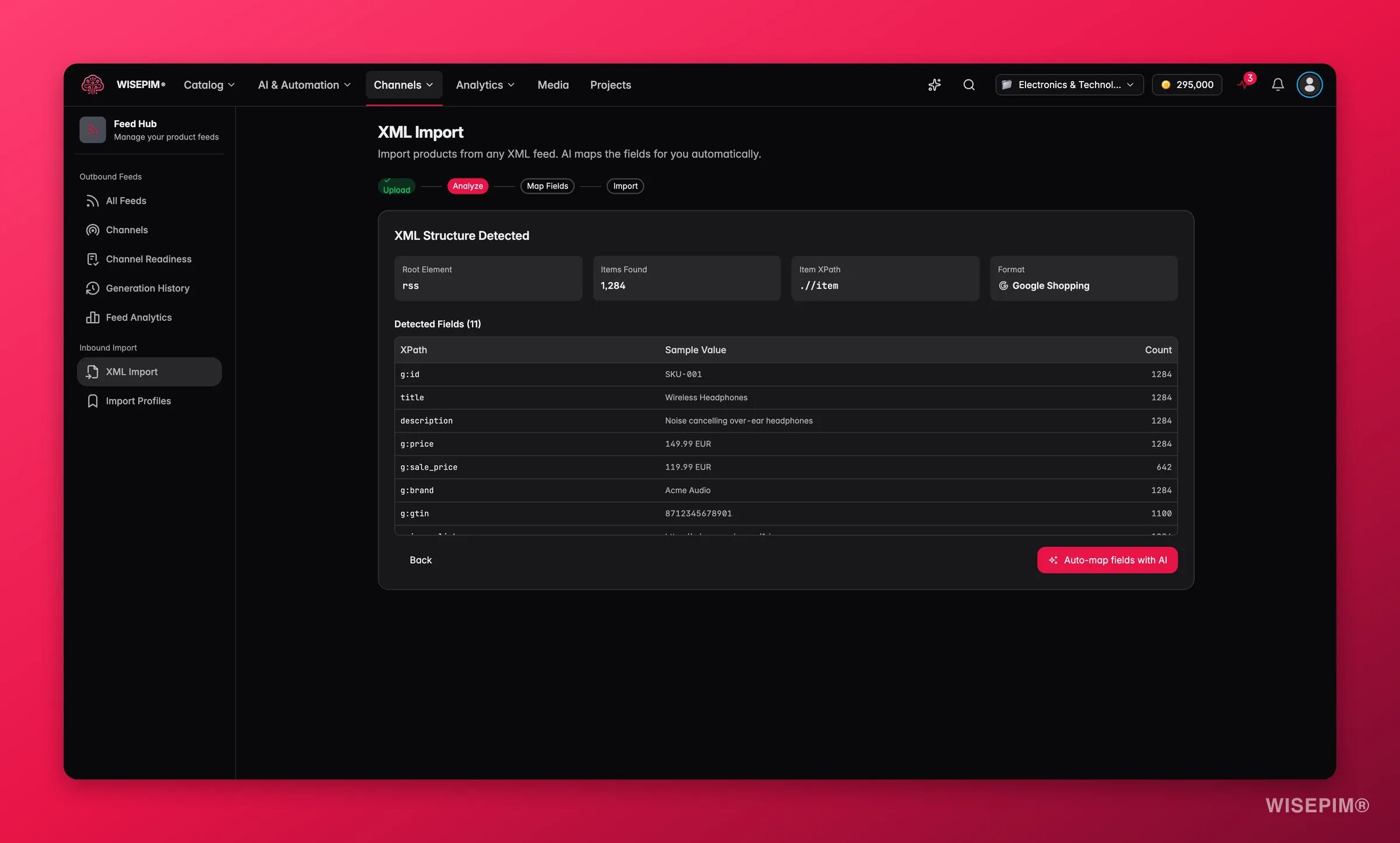
Detected structure
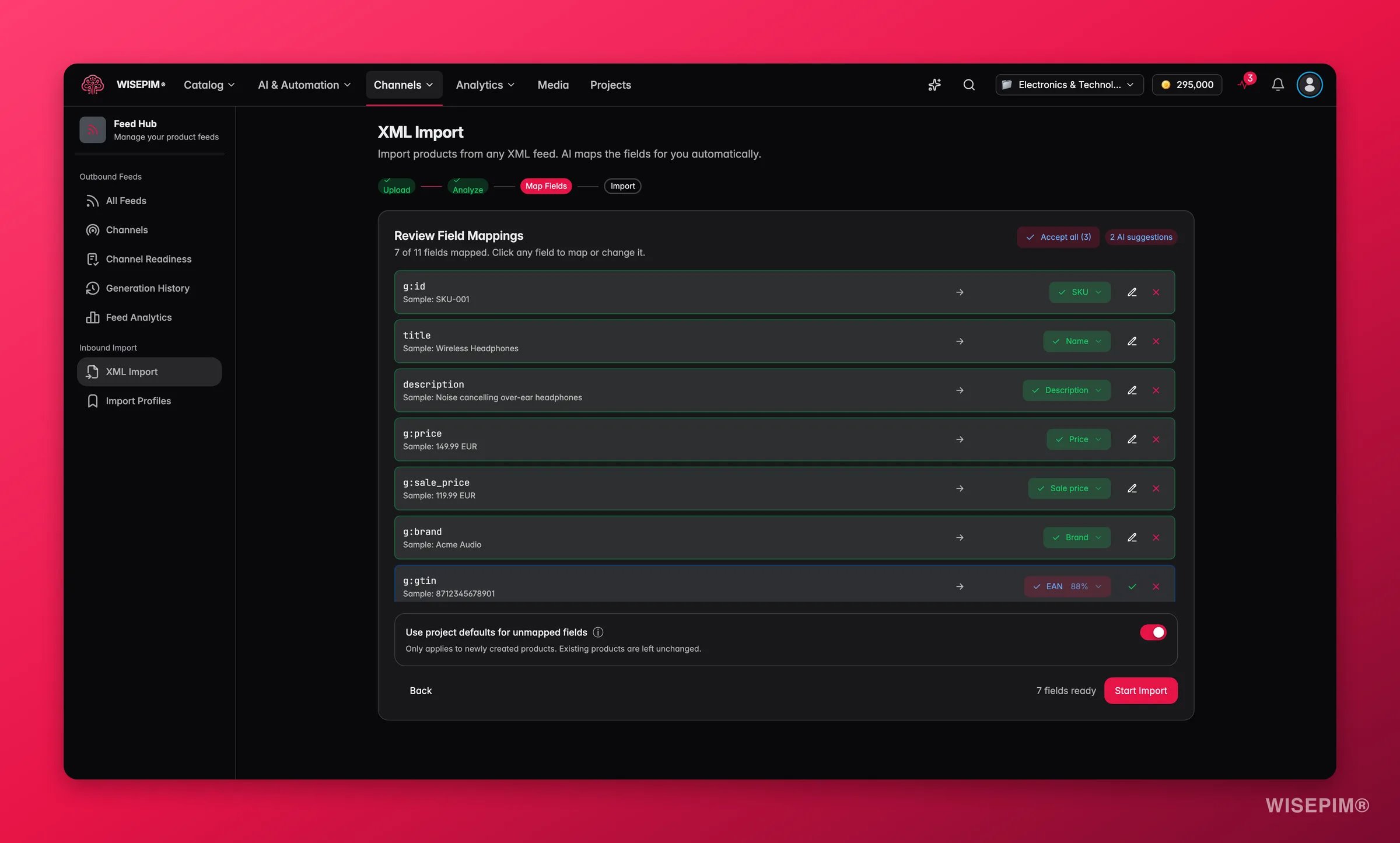
Review the mappings
Related
Exporting Products
Export your catalog to CSV or Excel for one-off data tasks.
Managing Products
Manage your product catalog, attributes, and categories.