

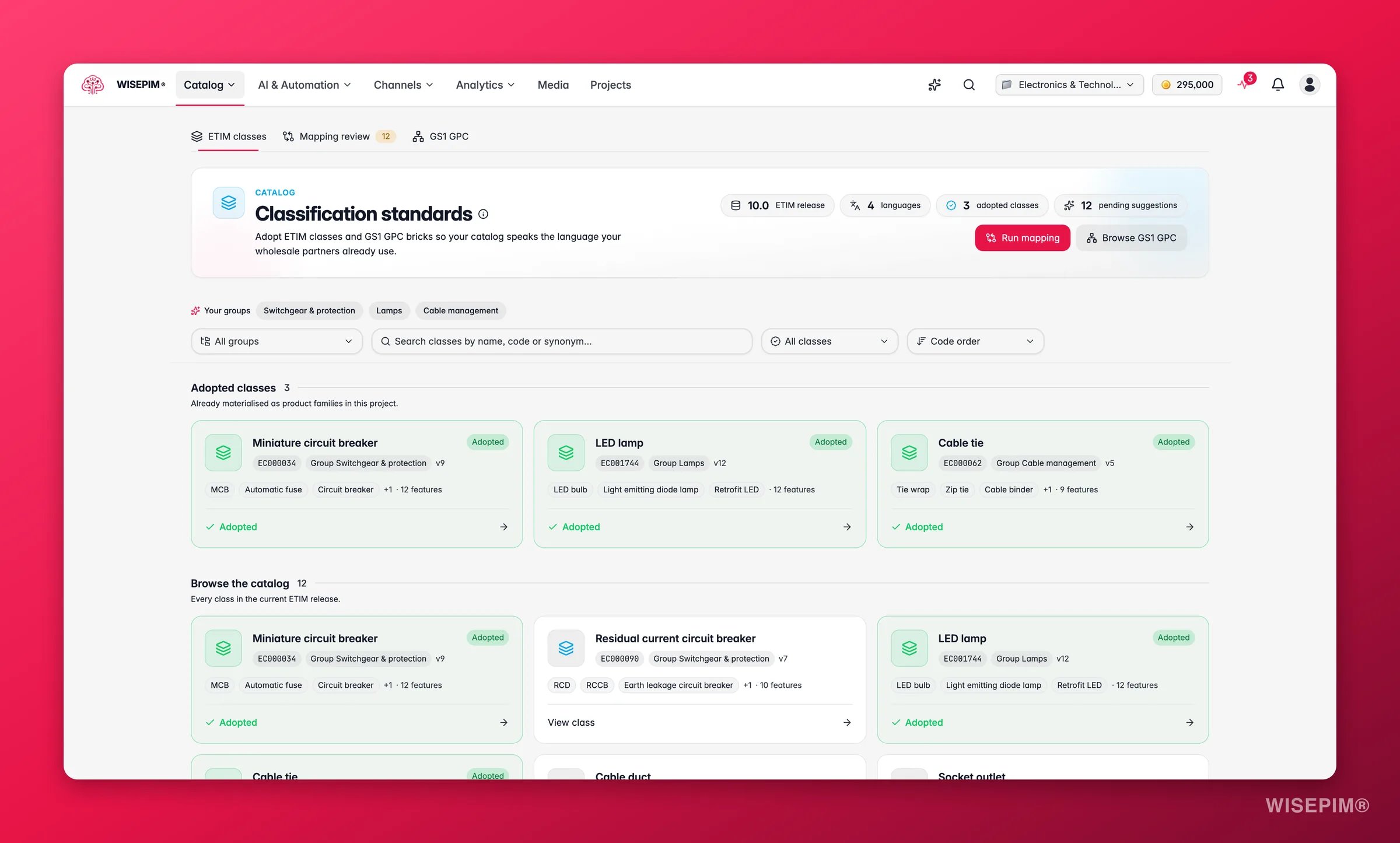
- ETIM classes: browse the imported ETIM release and adopt classes into your project.
- Mapping review: review the engine’s proposed links between your families/attributes and the standard.
- GS1 GPC: drill through the GPC hierarchy and turn bricks into categories.
ETIM class data is loaded per release by an administrator. Once a release is imported, the full catalog appears here and you can start adopting classes. WISEPIM always browses the newest fully imported release, and shows class names in your app language when the release carries it (ETIM’s international file is English; national files add more languages as they are imported).
Browse the ETIM catalog
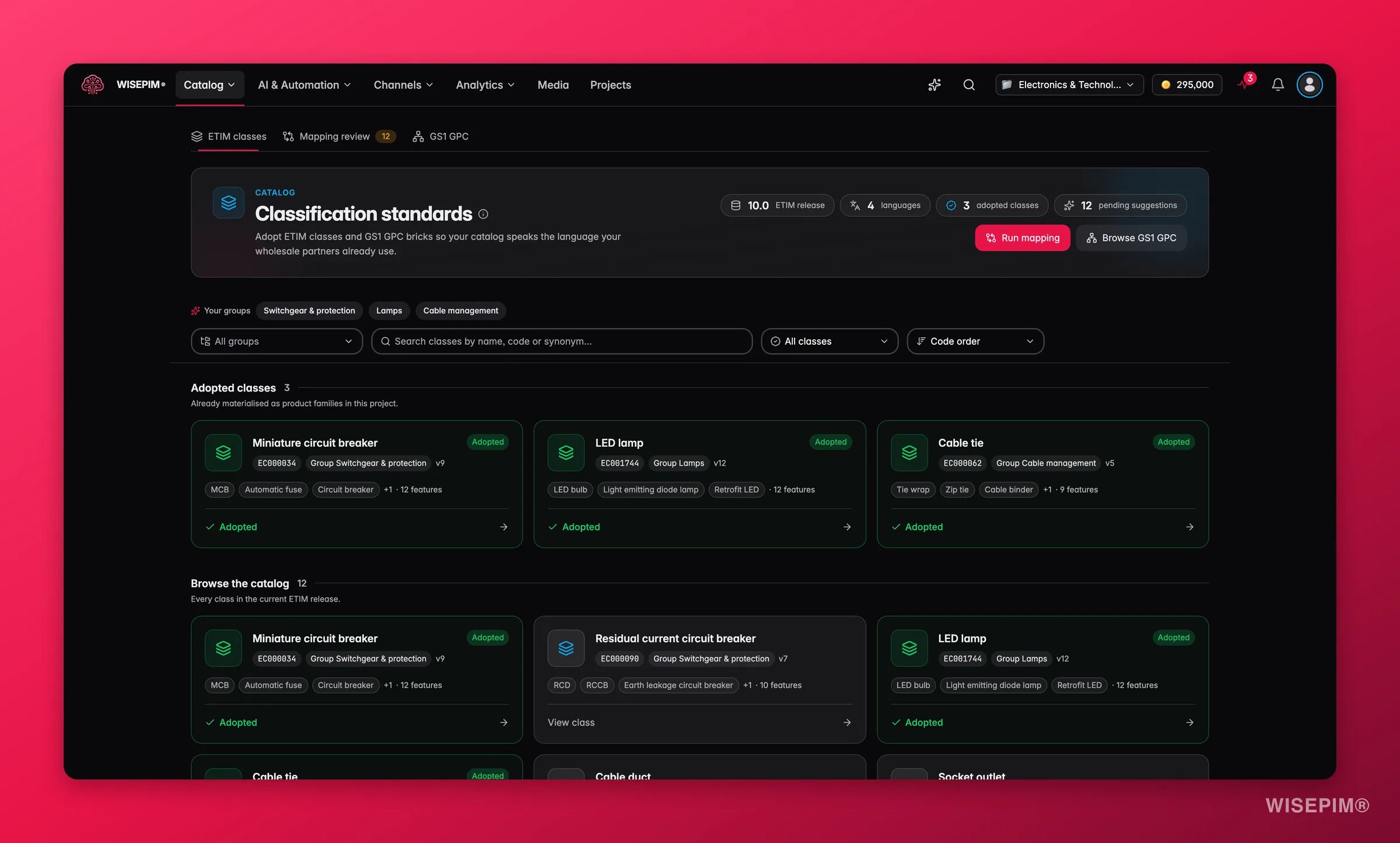
The hub shows your current ETIM release, its languages, how many classes you’ve adopted, and any pending mapping suggestions. Below that, two shelves: your adopted classes, and the full release catalog. Finding the right class is fast:- Your groups: chips for the ETIM product groups your project actually works in, most-used first. Click one to filter to it.
- Search: find classes by name, code (like
EC000034), or trade synonym (like “MCB”). Search spans the whole release. - Filters: narrow by product group, adoption status (Adopted / Not yet adopted), and sort by code order or feature count.
Class detail: see what the standard defines
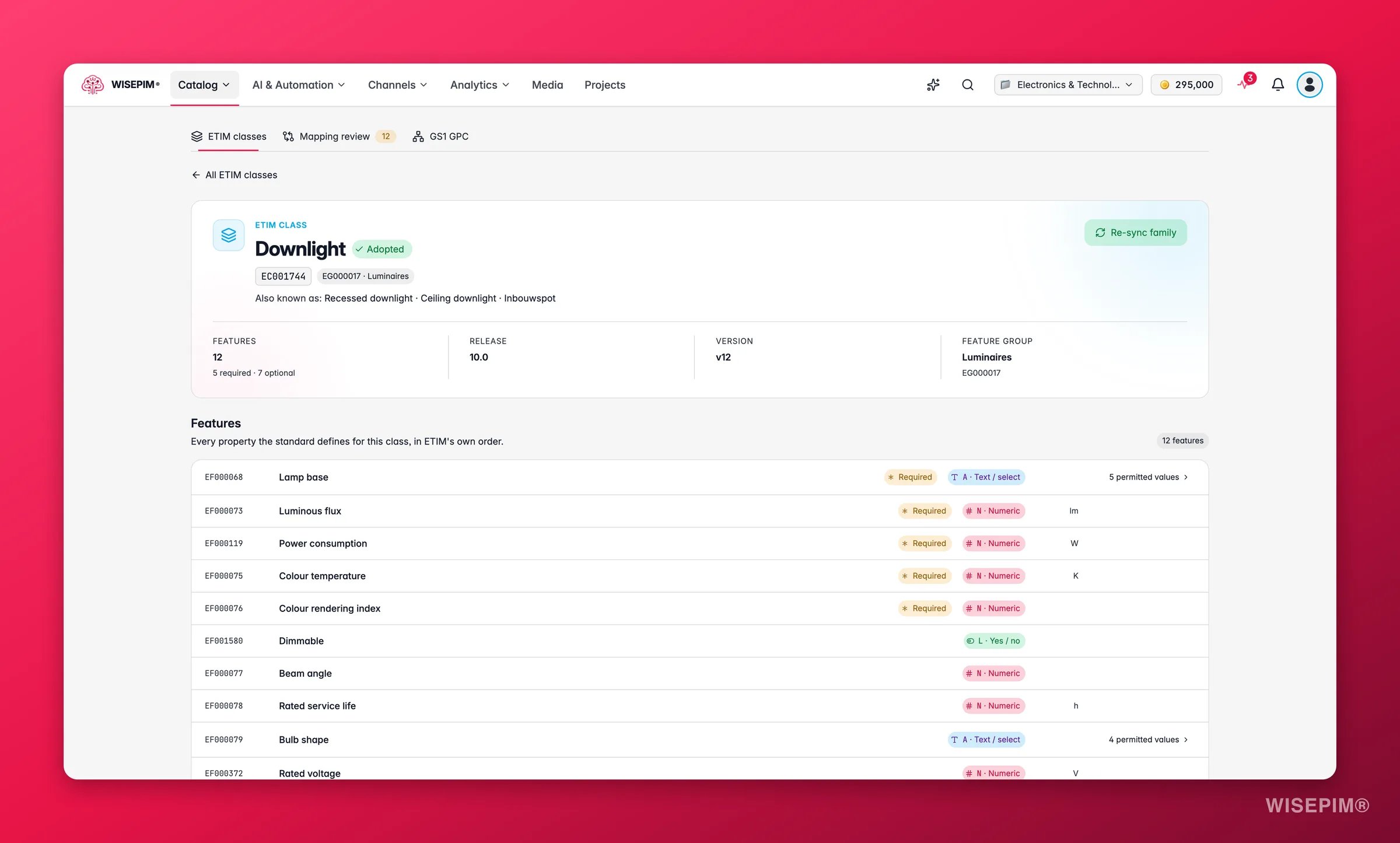
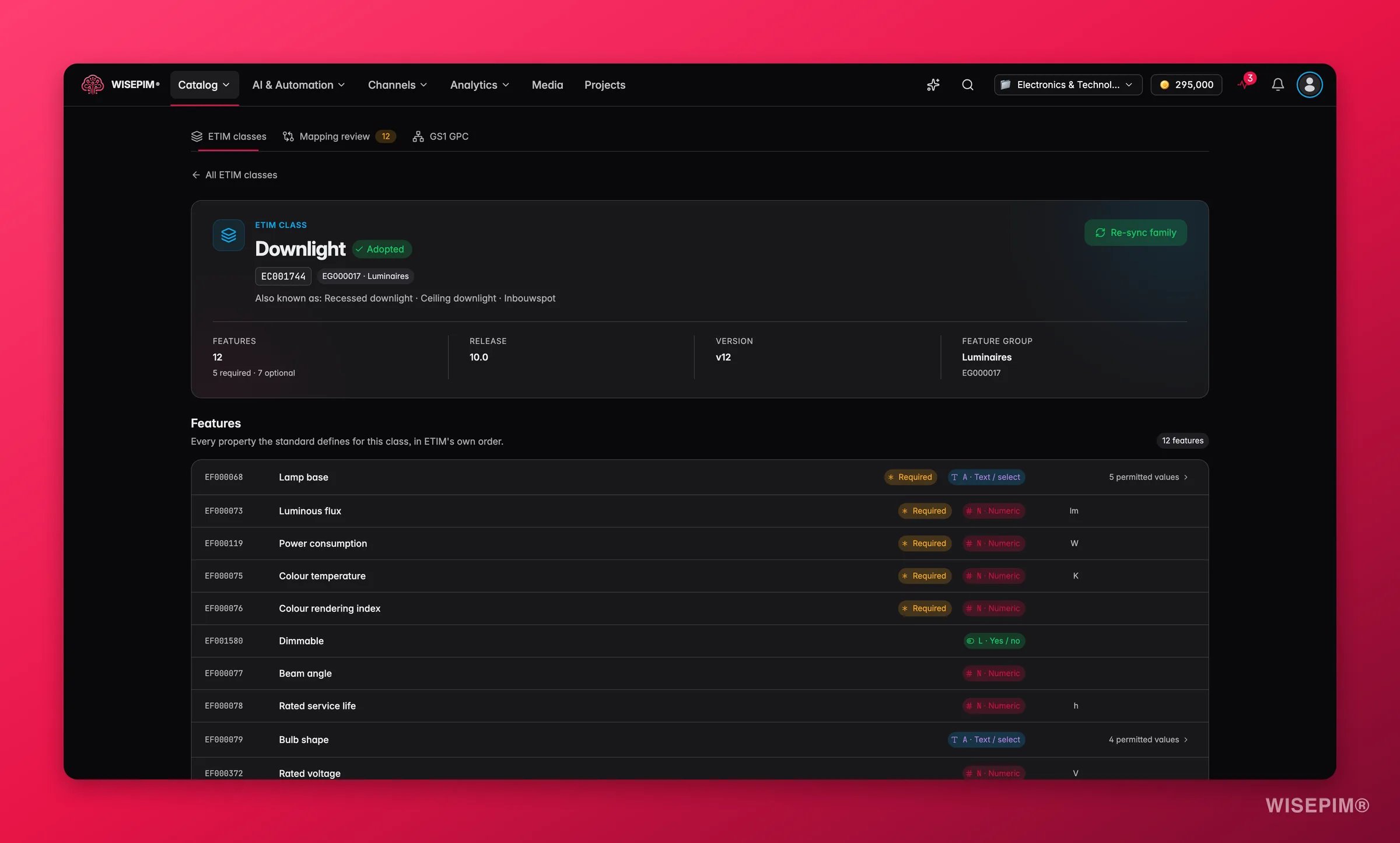
- The EF feature code and name, with a Required chip on mandatory features
- The feature type: A (text/select), N (numeric), L (yes/no), or R (range)
- The unit ETIM prescribes for numeric features
- The permitted values for select features - expand a row to see every value with its EV code
Adopt a class
Click Adopt class and WISEPIM builds a ready-to-use product family from the ETIM definition. The dialog shows exactly what gets created before anything is written:- A product family
ETIM_{CODE}named after the class - One attribute per ETIM feature, mapped to its feature code
- Value lists for select-type features
- The units of measurement the class prescribes
ETIM EF… reference in the product editor. Click it to see what ETIM says about that feature: its type, prescribed unit, whether the class requires it, and its permitted values.
Mapping review: let the engine do the matching
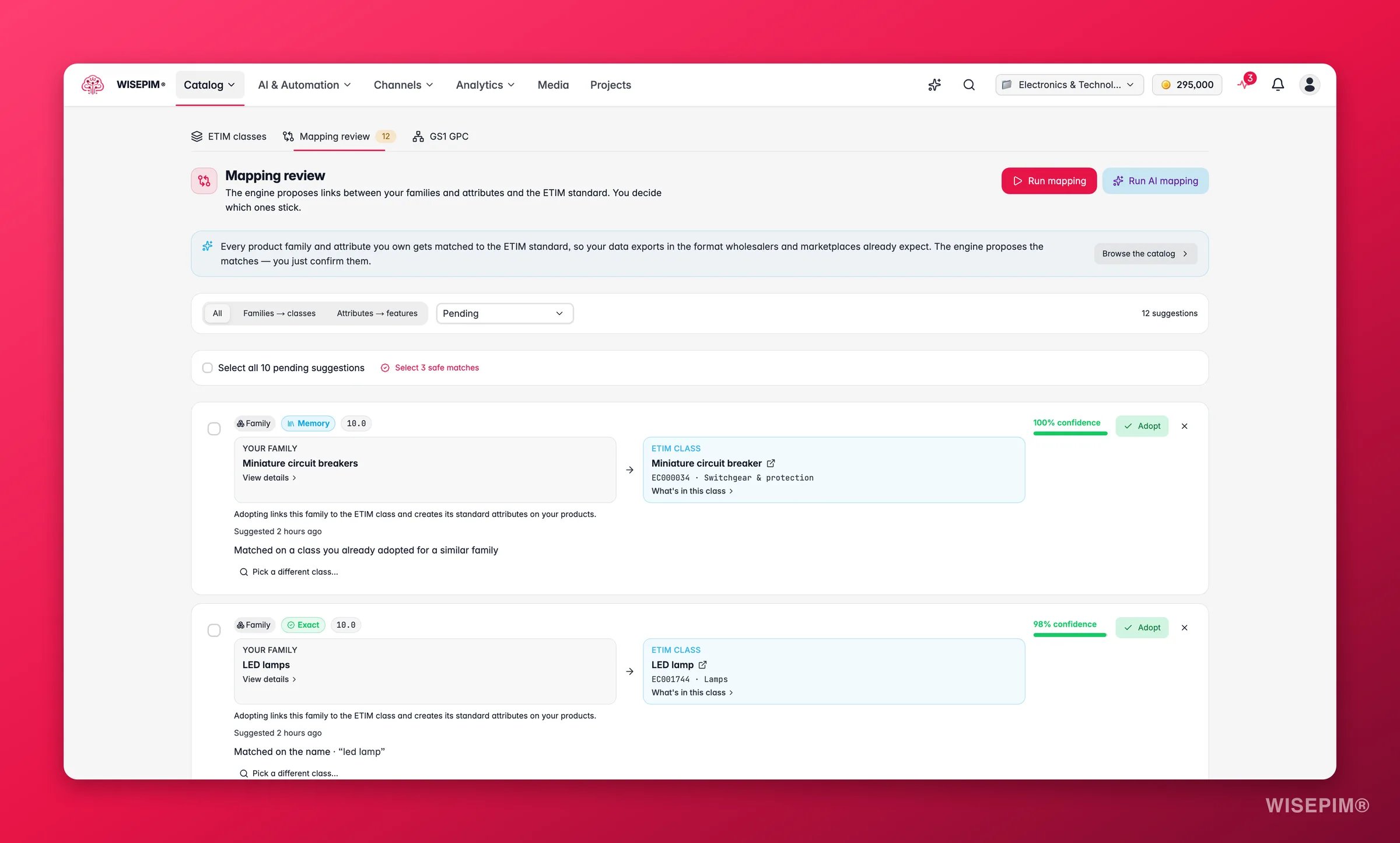
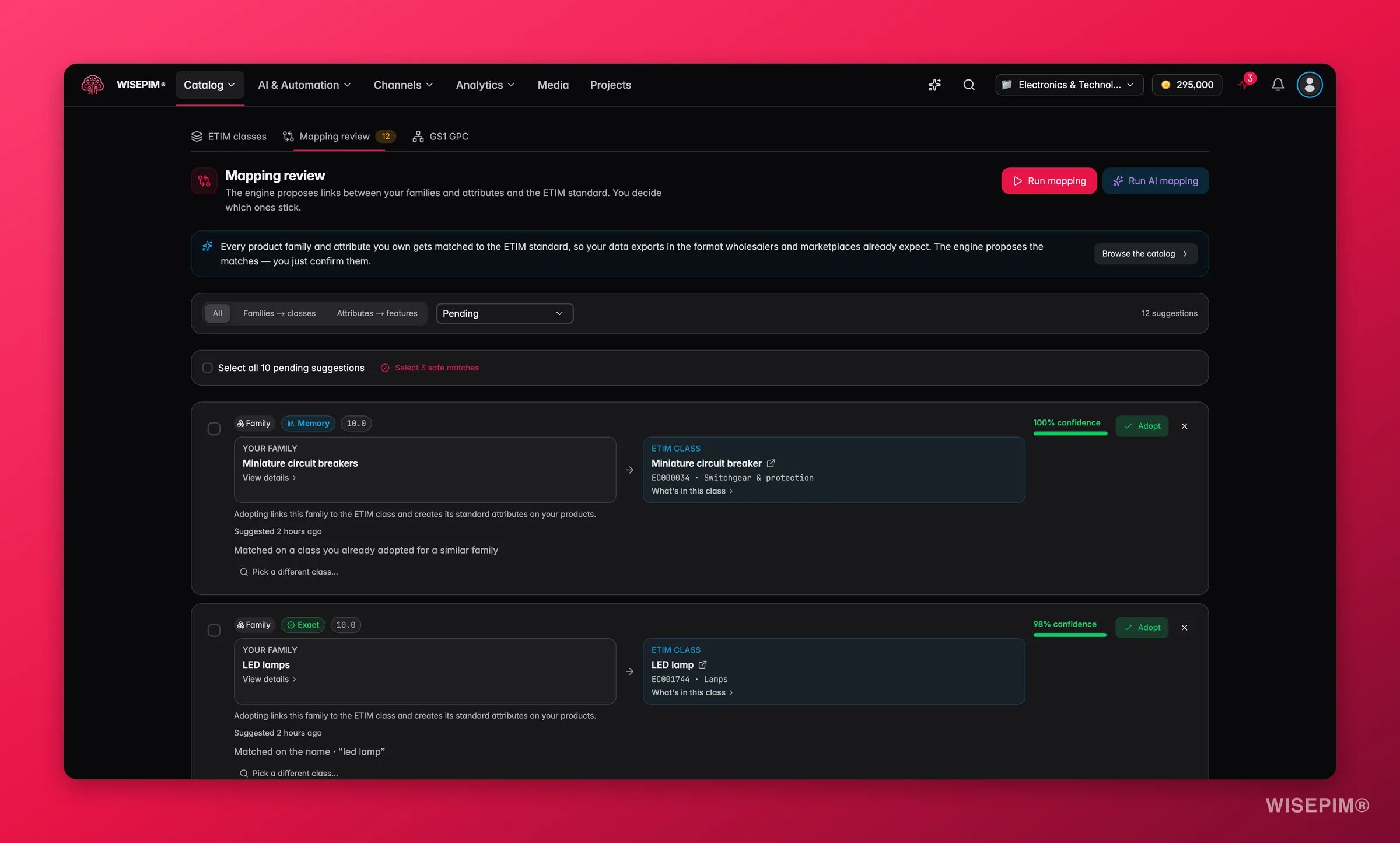
Run mapping runs the memory, exact, and fuzzy tiers - they finish in seconds. Run AI mapping sends the leftovers to the AI tier; it’s slower, so save it for when the cheap tiers are exhausted.
Reviewing a suggestion
Each card puts your family or attribute next to the proposed ETIM class or feature, with a confidence percentage and a plain-English rationale (“Matched on the name and the unit”, “Matched on a listed synonym”). AI suggestions include the model’s reasoning. The card also spells out what adopting does - for example, adopting a match between a family and a class links the family to the class and creates its standard attributes on your products.- Adopt confirms the match. Runner-up candidates appear as close alternatives with their own Adopt this instead button; adopting any candidate settles the whole suggestion and clears the siblings automatically.
- Dismiss hides a suggestion for good - the engine won’t propose it again.
- Pick a different class… / Pick a different feature… lets you search the standard yourself when the engine’s proposal is wrong but you know the right code. Your correction is learned by the memory tier, so the engine gets it right next time.
Work through the queue in bulk
For a large backlog, use the bulk bar: Select safe matches ticks every suggestion the engine is at least 90% confident about - the ones that are almost always right, and then one click adopts or dismisses the whole selection.GS1 GPC: turn bricks into categories
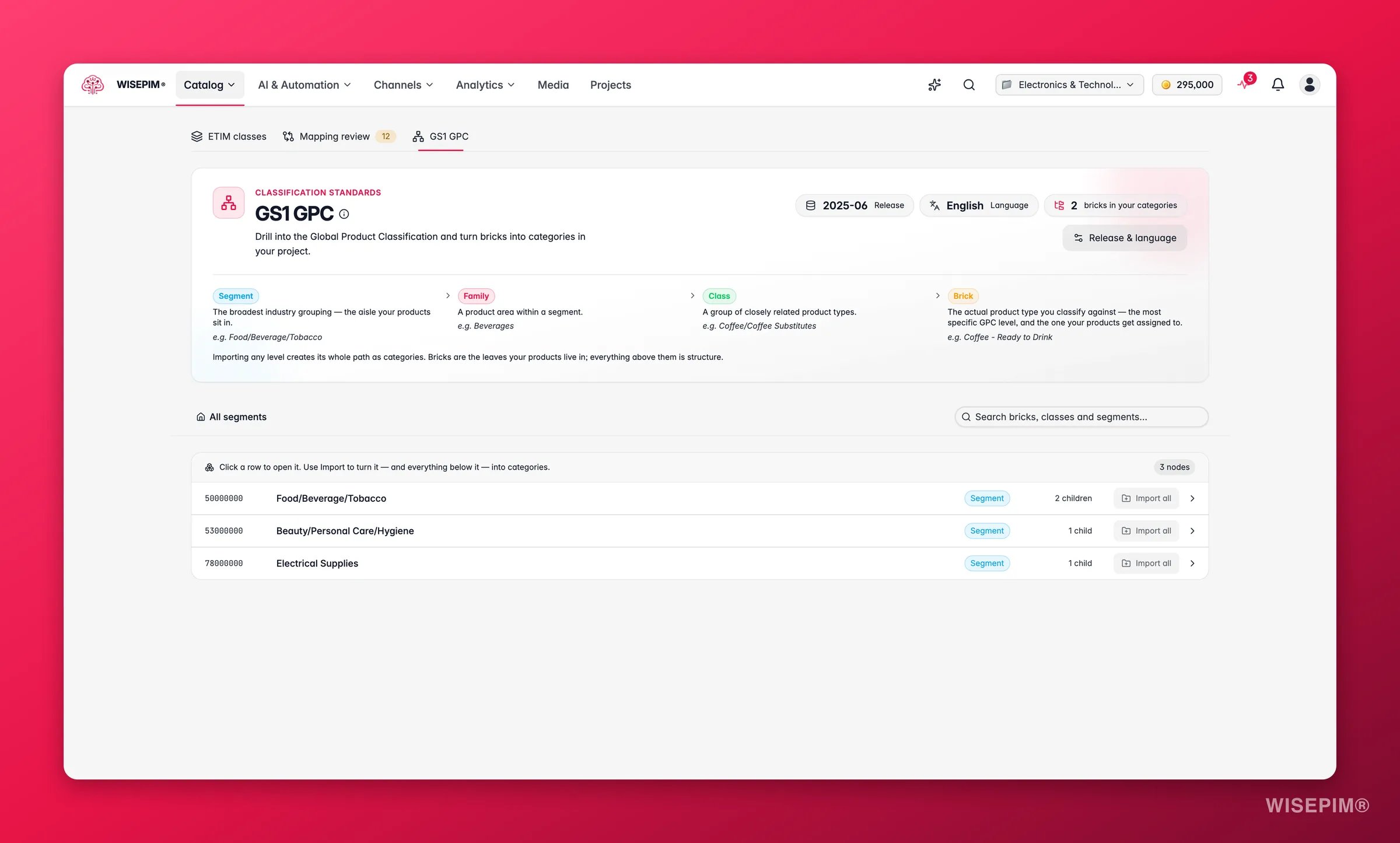
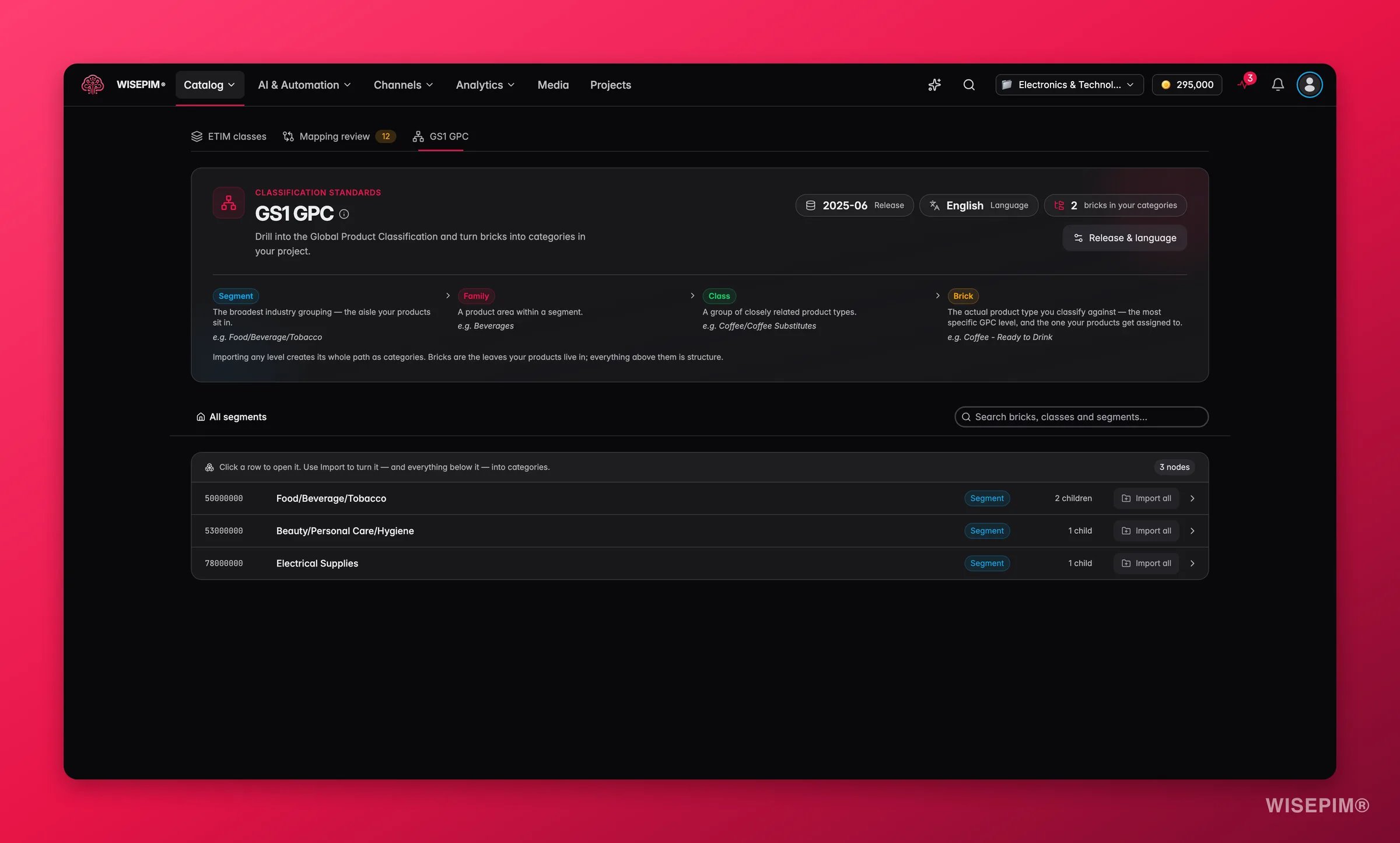
Drill down by clicking rows, or search the whole release by name. Clicking a brick shows GS1’s official definition, so you can check you have the right one before importing.
Import into your categories
- On a brick, click Add as category to create the brick and its full parent path as categories in your project.
- On any level above, Import all creates that node and every brick beneath it.
Because the whole path is created, imported bricks always sit in the right place in your category tree, and any channel that reads GPC recognises them as that exact product type.
Switch release or language
Click Release & language in the header to move to another GPC publication or rewrite your category names in a different language. Before committing, WISEPIM shows exactly what changes: which bricks carry over, which categories get renamed, with the old and new name, and which bricks aren’t in the new release. Categories keep their identity through the switch, so every product stays attached, and nothing is ever deleted.ETIM conformance in the product editor
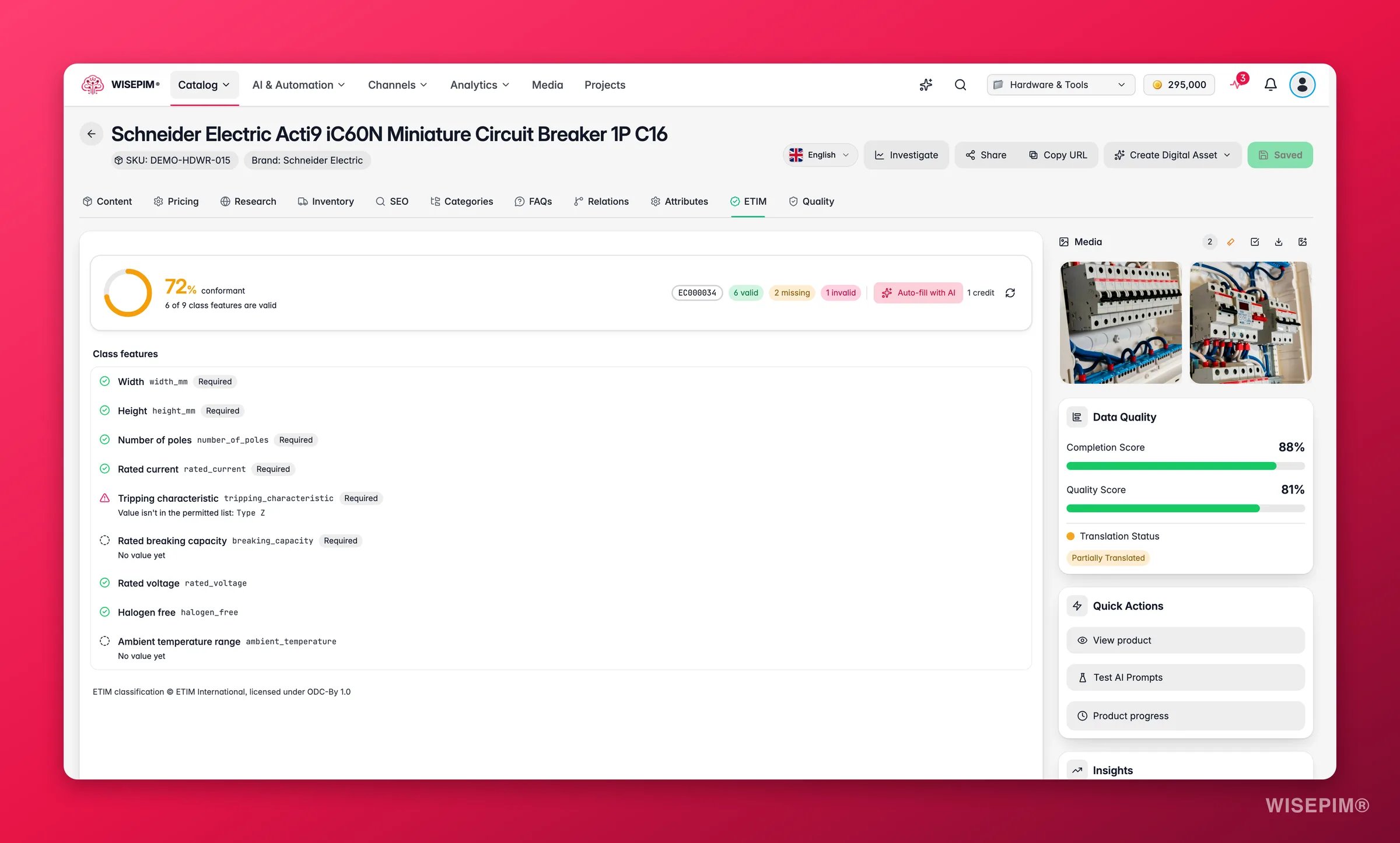
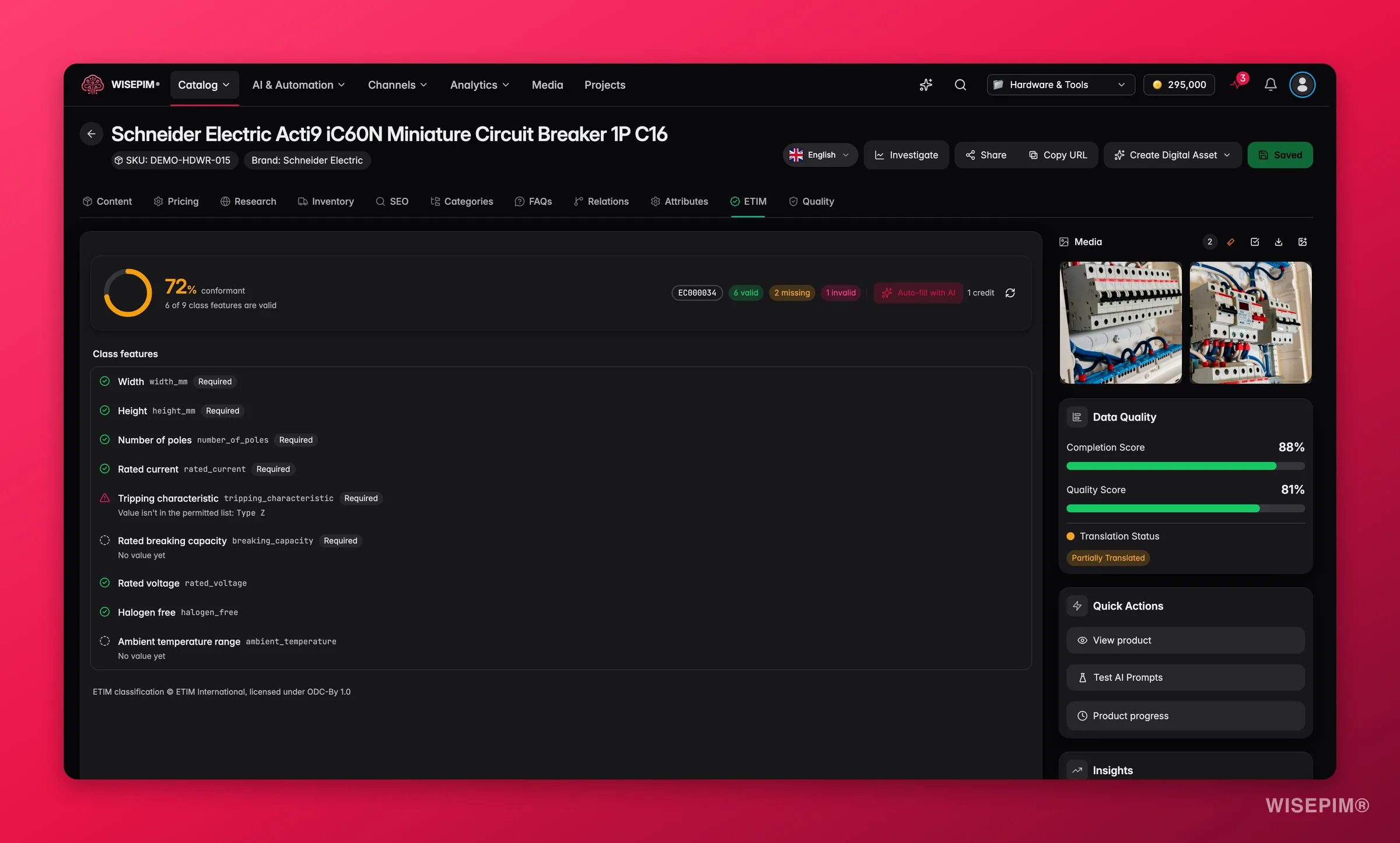
- A conformance score showing how many of the class’s features are valid on this product
- A per-feature checklist with a plain-English reason for anything that isn’t: “No value yet”, “Add a unit”, “Value isn’t in the permitted list”, “Unit isn’t an ETIM unit”, and so on
- A Fix jump on every failing row that takes you straight to that attribute
Auto-fill with AI
When features are missing or invalid, an Auto-fill with AI button appears. It fills the missing features and corrects the invalid ones, then re-scores instantly - fixed rows flash green. It costs 1 credit per run, and the button only shows when there is actually something to fix, so a conformant product never triggers a paid no-op. Anything the AI can’t determine confidently is skipped and annotated, never guessed. ETIM conformance also feeds into the product’s Data Quality breakdown as an additional domain next to the four standard ones, measuring feature coverage and value validity, because buyers and technical marketplaces filter on exactly these features. It appears only for products whose family is linked to an ETIM class.HS codes
The HS code is the customs code a product ships under. WISEPIM AI can find it for you in the official nomenclature, using your product data, and write it to the product’s HS Code field.Find HS codes
1
Select products
On the Products page, select the products on the page. HS code runs work on selected products only, not on all matching products.
2
Open Enrich with AI
Click Enrich with AI and pick the HS codes card (“Find each product’s customs code in the official EU or US nomenclature”).
3
Choose the options
Pick the Customs market, what happens When a code is found, the Confidence needed to save a code, and whether to Replace existing HS codes (see the table below).
4
Start the run
Click Find HS codes. You see “HS code classification started” with a link to the run.
A run costs 1 credit per selected product, charged when the run starts. Products that are skipped or can’t be classified get their credit back.
Review suggested codes
Codes that wait for review show up in the product editor, on the Inventory tab, as a Suggested HS code card under the HS Code field. The card shows the code, its official description, the confidence, the reason, and Other codes that could fit. Click Accept to save the code, Use this code to take one of the alternatives, or Dismiss. See Editing Products. Every code WISEPIM writes is recorded with its evidence, so you can check later where it came from in Field Evidence.Classification works across WISEPIM
Adopting standards pays off beyond this page:- Scraped imports classify themselves. With auto-classification enabled, imported products that match an adopted ETIM class get that class’s family the moment they land, and scraped breadcrumbs file into your adopted GPC categories instead of creating a duplicate tree.
- BMEcat exports need no mapping. A Feed Hub BMEcat feed exports your ETIM classes and their features directly - what ends up in the catalog is decided by the class each family is linked to.
- Enrichment respects the standard. AI enrichment and web research fill ETIM-bound attributes with the class’s permitted values and prescribed units.
ETIM classification © ETIM International, licensed under ODC-By 1.0.
Related
Product Families
Adopted ETIM classes become product families with the standard’s attributes.
Managing Product Categories
GPC bricks import as categories in your project tree.
Feed Hub
Export a BMEcat catalog straight from your adopted ETIM classes.
Data Quality Analytics
ETIM conformance scores as a quality domain across your catalog.