

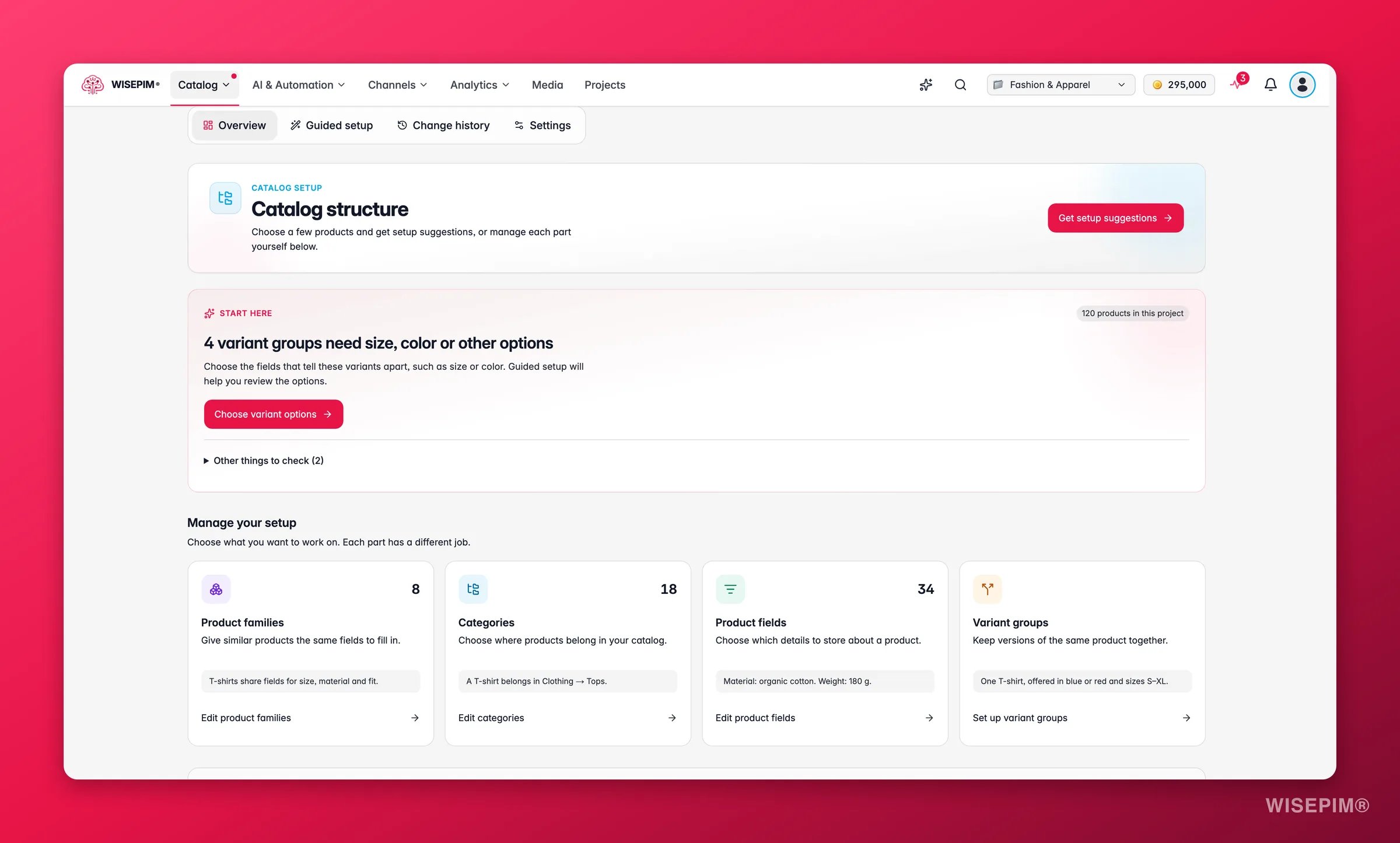
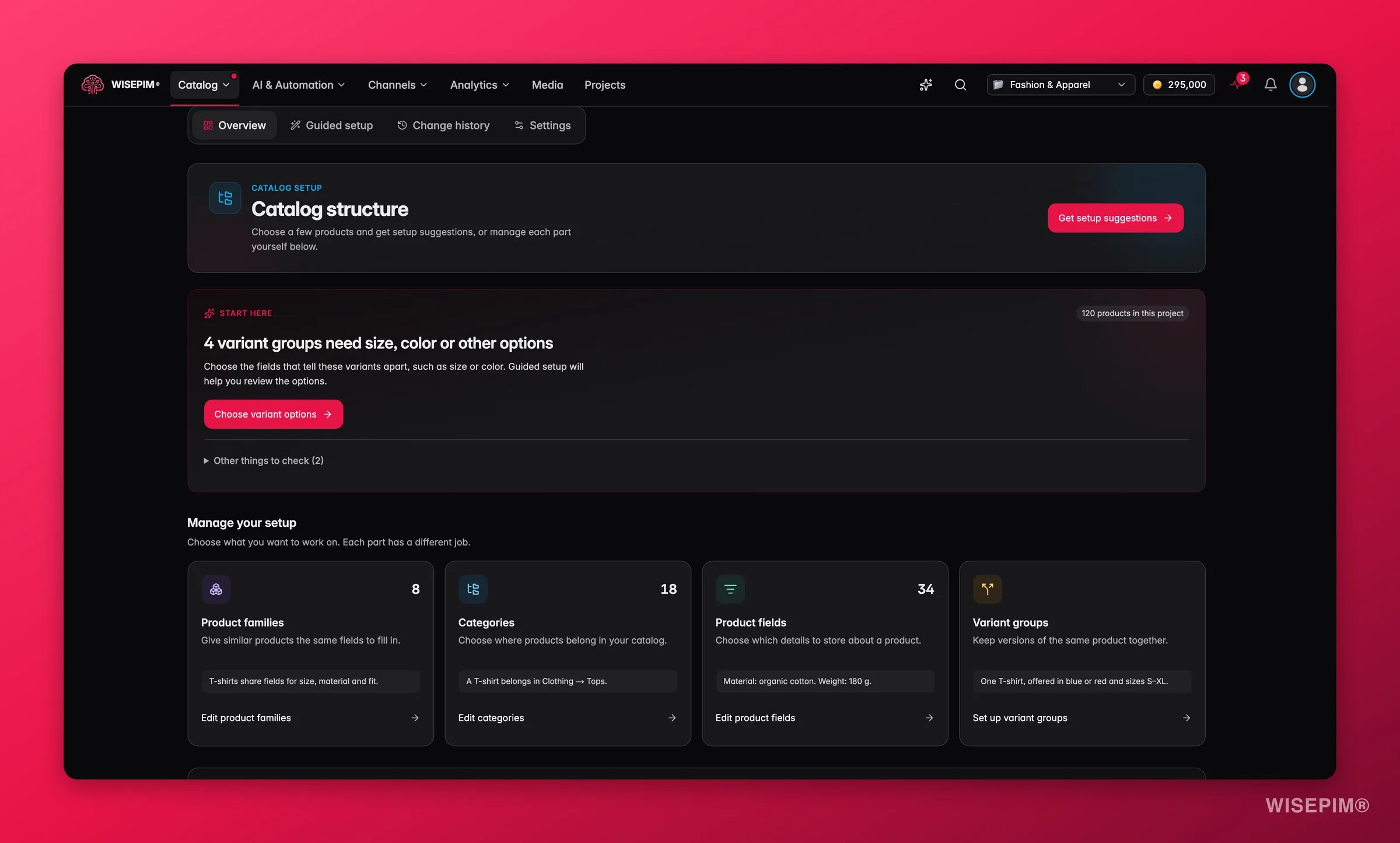
The Catalog structure menu branch only shows in the Experimental interface. Switch under Interface version in Appearance Settings, or from the command menu with Switch to Experimental. The setting is saved per browser. In the Experimental menu, the branch holds Product Categories, Product families, Product fields and Option sets; use Show catalog structure pages to expand it.
Overview
The top of the page has Get setup suggestions, which opens Guided setup.Start here
WISEPIM checks your saved structure and puts the most useful next step on top. Depending on what it finds, you see:
More findings sit under Other things to check, such as empty families, unused fields or categories without a default family. When nothing is missing, the card says Next, check your sales channels.
Manage your setup
Four cards link to each part of your structure, each with its count and its gaps:
Your saved catalog shows how many products the project has and what Fields defined by is set to: Families, Categories or Families and categories.
These counts describe your saved structure. They don’t measure whether a channel accepts your products or how complete the product data is. For that, use Quality Guard.
Guided setup
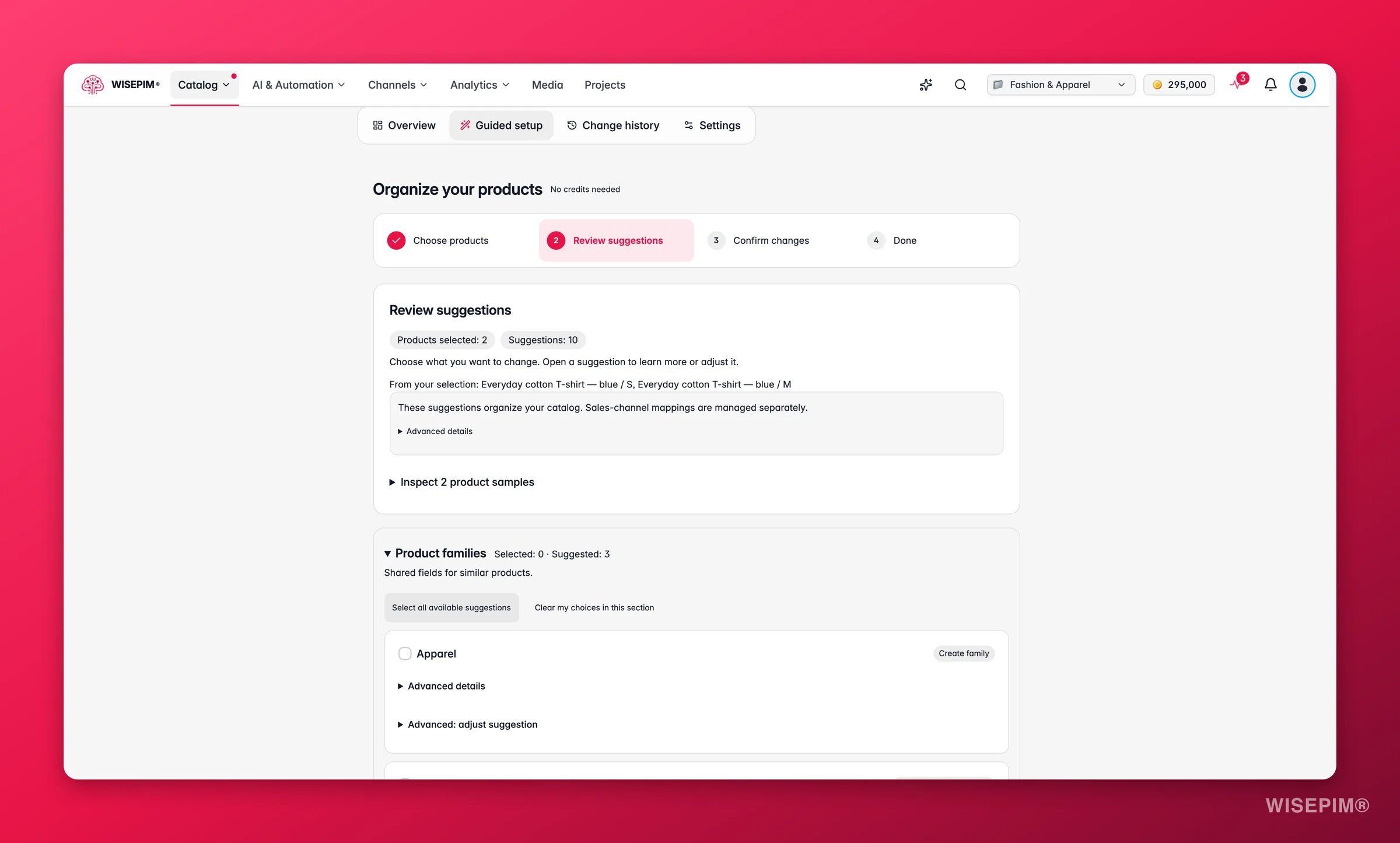
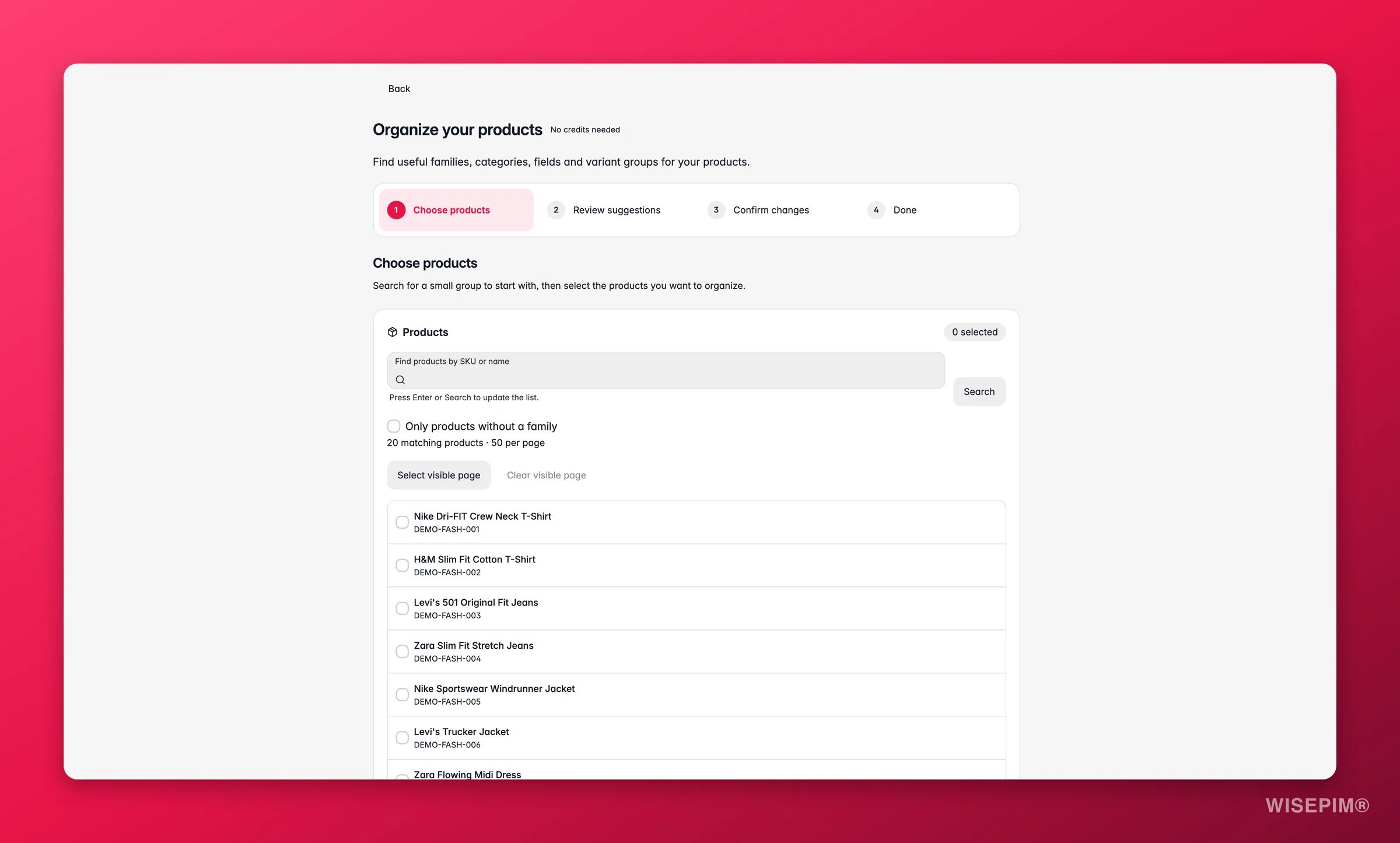
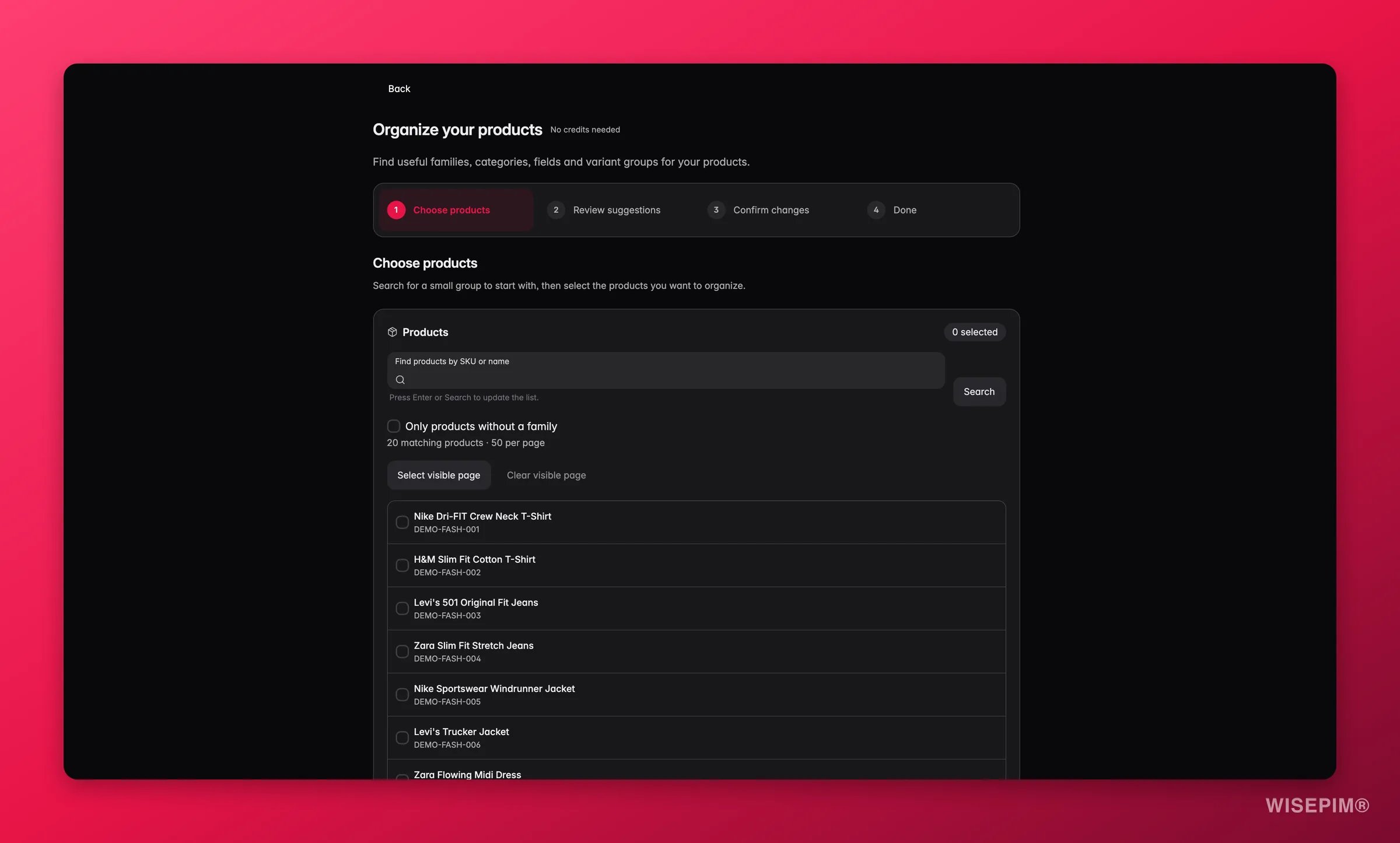
Guided setup looks at a group of products you pick and suggests families, fields, categories and variant groups for them. It runs on fixed rules, not AI, so it is free. The page says No credits needed.1
Choose products
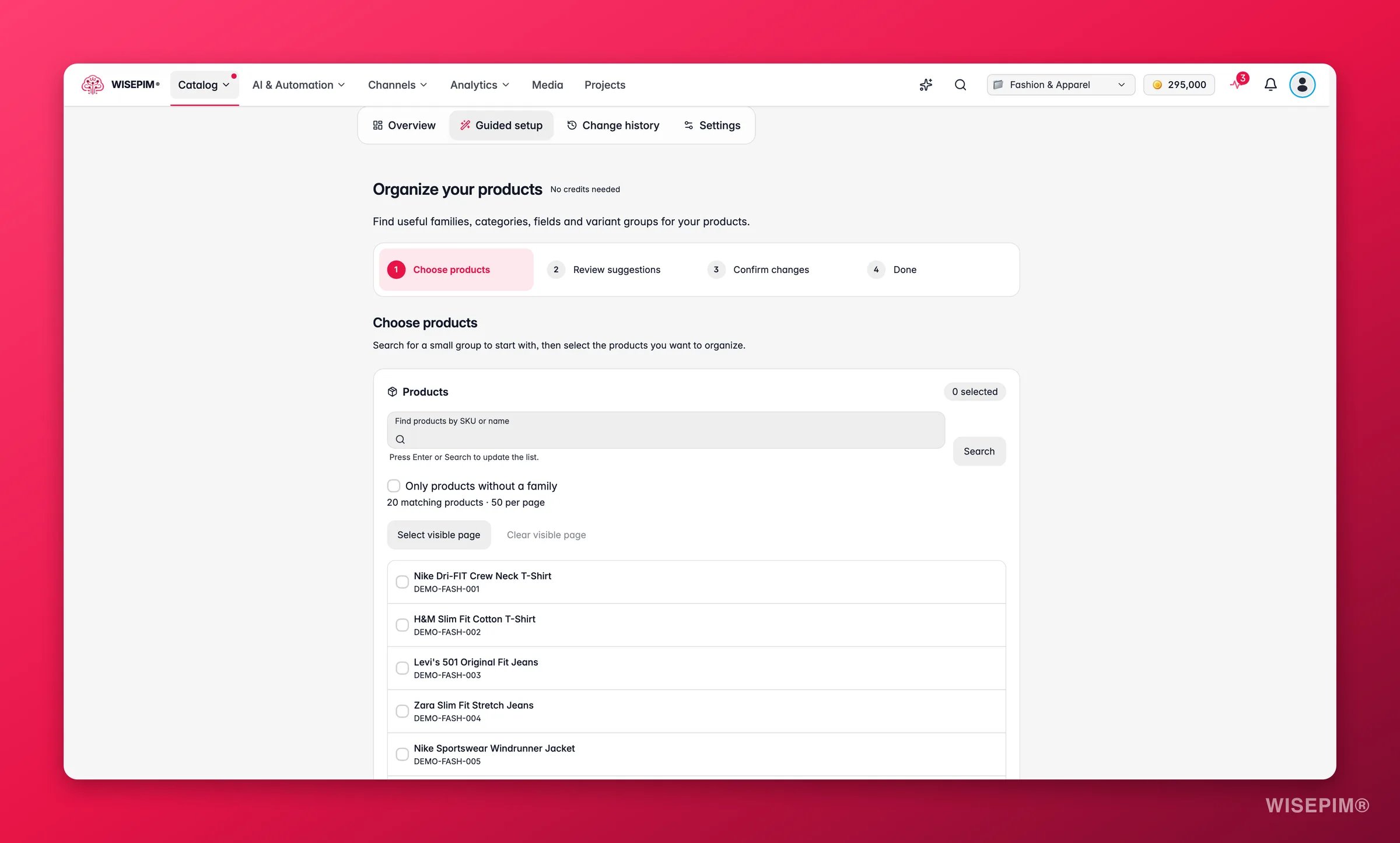
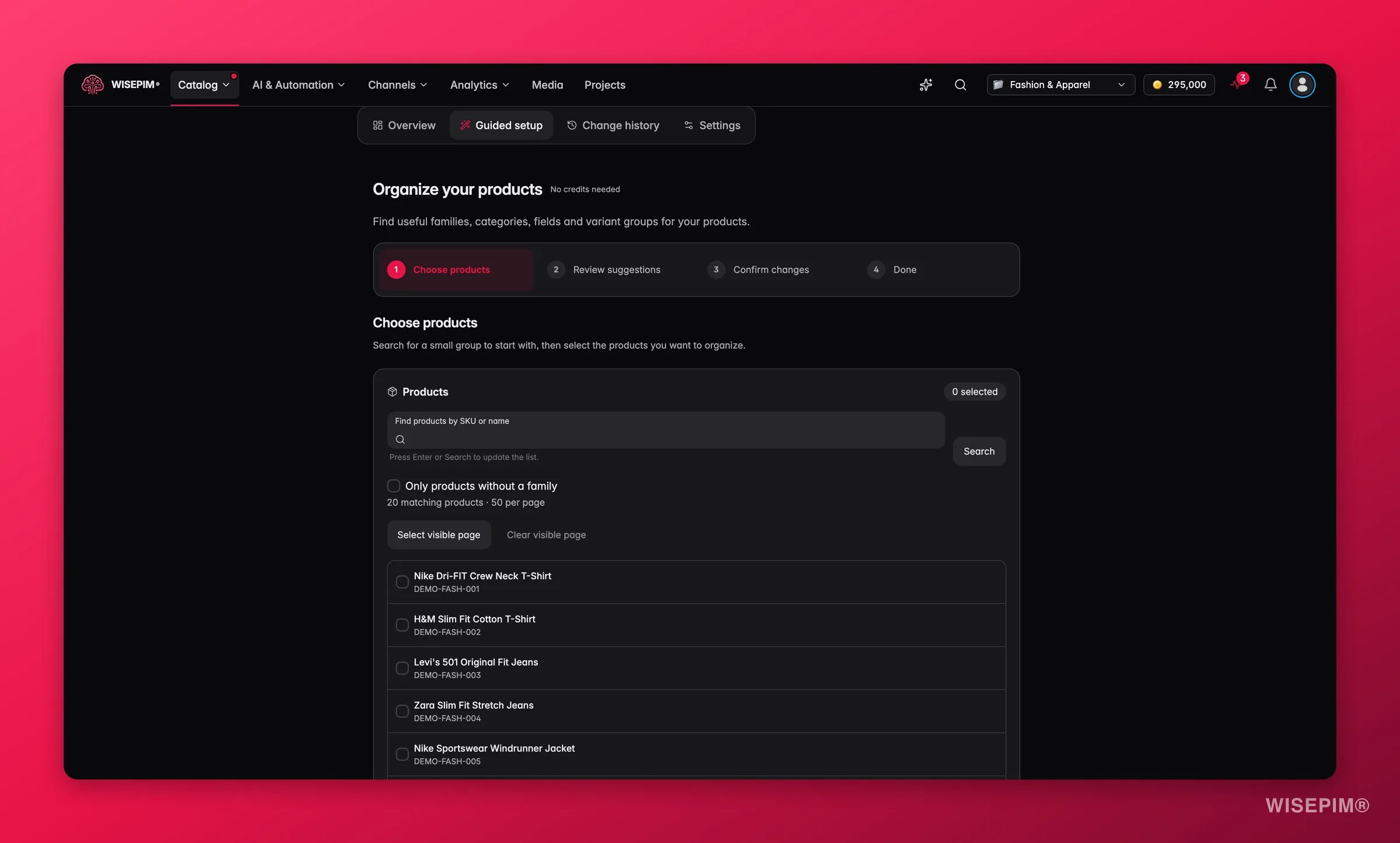
- What should we look at?: Product families, Product fields, Categories and Variant groups.
- Use an industry guide (Fashion, Beauty, Electronics, Furniture, Hardware or Food) or Choose automatically from my products.
- Prepare reusable setup without selecting products, to build families and fields without assigning or grouping anything.
2
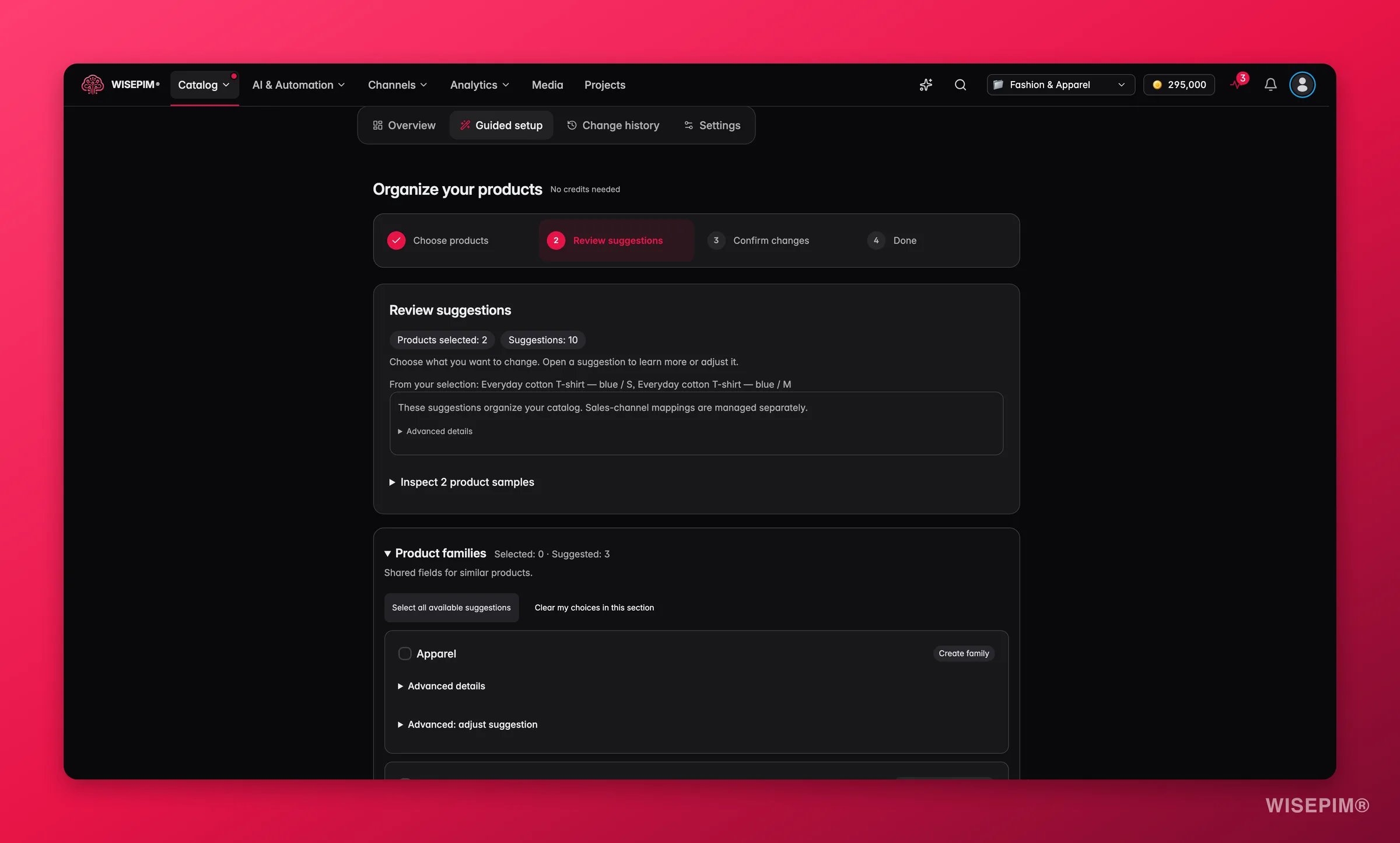
Review suggestions
3
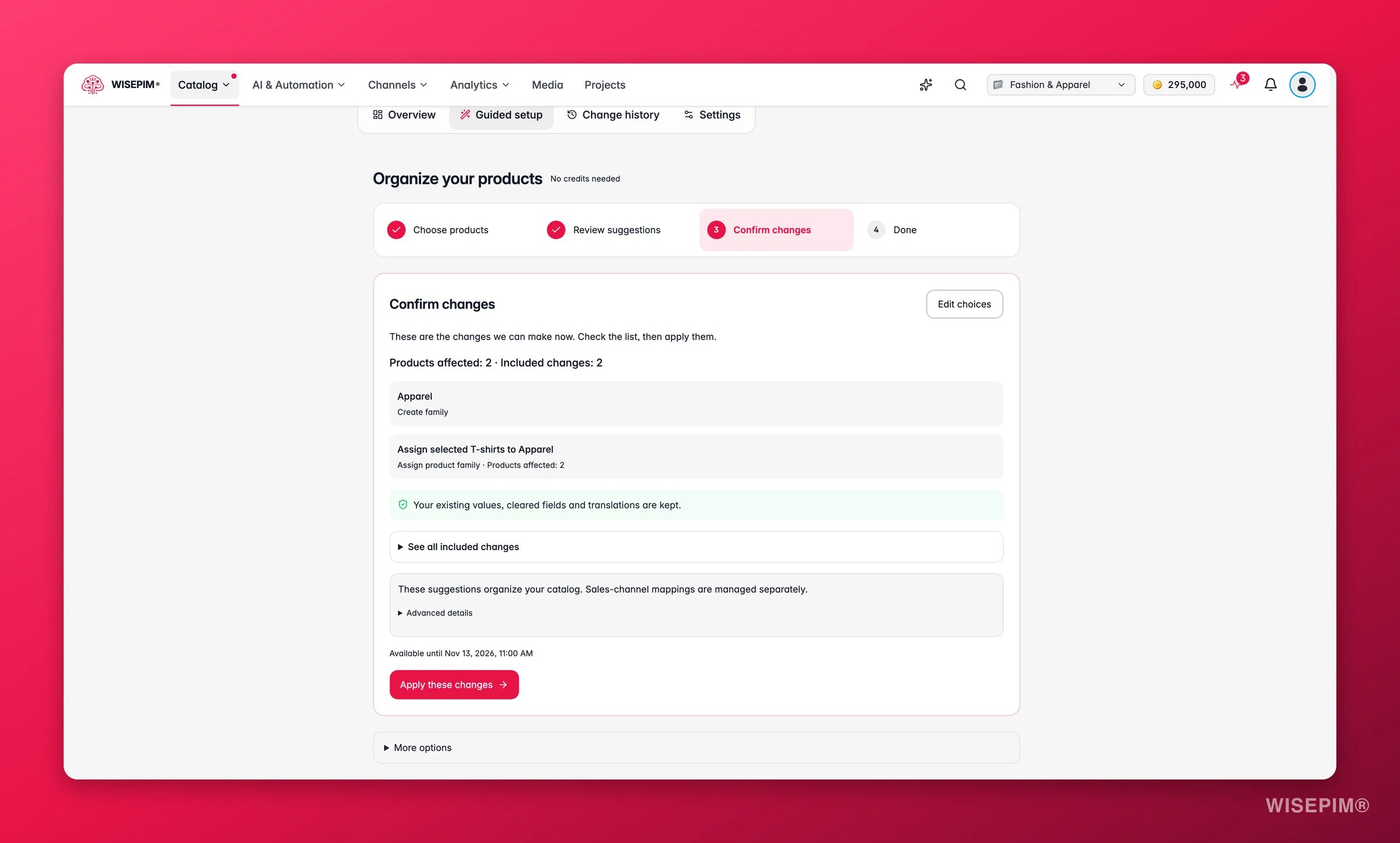
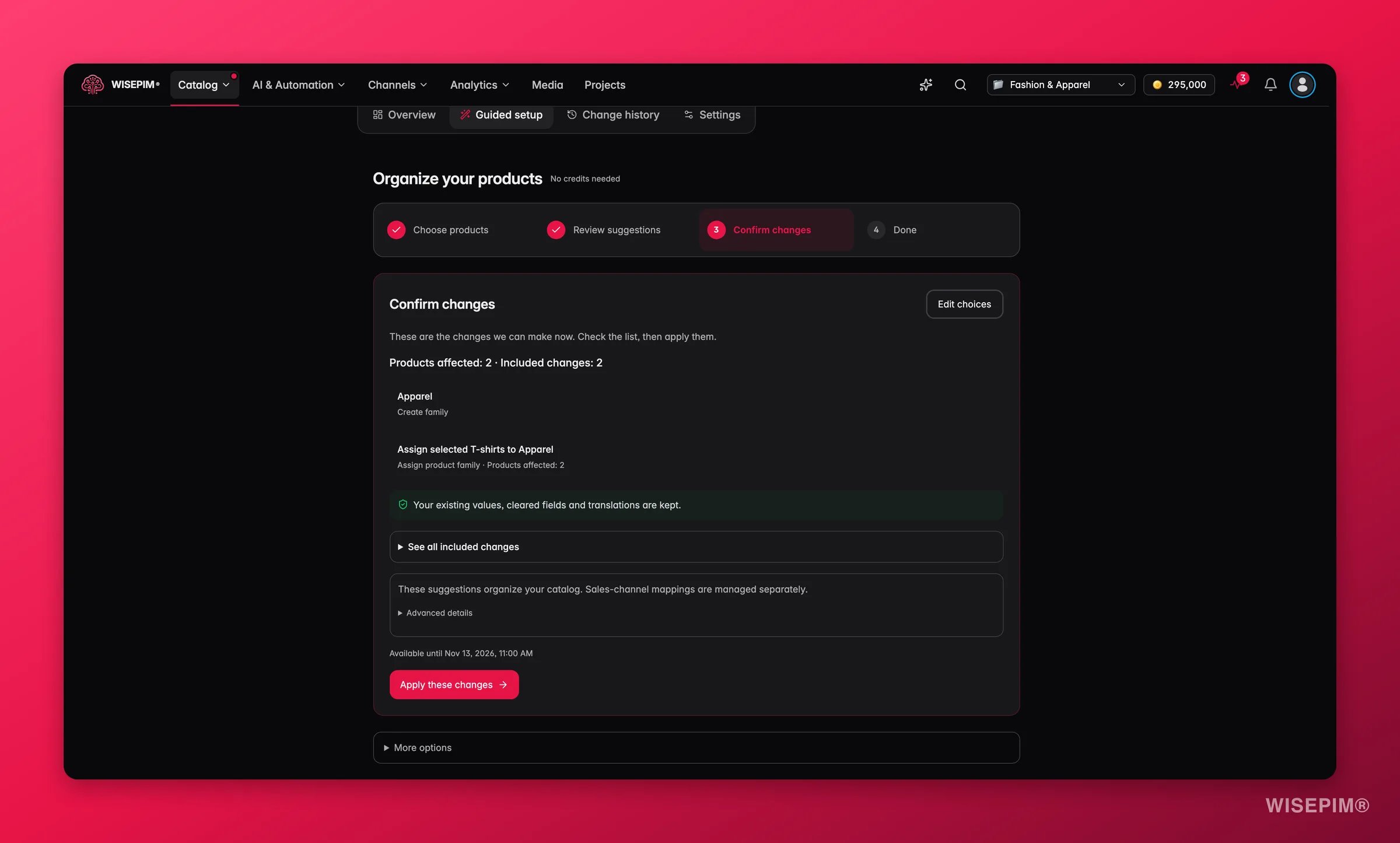
Confirm changes
4
Done
WISEPIM confirms “The reviewed changes were applied.” Under More things you can do you can View products, Check channel requirements or Review missing fields.Changed your mind? Check undo options shows what can still be undone, and Undo eligible changes restores it. Undo works while the saved changes are unchanged and still kept; later edits or published variant groups can block it.
You can select up to 500 products per guided setup. It uses no credits.
From onboarding
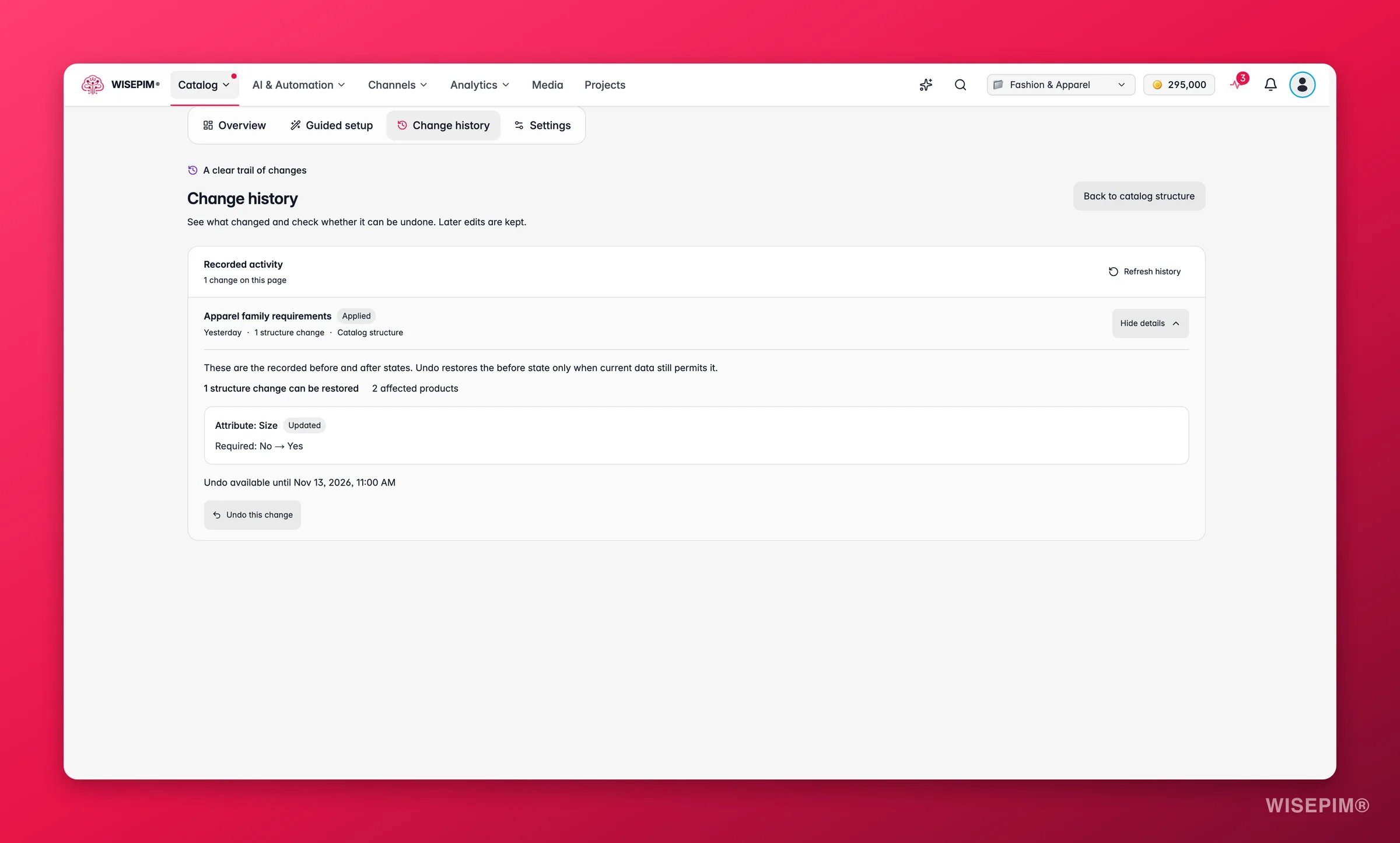
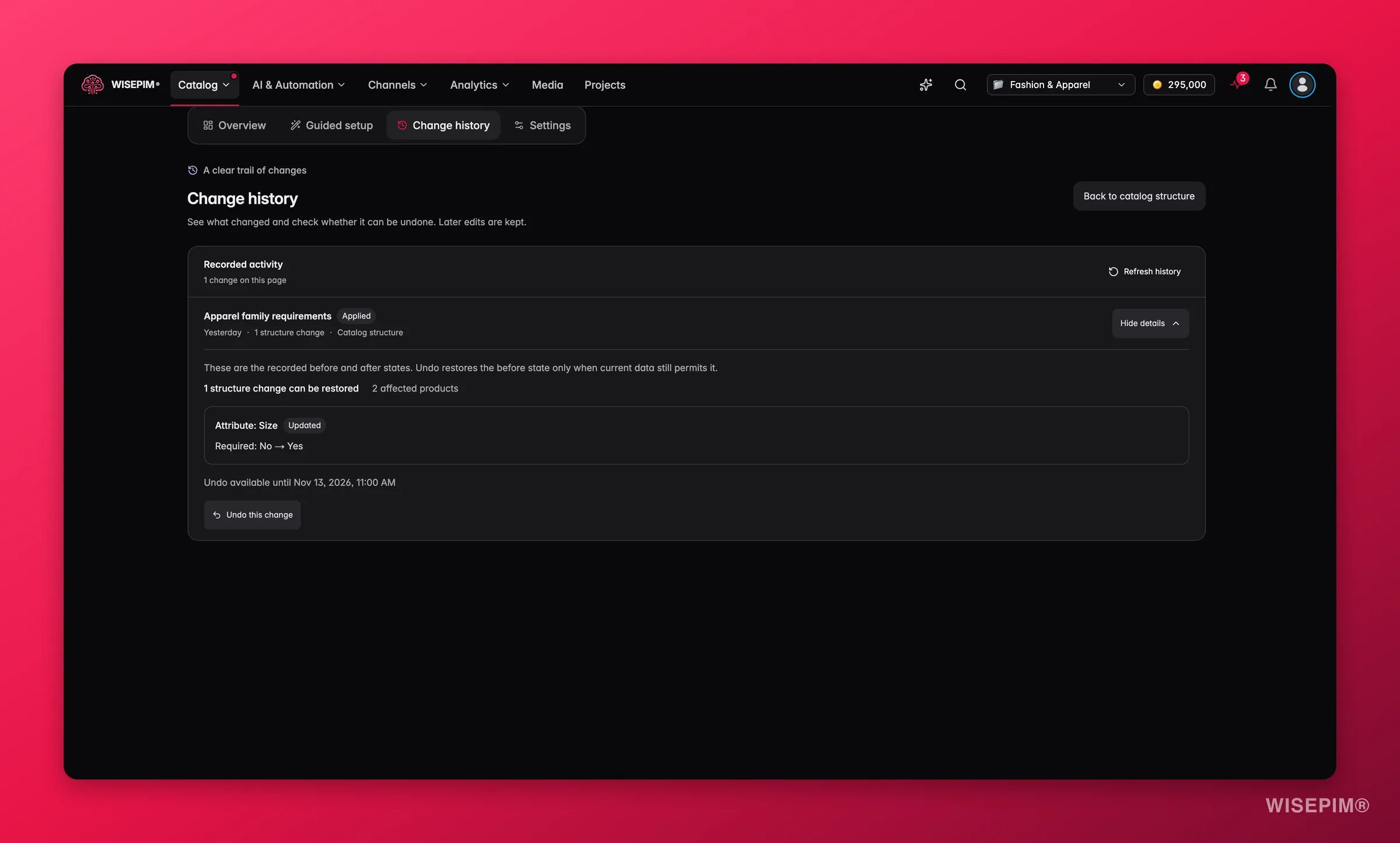
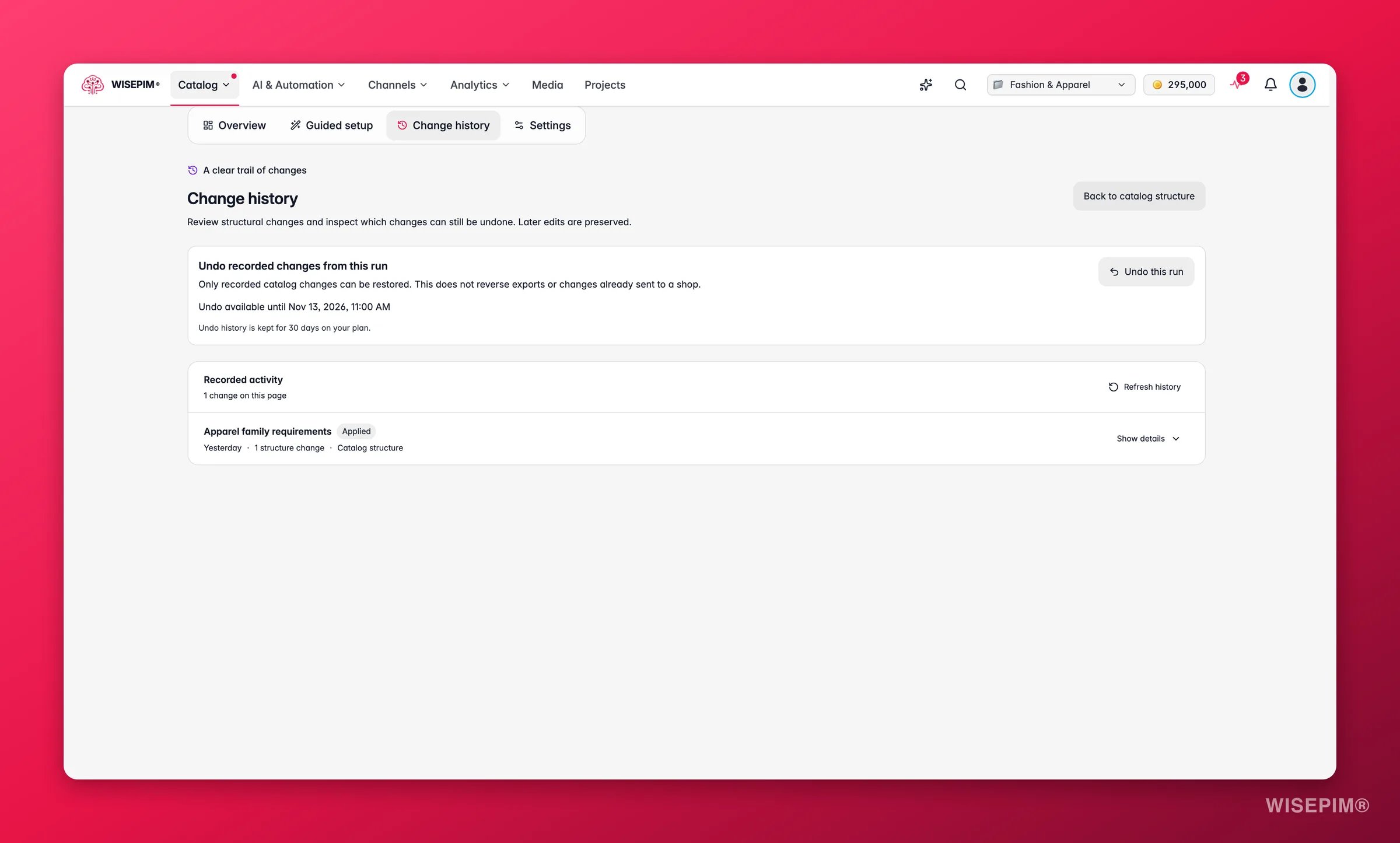
Change history
Undo a change
1
Open the details
Click Show details on the entry. The line Undo available until shows the deadline.
2
Undo
Click Undo this change, then confirm Undo this structure change?.
3
Check the outcome
WISEPIM checks the current values again before restoring. Newer edits are kept and reported as conflicts, so the result can be a partial restore.
Family runs
How long undo is available
Undo is available on every plan. How long depends on your plan: from 1 day on the free plan up to 90 days on Enterprise. The run view says it exactly, for example “Undo history is kept for 30 days on your plan.”, and every entry shows its own Undo available until date. Expired history is cleaned up automatically.Act on what you find
Many products have no family
Many products have no family
If your shop works mainly with categories, you may not need families: set Use attributes from to Categories in Attribute Scope Settings. Otherwise run Guided setup with Only products without a family ticked, or select products and use Bulk edit > Assign product family.
Variant groups need options
Variant groups need options
Click Choose variant options on the Start here card, or open a parent product and set its options on the Relations tab. See Product Variants.
A guided setup made a mess
A guided setup made a mess
Go to Change history, open the entry from Guided setup and undo it. Changes you made by hand afterwards are kept.
You see suggestions waiting in the Review inbox
You see suggestions waiting in the Review inbox
Structure and family suggestions from AI wait in the Review Inbox under Structure and Families. Review them there.
Related
Attribute Scope Settings
Choose whether attributes come from families, categories or both.
Product Families
Create families and the fields their products share.
Managing Product Categories
Build your category tree and set default families.
Managing Product Attributes
Create the fields your products store.
Product Variants
Parents, variants and variant options.
Review Inbox
AI suggestions waiting for your approval.
Catalog Jobs
Guided jobs that fill gaps, fix images and group look-alikes.
Appearance Settings
Switch between the Stable and Experimental interface.