

Documentation Index
Fetch the complete documentation index at: https://docs.wisepim.com/llms.txt
Use this file to discover all available pages before exploring further.
Overview

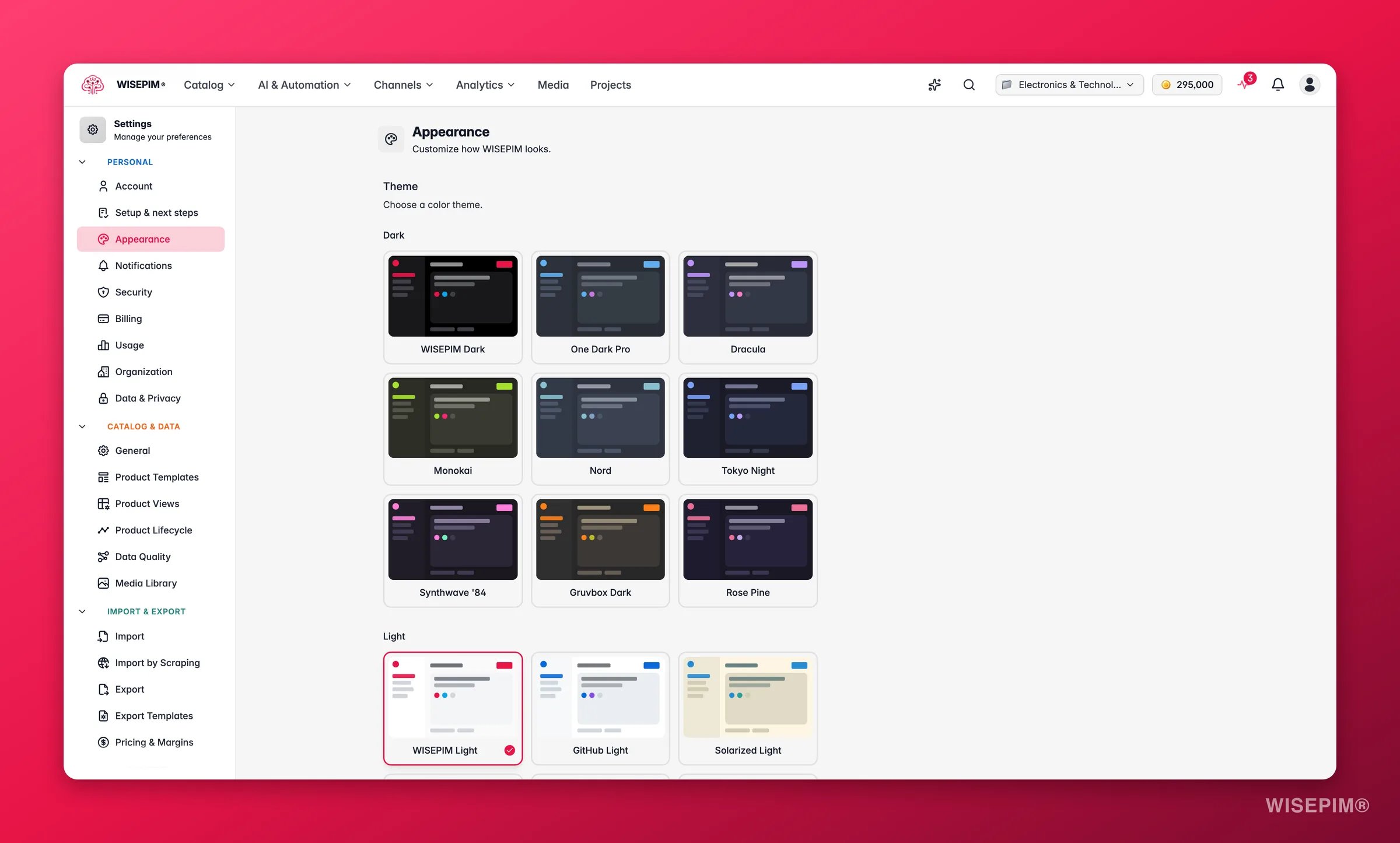
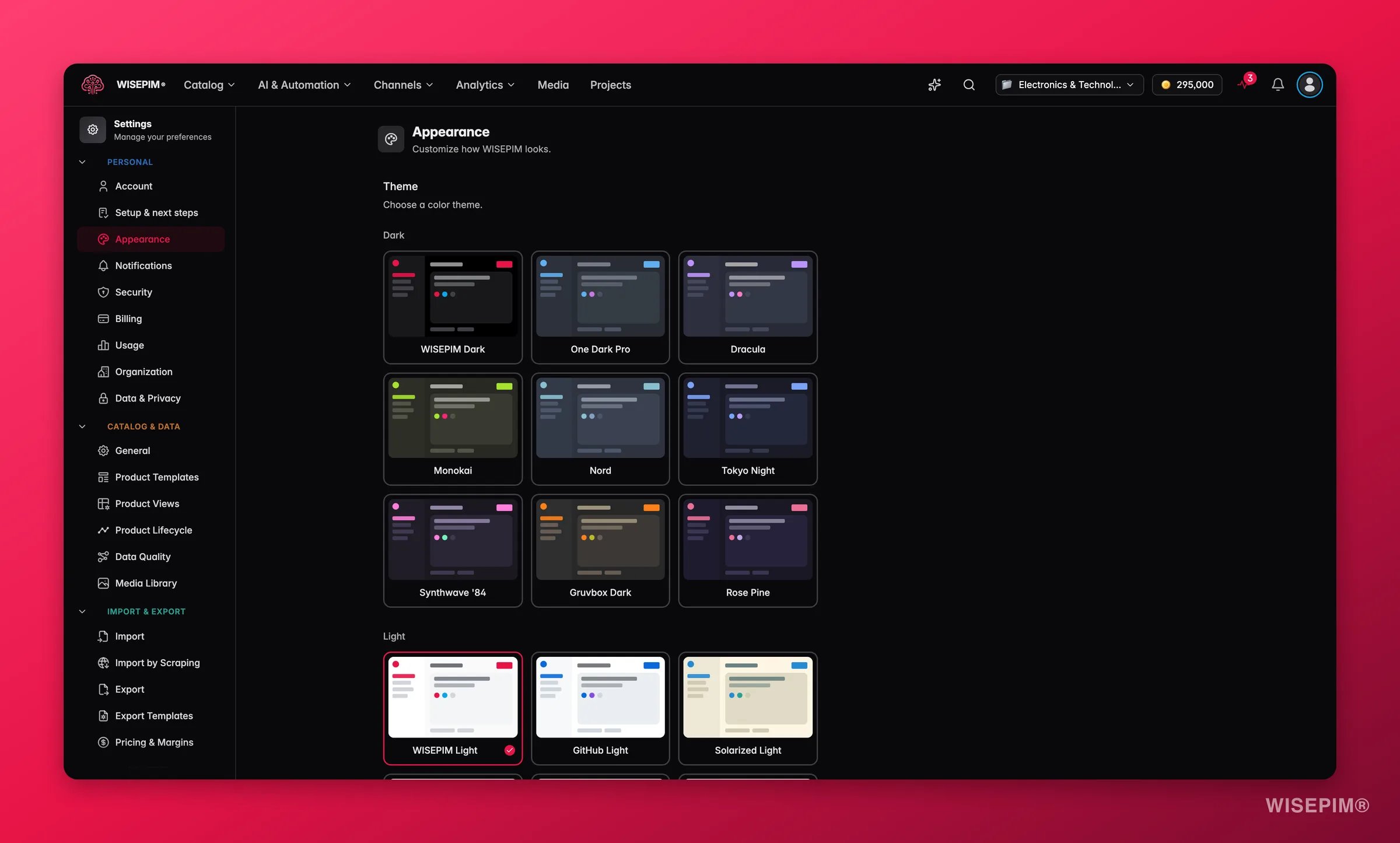
Choosing a Theme
WISEPIM ships with multiple dark and light themes. Select any theme card to apply it instantly — no save action required.Dark Themes
| Theme | Description |
|---|---|
| WISEPIM Dark | The default dark theme with WISEPIM brand colors |
| One Dark Pro | Inspired by the popular Atom editor theme |
| Dracula | Purple-accented dark theme |
| Monokai | Classic code editor color scheme |
| Nord | Cool, arctic-blue palette |
| Tokyo Night | Calm, blue-tinted dark theme |
| Synthwave ‘84 | Vibrant retro neon colors |
| Gruvbox Dark | Warm, earthy dark tones |
| Rose Pine | Soft, muted dark theme with rose accents |
Light Themes
| Theme | Description |
|---|---|
| WISEPIM Light | The default light theme with WISEPIM brand colors |
| GitHub Light | Clean, GitHub-inspired light theme |
| Solarized Light | The classic Solarized palette in light mode |
| Dutch Orange | Light theme with warm orange and blue accents |
| Atom One Light | Light counterpart to the One Dark Pro theme |
| Rose Pine Dawn | Soft, warm light theme with rose accents |
Font Size
Adjust the interface font size to your preference:- Small — 14px
- Medium — 16px
- Large — 18px (default)
Additional Preferences
Translucent UI
Toggle this option to enable transparency effects on UI elements like the sidebar and modal dialogs. This creates a frosted-glass aesthetic.Pointer Cursor
When enabled, the cursor changes to a pointer when hovering over interactive elements. Disable this if you prefer the default cursor behavior.Appearance preferences are saved locally and apply immediately. They persist across sessions on the same browser.

