

Update your profile
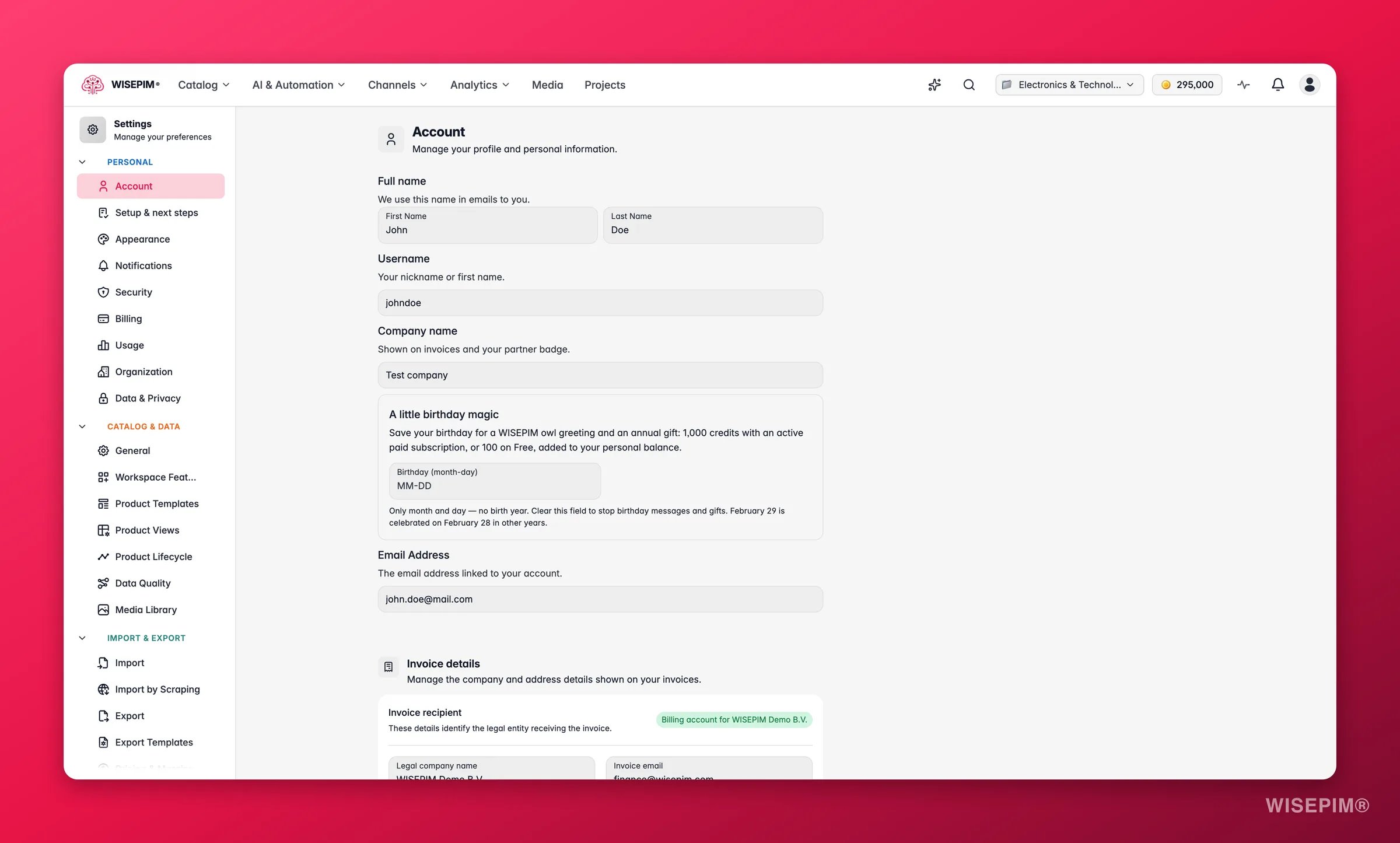
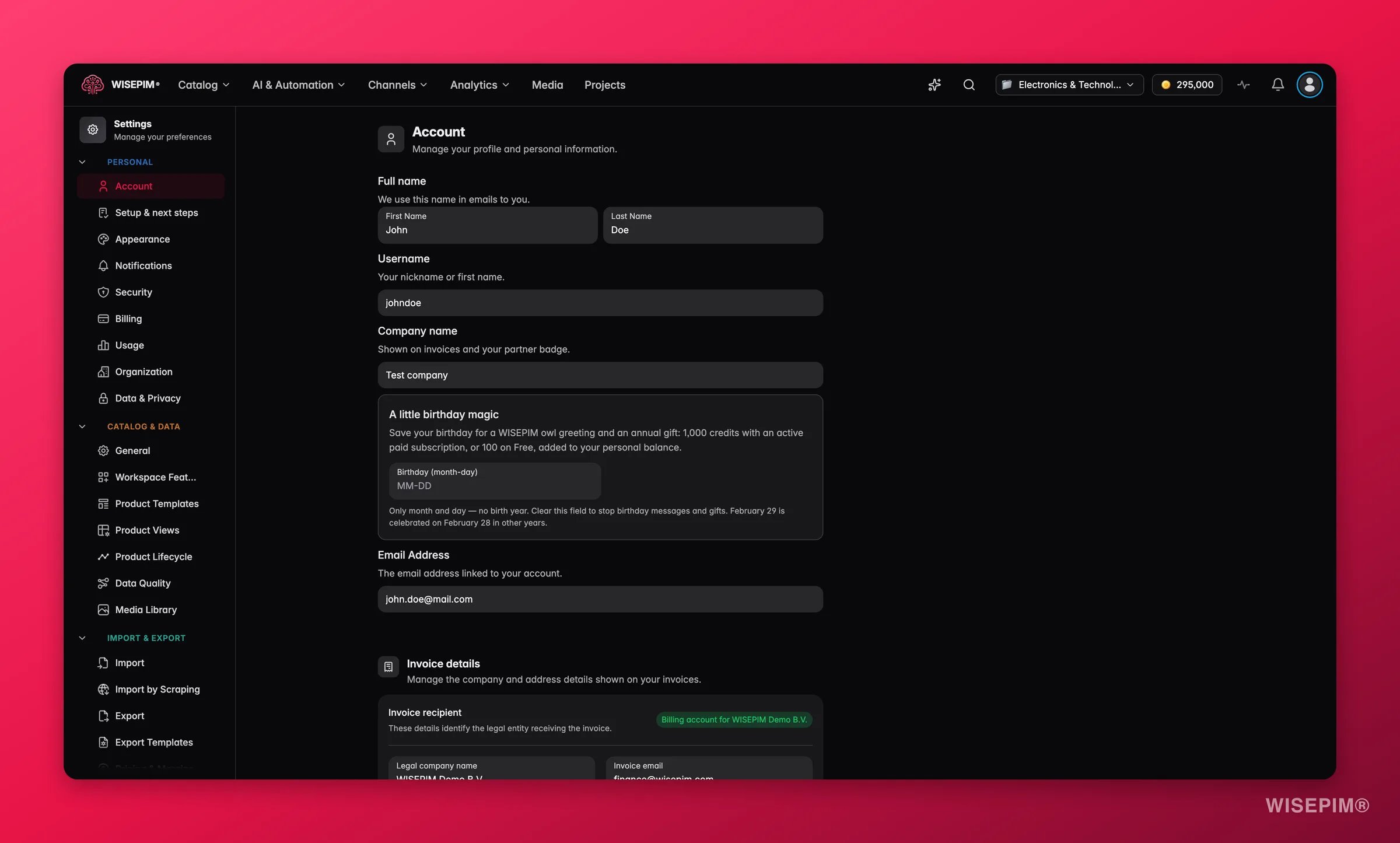
1
Open Account settings
Go to Settings > Account, or click the Account card on the Settings hub.
2
Edit your name
Update your First Name and Last Name. This name appears in emails and anywhere your identity is shown in the platform.
3
Update your email
Change the Email Address field. This is also your login, so make sure you can access the new inbox first.
4
Save your changes
A save bar appears at the bottom of the page when you have unsaved edits. Click Save to keep them, or Undo to revert.
Fields reference
Your username comes from your email address, so you cannot change it on its own. When you update your email, your username updates with it.
Related
Security
Change your password, set up two-factor authentication, and review active sessions.
Notifications
Choose which updates reach you by email, in your browser, or with a sound.
Appearance
Pick a theme, set the font size, and tune the interface to your taste.
Settings overview
Browse every personal and project setting in one place.