

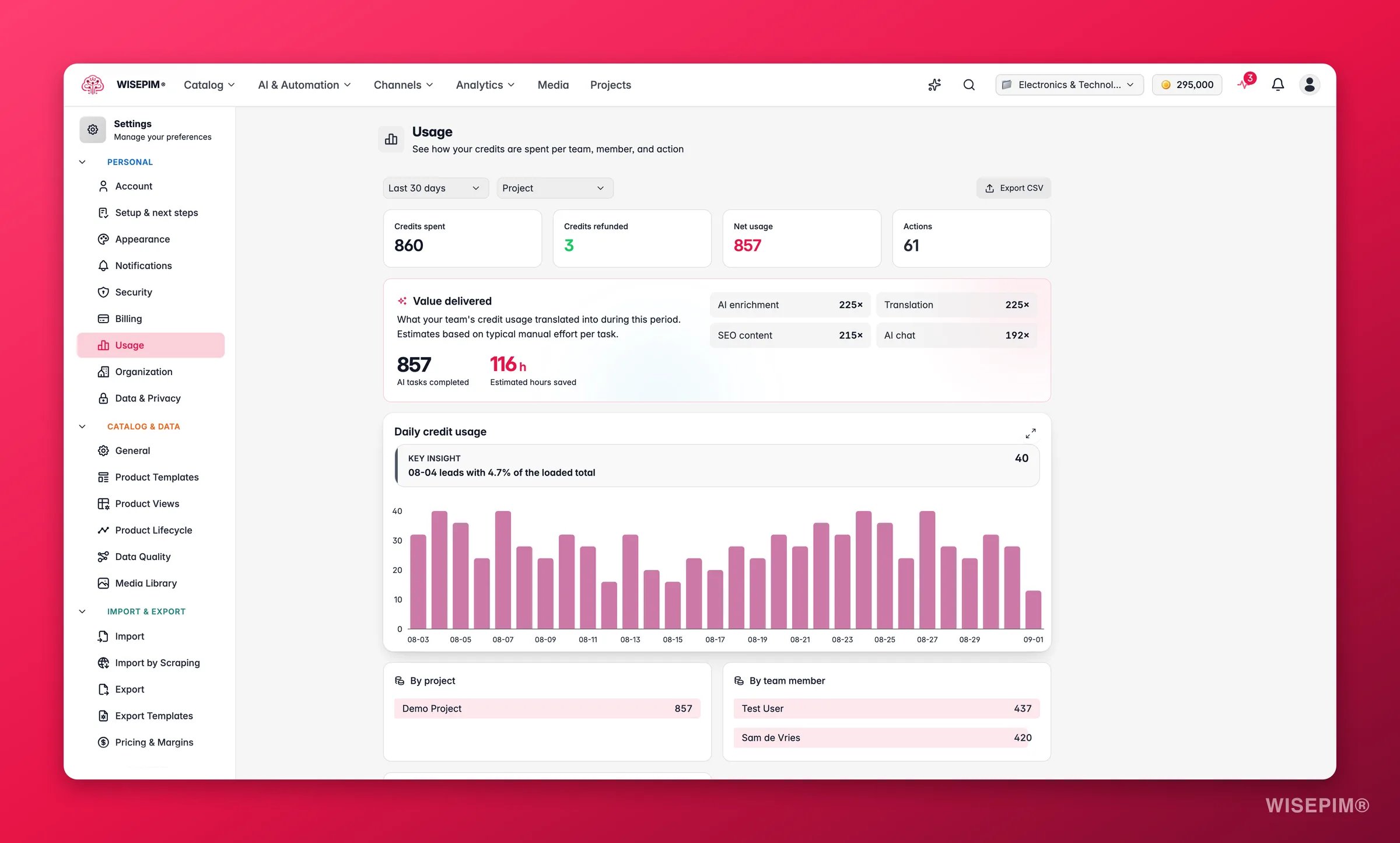
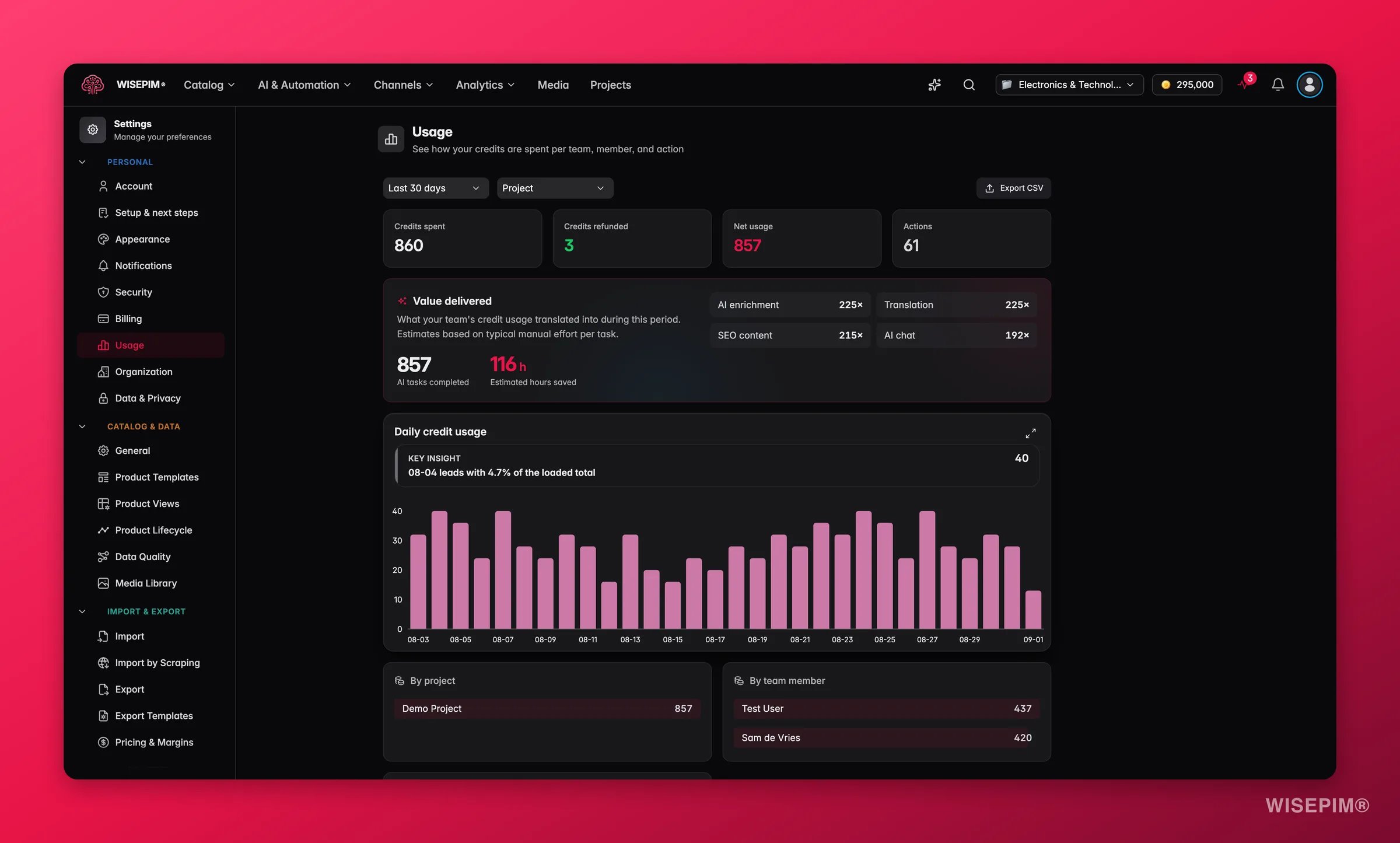
Pick a period and a grouping
Two controls at the top drive everything below them:- Date range: Last 7 days, Last 30 days, Last 90 days or Last year.
- Group chart by: Project, Member, Action or Organization. This decides how the daily chart is stacked.
Read the totals
Four tiles summarize the period:Value delivered
The Value delivered card turns the same numbers into work done: how many AI tasks completed and an estimate of the hours you did not spend doing them by hand. Each task type is weighted by the time it typically takes manually, such as writing a description or translating a product, so treat the hours as an estimate rather than a timesheet.Drill into the breakdowns
Below the Daily credit usage chart you get breakdown tables By project, By team member and By action, plus By organization when your projects belong to one. Click any row to apply it as a filter. Active filters show as chips above the chart; remove one with its close button or use Clear all. The action types you will see include AI enrichment, Bulk enrich, Translation, SEO content, Titles, Internal linking, Image alt text, Categorization, Web research, Search intent, AI chat, ETIM enrichment, Image generation and Video generation.Recent activity
The Recent activity table is the raw ledger: date, action, member, project and credits for each event, paginated. Refunds are marked so you can tell a returned credit from a deduction.Spending controls
The Spending controls section lets the project owner decide who can spend the project’s credits and how much:1
Choose who can spend credits
Under Who can spend credits, pick one of:
- Owner, admins and editors (default)
- Owner and admins only
- Owner only
2
Set a monthly cap per member
The table lists every team member with their role, what they spent this month and their Monthly cap. Leave it empty for Unlimited, or enter a number of credits. Once a member reaches the cap, further paid actions are refused until the next calendar month.
3
Save
Click Save. Both the member and the project owner get a warning when a member crosses 80% of their cap.
A refused action because of a policy or cap is not the same as an empty credit balance. If a member reports “Monthly credit limit reached”, raise their cap here; if the message is about credits running out, top up under Billing.
Act on what you find
Credits disappeared faster than expected this month
Credits disappeared faster than expected this month
Set the range to Last 30 days and group by Action. A tall stack of one color usually points to a bulk run, such as Bulk enrich or Translation. Click that action to filter, then check By team member to see who started it.
You want a budget per teammate
You want a budget per teammate
Use the Monthly cap column in Spending controls. Start with a cap that covers a normal month plus some headroom. The 80% warning gives both of you time to talk before work stops.
You bill credits back to clients or departments
You bill credits back to clients or departments
Group by Project, set the range to the billing period and click Export CSV. The export carries project, member and action per event, which is enough for a chargeback line per client.
Related
Billing Settings
See your credit balance, what each action costs, and buy extra credits.
Organization Settings
Share one credit pool across projects and allocate a budget to each.
Team Management
Invite teammates and assign the roles that spending controls build on.
Process Tracker
Watch the running tasks behind the credits being spent right now.