

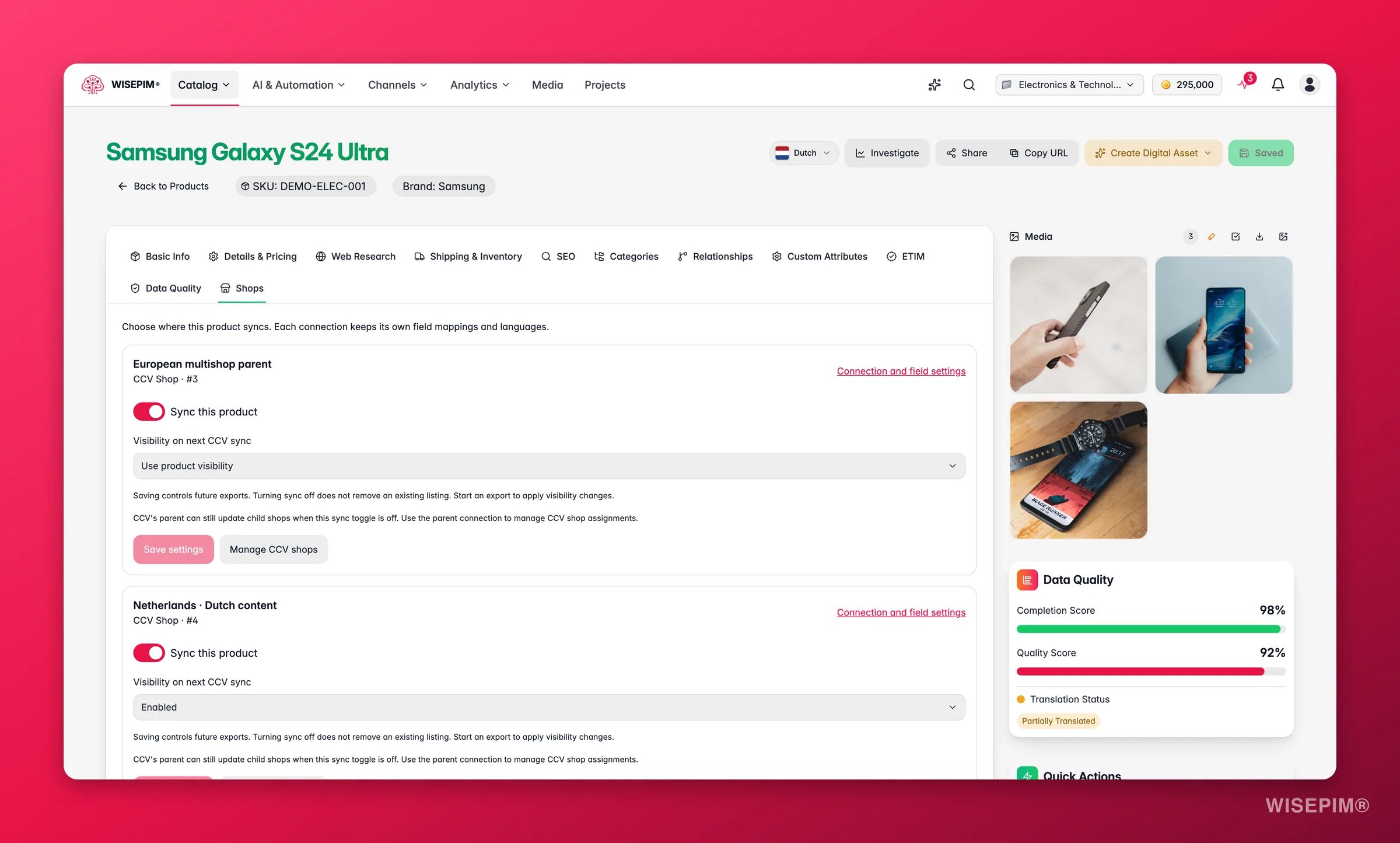
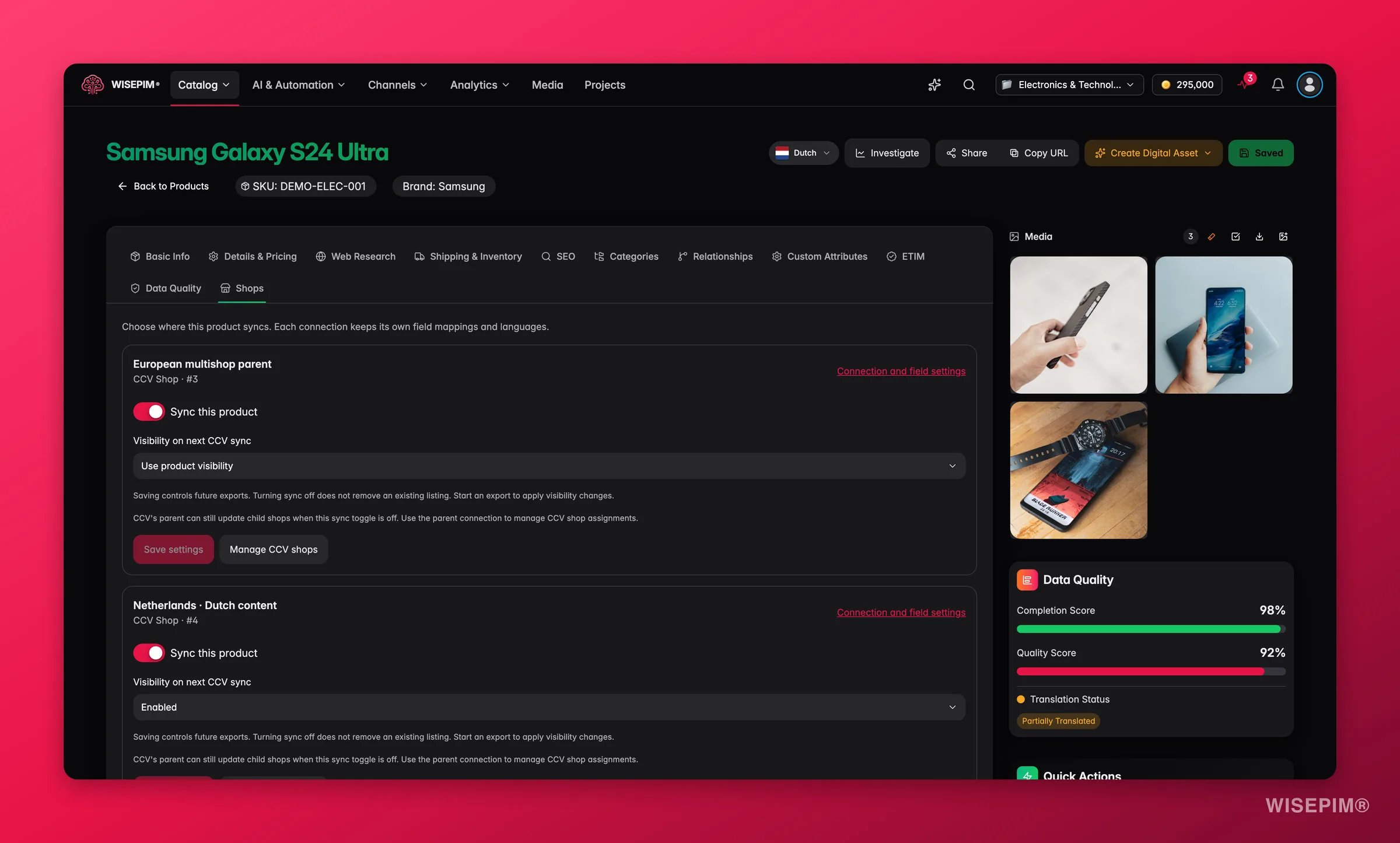
One card per connection
Every shop you have connected gets its own card, headed by the shop name with its platform and profile number underneath (“CCV Shop · #4821”). What you can set there:
Change something and Save settings lights up, next to a discard button that puts the card back the way you found it. Nothing leaves the page until you save.
If a whole connection has exports switched off, the card says so: “Export is disabled for this connection. Enable it in the connection settings to resume syncing.” Product-level sync still saves; it simply does nothing until the connection resumes.
CCV Shop and multishop
CCV Shop connections get two extras, because CCV manages shop membership on its own side. Visibility on next CCV sync takes one of three values:- Use product visibility — inherit whatever the product’s own visibility says. This is the default.
- Enabled — force the product visible in this shop.
- Disabled — force it hidden, whatever the product says.
You need the multishop parent connection
You need the multishop parent connection
“Assignments are managed by the multishop parent.” Connect the parent, not a child shop. A child or single-shop connection shows: “This connection is a child or single shop. Connect the multishop parent to manage product assignments.”
One change at a time
One change at a time
Flip one switch, read the line that appears (“Apply will assign this product to the selected CCV shop”, or the matching removal wording), then click Apply to CCV Shop. The other switches stay locked until that change is applied or undone. Other shop assignments are preserved.
CCV confirms in its own time
CCV confirms in its own time
CCV processes multishop changes through a queue, so a successful apply means accepted, not finished: “CCV Shop accepted the change. It processes multishop changes in its own queue; reload to check the result.” If a change is still unconfirmed, WISEPIM blocks the next one until you reload and check.
API access in CCV
API access in CCV
The parent connection needs
GET products/webshops and PUT webshops under CCV’s API settings. Per-shop field exceptions are set in CCV itself, under My Webshop > Settings > General > Multishop settings.Turning the product’s sync toggle off does not cut CCV’s parent out: “CCV’s parent can still update child shops when this sync toggle is off. Use the parent connection to manage CCV shop assignments.”
See destinations from the products table
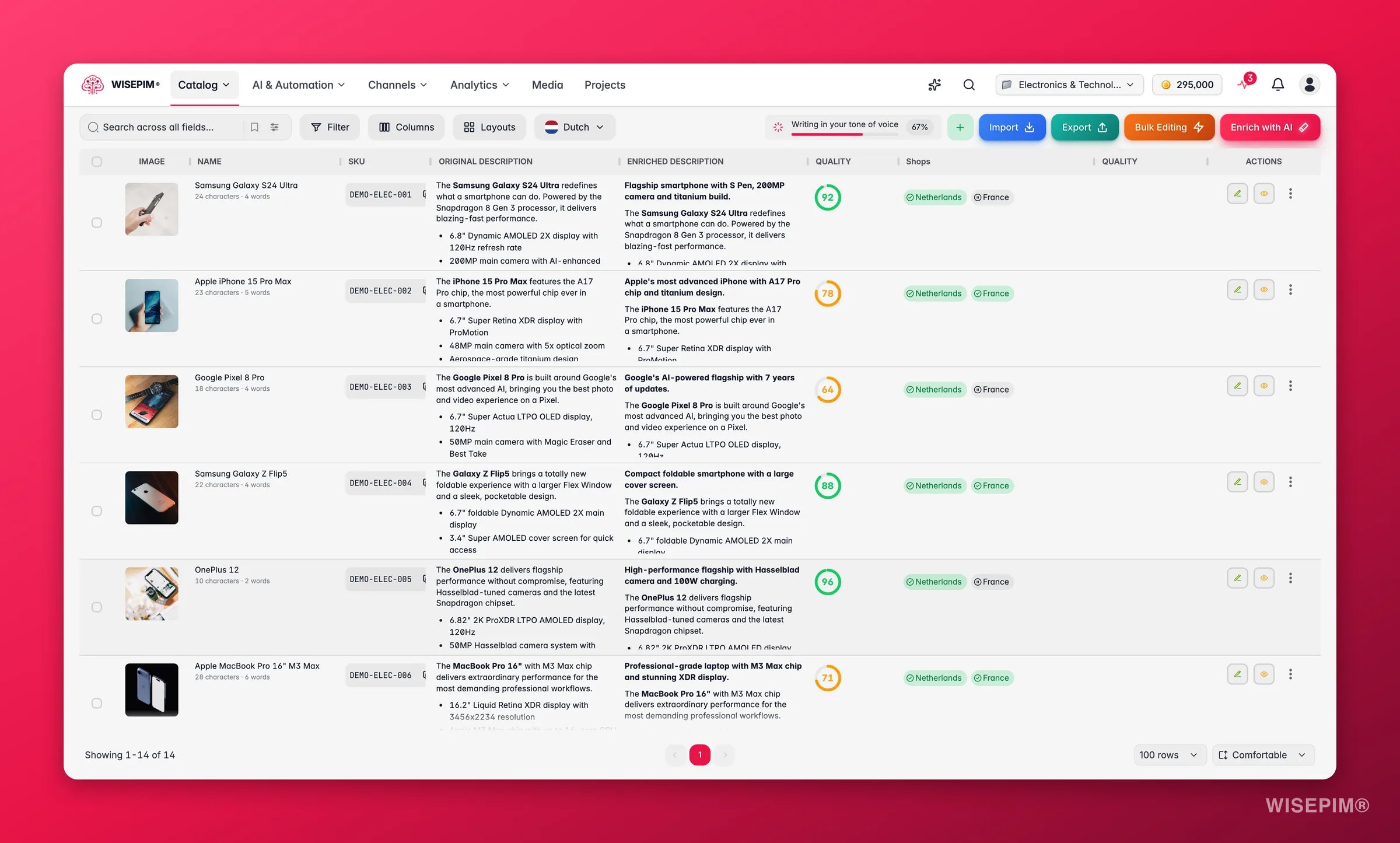
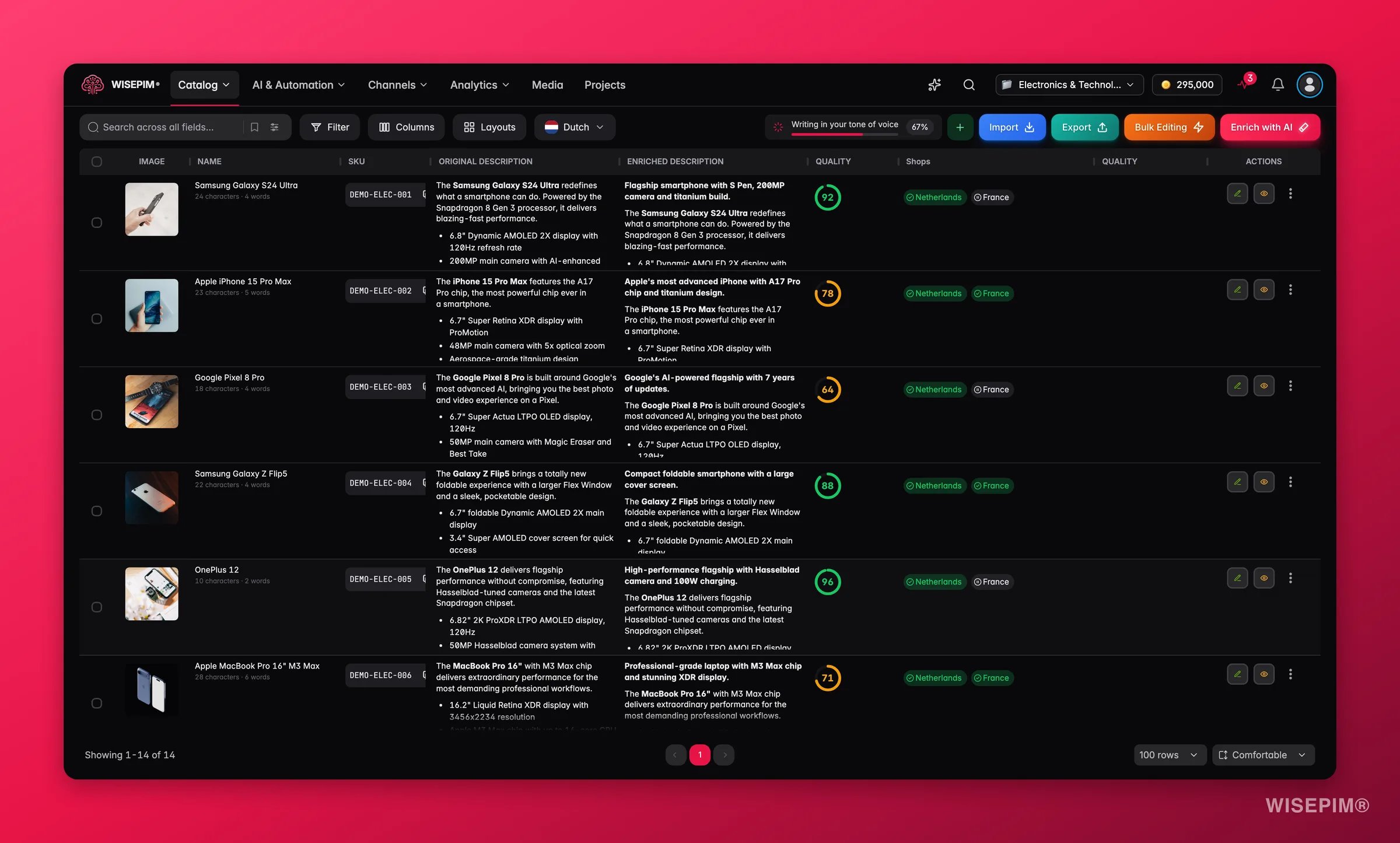
Hover a cell for the full list with each shop’s status. Click it to jump straight to that product’s Shops tab.
Who can change what
Two different permissions are at play, and the tab spells them out: “Project editors manage product destinations. Integration managers configure connections and field mappings.” So a project editor decides which products go to a shop. An integration manager decides how they get there. If you only have view access, the tab tells you: “You can view shop settings. A project editor must save changes.” If nothing is listed at all, there is nothing connected yet: “Connect a shop in Integrations to manage product destinations.”Change many products at once
Setting sync product by product gets old fast. The Shop sync bulk action sets the same choice across an entire selection, one setting per shop, leaving the shops you do not touch exactly as they were.Related
Shop sync (bulk action)
Switch sync on or off for whole selections, shop by shop.
Exporting products
Send your catalog to the shops and files that are set to receive it.
CCV Shop
Connect CCV Shop, including multishop setups.
Editing products
Everything else in the product editor, tab by tab.