

This integration is in beta. Prefer a scheduled feed file instead? The Google Shopping preset in Feed Hub generates a Merchant Center product feed you host on a URL.
Before you start
You need three things from Google:- Merchant ID: the account number shown in Merchant Center.
- Service account JSON: a Google Cloud service account key with access to the Content API. Add the service account’s email as a user on your Merchant Center account.
- Data source ID: the API data source in Merchant Center that WISEPIM should write products into.
Category mapping is optional. WISEPIM always sends your product’s own category path as
productTypes, and Google auto-categorizes listings when no Google product category is mapped.Connect Google Merchant Center
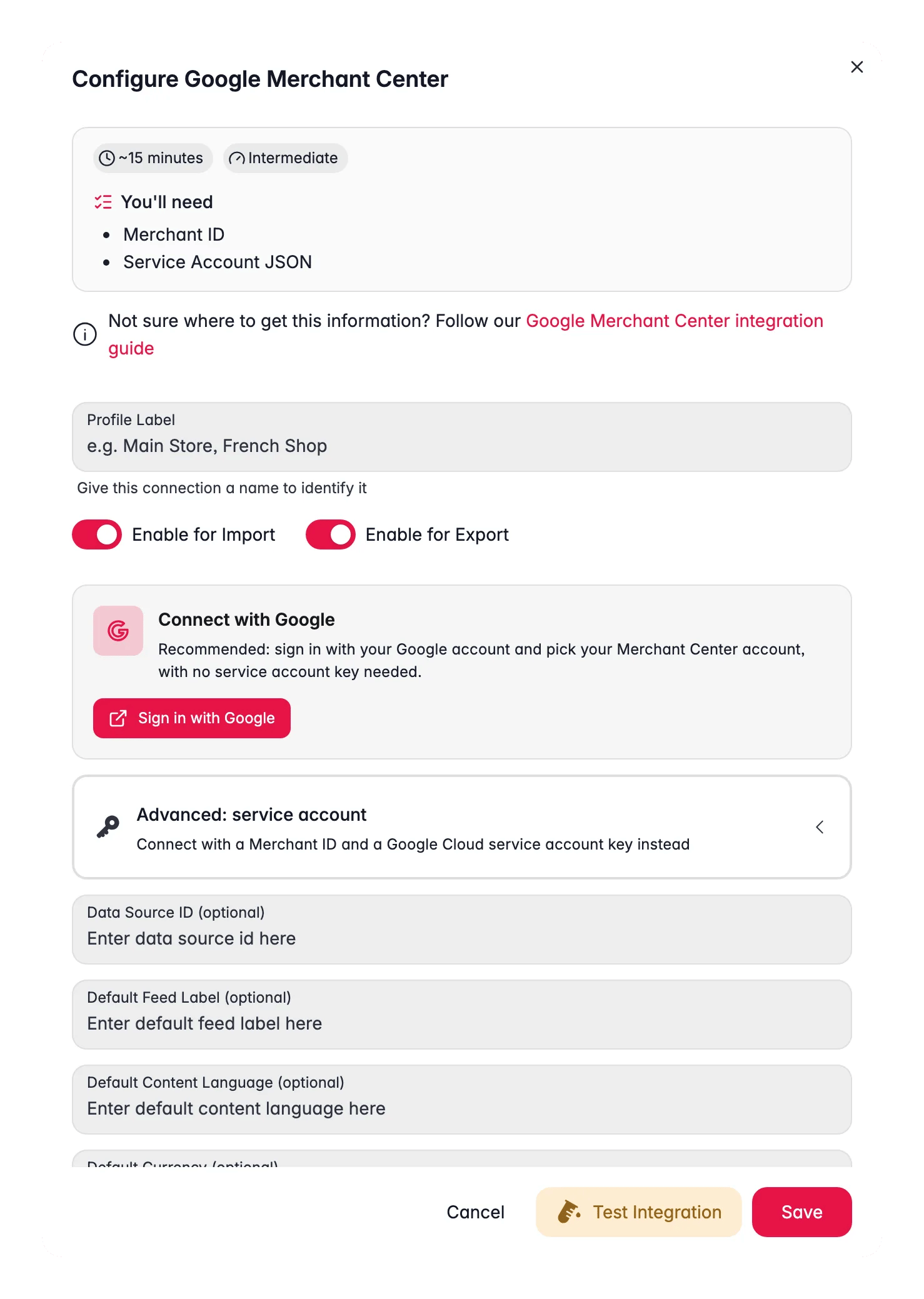
1
Open Integrations
Go to Channels → Integrations and find the Google Merchant Center card.
2
Sign in with Google
Click Sign in with Google, approve access, and choose a Merchant Center account from the list. This is the recommended path. The service-account option is still there under Advanced: fill in the Merchant ID and paste the Service Account JSON if your organisation prefers a key. Saving a key while signed in with Google disconnects the Google account.
3
Set the data source
Set the Data Source ID the products should land in.
4
Set the feed defaults
Set the Default Feed Label, Default Content Language, and Default Currency for your primary market, plus the Website URL WISEPIM should use to build product links when a product has no storefront URL of its own.
5
Map your locales
Under Locales to sync, add each project language you want to publish and set its feed target (see below).
6
Test and save
Run the connection test and save. Editing credentials or locale mappings later resets the test status, so re-test after changes.
Locale mapping: one product, many markets
For most platforms, “Locales to sync” is just a language list. For Google Merchant Center each locale is a full feed target, because Merchant Center identifies a listing by feed label and content language:
Adding a locale pre-fills sensible defaults from the language code (
de-AT becomes feed label AT with content language de), and you can edit both. Only languages configured on your project can be added. On export, WISEPIM publishes the base product to your default feed target plus a translated listing for every mapped locale, so one product covers all your markets in a single run.
What WISEPIM sends
The Attribute Mapper on the connection lets you override or disable individual fields. Computed fields such as the link, Google product category, and item group ID show as unmapped by default because WISEPIM derives them for you.
How exports run
- Bulk export: select products and export them to Google Merchant Center like any other channel, or send the whole catalog. With skip unchanged enabled, products untouched since their last export are skipped; if nothing changed, nothing is sent.
- Auto-sync: with auto-sync enabled for the project, saving a product pushes the change to Merchant Center automatically.
- One export at a time: starting a second bulk export while one is running is rejected with a clear message; wait for the running export to finish.
- Quality Guard runs first: products blocked by your Quality Guard rules are recorded as blocked, not exported.
Deletions propagate
When auto-sync is on, deleting a product in WISEPIM also removes its listing from Merchant Center, across every mapped locale. This covers single deletes, bulk deletes, and SKU renames (the old SKU’s listing is removed and the new one is created). A listing that is already gone counts as success. Two boundaries to know:- Projects that export manually get no automatic deletes. Deletion propagation follows the same auto-sync switch as exports, so a manually-exporting project is never surprised by automatic removals.
- If a deletion cannot be delivered, the product in WISEPIM is still deleted; the Merchant Center listing then expires on its own after Google’s standard 30-day window instead of being removed promptly.
Sync health and run history
The integration’s detail page shows a Sync health section once you have a connection:- Connection health per store: Healthy, Degraded (temporary failures, retried with an automatic cool-down), Authentication failed (reconnect or fix the service account), or Temporarily disabled.
- Recent export runs: the last 10 runs with status (success, partial, error, running), start time, duration, row count, and the first error when something failed. A partial run means some products succeeded and some did not, for example
12 of 500 products failed to export.
Drift scanning: what Google actually serves
Every night at 05:15 WISEPIM reads your listings back from Merchant Center and compares them with what the exporter would send. When the title, price or availability Google serves differs from your product, you get a Channel drift alert in the alert feed with both values side by side and a probable cause. Re-export the product or fix the channel value, and the alert resolves on the next scan. The scan covers projects with a successful export in the last 14 days, up to 500 products per profile and 5 profiles per project. It never runs while an export is in progress. See Integration Health for the full read.Troubleshooting
Products are skipped with 'missing required fields'
Products are skipped with 'missing required fields'
The error names the exact fields, for example
missing required fields: title, link. Fill the missing values (or map them in the Attribute Mapper) and export again. Channel Readiness shows required-field coverage before you export.A product exported without its GTIN
A product exported without its GTIN
The GTIN failed GS1 check-digit validation, so WISEPIM omitted it rather than trigger a Merchant Center disapproval. Correct the barcode value on the product. If the product genuinely has no GTIN, set a brand and MPN instead.
Export rejected: an export is already running
Export rejected: an export is already running
Only one bulk export per project runs at a time. Wait for the current run to finish, then start the next one. Automatic single-product pushes are not affected by this limit.
The connection shows 'Reconnect'
The connection shows 'Reconnect'
The Google sign-in expired or was revoked. Exports pause until you click Reconnect and sign in again, or add a service-account key under Advanced. Disconnecting on purpose has the same effect.
Health shows 'Authentication failed'
Health shows 'Authentication failed'
Google rejected the credentials. Check that the service account key is valid and that its email is still a user on the Merchant Center account. After rotating a key, allow a few minutes for the new key to take effect everywhere.
A run finished as 'partial'
A run finished as 'partial'
Some products failed while others succeeded. Open the run in Sync health for the first error, fix the cause, and re-export; with skip unchanged on, only the affected products are re-sent.
Deleted products still show in Merchant Center
Deleted products still show in Merchant Center
If the project exports manually (auto-sync off), deletions are not propagated by design; remove the listings in Merchant Center or via a fresh export scope. If auto-sync is on and a delete could not be delivered, the listing expires on its own after Google’s 30-day window.
Related
Feed Hub
Prefer a feed URL? Generate a Google Shopping feed instead.
Exporting Products
Push products to any connected channel in a few clicks.
Quality Guard
Block incomplete products from reaching your channels.
Launch on a channel without rejections
Go from a fresh connection to an approved channel without a rejection queue.