

You need admin access to your WordPress site and a WISEPIM account with an active project.
Create an Application Password in WordPress
1
Open your profile
Log in to your WordPress admin. Go to Users > Profile (or edit the user you want WISEPIM to act as).
2
Find Application Passwords
Scroll down to the Application Passwords section.
3
Add a new password
Enter a name like WISEPIM and click Add New Application Password.
4
Copy the password
Copy the generated password now (the spaces are fine to keep). It is only shown once.
Add your credentials to WISEPIM
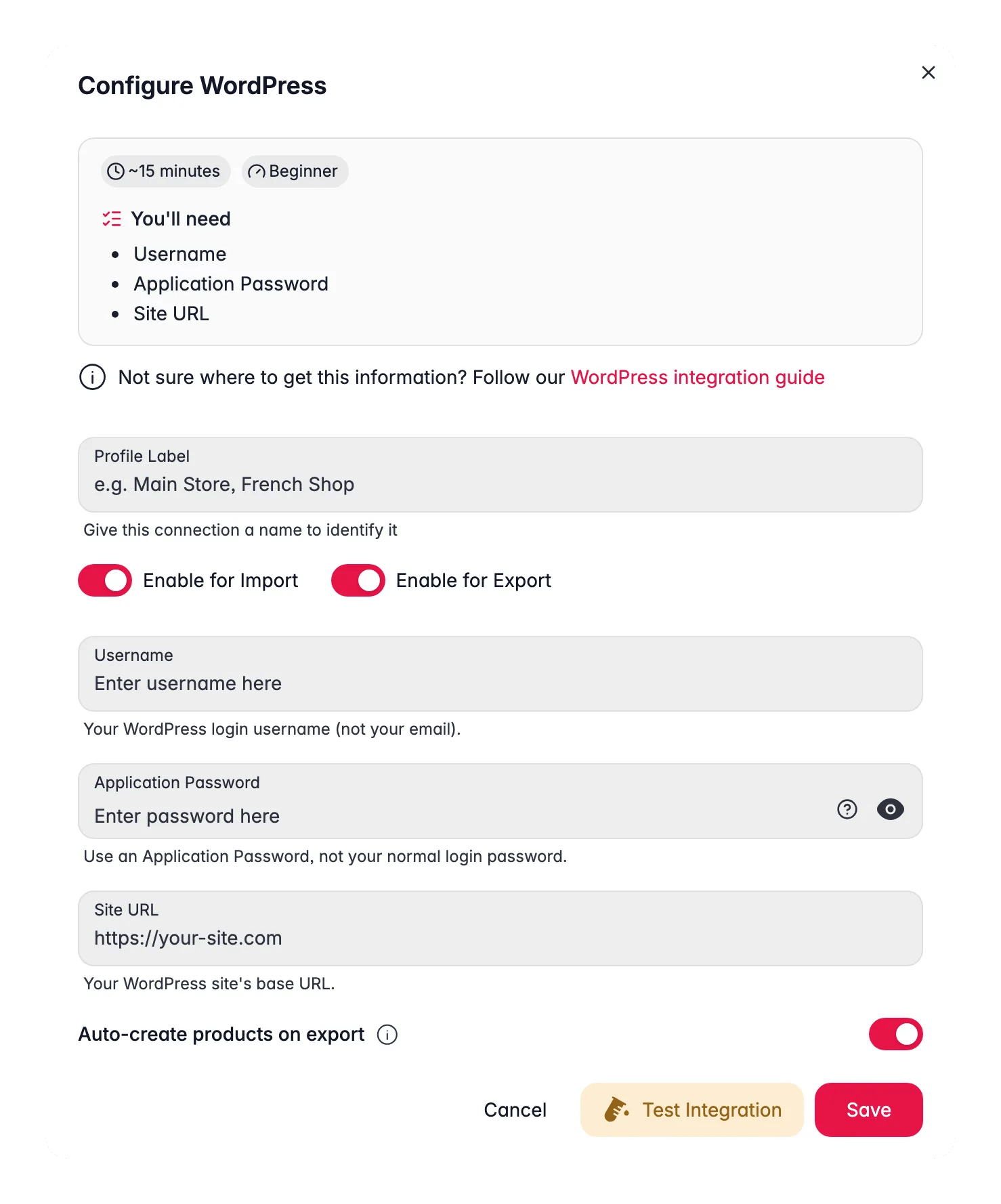
Enter the values from WordPress to finish the connection.1
Open Integrations
Log in to WISEPIM and go to Settings > Integrations.
2
Select WordPress
Find and click the WordPress integration tile.
3
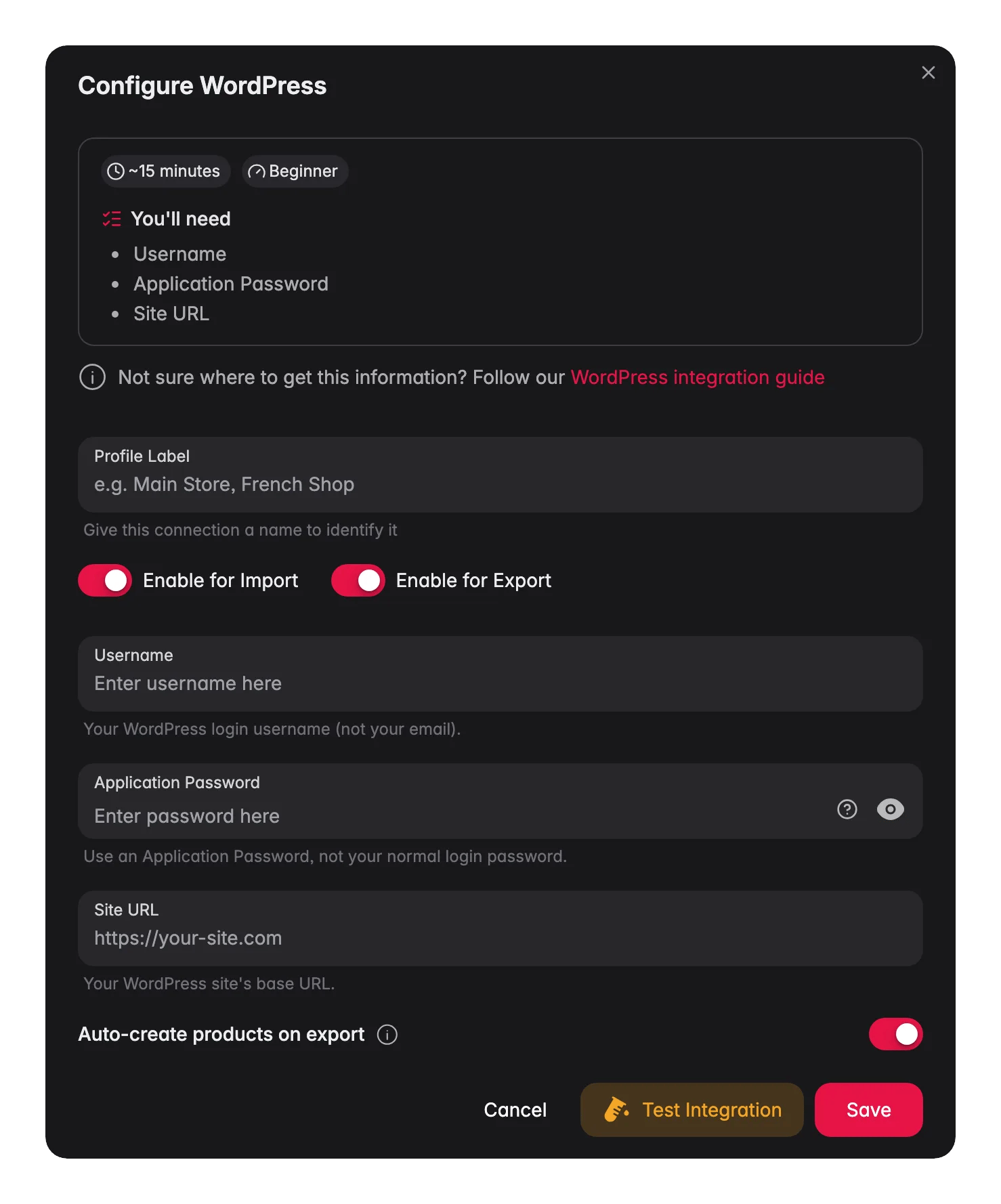
Enter your credentials
Fill in the following fields:
- Username: your WordPress login username (not your email)
- Application Password: the password you just generated
- Site URL: your WordPress site URL, including
https://(for example,https://your-site.com)
4
Test the connection
Click Test Connection to confirm your credentials work.
5
Save
If the test succeeds, click Save.
Your WordPress site is now connected. You can publish enriched content to it.
Troubleshooting
The connection test fails
The connection test fails
Check your site URL first. It must be correct and start with
https://. Then confirm you used your username (not your email) and pasted the Application Password exactly.Application Passwords are missing
Application Passwords are missing
Application Passwords require WordPress 5.6 or later over HTTPS. Make sure your site is served over
https:// and that no security plugin disables the feature or blocks the REST API.Related
Enrich products
Improve titles, descriptions, and SEO with AI.
Export products
Publish the enriched content to your WordPress site.
WooCommerce
Selling online? Connect WooCommerce to sync products.
All platforms
See every platform WISEPIM connects to.