

You need access to the ShopWired account’s API settings and a WISEPIM account with an active project. WISEPIM talks to the ShopWired REST API; the API address is fixed, so there is no store URL to enter.
Create an API key in ShopWired
1
Open API Access
Sign in to your ShopWired account and go to Account > API Access.
2
Create a key
Create an API key if you do not have one yet. ShopWired shows an API key and an API secret.
3
Copy both values
Copy the key and the secret. They are used together to authenticate every request WISEPIM makes.
Add your credentials to WISEPIM
1
Open Integrations
Log in to WISEPIM and go to Settings > Integrations.
2
Select ShopWired
Find and click the ShopWired tile.
3
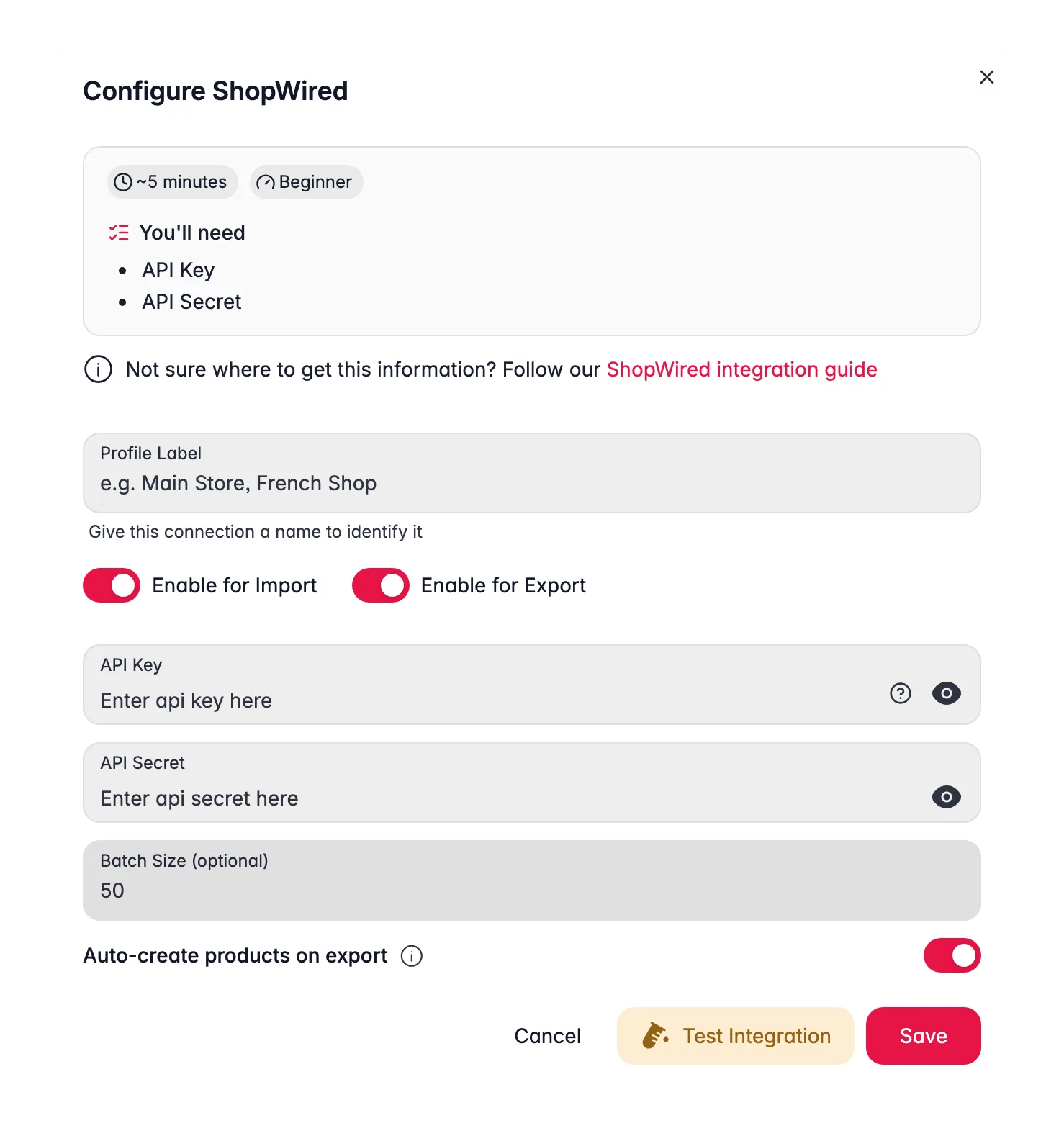
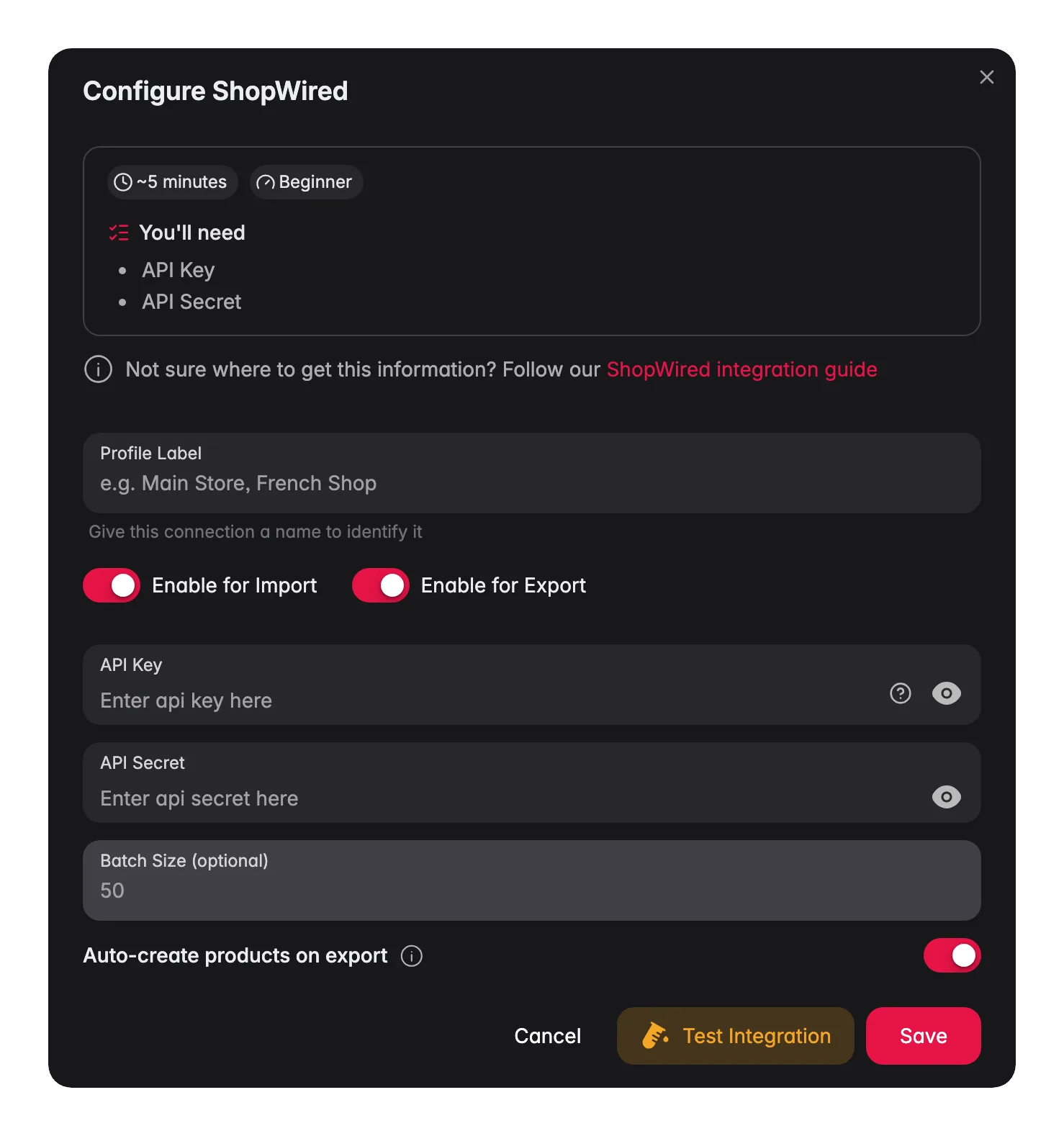
Fill in the connection
- Profile Label: a name for this connection, such as “Main Store”. Useful when you connect more than one store.
- Enable for Import and Enable for Export: switch off the direction you do not want.
- API Key and API Secret: the values from ShopWired.
- Batch Size (optional): how many products WISEPIM sends per request. Leave it at 50 unless support asks you to change it.
- Auto-create products on export: create products in ShopWired when WISEPIM has no matching product there. Leave it off to update existing listings only.
4
Test the connection
Click Test Integration to confirm the key and secret work.
5
Save
If the test succeeds, click Save.
Your ShopWired store is connected. You can start importing products.
What syncs between WISEPIM and ShopWired
Import pulls in the title, all description fields, SKU, GTIN, MPN, price, sale price and compare-at price, stock, weight, meta title, meta description and search keywords. Product images are fetched into your media library and linked to the product. Export pushes the title, description, SKU, price, sale price, stock, GTIN, MPN, weight, and meta title, description and keywords. Products are matched on the ShopWired product ID recorded during import. With Auto-create products on export on, products WISEPIM cannot find in ShopWired are created; when the lookup itself fails, the product is skipped rather than duplicated. Images are not pushed back to ShopWired, and the connection has no language mapping: one store, one language.Good to know:
- Products without a SKU get a stable identifier derived from the ShopWired product ID, so repeated imports do not create duplicates.
- A cost price of
-1from ShopWired means “not set” and is imported as empty. - Sync is not real-time. Imports and exports run when you start them or when an automation schedules them.
Narrow an import
The import modal’s One-time import scope lets you limit a ShopWired run to a maximum number of products, Only these SKUs or Exclude these SKUs. Date-based scoping is not available, because the ShopWired products API cannot filter on the last change date.Troubleshooting
The connection test fails
The connection test fails
Confirm you copied the API key and the API secret exactly, with no extra spaces, and that the key is still active under Account > API Access in ShopWired.
Exported products do not appear in ShopWired
Exported products do not appear in ShopWired
Products that were never imported from this store have no ShopWired ID to match on. Turn on Auto-create products on export so WISEPIM creates them, then export again. Also check the Process Tracker task for products skipped by Quality Guard or by the built-in price check.
Images did not change in ShopWired
Images did not change in ShopWired
Image export is not supported for ShopWired. Manage images in ShopWired directly; WISEPIM only imports them.
Related
Import products
Bring your ShopWired catalog into WISEPIM.
Export products
Push the improved content back to ShopWired.
Enriching products
Improve titles and descriptions with AI before you export.
Quality Guard
Block incomplete products from reaching your store.