

This integration syncs products, variants, categories, images, and custom attributes between Ecwid and WISEPIM, in both directions.
Before you start
- An active Lightspeed E-Series (Ecwid) store with admin access
- A WISEPIM account with an active project
- Your Ecwid Store ID, Secret Token, and Public Token (you’ll get these next)
Get your Ecwid API credentials
You need three values from Ecwid to connect: your Store ID and two API tokens.1
Open the API settings in Ecwid
Log in to your Ecwid control panel at my.ecwid.com. In the left sidebar, go to Settings and click API.
2
Copy your Store ID
Your Store ID appears at the top of the API settings page. Copy it.
3
Copy your API tokens
On the same page, find your Secret Token and Public Token. If they aren’t there yet, click Generate tokens. Copy both.
Connect Ecwid to WISEPIM
With your credentials ready, set up the integration in WISEPIM.1
Open the Integrations page
In WISEPIM, go to Integrations from the main sidebar.
2
Select Lightspeed E-Series (Ecwid)
Find the Lightspeed E-Series (Ecwid) tile in the App Marketplace and click it.
3
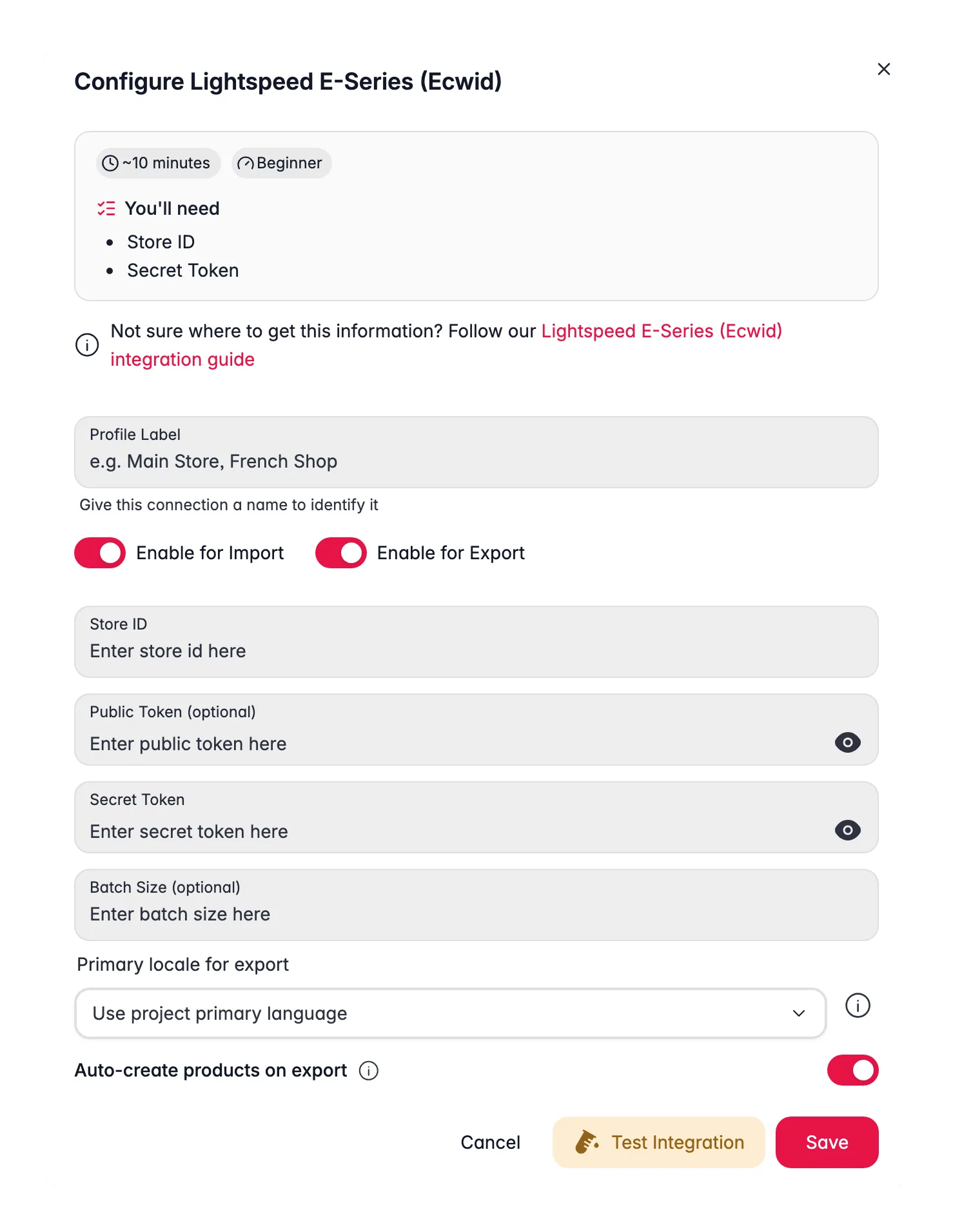
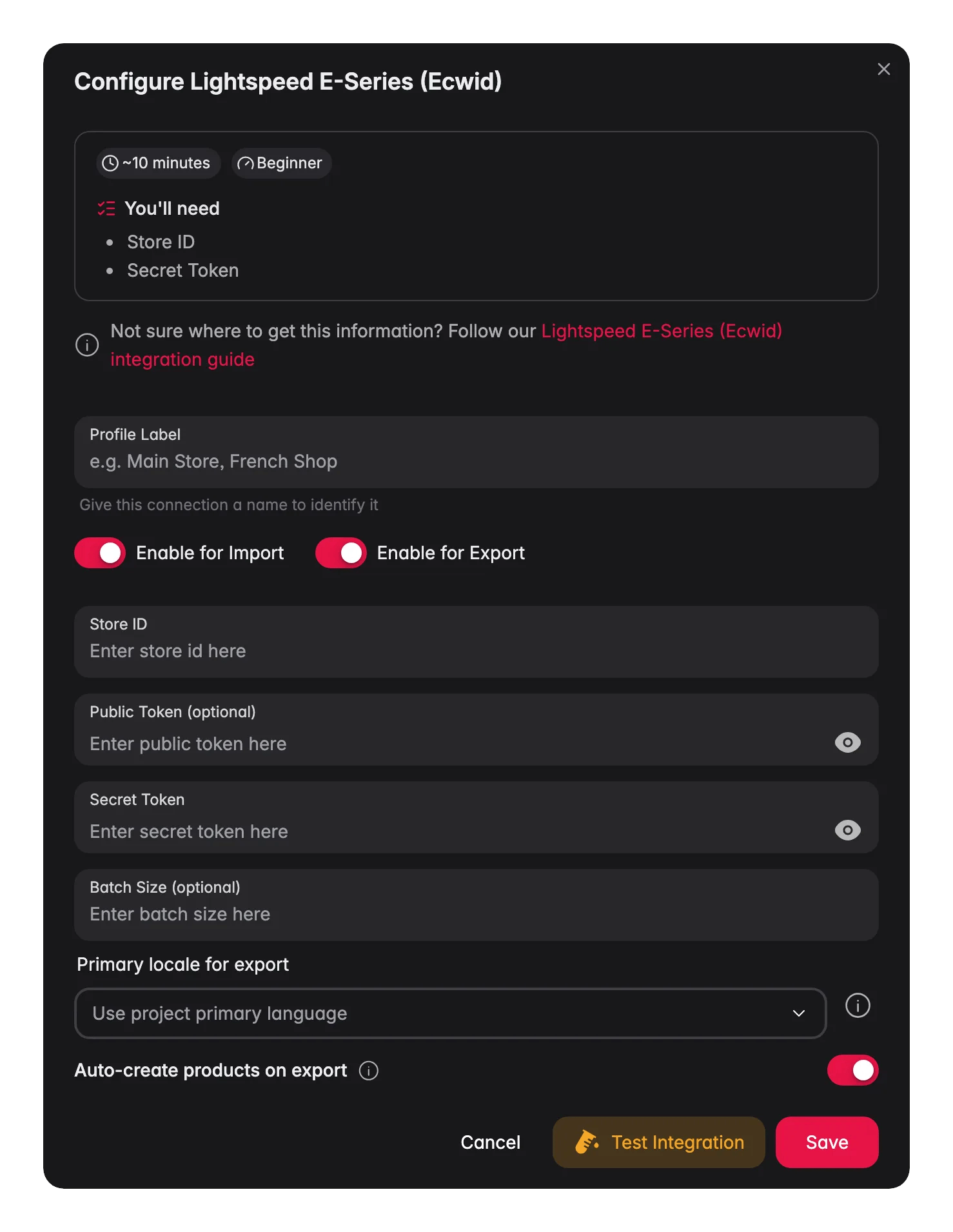
Enter your credentials
Fill in your Store ID, Secret Token, and Public Token.
4
Test and save
Click Test Connection to confirm WISEPIM can reach your store. When the test passes, click Save.
A successful connection test means your credentials are valid and you’re ready to import.
Import products from Ecwid
Pull your full catalog from Ecwid into WISEPIM.1
Start the import
Go to the Products page, click Import, and select Ecwid as the source.
2
Let WISEPIM fetch your catalog
WISEPIM imports your products, including:
- Names and descriptions
- Prices and SKUs
- Stock quantities
- Images
- Categories
- Variants (combinations)
- Custom attributes
Adjust the attribute mapping
The Attribute Mapper controls how Ecwid fields line up with your WISEPIM attributes. Use it when a field lands in the wrong place or you want to remap data.1
Open the Attribute Mapper
On the Integrations page, find your Ecwid tile and click Open Attribute Mapper.
2
Review and adjust
Check the field mappings and change any that don’t match.
3
Save the mapping
Save your configuration so data flows correctly on every import and export.
Export products to Ecwid
Once your products are enriched, push them back to your store.1
Select your products
On the Products page, select the products you want to export.
2
Export to Ecwid
Click Export and choose Ecwid as the destination.
3
Review and confirm
Check the export preview, then confirm.
Turn on Auto-Create Products in the integration settings to create products that exist in WISEPIM but not yet in Ecwid during export.
What gets exported
Each export syncs:- Names and descriptions (including translations)
- Prices, SKUs, and stock quantities
- Images
- Categories and subcategories
- Variant options and combinations
- Custom attributes
Sell in multiple languages
Ecwid supports a multi-language storefront, and WISEPIM exports translated content into the right language fields. With this you can:- Translate your catalog with AI translation
- Export each translation to the matching language in Ecwid
- Keep terminology consistent across every language
Troubleshooting
Connection errors
Connection errors
- Check that your Store ID is correct (it’s a numeric value).
- Confirm your Secret Token hasn’t been regenerated since you set up the integration.
- Make sure your Ecwid store is active and not suspended.
Products won't import
Products won't import
- Confirm your store actually has products to import.
- Check that your token has read permissions.
- If specific products are missing, see whether they’re hidden or disabled in Ecwid.
Products won't export
Products won't export
- Confirm your token has write permissions.
- Check that the attribute mapping is set up correctly.
- Review the error log in WISEPIM for field validation errors.
Related
Import products
Bring your Ecwid catalog into WISEPIM.
Enrich products
Optimize titles, descriptions, and SEO with AI.
Export products
Push optimized content back to your store.
Supported platforms
See every platform WISEPIM connects to.