

Kaufland runs across several European markets, including Germany, Czechia, Slovakia, Austria, and Poland. WISEPIM lets you manage product data for every market from one project.
Before you start
- An active Kaufland.de seller account with API access enabled
- A WISEPIM account with an active project
- Your Kaufland API Key (Client Key) and API Secret (Secret Key) (you’ll get these next)
Get your Kaufland API credentials
You need an API key and secret from your Kaufland seller account to connect.1
Open the API settings in Kaufland
Sign in to the Kaufland Seller Portal. Go to Settings and open the API or Interface section.
2
Create your API credentials
Click Create new API key (or similar). Kaufland gives you two values:
Copy both and store them securely.
3
Set the API permissions
Make sure your API key has these permissions:
- Products: read and write
- Categories: read
- Orders: read (optional, for analytics)
Connect Kaufland to WISEPIM
With your credentials ready, set up the integration in WISEPIM.1
Open the Integrations page
In WISEPIM, go to Integrations from the main sidebar.
2
Select Kaufland.de
Find the Kaufland.de tile in the App Marketplace and click it.
3
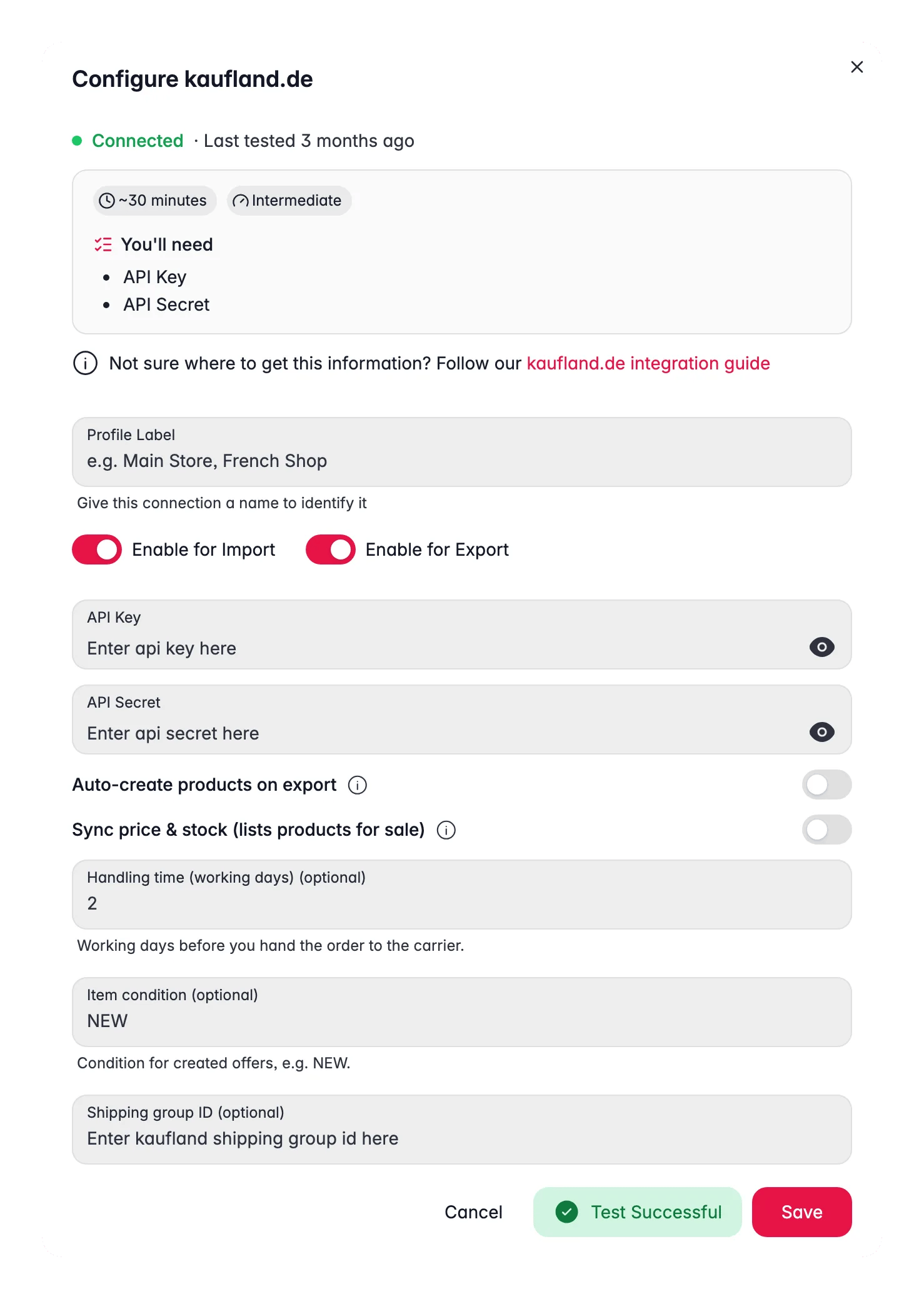
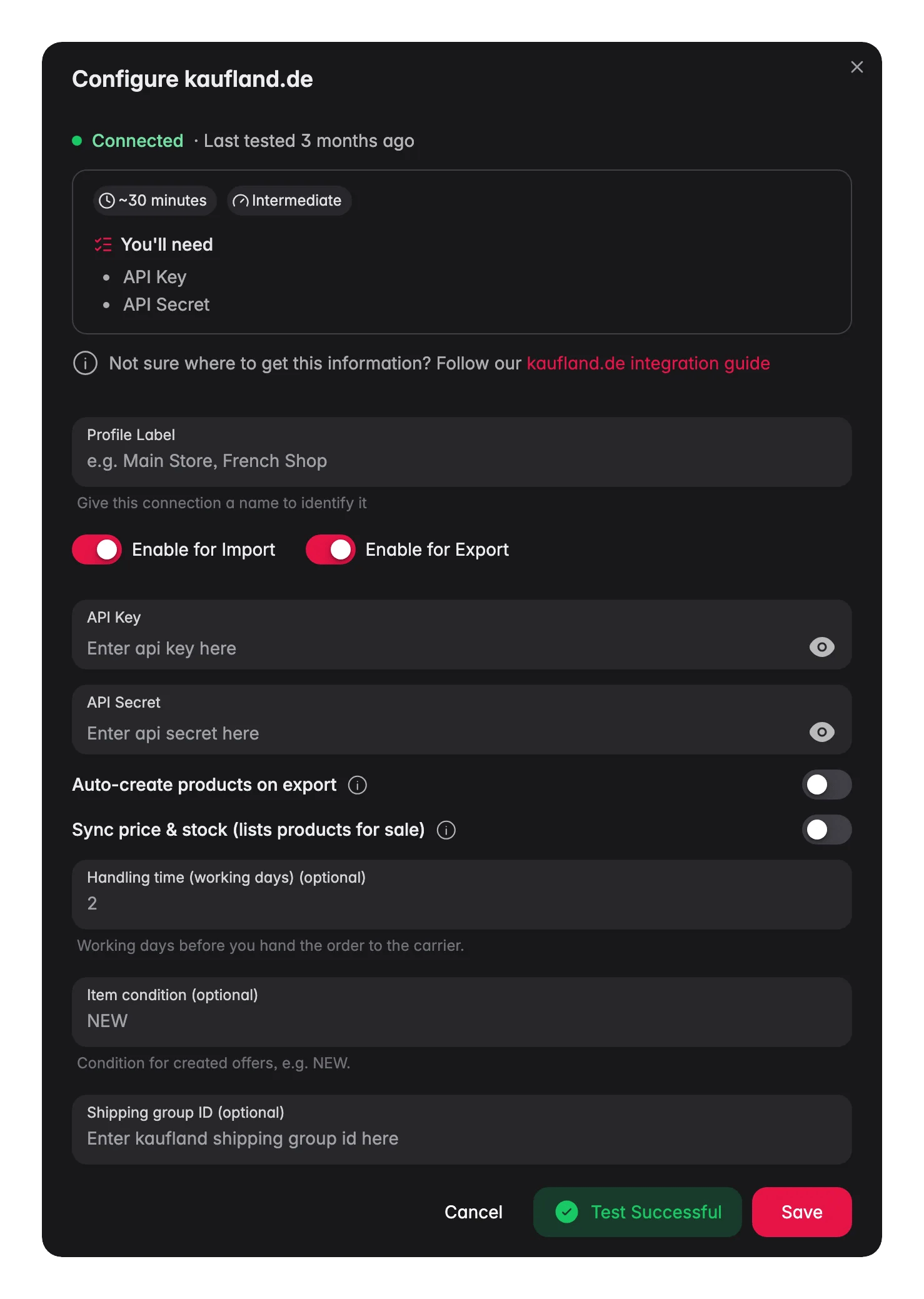
Enter your credentials
Fill in your API Key (Client Key) and API Secret (Secret Key).
4
Test and save
Click Test Connection to confirm WISEPIM can reach your seller account. When the test passes, click Save.
A successful test confirms your credentials are valid and your permissions are set correctly.
Set your connection options
Your Kaufland connection has a few extra settings. They decide whether your products go on sale and what Kaufland shows buyers about delivery.Import products from Kaufland
Pull your existing Kaufland listings into WISEPIM to manage them centrally.1
Start the import
Go to the Products page, click Import, and select Kaufland.de as the source.
2
Let WISEPIM fetch your listings
WISEPIM imports your listings, including:
- Titles and descriptions
- EAN/GTIN identifiers
- Prices and shipping info
- Images
- Category assignments
- Attributes and specifications
Export products to Kaufland
Once your products are enriched, push optimized listings back to Kaufland.1
Select your products
On the Products page, select the products you want to export.
2
Export to Kaufland
Click Export and choose Kaufland.de as the destination.
3
Review and confirm
Check the export preview to verify your data, then confirm.
Map categories and meet data requirements
Kaufland uses a fixed category tree. Your products must be mapped to it, and each category requires specific attributes. Get this right and your listings get accepted and show up in the correct search results.Map your categories
1
Open the Attribute Mapper
On the Integrations page, click Open Attribute Mapper on your Kaufland tile.
2
Map categories and required fields
Match your WISEPIM categories to the matching Kaufland categories. Then map the attributes for each category’s required fields.
3
Save the mapping
Save your configuration.
Kaufland requires specific attributes per category, such as brand, color, size, or material. The Attribute Mapper helps you fill every required field before export, so fewer listings get rejected.
How WISEPIM helps you comply
Kaufland has strict data quality rules. WISEPIM checks your data before export by:- Validating required fields so you catch missing data early
- Standardizing attribute values to match Kaufland’s expected formats
- Verifying EAN/GTIN codes to confirm your product identifiers are valid
- Checking images against Kaufland’s specifications
Sell across multiple markets
Kaufland operates in several European markets, and you can manage them all from one WISEPIM project. With this you can:- Translate content from German into Czech, Slovak, Polish, and more with AI translation
- Keep product information consistent across markets
- Export to each market with the right language and localization
Troubleshooting
Connection errors
Connection errors
- Check that your API Key and API Secret are entered correctly.
- Confirm your credentials haven’t expired or been revoked in the Seller Portal.
- Make sure your seller account is active and in good standing.
Products won't import
Products won't import
- Confirm your account has active listings to import.
- Check that your API key has read permissions for products.
- Missing products may be in a draft or deactivated state on Kaufland.
Products won't export
Products won't export
- Confirm every required category attribute is filled in.
- Verify your EAN/GTIN codes are valid and correctly formatted.
- Check that images meet Kaufland’s minimum resolution and format.
- Review the WISEPIM error log for field validation errors.
Category mapping issues
Category mapping issues
- Make sure your WISEPIM categories map to valid Kaufland categories.
- Confirm every required attribute for the target category is set in the Attribute Mapper.
- If a category changed on Kaufland’s side, refresh and update your mapping.
Related
Import products
Bring your Kaufland listings into WISEPIM.
Enrich products
Optimize titles, descriptions, and SEO with AI.
Export products
Push optimized listings back to Kaufland.
Supported platforms
See every platform WISEPIM connects to.