

The Databricks integration is available only on the Enterprise plan. Contact our sales team to learn about Enterprise features and pricing.
Before you start
- A WISEPIM account on the Enterprise plan
- A Databricks workspace with Unity Catalog enabled
- Permission to create schemas and tables in your Databricks catalog
- Your Databricks Server Hostname, HTTP Path, and an authentication method (Personal Access Token or OAuth)
Get your connection details from Databricks
Gather four things from your Databricks workspace before you set up the integration.1
Log in to Databricks
Open your Databricks workspace URL and sign in.
2
Copy your Server Hostname and HTTP Path
Go to SQL Warehouses (or Compute for clusters):
- Select the SQL warehouse or cluster WISEPIM will connect to.
- Click Connection Details.
- Copy the Server Hostname, such as
adb-1234567890.1.azuredatabricks.net. - Copy the HTTP Path, such as
/sql/1.0/warehouses/abc123def456.
3
Set up authentication
Choose one of two methods.Option A: Personal Access Token
- Click your username in the top-right corner.
- Go to Settings, then Developer, then Access Tokens.
- Click Generate New Token, add a description such as
WISEPIM Integration, and set an expiration. - Copy the token now. Databricks will not show it again.
- In your Databricks account console, create a Service Principal.
- Generate a Client ID and Client Secret for it.
- Grant it access to the workspace and the target catalog.
4
Pick your target Catalog and Schema
Go to Data in the sidebar to browse Unity Catalog:
- Select or create the Catalog that will hold your WISEPIM data.
- Select or create the Schema (database) inside that catalog.
- Note the catalog and schema names.
Connect Databricks to WISEPIM
With your details ready, set up the integration in WISEPIM.1
Open the integration
Log in to WISEPIM and go to the Integrations page. Find the Databricks tile in the App Marketplace and click it.
2
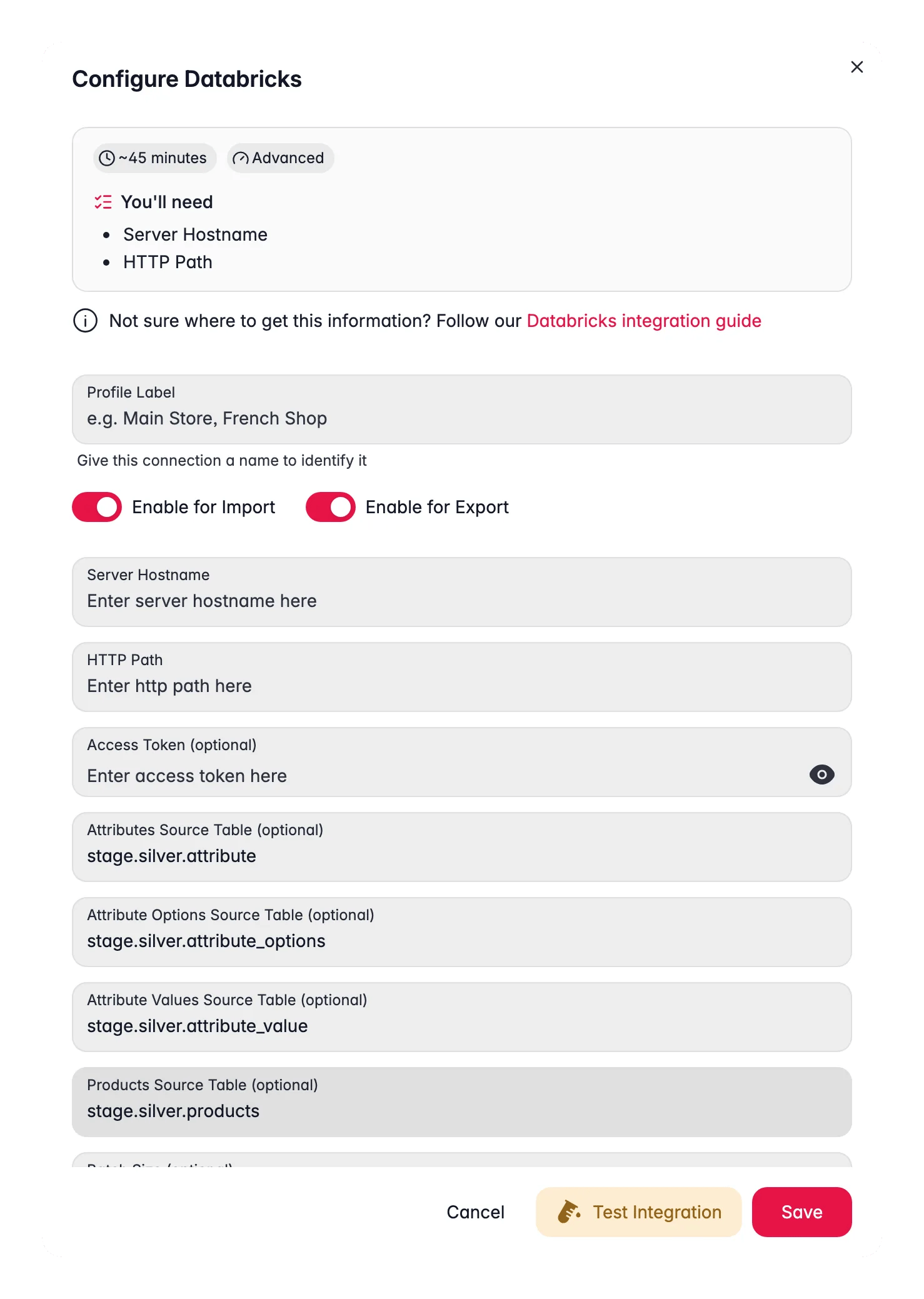
Enter your connection details
Fill in the fields:Connection Settings
- Server Hostname: your Databricks workspace hostname
- HTTP Path: the path to your SQL warehouse or cluster
- Access Token: your Personal Access Token
- Or Client ID and Client Secret: your OAuth service principal credentials
- Catalog: your Unity Catalog name, such as
wisepim_data - Schema: your schema name inside the catalog, such as
product_catalog
3
Add source tables (optional)
Only needed if you import data from Databricks into WISEPIM:
- Attributes Source Table: the table with attribute definitions
- Attribute Options Source Table: the table with attribute option values
- Products Source Table: the table with product data
- Batch Size: rows processed per batch (default
1000)
4
Test the connection
Click Test Connection to confirm WISEPIM can reach your workspace and the chosen catalog and schema.
5
Save
If the test passes, click Save to store your settings.
Export product data to Databricks
Push enriched products from WISEPIM into Delta Lake for analytics and ML.1
Open Products
Go to the Products page in WISEPIM.
2
Choose products
Select the products you want to export, or select all.
3
Export to Databricks
Click Export and choose Databricks as the destination. WISEPIM writes the data to Delta Lake tables in your catalog and schema.
- Product identifiers (IDs, SKUs, EAN/GTIN)
- Product names and descriptions (all languages)
- Prices and stock information
- Category hierarchies
- Product attributes and custom fields
- Image URLs and metadata
- Translation status and quality scores
Import product data from Databricks
If your product data lives in Databricks, for example from upstream pipelines, bring it into WISEPIM.1
Set your source tables
Add the source table names in your integration settings.
2
Import from Databricks
Click Import on the Products page and choose Databricks as the source. WISEPIM reads your tables and maps the data to your project attributes.
Keep your source tables on a consistent schema. WISEPIM maps columns to product attributes automatically, and you can adjust the mapping with the Attribute Mapper.
Tune batch size for large catalogs
WISEPIM processes data in batches. Match the batch size to your catalog to balance speed and resource use.
Set the value in the integration modal under Batch Size.
What you can build with your data
Once your products are in Databricks, you can use them across analytics and data science.Product performance analytics
Product performance analytics
- Build dashboards to track product performance across channels and markets.
- Find which attributes correlate with higher conversion rates.
- Compare performance across languages and regions.
Machine learning pipelines
Machine learning pipelines
- Train product recommendation models on enriched data.
- Build demand forecasts from historical product and pricing data.
- Develop pricing optimization based on market data.
- Use WISEPIM product embeddings for similarity search and clustering.
Data governance
Data governance
- Track data lineage from source to enrichment to export with Unity Catalog.
- Set access controls for who can read and modify product data.
- Audit every change with the Delta Lake transaction log.
Troubleshooting
Connection errors
Connection errors
- Check the Server Hostname is correct and includes the full domain, such as
adb-1234567890.1.azuredatabricks.net. - Check the HTTP Path points to an active SQL warehouse or cluster.
- Make sure the warehouse or cluster is running, not stopped or terminated.
- If using a Personal Access Token, check it has not expired.
- If using OAuth, confirm the Service Principal has workspace-level access.
Authentication issues
Authentication issues
- Regenerate your access token if you think it is expired or compromised.
- For OAuth, check the Client ID and Client Secret are correct.
- Make sure the user or service principal has
USE CATALOGandUSE SCHEMAon the target catalog and schema.
Export problems
Export problems
- Confirm the user has
CREATE TABLEandMODIFYon the target schema. - Check the catalog and schema names are spelled correctly and exist in Unity Catalog.
- If exports are slow, reduce the batch size or use a larger SQL warehouse.
- Review WISEPIM’s error log for messages from the Databricks API.
Import problems
Import problems
- Check the source table names are correct and the tables exist.
- Confirm the user has
SELECTon the source tables. - Check the source table schemas match WISEPIM’s expected format.
- If imports time out, reduce the batch size.
Related
Import products
Pull products from your Databricks tables.
Enrich products
Improve product content with AI.
Export products
Send products to Delta Lake tables.