

- Quick search in the toolbar for fast, instant lookups.
- The filter modal for everything else. It has four modes, so you can find products the way that fits the task: describe what you want in plain language, build precise conditions by hand, check products against a Quality Guard rule, or pick a ready-made data quality filter.
Quick search
The search bar sits in the top left of the toolbar. Start typing and press Enter. Clear the field to show all products again. By default it looks across the key text fields at once: product name, SKU, EAN, descriptions, and meta fields. You do not need to know which field holds your term. Quick search is best for “I know roughly what I’m looking for” moments: a SKU, a brand, a word in the title. For anything structured (“all products under €50 with no image”), open the filter modal.Open the filter modal
Click the Filters button next to the search bar. A red badge on the button shows when filters are active. The modal opens with four tabs across the top.
You can switch modes at any time, and they work together: generate a filter with natural language, then open Advanced filters to fine-tune it.
Natural language
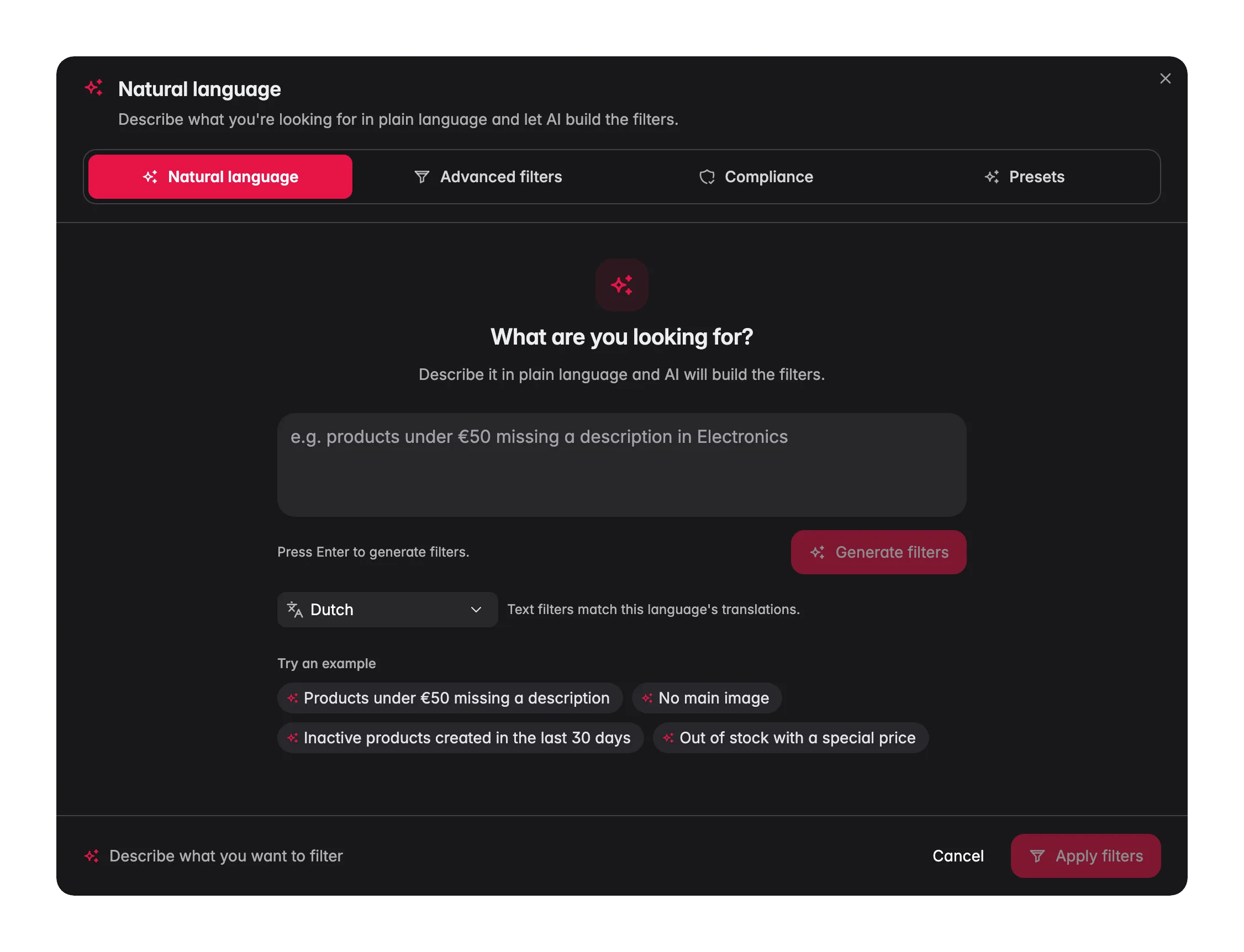
This is the default tab, and usually the quickest way to a precise list. Describe what you are looking for in plain words and AI turns it into real filter conditions.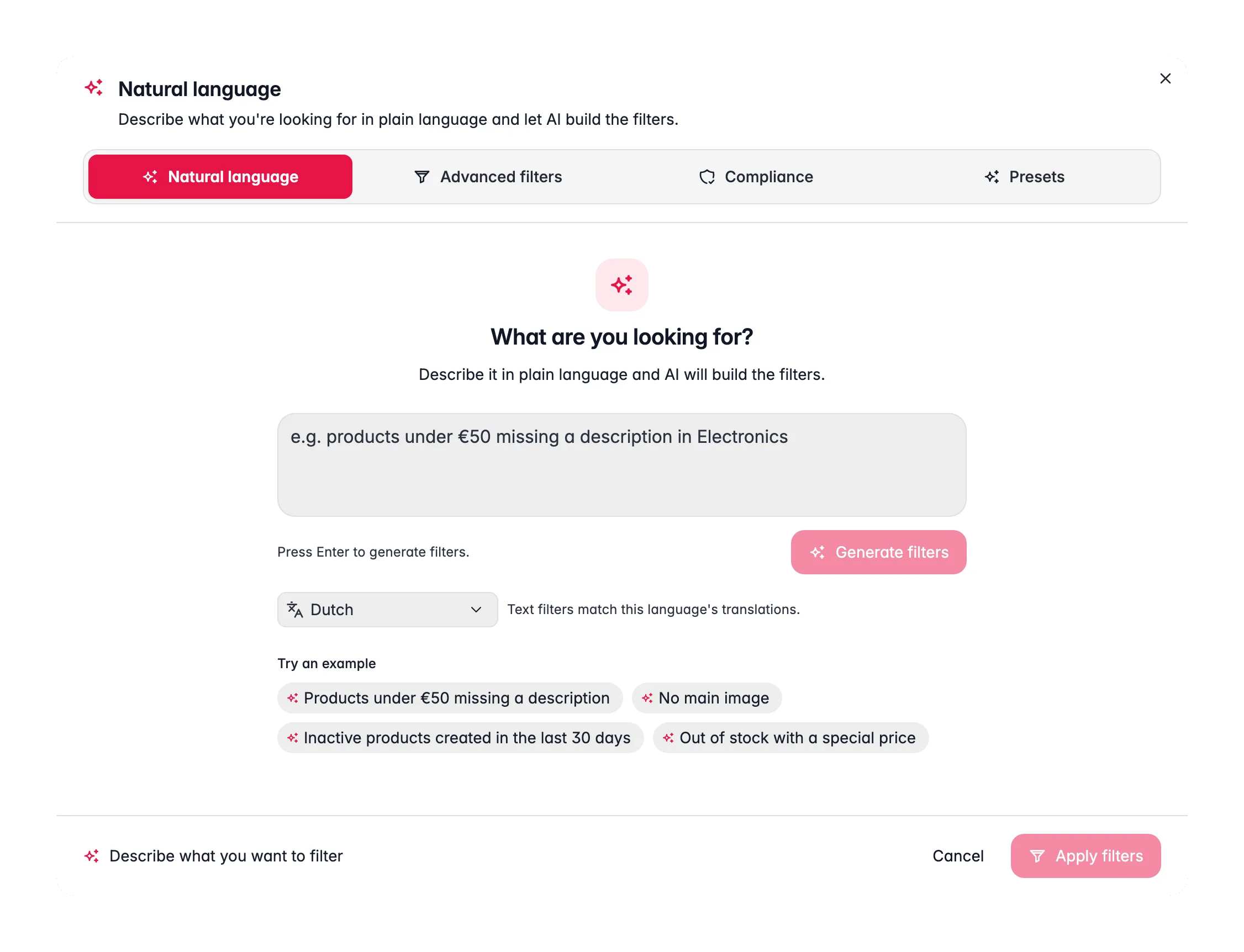
1
Describe what you want
Type something like “Products under €50 missing a description” or “Inactive products created in the last 30 days.” Press Enter to generate.
2
Review the filters it built
AI shows the conditions it created, explains what it did, and lists anything it couldn’t map to a filter. Check that it matches your intent.
3
Apply or refine
Click Apply to use the filter, or Refine in Advanced filters to adjust a condition by hand. New search clears it and starts over.
Natural-language filters forgive typos and plurals in category and family names, and several family names in one sentence become a single “in” condition. If a condition cannot run, WISEPIM repairs it once before showing it. You can also reference other fields and dates, for example
{{product.brand}} or {{current.year}}, and the AI is offered the same variables.Advanced filters
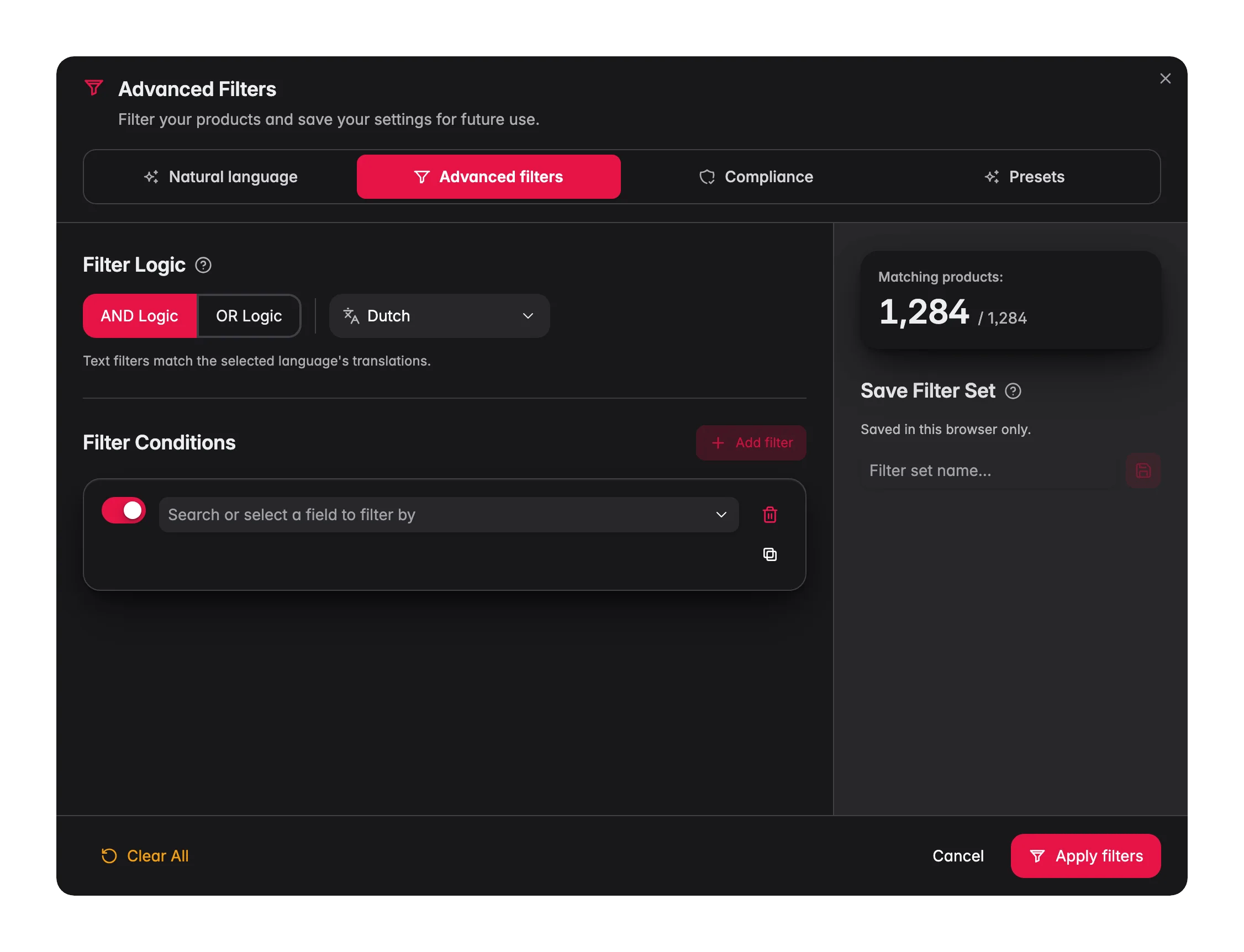
Build precise, repeatable queries by hand. Use this when you want full control, or to fine-tune a filter that natural language started.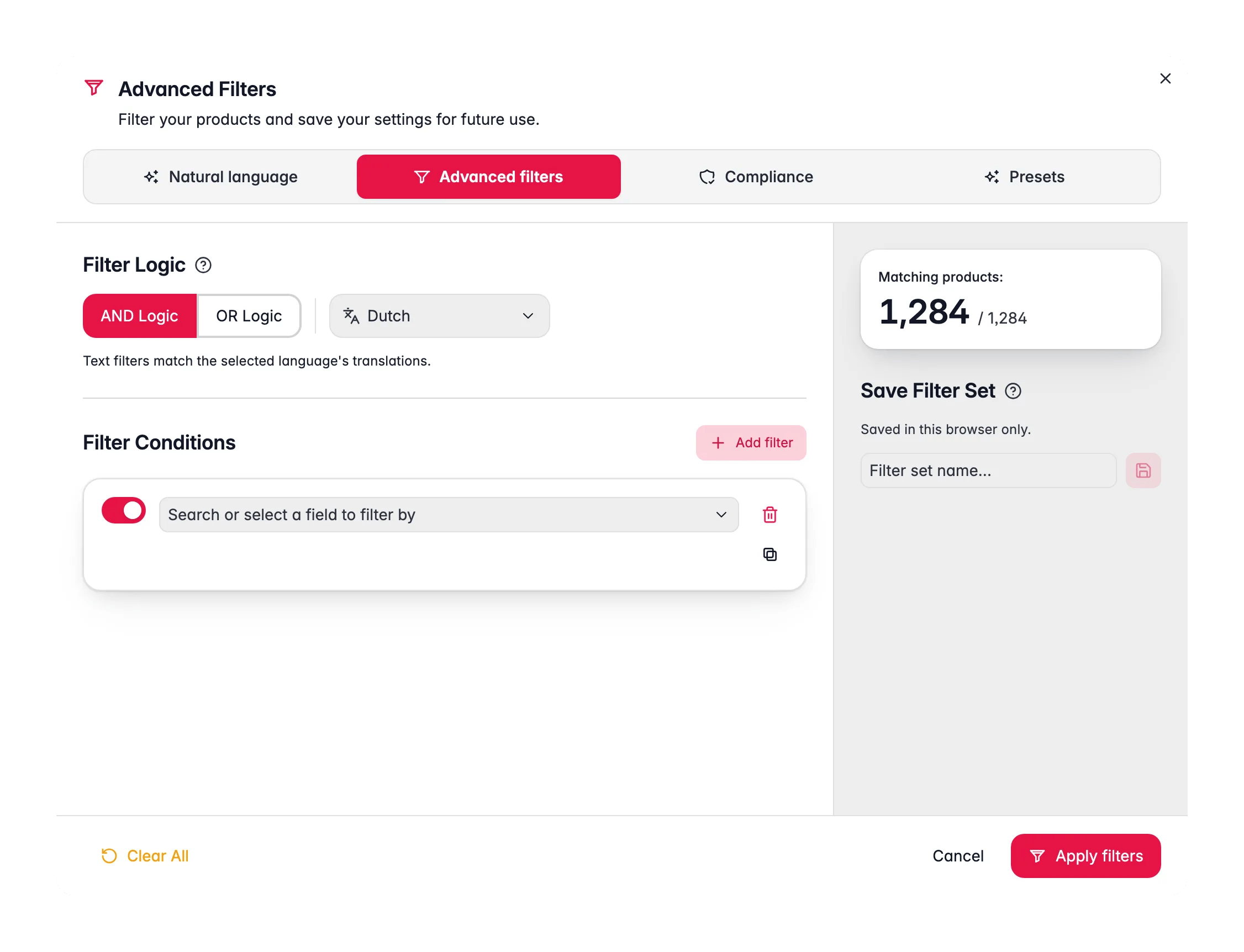
1
Add a condition
Click Add filter, choose a field, pick an operator, and enter a value.
2
Add more conditions
Stack as many as you need. Toggle any condition off without deleting it, so you can test combinations fast.
3
Choose the logic
Pick AND (match all conditions) or OR (match any). With OR, a slider lets you set how many conditions must match, for example “at least 3 of these 5.”
4
Check the count, then apply
The summary panel previews how many products match while you are still building. Use it to catch a condition that is too wide or too narrow before you commit. Click Apply filters to update the list.
Paste a list of SKUs
Got a list of products from a supplier, a colleague, or a report? You do not have to build a condition per SKU. Pick the SKU field with the in list operator, then paste the column straight from Excel or a CSV into the value box. WISEPIM splits it into individual identifiers for you and filters to exactly those products. This is the fastest way to act on a list someone sent you: paste, apply, then enrich, edit, or export the result.A broken or malformed filter now shows an error instead of quietly matching your whole catalog. That matters most right before a bulk action: if something is wrong with your filter, you find out on screen rather than by running an action on every product.
Filter per language
If your project has more than one language, you can filter on the content of a specific language rather than your primary one. Use it to find products whose German description is empty while the Dutch one is fine, and then translate or enrich only that gap.Fields you can filter on
You can filter on 90+ built-in fields plus your own custom attributes, organized into groups so they are easy to find:
Image width and height come from the measured asset in your media library. Products whose main image is only an external URL match “no value”. The prompt fields are snapshots, so they keep working after you edit, rename or delete a prompt.
Operators you can use
The operators adapt to the field type:- Text: contains, doesn’t contain, equals, starts/ends with, in list, is not in list, regex match, case-sensitive equals, word count, character length, is empty
- Regex match: a regular expression, case sensitive; start with
(?i)to ignore case. Patterns are limited to 200 characters. Tick Save this pattern for reuse and it shows up under Saved patterns for that field next time, up to 12 per field, stored in this browser - Multiple terms: includes any of, includes all of and includes none of take a comma-separated list of terms, so one filter can cover several spellings or brands
- Clean-up probes: has stray whitespace (leading, trailing or double spaces), contains HTML and doesn’t contain HTML need no value and work on localized fields and custom attributes
- Number: equals, greater than, less than, between
- Date: within the last X days, older than X days, between, before, after
- Category / Select: is, is one of, in, not in, has any, has all
- Yes/No: is true, is false
- Find duplicates: is unique / is duplicate, to catch repeated SKUs, EANs, or names across your catalog
Save a filter as a set
Use the same filter often? Save it once and reload it in a click.1
Build your filter
Set up the conditions you want to keep.
2
Name and save it
Enter a name in the Save filter set box and click save.
3
Load it later
Open the modal and click a saved set to apply it instantly. Rename or delete sets any time.
Saved filter sets are stored on your account, not in your browser. Save one on your laptop and it is there on your desktop too. Sets you have not used for 90 days are cleaned up automatically, so the list stays short and useful.
Recent filters
Above your saved sets, the modal keeps a Recent section: the last 5 filter sets you applied in this project, newest first. Each one is summarised by its first condition, with a “+N more” chip for the rest. Click one to load it back into the builder, then Apply filters. Recent filters live in this browser only, and clearing all filters does not add an entry.Compliance
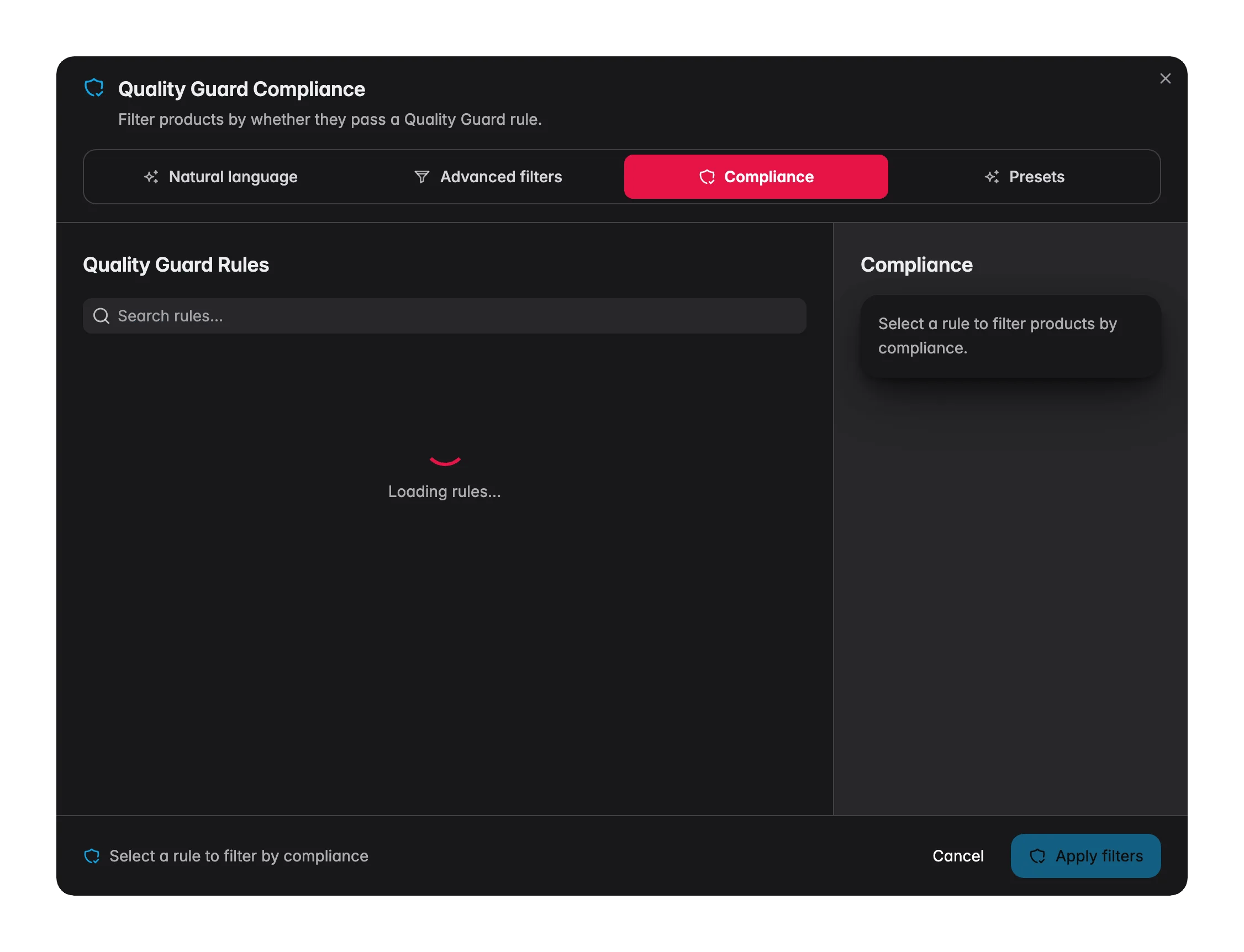
The Compliance tab filters your catalog by whether products pass or fail a Quality Guard rule. This is your channel-readiness lens: instead of guessing which products are export-ready, you check them against the exact rule that gates a channel.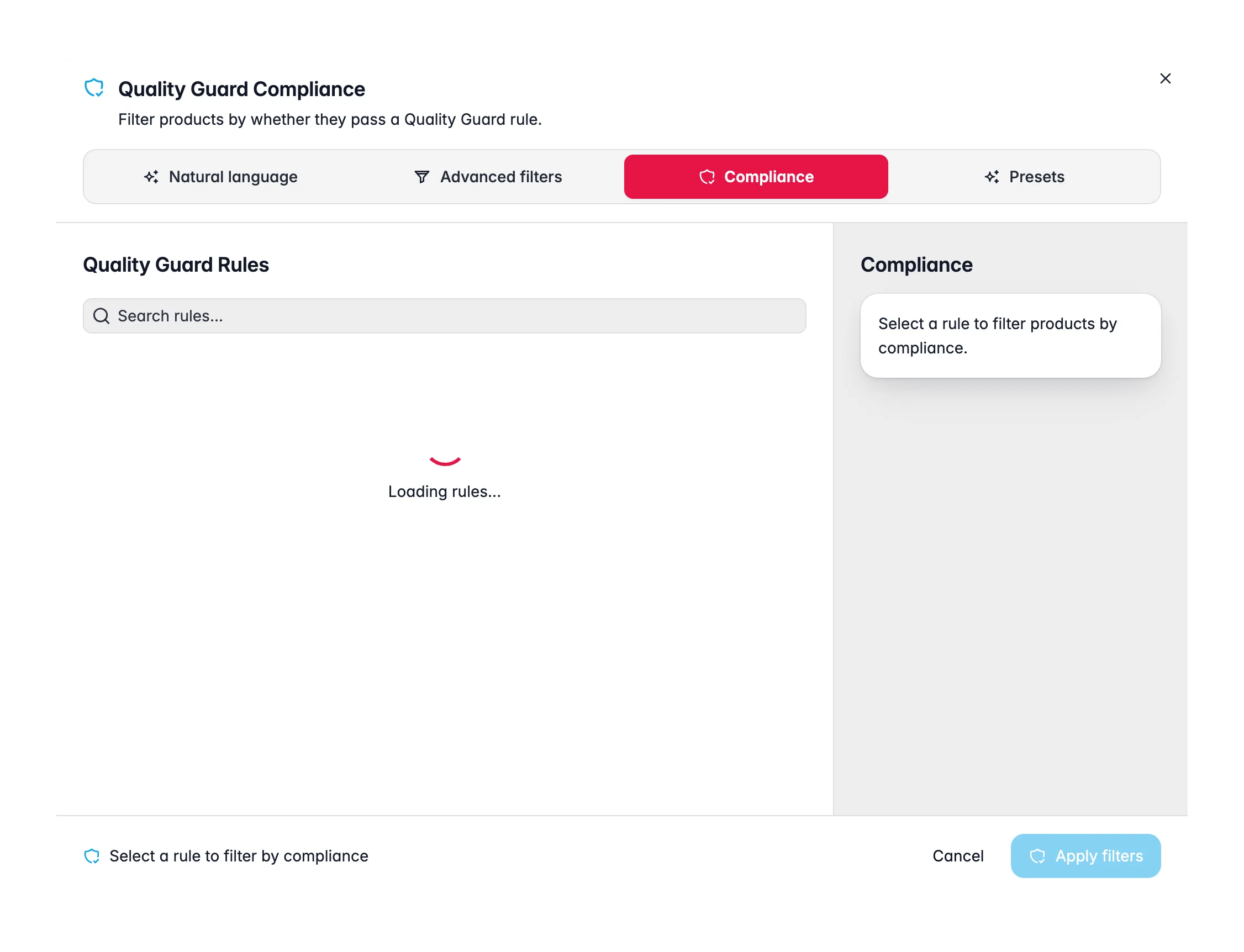
1
Pick a rule
Search and select one of your active Quality Guard rules. Each card shows its scope and severity.
2
Choose a direction
Violates finds the products that fail the rule (the ones to fix). Complies with finds the products that have been checked and pass.
3
See the count, then apply
A live count shows how many products match before you commit. Click apply to load them.
No rules yet? The tab links straight to Create a rule in Quality Guard. See Quality Guard to set up the checks that gate your exports and syncs.
Presets
The Presets tab gives you 46 one-click filters that each surface a common data quality problem across your catalog, grouped into 10 categories. It is the fastest way to find what needs attention.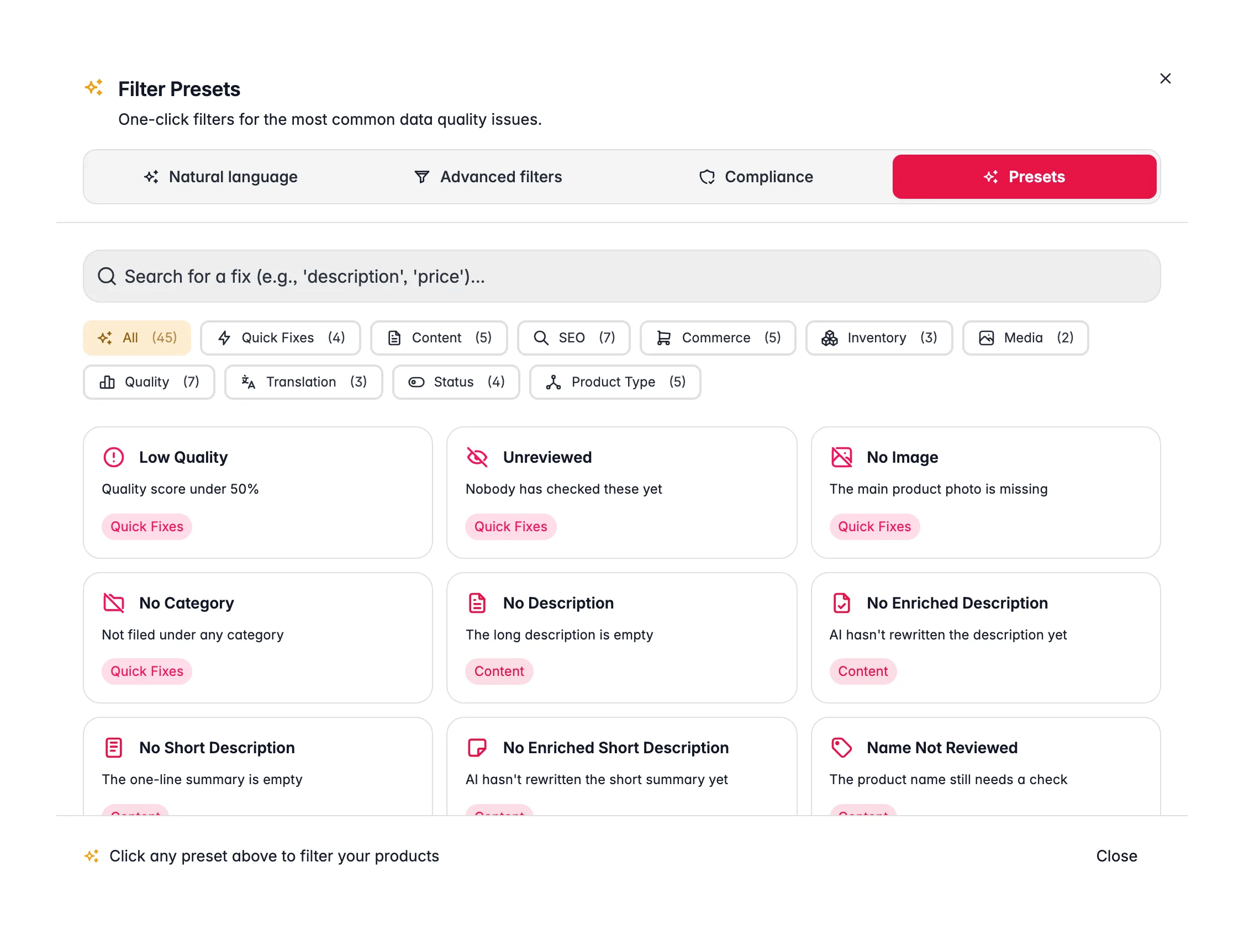
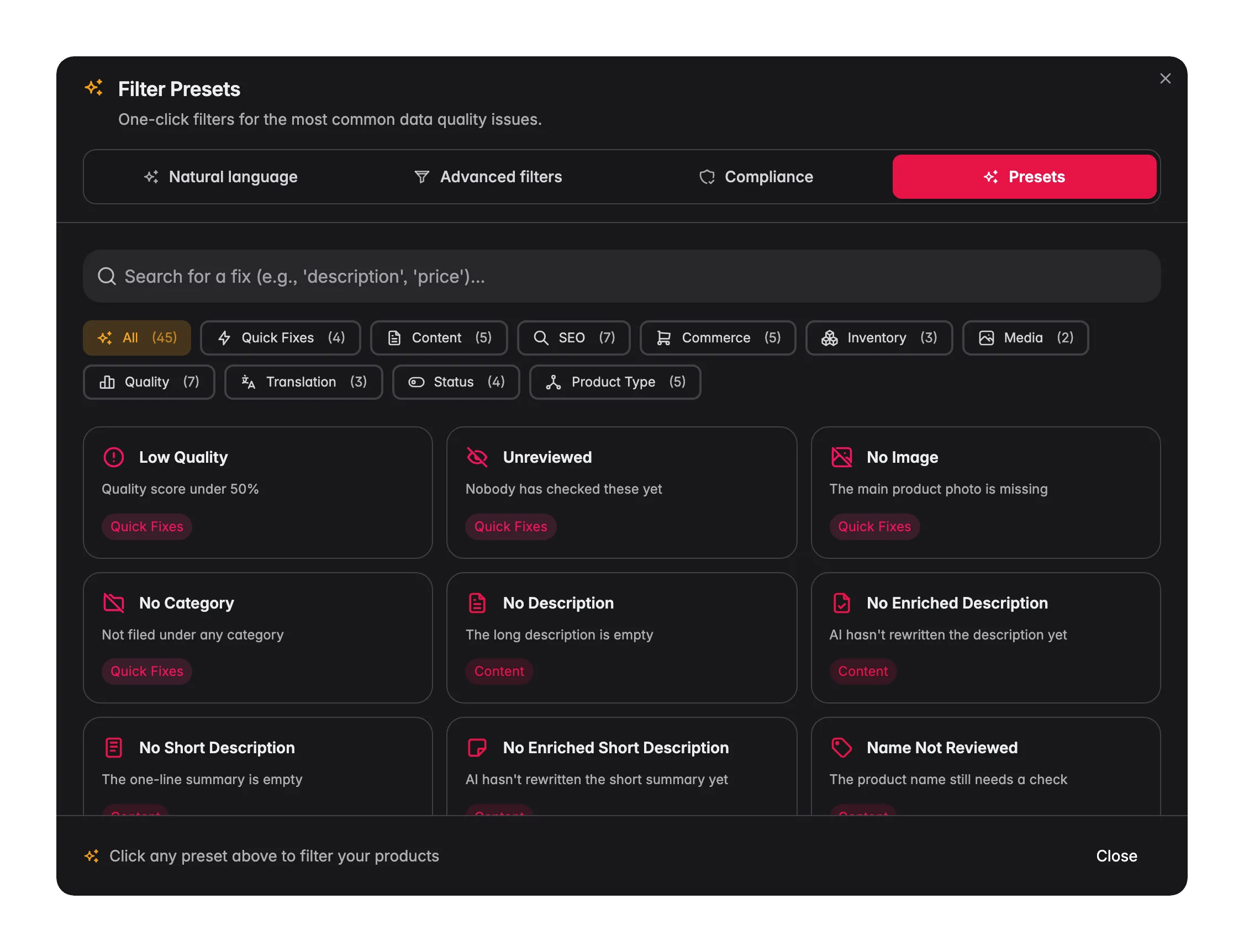
Click any preset to filter the list to the affected products. From there, select them and act: enrich with AI, bulk edit, or fix them one by one.
Act on what you find
Filtering is only step one. The reason to narrow your list is to act on it efficiently:1
Filter to the products that need work
Use any of the four modes to get a focused list.
2
Select them
Tick individual products, or use Apply to all to select every product that matches your filter, across all pages.
3
Run one action on all of them
Enrich with AI, bulk edit a field, translate, or export. The action only touches the products you filtered to.
Tips
- Start with natural language. It is the quickest way from “I need X” to a real filter, and you can always refine it in Advanced filters.
- Combine search and filters. Use search for quick lookups and the modal for structured queries. They work together.
- Filter before bulk actions. Narrow your list first, then select all matching products, so a bulk action only touches the ones that need it.
- Save your daily filters. Filter for “unreviewed products” every morning? Save it as a set and it is one click away.
- Check compliance before you export. Run the Compliance tab against the rule that gates a channel to find and fix blockers before they cost you a failed sync.
Related
Managing products
See how search, filters, and selection fit into your daily product workflow.
Bulk editing
Act on a filtered selection: update many products at once.
Enriching products
Filter for missing content, then fill it with AI.
Quality Guard
Set up the rules the Compliance filter checks against.