

First set up your target languages in Settings > General. Translation uses the languages configured in your project. With no extra languages set up, the Translation option won’t appear.
Prepare your content first
AI translations are only as good as the source text. Short, vague descriptions produce weak translations. Make sure your content is accurate and complete in your primary language before you translate.When a field has enriched or reviewed content, translation uses that as the source automatically. So the cleaner your enriched copy, the better every translation comes out. Enrich first, then translate.
Translate products
1
Select products
Check individual products on the Products page. Or apply filters and choose Apply to all to translate your whole filtered catalog.
2
Open Enrich with AI
Click Enrich with AI in the toolbar. The modal opens with every available action.
3
Choose Translation
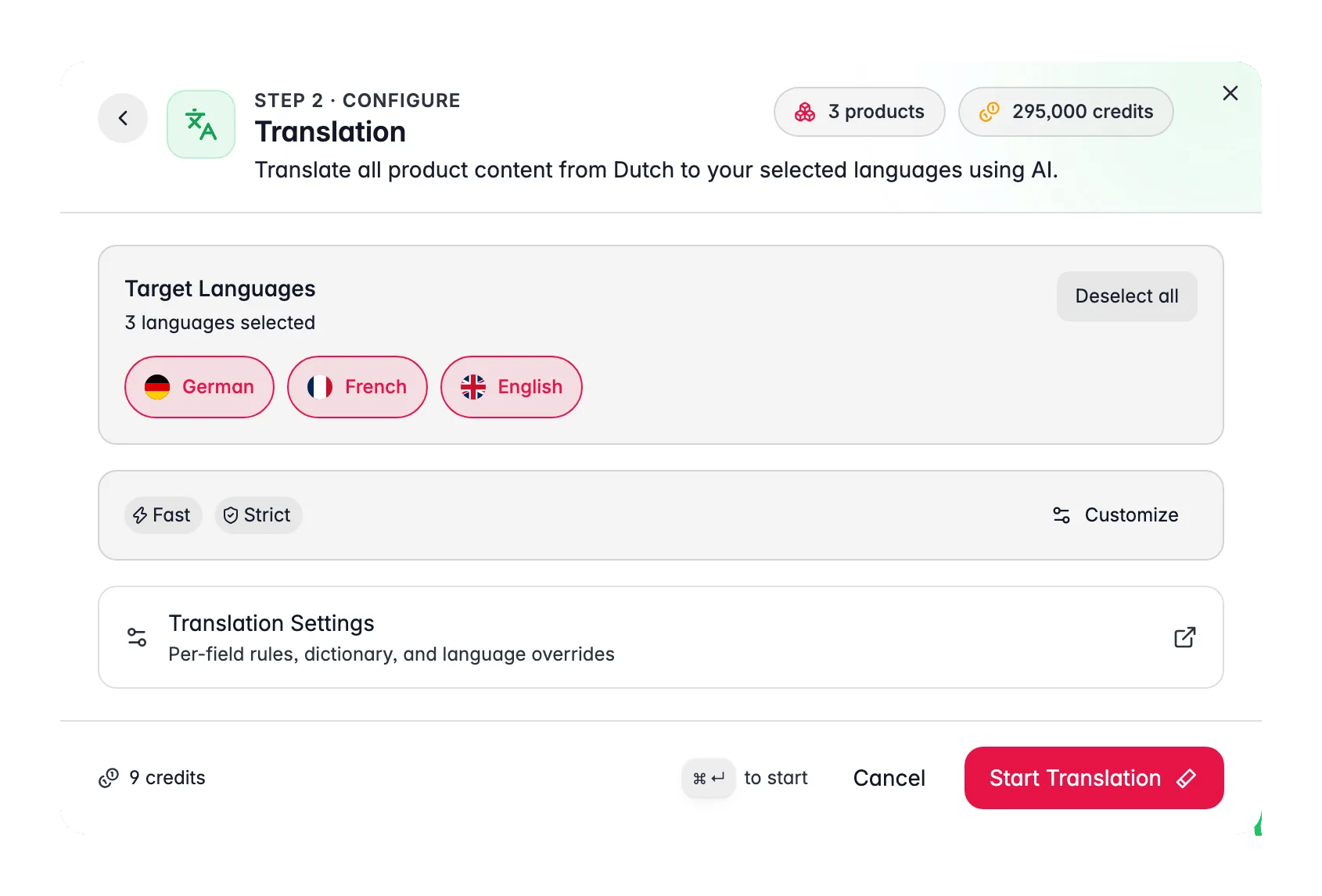
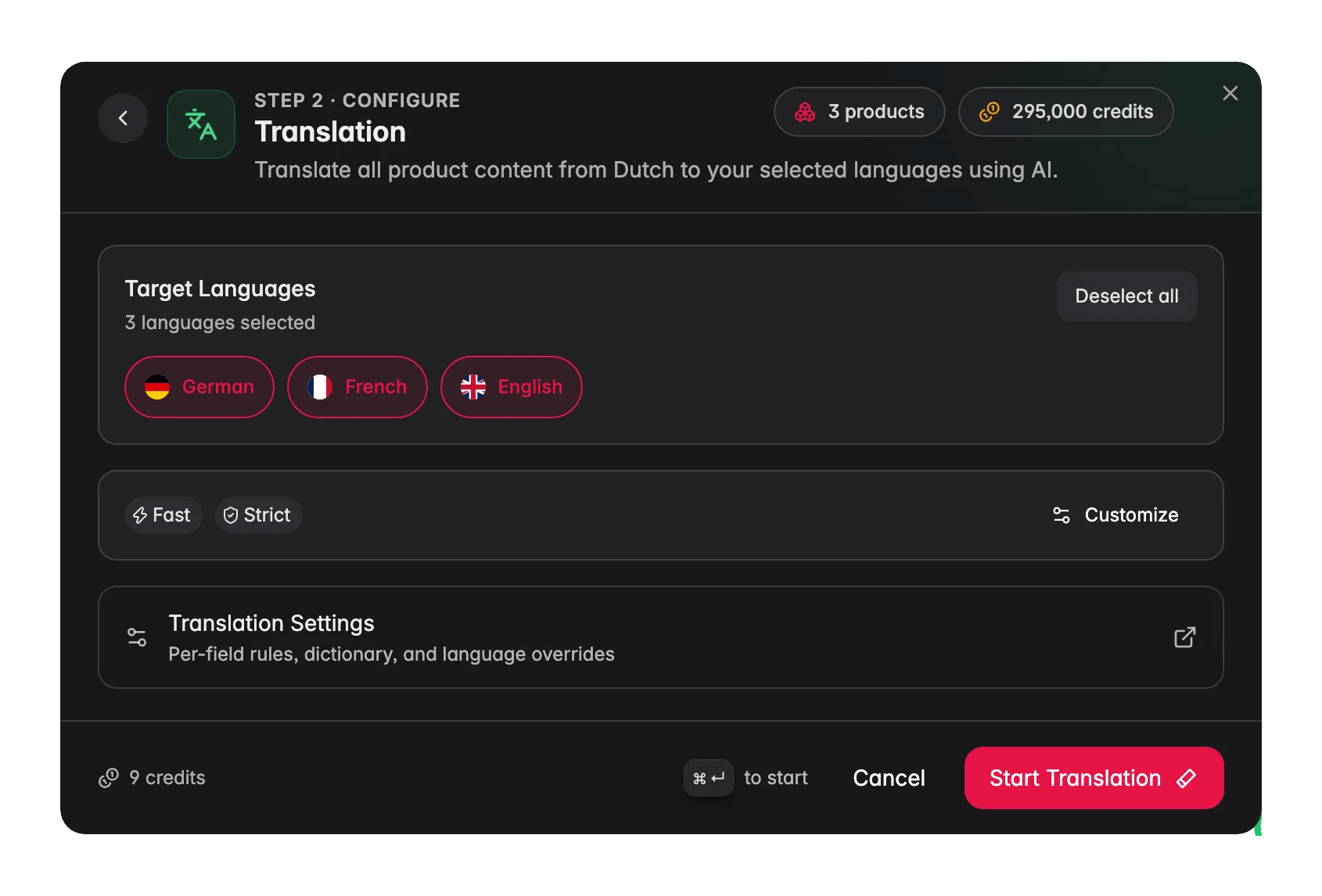
Select Translation. AI translates the six core fields into each language set up in your project. Open the options to fine-tune what gets translated and how (see below).
4
Pick a mode
Choose Fast or Pro. Fast is the default and the right choice for almost every run (see below).
5
Start enrichment
Click Start Enrichment. The translation runs in the background. Track its progress in the Process Tracker.
Fast or Pro
There are two translation modes. They differ in the model behind them, and in what they cost.Translating one product into three languages costs 3 credits on Fast and 15 credits on Pro. Check your balance in Settings > Billing before a catalog-wide run.
What keeps translations consistent
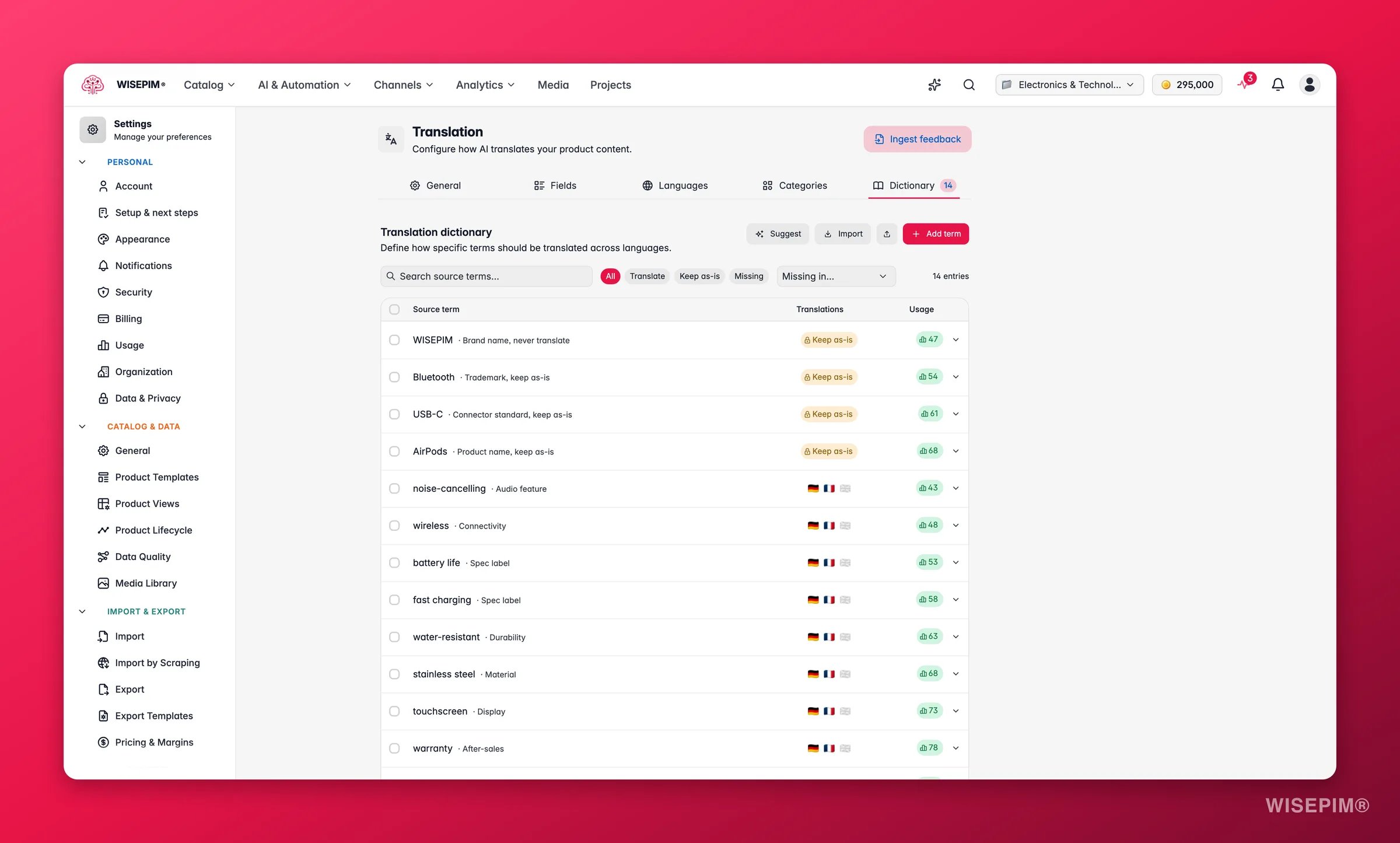
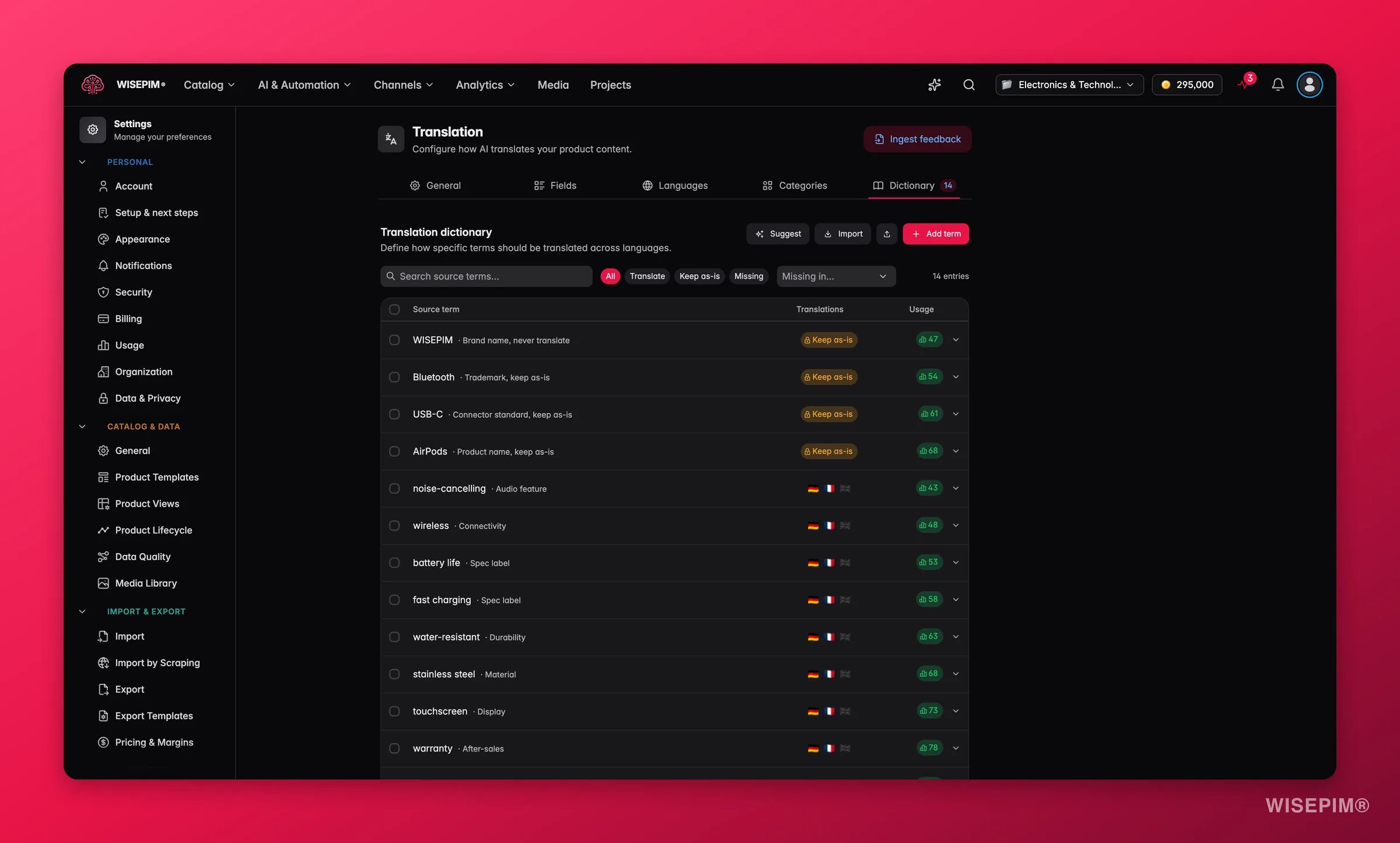
- Translation memory. The same phrase gets the same translation every time, across chunks, across products, and across separate runs. Your brand words and stock phrases stay stable.
- Re-translation only when it is needed. A language is skipped if it was already translated with the same settings from the same source text. Change the source and it is translated again automatically, so editing or enriching a description forces a fresh translation instead of leaving a stale one behind.
- An optional auto-learn glossary. Turn it on in Settings > Translation and confident findings from your linguistic reviews become dictionary entries by themselves. It is off by default, and it never overwrites entries you set yourself or terms you marked as do-not-translate.
Credits are reserved when you launch the run. If your balance does not cover the whole selection, WISEPIM translates as many products as the balance allows and drops the rest, and the task log tells you how many it could afford. If a translation fails, the credits for it are refunded automatically at the same weight, so a failed Pro language returns 5 credits. You are only charged for the languages that actually came back, and a resumed run never pays twice for chunks that were already prepaid.
If a run stops early
Translation tasks can be picked back up from the Process Tracker:- Resume finishes only the products that were never processed. It costs no extra credits, because the original run already paid for them.
- Restart runs the whole selection again from the start, and is charged as a fresh run.
- Retry failed re-runs just the items that failed.
Fine-tune the translation
The defaults work out of the box, but a few options materially change quality. Open them in the Enrich with AI modal before you start:Pick the fields
Choose which of the six fields to translate. Skip the ones you do not need, or translate only metadata for an SEO pass.
Set the tone and style
Pick a tone of voice and a style from literal to creative. Literal stays close to the source. Creative adapts the copy for the new market.
Preserve brand names
Keep brand and product names exactly as written, so they are never translated by accident.
Add custom instructions
Give AI extra guidance, for example “use formal address” or “keep units in metric.” Save instructions you reuse as a template.
Supported languages
WISEPIM supports 93 languages, including English, Dutch, German, French, Spanish, Italian, Portuguese, Polish, Scandinavian languages, Asian languages, and more. Which ones you can use depends on the languages you set up in Settings > General.Review translations
When translation finishes, use the language selector on the Products page to switch languages and check the results.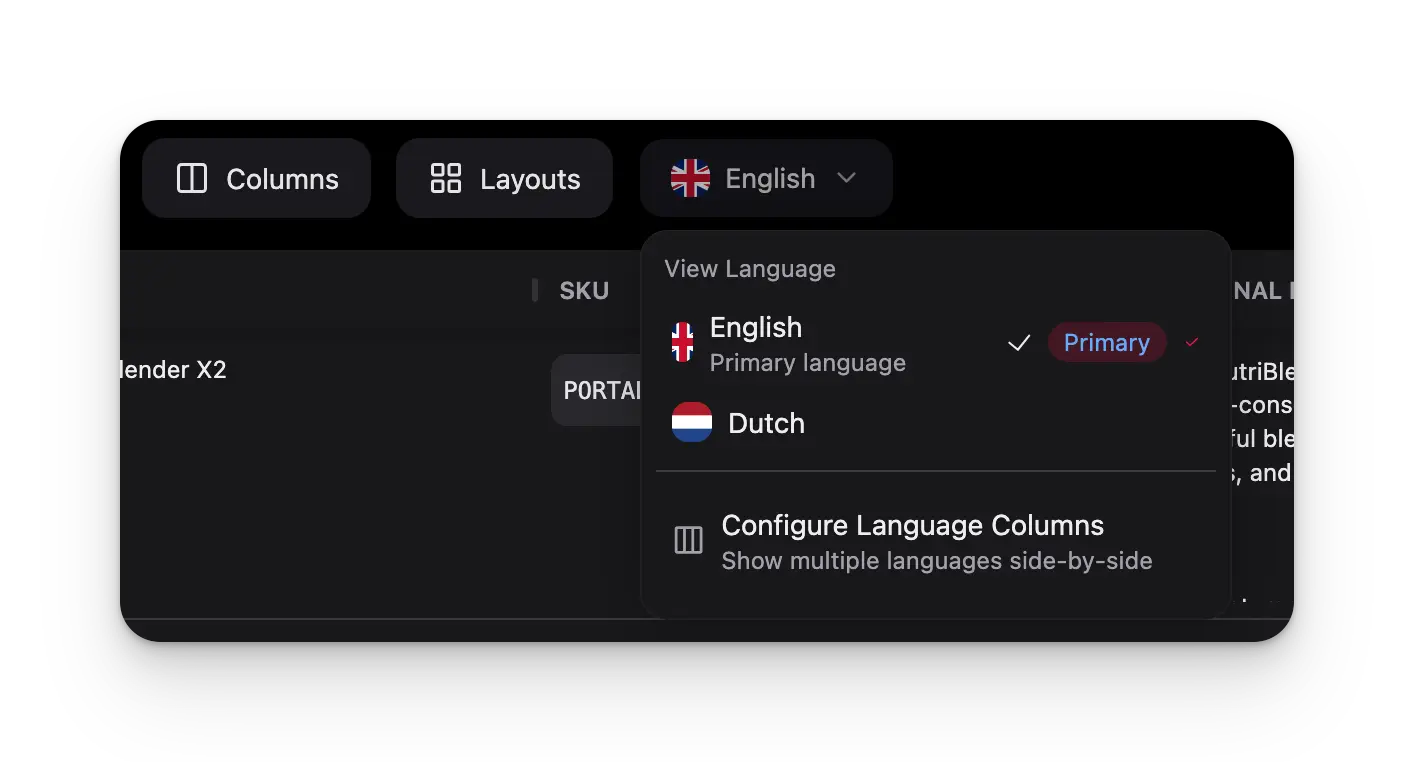
1
Switch language
Pick a target language with the language selector.
2
Check the fields
Review the translated title, description, short description, and meta fields.
3
Compare side by side
Use Configure Language Columns to view several languages next to each other.
Translation status
Each product tracks its own translation status. Filter the products table by status to find what still needs work.
Individual fields can also show as Outdated. This happens when you change the source text after translating: the existing translation no longer matches, so the field is flagged for a re-run. Translate again to bring it back in sync.
Best practices
Improve before translating
Enrich products in your primary language first. Better source text means better translations.
Start with a small batch
Translate 5 to 10 products first to check quality before you run the full catalog.
Review specialized terms
Technical terms, brand names, and product jargon may need a manual touch-up after translation.
Translate by category
Filter by category and translate in batches. This makes review easier and keeps each category consistent.
Troubleshooting
The Translation option isn't available
The Translation option isn't available
Set up at least one target language besides your primary language in Settings > General.
The translation didn't start
The translation didn't start
Make sure you selected at least one product. Then check that you have enough AI credits in Settings > Billing. With a partial balance the run still starts but only covers the products it can pay for; with no affordable products it stops with “Insufficient credits”.
Translation quality is poor
Translation quality is poor
Improve your source content first. Enrich with AI in your primary language before you translate.
Some fields weren't translated
Some fields weren't translated
Only text fields are translated. Numbers, images, and codes stay as they are. An empty source field has nothing to translate.
Related
Enriching products
Sharpen titles, descriptions, and metadata before you translate.
Settings: General
Set up the project languages that translation uses.
Process Tracker
Watch the progress of background translation jobs.
Managing products
Filter, select, and review products across languages.
Launch a new market language
From adding a locale to a reviewed, per-language feed you can publish.