

Set up your product templates first. New products are then pre-filled with your default brand, price, status, product type, and more, so you fill in less every time.
Create a product
1
Open the create modal
Click the + button in the top-right toolbar of the Products page.
2
Give it a name
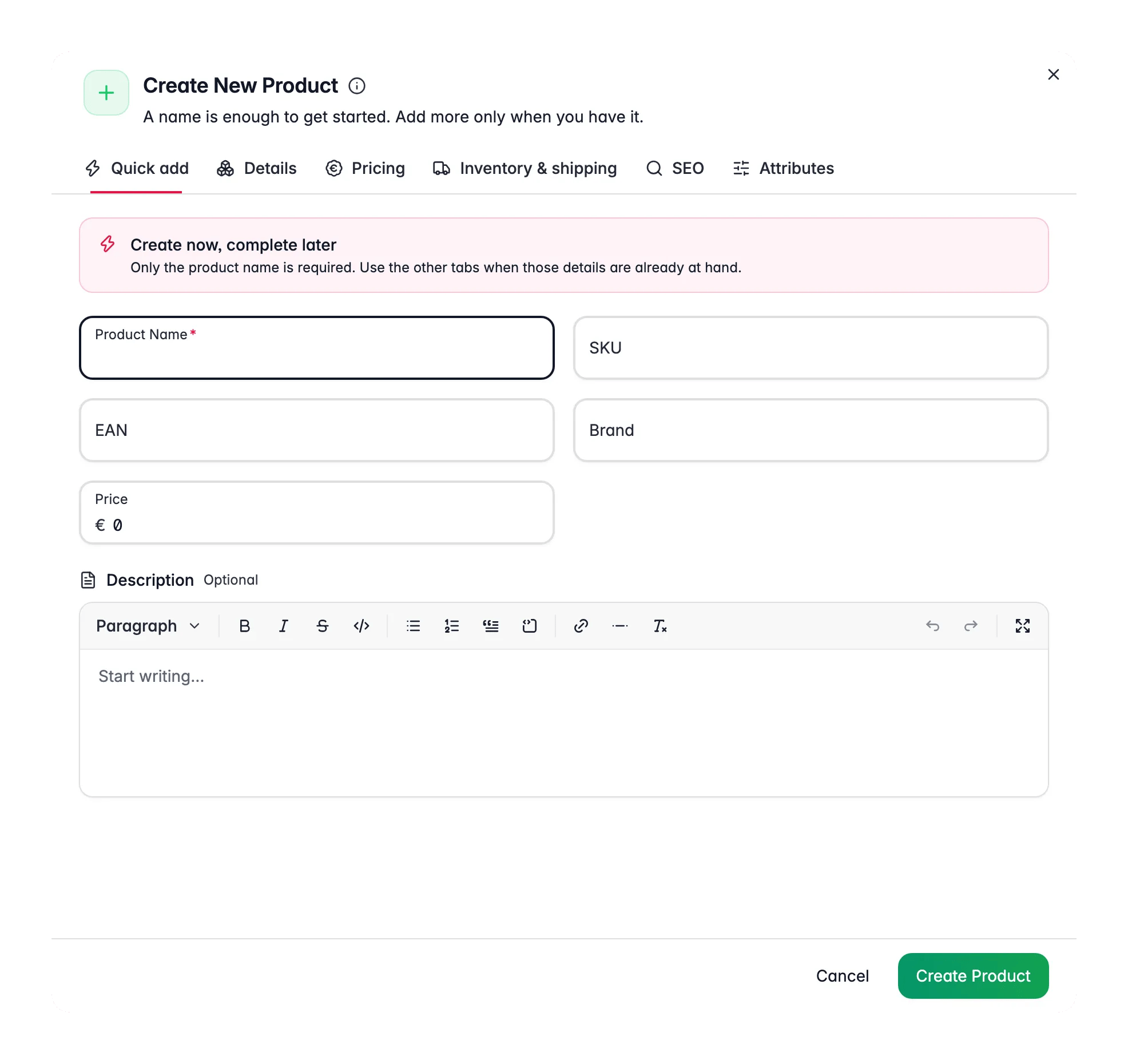
The modal opens on the Quick add tab: Create now, complete later. Only the product name is required. Add a SKU, brand, or price here if you already have them.
3
Add more detail (optional)
Switch to the Details, Pricing, Inventory & shipping, SEO, or Attributes tab for the rest. See the full field list below.
4
Click Create Product
The product appears in your table right away. WISEPIM saves it in the background.
Product fields
Only the product name is required. Every other field is optional, and template defaults can fill many of them for you.Required
- Product Name: the display name of the product.
SKU
Type a SKU yourself, or click the generate button to create one from your SKU template pattern.Optional
The other tabs group the remaining fields into sections:
Brand and Supplier autocomplete from the values already used in your project, so spellings stay consistent from the first product on.
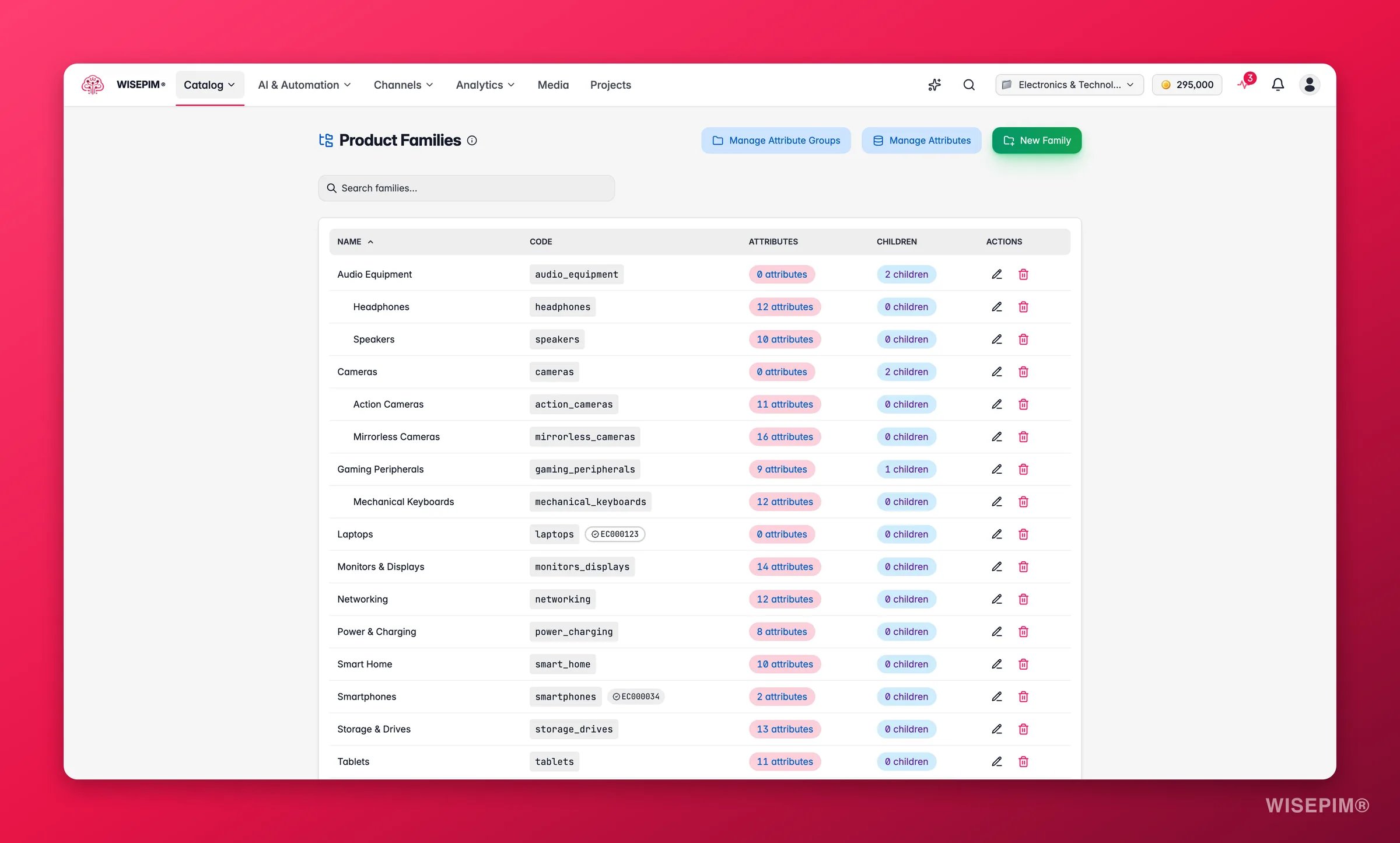
Choosing a Product Family at create time attaches that family’s attributes to the product, ready to fill in later from the editor’s Custom Attributes tab.
Products that are variants of each other
Save time with template defaults
When you have product templates configured, new products are pre-filled with your default values. This saves time and keeps your catalog consistent. Some of these defaults don’t appear as fields in the create modal, but they’re still applied automatically when the product is created. So even with a near-empty form, your new product can already have the right SEO patterns, stock settings, shipping rules, and category in place. Template defaults can include:- Brand, supplier, and status
- Price and cost
- Product type and visibility
- Product family and category
- SEO fields (meta title and description patterns)
- Stock management settings
- Weight and dimension units
- Shipping requirements
Adding products faster
Set up templates before you start
Set up templates before you start
Configure your product templates first. You then skip filling in the same defaults on every new product.
Use product families for attributes
Use product families for attributes
Assign a product family and the right attributes are added for you. No need to set them up one by one.
Import many products at once
Import many products at once
Adding a lot of products? Importing from a spreadsheet or connected platform is much faster than creating them one by one.
Related
Product templates
Configure default values and SKU patterns that pre-fill every new product.
Product families
Assign a family to add the right set of attributes automatically.
Importing products
Create many products at once from a spreadsheet or connected platform.
Editing products
Open a product and fill in the rest of its details.