

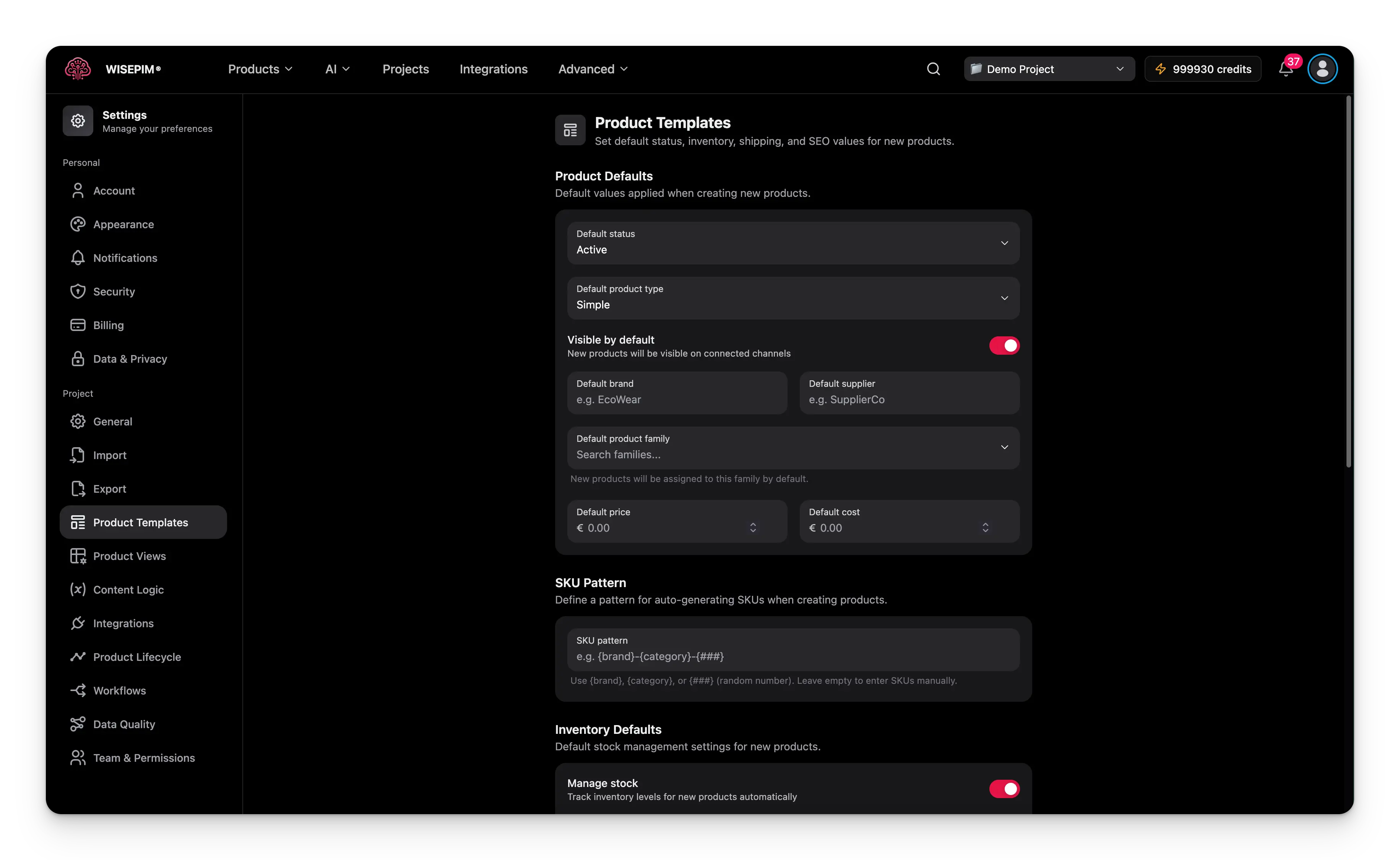
Templates only apply to products created after you save them. Existing products do not change.
Set product defaults
These are the baseline values every new product starts with. You can override any of them on a product later.Status and type
- Default status: where new products begin.
- Draft: hidden from channels.
- Active: published.
- Archived: hidden but kept.
- Default product type: the kind of product to create.
- Simple: a standalone product.
- Configurable: has variants like size or color.
- Bundle: groups several products together.
- Virtual: non-physical, such as a service.
Visibility
Choose whether new products are visible on connected channels by default. When this is off, new products stay hidden until you publish them yourself.Brand and supplier
Pre-fill a default brand and supplier. They appear on every new product, and you can change them per product.Family and category
If your account has product families and categories set up, pick a default for each. New products are placed there automatically.Pricing
Set a default price and cost. Leave them blank to enter pricing by hand for each product.Auto-generate SKUs
Build a pattern and WISEPIM creates a SKU for every new product. A live preview below the field shows how generated SKUs will look. Use these variables in your pattern:
Example: the pattern
{brand}-{category}-{###} with brand “EcoWear” produces SKUs like EcoWear-TSHIRTS-4821.
Leave the SKU pattern blank to assign SKUs by hand.
Set inventory defaults
Control how stock works for new products:- Manage stock: turn automatic inventory tracking on or off.
- Default stock status: choose In Stock, Out of Stock, or On Backorder.
- Low stock threshold: the quantity that triggers a low-stock alert.
Set shipping defaults
Define default shipping and measurement settings:- Requires shipping: turn off for digital products or services that do not ship.
- Weight unit: grams, kilograms, ounces, or pounds.
- Dimension unit: centimeters, meters, inches, or feet.
- Country of origin: the default manufacturing or origin country.
Auto-generate SEO fields
Create patterns that fill the meta title and meta description for every new product. Patterns support dynamic variables, so each product gets unique, relevant text. Use{name}, {brand}, {sku}, or {category} as placeholders. If you have content logic variables set up, you can also use the {{product.field}} syntax, with autocomplete to help.
Save your changes
When you change any setting, a save bar appears at the bottom of the page:- Save: stores your template settings for this project.
- Undo: reverts everything to the last saved state.
Related
Creating products
Add products that start with your template defaults.
Importing products
Bring in products in bulk from a file or integration.
Content logic variables
Build the
{{product.field}} variables used in SEO patterns.Data quality
Check that products meet your quality standards.