

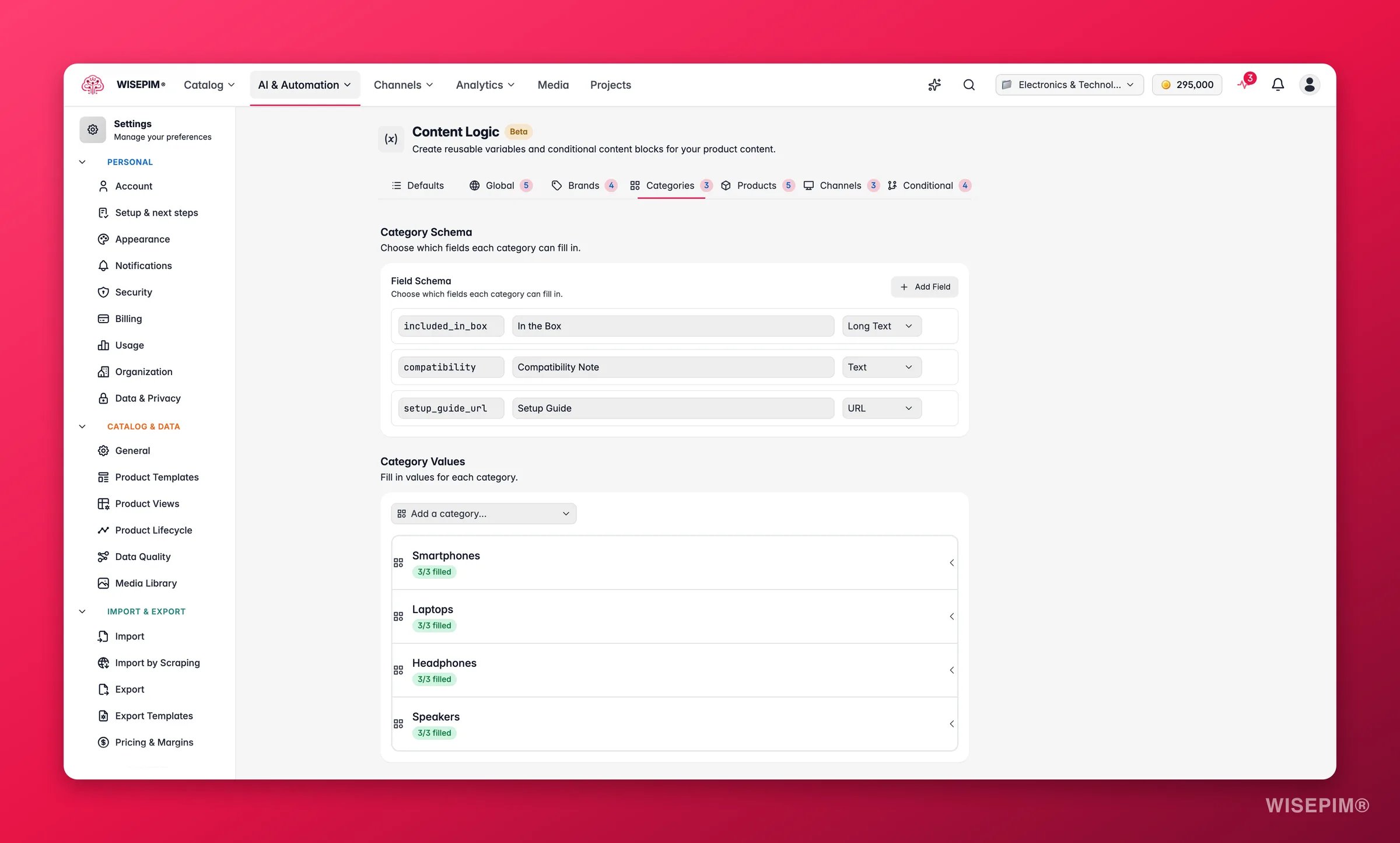
Category variables resolve from each product’s primary category. Make sure your products have one set. Use Set Primary Category to assign them in bulk.
Set up category variables
1
Define a schema
Create the fields you need, such as
material or care_instructions. Give each one a key, a label, and a type: text, long text, or URL.2
Fill in values per category
Select each category and enter its specific values. The progress indicator (“3/5 filled”) shows which categories still need values.
3
Reference in content
Use
{{category.your_key}} in any formula-enabled field. Each product resolves to its primary category’s value.“Stainless Steel Hex Bolt M10x50 by Fischer. High-grade fasteners for structural and industrial applications.”
What you can do with them
Here are common ways to use category variables. Each one is a field you define once and fill per category.Category introductions
Category introductions
Write a one-liner per category and inject it into short descriptions with Set Field Value.
Material specifications
Material specifications
Different categories use different materials. Store them per category instead of per product.
Care and maintenance instructions
Care and maintenance instructions
Size and measurement guides
Size and measurement guides
Link to category-specific sizing resources. Use the URL field type.
Minimum order quantities
Minimum order quantities
Different product types may have different MOQs.
“Minimum order: 100 units. Ships within 3-5 business days.”
SEO keywords
SEO keywords
Regulatory standards
Regulatory standards
Different categories fall under different standards and certifications.
Shipping notes
Shipping notes
Some product types have special shipping requirements.
Append it directly, or use it in a conditional block:
Installation guides
Installation guides
Link to or embed installation instructions relevant to the product type.
Tips
- Combine category variables with brand variables for multi-layered content, such as
{{category.short_intro}} {{brand.tagline}}. - Category values can include other variables, like
{{global.lead_time_text}}.
Related
Brand Variables
Store content that differs per brand instead of per category.
Set Primary Category
Assign a primary category to products in bulk.
Global Variables
Define values that stay the same across every product.
Conditional Blocks
Show different content based on product data.