

{{product.price}} and it always shows the current price. Change the price, and every formula using it updates too.
Browse the full list on the Defaults tab in Settings > Content Logic.
How to use them
Type{{ in any formula-enabled field to open the autocomplete dropdown. Default variables appear grouped by category. Click one to insert it.
What you can build
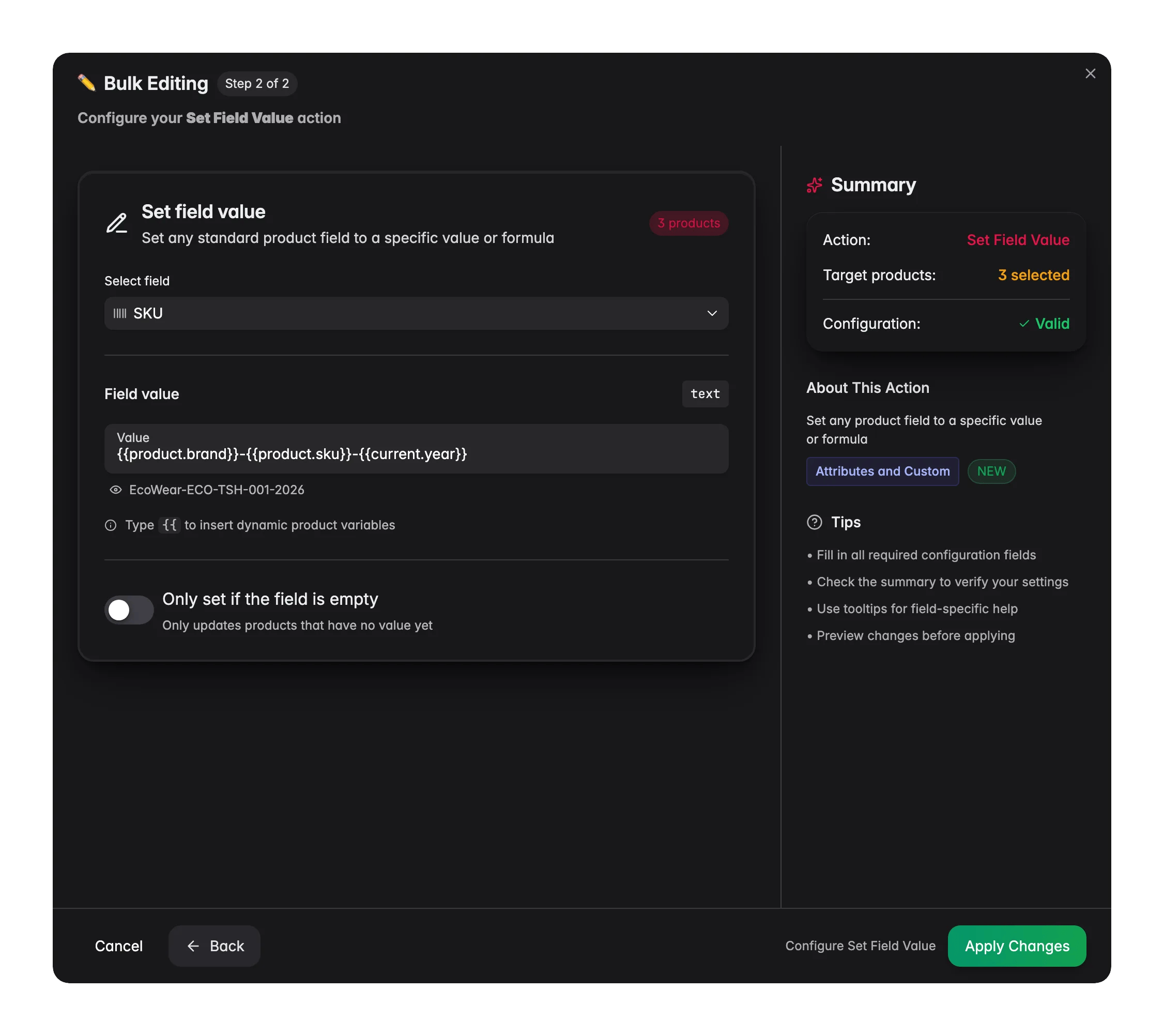
Here are common ways to put default variables to work. For example, a short formula can generate a unique, consistent SKU for every selected product in one bulk edit: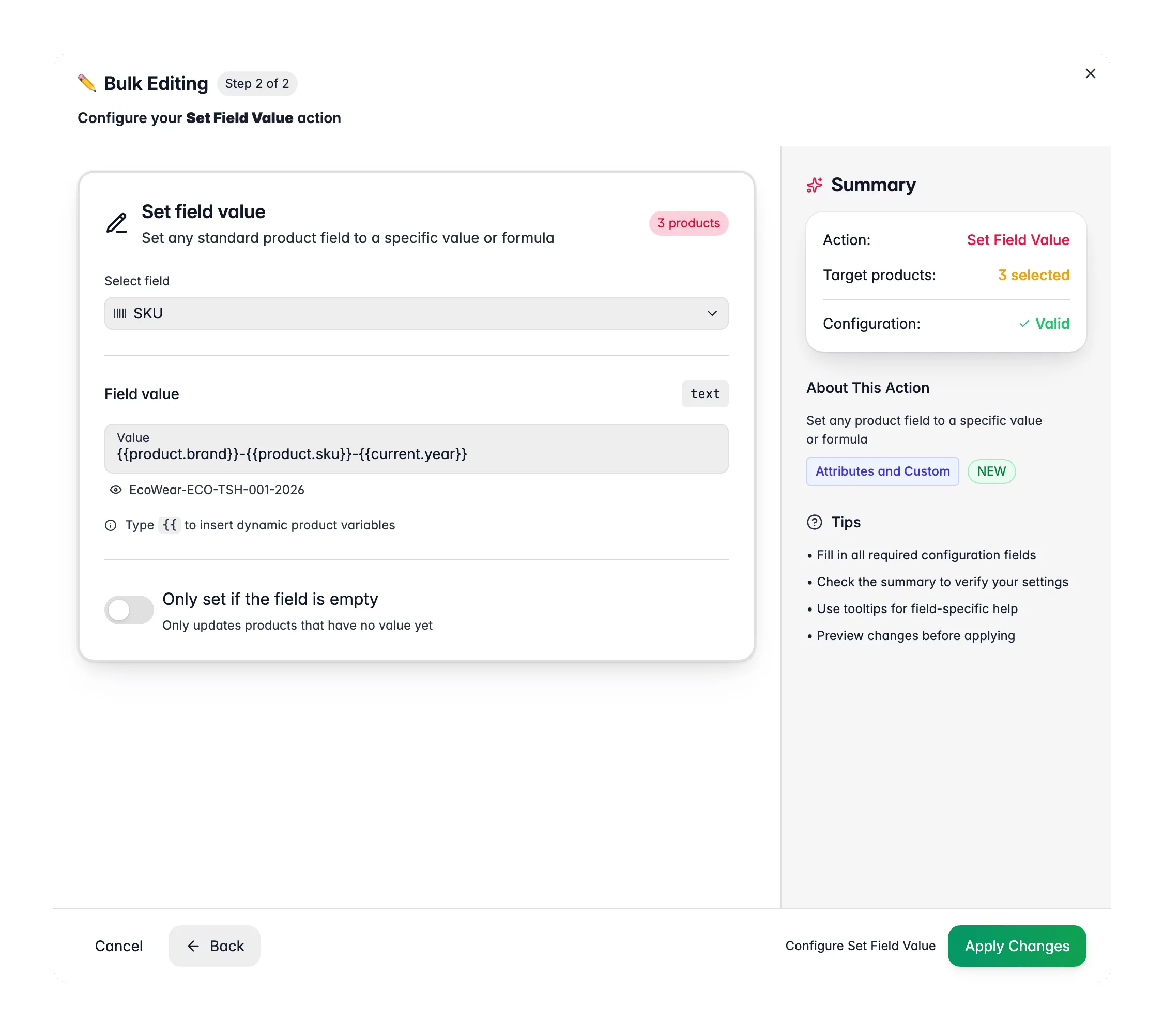
Dynamic SEO titles
Dynamic SEO titles
Generate unique, keyword-rich SEO titles for every product without writing them by hand. Apply it across your catalog with Set Field Value.
“Stainless Steel Hex Bolt M10x50 | Fischer | Buy Online”
Structured B2B short descriptions
Structured B2B short descriptions
Build consistent short descriptions with the specs buyers search for.
“Stainless Steel Hex Bolt M10x50 (SS-HB-M1050) | 0.085 kg | 50×17×17 mm”
Price-per-unit value metrics
Price-per-unit value metrics
Show calculated value metrics without keeping a separate field. Define a product variable with the formula:Then reference it as
{{product.price_per_kg}} in your descriptions:“€15.29/kg”
Auto-generated meta descriptions
Auto-generated meta descriptions
Create SEO descriptions with real pricing data that update automatically when prices change.
“Buy Stainless Steel Hex Bolt M10x50 for €2.45. Fischer quality. SKU: SS-HB-M1050. In stock and ready to ship.”
Product identifier blocks
Product identifier blocks
Append a standardized identifier block to every description with Append/Prepend.
“Identifiers: SKU SS-HB-M1050 | EAN 4006209000123 | MPN 77123-M10”
Savings callout for sale items
Savings callout for sale items
Reference the computed savings variables in promotional content.
“Save €30.00 (23% off): was €129.99, now €99.99”
Seasonal content with dates
Seasonal content with dates
Use
{{current.season}} and {{current.year}} directly in content or in conditional blocks.“Nike Winter 2026 Collection”
Customs info in export templates
Customs info in export templates
Pull HS codes and origin data straight into export templates.
“HS Code: 7318.15 | Origin: DE | Weight: 0.085 kg”
Tips
- Default variables update automatically when product data changes. A price update flows through to every formula using
{{product.price}}. - Combine defaults with global, brand, and category variables for richer content.
Related
Product Variables
Build calculated variables from default fields and formulas.
Global Variables
Define values that stay the same across every product.
Conditional Blocks
Show different content based on product data.
Channel Variables
Reshape content per sales channel.