

Assign a family
1
Select products
Check the products one by one, up to 500. A selection of all filtered products doesn’t work for this action.
2
Open Bulk edit and choose Assign product family
Click Edit on the selection bar, then Assign product family under Families, categories & variants.
3
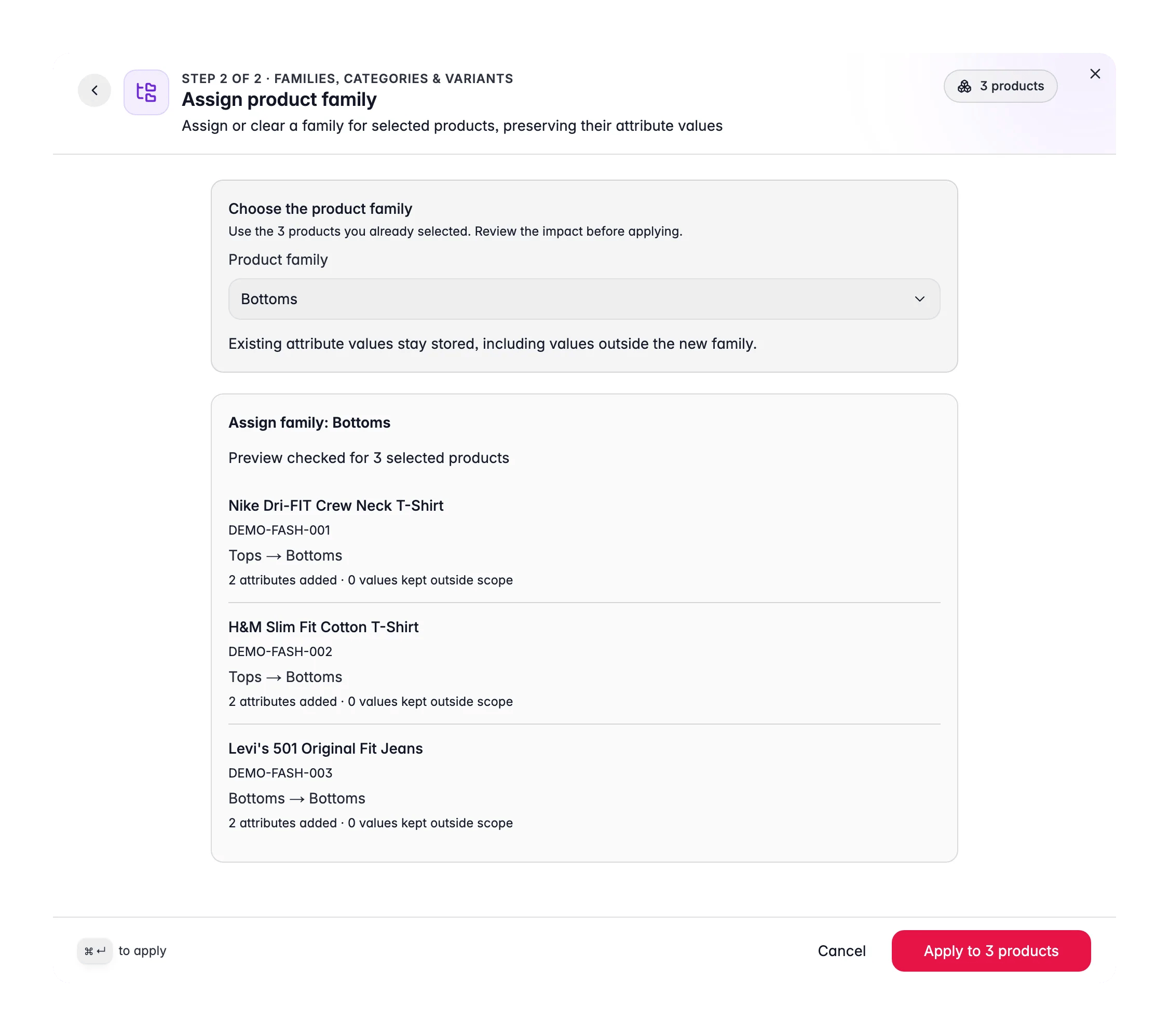
Choose the product family
Pick a family under Product family, or choose Clear assigned family to remove the family the products have.
4
Check the preview
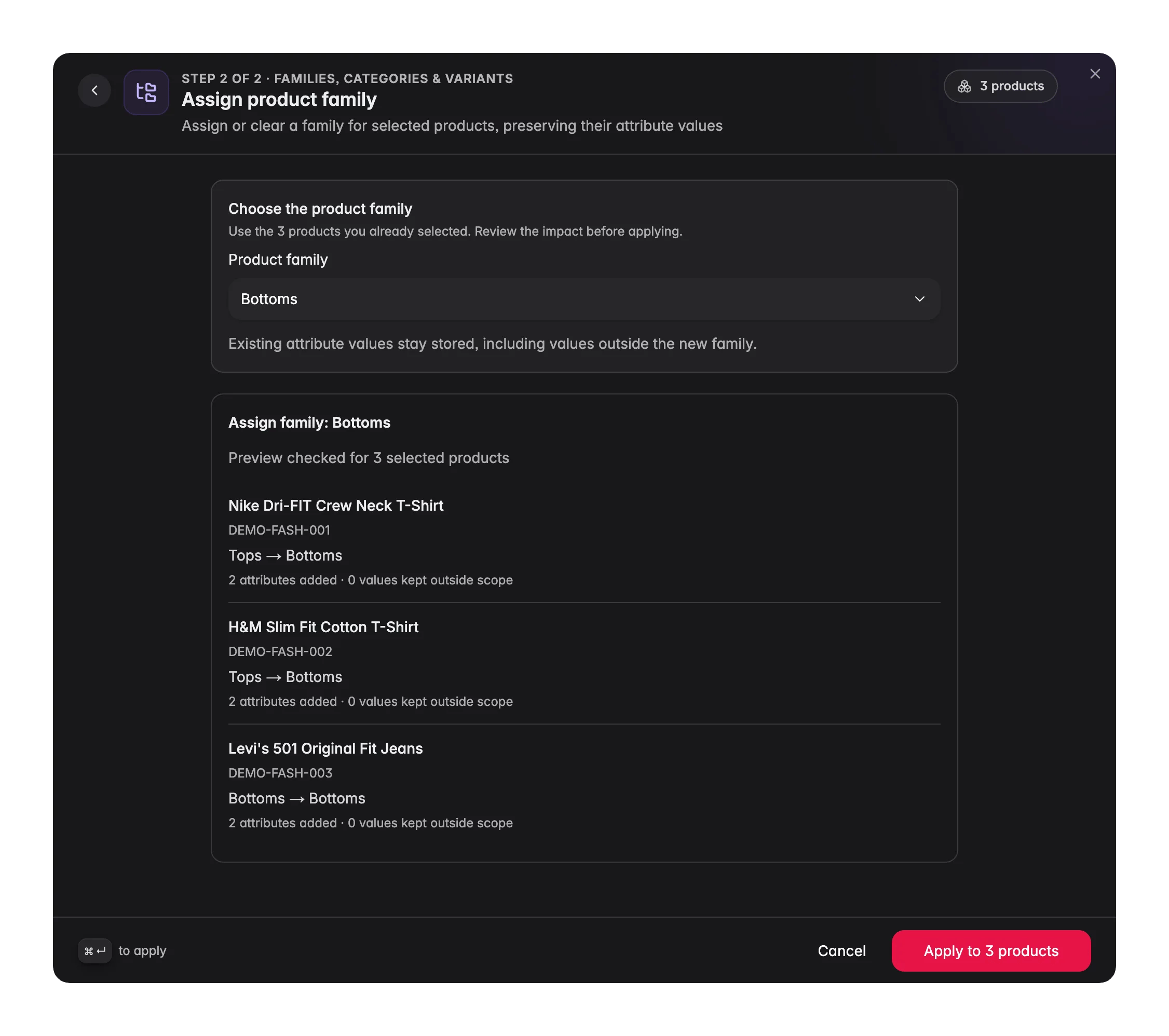
The preview lists each product with its family before and after, and “2 attributes added · 0 values kept outside scope”. Click Refresh preview if you changed something in between.
5
Apply
Click Apply to 3 products. WISEPIM confirms “Family updated for 3 products.” and links to Review change history.
What happens to attribute values
Existing attribute values stay stored, including values outside the new family. When a product moves to a family without an attribute it has a value for, that value is kept and counted as a value kept outside scope. Move the product back, or add the attribute to the family, and the value shows again. The attributes the new family brings arrive empty, ready for you, an import or AI to fill.Act on what you find
The action says to select up to 500 individual products
The action says to select up to 500 individual products
You selected all filtered products, or more than 500. Narrow your filter, check the products yourself and open the action again.
Many values are kept outside scope
Many values are kept outside scope
The products have values for attributes the new family doesn’t have. Check whether the family is the right one, or add those attributes to it on the Product Families page.
You assigned the wrong family
You assigned the wrong family
Open Review change history and undo the run. Values are restored for products nobody edited since.
Many products have no family at all
Many products have no family at all
Let WISEPIM suggest families from your products with guided setup on the Catalog Structure page.
Related
Product Families
Create families and decide which attributes they carry.
Catalog Structure
See how families, categories and attributes fit together.
Group as Variants
Make the selected products variants of one parent.
Bulk Editing
Every bulk action, the dry run and undo.