

This action sets your own custom attributes. To set built-in product fields like name, price, or SKU, use Set Field Value instead.
Set an attribute value
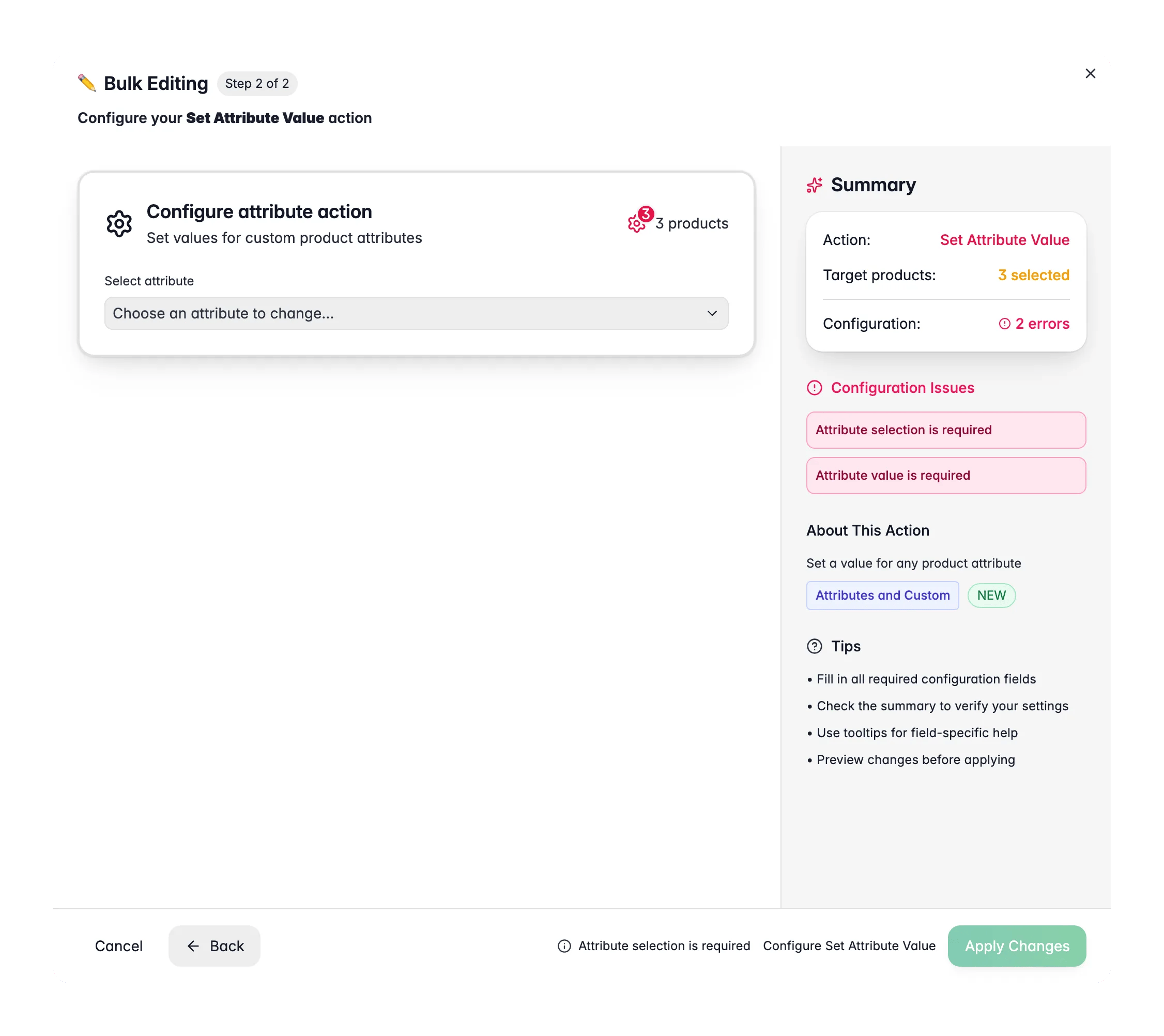
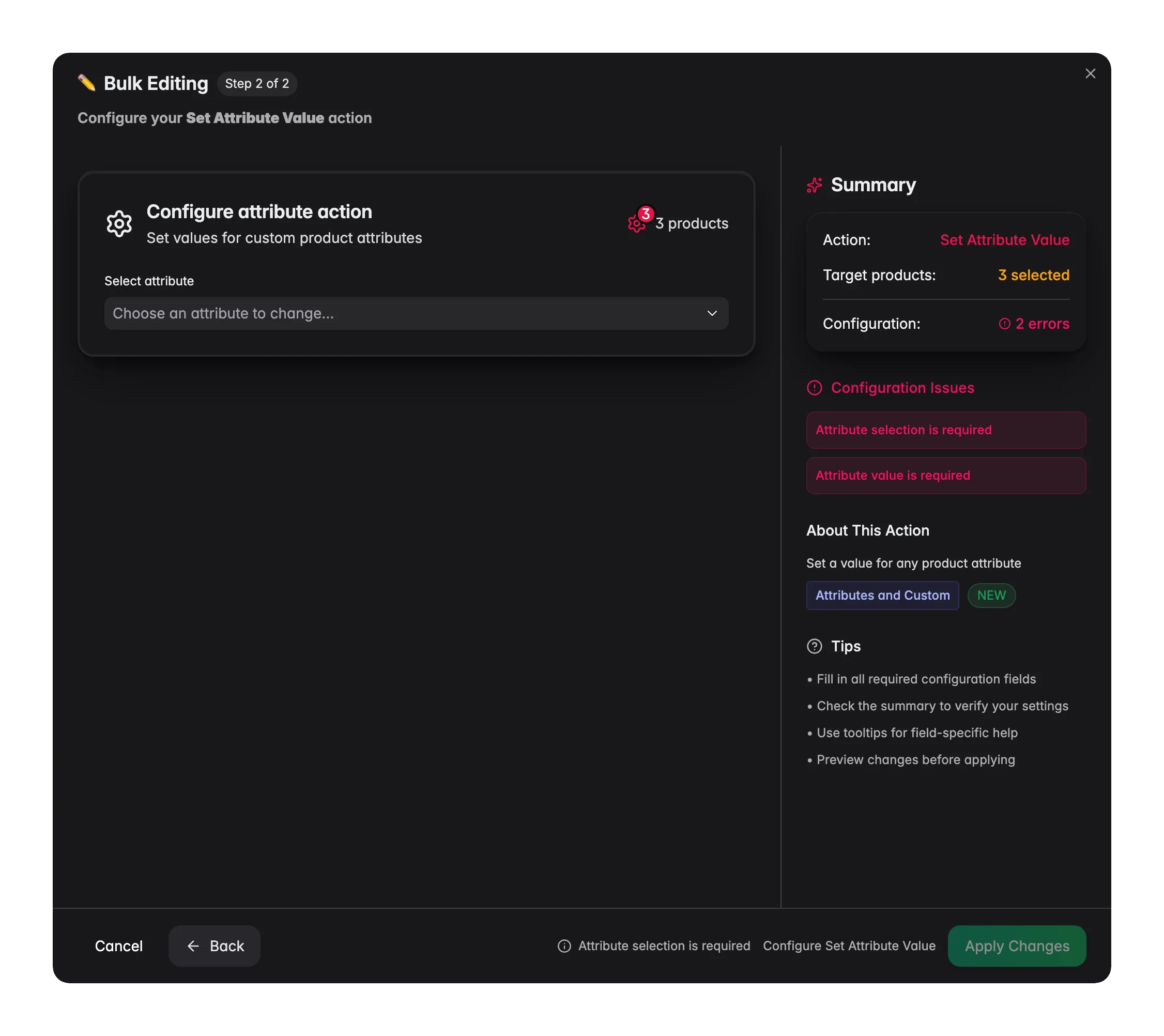
1
Select products
Check the products you want to update, or use filters and select all matching results.
2
Open Bulk Edit and choose Set Attribute Value
Click Bulk Editing, then search for “Set Attribute” or find it under Attributes & Custom Fields.
3
Choose the attribute
Pick the custom attribute from the dropdown. The input adjusts automatically to match its type.
4
Enter the value
Set the value using the input shown: a text field, number input, dropdown, date picker, and so on.
5
Set options and apply
Adjust any type-specific options, then click Apply.
Options
Options by attribute type
Some attribute types add their own options:Supported attribute types
Text, Textarea, WYSIWYG, Select, Multiselect, Checkbox, Radio, Boolean, Date, Datetime, Number, Decimal, Integer.Tips
- Turn on Only set if attribute is empty to fill gaps without overwriting values you already entered.
- For select and multiselect attributes, Create attribute value if missing lets you add new options on the fly. Handy when you introduce a new value.
- For text attributes, use Append to existing text to add to what is there instead of replacing it.
Related
Set Field Value
Set built-in product fields like name, price, or SKU.
Clear Attribute Values
Empty an attribute across selected products.