

Copy field values
1
Select products
Check the products you want to update, or use filters and select all matching results.
2
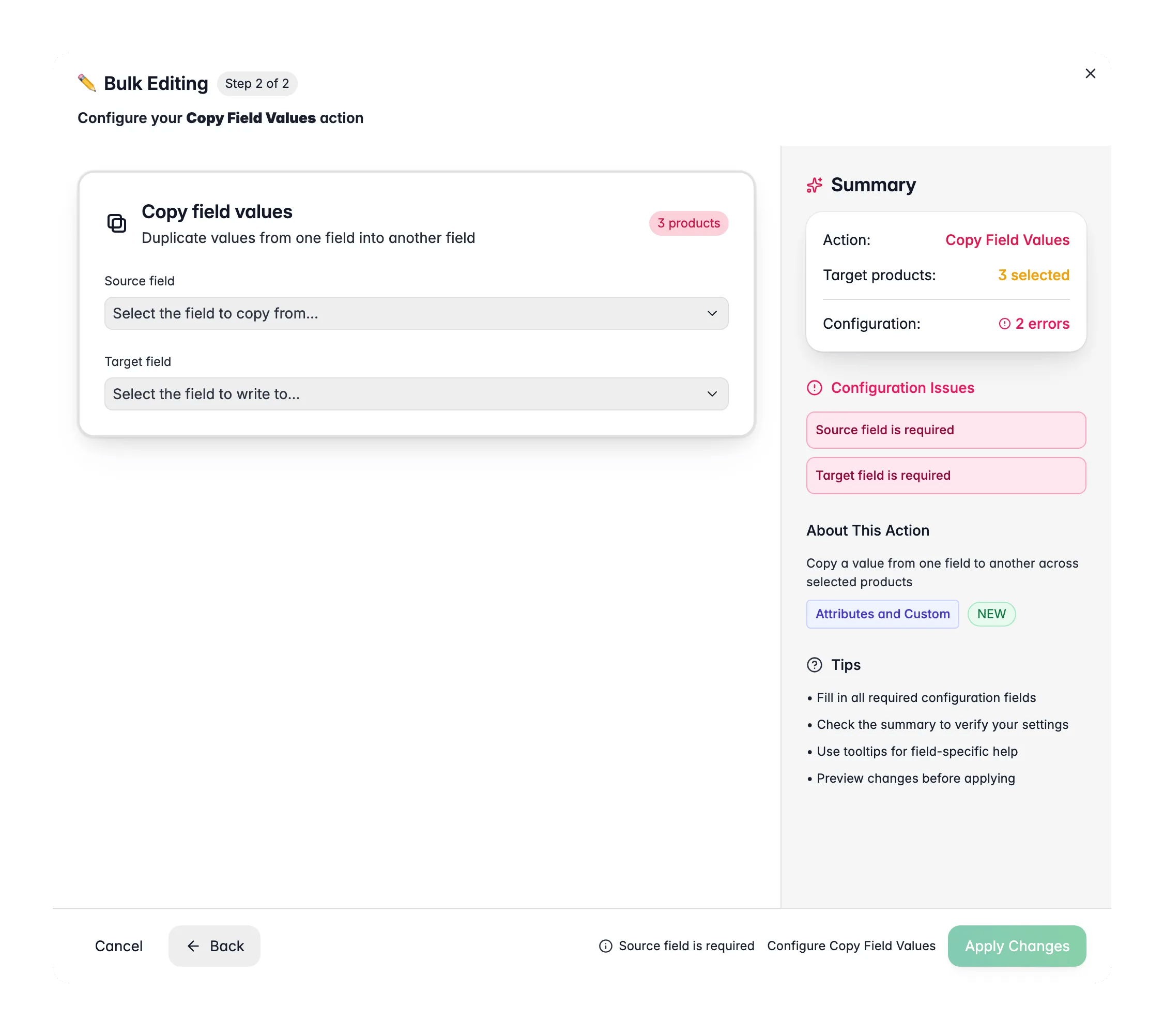
Open Bulk Edit and choose Copy Field Values
Click Bulk Editing, then search for “Copy Field Values” or find it under Attributes & Custom Fields.
3
Pick the source field
Choose the field to copy from. This is the field whose values get read.
4
Pick the target field
Choose the field to copy into. WisePIM shows whether the two fields are compatible and how values will convert.
5
Set options and apply
Decide whether to write only into empty target fields, then click Apply.
Options
You can pick from a wide range of fields: text and SEO fields, identifiers like SKU and EAN, numeric fields like price and weight, enum fields like status and review status, boolean flags, and your custom attributes.
Type compatibility
When the source and target are different types, WisePIM converts the value and tells you how. For example:- A number copied into a text field becomes text.
- A decimal copied into a whole-number field is rounded.
- Multi-line text copied into a single-line field is flattened.
When to use it
- Seed a new field. Copy your description into the enriched description to give enrichment a starting point.
- Back up a value. Copy a field into a custom attribute before you run a risky change, so you can restore it if needed.
- Feed a channel. Copy a value into the exact field a marketplace or feed expects.
Copy keeps the source field as it is. To clear the source after transferring, use Move Field Values instead.
Related
Move Field Values
Transfer values and clear the source field.
Set Field Value
Set a default product field to a specific value or formula.
Set Attribute Value
Set a fixed value on a custom attribute across products.
All bulk actions
Browse every bulk editing action by category.