

<a> tags from descriptions and other text fields, so you can roll back AI-inserted internal links, switch storefront domains, or tidy up imported content that came with links you do not want.
You decide how much to remove. Keep the linked words and drop only the link, or remove the whole link and its text. You can also limit it to internal links, external links, or both.
Remove links
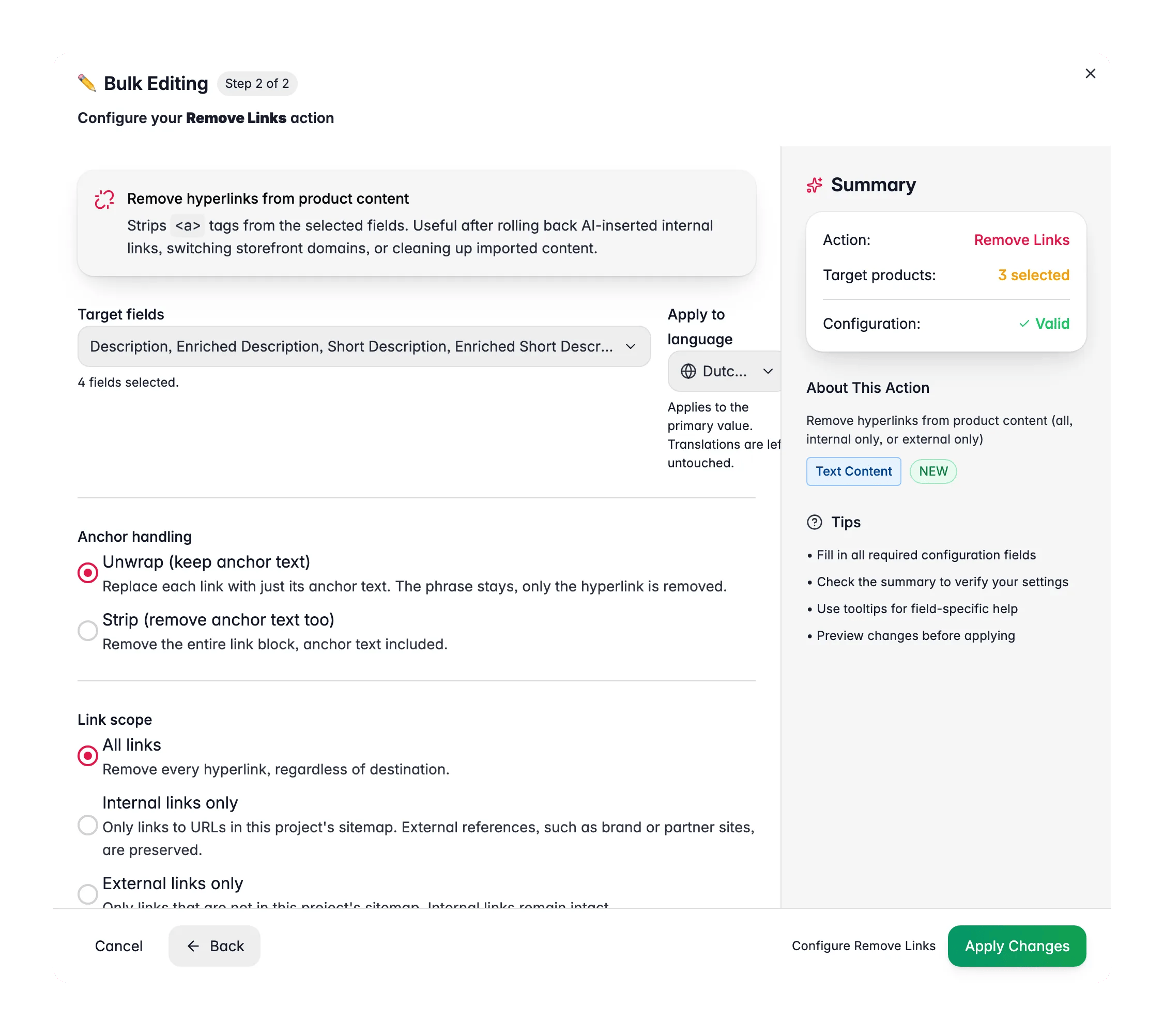
1
Select products
Check the products you want to clean up, or use filters and select all matching results.
2
Open Bulk Edit and choose Remove Links
Click Bulk Editing, then search for “Remove Links” or find it under Text & Content.
3
Choose your target fields
Pick which fields to clean: description, enriched description, short description, SEO fields, or custom text attributes. If you have multiple languages, set the language scope.
4
Choose how to handle the anchor text
Decide whether to keep the linked words or remove them along with the link.
5
Choose which links to remove and apply
Remove all links, or only internal or only external ones, then click Apply.
Options
Anchor handling
- Unwrap (keep anchor text): replaces each link with just the words it wrapped. The phrase stays, only the hyperlink is removed.
- Strip (remove anchor text too): removes the entire link and the words inside it.
Link scope
- All links: removes every hyperlink, wherever it points.
- Internal links only: removes links that point to URLs in this project’s sitemap. External references, like brand or partner sites, are kept.
- External links only: removes links that are not in this project’s sitemap. Internal links stay intact.
Internal versus external is decided by matching each link against this project’s sitemap. If your sitemap is empty, use All links instead, since WisePIM cannot tell the two apart without it.
When to use it
- Roll back AI-inserted links. If an internal-linking pass added more links than you wanted, strip them and start fresh.
- Switch domains. When you move to a new storefront domain, remove the old internal links so nothing points at the wrong place.
- Clean imported content. Supplier feeds and copy-pasted descriptions often carry stray links. Remove them to keep your content clean.
Related
Find and Replace
Replace or remove specific text across many products at once.
Trim Whitespace
Remove stray spaces left over from imports.
Enforce Dictionary
Apply your approved terminology across product content.
All bulk actions
Browse every bulk editing action by category.